Microsoft has added more Copilot entry points to Microsoft Forms and Word for iPad this week, bringing a new chat-based Forms experience to commercial Microsoft 365 Copilot users worldwide and extending in-place AI document editing to iPad users on Word version 2.109 or later.
The changes, first spotted by Neowin and backed by Microsoft’s support and Microsoft 365 Insider materials, are not a major product launch. They are another sign of Microsoft’s current Copilot strategy: put the assistant directly in the workflow, make it context-aware, and reduce the number of places where users have to go looking for it.
Copilot gets deeper into Forms
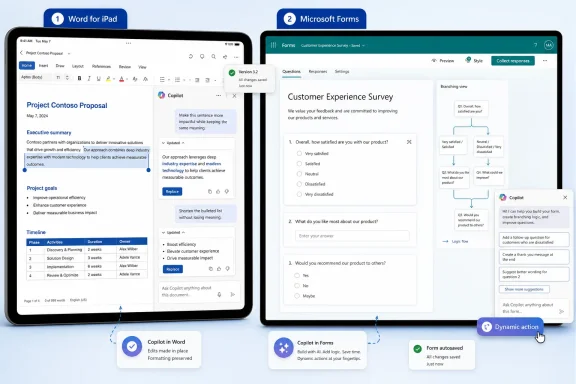
In Microsoft Forms, Copilot is being tied into Microsoft 365 Copilot Chat and surfaced through a floating Dynamic Action Button in the lower-right corner of the form editor. Microsoft has been using that button pattern across Office apps, and its support documentation describes it as a way to expose contextual Copilot actions inside Word, Excel, and PowerPoint.
For Forms authors, the practical change is that Copilot can now work against the active form rather than acting only as a more generic drafting helper. Microsoft says Copilot in Forms can already help generate surveys, polls, and quizzes, review questions for quality, suggest improvements, and assist with analysis. The updated experience adds a more conversational layer for tasks such as improving layout, reorganizing sections, identifying missing questions, checking conflicting settings, making bulk edits, and summarizing results.
Microsoft is also adding support for basic branching logic through the AI assistant. That is useful for common survey flows, such as sending respondents to different questions based on a previous answer, but it is not a replacement for careful form review. Complex branching scenarios are still limited, so admins and form owners should manually validate logic before distributing anything important.
The new Forms experience is rolling out worldwide for Microsoft 365 commercial Copilot users. Consumer users will continue to see the older Copilot integration for now.
Word for iPad catches up
Word for iPad is getting a Copilot editing feature that Microsoft has already made available in other Word clients. According to Microsoft’s Microsoft 365 Insider post, “co-create documents with Copilot in Word for iPad” is available to users with Microsoft 365 Copilot access on Word for iPad version 2.109, build 26051516, or later.
The feature lets Copilot make edits directly inside the open document while preserving formatting and structure through Word styles. Users can open a document, tap Edit document, select the Copilot button, and ask for revisions through the chat interface. Microsoft says changes can be previewed before being applied, and users can roll them back if the result is not useful.
There are still limits. Copilot cannot create a new document from this iPad feature, insert images, or add and edit comments. It is aimed at rewriting, restructuring, and refining an existing document rather than replacing the full authoring workflow.
What admins should note
For WindowsForum readers managing Microsoft 365 tenants, the main issue is less the individual feature and more the spread of Copilot surfaces across apps and devices. Forms now gets a more prominent Copilot Chat entry point, while iPad users gain a document-editing capability that may affect how reviewed or regulated content is changed on mobile devices.
Organizations already licensing Microsoft 365 Copilot should expect more user questions about where Copilot appears, why experiences differ by app and license, and whether AI-generated edits are subject to the same review rules as manual edits. For Forms in particular, branching logic created by Copilot should be treated as draft automation, not trusted configuration.
Users who want the Word for iPad feature should update to version 2.109 or later and sign in with an account that has Microsoft 365 Copilot access.
Learn about the Copilot Dynamic Action Button (DAB) in Word, Excel, and PowerPoint - how to open Copilot, dock the button, and find it if it's missing.
Today, we’re announcing the next generation of AI product updates across our business applications portfolio, including the launch of the new Microsoft Dynamics 365 Copilot – providing interactive, AI-powered assistance across business functions. According to our recent survey on business...
Microsoft has quietly rolled out another upgrade for Word on iPhone: Copilot can now work as a co-creator directly inside your Word document on iOS, letting you
Microsoft has added Microsoft 365 Copilot chat directly inside Microsoft Forms for users with Microsoft 365 commercial Copilot licenses. The verified change is specific: eligible form builders can use Copilot in Forms to suggest and apply refinements, analyze responses, and handle basic branching from inside the Forms workflow. That makes the update useful less because it “adds AI” in the abstract and more because it brings help to the three places where forms usually break down: writing clear questions, configuring the form correctly, and turning responses into decisions.
Microsoft Moves the AI Fight to the Boring Apps That Run Offices
The most important thing about this Forms update is not that Copilot can help with survey text. Generative AI assistance for drafting has become familiar enough that “help me create a form” is now the least surprising part of the feature set. The sharper move is that Microsoft 365 Copilot chat now lives within Microsoft Forms, placing the assistant inside the same tool where users build polls, surveys, quizzes, registrations, and intake forms.
That matters because forms are deceptively simple. A useful survey, event registration form, employee pulse check, customer feedback form, post-training quiz, or internal request form is not just a list of questions. It has wording, structure, required fields, settings, response windows, confirmation text, conditional paths, and eventually a pile of answers that someone has to interpret.
The verified feature set points to a full form lifecycle rather than a single writing trick. Copilot can suggest improvements to a form, apply refinements, help analyze responses, answer follow-up questions about results, and support basic branching. In practical terms, that means the assistant can help before a form is sent, while it is being configured, and after responses come in.
That is the real upgrade. Many users do not struggle because they cannot think of any questions. They struggle because their questions are vague, duplicated, too long, too leading, or missing the operational details needed to act on the answers. They also struggle with the administrative cleanup: making the right fields required, setting the right response behavior, and checking that the form works before sending it to real people.
Copilot’s value, if the experience works as described, is in reducing the gap between a user’s intent and a usable form. A manager can start with “I need feedback on this training session.” A coach can start with “I need to understand player availability.” A project lead can start with “I need a better intake form for requests.” Copilot can then help refine that rough intent into clearer questions, better structure, and more useful analysis.
The Upgrade Is Really About Workflow Gravity
Microsoft Forms already makes the most sense in organizations where Microsoft 365 is the default work environment. The Forms experience sits close to the accounts, files, spreadsheets, and collaboration habits many teams already use. For those users, the question is not usually whether a forms app is theoretically best in class. It is whether the tool already in the suite is good enough, fast enough, and easy enough to govern.
Copilot strengthens that existing Microsoft 365 logic. It does not turn Forms into a totally different category of software. It makes Forms more capable inside the workflow where many users already work: draft the form, refine the wording, configure the settings, collect the responses, analyze the results, and move the output into the next Microsoft 365 step when needed.
That is a concise but important platform advantage. A user who already lives in Microsoft 365 has less reason to export, copy, paste, reformat, or move between tools if the form builder can now receive AI assistance in place. The update is therefore not just about Forms competing as a standalone survey product. It is about Forms becoming another surface where Microsoft 365 Copilot can reduce friction inside the suite.
The adoption logic is straightforward: if an organization has eligible Microsoft 365 commercial Copilot users, Forms becomes more attractive because the assistant is available where the form work happens. If an organization does not have that licensing, the calculation changes. The most interesting parts of this update are tied to Copilot access, so this is not a universal upgrade for every casual Forms user.
Copilot’s Strongest Case Is Before Anyone Answers the Form
The first major use case is form design. Copilot can suggest and apply refinements, which matters because bad forms produce bad data. A confusing question, an ambiguous rating scale, a missing answer option, or a required field in the wrong place can undermine the entire response set without looking obviously broken.
For everyday users, the best use of Copilot may be quality control. A manager drafting an employee feedback survey may not notice that two questions ask nearly the same thing. A training coordinator may write a satisfaction question that sounds positive before the respondent has answered. A project lead may forget to ask for urgency, owner, department, or deadline. A volunteer organizer may ask for availability but fail to collect the contact details needed to follow up.
Copilot can help by reviewing the form’s structure and language, then suggesting refinements the user can apply. That does not mean the assistant should be treated as a survey expert. It means it can act as a fast reviewer for common mistakes: unclear wording, awkward sequencing, inconsistent answer formats, missing required fields, and questions that do not match the form’s stated goal.
The best immediate workflow is simple:
Draft the form’s purpose in plain English.
Ask Copilot to review the form for clarity and structure.
Apply only the refinements that match the real purpose of the form.
Re-read the final version as if you were the respondent.
Remove any AI-added detail that makes the form longer without making the answers more useful.
That last step is important. AI assistants can be good at adding polish, but a better form is not always a longer form. In many workplace scenarios, the best refinement is a shorter question, a clearer answer choice, or the removal of a field that nobody will actually use.
Settings Assistance May Save More Time Than Question Drafting
The most visible AI feature is usually content generation. In Forms, the more valuable feature may be configuration help. Form builders often lose time not because they cannot write questions, but because they must hunt through settings and repeat small edits across a form.
Copilot’s ability to help apply refinements and settings changes matters because forms involve repetitive operational work. A user may need to make several questions required. They may need to adjust confirmation or thank-you text. They may need to update a close date. They may need to make a set of questions behave consistently. None of that is strategically complex, but it is exactly the kind of clicking that leads to mistakes when users are rushing.
This is where Copilot fits well in productivity software. The assistant does not have to invent a brilliant survey to be useful. It can save time by turning a user’s instruction into action: tighten this wording, make these questions required, change this response text, or update the structure before the form goes out.
Users should still check the final result. Settings changes can affect who responds, what data is collected, and whether the form remains open longer than intended. But when the assistant is used as a configuration helper rather than an unquestioned decision-maker, it can reduce the administrative drag that makes many forms worse than they need to be.
Analysis Inside Forms Changes What Happens After Responses Arrive
The second major use case begins after people answer the form. Copilot can analyze responses and answer follow-up questions about the results. That is a meaningful addition because the response-analysis phase is where many forms stall.
Teams often collect feedback and then do very little with it. They glance at a chart, skim a few comments, export the data, or make a decision based on whichever responses are easiest to remember. The form technically worked, but the feedback never becomes a clear next step.
Copilot can help by producing a first-pass summary, identifying themes, and letting the form owner ask follow-up questions. A user might ask what topics appeared most often in open responses, which answer choice stood out, or what concerns were repeated across respondents. That can be especially helpful for small operational surveys where the goal is not formal research but faster sense-making.
Still, AI summaries need verification. This is the most important user behavior to adopt immediately: never act on a Copilot summary without checking it against the raw responses. Summaries can flatten nuance, overstate weak patterns, or make a small response set sound more decisive than it is. If only a handful of people responded, the assistant’s “insights” may be useful prompts, not reliable conclusions.
The right workflow after responses arrive is:
Ask Copilot for a summary of the results.
Ask for the main themes or repeated concerns.
Check the number of responses before treating any conclusion as meaningful.
Read the raw responses behind any major claimed theme.
Compare AI-generated takeaways with the charts and individual answers.
Decide what action is justified by the data, not just by the summary.
That makes Copilot a useful accelerator, not a substitute for judgment. The assistant can help users get oriented quickly. The form owner still has to decide whether the evidence supports action.
Basic Branching Is Useful, but It Must Be Tested
Branching is one of the most important parts of the update because it affects the respondent’s path through the form. Copilot can handle basic branching, which means users can ask the assistant to help route respondents through different paths based on answers.
That can save time. A training form could show different follow-up questions to managers and individual contributors. An IT intake form could route hardware, software, and access requests into different detail sections. A sports team availability form could show different questions to players in different roles. A customer feedback form could ask different follow-ups depending on whether the customer reported a problem.
But branching is also where mistakes become invisible. A form can look fine in the editor while sending respondents down the wrong path. A bad branch can skip a required question, show irrelevant prompts, hide an important section, or create incomplete results. Because respondents only see their own path, many users will never know that another path is broken unless the form is tested.
That is why Copilot-generated branching should be treated like an AI-generated spreadsheet formula: helpful, but not automatically trusted. If the assistant creates or changes branching, the form owner should preview the form and test every route before sending it.
A practical branching test should include:
One test response for each major path.
One test response for each answer choice that triggers branching.
A check that required questions still appear where they should.
A check that respondents do not land on irrelevant sections.
A check that the collected responses contain the fields needed for analysis.
A final review by someone other than the form creator for high-impact forms.
The key phrase is “basic branching.” Users should not assume that every complex scenario can be safely delegated to Copilot. If a form has many conditional paths, compliance implications, sensitive data, or operational consequences, the owner should test it carefully or simplify the design.
The Google Forms Question Should Be Treated as a Practical Choice, Not a Brand Fight
The obvious comparison is Google Forms, but the sharper question is not which product wins a generic popularity contest. The useful question is which workflow fits the user’s situation.
Based on the verified feature set, Microsoft’s practical advantage here is specific: eligible Microsoft 365 commercial Copilot users can work with Copilot inside Forms to refine forms, analyze responses, and apply basic branching. That is the difference this update introduces. It is not evidence that every Forms user now has a better experience than every Google Forms user, and it is not proof that Microsoft has solved every survey-design problem.
For Microsoft 365 organizations with Copilot licenses, the advantage is convenience and continuity. Users can stay in Forms while getting AI help with structure, refinement, analysis, and basic branching. That reduces the need to move between a separate chatbot, a spreadsheet, and the form editor for routine improvements.
For users without eligible Copilot licensing, the update is less decisive. Availability matters. If the user cannot access Microsoft 365 Copilot chat in Forms, then the comparison returns to more familiar factors: simplicity, existing accounts, sharing expectations, data workflows, and organizational policy.
The cleanest way to compare the products in this story is by the supported facts, not by broad claims:
Decision point
Microsoft Forms with Microsoft 365 Copilot chat
Practical meaning
Eligibility
Available to users with Microsoft 365 commercial Copilot licenses
First confirm whether the user actually has access
Form refinement
Copilot can suggest and apply refinements
Useful for improving clarity and structure before sending
Response analysis
Copilot can analyze responses and answer follow-up questions
Useful for first-pass summaries, but raw responses still need review
Branching
Copilot can handle basic branching
Helpful for simple paths, but every route should be tested
Best fit
Microsoft 365 environments with eligible Copilot users
Strongest when the organization already works inside Microsoft 365
That table avoids overclaiming. It does not assume details about Google Forms that are not part of the verified update. It also keeps the focus where it belongs: what the new Forms integration actually changes for people who can use it.
What Users Should Do Now
The immediate user guidance is straightforward: confirm access, test the features on a low-risk form, and build verification into the workflow before using Copilot on anything important.
First, confirm license eligibility. The update is for users with Microsoft 365 commercial Copilot licenses. That means two people in the same organization may not see the same Forms experience. Before writing internal instructions or promising the feature to a team, users should check whether their account actually has access to Microsoft 365 Copilot chat in Forms.
Second, try Copilot on a low-risk form before relying on it. A team lunch poll, internal meeting feedback form, volunteer signup, or draft training survey is a better test case than an employee relations survey or customer escalation intake. The goal is to learn how Copilot edits questions, applies refinements, and explains changes without creating business risk.
Third, test Copilot-generated branching. Do not send a form just because the assistant applied the logic. Preview the form. Walk through each branch. Submit test responses. Check the collected results. Confirm that the data appears in a usable shape. If a path is confusing during testing, it will be worse for real respondents.
Fourth, verify AI summaries against raw responses before acting. Copilot can help analyze results, but the user should still read the underlying answers behind any important theme. This is especially important for small response sets, sensitive feedback, or decisions that affect people directly.
Fifth, keep the form’s purpose visible. Copilot can improve structure and wording, but the owner should decide what the form is truly meant to answer. If the purpose is unclear, AI refinement may create a polished form that collects the wrong information.
What Admins Should Do Now
For administrators, this update is not only a productivity feature. It is a licensing, training, and governance issue. Forms can collect sensitive information, and Copilot can now help interpret that information. That combination deserves more attention than a routine feature toggle.
The first administrative task is to identify who has Microsoft 365 commercial Copilot licenses. Mixed environments will be common: some users may have the Copilot experience in Forms, while others may not. That can create confusion if training materials, help-desk scripts, or internal templates assume one universal experience.
The second task is to update guidance. Organizations may already have rules about who can create forms, what data can be collected, and where responses should go. Those rules should now cover AI-assisted drafting, AI-applied refinements, AI-generated branching, and AI-assisted response analysis.
The third task is to teach validation. Users should understand that Copilot can accelerate form creation and analysis, but the form owner remains responsible for the final result. That means reviewing questions, testing branching, checking settings, and validating summaries.
The fourth task is to set expectations for sensitive forms. If a form collects employee sentiment, customer complaints, personally identifiable information, regulated data, or information used for formal decisions, it may need a higher review standard. Copilot does not remove that need. If anything, AI-assisted analysis makes it more important to know what was collected and how conclusions were reached.
Action checklist for admins
Confirm which users have Microsoft 365 commercial Copilot licenses.
Tell users that Forms capabilities may differ depending on licensing.
Update internal Microsoft Forms guidance to include Copilot-assisted refinement, analysis, and branching.
Require manual review of any Copilot-applied branching before forms are sent.
Instruct users to verify AI summaries against raw responses before making decisions.
Create a review path for forms that collect employee, customer, regulated, or sensitive information.
Encourage low-risk pilots before teams use Copilot in Forms for high-impact workflows.
Prepare help-desk messaging for users who cannot see Copilot chat in Forms because they do not have the required license.
Review existing form templates to decide where Copilot refinement could help and where standardized language should not be changed.
Remind users that shorter, clearer forms often produce better responses than longer AI-expanded forms.
The User Problem Is Trusting the Assistant Just Enough
For end users, the best posture is measured trust. Copilot in Forms should be treated as a fast collaborator, not an authority. It can help improve a form, but it does not automatically know the organization’s policies, audience, sensitivities, or decision context.
A productive workflow starts with intent. Tell Copilot what the form is for, who will answer it, and what decision the responses should support. Then ask for improvements. Review the suggestions. Apply the changes that make the form clearer. Reject anything that adds unnecessary length, changes the tone inappropriately, or asks for information the organization does not need.
For branching, keep the logic simple. If the form needs only two or three paths, Copilot assistance may be a good fit. If the form has many respondent types, nested conditions, or high-stakes consequences, simplify the form or review it carefully before distribution.
For analysis, use Copilot to get oriented. Ask for themes, outliers, and possible next steps. Then read the underlying responses. If the AI summary says one issue dominated the feedback, confirm that the raw answers support that claim. If the assistant recommends action, decide whether the sample size, respondent mix, and wording justify that action.
This is the difference between useful AI and risky automation. Copilot can reduce busywork and speed up interpretation. It should not become the only layer between raw feedback and a real decision.
Microsoft Still Has to Prove the Experience Is Good, Not Just Present
The feature list is promising, but AI productivity tools live or die in the details. The practical question is not whether Copilot can appear in Forms. It is whether Copilot improves the quality of forms that ordinary users actually send.
Several details will matter in daily use. Does Copilot make questions clearer, or does it turn simple prompts into over-polished corporate language? Does it know when a form should be shorter? Does it apply refinements predictably? Does it make branching changes that users can understand and verify? Does its analysis distinguish between strong patterns and weak signals? Does it avoid making a small response pool sound more conclusive than it is?
Those questions matter because Forms is often used by non-specialists. A survey researcher may know how to challenge a weak summary or spot a leading question. A busy manager, teacher, coach, operations coordinator, or volunteer may not. If Copilot helps those users avoid common mistakes, it will be valuable. If it simply produces confident-looking forms and summaries, users will need strong habits to avoid being misled.
The right benchmark is therefore not whether Copilot can generate a plausible form. The benchmark is whether it helps users create forms that produce better decisions. That is a higher bar, and it is the one Microsoft needs to clear for the feature to matter beyond novelty.
What the Forms Upgrade Actually Changes
The Copilot integration makes Microsoft Forms more capable for eligible users, but its impact depends on licensing, workflow, and validation. It is a meaningful upgrade for users with Microsoft 365 commercial Copilot licenses who already rely on Forms and the broader Microsoft 365 environment. It is less relevant for users who cannot access the Copilot experience or who only need a quick one-off form.
The verified changes are concrete:
Microsoft 365 Copilot chat is now inside Microsoft Forms for users with Microsoft 365 commercial Copilot licenses.
Copilot can suggest refinements to improve forms.
Copilot can apply refinements inside the Forms workflow.
Copilot can analyze responses and support follow-up questions about results.
Copilot can handle basic branching.
Users should test branching before sending forms.
Users should verify AI summaries against raw responses before acting on them.
Organizations should confirm license eligibility before training users or planning workflows around the feature.
That is enough to make Forms more useful in the right setting. It is not enough to remove the need for review. The assistant can help create, configure, and interpret a form, but the owner still has to make sure the form asks the right questions, reaches the right people, routes them correctly, and supports the decision being made.
The Battle Over Forms Is a Battle Over Where Work Happens
Microsoft’s Forms update is best understood as an embedded-workflow move. Copilot is most useful when it appears at the point of work: where the user is writing the question, changing the setting, building the branch, or reading the results. In Forms, that means the assistant can help move from intent to structure, from structure to configuration, and from responses to a first-pass interpretation.
That is a credible advantage for Microsoft 365 organizations with eligible Copilot users. It reduces friction in a common but often overlooked workflow. It helps with the unglamorous parts of forms: clearer wording, fewer repetitive settings changes, faster summaries, and basic routing logic.
It is not a universal knockout against other form tools, and it does not need to be. The stronger claim is narrower and more defensible: for users who already have Microsoft 365 commercial Copilot licenses, Microsoft Forms now offers a more guided way to build, refine, branch, and analyze forms without leaving the Microsoft 365 workflow.
The next step is practical, not philosophical. If your organization has the license, test the feature on a low-risk form. Ask Copilot to refine the questions. Let it try basic branching. Collect a small set of responses. Compare its summary with the raw data. If the assistant saves time while producing results you can verify, it has earned a place in the workflow. If it adds polish without improving clarity, keep it on a shorter leash.
Forms software will never be the flashiest part of the productivity suite. But forms are where many decisions begin. Microsoft’s bet is that putting Copilot inside that quiet workflow will make each small act of data collection easier to start, easier to manage, and easier to turn into action. For eligible Microsoft 365 users, that is the change worth paying attention to.
References
Primary source: Windows Central
Published: Thu, 09 Jul 2026 12:06:51 GMT
Learn more about the new Copilot Pro subscription for individuals and expanding Copilot for Microsoft 365 availability to small and medium-sized businesses.


 Copilot gets deeper into Forms
 www.neowin.net
www.axios.com
office-watch.com
aldridge.com