Microsoft is redesigning how Copilot appears across Microsoft 365 apps in May 2026, centering the effort on a quieter Office interaction model that keeps AI controls near Word, Excel, PowerPoint, and related work surfaces without making them feel like intrusive floating furniture. The company is not backing away from Copilot; it is trying to make Copilot harder to resent. That distinction matters, because the next phase of AI in productivity software will be judged less by demo-stage magic than by whether people can live with it for eight hours a day.

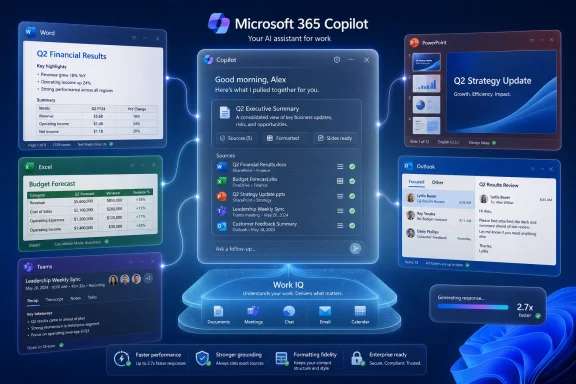
Microsoft 365 Copilot preview shows Word, Excel, and PowerPoint with AI-assisted work across documents.Microsoft Discovers That Presence Is Not the Same as Usefulness​

The Copilot problem inside Microsoft 365 has never been merely whether the assistant can summarize a document, draft a slide, or explain a spreadsheet formula. The harder problem is whether Microsoft can insert an AI layer into mature, muscle-memory-heavy applications without making those applications feel like they have been rented out to a marketing campaign.
That is the significance of the new Copilot Design System being described around Microsoft 365. John Friedman, Microsoft’s chief design officer for Microsoft 365, has framed the work as an “AI-forward” system meant to feel intentional and humane. Strip away the design-studio language, and the message is straightforward: Microsoft knows that Copilot cannot keep appearing as one more thing users must close, move, decode, or tolerate.
The timing is not accidental. In recent weeks, Microsoft faced pushback over floating Copilot controls in Office apps, particularly where the button sat inside the work area rather than politely waiting in a ribbon or menu. In Excel, where every pixel can carry meaning, a persistent floating control is not a neutral interface flourish. It is an object sitting on top of someone’s work.
Microsoft’s answer is not to retreat to the old Office model. It is to build a more coordinated layer where Copilot can move between chat, document canvas, contextual prompts, and side panels without behaving like a separate app that wandered into Word by mistake. That is a more ambitious fix than simply hiding a button. It is also a more dangerous one, because it gives Microsoft more ways to be helpful and more ways to get in the way.

The Floating Button Became a Referendum on AI Creep​

The Dynamic Action Button is Microsoft’s attempt to turn Copilot from a static launch icon into a contextual control. In theory, that is exactly what an AI assistant inside Office should be. If the user is editing a paragraph, it should offer writing help; if they are working with a table, it should understand data operations; if they are building a presentation, it should meet them on the slide canvas rather than dumping them into a generic chatbot.
The trouble is that “contextual” can look a lot like “persistent” from the user’s chair. A button that follows the task may feel intelligent in a product video, but in a spreadsheet full of live cells, it can feel like an animated sales rep leaning over the keyboard. Microsoft’s own rollback and removability changes show that the company has recognized the obvious: visibility bought through irritation is not product adoption.
This is a familiar Microsoft pattern. The company often introduces a strategic surface aggressively, then sands down the rough edges after telemetry, complaints, and admin anxiety arrive. Edge prompts, Teams integration, Windows widgets, OneDrive nudges, and now Copilot controls have all lived somewhere on this spectrum between helpful onboarding and corporate insistence.
The difference with Copilot is that the stakes are higher. Microsoft is not just promoting a new app. It is trying to redefine Office itself as a workspace where AI is always close enough to act. That makes placement a product decision, not a cosmetic one.
When the interface is wrong, the AI feels wrong. A capable assistant presented at the wrong moment becomes a nag. A useful feature that cannot be dismissed becomes an imposition. A workflow layer that blocks the workflow has already lost the argument.

Throw and Catch Is Microsoft’s Real Design Bet​

The more interesting idea is not the floating button; it is the handoff model Microsoft calls Throw & Catch. The phrase sounds like design-team shorthand, but the underlying concept is important. Copilot needs to move between surfaces without making the user rebuild context every time.
Today, AI in productivity apps often feels fragmented. A user asks something in chat, then edits a document elsewhere, then opens a side panel, then invokes another command with slightly different context rules. Each surface may be useful on its own, but the total experience can feel like several assistants wearing the same badge.
Throw & Catch is Microsoft’s attempt to make Copilot behave more like a continuous workflow layer. The user should be able to start with a chat-style instruction, move into an on-canvas edit, inspect the result in a side panel, and return to the document without feeling that the assistant has forgotten what just happened. If Microsoft can make that work, Copilot becomes less like Clippy with a foundation model and more like an operating layer for work.
That is the prize Microsoft is chasing. Word, Excel, PowerPoint, Outlook, Teams, OneNote, SharePoint, and the Microsoft 365 Copilot app already form the daily geography of many organizations. A context-carrying AI layer across those surfaces could be genuinely valuable, especially for work that jumps between meetings, documents, data, and presentations.
But continuity is not the same as control. If Copilot follows the user too eagerly, it becomes ambient pressure. If it hides too deeply, it becomes another feature nobody remembers to use. The design challenge is not to make Copilot omnipresent; it is to make its presence legible.

Office Users Are Not Beta Testers in a Design Lab​

Microsoft’s difficulty is that Office is not a greenfield interface. Word, Excel, and PowerPoint are legacy environments in the best and worst senses of the word. They carry decades of habits, shortcuts, templates, compliance workflows, add-ins, and informal office folklore.
That means any AI surface inside them has to negotiate with existing behavior. Excel users do not merely “use” Excel; many of them inhabit it. They know where the ribbon command lives, how wide columns should be, what parts of the sheet must remain visible, and how much visual noise they can tolerate before trust starts to fray.
PowerPoint users may be more forgiving of visual suggestion, but they are also building compositions where placement matters. Word users may welcome summarization or rewriting help, but not if the assistant feels like it is hovering over a draft before being invited. The same Copilot control can read differently across each app because the work itself is different.
This is where Microsoft’s earlier fragmentation matters. The company has acknowledged in design discussions that Copilot’s growth across products created unevenness. That is unsurprising: Copilot was attached to everything from Bing to Windows to Office to GitHub to security tools, often under intense strategic pressure.
A unified design system is supposed to solve that. The question is whether it will unify the experience around user intent or around Microsoft’s desire to make Copilot visible. Those are not always the same thing.

Enterprise IT Will Judge the Redesign by Friction, Not Flair​

For administrators, the Copilot interface is not just a user-experience story. It is a rollout story. Every confusing button, unexpected panel, changed shortcut, or blocked cell can become a ticket, a training note, a policy question, or a reason for a department head to ask why the expensive AI deployment is annoying people.
Microsoft’s own workplace research has argued that organizational factors drive much of AI’s reported impact. That should make the company unusually sensitive to rollout design. If manager support, training, trust, and internal norms determine whether AI adoption succeeds, then surprise UI changes are not a harmless experiment.
The enterprise version of the complaint is not “I dislike the button.” It is “we cannot govern the experience if Microsoft keeps changing where the assistant appears.” In regulated sectors, large finance teams, legal departments, healthcare environments, and public agencies, consistency is not a luxury. It is part of the control model.
Copilot also raises questions that ordinary Office features do not. Users need to know when the assistant is acting on document content, when it is grounded in organizational data, when it is making changes, and when it is merely suggesting them. A quieter interface must not become a vaguer interface.
That is the central risk in Microsoft’s redesign. If Copilot becomes too subtle, users may misunderstand what it can see or do. If it becomes too assertive, users will turn it off, move it back to the ribbon, or ask IT to suppress it. The acceptable zone is narrow.

The Agentic Future Needs a Boring Control Surface​

Microsoft’s broader ambition is not just chat in Office. The company is pushing toward app-native agentic capabilities: AI that can take multi-step actions inside documents, worksheets, presentations, and other work surfaces. That makes interface clarity more important, not less.
A chatbot that writes a paragraph can be judged after the fact. An agent that edits a workbook, generates slides, restructures a document, or acts across files needs a stronger model of consent and review. Users must understand what Copilot intends to do before it does it, what it has changed after it acts, and how to reverse or constrain those actions.
This is why the Dynamic Action Button and Throw & Catch are not trivial design ornaments. They are early pieces of a control scheme for AI that may soon do more than answer questions. If Microsoft wants users to trust Copilot with multi-step work, the UI must make agency visible.
The best version of this future is almost boring. Copilot appears where it is relevant, explains its proposed action, carries context across surfaces, and gets out of the way when the user returns to manual work. The worst version is a swarm of prompts, badges, sidebars, and floating controls that make every Office document feel like a negotiation.
The industry has a bad habit of treating AI capability as the hard part and interface as a wrapper. In enterprise software, that is backwards. The model can be brilliant, but if the assistant interrupts the wrong workflow, lands in the wrong place, or obscures the wrong cell, the user experiences it as bad software.

Microsoft’s Advantage Is Also Its Burden​

Notion, Slack, Google Workspace, and other productivity platforms are all trying to fold AI into the daily flow of work. Microsoft’s advantage is distribution. Word, Excel, PowerPoint, Outlook, Teams, and SharePoint are already where many companies keep their institutional memory.
That advantage lets Microsoft place Copilot closer to the work than almost any competitor can. It also means Microsoft has fewer excuses. A startup can experiment with a new AI-first surface because its users opted into a newer workflow. Microsoft is modifying the default tools of corporate life.
This creates a paradox. Copilot must be prominent enough to justify Microsoft’s platform strategy and licensing push, but restrained enough not to feel like forced AI adoption. It must be cross-app and consistent, but also respectful of each application’s culture. It must be powerful, but not mysterious.
The floating button backlash showed how quickly that balance can fail. Users do not experience “strategic AI integration.” They experience a button covering content. They do not care that engagement might rise when a control is made more visible. They care whether the software respects their attention.
Microsoft should be wary of telemetry that flatters intrusive design. A button placed in the middle of the path will be clicked more often. That does not mean users like it, trust it, or want it there. Engagement is a dangerous metric when the interface itself can manufacture the behavior being measured.

The Ribbon Still Has a Vote​

The Office ribbon has been criticized for years, but it solved a real problem: it gave users a stable place to find commands. People could dislike its density while still understanding its bargain. Commands lived in a visible hierarchy, and the document canvas remained the document canvas.
Copilot disrupts that bargain because AI does not fit neatly into the old command model. It is not merely one command among many. It can draft, summarize, transform, explain, analyze, and automate. Microsoft understandably wants a more fluid surface for something that does not behave like “Bold” or “Insert Table.”
Yet the ribbon’s persistence is a reminder that productivity software needs predictable geography. When Microsoft lets users move Copilot back to a more conventional location, it is not just conceding to nostalgia. It is acknowledging that users value boundaries.
The best Copilot design may end up being hybrid. The ribbon can remain the stable home base. The Dynamic Action Button can appear only when its contextual value is obvious. Side panels can host longer reasoning, review, and settings. Chat can remain useful for broad instruction and discovery.
That model is less flashy than a single floating AI orb that promises to follow the user everywhere. It is also more likely to survive contact with real work.

The Cost of Getting Quiet Wrong​

A quieter Copilot can fail in two ways. It can still be too loud, nagging users under the softer language of context. Or it can become so distributed and subtle that users cannot tell what Copilot is doing, where its suggestions came from, or why one app behaves differently from another.
The first failure produces irritation. The second produces distrust. Microsoft needs to avoid both.
For consumers and small-business users, the annoyance threshold may decide whether Copilot feels like value added to a Microsoft 365 subscription or like a feature tax. For enterprises, the issue is more operational. If the interface changes faster than training and policy can keep up, Copilot becomes a governance problem.
There is also a security-adjacent dimension. AI tools that operate across documents, chats, emails, and files depend heavily on permissions and grounding. Even when the underlying access model is sound, the user interface must communicate boundaries clearly. A cross-surface assistant that feels magical but opaque will make cautious administrators nervous.
Microsoft has learned this lesson before in different forms. Windows security prompts, Office macro warnings, OneDrive sync states, Teams meeting controls, and SharePoint sharing dialogs all show that enterprise trust depends on tiny interface decisions. Copilot is entering that same world, but with higher ambiguity.

The Real Test Is the Monday Morning Spreadsheet​

The redesign should be judged not by Microsoft’s design language but by mundane work. Does Copilot stay out of the way when an accountant is reconciling a workbook? Does it appear at the right moment when a project manager needs to turn meeting notes into a plan? Does it preserve context when a sales lead moves from Outlook to PowerPoint? Does it make clear when it is suggesting, editing, or acting?
Those are unglamorous questions, but they are where adoption lives. The best AI assistant is not the one users notice most. It is the one they invoke confidently because previous encounters did not punish them.
Microsoft’s challenge is made harder by the fact that Copilot is both a product and a strategy. The company needs usage, revenue, and proof that AI can make Microsoft 365 more valuable. Users need calm software that helps them finish work. Those incentives can align, but only if Microsoft resists the temptation to equate prominence with success.
There is a version of Copilot that becomes an essential part of Office. It would summarize without grandstanding, analyze without obscuring, suggest without hovering, and automate with visible guardrails. It would feel less like a new panel added to every app and more like a shared layer of competence underneath them.
There is also a version that becomes the new symbol of unwanted AI: always nearby, frequently moving, hard to ignore, and easy to blame. Microsoft’s redesign is an attempt to avoid that fate. Whether it succeeds will depend less on the names of its design patterns than on the restraint with which they are deployed.

The Copilot Button Is Only the Visible Symptom​

The concrete lesson from the current redesign is that Microsoft has reached the interface phase of the AI platform war. The early phase was about model access, branding, demos, and licensing. The next phase is about ergonomics.
That is a less glamorous battlefield, but it is where Microsoft often wins or loses with WindowsForum readers. Admins remember when a UI change triggered tickets. Power users remember when a shortcut moved. Developers remember when a platform abstraction leaked. Excel users remember when something covered a cell.
Copilot’s future inside Microsoft 365 will be shaped by those memories. Microsoft can call the new system humane, contextual, dynamic, or agentic, but the user will apply a simpler test: did this help me, and did it respect my work?
The company deserves credit for recognizing that the floating-button fight was not a minor aesthetic complaint. It exposed a deeper tension in AI software design. Assistants must be available enough to be useful, but not so present that they become another layer of digital debt.
A Quieter Copilot Still Has to Prove It Is Listening​

Microsoft’s redesign gives IT pros and Office users a few concrete things to watch as the new Copilot model evolves.
  • Microsoft is trying to move Copilot from a collection of app-specific entry points into a coordinated workflow layer across Microsoft 365.
  • The Dynamic Action Button will succeed only if it appears with clear contextual value rather than acting as a persistent reminder that Copilot exists.
  • Throw & Catch is the more important idea because it promises continuity between chat, canvas actions, prompts, and side panels.
  • The recent rollback around floating controls shows that Microsoft is still calibrating the line between discoverability and intrusion.
  • Enterprise adoption will depend as much on training, policy, user trust, and predictable placement as on Copilot’s raw feature set.
  • Agentic Office features will require clearer controls, review steps, and explanations than today’s simpler AI suggestions.
Microsoft is right that AI needs a new design language inside productivity software, but the company should treat the recent backlash as an early warning rather than a temporary messaging problem. Copilot will not become indispensable because it floats closer to the cursor; it will become indispensable only if it learns the oldest rule of Office software: the work surface belongs to the user.

References​

  1. Primary source: WinBuzzer
    Published: 2026-05-27T15:53:07.037512
  2. Related coverage: office-watch.com
  3. Related coverage: windowscentral.com
  4. Related coverage: windowsreport.com
  5. Official source: learn.microsoft.com
  6. Related coverage: pureinfotech.com
 

Microsoft announced a redesigned Microsoft 365 Copilot experience on May 28, 2026, promising a cleaner interface, faster startup, smarter work context through Work IQ, and better model selection across Word, Excel, PowerPoint, Outlook, Teams, and the Microsoft 365 Copilot app. The redesign is not merely a fresh coat of Fluent paint; it is Microsoft’s clearest admission yet that Copilot’s biggest obstacle has been workflow friction. For Windows users and enterprise administrators, the real story is whether Microsoft can make AI feel like part of Office rather than another pane, button, or chatbot demanding attention. That is a product-design problem as much as a model problem, and Microsoft is now trying to solve both at once.

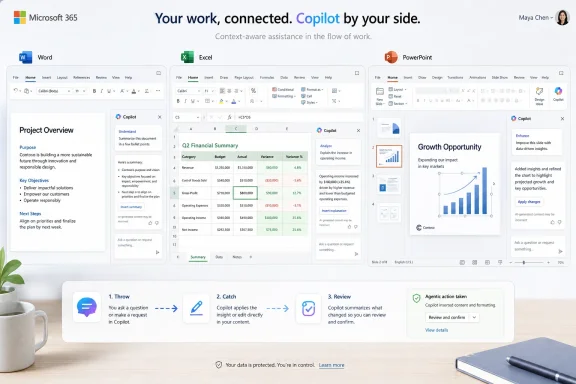
Microsoft 365 Copilot interface connecting Word, Excel, PowerPoint, Outlook, and Teams for “Work IQ.”Microsoft Is Finally Treating Copilot Like an Office Feature, Not an AI Demo​

The first era of Microsoft 365 Copilot was defined by availability. Microsoft put Copilot buttons into the apps people already used, charged a premium for access, and asked organizations to imagine a future where emails, decks, spreadsheets, meetings, and documents could be summarized or drafted on demand. That strategy made sense as a land grab, but it also made Copilot feel uneven: sometimes magical, sometimes bolted on, and often slower than the task it was meant to accelerate.
The new redesign is Microsoft’s attempt to move from presence to habit. A productivity assistant that requires users to stop, locate the right entry point, restate context, wait too long, and then clean up formatting is not really an assistant; it is another workflow tax. Microsoft’s design language around the update is telling: the company is talking less about novelty and more about reducing the distance between intent and action.
That matters because Office work is full of tiny interruptions. A worker does not always need a grand agentic workflow; sometimes they need a paragraph rewritten, a table cleaned up, a slide tightened, a meeting decision recovered, or a spreadsheet explained without rummaging through three Teams threads and a SharePoint folder. Copilot’s value depends on whether it can appear at those moments without turning them into a ceremony.
The redesign appears aimed at that problem. A cleaner interface, more visible entry points, and a stronger emphasis on chat as the front door all point to the same conclusion: Microsoft wants Copilot to become the connective tissue of Microsoft 365, not a feature users remember only after they have already done the work manually.

The Cleaner Interface Is a Bet on Lowering the Cost of Asking​

Microsoft’s redesign puts a premium on simplicity, and that is more consequential than it sounds. Enterprise software often treats capability as the same thing as usability, but Copilot has exposed the gap between those two ideas. Users may have access to powerful models and deep organizational data, yet still fail to adopt the tool if asking for help feels slower, riskier, or more awkward than doing the job themselves.
A cleaner Microsoft 365 Copilot interface is therefore not just cosmetic. It is a recognition that generative AI products live or die by the activation moment: the instant when a user decides whether to ask the assistant or keep working alone. Every extra click, every ambiguous prompt box, and every confusing boundary between “Copilot in Word” and “Copilot in Microsoft 365” pushes users back toward old habits.
Microsoft has been here before. Office became dominant not because every feature was elegant, but because the suite gradually absorbed the routines of business work. Spell check, templates, collaboration comments, mail merge, pivot tables, and cloud sharing all became normal only after they were placed close enough to the task that users stopped thinking of them as separate tools.
Copilot is more difficult because it is not a single command. It is an interface to interpretation, generation, retrieval, summarization, and increasingly action. That makes design harder: Microsoft has to expose power without creating a cockpit of competing AI affordances.
The redesign’s success will depend on whether Microsoft can make Copilot feel predictable. Users do not need every model name, every agent type, and every grounding source visible at all times. They need to know where to start, what Copilot can see, what it is about to do, and how easily they can correct it when it gets things wrong.

Work IQ Turns Context Into the Product​

The most important phrase in Microsoft’s announcement is not “cleaner interface.” It is Work IQ. Microsoft describes Work IQ as the intelligence layer that helps Copilot understand the user’s work context across files, meetings, chats, email, calendar signals, and organizational data. In plain English, it is Microsoft’s attempt to make Copilot less dependent on the perfect prompt.
That is the right problem to tackle. Most workers are not prompt engineers, and most useful Office tasks require context scattered across systems. “Draft a customer update” is not a simple writing request if the real answer depends on last week’s Teams call, the current Excel tracker, a PowerPoint from a sales review, and an unresolved email thread with legal.
If Work IQ works as advertised, Copilot becomes less like a generic chatbot and more like a workplace-aware assistant. That distinction is crucial. Generic models can write plausible prose; workplace-aware systems can decide which prose matters, which document should be consulted, and which constraint should not be ignored.
But this is also where the trust problem becomes sharper. The more context Copilot draws from, the more users and administrators will ask exactly what it saw, why it used one source over another, and whether permissions are being honored consistently. Microsoft’s pitch rests on the idea that Copilot can reason across organizational knowledge without becoming a privacy or compliance headache.
For IT pros, Work IQ is therefore both the promise and the audit surface. It may reduce hallucinations by grounding answers in more relevant material, but it also raises the stakes for information architecture. Bad permissions, stale SharePoint sites, poorly labeled documents, and chaotic Teams sprawl become AI quality problems, not just housekeeping problems.

Model Selection Moves the Battle Behind the Curtain​

Microsoft’s redesign also leans into model selection, a trend that has been building across the company’s AI portfolio. Instead of treating Copilot as a single model experience, Microsoft increasingly presents it as a system that can route tasks to different models depending on need. That is a practical concession to reality: no single model is best for every job, and enterprise AI cannot run on vibes alone.
For users, the ideal version of model selection is invisible. A quick rewrite should not require the same reasoning engine as a multi-step research task. A spreadsheet analysis may benefit from one model’s structured reasoning, while a presentation draft may benefit from another model’s style and visual understanding. The user should not need to understand the model marketplace to get a useful result.
For administrators, however, invisibility can be uncomfortable. Model choice affects cost, data handling, latency, and output quality. If Microsoft is going to make Copilot smarter by letting it choose models dynamically, enterprises will want policy controls, logging, and clear documentation about which models are available and under what terms.
This is where Microsoft’s position is stronger than many AI startups but more complicated than it looks. Microsoft owns the productivity surface, controls the identity stack for many enterprises, and can integrate governance into Microsoft 365 admin workflows. At the same time, the more Copilot depends on a constellation of models, connectors, agents, and third-party AI infrastructure, the more important transparency becomes.
The redesign hints at a future where users see Copilot as one assistant, while the system behind it becomes increasingly plural. That may be the right abstraction. But Microsoft will have to prove that abstraction does not become obfuscation.

Performance Is the Feature Microsoft Could Least Afford to Ignore​

Microsoft says the redesigned Microsoft 365 Copilot app loads more than twice as fast, with load times reduced by over 50 percent. The company also says response times for complex chat prompts have improved by 10 percent. Those numbers may sound like launch-window polish, but they address one of Copilot’s most basic adoption barriers: sluggishness.
AI tools are judged differently from traditional software. Users will tolerate a slow export, a long compile, or a big file sync because the waiting is attached to a familiar mechanical task. They are less forgiving when an assistant pauses before helping them think. Latency turns the interaction from conversation into transaction.
This is especially true inside Office. If a user is in Word trying to revise a paragraph, a delay of several seconds changes the mental calculus. The user begins editing manually, loses confidence in the assistant, or treats Copilot as a last resort rather than a constant companion. That is a fatal pattern for a subscription product whose value depends on repeated use.
The 10 percent improvement for complex prompts is more modest, but it may matter in the scenarios Microsoft cares about most. Multi-step queries are where Copilot is supposed to move beyond autocomplete and become a work partner. If those tasks feel too slow or unreliable, the agentic vision collapses back into “summarize this email.”
Performance improvements also have symbolic weight. They suggest Microsoft has heard the complaint that Copilot often felt like an ambitious cloud service squeezed into productivity apps that users expect to be immediate. Office users may forgive an AI assistant for being imperfect; they are less likely to forgive it for making Word or Excel feel heavier.

Better Grounding Is Microsoft’s Answer to the Hallucination Hangover​

Microsoft says the redesign includes better internal grounding, reducing hallucinations and improving how closely Copilot follows formatting requests. That sounds incremental, but it goes to the heart of whether Copilot can be trusted with real business work. A confidently wrong summary is not a productivity gain; it is a liability wearing a productivity costume.
The hallucination problem has evolved. In the early generative AI boom, the issue was often framed as models inventing facts in isolation. In enterprise settings, the more common problem is subtler: the assistant draws from the wrong file, misses the latest version, ignores an important constraint, or produces an answer that is directionally plausible but operationally unsafe.
Grounding is Microsoft’s way of narrowing that gap. By tying outputs more closely to the user’s documents, meetings, messages, and permissions, Copilot can in theory produce answers that are less generic and more defensible. The challenge is that grounding is not magic. It depends on retrieval quality, document hygiene, metadata, access controls, and the assistant’s ability to explain its own reasoning.
Formatting fidelity is another underrated issue. Office users care deeply about structure, because structure often is the work. A memo that ignores the house style, a spreadsheet answer that breaks table conventions, or a slide draft that mangles layout creates cleanup labor. If Copilot saves five minutes of drafting but adds eight minutes of repair, users will quickly learn not to bother.
Microsoft’s claim that Copilot is getting better at sticking to formatting requests is therefore more than a quality-of-life improvement. It is an attempt to make AI outputs less alien inside the documents where work actually happens.

Copilot Across Microsoft 365 Is Becoming the Real Platform Play​

The redesign cannot be understood only as an app update. Microsoft’s larger strategy is to make Copilot the common interface across Microsoft 365, spanning Word, Excel, PowerPoint, Outlook, Teams, OneDrive, SharePoint, and the standalone Microsoft 365 Copilot app. The company is not simply improving a chatbot; it is trying to create a new control layer for work.
That control layer is valuable because Microsoft 365 is both broad and messy. The average organization has years of documents, meetings, chats, mailboxes, calendars, lists, and workflows distributed across a stack that users navigate imperfectly. Search helps find things; Copilot is supposed to help interpret and act on them.
This is why the standalone Microsoft 365 Copilot app matters. It gives Microsoft a place to gather work across apps without forcing every interaction to begin inside Word or Teams. If Copilot becomes the place where users ask, decide, draft, and dispatch work, Microsoft gains a new center of gravity inside the productivity suite.
But there is a tension here. Office earned trust by being task-specific. Word is for documents, Excel is for data, PowerPoint is for presentations, Outlook is for communication. Copilot blurs those boundaries, and while that can reduce friction, it can also create uncertainty about where work begins and where artifacts live.
Microsoft must avoid turning Copilot into the new Start menu of productivity: conceptually central, constantly redesigned, and sometimes less efficient than going directly to the app. The best version of Copilot across Microsoft 365 is not a portal users are forced to visit, but a shared intelligence layer that appears wherever the work naturally happens.

The Redesign Also Repairs a Self-Inflicted Adoption Problem​

Microsoft has not always handled Copilot’s Office integration gracefully. Some users complained about intrusive Copilot buttons, cluttered surfaces, and AI affordances appearing where they did not fit the rhythm of the app. That pushback was predictable: productivity software is muscle memory, and even small interface changes can feel hostile when they interrupt high-frequency work.
The redesign appears to reflect a course correction. Microsoft still wants Copilot to be visible, but visibility is not the same thing as usefulness. A floating button may increase engagement metrics in the short term while irritating users who feel the product is being marketed at them from inside their own workspace.
This is the line Microsoft has to walk. If Copilot is too hidden, users forget it exists. If it is too aggressive, users resent it. The right answer is contextual presence: Copilot should be obvious when it can help and quiet when it cannot.
That design discipline will become more important as Copilot gains agentic capabilities. A suggestion to rewrite a paragraph is one thing; an assistant that can act across files, meetings, and workflows demands a higher standard of consent and clarity. Users need confidence that Copilot is not merely nearby, but appropriately bounded.
The redesign is therefore partly about aesthetics and partly about manners. In enterprise software, manners scale. A tool that respects attention becomes trusted; a tool that constantly announces itself becomes another notification to suppress.

Enterprise IT Will Judge the New Copilot by Governance, Not Shine​

For WindowsForum’s sysadmin and IT pro audience, the central question is not whether the new Copilot looks better. It is whether the redesign makes Copilot easier to deploy, govern, support, and explain. A faster UI is welcome, but the operational burden sits elsewhere.
Administrators need predictable rollout controls. They need to know which users receive which Copilot experiences, how model selection is governed, whether third-party model access is involved, how connectors expose business data, and how audit trails work when Copilot synthesizes or acts on information. Microsoft’s design story must be matched by an admin story.
Data readiness will also determine outcomes. Copilot cannot compensate for years of permission sprawl. If everyone can read everything in SharePoint, AI will make that problem more visible. If documents are duplicated, mislabeled, or abandoned, Copilot may retrieve the wrong institutional memory with impressive confidence.
The redesigned experience may even accelerate these issues by increasing usage. A clunky assistant limits risk through neglect; a useful assistant spreads quickly. The better Copilot becomes, the more urgent it is for organizations to revisit retention policies, sensitivity labels, access reviews, connector governance, and user training.
That is not an argument against deployment. It is an argument against treating Copilot as a plug-in. Microsoft is selling Copilot as a new way to work; enterprises should manage it like a new way to expose, combine, and act on knowledge.

The Windows Angle Is Quiet but Important​

Although this announcement is framed around Microsoft 365, Windows users should pay attention. Microsoft’s AI strategy increasingly spans the desktop, browser, cloud, and productivity suite. The boundaries between Windows Copilot experiences, Microsoft 365 Copilot, Edge, Teams, and Office are becoming less distinct.
That has practical implications. The PC remains the place where many Office workflows happen, especially in managed environments where desktop apps still dominate. If Copilot performance improves in the Microsoft 365 app and inside Office applications, the perceived quality of the Windows productivity experience improves with it.
There is also a hardware and deployment angle. As AI workloads spread across cloud inference, local capabilities, and hybrid experiences, organizations will need to think about device readiness, network performance, identity configuration, update channels, and endpoint management. Copilot may be marketed as software, but its success is felt through the whole Windows estate.
The redesign also reinforces Microsoft’s broader effort to keep Windows relevant in an AI-first productivity world. If the future of work is mediated by assistants, Microsoft wants the assistant to live where Windows users already spend their day. That makes Copilot not just an Office feature, but a defensive layer around Microsoft’s ecosystem.
For users skeptical of AI integration, that may sound like lock-in. For Microsoft, it is the point. The more Copilot understands a user’s files, meetings, messages, and workflows, the harder it becomes to imagine that work moving cleanly elsewhere.

Microsoft’s Copilot Pitch Is Getting More Coherent, and More Demanding​

The redesigned Microsoft 365 Copilot is part of a broader maturation of enterprise AI. The first wave was about proving that generative models could draft, summarize, and answer. The next wave is about embedding those capabilities into the actual machinery of work. Microsoft now seems to understand that the machinery matters.
That coherence is visible in the way the pieces fit together. Work IQ supplies context. Model selection supplies capability. Performance improvements reduce friction. UI redesign lowers the cost of asking. Cross-app integration turns Copilot from a feature into a layer.
But coherence does not guarantee success. Microsoft has to persuade users that Copilot is worth trusting repeatedly, not just trying once. It has to persuade administrators that broader context will not become broader exposure. It has to persuade finance teams that usage translates into measurable value rather than another premium SKU sitting underused in the tenant.
The hardest part may be cultural. Office work is full of tacit judgment: knowing which email thread matters, which executive preference is unwritten, which spreadsheet tab is authoritative, and which meeting summary is politically safe to circulate. Copilot can help with that world only if it becomes both context-aware and correction-friendly.
Microsoft’s redesign is a step toward that. It does not settle the debate over AI productivity, but it moves the debate from “can the model do this?” to “can the product make this useful every day?” That is the right question.

The Office AI Race Will Be Won in the Boring Moments​

The most important Copilot use cases are not always the dramatic ones Microsoft shows on stage. They are the boring moments: converting meeting notes into actions, finding the latest version of a plan, turning a rough brief into a polished draft, explaining a spreadsheet formula, or adapting a deck for a different audience. Those moments are where productivity tools become habits.
The redesigned Microsoft 365 Copilot is aimed squarely at those moments. Faster launch times matter because users will not wait for help with a small task. Better grounding matters because users will not trust an assistant that invents context. Cleaner design matters because users will not hunt through a cluttered interface to save thirty seconds.
This is also why the agentic future depends on mundane reliability. Before users let Copilot coordinate work across apps, they need to see it handle smaller tasks consistently. Trust is accumulated in low-stakes interactions before it is spent on high-stakes delegation.
Microsoft’s advantage is distribution. Copilot does not need to persuade users to adopt a new work platform from scratch; it needs to become more useful inside the platform many organizations already run. Microsoft’s disadvantage is the same distribution: any misstep is immediately felt by millions of people who did not necessarily ask for their Office interface to become an AI experiment.
That is why this redesign is more important than a normal interface refresh. It is Microsoft trying to make Copilot ordinary. In productivity software, ordinary is the prize.

The Redesign Gives Admins a Shorter Checklist and a Longer Homework Assignment​

The concrete message from this update is straightforward: Microsoft 365 Copilot should feel faster, cleaner, and more context-aware than before. The strategic message is bigger: Microsoft is turning Copilot into a work layer that depends on organizational data quality, governance, and user trust. That gives IT leaders a near-term checklist and a longer-term operating model to rethink.
  • Microsoft announced the redesigned Microsoft 365 Copilot experience on May 28, 2026, with a cleaner interface and tighter integration across Microsoft 365 apps.
  • Microsoft says the Copilot app now loads more than twice as fast, with load times reduced by over 50 percent.
  • Microsoft says complex chat prompt response times have improved by 10 percent, which matters most for multi-step work rather than simple rewrites.
  • Work IQ is the key architectural bet because it uses workplace context to make Copilot more relevant, but it also makes permissions, data hygiene, and governance more important.
  • Model selection is becoming part of the Copilot experience, even when users do not see every routing decision behind the scenes.
  • The redesign will succeed only if Copilot becomes less intrusive, more predictable, and easier for administrators to control at scale.
Microsoft’s latest Copilot redesign is not the finish line for AI in Office; it is the moment the company starts being judged less on ambition and more on fit. If Copilot becomes faster, quieter, better grounded, and easier to govern, it can evolve from a conspicuous AI add-on into the connective layer Microsoft wants it to be. If it remains inconsistent or opaque, the cleaner interface will be remembered as decoration around an unresolved workflow problem. The next phase of Microsoft 365 will be decided not by how loudly Copilot announces itself, but by how often users reach for it without thinking.

References​

  1. Primary source: HotHardware
    Published: 2026-05-29T15:18:13.452324
  2. Official source: microsoft.com
  3. Official source: blogs.microsoft.com
  4. Related coverage: windowscentral.com
  5. Related coverage: techspot.com
  6. Official source: news.microsoft.com
 

Microsoft on May 28, 2026 announced a redesign of Microsoft 365 Copilot across its standalone app and Office apps, replacing the static prompt line with a task-aware workspace and adding a more consistent Copilot entry point in Word, Excel, PowerPoint, and Outlook. The company is pitching the update as a quieter, faster, more context-sensitive way to make AI useful without turning every document into a billboard for AI. That framing matters because Copilot’s biggest problem has never been only intelligence; it has been interruption. Microsoft is now trying to make Copilot feel less like a pop-up and more like infrastructure.

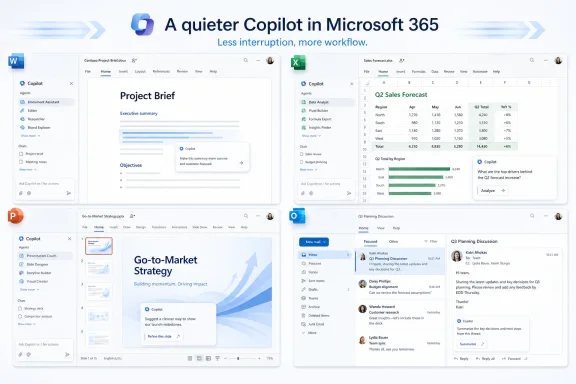
Microsoft 365 Copilot interface shown across PowerPoint, Word, Excel, and Teams with “A quieter Copilot” banner.Microsoft Learns That AI Fatigue Is a Design Problem​

The obvious reading of the redesign is that Microsoft has cleaned up Copilot’s interface. The more interesting reading is that Microsoft has accepted a complaint many users have been making for the last two years: AI that constantly announces itself can become another productivity tax.
Copilot’s first era was defined by presence. It appeared in Windows, Edge, Office, Teams, the taskbar, mobile apps, search boxes, sidebars, and branding exercises that sometimes seemed to rename the Microsoft 365 universe around a single word. That strategy made sense if the goal was awareness. It made less sense once people had to live with the thing all day.
The new Microsoft 365 Copilot design is a response to that tension. Microsoft is not backing away from Copilot; it is trying to make Copilot less visually needy. The assistant is being redesigned around progressive disclosure, the old interface idea that simple surfaces should reveal deeper controls only when the user’s intent requires them.
That sounds like design-school language, but in practice it is the difference between a tool that feels like a helpful editor and one that feels like Clippy with cloud compute. Microsoft is still betting heavily on AI in productivity software. It is just learning that the interface has to whisper before the model can speak.

The Prompt Box Becomes the New Command Line​

The central change is the prompt surface itself. Microsoft says the old static prompt line is being turned into a task-aware workspace: a larger, more flexible area where users can type, paste, preserve structure, apply formatting, and shape a request before sending it.
That is more important than it sounds. The first generation of AI chat interfaces trained users to think in single-shot commands: ask a question, wait, revise, repeat. But office work is rarely that tidy. A useful Copilot prompt may include pasted notes, a half-written paragraph, a meeting summary, formatting constraints, and a desired output format.
By making the prompt area roomier and more document-like, Microsoft is implicitly admitting that prompting is itself a kind of work. If Copilot is supposed to help with messy tasks, the input surface cannot feel like a search box from 2008. It has to tolerate rough material before it can produce polished output.
The redesign also gives Copilot room to surface tools and controls underneath the prompt based on the task at hand. If the user is doing something simple, the interface can stay sparse. If the user is preparing a complex document, data analysis, or presentation, Copilot can expose more options without dumping the entire toolbox onto the screen.
That is the right direction. The risk is that “contextual” controls can become a new kind of clutter if Microsoft guesses wrong. A quiet assistant that appears at the right time is useful; a quiet assistant that repeatedly misreads intent is merely a slower nuisance.

Microsoft’s Real Product Is No Longer the Chatbot​

The redesign also marks a conceptual shift away from Copilot as a chat window. Microsoft now wants Copilot to behave like a connected layer across Microsoft 365, with a consistent entry point in Word, Excel, PowerPoint, and Outlook. In the company’s telling, the assistant sits above the work, understands the document or message beneath it, and suggests relevant actions.
That is a bigger move than a cosmetic refresh. Microsoft is trying to collapse the distance between asking for help and applying the result. In the old model, the user asked Copilot for a draft, copied or accepted part of the output, then manually repaired what did not fit. In the newer model, Copilot is supposed to operate closer to the canvas itself: the paragraph, slide, spreadsheet cell, or email thread where the work is already happening.
This is where the “agentic” language enters. Microsoft is increasingly dividing Copilot into capability-focused agents such as Designer, Researcher, and app-specific assistants for Word, Excel, and PowerPoint. The pitch is that these agents are not generic chat personalities; they are role-based helpers that can take action within the app.
For WindowsForum readers, the distinction matters because it changes how administrators and users should evaluate Copilot. The question is no longer simply whether the chatbot gives a good answer. The question is whether an AI layer that can read context, propose edits, and potentially act inside business documents is governed well enough to trust.
That makes the interface part of the security model. Clear signals about what Copilot is seeing, what it is using, and what it is changing are not decorative niceties. They are the difference between assisted work and opaque automation.

The Side Pane Is Becoming Microsoft’s AI Dock​

Microsoft says the redesigned experience includes a left navigation pane in the Copilot app that can expand and collapse, giving users access to agents, conversations, and history without permanently crowding the workspace. Across Microsoft 365 apps, Copilot opens in a side pane but can also be invoked directly on the canvas.
That hybrid model is telling. Microsoft has tried several forms for Copilot: Windows sidebar, web app, Office ribbon button, floating button, taskbar-adjacent assistant, Edge pane, and app-native panel. The company has not always seemed sure whether Copilot should be an app, a service, a sidebar, a search box, or an operating-system feature.
The new direction appears to be less about one fixed location and more about one consistent behavior. Copilot should be reachable from a predictable place, but it should not require users to leave the thing they are working on. That is sensible, especially for Office documents where switching contexts can destroy the very momentum Copilot is supposed to preserve.
Still, there is a fine line between “available everywhere” and “inescapable everywhere.” Microsoft has already faced user irritation over Copilot buttons and AI affordances that feel imposed rather than invited. A collapsible pane and more restrained interface are useful only if users and administrators retain meaningful control over when Copilot appears.
The most successful version of this design would feel boring in the best possible way. It would be there when summoned, relevant when opened, and invisible when not needed. For a company as eager as Microsoft has been to brand every surface with Copilot, that restraint may be the hardest feature to ship.

Performance Claims Show the Stakes Behind the Polish​

Microsoft says the redesigned Copilot app loads more than twice as fast, with load times reduced by more than 50 percent in testing, and that response times for complex chat prompts improved by about 10 percent at the slow end of measured requests. The company also says usage increased after the new in-app experiences rolled out, including gains in Word, Excel, PowerPoint, and Outlook.
Those numbers should be read carefully. Microsoft’s own notes make clear that some measurements come from controlled testing windows and short-term usage comparisons. Early lifts after a redesigned experience do not necessarily prove long-term adoption, especially when the product is being placed more prominently inside daily productivity apps.
Even so, performance matters disproportionately for AI tools. A traditional feature can be slightly slow and still be predictable. An AI assistant that pauses, streams, revises, and sometimes produces unusable output has a much narrower tolerance window. If the user waits and then has to rewrite the answer anyway, the tool has not saved time; it has merely moved the labor.
This is why Microsoft’s emphasis on speed, structure, and output quality is not just marketing varnish. Copilot has to feel fast enough that users try it casually, but reliable enough that they return for consequential work. That second part is harder.
A prettier Copilot that produces the same uncertain output will not change much. A faster Copilot that more clearly structures responses, preserves context, and suggests sensible next steps could become part of the muscle memory of Office work. The redesign is Microsoft’s attempt to make the interface stop getting in the way of that possibility.

Work IQ Is the Promise and the Anxiety​

Under the redesign sits Microsoft’s broader context system, which the company describes as drawing from emails, files, chats, and meetings to help Copilot understand work beyond a single prompt or document. Microsoft calls this intelligence layer Work IQ, and it is central to the new Copilot story.
This is where Copilot becomes potentially valuable in a way a generic chatbot cannot. If it can understand the project folder, the last meeting, the email thread, the spreadsheet, and the deck, then it can do more than generate plausible text. It can help reconcile the actual mess of knowledge work.
But this is also where the anxiety sharpens. The more useful Copilot becomes, the more sensitive its context becomes. In enterprise environments, “draws from emails, files, chats, and meetings” is not a minor implementation detail. It is the entire governance problem.
Microsoft has spent years telling customers that Copilot respects existing permissions, and that remains the baseline administrators will expect. But permission inheritance is not the same thing as information hygiene. Many organizations have overshared SharePoint sites, stale Teams memberships, permissive file links, and legacy access patterns that were tolerable when discovery required human effort.
AI changes that equation. A document nobody should have broadly shared becomes more dangerous when an assistant can summarize it, connect it to related material, and surface it during an unrelated task. Copilot’s contextual intelligence will be only as safe as the tenant it is grounded in.
That is why the redesign’s quieter interface should not lull IT into thinking this is just a UX update. The visible Copilot may be calmer. The invisible dependency on data governance is getting stronger.

The Agent Era Makes Office More Powerful and Harder to Explain​

Microsoft’s language around Designer, Researcher, Word, Excel, and PowerPoint agents shows where the company wants to go next. Copilot is not just a universal assistant; it is a family of task-specific systems that can operate inside Microsoft 365 workflows.
That direction makes practical sense. A spreadsheet helper should not behave like a creative writing assistant. A presentation designer should not be optimized for the same interaction style as a research assistant. The more specific the role, the more likely the agent can expose relevant controls and produce useful output.
But specialization also creates a comprehension problem. Users already struggle to distinguish between Copilot in Windows, Copilot in Edge, Microsoft 365 Copilot, Copilot Chat, Copilot Pro, app-specific Copilot features, and paid enterprise entitlements. Adding agents can either clarify the experience or make the taxonomy more bewildering.
The redesign tries to solve that by shifting the burden away from product names and toward intent. If the user is in PowerPoint, Copilot should help with slides. If the user is in Excel, it should help reason through data. If the user is researching, a Researcher agent should know that the task requires sources, synthesis, and possibly deeper reasoning.
That is the right abstraction. People do not want to choose from Microsoft’s internal product architecture before asking for help. They want the system to infer the mode from the work in front of them.
The danger is that “agent” becomes another Microsoft word that means everything and therefore nothing. For administrators, documentation and controls will need to be sharper than the branding. Who can use which agents, what data they can access, what actions they can take, and how those actions are logged will matter more than whether the button looks elegant.

The Redesign Is Also a Competitive Admission​

Microsoft is not redesigning Copilot in a vacuum. Google is pushing Gemini deeper into Workspace, OpenAI keeps expanding ChatGPT’s document and enterprise capabilities, and Anthropic has made a strong case for AI systems that feel more careful and less noisy. The productivity suite is becoming the new battleground for AI assistants.
In that market, interface restraint is a competitive feature. The first wave of generative AI products could win attention by being dazzling. The next wave has to win repeat use by being dependable. In office software, dependable often means unglamorous: fast loading, predictable placement, good defaults, clear undo, and no surprise intrusions during a deadline.
Microsoft has an advantage its rivals envy. It owns the documents, calendars, mailboxes, meetings, spreadsheets, identity system, endpoint management story, and admin stack for a vast number of organizations. Copilot can become powerful precisely because it lives where the work already is.
That advantage also creates pressure. When Microsoft gets AI placement wrong, it does not feel like a random startup made a bad design choice. It feels like the operating environment of work has become noisier. A Copilot button in the wrong place is not just a button; it is a reminder that Microsoft can alter the texture of a billion-user workflow almost overnight.
The redesign suggests Microsoft knows that brute-force insertion has limits. Copilot cannot become the future of Office merely by appearing in more places. It has to justify each appearance.

The Office Ribbon Lesson Returns in AI Form​

There is a familiar Microsoft pattern here. When Office introduced the Ribbon, the company was not merely changing icons; it was trying to surface buried capability without overwhelming users with menus. The Ribbon was controversial because it changed muscle memory, but it was also an attempt to solve a real discoverability problem.
Copilot’s redesign is a similar exercise, except the stakes are stranger. Microsoft is not surfacing static commands. It is surfacing probabilistic assistance. A formatting button does the same thing every time; an AI assistant interprets intent, draws on context, and generates a result that must be judged.
That makes discoverability harder. Too little presence, and users forget Copilot exists. Too much presence, and they resent it. Too few controls, and Copilot feels vague. Too many controls, and it becomes another enterprise dashboard disguised as a helper.
Progressive disclosure is Microsoft’s answer because it lets the company defer complexity until the task demands it. The prompt starts simple, the controls appear in context, and the output gains structure as the user refines the request. In theory, that maps nicely to how people work.
In practice, Microsoft will need to prove that the system knows when to stop. The greatest risk for Copilot is not that it lacks features. It is that Microsoft’s appetite for AI engagement overwhelms the calm the redesign is supposed to create.

Where Windows Users Should Pay Attention​

Although this redesign is centered on Microsoft 365 Copilot, Windows users should not treat it as an Office-only story. Microsoft’s broader AI strategy has been to move Copilot across the operating system, browser, productivity suite, and cloud services. Design patterns introduced in Microsoft 365 have a way of migrating.
The idea of a single flexible Copilot entry point is especially relevant. If Microsoft can make that model work in Office, it will likely influence how Copilot appears elsewhere: in Windows search, Start, Edge, File Explorer, and taskbar-adjacent workflows. The company has already been exploring ways to make Copilot more central to Windows interaction.
That could be useful if done with restraint. Windows has many places where context-aware assistance would help: finding settings, explaining system errors, summarizing notifications, troubleshooting devices, or helping users understand security prompts. A Copilot that can reduce friction without hijacking attention would be welcome.
But Windows is also where users are least tolerant of unwanted AI chrome. Office is a workspace where drafting and analysis are natural AI use cases. The operating system is a control plane. When AI appears there, users expect clarity, reversibility, and administrative control.
For enthusiasts and sysadmins, the Microsoft 365 redesign is therefore a preview of Microsoft’s current thinking. The company is learning to make Copilot less obnoxious. The unresolved question is whether it can apply that lesson consistently outside the Office canvas.

Administrators Get a UX Update With Governance Consequences​

For IT departments, the redesign should trigger a practical review rather than a shrug. A more integrated Copilot experience can change user behavior quickly, particularly if Copilot becomes easier to invoke inside the apps employees already use.
That means administrators should revisit licensing, training, data access, retention, auditing, and user expectations. The redesigned interface may reduce friction, but reduced friction is exactly why governance matters. When asking Copilot becomes easier than searching manually, users will ask more, and they will ask across more sensitive contexts.
Training also needs to evolve. Early Copilot guidance often focused on how to write better prompts. That still matters, but the new experience pushes users toward a more iterative workflow: start with rough material, let Copilot structure it, refine the output, and apply changes inside the document. Users need to understand not just how to ask, but how to verify.
Verification is the quiet skill behind every successful AI deployment. Copilot can draft a performance review, summarize a project, analyze a spreadsheet, or reshape a presentation, but the human still owns the result. A better interface can make AI output look more polished, which may actually increase the risk that weak reasoning slips through.
The practical message for IT is simple: do not evaluate this redesign only by whether users like it. Evaluate whether it changes what they can access, how quickly they can act, and how easily mistakes can propagate into business documents.

Microsoft Finally Admits the Button Was Too Loud​

The most encouraging part of the redesign is not any single control. It is the apparent admission that AI tools need manners. Copilot’s earlier rollout often felt like Microsoft was measuring success by visibility. The new design suggests the company is starting to measure success by fit.
That is a healthier standard. The best productivity features become invisible through use. Spellcheck, autosave, version history, smart paste, and search all matter because they reduce cognitive load without demanding constant attention. Copilot wants to join that class of feature, but generative AI has to earn a higher level of trust because it produces new material rather than merely preserving or locating existing work.
Microsoft’s phrase about moving from intention to outcome is the key. If Copilot can reliably shorten that path, users will forgive its occasional presence. If it cannot, even a beautiful interface will feel like another layer between the user and the work.
There is also a broader cultural shift here. The first AI boom inside productivity software was about showing what models could do. The next phase is about deciding where they belong. Microsoft’s redesign is a sign that the company understands the difference, even if it has not always behaved that way.
A less intrusive Copilot is not a retreat. It is the necessary condition for making Copilot more ambitious.

The Practical Read on Microsoft’s Quieter Copilot​

The redesign is best understood as Microsoft trying to domesticate Copilot: less spectacle, more workflow, and a stronger claim that AI belongs inside the daily mechanics of Office work. That makes the update more consequential than a visual refresh, but also more dependent on execution.
  • The redesigned Copilot app replaces the old fixed prompt line with a larger workspace that can handle more structured requests before the user submits them.
  • Copilot now uses progressive disclosure to keep the interface cleaner while surfacing more tools when a task becomes complex.
  • Microsoft is standardizing Copilot’s entry point across Word, Excel, PowerPoint, and Outlook so users can invoke it without leaving the document or message they are working on.
  • The shift toward app-specific and capability-focused agents makes Copilot more powerful, but it also raises the importance of permissions, logging, and user education.
  • Microsoft’s performance and usage claims are promising, but they should be treated as early indicators rather than proof that Copilot has solved long-term adoption.
  • The redesign’s biggest test will be whether Copilot can remain useful without becoming another unavoidable layer of Microsoft 365 noise.
Microsoft’s latest Copilot redesign is a bet that AI will become more acceptable at work when it stops behaving like an announcement and starts behaving like a well-placed tool. The company still has to prove that its agents can act safely, that its context layer will not expose messy data practices, and that restraint will survive the next wave of AI enthusiasm. But if Microsoft can make Copilot calmer without making it weaker, this redesign may be remembered as the moment the assistant began to grow out of its promotional phase and into the ordinary, consequential fabric of productivity software.

References​

  1. Primary source: Digital Trends
    Published: Fri, 29 May 2026 09:10:35 GMT
  2. Related coverage: windowscentral.com
  3. Official source: microsoft.com
  4. Official source: support.microsoft.com
  5. Related coverage: howtogeek.com
  6. Official source: techcommunity.microsoft.com
 

Microsoft began rolling out a redesigned Microsoft 365 Copilot experience on May 28, 2026, across desktop and mobile, promising a cleaner interface, more structured answers, an expanded prompt box, contextual controls, and load times Microsoft says are more than twice as fast. The update is not a new model launch so much as a correction of the product’s first big usability problem: Copilot often felt bolted onto Office rather than native to it. For Windows users and IT departments, that distinction matters because Microsoft is trying to make AI feel less like a separate chatbot and more like a normal control surface inside Word, Excel, PowerPoint, Outlook, Teams, and the Microsoft 365 Copilot app. The redesign is Microsoft’s clearest admission yet that productivity AI will be judged not only by what it can generate, but by how little friction it adds while doing so.

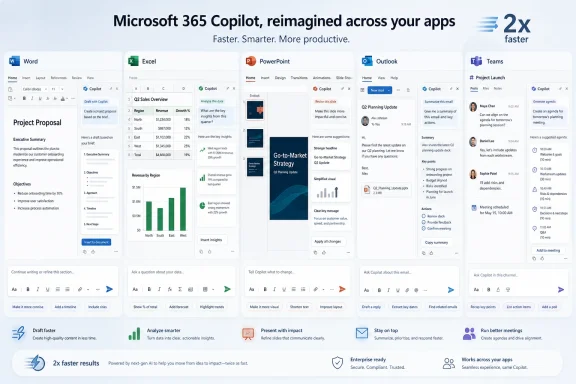
A promotional graphic showing Microsoft 365 Copilot interfaces across apps like Word, Excel, PowerPoint, and Outlook.Microsoft Moves From AI Spectacle to Office Furniture​

The first wave of Microsoft 365 Copilot was sold like a productivity revolution. The second act is more modest and more important: making the thing tolerable to use all day. Microsoft’s redesign strips away some of the “look at me” energy that has defined Copilot’s arrival inside Office and replaces it with a quieter interface built around context, speed, and fewer visible controls.
That may sound like standard product-design housekeeping, but for Microsoft it is strategic. Copilot is not competing only with ChatGPT, Claude, or Gemini in a browser tab. It is competing with the user’s muscle memory inside Office, where every interruption has a cost and every misplaced button becomes part of the workday.
The new design leans on what Microsoft calls progressive disclosure, a phrase borrowed from interface design that means the product should reveal tools when they become relevant rather than dumping every possible option on the screen. In practical terms, Copilot should show different controls depending on whether a user is drafting a paragraph, analyzing a spreadsheet, revising a slide, or asking a broad workplace search question.
That is the right direction. It is also a tacit concession that the previous approach — scattering Copilot affordances across Office like promotional stickers — was never going to scale gracefully.

The Prompt Box Becomes the New Ribbon​

The most consequential part of the redesign is not the cleaner chrome or the faster loading claim. It is the upgraded prompt box, which Microsoft is turning from a plain text field into something closer to a lightweight workbench. Users can now format text directly inside the prompt area, and the box expands to fit longer pasted material instead of forcing people to work inside a cramped strip of UI.
That change sounds small until you consider how people actually use workplace AI. They paste messy email threads. They drop in half-finished paragraphs. They ask for rewrites, tables, summaries, translations, and tone changes in a single breath. A prompt box that behaves like an afterthought makes those tasks feel fragile; a prompt box that behaves like part of Office makes them feel less like a hack.
This is why Microsoft’s redesign has echoes of the Ribbon era. The Ribbon was controversial because it rearranged decades of Office habits around a new interaction model. Copilot is trying something similar, but the target is not menus. It is the boundary between issuing a command and collaborating with software.
If Microsoft gets this right, users will not think of Copilot as a chatbot sitting beside Office. They will think of it as the place where instructions, documents, and app-specific actions meet. That is a much bigger ambition than a speed boost.

Twice as Fast Is a Product Claim and a Survival Requirement​

Microsoft says the redesigned Microsoft 365 Copilot loads more than twice as fast, with load times reduced by over 50 percent, and that complex chat prompts begin responding faster than before. Those numbers are meaningful because AI latency has a way of ruining otherwise impressive demos. A five-second pause feels acceptable when a model is writing a polished report; it feels absurd when the user only wants a sentence tightened.
The company is also promising more reliable and structured responses that are easier to scan. That matters because enterprise AI output often fails in a very ordinary way: not by being catastrophically wrong, but by being verbose, shapeless, and hard to verify. A response that looks cleaner is not automatically more accurate, but structure helps users decide what to trust, what to edit, and what to ignore.
Speed is particularly important inside Office apps because the user is already in a task. In a standalone chatbot, waiting is part of the experience. In Excel or PowerPoint, waiting is an interruption to a workflow that used to be instantaneous.
That is the performance bar Copilot has to clear. It does not merely have to be faster than its previous version. It has to feel fast enough that invoking AI is not more annoying than doing the task manually.

The Cleaner Interface Is Really a Trust Strategy​

Microsoft’s design language around this update emphasizes calmness, focus, and fewer visible controls. That is not just aesthetic positioning. It is a trust strategy aimed at users who have spent the past two years being told that every blank page, empty spreadsheet, meeting transcript, and inbox thread is now an AI opportunity.
The problem with omnipresent AI is that it can quickly feel like surveillance or nagging, even when the underlying feature is useful. If Copilot is always visually shouting for attention, users begin to treat it as clutter. If it appears at the right moment with the right affordance, it has a better chance of becoming part of the workflow.
That is why progressive disclosure is more than design jargon here. Microsoft wants Copilot to feel capable without feeling pushy. It wants the assistant to be visible enough to drive adoption but quiet enough that users do not rebel against it.
The tension is obvious. Microsoft has invested too heavily in Copilot to let it disappear into the background entirely. But Office users have also made clear, through complaints about floating buttons and intrusive prompts, that productivity software cannot behave like an ad for itself.

Google’s Gemini Redesign Raises the Table Stakes​

The timing is hard to ignore. Google recently pushed a major redesign for its Gemini app, also focused on making AI responses more structured and contextually shaped around the user’s prompt. Microsoft and Google are converging on the same conclusion: the next phase of consumer and workplace AI is not simply about bigger models, but better presentation.
That should worry anyone who assumed Microsoft’s Office distribution advantage would be enough. Gemini has the benefit of being built into Google’s own productivity ecosystem, search surfaces, Android, and consumer AI habits. Microsoft has Windows, Office, Teams, Outlook, and enterprise identity. The competitive advantage will belong to whichever company makes AI feel less like a novelty layer and more like competent software.
For Microsoft, the stakes are higher in the workplace because Microsoft 365 Copilot is a paid enterprise product with administrators, budgets, compliance reviews, and adoption dashboards attached. A consumer may forgive a confusing chatbot interface. A CIO paying for thousands of seats will ask whether employees are using the tool, whether it saves time, and whether it creates new support burdens.
Design becomes a business metric in that context. If employees cannot find the right Copilot control, do not understand what it will do, or distrust the output format, the product’s theoretical value never reaches the balance sheet.

Office Integration Is the Moat, but Also the Trap​

Copilot’s biggest advantage remains its position inside Microsoft 365. In Word, it can help rewrite a document. In Excel, it can reason over cells and formulas. In PowerPoint, it can suggest or modify slides. In Outlook and Teams, it can summarize, draft, and retrieve context from the workplace graph.
That integration is the moat. It is also the trap. The more places Microsoft inserts Copilot, the more inconsistent the experience can become if every app handles AI differently.
The new design attempts to solve that with a more unified experience: Copilot opens in side panels, contextual chat windows, and app-specific entry points that are supposed to feel related rather than random. Users can invoke Copilot from inside a paragraph, spreadsheet cell, or slide, which is exactly where an assistant should live if it is going to edit actual work rather than talk abstractly about it.
But consistency will be hard. Word, Excel, and PowerPoint are not interchangeable canvases. A useful Copilot interaction in Word may be disastrous in Excel if it obscures formulas, mishandles table structure, or offers vague advice where users need deterministic changes. Microsoft’s design challenge is to make Copilot familiar without flattening the differences between apps.

The Enterprise Question Is Not Whether Copilot Looks Better​

For IT pros, the redesign is welcome but incomplete. A faster, cleaner Copilot lowers user friction, but it does not answer the harder questions around governance, data exposure, licensing, training, and support. Those are the issues that determine whether Copilot becomes a standard workplace tool or a premium experiment used by a fraction of licensed employees.
Microsoft’s business case for Copilot depends on employees trusting it enough to use it in real documents and messages. That trust is partly interface-driven, but it is also institutional. Workers need to know what data Copilot can access, what it is allowed to summarize, whether its answers are grounded in company content, and how much human review is expected before output becomes official work.
Administrators, meanwhile, need predictable controls. They need to understand how Copilot respects permissions, how sensitive documents surface in responses, and how to manage training for users who may not understand the difference between a grounded enterprise assistant and a public chatbot. A cleaner interface may even increase urgency here because lower friction often means more usage.
That is the paradox for Microsoft. The better Copilot becomes as a user experience, the more pressure it puts on organizations to make their information architecture and permissions sane.

The Redesign Admits That AI Has a UX Problem​

The first two years of generative AI were dominated by model capability: bigger context windows, stronger reasoning claims, multimodal input, agentic workflows, and benchmark victories. The next fight is less glamorous. It is about whether ordinary people can use these systems repeatedly without feeling like they are negotiating with a slot machine.
Microsoft’s update is part of that shift. More structured responses, a smarter prompt area, contextual controls, and faster startup all attack the same underlying problem: AI tools too often make users do the work of figuring out how to work with them. That burden is acceptable for enthusiasts. It is poison for mainstream productivity software.
This is especially true in Microsoft 365, where users are not opening Copilot for entertainment. They are trying to finish a deck before a meeting, clean up a document before sending it to legal, or understand a spreadsheet they inherited from someone who left the company three years ago. In that environment, ambiguity is expensive.
A better interface cannot fix hallucinations, weak reasoning, or bad enterprise data. But it can reduce the number of moments where users give up before the model has a chance to help.

The Floating Button Era Was Always Temporary​

The backlash to some Copilot entry points was predictable. Floating buttons, persistent prompts, and highly visible AI affordances may drive discovery, but they also break the sense of ownership users have over their workspace. Office is not a social feed; people do not want software constantly reminding them of the feature Microsoft wants them to try.
The redesign suggests Microsoft has absorbed at least part of that lesson. Rather than treating Copilot as an overlay, the company is trying to make it behave more like a contextual layer. That means fewer irrelevant controls, more task-specific suggestions, and entry points that appear closer to the content being edited.
The danger is that Microsoft could still overcorrect toward engagement metrics. If the company measures success primarily by Copilot invocation rates, it may be tempted to keep nudging users even when restraint would build more trust. Good enterprise software sometimes wins by staying out of the way.
That is the line Microsoft now has to walk. Copilot must be discoverable enough that users learn it exists, but not so conspicuous that they start looking for ways to disable it.

Agentic Office Needs Boring Reliability Before Big Autonomy​

Microsoft’s broader Copilot roadmap is moving toward more agentic behavior: software that can not only answer questions but take actions, edit content, coordinate workflows, and operate across applications. The redesign is a prerequisite for that future because users will not delegate meaningful work to an assistant they find confusing at the prompt level.
Before Copilot can credibly act like a workplace agent, it has to master the mundane. It has to open quickly, explain itself clearly, format output sensibly, and make controls visible only when they help. Those are not flashy capabilities, but they are the difference between a demo and a daily tool.
This is where Microsoft’s Office heritage helps. The company knows that productivity software becomes powerful through repetition. People do not love Excel because every interaction is magical; they rely on it because it is predictable, durable, and deeply embedded in business process.
Copilot has to earn that same kind of boring trust. A cleaner interface is a start, but the larger test will be whether users feel comfortable letting it touch real work without constantly bracing for cleanup.

Windows Users Will Feel the Shift Indirectly​

Although this update is focused on Microsoft 365 Copilot rather than Windows Copilot itself, Windows users will still feel the effects. Microsoft’s AI strategy increasingly treats the operating system, Office apps, Teams, Edge, and cloud identity as parts of a single productivity surface. A redesign in Microsoft 365 can influence expectations for how AI appears everywhere else.
That matters because Windows has had its own Copilot identity problem. Is Copilot a sidebar, a web app, a system assistant, a productivity tool, or a branding layer stretched across unrelated products? Microsoft has used the same name for experiences that do not always share the same capabilities, which has made the product family harder to understand than it needs to be.
The Microsoft 365 redesign points toward a more coherent answer: Copilot should be contextual, task-aware, and integrated where work happens. If Microsoft applies that lesson consistently, Windows Copilot could become less of a destination and more of a control surface for settings, files, apps, and workflows.
If it does not, users will continue to encounter Copilot as a shifting brand rather than a dependable assistant.

The Real Test Starts After the Rollout​

Microsoft says the redesigned experience is rolling out across desktop and mobile devices, which means the next few weeks will be less about announcement language and more about user reaction. Enterprise rollouts are rarely uniform. Some tenants see features before others, admins may have different controls enabled, and users may encounter slightly different Copilot behavior depending on license, app, platform, and update channel.
That unevenness is normal for Microsoft 365, but it can complicate communication. Help desks need to know which users have the new interface. Trainers need current screenshots. Security teams need to understand whether new affordances change how users attach files, reference work content, or invoke actions inside documents.
The mobile part is also worth watching. AI assistants can be useful on phones precisely because typing and navigation are worse there, but mobile productivity workflows are also more constrained. A prompt box that expands gracefully and shows relevant controls could be more valuable on a small screen than on a desktop monitor.
In other words, the redesign’s success will not be measured only in launch-day screenshots. It will be measured in whether Copilot feels less awkward after a month of actual work.

The Copilot Update That IT Should Actually Remember​

The headline version of this story is simple: Microsoft 365 Copilot is faster and cleaner. The operational version is more interesting. Microsoft is trying to remove the interface tax from workplace AI at the exact moment it wants customers to use Copilot for more consequential tasks.
  • Microsoft announced the redesigned Microsoft 365 Copilot experience on May 28, 2026, with rollout across desktop and mobile.
  • Microsoft says the new experience loads more than twice as fast, with load times reduced by over 50 percent.
  • The redesigned prompt box now supports richer formatting and expands to handle longer typed or pasted input.
  • Progressive disclosure is intended to show Copilot controls based on the user’s task rather than exposing every option at once.
  • Copilot’s Office integration remains its strongest advantage, but it also increases the need for consistent behavior across Word, Excel, PowerPoint, Outlook, and Teams.
  • For administrators, the redesign lowers user friction but does not remove the need for governance, training, permission hygiene, and support planning.
The lesson is that Copilot’s future will not be decided by a single benchmark, keynote, or design refresh. It will be decided in the small repeated moments where a worker asks for help, gets an answer quickly, understands what changed, and decides whether to ask again. Microsoft’s redesign is a smart acknowledgment that AI has to become less theatrical and more usable; now the company has to prove that a cleaner Copilot can also be a more dependable one.

References​

  1. Primary source: The Verge
    Published: Thu, 28 May 2026 20:14:07 GMT
  2. Official source: microsoft.com
  3. Related coverage: letsdatascience.com
  4. Related coverage: aiwins.news
  5. Related coverage: windowscentral.com
  6. Related coverage: supersimple365.com
 

Back
Top