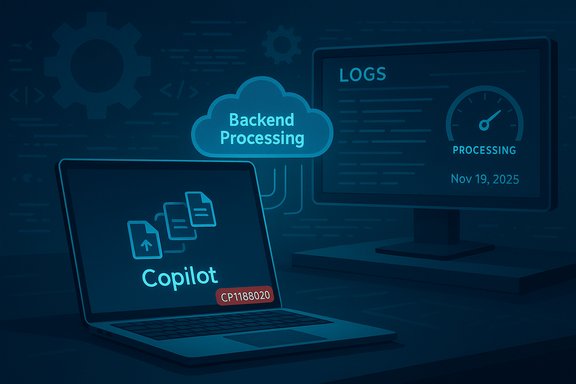
Microsoft acknowledged a service incident on November 19, 2025, after users reported they could not perform file actions through Microsoft Copilot for Microsoft 365 — a problem tracked internally under incident ID CP1188020 while Microsoft engineers investigated backend processing errors and began collecting diagnostic logs.
Background
Microsoft Copilot has rapidly become a central productivity layer across Microsoft 365 and Windows: it indexes files, extracts context from documents, and can act on files through features such as Copilot Actions and document processing in SharePoint/OneDrive. Those capabilities let Copilot generate summaries, convert content, and — in newer workflows — perform multi‑step “actions” that interact with local or cloud files. Microsoft has publicly documented these features and the required processing flows in product blogs and support documentation. Because Copilot’s file capabilities depend on coordinated cloud pipelines — indexing, processing, and agent workspaces — a backend fault in any of those systems can break end‑user file actions even when the UI appears nominally available. Recent Microsoft public advisories and third‑party reporting show exactly that pattern: a backend processing problem can manifest as “files won’t open / actions fail” even though the broader Microsoft 365 status page may not immediately reflect the incident.What happened (short summary of the incident)
- Date and time: Microsoft posted updates on November 19, 2025, confirming reproduction of the problem and the collection of additional diagnostic logs; later updates said engineers identified errors in backend processing infrastructure and were investigating further.
- Scope: Affected users reported they were unable to perform actions on files via Microsoft Copilot — for example, asking Copilot to summarize, convert, or otherwise process files resulted in failures or blocked operations.
- Tracking: Microsoft opened internal tracking for the incident under ID CP1188020; the company advised tenants to monitor the Microsoft 365 Admin Center for updates while engineers worked on mitigation.
Why this matters: Copilot’s file actions are high impact
Copilot’s file processing capabilities are no longer a novelty; they are deeply embedded into everyday workflows:- Copilot Actions: Microsoft’s Copilot Actions can perform tasks directly on local and cloud files in an Agent Workspace, an isolated execution environment intended to keep automation policy‑controlled and auditable. That lets Copilot run multi‑step tasks such as reorganizing folders, extracting data from PDFs, or converting file types without the user manually performing each step. These actions amplify productivity but also create a tight dependency on cloud processing pipelines.
- SharePoint/OneDrive processing: Copilot’s knowledge and file features rely on parsing and indexing pipelines in SharePoint/OneDrive; Microsoft provides admin controls to view processing status and action results. When those pipelines fail or are delayed, Copilot may show files as “ready” but be unable to complete operations — a mismatch between UI state and backend reality that amplifies confusion.
Timeline and Microsoft’s public communications
- Initial reports surfaced from users encountering failures when attempting to perform file actions in Copilot.
- Microsoft acknowledged the incident publicly via the Microsoft 365 Status/X channel, opened internal tracking under CP1188020, and informed administrators to monitor the Microsoft 365 Admin Center for updates.
- Follow‑up messages from Microsoft stated the issue could be reproduced internally and that additional diagnostic logs were being gathered. A later update said errors in backend processing infrastructure had been identified and were under investigation.
- At the time initial reporting appeared, Microsoft’s service health dashboard did not yet reflect an outage for all tenants, creating a window where public status and user experience diverged. Independent reporting and localized feeds noted the same discrepancy.
Technical analysis: probable failure modes
Microsoft has not yet published a formal post‑mortem for CP1188020, so the following is an evidence‑based analysis of likely technical causes, with caution where facts are not yet confirmed.Key components in Copilot file processing:
- Indexing & ingestion: Files in SharePoint/OneDrive (and local files presented to Copilot Actions) must be parsed, indexed, and made discoverable for AI reasoning.
- File processing and transformation services: Converters, OCR, and extraction microservices perform the heavy lifting (PDF extraction, table parsing, multimedia processing).
- Agent Workspaces / Copilot Actions runtime: For actions that touch local or complex application surfaces, Copilot spins up isolated agent environments that interact with file systems and apps in a controlled manner.
- Orchestration and queuing: A control plane routes requests, enqueues work, and scales compute for peak demand.
- An upstream processing microservice regression: A recent code push or configuration change could have introduced errors in a shared service used by multiple Copilot flows, causing a high‑volume failure surface. Similar incidents in the past (Microsoft rollbacks and fixes for Copilot‑related regressions) track this pattern.
- Queue or orchestration saturation: Even healthy services can fail to start processing if orchestration layers misroute jobs or back pressure builds, producing timeouts and observable “action failed” symptoms in the UI.
- Dependency outages or degraded storage access: If the downstream stores or connectors (SharePoint indexing, OneDrive file reads, third‑party connectors) experienced transient errors, Copilot’s actions would be unable to complete file operations despite the frontend appearing responsive.
- Feature gating or permission mismatches: Changes to service policies or tenant‑level permissioning could make previously available actions fail if backend enforcement logic erroneously blocks processing.
Customer impact — who felt it and how badly
Impact likely ranged across several classes of users:- End users: People trying to summarize, convert, or actuate files through Copilot would experience failed actions or error messages. This breaks small tasks but can cascade into missed deadlines if work depends on automation.
- Teams and collaborators: Shared document workflows where Copilot automations update or tag files may stall, producing collaboration friction and inconsistent document states.
- Administrators and help desks: Visible mismatch between user reports and the public service health dashboard complicates escalation and communication; admins must rely on the Microsoft 365 Admin Center incident page (CP1188020) and community reports to confirm impact.
- Compliance/regulated workflows: Organizations that routed sensitive file processing through Copilot for triage or classification may have to revert to manual handling, increasing human review workload and audit overhead.
Microsoft’s operational response: what they did and what they didn’t yet disclose
What Microsoft did:- Acknowledged the incident publicly and opened an internal incident entry (CP1188020).
- Reproduced the issue internally and began gathering diagnostic logs.
- Identified errors within backend processing infrastructure and escalated investigation from there.
- A precise root cause or whether the incident stems from a code deployment, configuration change, or third‑party dependency.
- A detailed mitigation timeline or the expected window for full restoration.
- Whether any tenant‑specific factors materially influenced impact (region, tenant configuration, or plan level).
Practical guidance for administrators and users (immediate steps)
If you are encountering failed Copilot file actions, apply this triage checklist in order:- Confirm service incident: Check the Microsoft 365 Admin Center incident entry (look up CP1188020) for official updates from Microsoft. If you’re a tenant admin, watch for diagnostic attachments or recommended mitigations.
- Try web vs. desktop app: If you were using the Copilot app, test the same action in Office.com or in the Copilot web experience; sometimes UI‑specific clients surface different failure modes. (Past incidents showed web/desktop differences during rollbacks.
- Test with a small file or alternate format: If large file processing fails, try a small test file (txt or small docx). This helps isolate whether the problem is size/format related.
- Collect logs and repro steps: Capture error messages, timestamps, tenant ID, user ID (redact PII), and any request IDs returned by the UI or Admin Center. This accelerates Microsoft support triage.
- Use alternate workflows: If Copilot automation is blocked, fallback to manual or scripted processes (PowerShell, other automation tools) for critical operations until services recover.
- Communicate with users: Proactively inform impacted teams that Microsoft is investigating CP1188020 and provide an internal interim workflow to reduce ticket escalation.
- Limit critical compliance or regulated processes that depend exclusively on Copilot until you can verify reliability and review audit trails.
- Apply monitoring around Copilot‑driven pipelines (e.g., tracking job success rates, queue depths) so you detect regressions faster than end users report them.
Short‑term mitigations Microsoft can and has used before
- Rollback a recent deployment: If telemetry points to a code change, reverting to a last‑known‑good version is the fastest way to restore normal operation — a technique Microsoft has used to remediate prior Copilot/agent regressions.
- Throttle or circuit‑break problematic pipelines: Temporarily divert or reduce load to affected microservices to prevent cascading failures.
- Surface clearer status indicators: Update the service health dashboard and incident message with granular affected areas (e.g., “Copilot file processing service degraded”) to reduce confusion and ticket noise.
Security and privacy considerations during incidents
When Copilot’s file processing is interrupted:- Avoid repeated re‑submissions of sensitive files: Repeatedly sending the same file to a failing pipeline increases unnecessary logging of sensitive content and complicates forensic trails.
- Maintain audit logs: Keep local records of what actions were requested and by whom, in case you need to reconcile changes after recovery.
- Confirm data handling post‑recovery: When Microsoft restores processing, validate that previously failed jobs were not partially executed or duplicated.
Broader implications for reliability of cloud‑native AI assistants
This incident reinforces systemic realities:- Tight coupling: Cloud AI assistants depend on many moving parts — indexing, parsers, OCR, conversion services, orchestration, and storage — so a single regression can have an outsized impact.
- Observability matters: Robust telemetry and observable job‑level status (for example, SharePoint’s file processing status) are essential for detecting when the UI misreports a file as “ready.”
- Governance and testing: Organizations must pilot Copilot automations in controlled environments and build fallback procedures for mission‑critical paths.
- Communication: Vendors must keep status pages and admin centers synchronized with real‑time incident data to avoid admin confusion during outages.
Strengths, risks, and recommendations (executive summary)
Strengths:- Copilot’s integrated file actions are powerful productivity multipliers when they work, reducing manual tasks and speeding workflows.
- Microsoft provides admin controls and monitoring surfaces (e.g., file processing status) that, when used, can reduce surprise failures.
- Backend regressions create high‑impact interruptions, particularly when incident dashboards lag.
- Sensitive or regulated workflows that rely entirely on Copilot automations have a single point of failure risk.
- Partial UI recoveries or misleading “ready” states can cause users to assume work completed when it hasn’t.
- Treat Copilot automations as productivity enhancers, not as sole systems of record for compliance‑critical tasks.
- Maintain clear fallbacks and runbooks for manual processing during outages.
- Instrument your Copilot‑dependent workflows with independent monitoring and logging.
- Maintain an open channel with Microsoft support and monitor the Microsoft 365 Admin Center incident entry (CP1188020) for authoritative updates.
What to watch next
- Microsoft post‑mortem: Look for a detailed incident report from Microsoft that explains the root cause, affected components, mitigation steps, and follow‑up hardening measures.
- Dashboard synchronization: Whether Microsoft updates the public service health page to reflect CP1188020 and how quickly the Admin Center incident receives root‑cause details.
- Mitigation rollout: Whether Microsoft performs a rollback, deploys a hotfix, or implements configuration changes and how rapidly those measures restore file actions.
Conclusion
The November 19, 2025 incident (CP1188020) that blocked file actions in Microsoft Copilot is a reminder of the operational fragility that can accompany powerful cloud AI features. Microsoft acknowledged reproduction of the issue, collected diagnostics, and singled out errors in backend processing infrastructure as the investigative focus — all standard steps in enterprise incident response. For customers and administrators, the incident underscores two enduring imperatives: plan for resilience (have fallbacks and monitoring) and demand clear, timely communication from cloud vendors when user‑facing capabilities fail. Copilot’s capabilities remain a genuine productivity advance, but safe and reliable adoption depends on robust engineering hygiene, better observability, and governance that treats AI‑driven automation as part of an auditable, recoverable operational stack.Source: Windows Report [UPDATE] Microsoft Investigating Issue Blocking File Actions in Copilot for 365 Users