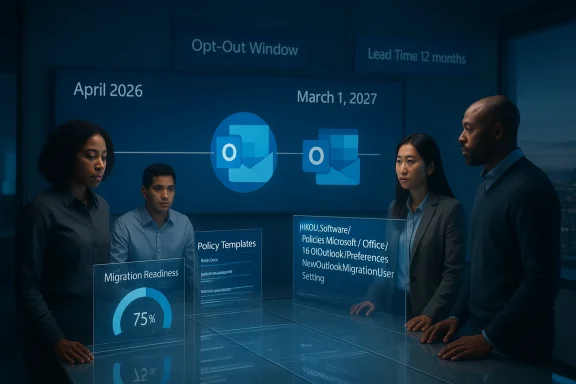
Microsoft has pushed the enterprise opt‑out phase for the “new Outlook for Windows” from April 2026 to March 2027, giving administrators a full extra year to prepare — a move that confirms both the scale of enterprise migration challenges and the persistent feature gaps that keep many organizations anchored to classic Outlook.
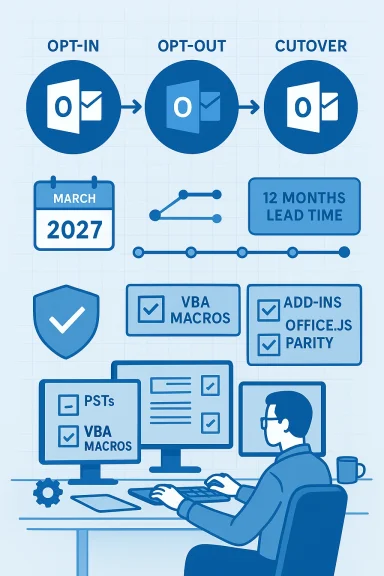
Microsoft’s transition from the long‑standing “classic” Outlook to the modern, service‑backed new Outlook for Windows is organized as a three‑stage rollout: opt‑in, opt‑out, and cutover. In the current opt‑in stage users may toggle into the new experience voluntarily; in opt‑out the new app becomes the default but users can still revert; and cutover removes that fallback, making the new app the sole desktop Outlook experience for most deployments. Microsoft has positioned these stages as a controlled way to let feature parity, enterprise readiness, and administrative controls converge before classic Outlook is finally retired. (learn.microsoft.com)
Key timeline and policy points Microsoft has published:
The company’s message to administrators explicitly frames the postponement as a readiness issue: Microsoft said it is “extending the opt‑out timeline and providing 12 months of lead time as we continue delivering key features and improvements.” That language acknowledges the dual reality of rising adoption rates in some segments and outstanding capability shortfalls in others.
If you run Exchange, manage Outlook for a business, or own any Outlook‑tied application, your immediate priorities are simple: audit, prioritize, and pilot. The calendar shows March 2027 as the next inflection point for enterprise opt‑out — use the time Microsoft has given you to avoid a pressured, costly migration later.
Source: theregister.com Microsoft postpones new Outlook migration to 2027
 Background / Overview
Microsoft’s transition from the long‑standing “classic” Outlook to the modern, service‑backed new Outlook for Windows is organized as a three‑stage rollout: opt‑in, opt‑out, and cutover. In the current opt‑in stage users may toggle into the new experience voluntarily; in opt‑out the new app becomes the default but users can still revert; and cutover removes that fallback, making the new app the sole desktop Outlook experience for most deployments. Microsoft has positioned these stages as a controlled way to let feature parity, enterprise readiness, and administrative controls converge before classic Outlook is finally retired. (learn.microsoft.com)Key timeline and policy points Microsoft has published:
- General Availability (GA): the new Outlook moved out of preview and into GA on August 1, 2024. (learn.microsoft.com)
- Opt‑out postponement: the planned enterprise opt‑out start was delayed from April 2026 to March 2027; Microsoft says the change “provides organizations with 12 months of lead time to prepare.”
- Cutover notice: Microsoft promises at least 12 months’ notice before cutover and has stated that existing installations of classic Outlook through perpetual and subscription licensing “will continue to be supported until at least 2029.” (learn.microsoft.com)
Why Microsoft delayed the opt‑out phase
Feature parity remains the headline issue
Microsoft’s own publicly maintained feature comparison shows a meaningful set of features that are either partially available, upcoming, or not supported in the new Outlook compared with classic Outlook. Notable examples include limited support for Outlook Data Files (.pst), missing or partial support for VBA macros and custom forms, and missing access to files on network shares. Those gaps alone create real‑world migration blockers for enterprises that rely on archived PSTs, automation via macros, or workflows tied to local/network file systems. (support.microsoft.com)The company’s message to administrators explicitly frames the postponement as a readiness issue: Microsoft said it is “extending the opt‑out timeline and providing 12 months of lead time as we continue delivering key features and improvements.” That language acknowledges the dual reality of rising adoption rates in some segments and outstanding capability shortfalls in others.
Enterprise complexity: not just feature parity
Enterprises are not a single monolith. Migration work typically touches:- Enterprise add‑ins (line‑of‑business integrations).
- VBA macros and custom Outlook forms used for automation.
- On‑premises identity and hybrid Exchange configurations.
- PST archives retained for legal, regulatory, or user‑behavior reasons.
- Specialized search, eDiscovery and compliance workflows that assume classic Outlook behavior.
What’s missing in the new Outlook right now (and why it matters)
Microsoft’s feature comparison is the canonical list of differences between classic and new Outlook. Several gaps stand out for enterprise risk:- .PST (Outlook Data File) support: Partially available. The new Outlook currently offers limited read‑only or partial workflows for PSTs; full parity for importing, exporting, and moving content between PSTs and mailboxes is listed as partially available or upcoming. For organizations that use PSTs for offline archives or legal hold exports, partial support is often insufficient. (support.microsoft.com)
- VBA Macros: Not supported. Many firms have decades of automation built with Outlook VBA. The new Outlook’s lack of VBA support breaks those macros and forces costly rewrites or workarounds. (support.microsoft.com)
- Access to files on network shares: Not supported. Workflows that attach or read items from file servers will be impacted, particularly in regulated industries that maintain local archives. (support.microsoft.com)
- Custom forms and certain Outlook modules: Not supported or partially available. Many vertical applications leverage custom forms; losing that capability can stop business processes cold. (support.microsoft.com)
- Offline support and search folders: Partially available. Given that offline availability and fast client search are critical for mobile or remote users, partial offline support raises productivity and user‑experience concerns. (support.microsoft.com)
What the postponement actually gives you (and what it doesn’t)
What the extra 12 months buys IT teams
- Time to inventory add‑ins, macros, and customized forms.
- Opportunity to pilot new Outlook with representative users and workloads.
- Time to coordinate ISVs around Office.js support and to confirm add‑in compatibility.
- Window to migrate PST archives to server‑side storage (Exchange Online archive, eDiscovery stores, or third‑party archiving platforms).
- Leeway to update training programs, helpdesk scripts, and change‑management artifacts.
What it does not guarantee
- No promise that feature parity will be fully achieved by March 2027. Microsoft’s statement is framed as an enabling timeline for organizations while development continues; Microsoft did not publish a hard, feature‑complete list tied to the new date.
- No indefinite postponement. Microsoft reiterates 12 months’ notice before cutover — a further delay is possible but unlikely without new public communication. Treat March 2027 as the operative planning horizon for enterprise opt‑out. (learn.microsoft.com)
Critical analysis: strengths, risks, and strategic implications
Strengths of Microsoft’s approach
- Phased rollout model (opt‑in → opt‑out → cutover) is a pragmatic governance structure that creates predictable administrative hooks and notice periods. This model is explicitly designed to reduce catastrophic disruptions at cutover. (learn.microsoft.com)
- Active feature development and GA status mean that Microsoft is investing in parity and product quality, and customers gain the benefits of a modern client — a unified codebase closer to Microsoft 365 services and faster update cadence. (learn.microsoft.com)
- Public feature matrix gives admins a single reference to plan remediation and prioritize gaps. The transparency helps IT teams scope migration projects accurately. (support.microsoft.com)
Risks and downsides for enterprises
- Hidden costs of remediating macros and add‑ins. Rewriting VBA or porting COM add‑ins to Office.js is nontrivial and often requires ISV engagement or internal development budgets.
- Data access and compliance headaches from PSTs. Partial PST support means organizations with user‑side archives, legal holds, or discovery processes must design migration or retention projects now, not later.
- User productivity impacts during staged migration. Even with admin controls, coexistence introduces support overhead: helpdesk tickets spike the first time a team is toggled and discovers missing functionality.
- Vendor and ecosystem readiness is uneven. Some ISVs will have ported add‑ins and validated support; others may not, creating uneven capabilities across business units.
- Perpetual license ambiguity. Classic Outlook will be supported “until at least 2029,” which gives some breathing room but also creates a divergence between subscription and perpetual licensing channels that IT leaders must manage. (learn.microsoft.com)
Practical migration checklist: what to do in the next 12 months
Below is an operational checklist organized into discovery, remediation, pilot, and rollout phases. Use this as a pragmatic starting point for a migration program that aims to finish before a March 2027 enterprise opt‑out deadline.- Discovery and inventory
- Audit all Outlook add‑ins (COM, VSTO, Office.js), record owners and business owners.
- Catalog VBA macros, custom forms, and scripts with owners and usage frequency.
- Scan user machines and servers for PST files and map retention / legal hold status.
- Enumerate network‑share dependencies and file‑attachment workflows.
- Remediation planning
- Prioritize items by business impact and remediation effort.
- For macros: decide between rewrite (Office.js, Power Automate), virtualization (VDI), or continuing classic Outlook for a subset of users until cutover.
- For PSTs: plan server‑side import or archival (Archive mailboxes in Exchange Online, move to eDiscovery or third‑party archives).
- For add‑ins: engage ISVs; request certification or an Office.js port; test compatibility.
- Pilot and testing (minimum 3 months)
- Select representative pilot groups (power users, compliance, shared mailbox owners).
- Run a pilot that exercises the full lifecycle: compose, calendar, delegation, eDiscovery exports, and offline use.
- Capture performance, feature gaps, and ticket trends.
- Admin controls and policy
- Use admin‑controlled migration to stage users; keep toggle hidden for groups that require classic behavior.
- Prepare Group Policy/Intune profiles to control the new Outlook toggle and manage feature rollouts.
- Document and communicate rollback procedures for pilot groups.
- Training and change management
- Produce targeted training for power users and helpdesk.
- Publish a known‑issues board outlining feature gaps and the mitigation roadmap.
- Run brown‑bag sessions and role‑based training for heavy Outlook users.
- Rollout and cutover sequencing
- Move low‑risk groups first (read‑only accounts, helpdesk).
- Stagger high‑risk groups with buffer time for remediation.
- Reserve a contingency window for reversing changes or applying emergency patches.
PSTs and archives: a priority migration subproject
If your organization relies on PSTs, treat the extra 12 months as a hard deadline to complete a PST rationalization project. Options include:- Import PSTs to Exchange Online Archive or mailbox archives so mail is server‑side rather than file‑based.
- Use third‑party archiving tools designed for large‑scale PST ingestion and compliance indexing.
- For litigation‑hold requirements, consolidate PSTs into eDiscovery stores and verify exportability and chain‑of‑custody processes.
Add‑ins, macros and automation: three remediation paths
- Port add‑ins to Office.js / web add‑ins. Modern, cross‑platform, but requires ISV cooperation and sometimes feature tradeoffs.
- Rebuild automation with Power Platform (Power Automate + Graph API). Ideal for workflows that can be re‑platformed, but not a drop‑in for complex VBA logic.
- Containment / compatibility mode. Keep a subset of machines on classic Outlook (supported through at least 2029) via admin policies or use VDI to host legacy workflows where immediate porting isn’t feasible.
Governance, compliance and legal considerations
Enterprises must answer governance questions while migration is underway:- Who owns the PST migration budget and schedule?
- How will eDiscovery and legal holds be preserved during transition?
- Which business units require bespoke migration timelines?
- Are service contracts with ISVs and outsourcers aligned with the migration dates?
Scenarios where sticking with classic Outlook is sensible (for now)
- High‑macro environments where rewriting is cost‑prohibitive.
- Legacy add‑ins without clear migration paths from the ISV.
- Organizations with large, unmanaged PST estates that require bulk ingestion projects.
- Regulated businesses with complex, validated eDiscovery and retention workflows that must be re‑validated after any client change.
What Microsoft must still do (a short wish list from enterprise admins)
- Publish a clear feature‑complete checklist tied to the opt‑out date, so enterprises can assess readiness objectively.
- Expand .PST parity to include robust import/export and migration tools with native diagnostics.
- Offer a formally supported compatibility strategy for VBA and COM add‑ins (tooling, shims, or migration services).
- Provide richer telemetry and migration reporting in the admin center so IT can track which users will break at opt‑out.
- Coordinate with ISVs more aggressively to accelerate Office.js parity for common business add‑ins.
Recommended timeline (example)
- Months 0–3: Discovery sweep — inventory add‑ins, PSTs, macros, and workflows.
- Months 3–6: Remediation planning — prioritize, budget, and begin ISV engagements.
- Months 6–9: Pilot migrations — validate a representative cross‑section of users.
- Months 9–12: Expand pilots, address issues, finalize training and helpdesk materials.
- Month 12 (March 2027): Opt‑out begins for enterprise — roll staging per admin‑controlled migration plan, monitor, and escalate.
Bottom line
Microsoft’s decision to postpone the enterprise opt‑out phase for new Outlook to March 2027 is a pragmatic response to real enterprise readiness gaps. The extra 12 months is a valuable window for IT organizations to inventory dependencies, engage ISVs, migrate PSTs, and pilot new workflows — but it is not a permanent reprieve. Classic Outlook remains supported through at least 2029, and Microsoft guarantees at least a 12‑month notice before cutover, but the strategic imperative is clear: treat the new date as a firm planning horizon and begin the work now.If you run Exchange, manage Outlook for a business, or own any Outlook‑tied application, your immediate priorities are simple: audit, prioritize, and pilot. The calendar shows March 2027 as the next inflection point for enterprise opt‑out — use the time Microsoft has given you to avoid a pressured, costly migration later.
Source: theregister.com Microsoft postpones new Outlook migration to 2027