

Microsoft Edge Canary can be installed on Windows 10 through Microsoft’s official Edge Insider page or with winget on supported systems, but the safe route depends on checking your Windows 10 build first and treating Canary as a daily preview browser, not an enterprise deployment channel. The practical lesson is less glamorous than a new browser build: the fastest way to make this installation risky is to follow old search results, third-party portals, or enterprise instructions that were never meant for Canary. Microsoft has left Windows 10 users with a supported Edge path for years yet, but Canary remains the sharp edge of that path. Install it deliberately, isolate it from your production browser habits, and keep the removal plan as clear as the install plan.
The clean way to install Microsoft Edge Canary on Windows 10 is not a software-download site, not an old MSI rabbit hole, and not a Microsoft Store hunt. It is Microsoft’s Edge Insider page, where the Insider channels are presented directly and Canary Channel is available as the daily preview build. That is the route ordinary Windows 10 users should use because it keeps the installer chain inside Microsoft’s own consumer-facing Edge distribution path.
That matters because Canary is exactly the sort of browser that attracts bad advice. It has a familiar Microsoft name, a fast update cadence, and a history of being discussed alongside Dev, Beta, Stable, enterprise deployment, and Windows Insider terminology. Search results can easily blur those lanes together, leaving users with a command that might have been right for another channel, an enterprise article that omits Canary, or a third-party mirror that simply should not be involved.
The official flow is simple. Go to Microsoft’s Edge Insider download page, choose Canary Channel under Insider channels, download the installer, run the Microsoft Edge Canary setup file, approve User Account Control if it appears, and follow the installer until Canary opens. That is the main path, and it is the one most users should prefer.
There is also an indirect Microsoft path if you start from the regular Edge download page. Microsoft’s consumer Edge page links onward to preview builds through a section labeled “Download preview builds of Microsoft Edge.” From there, the user selects the Insider channel route, chooses Canary Channel, downloads the setup file, and installs it. The distinction is small but useful: if you land on Microsoft’s regular Edge page first, you do not need to go back to a search engine.
The broader point is that Edge Canary should be installed like a test tool, not like a random browser replacement. If you are installing it because a site, extension, policy, or web app behaves differently in a future Edge build, the official Insider page gives you exactly what you need. If you are installing it because a download site says it has the newest build, you are already taking on needless risk before the browser even launches.
That does not mean every Windows 10 machine is equally ready for every install method. The browser support floor and the winget floor are different. Microsoft Edge support starts at Windows 10 SAC 1709 or later, while the winget method needs Windows 10 version 1809 build 17763 or later, along with App Installer or winget already present.
That distinction is where many terse how-to guides become misleading. “Install with winget” is correct only if the Windows Package Manager path exists on the machine. On older or unmanaged Windows 10 systems, the command may fail not because Edge Canary is unavailable, but because the package-management layer is missing or the Windows build is below the requirement.
For a normal user, the official web installer is therefore the least surprising route. For a power user, developer, help-desk technician, or admin working on a machine that already has Windows Package Manager, winget is faster and more repeatable. But the command-line route is not automatically more “official” than the download page; it is just another official route when the prerequisites are satisfied.
Here is the useful separation:
The fourth row is the trap. Microsoft’s Configuration Manager Edge Management path covers Beta, Dev, and Stable, and its dashboard excludes Canary Channel. That does not mean Canary cannot be installed on Windows. It means Canary is not the supported enterprise channel path Microsoft is steering administrators toward.
The mistake is to think of Edge channels as a simple ladder where newer is automatically better. Canary is not “Stable plus features.” It is an early build stream. The browser may be perfectly usable on a given day, and many people do use Canary for routine browsing, but that does not change its function in Microsoft’s channel strategy.
That distinction matters most in business environments. If an organization needs to test upcoming Edge changes, Canary can be useful on a small number of lab machines or developer workstations. If the same organization needs managed deployment, predictable support, reporting, and a channel Microsoft explicitly frames for enterprise use, Canary is the wrong place to anchor that process.
Microsoft’s own management tooling draws the line. Configuration Manager’s Edge Management flow covers Beta, Dev, and Stable; Canary is excluded from that dashboard. That is not an accident of labeling. It is Microsoft signaling that Canary is for early exposure, not supported enterprise rollout.
The practical consequence is straightforward: install Canary side-by-side for testing, but do not confuse it with the organization’s standard Edge channel. Do not make it the default browser across a fleet. Do not build production help-desk workflows around it. Do not use it as the only place where employees can access business-critical web apps. Canary is where you go to find tomorrow’s problems early, not where you pretend tomorrow has already become policy.
The steps are intentionally ordinary. Open Microsoft’s Edge Insider page. Choose Canary Channel. Select Download. Run the downloaded setup file. Approve User Account Control if Windows asks. Follow the installer until Microsoft Edge Canary opens.
That simplicity is protective. It avoids the common failure mode where a user searches for “Edge Canary Windows 10 download,” lands on a third-party software catalog, and downloads whatever that site has chosen to package, cache, or advertise. Even when such sites are not malicious, they add ambiguity to a process that does not need it.
It also avoids the enterprise-documentation detour. Microsoft has extensive Edge deployment documentation, and much of it is valuable for admins. But a user trying to install Canary on a single Windows 10 PC does not need to begin with Configuration Manager, Edge for Business MSI deployment, or a management dashboard that excludes Canary in the first place.
The regular Edge download page is also safe if you know where to look. Microsoft’s main Edge page includes a preview-build path under “Download preview builds of Microsoft Edge.” From there, selecting “Download Insider Channels” takes the user to the Insider page, where Canary Channel can be chosen.
That route is worth spelling out because it resolves a common moment of doubt. Users often land on the normal Edge page and see an obvious download button for regular Edge. That is not the Canary installer. The preview-build section is the pivot point.
The verified package ID is
This route is best for repeatability. If you are documenting a lab setup, preparing a test machine, or walking another technical user through the install, the package ID gives everyone the same target. It is also easier to undo with the matching winget uninstall command later.
But winget is not magic. The machine needs Windows 10 version 1809 build 17763 or later, and it needs App Installer or winget installed. If either condition is missing, the web installer remains the practical route.
The risk with command-line advice is that it tends to get copied without the prerequisites. A command that works perfectly on one Windows 10 22H2 machine may fail on another older system. A help-desk note that says only “run winget install Edge Canary” is therefore incomplete; the version and App Installer requirement are part of the instruction, not fine print.
The other risk is package-name drift through search. Do not search winget broadly and guess at the result. Use the verified package ID. In this case, precision is not pedantry; it is how you avoid installing the wrong thing.
This is one of those cases where restraint is better than improvisation. Users are accustomed to finding apps in the Store, and Microsoft has used Store distribution for many consumer-facing apps. But Edge Canary on Windows 10 has a verified official route through the Edge Insider page and a verified command-line route through winget. There is no need to hunt for an unverified Store listing.
The same caution applies to software portals. A search result may present a Canary installer that appears current, but that does not make it the correct source of trust. Browser installers are security-sensitive downloads by definition. The browser is where passwords, sessions, extensions, enterprise sign-ins, and web-app credentials converge.
The safer rule is blunt: if Microsoft gives you the installer directly, use Microsoft. If winget can resolve the verified package ID on a compatible system, use winget. If a third-party site is the only place you can find a build, you have not found the right route.
Microsoft’s Configuration Manager Edge Management path covers Beta, Dev, and Stable. Its dashboard excludes Canary Channel. That means an admin looking for Canary inside that built-in management flow is not missing a hidden checkbox; they are looking in a path designed around other channels.
This distinction has operational consequences. Beta, Dev, and Stable can fit into managed testing and deployment models in ways Canary does not. Stable is the production channel. Beta and Dev can support staged validation and early compatibility testing. Canary is the daily preview channel and should be handled as a separate, limited testing tool.
The source material’s warning against “old enterprise-style instructions” is therefore well placed. Instructions that mention Microsoft Edge for Business, MSI downloads, or Configuration Manager may be accurate for other Edge channels. They are not a substitute for the Canary install route described here.
For IT departments, the right answer is not to ban Canary categorically. It is to define its role. Canary belongs on test devices, developer machines, and compatibility rigs where breakage is acceptable and useful. It does not belong in the same deployment conversation as a managed Stable rollout.
That also affects support expectations. If a user voluntarily installs Canary and a web app breaks, the organization should not treat that failure as equivalent to a Stable-channel outage. Canary can reveal a future compatibility issue worth investigating, but it is not proof that the current production browser is broken.
This side-by-side model should shape how people use it. Do not migrate your entire browsing life to Canary just because it launches successfully. Keep Stable Edge for ordinary work, banking, password-heavy browsing, and anything that matters if a profile, extension, or feature misbehaves. Use Canary to test sites, flags, upcoming changes, rendering behavior, extension compatibility, or account sync behavior in a controlled way.
The naming helps. In the Start menu, the app is Microsoft Edge Canary. That is the entry to find when launching or uninstalling it. The separate app identity reduces the chance that a user will accidentally remove the regular browser while cleaning up the preview build.
This also matters for troubleshooting. If a problem appears only in Canary, you have a narrower test case. If the same problem appears in Stable and Canary, you may be looking at a broader Edge, Windows, account, extension, network, or web-service issue. Keeping the channels separate gives you better evidence.
The mistake is to install Canary and then forget why it is there. If it becomes just another browser icon, it can drift into daily use without the user recognizing that daily builds are part of the bargain. Canary’s value comes from deliberate testing, not from pretending it is a normal consumer release.
Microsoft’s recommended escape hatch for this class of issue is the Program Install and Uninstall troubleshooter, published under the support page named “Fix problems that block programs from being installed or removed.” The tool is designed for desktop programs blocked by corrupted registry keys or incomplete install and uninstall data. That description fits the kind of problem users often hit when an installer or uninstaller refuses to proceed.
The sensible order is important. First, try the normal installer. If it fails, retry after checking the obvious conditions: correct Windows version, official download source, administrative approval, and network availability. If the normal installer or uninstaller remains blocked, then use Microsoft’s Program Install and Uninstall troubleshooter.
The troubleshooter flow is straightforward. Open Microsoft’s “Fix problems that block programs from being installed or removed” page, select Download troubleshooter, choose Run or Open when prompted, and follow the steps for installing or uninstalling. It is not a general-purpose Edge repair tool; it is for blocked desktop install and uninstall problems tied to installer data and registry issues.
That limitation is useful. If Canary installs but a website crashes, the troubleshooter is not your answer. If the Canary installer cannot complete or the uninstaller cannot remove the app because Windows has bad install metadata, the troubleshooter belongs in the escalation path.
Windows 10 Settings provides the other common path. Open Settings, go to Apps, open Apps & features, select Microsoft Edge Canary, choose Uninstall, and follow the on-screen instructions. This is the route most users will recognize from removing other desktop apps.
Control Panel still works for those who prefer the older interface. Open Control Panel, go to Programs, then Programs and Features, right-click Microsoft Edge Canary, and choose Uninstall or Uninstall/Change. On older Windows 10 habits, this remains a useful fallback.
The command-line symmetry is cleaner still. If you installed with winget or simply prefer package-manager cleanup, run:
Again, the verified package ID matters. Use
The uninstall plan should be part of the install decision. If you are adding Canary to investigate a specific bug, set a mental expiration date. When the test is done, remove it or keep it only if it has a continuing purpose. Preview software tends to become riskier when it is forgotten.
Canary is especially useful for web-application owners. If an internal line-of-business app behaves differently in Canary, that may be a sign of a browser change that could reach slower channels later. The right response is not panic; it is documentation. Capture the Canary behavior, compare against Stable, and test in Dev or Beta where appropriate.
Developers and QA teams can also use Canary to validate extension behavior, authentication flows, rendering changes, and compatibility assumptions. Because Canary is updated daily, a bug that appears one day may change quickly. That volatility is frustrating for production work but useful for early detection.
Admins should also be precise in user communications. “Install Edge Canary” is not enough. The instruction should say where to download it, which channel to choose, whether winget is allowed, and how to remove it. It should also state that Canary is not the supported enterprise channel.
The larger lesson is that channel discipline is security discipline. Organizations already understand the difference between production, staging, and development environments. Browser channels deserve the same thinking. Stable is not Canary, Canary is not Beta, and a test machine is not a fleet policy.
Stable Edge remains the browser most users should treat as their everyday browser. Canary can sit beside it. That side-by-side arrangement is the whole advantage: you can test tomorrow’s Edge without surrendering today’s working setup.
This is especially important on Windows 10 machines that are staying in service for hardware, compatibility, or preference reasons. Microsoft expects Edge updates on Windows 10 22H2 until at least October 2028, so users are not being forced into Canary to keep receiving Edge updates. Canary is not a support workaround. It is a preview channel.
That point deserves emphasis because Windows 10 users are surrounded by mixed messages about aging hardware, operating-system support, browser support, and application compatibility. Canary may feel like a way to stay ahead. In reality, staying safe usually means staying boring: official downloads, supported channels, clean uninstall paths, and preview builds only where they make sense.
If you need a future-looking browser, install Canary from Microsoft. If you need a reliable browser, keep using Stable. If you need both, let them coexist and remember which one is supposed to break first.
The concrete guidance is narrow, and that is why it works:
The future of Windows browsing will keep moving through channels, experiments, feature flags, and staged releases, and Canary will remain the place where many of those changes surface first. The safest Windows 10 users will not be the ones who avoid preview builds entirely; they will be the ones who know exactly why they installed one, where it came from, how to remove it, and why their real work still belongs somewhere steadier.
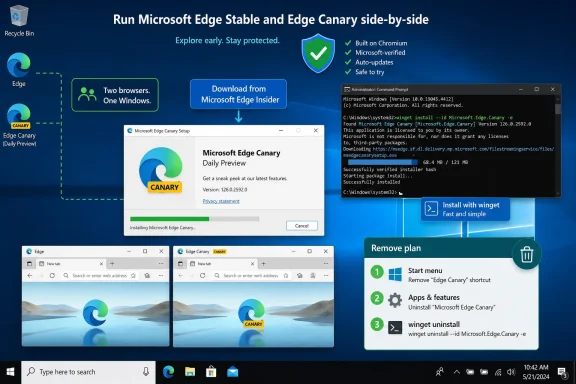 The Safe Edge Canary Install Is Boring, and That Is the Point
The clean way to install Microsoft Edge Canary on Windows 10 is not a software-download site, not an old MSI rabbit hole, and not a Microsoft Store hunt. It is Microsoft’s Edge Insider page, where the Insider channels are presented directly and Canary Channel is available as the daily preview build. That is the route ordinary Windows 10 users should use because it keeps the installer chain inside Microsoft’s own consumer-facing Edge distribution path.That matters because Canary is exactly the sort of browser that attracts bad advice. It has a familiar Microsoft name, a fast update cadence, and a history of being discussed alongside Dev, Beta, Stable, enterprise deployment, and Windows Insider terminology. Search results can easily blur those lanes together, leaving users with a command that might have been right for another channel, an enterprise article that omits Canary, or a third-party mirror that simply should not be involved.
The official flow is simple. Go to Microsoft’s Edge Insider download page, choose Canary Channel under Insider channels, download the installer, run the Microsoft Edge Canary setup file, approve User Account Control if it appears, and follow the installer until Canary opens. That is the main path, and it is the one most users should prefer.
There is also an indirect Microsoft path if you start from the regular Edge download page. Microsoft’s consumer Edge page links onward to preview builds through a section labeled “Download preview builds of Microsoft Edge.” From there, the user selects the Insider channel route, chooses Canary Channel, downloads the setup file, and installs it. The distinction is small but useful: if you land on Microsoft’s regular Edge page first, you do not need to go back to a search engine.
The broader point is that Edge Canary should be installed like a test tool, not like a random browser replacement. If you are installing it because a site, extension, policy, or web app behaves differently in a future Edge build, the official Insider page gives you exactly what you need. If you are installing it because a download site says it has the newest build, you are already taking on needless risk before the browser even launches.
Windows 10 Support Is Still There, but the Version Floor Matters
Microsoft’s supported operating-system documentation keeps Windows 10 in the Edge story longer than many users assume. The relevant baseline for Microsoft Edge support is Windows 10 SAC 1709 or later. For Windows 10 22H2, Microsoft expects Edge updates to continue until at least October 2028, which gives remaining Windows 10 users a real browser runway even as the operating system itself sits in a more complicated support era.That does not mean every Windows 10 machine is equally ready for every install method. The browser support floor and the winget floor are different. Microsoft Edge support starts at Windows 10 SAC 1709 or later, while the winget method needs Windows 10 version 1809 build 17763 or later, along with App Installer or winget already present.
That distinction is where many terse how-to guides become misleading. “Install with winget” is correct only if the Windows Package Manager path exists on the machine. On older or unmanaged Windows 10 systems, the command may fail not because Edge Canary is unavailable, but because the package-management layer is missing or the Windows build is below the requirement.
For a normal user, the official web installer is therefore the least surprising route. For a power user, developer, help-desk technician, or admin working on a machine that already has Windows Package Manager, winget is faster and more repeatable. But the command-line route is not automatically more “official” than the download page; it is just another official route when the prerequisites are satisfied.
Here is the useful separation:
| Route | Minimum Windows 10 requirement | Best fit | What to avoid |
|---|---|---|---|
| Edge Insider page | Windows 10 SAC 1709 or later | Most users installing Canary manually | Third-party download portals |
| Regular Edge page to preview builds | Windows 10 SAC 1709 or later | Users who start from Microsoft’s main Edge page | Assuming Stable and Canary are the same download |
| winget | Windows 10 version 1809 build 17763 or later | Power users, scripts, repeatable installs | Running the command on systems without App Installer or winget |
| Configuration Manager Edge Management | Covers Beta, Dev, and Stable | Enterprise deployment of supported Edge channels | Treating Canary as a supported enterprise channel |
Canary Is a Daily Preview, Not a Promotion to Production
Canary’s appeal is obvious: it is the earliest practical look at what Edge may become. Microsoft describes Canary as the daily preview channel, and that daily cadence is the selling point for developers, testers, extension authors, IT pilots, and enthusiasts who want to see changes before they filter into slower channels. It is also the reason Canary should not be treated as the browser you standardize around.The mistake is to think of Edge channels as a simple ladder where newer is automatically better. Canary is not “Stable plus features.” It is an early build stream. The browser may be perfectly usable on a given day, and many people do use Canary for routine browsing, but that does not change its function in Microsoft’s channel strategy.
That distinction matters most in business environments. If an organization needs to test upcoming Edge changes, Canary can be useful on a small number of lab machines or developer workstations. If the same organization needs managed deployment, predictable support, reporting, and a channel Microsoft explicitly frames for enterprise use, Canary is the wrong place to anchor that process.
Microsoft’s own management tooling draws the line. Configuration Manager’s Edge Management flow covers Beta, Dev, and Stable; Canary is excluded from that dashboard. That is not an accident of labeling. It is Microsoft signaling that Canary is for early exposure, not supported enterprise rollout.
The practical consequence is straightforward: install Canary side-by-side for testing, but do not confuse it with the organization’s standard Edge channel. Do not make it the default browser across a fleet. Do not build production help-desk workflows around it. Do not use it as the only place where employees can access business-critical web apps. Canary is where you go to find tomorrow’s problems early, not where you pretend tomorrow has already become policy.
The Web Installer Is the Right Answer for Most People
The best installation route for most Windows 10 users remains the Edge Insider download page. It asks the least of the PC, does not require App Installer, and presents the channels in Microsoft’s own language. If the user can download and run a desktop installer, this is the most direct path.The steps are intentionally ordinary. Open Microsoft’s Edge Insider page. Choose Canary Channel. Select Download. Run the downloaded setup file. Approve User Account Control if Windows asks. Follow the installer until Microsoft Edge Canary opens.
That simplicity is protective. It avoids the common failure mode where a user searches for “Edge Canary Windows 10 download,” lands on a third-party software catalog, and downloads whatever that site has chosen to package, cache, or advertise. Even when such sites are not malicious, they add ambiguity to a process that does not need it.
It also avoids the enterprise-documentation detour. Microsoft has extensive Edge deployment documentation, and much of it is valuable for admins. But a user trying to install Canary on a single Windows 10 PC does not need to begin with Configuration Manager, Edge for Business MSI deployment, or a management dashboard that excludes Canary in the first place.
The regular Edge download page is also safe if you know where to look. Microsoft’s main Edge page includes a preview-build path under “Download preview builds of Microsoft Edge.” From there, selecting “Download Insider Channels” takes the user to the Insider page, where Canary Channel can be chosen.
That route is worth spelling out because it resolves a common moment of doubt. Users often land on the normal Edge page and see an obvious download button for regular Edge. That is not the Canary installer. The preview-build section is the pivot point.
Winget Is the Clean Command-Line Path, with One Important Gate
For users who already rely on Windows Package Manager, winget is the clean command-line option. Open Command Prompt, PowerShell, or Windows Terminal, then run:winget install --id Microsoft.Edge.Canary -eThe verified package ID is
Microsoft.Edge.Canary. The -e flag matters because it tells winget to use an exact match for the package identifier rather than a loose search result. After running the command, review any source or package prompts, accept the on-screen prompts, and approve elevation if User Account Control appears.This route is best for repeatability. If you are documenting a lab setup, preparing a test machine, or walking another technical user through the install, the package ID gives everyone the same target. It is also easier to undo with the matching winget uninstall command later.
But winget is not magic. The machine needs Windows 10 version 1809 build 17763 or later, and it needs App Installer or winget installed. If either condition is missing, the web installer remains the practical route.
The risk with command-line advice is that it tends to get copied without the prerequisites. A command that works perfectly on one Windows 10 22H2 machine may fail on another older system. A help-desk note that says only “run winget install Edge Canary” is therefore incomplete; the version and App Installer requirement are part of the instruction, not fine print.
The other risk is package-name drift through search. Do not search winget broadly and guess at the result. Use the verified package ID. In this case, precision is not pedantry; it is how you avoid installing the wrong thing.
The Microsoft Store Is Not the Route to Trust Here
The research behind the source material did not verify a current Windows Microsoft Store listing for Microsoft Edge Canary. That does not require a grand theory about the Store. It simply means Windows 10 users should not treat the Microsoft Store as the reliable route for this particular install unless Microsoft presents it directly on their PC.This is one of those cases where restraint is better than improvisation. Users are accustomed to finding apps in the Store, and Microsoft has used Store distribution for many consumer-facing apps. But Edge Canary on Windows 10 has a verified official route through the Edge Insider page and a verified command-line route through winget. There is no need to hunt for an unverified Store listing.
The same caution applies to software portals. A search result may present a Canary installer that appears current, but that does not make it the correct source of trust. Browser installers are security-sensitive downloads by definition. The browser is where passwords, sessions, extensions, enterprise sign-ins, and web-app credentials converge.
The safer rule is blunt: if Microsoft gives you the installer directly, use Microsoft. If winget can resolve the verified package ID on a compatible system, use winget. If a third-party site is the only place you can find a build, you have not found the right route.
Old Enterprise Instructions Are a Different Problem, Not a Better Solution
The enterprise confusion around Edge Canary is more subtle than the download-site problem. A third-party mirror looks obviously less trustworthy once you think about it. An official Microsoft enterprise document, by contrast, looks authoritative—and often is, just not for Canary.Microsoft’s Configuration Manager Edge Management path covers Beta, Dev, and Stable. Its dashboard excludes Canary Channel. That means an admin looking for Canary inside that built-in management flow is not missing a hidden checkbox; they are looking in a path designed around other channels.
This distinction has operational consequences. Beta, Dev, and Stable can fit into managed testing and deployment models in ways Canary does not. Stable is the production channel. Beta and Dev can support staged validation and early compatibility testing. Canary is the daily preview channel and should be handled as a separate, limited testing tool.
The source material’s warning against “old enterprise-style instructions” is therefore well placed. Instructions that mention Microsoft Edge for Business, MSI downloads, or Configuration Manager may be accurate for other Edge channels. They are not a substitute for the Canary install route described here.
For IT departments, the right answer is not to ban Canary categorically. It is to define its role. Canary belongs on test devices, developer machines, and compatibility rigs where breakage is acceptable and useful. It does not belong in the same deployment conversation as a managed Stable rollout.
That also affects support expectations. If a user voluntarily installs Canary and a web app breaks, the organization should not treat that failure as equivalent to a Stable-channel outage. Canary can reveal a future compatibility issue worth investigating, but it is not proof that the current production browser is broken.
Side-by-Side Installation Is the Feature That Keeps This Sane
The best thing about Edge Canary on Windows 10 is that it installs as its own app. Removing Canary later does not remove regular Microsoft Edge. That separation is what makes Canary practical for testing: users can keep their normal browser while experimenting with the daily preview channel.This side-by-side model should shape how people use it. Do not migrate your entire browsing life to Canary just because it launches successfully. Keep Stable Edge for ordinary work, banking, password-heavy browsing, and anything that matters if a profile, extension, or feature misbehaves. Use Canary to test sites, flags, upcoming changes, rendering behavior, extension compatibility, or account sync behavior in a controlled way.
The naming helps. In the Start menu, the app is Microsoft Edge Canary. That is the entry to find when launching or uninstalling it. The separate app identity reduces the chance that a user will accidentally remove the regular browser while cleaning up the preview build.
This also matters for troubleshooting. If a problem appears only in Canary, you have a narrower test case. If the same problem appears in Stable and Canary, you may be looking at a broader Edge, Windows, account, extension, network, or web-service issue. Keeping the channels separate gives you better evidence.
The mistake is to install Canary and then forget why it is there. If it becomes just another browser icon, it can drift into daily use without the user recognizing that daily builds are part of the bargain. Canary’s value comes from deliberate testing, not from pretending it is a normal consumer release.
When Setup Fails, Do Not Start by Scrubbing Random Folders
Installer failures invite bad instincts. A user sees a blocked setup or failed uninstall and starts deleting folders, clearing caches, or chasing registry edits from forum posts. That can turn a simple installer metadata problem into a damaged application state.Microsoft’s recommended escape hatch for this class of issue is the Program Install and Uninstall troubleshooter, published under the support page named “Fix problems that block programs from being installed or removed.” The tool is designed for desktop programs blocked by corrupted registry keys or incomplete install and uninstall data. That description fits the kind of problem users often hit when an installer or uninstaller refuses to proceed.
The sensible order is important. First, try the normal installer. If it fails, retry after checking the obvious conditions: correct Windows version, official download source, administrative approval, and network availability. If the normal installer or uninstaller remains blocked, then use Microsoft’s Program Install and Uninstall troubleshooter.
The troubleshooter flow is straightforward. Open Microsoft’s “Fix problems that block programs from being installed or removed” page, select Download troubleshooter, choose Run or Open when prompted, and follow the steps for installing or uninstalling. It is not a general-purpose Edge repair tool; it is for blocked desktop install and uninstall problems tied to installer data and registry issues.
That limitation is useful. If Canary installs but a website crashes, the troubleshooter is not your answer. If the Canary installer cannot complete or the uninstaller cannot remove the app because Windows has bad install metadata, the troubleshooter belongs in the escalation path.
Removing Canary Should Be as Deliberate as Installing It
Canary’s uninstall story is refreshingly ordinary. Because Microsoft Edge Canary installs as its own app, removing it does not remove regular Microsoft Edge. The fastest route is the Start menu: select Start, find Microsoft Edge Canary in the app list, right-click it, choose Uninstall, and follow the prompts.Windows 10 Settings provides the other common path. Open Settings, go to Apps, open Apps & features, select Microsoft Edge Canary, choose Uninstall, and follow the on-screen instructions. This is the route most users will recognize from removing other desktop apps.
Control Panel still works for those who prefer the older interface. Open Control Panel, go to Programs, then Programs and Features, right-click Microsoft Edge Canary, and choose Uninstall or Uninstall/Change. On older Windows 10 habits, this remains a useful fallback.
The command-line symmetry is cleaner still. If you installed with winget or simply prefer package-manager cleanup, run:
winget uninstall --id Microsoft.Edge.Canary -eAgain, the verified package ID matters. Use
Microsoft.Edge.Canary, and use the exact-match option. If that fails because the installer metadata is damaged, then it is time to reach for Microsoft’s Program Install and Uninstall troubleshooter rather than improvising with manual deletion.The uninstall plan should be part of the install decision. If you are adding Canary to investigate a specific bug, set a mental expiration date. When the test is done, remove it or keep it only if it has a continuing purpose. Preview software tends to become riskier when it is forgotten.
What IT Should Actually Do With Canary
For IT pros, the most useful posture toward Edge Canary is controlled tolerance. It should not be the enterprise browser channel, and Microsoft’s own Configuration Manager Edge Management coverage reinforces that boundary. But it can be a valuable early-warning system when used on the right devices by the right people.Canary is especially useful for web-application owners. If an internal line-of-business app behaves differently in Canary, that may be a sign of a browser change that could reach slower channels later. The right response is not panic; it is documentation. Capture the Canary behavior, compare against Stable, and test in Dev or Beta where appropriate.
Developers and QA teams can also use Canary to validate extension behavior, authentication flows, rendering changes, and compatibility assumptions. Because Canary is updated daily, a bug that appears one day may change quickly. That volatility is frustrating for production work but useful for early detection.
Admins should also be precise in user communications. “Install Edge Canary” is not enough. The instruction should say where to download it, which channel to choose, whether winget is allowed, and how to remove it. It should also state that Canary is not the supported enterprise channel.
The larger lesson is that channel discipline is security discipline. Organizations already understand the difference between production, staging, and development environments. Browser channels deserve the same thinking. Stable is not Canary, Canary is not Beta, and a test machine is not a fleet policy.
Action checklist for admins
- Confirm the PC is on Windows 10 SAC 1709 or later before using the official Edge Insider installer.
- Use Windows 10 version 1809 build 17763 or later if installing with winget.
- Install from Microsoft’s Edge Insider page or run
winget install --id Microsoft.Edge.Canary -e. - Do not use Configuration Manager’s built-in Edge Management flow as a Canary deployment path.
- Document that Canary is a daily preview channel and not the supported enterprise channel.
- If install or uninstall is blocked, use Microsoft’s Program Install and Uninstall troubleshooter after normal methods fail.
- Remove Canary through Start, Apps & features, Control Panel, or
winget uninstall --id Microsoft.Edge.Canary -e.
The User-Level Rule: Test in Canary, Live in Stable
For ordinary Windows 10 users, the recommendation is simpler: use Canary only when you have a reason. That reason might be curiosity, development, website testing, extension testing, or troubleshooting a bug that appears in one Edge channel but not another. “I want the newest Edge” is understandable, but it is not the same as needing a daily preview browser.Stable Edge remains the browser most users should treat as their everyday browser. Canary can sit beside it. That side-by-side arrangement is the whole advantage: you can test tomorrow’s Edge without surrendering today’s working setup.
This is especially important on Windows 10 machines that are staying in service for hardware, compatibility, or preference reasons. Microsoft expects Edge updates on Windows 10 22H2 until at least October 2028, so users are not being forced into Canary to keep receiving Edge updates. Canary is not a support workaround. It is a preview channel.
That point deserves emphasis because Windows 10 users are surrounded by mixed messages about aging hardware, operating-system support, browser support, and application compatibility. Canary may feel like a way to stay ahead. In reality, staying safe usually means staying boring: official downloads, supported channels, clean uninstall paths, and preview builds only where they make sense.
If you need a future-looking browser, install Canary from Microsoft. If you need a reliable browser, keep using Stable. If you need both, let them coexist and remember which one is supposed to break first.
The Practical Edge Canary Playbook
The story here is not that Edge Canary is hard to install. It is that installing preview software safely requires knowing which official path applies and which official-looking paths do not. Once that distinction is clear, the process becomes routine.The concrete guidance is narrow, and that is why it works:
- Use Microsoft’s Edge Insider page as the main download route for Canary.
- Use winget only on Windows 10 version 1809 build 17763 or later with App Installer or winget installed.
- Treat
Microsoft.Edge.Canaryas the verified package ID for install and uninstall. - Skip third-party download portals and unverified Microsoft Store assumptions.
- Remember that Configuration Manager’s Edge Management path covers Beta, Dev, and Stable, not Canary.
- Use Microsoft’s Program Install and Uninstall troubleshooter only when normal install or uninstall paths are blocked.
The future of Windows browsing will keep moving through channels, experiments, feature flags, and staged releases, and Canary will remain the place where many of those changes surface first. The safest Windows 10 users will not be the ones who avoid preview builds entirely; they will be the ones who know exactly why they installed one, where it came from, how to remove it, and why their real work still belongs somewhere steadier.
References
- Primary source: Technobezz
Published: 2026-07-08T17:20:08.947292
Loading…
www.technobezz.com - Official source: learn.microsoft.com
Loading…
learn.microsoft.com - Official source: microsoft.com
Loading…
www.microsoft.com - Official source: support.microsoft.com
Loading…
support.microsoft.com - Official source: cdn-dynmedia-1.microsoft.com
- Official source: blogs.windows.com
Loading…
blogs.windows.com
- Related coverage: wingetly.io
Loading…
www.wingetly.io - Related coverage: community.chocolatey.org
Loading…
community.chocolatey.org - Official source: download.microsoft.com
- Related coverage: windowscentral.com
Loading…
www.windowscentral.com - Related coverage: tomshardware.com
Microsoft simplifies Windows Insider program — fewer channels, and switching without wiping your device
The company will also make it easier to ensure you get all of the latest features.www.tomshardware.com
- Related coverage: techradar.com
Loading…
www.techradar.com