Microsoft Phases Out New Legacy V3/V4 Printer Drivers via Windows Update

  • Thread Author
For millions of home users and dozens of industries that still run legacy printing fleets, January 15, 2026 will be remembered as the date Microsoft slammed the brakes on the distribution of legacy V3 and V4 printer drivers through Windows Update — a staged, multi‑year shift that puts older printers on borrowed time and forces IT teams and consumers to confront a simple truth: the Windows printing ecosystem is being modernized, and vendor‑specific drivers are no longer the default path forward.

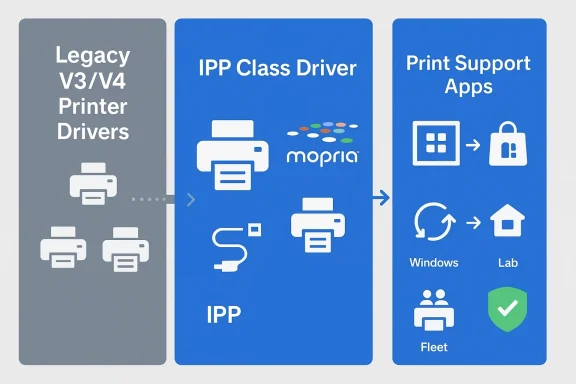
Diagram comparing legacy V3/V4 printer drivers to modern IPP class drivers (Mopria, Universal Print, Windows Protected Print).Background​

Microsoft began signaling this transition publicly in September 2023. The company’s long‑term plan centers on the modern print platform — an Internet Printing Protocol (IPP)-first architecture, the Microsoft IPP class driver, and complementary services such as Universal Print and Windows Protected Print Mode. Rather than continue to accept, certify and distribute thousands of vendor‑specific V3 and V4 drivers via Windows Update, Microsoft is redirecting the ecosystem toward standardized, inbox solutions and cloud services that reduce complexity and, importantly, the attack surface associated with third‑party print drivers.
This change is staged across clearly defined milestones. Microsoft’s plan moves from a deprecation announcement to a hard stop on new legacy drivers appearing on Windows Update (January 15, 2026 for Windows 11 and Windows Server 2025+), followed by changes in driver selection behavior (July 1, 2026) and a limitation on third‑party driver updates to security fixes only (July 1, 2027). The phased approach is explicit: existing drivers are not being forcibly deleted en masse today, but the operating rules for driver distribution and preference are changing in ways that will reshape how printers are installed and maintained on Windows devices.

Why Microsoft did this — the technical and security case​

The Windows print stack has been a perennial challenge for OS reliability and security teams. A few technical realities underpin Microsoft’s move:
  • Legacy driver models (V3 and V4) are vendor‑specific and often include installers, port monitors, kernel mode components and other modules that increase system complexity. Each extra module is an opportunity for misconfiguration or exploitation.
  • High‑profile spooler vulnerabilities — most notably the family of issues collectively known as PrintNightmare — demonstrated how print driver installation and spooler behavior could be weaponized for remote code execution and local privilege escalation. That episode catalyzed a reexamination of how printing integrates with core OS services.
  • Managing, certifying and distributing thousands of bespoke drivers via Windows Update consumes engineering and QA resources and introduces variability in behavior across hardware, architectures, and updates.
  • Modern standards such as IPP, eSCL and Mopria compliance enable vendor‑agnostic features for printing and scanning over both network and USB connections, removing many historical reasons to rely on third‑party packages.
From Microsoft’s perspective, consolidating around the modern print platform, IPP inbox drivers and cloud solutions like Universal Print simplifies servicing, reduces the likelihood of driver‑related vulnerabilities, and provides a more uniform experience across devices and Windows architectures.

What changed on January 15, 2026 — the practical impact​

The most commonly cited change is blunt: Microsoft stopped publishing new legacy V3/V4 third‑party printer drivers to Windows Update for Windows 11 and Windows Server 2025+. That means:
  • New legacy driver submissions to Windows Update are blocked by default and will require manual justification and special approval.
  • Existing legacy drivers already published to Windows Update remain available for installation and in many cases will continue to function.
  • Over the next 12–18 months Microsoft will change the driver ranking order to prefer the Microsoft IPP inbox class driver. In practical terms, Windows will default to class/inbox drivers rather than opting for a vendor package in many add‑printer flows.
  • Eventually, starting in mid‑2027, third‑party driver updates via Windows Update will be limited primarily to security fixes — feature and non‑security fixes will be largely excluded.
It is important to be precise: this is a servicing and distribution policy shift, not an immediate functional deletion of legacy driver support in the OS kernel. But in many real‑world cases, the distribution change and inbox preference shift will make it harder for older models to install automatically and preserve vendor‑specific functionality without extra steps.

Separating fact from alarmism: will my old printer stop working immediately?​

Short answer: Not automatically. Long answer: it depends.
  • If your printer already uses an installed V3/V4 driver that was previously delivered via Windows Update, that driver typically remains present and functional — the device will not instantly stop printing just because Microsoft stopped publishing new driver packages.
  • The pain points arise when a user tries to add a printer (new install), when device drivers are removed as part of a system refresh, or when a Windows Update changes driver ranking to prefer IPP class drivers. In those cases the OS may attempt to use the modern inbox driver instead of installing the legacy vendor package — which can be good (simpler, standard feature set) or bad (loss of vendor‑specific features like advanced finishing, secure release or scanner functionality).
  • Reports claiming a “total shutdown” of printers are often overstated. Many journalists and social posts conflate the discontinuation of driver distribution with immediate device inoperability. That said, for specific older models — especially those reliant on deeply integrated vendor software — the transition will be disruptive and some devices will require vendor updates, workarounds, or replacement.
Flag: where reporting claims “millions of printers stopped working” there is a mixture of accurate events and hyperbole. Readers should treat case‑by‑case anecdotes as indicative of friction rather than systemic catastrophic failure.

What this means for different audiences​

Home users and small offices​

If you own a consumer printer bought in the last 5–8 years, chances are it already supports IPP/eSCL or has a modern driver that will continue working. If you have a decade‑old multifunction device that required a vendor package, expect potential friction when reinstalling it or upgrading your PC.
Recommended actions:
  • Before upgrading or applying big OS changes, create a simple inventory: note the make and model, driver type and whether the manufacturer still lists downloads for that model.
  • Try to install the printer using Windows’ built‑in “Add a printer” flow; if Windows selects the IPP inbox driver, test core functions (print, scan, fax) to see if the modern stack meets your needs.
  • If a vendor installer is necessary, download the latest package from the manufacturer’s site and install it manually. The driver package may still be installable even though it won’t be distributed via Windows Update.
  • Be skeptical about advice to "downgrade" to Windows 10 as a permanent fix. Windows 10 reached end of support on October 14, 2025; while existing installations may run, they no longer receive security updates unless you purchase Extended Security Updates (ESU). Using an out‑of‑support OS as a long‑term workaround is a risky trade‑off in security.

IT admins and enterprise teams​

Enterprises with mixed fleets must treat this as a change control and asset‑management problem, not just a helpdesk surge. The move gives IT an opportunity to modernize print infrastructure — but it also raises short‑term operational risk.
High‑value actions for IT:
  • Inventory your estate now. Use native tools and scripts to capture models, installed driver packages and timestamps. Useful commands:
  • pnputil /enum-drivers
  • Get‑PrinterDriver (PowerShell PrintManagement module)
  • Get‑Printer
  • pnputil /enum-drivers /files /format CSV /output-file DriverInventory.csv
  • Categorize devices:
  • Mopria/IPP/eSCL compatible — candidates for modern print migration.
  • Vendor‑specific features required (secure print, badge auth, finishing) — require vendor engagement.
  • End‑of‑life models — plan replacement windows and budget accordingly.
  • Pilot Windows Protected Print Mode and Universal Print in controlled segments. Protected Print Mode forces modern print usage and reduces driver complexity; Universal Print can remove the need for local drivers entirely in many scenarios.
  • Maintain a fallback plan: a legacy print server running an older OS (air‑gapped and tightly controlled) can be used to preserve vendor features for a narrow set of machines while you migrate the rest of the estate. However, such servers must be isolated, patched where possible and monitored.
  • Engage vendors early. Ask for IPP/eSCL firmware updates, Print Support Apps for the Microsoft Store model, or signed installer packages that can be deployed via Intune or SCCM.

SMBs, healthcare, manufacturing and regulated industries​

These environments often have specialized printers (labelers, PACS attachments, multi‑function devices with advanced scanning workflows). The combination of device age and regulatory compliance means that disruption is risk‑intolerant.
Actionable guidance:
  • Map printers to business processes — which printers are critical for revenue, compliance, or patient safety.
  • Prioritize hardware refreshes for critical devices where vendor support is unavailable or where modern standards can’t replicate required features.
  • If replacement is not immediate, establish hardened print servers and network segmentation to reduce exposure from legacy drivers.

Migration paths and remediation options​

Below are realistic options ranked from least to most disruptive.
  • Check for a vendor update or signed installer (low disruption)
  • Many OEMs will still host drivers and installers directly on their sites. Use manufacturer installers to restore functionality where Windows Update no longer provides packages.
  • Use the modern print stack (IPP/eSCL/Mopria) (low to medium)
  • If your device is Mopria‑certified, the modern stack will often provide printing (and sometimes scanning) without vendor drivers. Enabling Windows Protected Print Mode forces devices to use the modern platform.
  • Universal Print (cloud) (medium)
  • For organizations with Microsoft 365 entitlements, Universal Print can remove the need for endpoint drivers entirely. Universal Print Anywhere (pull print) also solves secure release and mobility issues for distributed workplaces.
  • Local print server or virtualization (medium to high)
  • Maintain a hardened, dedicated print server with vendor drivers for machines that require them. Consider isolating the print server network access and tight change control.
  • Replace unsupported hardware (high cost, long term benefit)
  • Procure Mopria‑certified or Universal Print‑ready devices as part of refresh cycles. Prioritize devices that support IPP over USB and network IPP to minimize driver dependence.
  • Extended Security Updates (ESU) for Windows 10 (short‑term stopgap)
  • If stakeholders advise “go back to Windows 10” as a fix, remember Windows 10 mainstream support ended October 14, 2025. ESU can extend security patches through an additional window, but it costs money, may require enrollment rules (Microsoft account linking) and is explicitly not a long‑term strategy.

Detailed, practical steps for administrators​

Step 1 — Inventory (one‑time audit)​

  • Run pnputil to list driver packages:
  • Open an elevated Command Prompt and run: pnputil /enum-drivers /files /format CSV /output-file C:\Temp\DriverInventory.csv
  • Use PowerShell to list installed printers and drivers:
  • Open an elevated PowerShell:
  • Import-Module PrintManagement
  • Get-Printer | Select Name, DriverName, PortName | Export-Csv C:\Temp\Printers.csv -NoTypeInformation
  • Get-PrinterDriver | Select Name, Manufacturer, Version | Export-Csv C:\Temp\PrinterDrivers.csv -NoTypeInformation
  • Correlate model numbers with vendor support pages and Mopria certification lists.

Step 2 — Classify and prioritize​

  • Tag printers as critical, business‑important, or non‑essential.
  • Identify dependencies like scanning workflows, secure release, or SDK integrations.

Step 3 — Pilot modern print and Protected Print Mode​

  • Select a non‑critical segment and enable Windows Protected Print Mode on a handful of devices.
  • Validate that Mopria‑certified devices re-install using the modern stack and test scanning and finishing behavior.
  • Monitor helpdesk tickets and user satisfaction.

Step 4 — Vendor engagement​

  • Open support cases with OEMs for models that fail under the modern stack.
  • Request signed driver packages or Print Support Apps that can be managed centrally.

Step 5 — Migration and enforcement​

  • For wide deployments, use group policy or Intune to enable Protected Print Mode where appropriate.
  • Roll out Universal Print for shared environments to remove driver distribution headaches entirely.

The vendor responsibility problem — and the market response​

One recurring theme of this transition is vendor behavior. Hardware OEMs have varying incentives to update firmware, certify Mopria compliance or provide modern print support for models that are at or near end of sale. Two realistic outcomes are likely:
  • OEMs update popular models and provide Print Support Apps or signed installers that IT can deploy; this reduces friction and maintains features.
  • OEMs stop supporting old models, leaving customers to choose between replacing hardware or accepting limited functionality under the modern stack.
This bifurcation favors manufacturers that have embraced IPP and cloud‑ready features and penalizes those that leaned on proprietary drivers to differentiate products. Organizations should bake support longevity into procurement decisions going forward: demand Mopria certification and Universal Print readiness in RFPs.

Security tradeoffs and the policy tension​

Microsoft’s move is primarily security‑driven; consolidating driver paths reduces injection points for malicious modules and simplifies auditing. But there are tradeoffs:
  • Short‑term availability risk for legacy printers. Customers may lose vendor‑specific functions or face reinstallation failures during OS upgrades.
  • Procurement and refresh costs are real for cash‑constrained organizations that use printers intensively (hospital imaging centers, manufacturing lines, postal systems).
  • Reliance on cloud services like Universal Print raises operational and privacy considerations (data custody, authentication requirements) that must be evaluated under each organization’s compliance model.
On balance, the security rationale is compelling; but the policy introduces operational burden that manufacturers, corporate IT teams and Microsoft must manage collaboratively.

What should consumers say to support and retail staff?​

If you call your printer manufacturer or a reseller, be prepared with three things:
  • The exact model and serial number of the device.
  • The driver package currently installed (if present) and how it was obtained (Windows Update or manufacturer download).
  • The Windows build and edition (e.g., Windows 11 24H2, Home/Pro/Enterprise).
Ask explicitly whether the model supports IPP/eSCL/Mopria and whether there is a signed installer suitable for Windows 11. If the device lacks support and replacement is the only option, ask the vendor about trade‑in or refurbished replacement programs.

Final analysis — who wins and who loses?​

Microsoft’s goals — improved security, fewer unreliable third‑party modules, and a simpler support model — are technically sound. The modern print platform and Universal Print offer a clear long‑term path away from brittle, vendor‑specific ecosystems.
Winners:
  • Organizations that have already standardized on Mopria‑certified or Universal Print‑ready devices.
  • IT teams that prioritize security and are ready to modernize print workflows (cloud print, secure release).
  • End users who will eventually enjoy more consistent, installer‑free printing experiences.
Losers (in the short term):
  • Owners of older, vendor‑driver‑dependent printers that are no longer maintained.
  • Small businesses and public sector customers with tight refresh budgets and mission‑critical printers tied to legacy workflows.
  • IT teams that lack the resources to inventory, test and migrate printing fleets quickly.
Microsoft’s staged timeline provides breathing room, but the window is closing — vendor engagement, quick inventories and clear migration plans are the responsible responses. Treat this as a multi‑quarter modernization project, not a single helpdesk spike to be patched by prayer or a Windows rollback.

Quick checklist — what to do in the next 30 days​

  • Inventory printers and drivers across endpoints and servers.
  • Identify critical devices and validate whether they function with the modern print stack.
  • Pilot Windows Protected Print Mode in a small user group.
  • Engage OEMs for signed drivers or Print Support Apps.
  • Evaluate Universal Print for high‑density or mobile printing scenarios.
  • Plan procurement that prioritizes Mopria certification and modern print capabilities.
  • Avoid recommending Windows 10 as a long‑term fix; its mainstream support window closed in October 2025 and extended security options are temporary and potentially costly.

The era of treating printers as peripheral second‑class citizens in IT management is ending. Microsoft’s decision to stop distributing new V3/V4 drivers via Windows Update forces a clear, if uncomfortable, choice: modernize the printing estate now or accept growing operational and security risk later. For the cautious IT pro, the immediate imperative is to inventory, prioritize and engage — and to convert an inevitable change into a controlled migration rather than an emergency.

Source: Inbox.lv Total Shutdown: Printers Stop Working with Windows
 

Microsoft’s decision to stop distributing new legacy V3 and V4 printer drivers through Windows Update marks a major, multi‑year shift in how Windows will handle printing — one that trades decades of vendor-supplied kernel and Win32 drivers for a standards‑based, inbox model built around the Microsoft IPP Class Driver, Mopria compatibility, and downloadable Print Support Apps. m]

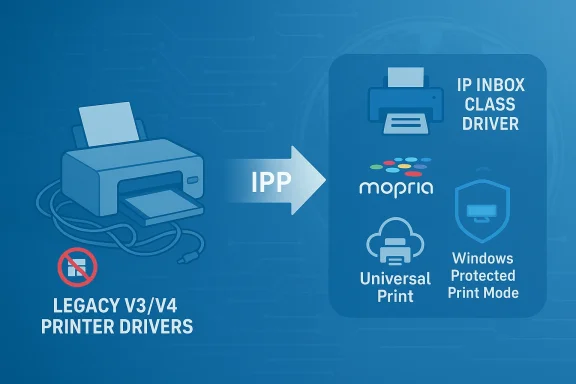
Infographic showing legacy V3/V4 printer drivers, IPP class driver, and print support apps.Background / Overview​

Microsoft first signalled the intent to deprecate legacy third‑party printer drivers in September 2023, and the company has laid out a staged timeline that begins with an immediate change to Windows Update distribution and culminates in a near‑complete end to Windows Update delivery for non‑security driver updates by mid‑2027. The timeline and the technical rationale are documented in Microsoft’s End of Servicing Plan for third‑party printer drivers.
The core of the new approach is the Microsoft IPP (Internet Printing Protocol) Class Driver, which provides inbox support for Mopria‑certified printers — for both network and USB connections — and has been available since Windows 10 version 21H2. For device‑specific features that legacy drivers used to surface via kernel or Win32 components, Microsoft is encouraging vendors to ship Print Support Apps (PSAs) via the Microsoft Store using the UWP framework. This shifts customization out of privileged driver code and into user‑level apps that can be updated independently.
Major outlets and industry commentators quickly amplified the change, warning that while most modern printers will continue to work, older devices that depend exclusively on legacy V3/V4 drivers will no longer receive new driver packages via Windows Update — although manufacturers can still distribute installers directly to customers.

What exactly is changing — the timeline and the rules​

Microsoft’s published timeline is the anchor for IT planning. The high‑level milestones are:
  • September 2023 — Deprecation announced publicly.
  • January 15, 2026 — Windows 11+ and Windows Server 2025+ will stop publishing new legacy V3/V4 printer drivers to Windows Update. Existing drivers already on Windows Update may still be updated on a case‑by‑case basis; new submissions targeting those OSes will be blocked by default and are subject to manual exception review.
  • July 1, 2026 — Driver ranking will be changed to prefer the Windows IPP Class Driver by default when adding new printers, steering installs toward the inbox class driver where possible.
  • July 1, 2027 — Only security‑related fixes for third‑party legacy drivers will be allowed via Windows Update; non‑security updates and feature additions through Windows Update will generally be disallowed. Vendors can still ship installer packages themselves.
Microsoft’s partner guidance now requires printer vendors to supply a justification for any new legacy driver submission; mass submissions are blocked by default and only exceptions — such as devices that cannot be Mopria certified, ARM64 drivers, or products targeted only at legacy Windows versions — are likely to be approved. The Legacy Printer Driver Submission Process document explains these mechanics and the new exception criteria in detail.

Why Microsoft is pushing this — Stability, security and manageability​

The company frames the change as a net improvement in reliability, security, and lifecycle management of Windows. There are three central arguments:
  • Reduce attack surface: Legacy printer drivers often run in privileged kernel or Win32 contexts. Historical vulnerabilities in the print subsystem — most notably the PrintNightmare class of flaws in 2021 — demonstrated how the print pipeline can be weaponized to achieve remote code execution or privilege escalation. Moving functionality into an inbox IPP class driver and user‑level Print Support Apps reduces the number of privileged, vendor‑supplied components on systems.
  • Improve reliability: Kernel‑mode or heavily customized Win32 printer drivers have long been implicated in blue screens, spooler instability, and compatibility regressions. A standardized IPP inbox experience simplifies testing and compatibility across Windows builds. Microsoft’s documentation argues that the UWP‑based PSA model yields better stability than the diverse Win32 driver ecosystem.
  • Simplify distribution and maintenance: With hundreds of printer manufacturers and thousands of models, Windows Update historically became a sprawling catalog of vendor drivers that had to be validated for each Windows release. The inbox class driver model and Store‑delivered PSAs centralize common functionality while letting vendors ship feature‑specific apps independent of OS servicing. This reduces the need for vendors to maintain multiple driver builds across Windows versions.
Independent coverage from mainstream tech outlets describes the same rationale and notes Microsoft’s push away from Win32 driver models as a long‑term platform goal. Analysts emphasize that the security argument gained urgency after PrintNightmare and subsequent spooler hardening efforts.

What this means in practice for different audiences​

Home users and small offices​

For most home users and small offices with modern printers, the impact will likely be minor. Newer network printers — and many USB printers that support IPP over USB — will be recognized and serviced by the Microsoft IPP Class Driver out of the box. That means:
  • Many devices will “just work” with no additional driver installs.
  • When a device needs custom features (finishing, secure print, advanced scanning), those capabilities will come frominstead of a driver package.
However, owners of older printers that rely on V3/V4 drivers should audit their hardware. If a manufacturer has not published a PSA or IPP‑compatible firmware, you may need to keep a vendor installer on hand or plan to replace the device when it reaches end of life. Tech outlets are already advising users to proactively check manufacturer websites for supported drivers and to retain installation packages for older hardware.

Small and medium enterprises (SMBs)​

SMBs commonly run a mix of office MFDs and legacy single‑function printers. The transition has practical consequences:
  • Printer deployment changes: Group Policy and automated imaging that previously relied on Windows Update distribution of driver packages will need updates. Deployment teams should test the IPP class driver and PSA model in their environment before large rollouts.
  • Inventory and vendor engagement: SMBs must inventory device models, confirm Mopria/IPP support, and request PSAs or alternate installers from vendors for models that lack IPP support. Where a vendor cannot supply a compatible solution, organizations should plan replacements or documented manual installation procedures.

Enterprises and IT administrators​

Large organizations and print fleets will feel the effects most acutely. The change is not an immediate outage but a scheduled migration project:
  • Audit and prioritize: Build an authoritative inventory of printer HWIDs, drivers in use, and function dependency (secure print, duplex finishing, scanning protocols). Use that inventory to classify printers by risk and business importance.
  • Test in lab and pilot phases: Validate IPP inbox behavior, PSA functionality, and third‑party installer paths in lab environments that mirror production. Scripted deployments and centralized installer repositories will be critical to minimize desktop support calls.
  • Vendor SLAs and PSAs: Push vendors for PSAs where advanced features are necessary. If hardware cannot support IPP/Mopria, insist on clear vendor guidance, sign‑off, and supported installer packages for long‑lifecycle systems. Microsoft’s new submission process requires vendors to justify exceptions; enterprises should align procurement asks with those criteria.

Technical details: What the IPP Class Driver and Print Support Apps can (and can’t) do​

IPP Class Driver capabilities​

The Microsoft IPP Class Driver provides inbox printing support for Mopria‑compliant devices, covering:
  • Print endpoint over IPP for network devices and IPP‑over‑USB for USB devices.
  • Multipurpose endpoints: print, fax (IPP Fax Out), and scan (via WS‑Scan or eSCL) are supported when devices advertise those endpoints.
This inbox model is intended to support basic and many advanced printing features without a vendor driver.

Print Support Apps (PSAs)​

PSAs are UWP or Store‑delivered apps vendors use to expose device‑specific features and management UIs to users. They have several advantages:
  • PSAs run in user space, not kernel space, reducing the risk that device code can destabilize the OS.
  • PSAs can be updated through the Microsoft Store independently of OS servicing, shortening the vendor update cycle.
  • PSAs can support features not practicable through IPP alone, such as manufacturer firmware updates, advanced finishing options, or specialized device workflows.

Limitations and functional gaps​

There are scenarios where PSAs and IPP will not fully replace legacy drivers:
  • Devices with highly proprietary, non‑standard features may still need vendor installers that include kernel components or vendor‑specific filters.
  • Some scanning endpoints (especially on older USB devices) will only be available through vendor software unless the device implements eSCL/WS‑Scan or IPP over USB scan endpoints.
  • Some legacy multifunction devices with proprietary USB stacks may not be Mopria certifiable without firmware changes. For those devices, vendor cooperation is essential. Microsoft has laid out exceptions for devices that can’t be Mopria certified; vendors must document such cases for submission sign‑off.
When a device cannot be accommodated by IPP + PSA, vendors caional installer — but those installers will not be automatically published to Windows Update for Windows 11+ and Windows Server 2025+ except in narrow, justified circumstances.

Risk analysis — strengths and pain points​

Strengths and practical benefits​

  • Smaller trusted computing base: Fewer vendor kernel drivers reduces systemic risk from poorly written or malicious drivers. Microsoft’s intent is to shrink binary diversity and the number of privileged components. ([learn.microsoft.com] updates:** Moving vendor UI into PSAs allows functional updates without repackaging kernel drivers or waiting for WHQL/Partner Center cycles. This can speed bug fixes and feature delivery.
  • Simplified admin model: A single inbox driver for compliant devices simplifies imaging and reduces driver bloat in Windows Update catalogs. Enterprises gain a predictable base image to support.

Risks and operational headaches​

  • Legacy fleet exposure: Organizations with older printers or specialized hardware (medical devices, industrial label printers, legacy POS printers) may not be able to migrate cleanly and could face desktop support spikes or porting costs. This is the single largest operational risk.
  • Vendor maturity: Not all printer vendors will produce robust PSAs or keep Store apps updated. Where vendors lag, admins must fall back to manual installers or consider device replacement.
  • Feature parity concerns: Some advanced device features (secure release, pull printing, custom trays, or manufacturer SDK integrations) may require bespoke solutions. If PSAs do not implement expected features, workflows could break. Enterprises should validate PSAs rigorously.
  • Supply chain and replacement costs: For organizations with long refresh cycles, replacing hundreds or thousands of printers could be a material capital expense; procurement and depreciation policies will need review.
Finally, while Microsoft will still accept security fixes for legacy drivers during the servicing period and will not block vendor installers, the removal of Windows Update as a default distribution channel raises support and compliance questions for regulated industries that expect centrally distributed, signed updates. Enterprises should reconcile compliance requirements with the new distribution model.

Practical migration checklist for IT teams​

  • Inventory every printer model, firmware version, and HWID in your environment. Record which drivers are provided by Windows Update today and which are manually installed.
  • Classify devices by business impact: mission‑critical, operationally necessary, convenience. Prioritise mission‑critical devices for immediate testing.
  • For each device, confirm:
  • Mopria certification or IPP support.
  • Whether the device supports IPP over USB for USB‑attached devices.
  • Availability of a Print Support App (PSA) and its functional coverage.
  • Pilot IPP + PSA installations on representative endpoints. Document unresolved feature gaps and escalate to vendors.
  • Build a repository of vendor installer packages and a scripted manual installation process for devices that must keep legacy drivers. Keep these packages under configuration management.
  • Update deployment automation (SCCM, Intune, Group Policy Objects) to prefer the Microsoft IPP Class Driver for new printer installs and to install PSAs from a managed channel where available.
  • Engage vendors with a formal request schedule: request PSAs, Mopria certification plans, and ARM64 support roadmaps where relevant. Trac

Vendor perspective: the incentives and friction​

Printer manufacturers gain a simplified compatibility target: support Mopria and publish a PSA. That reduces the need to maintain many OS‑specific driver builds. But the shift also forces vendors to:
  • Invest in PSAs and Store submission processes.
  • Potentially update device firmware to expose standard IPP/eSCL endpoints.
  • Re‑engineer some features formerly implemented in privileged driver code to operate via secure user‑level mechanisms.
For vendors with large installed bases of older hardware, this can be onerous. Microsoft’s partner tools now require a justification JSON and supporting materials for any legacy driver submission after January 15, 2026; that raises the bar for continued legacy driver support via Windows Update and nudges vendors toward the modern print model.

Caveats and unverifiable claims​

  • Any specific assertion about a particular printer model’s behavior under the IPP class driver must be verified against that vendor’s documentation or Microsoft’s compatibility lists. Manufacturer implementations vary, and feature parity is device‑dependent. Organizations should treat vendor claims cautiously and validate in lab environments.
  • Microsoft’s enforcement and exception processes are procedural and can change; the company has already adjusted dates in the past (a May 2025 update revised the timeline). Always rely on the current Microsoft Learn documentation for authoritative timing and guidance rather than third‑party summaries.

Final analysis — a pragmatic modernization, but not pain‑free​

Microsoft’s move to stop publishing new legacy V3/V4 printer drivers via Windows Update is a coherent step toward a modern, more secure and manageable printing platform. The technical merits are clear: fewer privileged third‑party binaries, a standards‑based inbox driver (IPP), and Store‑delivered PSAs that reduce patch cycles and the potential for instability. Microsoft’s documentation and partner guidance define a careful, staged rollout with explicit exceptions and submission rules.
That said, the transition is operationally consequential. The immediate winners are users and organizations with modern, Mopria‑compliant hardware and vendors who adopt PSAs quickly. The short‑to‑medium‑term losers are customers with large, heterogeneous fleets of older printers and vendors who do not invest in PSAs or firmware updates. For those groups, the change imposes real work: inventorying, testing, vendor pressure, and, in some cases, capital replacement decisions.
Security remains a compelling justification: Print subsystem vulnerabilities have historically enabled high‑severity exploits, and reducing the number of privileged vendor drivers is a defensible way to reduce systemic risk. But security gains will depend on vendor adoption of PSAs and Microsoft’s continued commitment to clear guidance and reasonable exception handling.
For IT teams, the calendar is firm enough to demand action. Treat this as a scheduled migration project: inventory, pilot, pressure vendors for PSAs or supported installers, and build a fallback repository for legacy installers where necessary. The change will hurt at the edges, but approached deliberately, it promises a simpler, safer printing platform in the medium term.

Conclusion
Microsoft’s deprecation of Windows Update distribution for legacy V3/V4 printer drivers is a deliberate, documented attempt to modernize the print platform by defaulting to the Microsoft IPP Class Driver and Mopria standards while moving vendor‑specific features into Store‑delivered Print Support Apps. The move improves security and manageability for the majority but imposes a tangible migration burden on environments with older or highly specialized printers. Start inventories, begin lab testing, and press vendors now — the calendar is set and the long tail of legacy drivers will not be serviced the same way going forward.

Source: Bangkok Post Microsoft to end legacy printer driver updates
 

Back
Top