

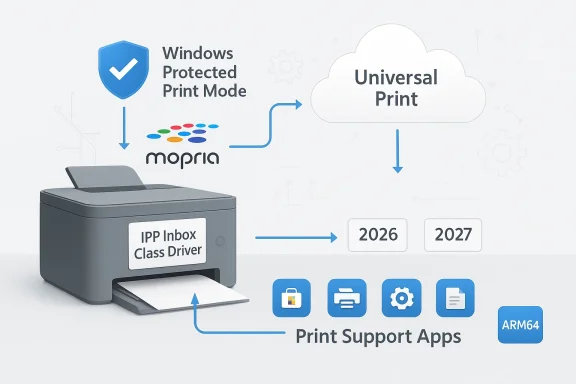
Microsoft has quietly accelerated a long‑planned pivot: as of mid‑January 2026 Windows Update will no longer be the default delivery channel for new third‑party V3 and V4 printer drivers on Windows 11 and Windows Server 2025, and the platform will progressively prefer Microsoft’s IPP inbox class driver before third‑party drivers are effectively restricted to security fixes only in 2027.
For decades Windows printing relied on vendor‑supplied kernel and user‑mode drivers that installed device‑specific code into the Print Spooler. That model delivered rich functionality, but also fragmentation, poor reliability across architectures, and a persistent attack surface for privilege‑escalation exploits. Over the last several Windows releases Microsoft has built a different approach around the Internet Printing Protocol (IPP), the Mopria standard and a unified Microsoft IPP Class Driver. The company’s stated goal is to make printers “just work” using a modern, driverless foundation while offering OEMs a way to preserve feature parity via lightweight applications rather than legacy driver stacks.
The transition was announced in September 2023 and deliberately staged: Microsoft gave device manufacturers and enterprises multiple years to adapt. The recent enforcement steps — the removal of V3/V4 driver publishing to Windows Update and the change to driver ranking logic — are the next stage of that roadmap. Microsoft also provided specific carve‑outs for hardware that cannot be Mopria certified, drivers that target Windows 10 or earlier, and native ARM64 drivers.
Using IPP + Mopria means:
However, the shift creates new operational risks:
Conclude your plan by documenting the essential printers that must be replaced if they cannot be made Mopria/IPP compatible, and build those replacements into your procurement cycle before July 2027 to avoid running unsupported deployment patterns during a security‑sensitive era for Windows printing.
Source: Neowin Windows Update ends support for printer drivers
 Background: why Microsoft is rewriting the Windows printing playbook
For decades Windows printing relied on vendor‑supplied kernel and user‑mode drivers that installed device‑specific code into the Print Spooler. That model delivered rich functionality, but also fragmentation, poor reliability across architectures, and a persistent attack surface for privilege‑escalation exploits. Over the last several Windows releases Microsoft has built a different approach around the Internet Printing Protocol (IPP), the Mopria standard and a unified Microsoft IPP Class Driver. The company’s stated goal is to make printers “just work” using a modern, driverless foundation while offering OEMs a way to preserve feature parity via lightweight applications rather than legacy driver stacks.The transition was announced in September 2023 and deliberately staged: Microsoft gave device manufacturers and enterprises multiple years to adapt. The recent enforcement steps — the removal of V3/V4 driver publishing to Windows Update and the change to driver ranking logic — are the next stage of that roadmap. Microsoft also provided specific carve‑outs for hardware that cannot be Mopria certified, drivers that target Windows 10 or earlier, and native ARM64 drivers.
What changed — the timeline and the practical meaning for admins
Microsoft’s multi‑year deprecation follows a clear set of dates and practical rules. Administrators should treat these dates as planning deadlines.- January 15, 2026: New V3 and V4 printer drivers targeting Windows 11 and Windows Server 2025 will no longer be published to Windows Update. Vendors can still sign and distribute drivers by other means, and Microsoft will consider exceptions on a case‑by‑case basis through the Partner Center for specific needs.
- July 1, 2026: Windows’ internal driver ranking will be modified so the Microsoft IPP inbox class driver is preferred when multiple printing options exist on a system.
- July 1, 2027: Third‑party printer driver updates via Windows Update will be disallowed except for security‑related fixes. In practice this means feature updates or routine driver refreshes will not flow through Windows Update after this date.
The technical shift: IPP, Mopria and Print Support Apps (PSA)
The Microsoft IPP Class Driver and Mopria
At the heart of Microsoft’s strategy is the IPP (Internet Printing Protocol) inbox class driver, which implements a standard, small set of print data flows and rendering behaviors. IPP is widely used, and the Mopria Alliance defines conformance profiles so printers from different vendors expose consistent features over IPP and eSCL.Using IPP + Mopria means:
- Printers advertise capabilities over the network or USB (IPP over USB).
- Windows can use a built‑in, architecture‑agnostic driver to render jobs correctly for most printing needs.
- OEMs no longer need to ship multiple driver binaries for different Windows versions and architectures.
Print Support Apps (PSA) — vendor extensibility in a driverless world
Microsoft’s replacement for heavyweight drivers is the Print Support App (PSA) model: small UWP/MSIX style apps distributed via the Microsoft Store (or sideloaded for managed servers) that attach to the IPP‑driven printing flow and provide device‑specific features such as:- Advanced job options (finishing, stapling, punch).
- Device authentication / job release UIs.
- Enhanced scan workflows and multifunction device features.
Windows Protected Print Mode (WPP)
Microsoft also introduced Windows Protected Print Mode, an optional policy that forces the system to rely exclusively on the modern print platform. When enabled, third‑party printer drivers are removed from the print driver store and only IPP/Mopria capable printers are allowed. WPP is targeted at security‑conscious organizations because it reduces the attack surface in the Print Spooler and enables additional mitigations such as per‑user rendering and tighter module blocking.Why Microsoft is doing this — security, reliability and manageability
The company’s case is straightforward and defensible:- Security: Legacy print drivers run with elevated privileges and historically have been the root cause of several high‑impact vulnerabilities. Consolidating to a small, verifiable IPP path and limiting code that runs in privileged spooler processes reduces exposure.
- Reliability and compatibility: A single, inbox class driver reduces the number of variances Microsoft must support across device architectures and OS builds. This should decrease driver conflicts and help “just work” scenarios, especially on ARM devices.
- Operational simplicity: For both consumers and enterprise fleets, relying on standards means fewer vendor‑specific installers, fewer duplicate feature sets, and a smaller support surface for help desks.
Immediate impact by use case
Small offices, home users, and standard print fleets
Most modern network printers today are Mopria or IPP capable. For these users, the switch is largely transparent: printing works out of the box using Microsoft’s IPP class driver, and OEM apps are available for optional advanced features. In short: minimal disruption for mainstream devices.Business and managed print services (MPS)
Organizations that depend on vendor drivers for advanced finishing, accounting, or authentication will need to evaluate PSAs, Universal Print or vendor cloud connectors. Managed print services that run fleets of older devices must inventory, test, and either migrate some devices to IPP or plan hardware refreshes sooner than previously scheduled.Healthcare, legal, and regulated industries
Print workflows that preserve metadata, auditing, or specialized data transformations may require closer scrutiny. Some features exposed only via legacy drivers (special media handling, secure scanning to internal systems) may need vendor collaboration to re‑expose those capabilities through a PSA or an alternate integration.Print servers and Windows Server environments
Because Windows Server does not use the Microsoft Store, PSAs must be sideloaded or deployed via enterprise mechanisms. Additionally, administrators who rely on driver management through central print servers need to rework provisioning processes for environments that will prefer IPP or move to cloud solutions like Universal Print.Scanners and multifunction devices
Modern scanning support is available through eSCL and WS‑Scan endpoints, but not every device exposes all scanning endpoints in IPP over USB mode. For multifunction features, confirm eSCL or WS‑Scan support; otherwise, vendors must supply PSA or separate scan software.A practical operations playbook for IT teams
If you manage printers at any scale, treat this as a three‑phase project: Inventory, Validate, and Migrate/Protect.Phase 1 — Inventory (immediate)
- Run a baseline inventory of installed drivers and printers.
- Use PowerShell: Get‑PrinterDriver and Get‑Printer from the PrintManagement module to list drivers and queues.
- Use pnputil /enum‑drivers to enumerate driver packages in the driver store.
- Identify printers that:
- Are Mopria or IPP capable.
- Require vendor drivers for essential features (finishing, accounting, scans).
- Are end‑of‑life and lack vendor support.
- Create a matrix of printers by location, firmware level, and supported protocols (IPP, eSCL, WS‑Scan, USB mode).
Phase 2 — Validate (2–8 weeks per printer class)
- For Mopria/IPP devices: test reinstall under the Microsoft IPP class driver on a lab client. Confirm print fidelity and basic finishing.
- For multifunction devices: verify scanning endpoints (eSCL/WS‑Scan) and test the workflows your users need (scan‑to‑email, scan‑to‑folder, OCR).
- Where vendor features are required: acquire or request a Print Support App from the manufacturer. Validate the PSA on the same client environments and check whether the PSA is distributed via the Microsoft Store or requires sideloading.
- Document gaps: features that cannot be replicated by the modern stack or a PSA must be flagged for remediation (firmware update, PSA roadmap, or replacement).
Phase 3 — Migrate and protect (quarterly roadmap)
- Prioritize devices for replacement based on criticality, feature gaps, and security posture.
- If you use Windows Update for driver delivery today, replace that automation with:
- Vendor installer deployment through your existing software distribution (SCCM, Intune, Jamf).
- PSAs from the Microsoft Store where possible, or sideloaded packages for servers.
- For security‑focused deployments, consider enabling Windows Protected Print Mode in controlled pilot groups. Enforce via Group Policy or Intune OMA‑URI once you have verified that critical printers function under the modern print stack.
- Build fallback plans: ensure manual driver installation media or vendor support contacts are on hand for rare legacy devices that cannot be IPP‑enabled.
Tools and commands every sysadmin should know
- pnputil /enum-drivers — enumerate third‑party driver packages in the driver store.
- pnputil /add-driver <filename.inf> [/install] — add driver package to the driver store (useful for local testing and OEM installer workflows).
- pnputil /delete-driver <oem#.inf> [/uninstall] — remove driver packages when cleaning up legacy drivers.
- Get‑PrinterDriver (PowerShell PrintManagement module) — retrieve installed driver metadata across clients and print servers.
- Get‑Printer (PowerShell) — list printer queues and ports for correlation against drivers.
Migration options: PSA, Universal Print, vendor installers and cloud connectors
- Print Support Apps (PSA): Recommended path for OEMs to restore advanced features. PSAs are lightweight, updateable, and run in user space rather than inside the privileged spooler. For servers, PSAs must be sideloaded or deployed through enterprise tooling.
- Universal Print and cloud connectors: For organizations seeking a managed, cloud‑first print model, Universal Print and its partner ecosystem let you centralize print queues in Azure. Many vendors now provide native Universal Print or connector support for on‑prem printers.
- Vendor installers / direct distribution: Manufacturers can still sign drivers and distribute them outside Windows Update. That means device drivers can be pushed via your device management platform or installed locally by users when needed.
- Hybrid models: Combine the IPP inbox driver for standard jobs while using PSAs or vendor apps for advanced use cases such as accounting, secure release, or scanning workflows.
Security analysis — wins and trade‑offs
Moving away from legacy drivers reduces the attack surface in the Print Spooler and enables mitigations that were previously infeasible. Windows Protected Print Mode and IPP‑based processing enable per‑user rendering, module blocking, and other hardening that address many historical Print Spooler issues.However, the shift creates new operational risks:
- Loss of vendor‑implemented mitigations: Some OEM drivers historically included their own protective layers; replacing them without a PSA that replicates protections may create gaps.
- Vendor readiness: Not all vendors will ship a full PSA quickly, particularly for older devices. That can leave devices either unsupported or exposed if administrators enable protected modes prematurely.
- Hidden dependencies: Custom integrations (billing systems, MPS auditing, specialized paper handling) that were implemented through drivers will need new integration points — PSA, cloud connectors, or third‑party management tools.
What vendors and manufacturers must do (and what they’re already doing)
OEMs must adapt their development and distribution models:- Build or update Print Support Apps to expose the same features previously provided by drivers.
- Validate device firmware and IPP/eSCL endpoint behavior for full compatibility across Windows architectures, including ARM64.
- Provide sideloadable PSA packages and enterprise distribution guidance for Windows Server environments.
- For legacy devices that cannot be Mopria certified, prepare rationales and submit case‑by‑case driver signing requests to Microsoft when necessary.
Risks, friction points and the long tail of legacy hardware
- Non‑Mopria printers: Devices that cannot meet Mopria certification or lack IPP over USB/network support will require vendor drivers or replacement. For fleets with a significant number of such devices, that can be a costly refresh.
- Feature parity: Advanced finishing options, specialised color management, and some scanning workflows may not be fully available through PSAs immediately. Test those workflows early.
- Windows Server and print servers: Without the Microsoft Store, administrators must plan PSA sideloading and update channels carefully to avoid breaking print services.
- Firmware bugs: IPP implementations differ; some printers expose buggy or partial IPP feature sets that require vendor firmware updates.
- Management tooling gaps: If you depend on driver delivery through Windows Update today, you must replace that automation with vendor packaging or cloud‑based provisioning.
Practical timeline and a recommended roadmap for organizations
- Now — Inventory and triage: complete a printer/driver inventory across endpoints and servers, and identify critical devices.
- 30–60 days — Lab testing: verify IPP functionality, PSA availability and instrument test captures for scanning, finishing and accounting features.
- 60–120 days — Vendor engagement: request PSAs or deployment packages from OEMs for devices that require vendor features; ask for firmware timelines where IPP gaps exist.
- 3–9 months — Pilot Protected Print Mode in low‑risk groups, refine PSA deployment and ensure critical workflows are validated.
- By January 15, 2026 — Ensure all workflows that depended on Windows Update distribution are resolved via alternate packaging or vendor channels for any new driver needs.
- Ongoing — Migrate long‑term to IPP/Mopria or Universal Print where possible, and budget hardware refreshes for devices that cannot be modernized.
Final assessment: opportunity, not just disruption
Microsoft’s move will be uncomfortable for some administrators, but it is also an operational opportunity. By consolidating the printing surface on IPP and Mopria and moving vendor logic into PSAs, organizations stand to gain:- Reduced patch surface and easier security posture management.
- Fewer cross‑architecture compatibility problems.
- Cleaner provisioning models for modern devices and cloud print services.
Conclude your plan by documenting the essential printers that must be replaced if they cannot be made Mopria/IPP compatible, and build those replacements into your procurement cycle before July 2027 to avoid running unsupported deployment patterns during a security‑sensitive era for Windows printing.
Source: Neowin Windows Update ends support for printer drivers
