

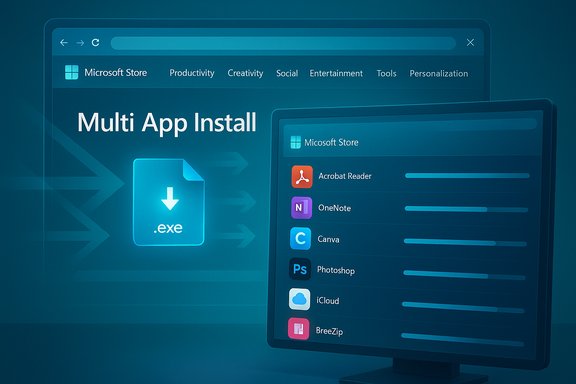
Microsoft has quietly added a small but consequential convenience to the Microsoft Store: a web‑created, multi‑app install workflow that lets you pick a curated set of apps, download a single tiny launcher, and have the Store download and install everything for you in one go.
Setting up Windows has long involved a mundane ritual: visit vendor sites, download installers, answer permission prompts, and repeat that cycle a half dozen to a dozen times. Power users solved this with scripting or package managers like winget, while everyday users relied on services such as Ninite or simply endured the scavenger hunt. Microsoft’s new multi‑app bundles fold a similar convenience directly into the official Store experience — trading some flexibility for simplicity and the Store’s vetting pipeline. This move follows a broader modernization of the Store — including a lightweight “undocked” installer engine designed for faster launches and parallel downloads — that makes this kind of coordinated experience feasible and performant. Early coverage and hands‑on tests show the feature is designed with consumer friction in mind: pick, download, run. The heavy lifting is then done by the Store app itself.
Microsoft’s Multi‑app install packs are a pragmatic addition that blend the Store’s trust model with the simplicity users expect from mobile app stores — a small change that reduces friction and improves first‑run experiences with outsized payoff.
Source: findarticles.com Microsoft Store Now Offering Multi-App Install Bundles
 Background
Setting up Windows has long involved a mundane ritual: visit vendor sites, download installers, answer permission prompts, and repeat that cycle a half dozen to a dozen times. Power users solved this with scripting or package managers like winget, while everyday users relied on services such as Ninite or simply endured the scavenger hunt. Microsoft’s new multi‑app bundles fold a similar convenience directly into the official Store experience — trading some flexibility for simplicity and the Store’s vetting pipeline. This move follows a broader modernization of the Store — including a lightweight “undocked” installer engine designed for faster launches and parallel downloads — that makes this kind of coordinated experience feasible and performant. Early coverage and hands‑on tests show the feature is designed with consumer friction in mind: pick, download, run. The heavy lifting is then done by the Store app itself. What Microsoft’s Multi‑App Bundles Are — The Mechanics
How the launcher works
- The Store’s web catalog exposes a “Multi‑app install” control where Microsoft curates a list of eligible apps.
- When you select apps and click Install Selected, the website builds a small launcher executable and prompts you to download it.
- Running that tiny .exe does not unpack dozens of installers; instead, it hand‑offs the list to the Microsoft Store app on the target PC, which then proceeds to download and install the selected titles.
Where you build a pack
At launch, pack creation is web‑only: you assemble the bundle from a Store web page (reported entry: apps.microsoft.com/apppack) and then download the generated installer. There is not yet a UI inside the Microsoft Store desktop app to author these bundles, and there’s no public API for programmatic pack creation at this time.What’s In The Packs Today
Microsoft’s initial packs are organized into broad categories — Productivity, Creativity, Social, Entertainment, Tools, and Personalization — and the curated grid includes mainstream titles you’d expect on day‑one of a fresh PC. Examples reported in early rollouts include:- Productivity: Acrobat Reader, OneNote, Teams.
- Cloud and sync: iCloud, Dropbox.
- Creativity and media: Canva, CapCut, Photoshop.
- Utilities and community favorites: f.lux (color temperature control), BreeZip (RAR/ZIP/7z support).
Why This Matters: Faster, Safer First‑Run Setup
For a typical user, assembling the 8–12 common apps they need after a reset can take 20–45 minutes of browsing, downloading, and confirming prompts. A single multi‑app bundle compresses that work:- A one‑time selection phase replaces dozens of individual downloads and installers.
- The Store can perform parallel downloads, reducing elapsed time relative to sequential manual installs.
- Because the Store is performing the downloads, the workflow reduces exposure to counterfeit installers and dubious download mirrors that commonly surface in ad‑driven search results. The Store’s vetting and publisher verification add a layer of supply‑chain assurance that most casual users otherwise lack.
How It Compares With Ninite and winget
This new Store approach sits between two well‑known alternatives:- Ninite: A third‑party, GUI‑driven service that downloads full installers itself and runs them with silent flags. It has broad coverage and predictable silent‑install behavior and offers a Pro tier for business use.
- winget (Windows Package Manager): A manifest‑driven, command‑line tool optimized for automation, private sources, and fleet provisioning. winget is scriptable, auditable, and supports silent installs with explicit parameters.
- Flexibility and automation: winget > Ninite > Microsoft Store multi‑app (today).
- Ease of use for non‑technical users: Microsoft Store multi‑app ≈ Ninite > winget.
- Trust / centralized updates: Microsoft Store multi‑app benefits from Store vetting, and apps installed through the Store will generally receive updates via Store channels where applicable.
Enterprise and IT Implications
For enterprises and managed environments, the feature is notable but not a replacement for formal deployment tooling.- Organizations that need policy‑driven, auditable provisioning will continue to use Intune, Configuration Manager (ConfigMgr/SCCM), or winget manifests with private sources. These provide version‑controllable manifests, approval workflows, and the granularity to run silent and unattended installs suitable for fleet rollouts.
- The Microsoft Store’s multi‑app launcher is a consumer convenience, not an enterprise manifest model. The generated .exe is a black‑box artifact lacking the easy reviewability and version control that winget manifests provide.
- That said, there are plausible small‑business use cases where the Store bundles could help: provisioning a handful of shared machines or onboarding a new hire in a micro‑business without a full MDM stack. For such scenarios, the trade‑offs are acceptable and the outcome is faster provisioning with fewer manual steps.
Limitations, Risks and What to Watch For
The multi‑app bundles are a pragmatic convenience, but they come with caveats.- Catalog coverage is limited. Only a subset of Store listings are in the curated grid today. If a critical app isn’t included, the bundle is useless for that app.
- Web‑only authoring. Pack creation currently happens in the browser. Organizations that restrict web access or want to generate packs programmatically will find that limiting.
- Black‑box artifact. The downloaded launcher doesn’t expose a human‑readable manifest you can version control or audit. That reduces transparency for regulated environments. winget’s plain‑text manifests are a stronger fit for compliance and change control.
- Dependency on the Store. The target device needs a functioning Microsoft Store and generally a network connection — and in many cases the device must be signed into a Microsoft account. Air‑gapped, headless, or locked kiosk systems may be unable to use this workflow.
- Potential new attack vector. Any web‑downloaded executable increases the attack surface. While the launcher is small and the actual downloads come from the Store, organizations must treat these executables as code and apply standard controls (AppLocker, WDAC, Intune).
Security and Supply‑Chain Considerations
Using the Store as the download source reduces typical supply‑chain risks that come from ad‑laden download pages and fake installers. That’s a concrete security improvement for mainstream consumers. However, the model introduces two supply‑chain questions that admins and security teams must consider:- Who vouches for the generated launcher? The launcher is created per request and should be treated as a binary artifact. Organizations that require signed, auditable installers may need Microsoft to provide a signed metadata manifest or an API for generating signed, verifiable packs.
- How are updates managed? Apps installed through the Store will often be updated through the Store’s pipeline; for environments that control update timing, admins must harmonize Store updates with internal patch management windows to avoid unexpected version changes.
How To Create and Use a Multi‑App Pack (Practical Guide)
- Open a desktop browser and visit the Microsoft Store web catalog page that surfaces multi‑app bundles (look for the Multi‑app install control).
- Browse the curated categories (Productivity, Creativity, Social, Entertainment, Tools, Personalization) and toggle the checkboxes for the apps you want.
- Click Install Selected; the Store will generate a small launcher .exe and prompt you to download it.
- Copy the .exe to the target machine, or run it on the same PC; when executed, it will open the Microsoft Store app and hand off the selected list. The Store will download and install the apps, usually performing parallel downloads where possible.
- Expect to sign into the Microsoft Store on the target device if it requires authentication for certain apps. Some apps may still request license activation or additional sign‑ins after installation.
- Ensure the target PC has the Microsoft Store app and an internet connection before running the launcher.
- For unattended deployments, use winget manifests or Intune instead; the Store launcher is primarily a GUI convenience.
Where This Fits in Microsoft’s Broader App Management Strategy
Microsoft has been steadily broadening the Store’s role: accepting Win32/MSIX/PWA packages, improving the Store’s performance, and integrating with the Windows Package Manager ecosystem. The multi‑app bundles are a logical next step to make first‑run experience friendlier and to position the Store as a pragmatic distribution channel for mainstream apps. If Microsoft wants to expand the feature’s applicability, sensible next steps are clear and achievable:- Add pack creation inside the Microsoft Store desktop app to remove web dependency.
- Offer a signed, human‑readable pack manifest (JSON/YAML) that can be audited and version‑controlled.
- Provide programmatic or API access for admins to create and distribute packs in a reproducible way.
- Integrate pack creation and deployment with Intune and winget import/export workflows so packaged convenience can live alongside enterprise governance.
Verdict: Small Tweak, Disproportionate Impact
Multi‑app install bundles are not a revolution in Windows deployment. They are, however, a well‑judged product polish that removes friction at a point that matters: the first minutes after you boot a fresh device. For households, refurbishers, enthusiasts, and small teams, the convenience and trust advantages are immediate and tangible. For enterprises that need auditability, silent installs, and manifest control, winget and Intune remain the right tools — but the Store’s step narrows the usability gap for non‑technical users and makes Windows feel more modern at first use. The feature’s biggest win is human: fewer decisions, fewer web searches, and a cleaner, safer starting point for day‑one productivity. The next measure of success will be whether Microsoft opens the feature up — more apps, an in‑app authoring experience, and a signed manifest model — which would make multi‑app bundles useful for a still larger set of real‑world scenarios.Microsoft’s Multi‑app install packs are a pragmatic addition that blend the Store’s trust model with the simplicity users expect from mobile app stores — a small change that reduces friction and improves first‑run experiences with outsized payoff.
Source: findarticles.com Microsoft Store Now Offering Multi-App Install Bundles
