

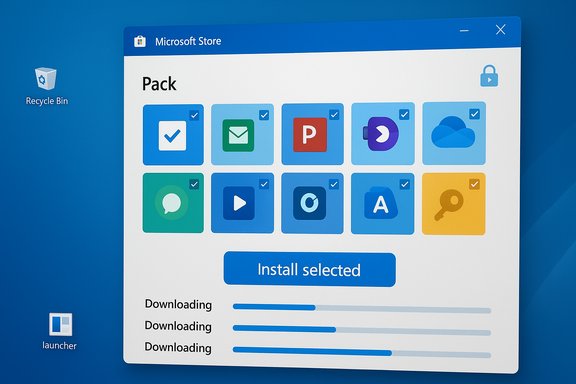
Microsoft has quietly added a checkbox to the Microsoft Store web experience that changes a routine part of Windows setup: you can now select multiple apps in your browser, click a single “Install selected” button, download a tiny launcher .exe, run it, and have the Microsoft Store app on the target PC fetch and install every chosen title automatically.
Since the early days of Windows, setting up a new PC has been a repetitive chore: visit dozens of vendor pages, download installers, click through dialogs, and repeat. Third‑party conveniences like Ninite and the command‑line Windows Package Manager (winget) emerged to simplify that workflow, giving users a way to batch-install common applications. Microsoft’s Store has been a separate channel for a long time, often ignored by power users because of limited coverage and clunky UX. Over the past few years Microsoft has been rebuilding the Store’s backend, widening Win32 support, and removing friction — work that now supports this new multi‑app install experience surfaced on the Store’s web site. Multiple hands‑on reports and early coverage show the feature is intentionally simple: compose a pack in the browser, download a one‑shot launcher, run it, and the Store app takes over the real downloads and installations. That launcher is an orchestration pointer — it does not contain bundled installers — and the Store performs the actual package delivery and subsequent updates.
Conclusion
Microsoft’s web‑based multi‑app installer converts a familiar, tedious part of PC setup into a one‑shot, Store‑driven flow that’s fast, safe, and easy for consumers. The feature leverages the Store’s distribution and update channels and avoids bundling third‑party payloads, but the initial rollout is deliberately conservative: curated app lists, a web‑only authoring surface, and a launcher‑hand‑off model that lacks manifest transparency for enterprises. For users seeking a Ninite‑like convenience backed by Microsoft’s ecosystem, this hits the mark. For organizations that require governance, audit trails, or scripted silent installs, the recommended tools remain winget, Intune, and traditional deployment systems until Microsoft provides the necessary enterprise controls and a documented manifest model.
Source: Windows Report Microsoft Store Web Now Lets You Install Multiple Windows Apps at Once
 Background
Since the early days of Windows, setting up a new PC has been a repetitive chore: visit dozens of vendor pages, download installers, click through dialogs, and repeat. Third‑party conveniences like Ninite and the command‑line Windows Package Manager (winget) emerged to simplify that workflow, giving users a way to batch-install common applications. Microsoft’s Store has been a separate channel for a long time, often ignored by power users because of limited coverage and clunky UX. Over the past few years Microsoft has been rebuilding the Store’s backend, widening Win32 support, and removing friction — work that now supports this new multi‑app install experience surfaced on the Store’s web site. Multiple hands‑on reports and early coverage show the feature is intentionally simple: compose a pack in the browser, download a one‑shot launcher, run it, and the Store app takes over the real downloads and installations. That launcher is an orchestration pointer — it does not contain bundled installers — and the Store performs the actual package delivery and subsequent updates. What the new Microsoft Store multi‑app installer actually does
The mechanics in plain English
- You build a list of apps on a dedicated Microsoft Store web page (commonly referenced as apps.microsoft.com/apppack).
- Clicking “Install selected” generates and downloads a small executable (.exe).
- Running that executable on a Windows PC opens the Microsoft Store app and hands off the selected list.
- The Microsoft Store app downloads and installs each selected app, often in parallel where supported, and the Store remains the source for future updates.
What’s inside the launcher
Early examinations and reporting indicate the downloaded .exe is a tiny launcher that contains the selected app list and orchestration metadata; it is not a container of the actual app binaries. When run, that launcher triggers the Store app to download from Microsoft’s delivery systems, which means entitlements, licensing, and subsequent Store updates remain intact. That builder/hand‑off pattern is significant for supply‑chain provenance because the downloads come from the Store rather than dozens of disparate vendor websites.Catalog, caps, and current limits
Curated list, not the entire Store
At launch the web multi‑app page exposes a curated set of apps rather than the entire Microsoft Store catalog. Reports show the page lists roughly dozens of mainstream apps across categories such as Productivity, Creativity, Social, Entertainment, Tools & Utilities, and Personalization; one early snapshot counted 48 available titles. That curation is deliberate: Microsoft is limiting the initial set to apps with predictable Store packaging and install behavior.Selection cap per pack
Hands‑on testing and press coverage found a selection cap: you can check up to a certain number of apps in a single pack (reports cite a cap around 16 apps in one bundle). That cap appears to be an intentional UX decision to keep installs manageable and reduce the chance of large‑scale, unexpected downloads on a single run. These values were observed in early rollouts and may vary by region and over time. Treat exact figures as provisional until Microsoft publishes a definitive specification.Web‑only authoring (for now)
Pack creation is currently limited to the Microsoft Store web interface; the Store desktop app does not yet provide a UI to compose multi‑app packs. That means a web browser is required to author the pack and to download the launcher, though the actual installation still occurs inside the system’s Microsoft Store app. This web‑only authoring limits the feature’s applicability in heavily locked‑down environments where browser access is constrained.How this stacks up against existing options
Microsoft Store multi‑app packs (web)
Strengths- GUI‑driven and approachable for non‑technical users.
- Installs originate from the Store’s vetted channels, reducing exposure to fake or ad‑driven installers.
- Keeps entitlements and Store update pipeline intact for supported packages.
- Curated catalog and selection caps limit flexibility.
- Generated launcher is a black‑box executable without an easily auditable manifest for teams that require version control and code review.
- Not designed for silent, unattended enterprise deployments as delivered today.
Ninite
- Ninite has long been the consumer favorite for one‑shot installs, with a mature UX and some commercial features for businesses. It bundles vendor installers and performs unattended, predictable installs for a long list of apps.
- Ninite offers more customization for the install flow and established enterprise options that are audited and scriptable.
winget (Windows Package Manager)
- winget is manifest‑driven, scriptable, supports private sources, and is ideal for automation and fleet provisioning.
- It’s command‑line oriented and requires comfort with scripting, but its manifests are explicit, auditable, and fit into CI/CD and device‑management pipelines.
Security, supply‑chain, and governance considerations
Supply‑chain advantages
Because the Store orchestrates downloads, installs come from Microsoft’s delivery channels, so you avoid the common pitfalls of searching for vendor installers on the open web — fewer fake sites, reduced chance of bundled adware, and a central source for updates. That is a concrete security benefit in consumer settings where many users lack the time or skill to verify vendor sites.New attack surface: the launcher
At the same time, the web‑generated launcher introduces a new artifact into the supply chain: a one‑off .exe that encodes the chosen app list and triggers Store installs. For individuals this is benign; for managed environments it’s an additional item to govern. Enterprises should consider policies that restrict execution of web‑generated installers (AppLocker, SmartScreen, or Intune Application Control), and validate whether the launcher is signed and verifiable before rolling out the feature at scale.Auditability and manifest transparency
Unlike winget manifests, the .exe lacks an immediately human‑readable, version‑controlled manifest that administrators can audit. That reduces repeatability and raises questions for IT teams that require full traceability of installed packages, their versions, and when they were applied. Until Microsoft exposes a JSON/YAML representation or a signed manifest API, organizations should treat these packs as an end‑user convenience rather than a sanctioned provisioning mechanism.Account and entitlement implications
Some Store apps require a Microsoft account for entitlements, subscriptions, or personalization. The multi‑app install flow will still be subject to per‑app licensing requirements; users may need to sign into the Store during or after installation to gain access to full functionality. That can complicate first‑run scenarios for shared or kiosk devices.Enterprise and IT perspective: practical guidance
- For managed fleets, continue to rely on Intune, winget with private sources, or SCCM for provisioning and patching.
- Treat Microsoft Store multi‑app packs as a consumer convenience or a stopgap for small teams that do not have formal device‑management workflows. Do not use them for regulated, auditable deployments today.
- If you allow the feature internally, control it through standard application‑control policies and monitor network usage; the installer depends on Store reachability and may be blocked by network filtering.
- Consider testing packs in a lab environment first to confirm app packaging behavior and to surface any silent‑install or post‑install sign‑in requirements.
Step‑by‑step: how to create and run a multi‑app pack (consumer guide)
- Open your browser and go to the Microsoft Store web page that exposes the Multi‑app install UI (often referenced at apps.microsoft.com/apppack).
- Browse the curated grid and check the boxes next to the apps you want to include (note the per‑pack selection cap — early tests reported an upper limit).
- Click “Install selected” to generate and download the launcher .exe.
- Save and run the downloaded .exe on the Windows PC you want to provision.
- The Microsoft Store app will open and begin to download and install each selected app; follow any sign‑in or per‑app prompts as needed.
- Ensure the target PC has the Microsoft Store installed and is online.
- Be prepared to sign into a Microsoft account if apps require entitlements or subscriptions.
- Verify the app coverage in your region — the curated catalog may vary.
Practical examples: what’s in the catalog today (representative snapshot)
Early reports and screenshots show apps across categories such as Productivity (Adobe Acrobat Reader DC, OneNote), Creativity (Canva, Adobe Photoshop Express), Social (WhatsApp, Instagram), Entertainment (Netflix, Spotify), and Utilities (Rufus, Sysinternals Suite). Exact availability is regionally variable and Microsoft may expand publisher inclusion over time; count estimates reported in early coverage place the initial grid in the dozens. These catalog snapshots are useful for illustration but should be verified on the Store page in your region for accuracy.Risks, unknowns, and unverifiable claims (what to watch)
- Performance claims attributed to Microsoft about Store launch speed or download reliability should be treated cautiously until independently benchmarked; early figures circulating in preview coverage are Microsoft‑reported metrics and may vary by hardware and network conditions. Flag: these are vendor‑reported improvements and require independent verification.
- The precise catalog size and the per‑pack selection limit (commonly quoted as 48 apps and a 16‑selection cap in early reporting) are regionally variable and subject to change as Microsoft updates the service. Treat numeric counts as provisional until Microsoft provides an official specification.
- The security posture of the web‑generated launcher depends on signing, code provenance, and whether its behavior is deterministic across regions and accounts; until Microsoft documents the launcher format or publishes a signed manifest API, assume limited auditability for this artifact.
Why Microsoft did this — strategic context
This move is both tactical and strategic. Tactically, it reduces friction for consumers setting up new machines — a small UX win that addresses a decades‑old pain point. Strategically, it positions the Microsoft Store to be more central in Windows provisioning and lifecycle management, nudging users toward a single, trusted source for app acquisition and updates. Short‑term gains are consumer convenience and fewer accidental downloads from unsafe sites; long‑term this feature becomes a foundational piece if Microsoft expands it to support programmatic pack creation, Store‑app authoring, Intune integration, and signed manifests for enterprise use.What Microsoft should do next (and what to expect)
- Add multi‑app pack creation inside the desktop Microsoft Store app to remove the web authoring requirement.
- Publish a signed, auditable manifest format (JSON/YAML) for each generated pack so admins can review and version‑control pack contents.
- Provide an API or administrative endpoint to generate packs programmatically and integrate with Intune, winget, and enterprise pipelines.
- Expand catalog coverage and provide a simple opt‑in for publishers to include compatible Store listings in the multi‑app grid.
Final analysis: who benefits, who should wait
- Beneficiaries: Everyday users, enthusiasts who reimage devices often, small teams without formal device‑management tooling, and anyone who wants a safer, Store‑backed alternative to chasing installers online.
- Caution advised: Enterprises and IT pros who need deterministic, auditable, and silent deployments should continue to rely on winget manifests, Intune, and established management stacks until Microsoft publishes enterprise‑grade controls around multi‑app packs.
Conclusion
Microsoft’s web‑based multi‑app installer converts a familiar, tedious part of PC setup into a one‑shot, Store‑driven flow that’s fast, safe, and easy for consumers. The feature leverages the Store’s distribution and update channels and avoids bundling third‑party payloads, but the initial rollout is deliberately conservative: curated app lists, a web‑only authoring surface, and a launcher‑hand‑off model that lacks manifest transparency for enterprises. For users seeking a Ninite‑like convenience backed by Microsoft’s ecosystem, this hits the mark. For organizations that require governance, audit trails, or scripted silent installs, the recommended tools remain winget, Intune, and traditional deployment systems until Microsoft provides the necessary enterprise controls and a documented manifest model.
Source: Windows Report Microsoft Store Web Now Lets You Install Multiple Windows Apps at Once
