

Microsoft is quietly experimenting with a redesigned, modern Windows Run (Win+R) experience built on WinUI 3 — an optional, toggleable overlay that brings Fluent Design, rounded corners, and a larger, history-aware interface to a tool that has effectively remained unchanged for decades. Early images and previews show an expanded Run dialog that surfaces recent commands and app icons, is surfaced from the new Settings > System > Advanced page as an opt-in feature, and is currently visible in preview builds and server previews while remaining optional for end users.
The Run dialog is one of Windows’ most enduring utilities: a single-line text box that executes commands like
This step is small in scope but symbolically meaningful: converting a 30-year-old utility to the same UI toolkit used across the rest of Windows 11 signals a longer-term plan to tidy up legacy controls and reduce visual friction. The risks are manageable — accessibility regressions, slight performance overhead, and documentation fragmentation — provided Microsoft maintains a conservative rollout, robust accessibility testing, and administrative controls for enterprise environments.
Readers and administrators should treat early reports as credible but evolving: the modern Run experience is visible in previews and documented by multiple outlets, but official engineering details and final deployment mechanics will be clarified only when Microsoft publishes definitive release notes or SDK documentation. In the meantime, the optional toggle and preserved classic behavior keep Run’s longstanding compatibility promise intact while offering a tasteful, modern alternative for users who want it.
Source: Windows Latest Windows 11 is getting a modern Windows Run (Win+R) built with WinUI 3, and it might get new features
 Background
The Run dialog is one of Windows’ most enduring utilities: a single-line text box that executes commands like cmd, regedit, services.msc, or SystemPropertiesAdvanced without needing to navigate menus. It traces its lineage back to early Windows shells and was present in Windows 3.1, later becoming the familiar Win+R shortcut that power users rely on for rapid access to tools and applets. This legacy design is compact, intentionally minimal, and implemented with old Win32 controls that predate Windows 10 and 11’s Fluent Design language. Windows engineers have been migrating major shell surfaces and core utilities to WinUI and the Windows App SDK (WinAppSDK) for several years — a shift that enables Fluent Design visuals, richer layouts, and features that are easier to iterate and ship independently of core OS upgrades. Converting Run to a WinUI-based experience follows this broader pattern: modernize the UI layer while preserving the command semantics that make Run valuable to power users. What Microsoft is testing now
The new UI and how it behaves
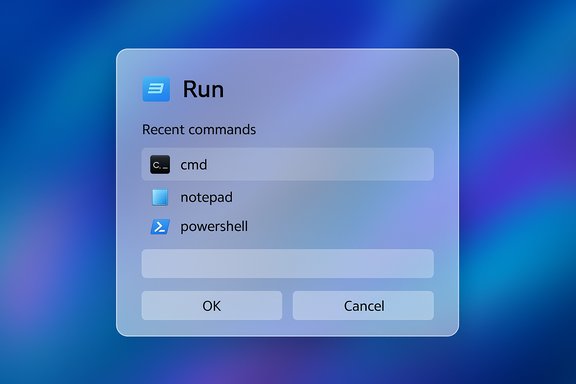
Early screenshots and hands-on reports show a refreshed Run overlay with several noticeable differences from the classic dialog:- A larger overlay with a wider input field and more generous spacing for touch and modern displays.
- A recent commands list positioned above the input box, turning Run into a lightweight history launcher.
- Inline app and executable icons when typed text resolves to known programs, helping users confirm targets visually before execution.
- Rounded corners, softened shadows, and spacing consistent with Windows 11’s Fluent Design language.
Toggle and rollout mechanics
Crucially, Microsoft is not forcibly replacing the old dialog. The modern Run is reported as an optional toggle under Settings > System > Advanced (the page formerly known as “For developers” in some previews), and the classic Run remains available as the default. That toggle is off by default in preview builds, indicating Microsoft will let users and organizations opt in before any enforced change. The new Advanced settings page is already being used as the control surface for developer and preview-only toggles and features — from File Explorer Git integration to sandboxing — so placing the Run toggle there aligns with Microsoft’s existing strategy of gating novel, developer-leaning experiences behind an “advanced” switch. The company has publicly documented the Advanced settings redesign as part of recent Windows experience rollouts.Why this matters: real-world benefits
1) Modern visual parity and consistency
After years of gradual migration to WinUI across system surfaces, mismatched legacy dialogs stand out alongside Windows 11’s rounded, lightly translucent UI. A WinUI-based Run would close a visual gap and reduce the jarring switch between modern apps and classic dialogs. This matters not because aesthetics are everything, but because consistent visual design improves scanability and reduces mistakes when switching contexts.2) Improved discoverability and reuse
The addition of a recent commands section and inline icons turns Run into a faster history-driven launcher for repetitive workflows. This streamlines tasks for administrators and developers who rerun the same commands throughout a session. It also lowers the friction for less technical users who may use Run infrequently but will benefit from visible suggestions and icons.3) Easier future feature expansion
By moving Run to WinUI and the Windows App SDK, Microsoft enables a less painful path for future enhancements — dark mode parity, accessibility improvements, and new affordances (for example, richer previews of command output or safe sandboxed execution prompts). WinUI apps can adopt system theming and high-DPI scaling more easily than legacy Win32 dialogs, which historically required bespoke fixes.Technical specifics and verification
Multiple independent outlets and hands-on previews confirm key behaviors and the optional toggle:- Windows Central documented the modern Run experience and described it as the “Modern Run” interface, noting its optional toggle and Fluent alignment.
- PureInfotech and Windows Report presented screenshots and breakdowns of the larger layout, recent commands list, and inline icons, and reported the toggle location as Settings > System > Advanced.
- Microsoft’s own Windows Experience Blog has updated the Advanced settings page to be the location for multiple developer-facing features, reinforcing why Microsoft might place an experimental Run toggle there.
Accessibility, compatibility, and enterprise concerns
Accessibility
A WinUI-based Run should present accessibility benefits: better UI Automation support, improved screen reader behavior, and system theming for high-contrast or dark themes. Early WinUI migrations of other system surfaces required accessibility work and subsequent NVDA/JAWS compatibility fixes, so a careful rollout and testing cycle will be needed to avoid regressions for assistive technology users. The move to a modern framework usually simplifies accessibility improvements in the long run, but the initial transition can create temporary edge cases that must be addressed proactively.Compatibility with scripts and automation
Run’s semantics — accepting executable names, Control Panel aliases, paths, and environment variables — are essential to many scripts, batch workflows, and IT admin routines. Microsoft’s decision to keep the legacy Run available is a sensible compatibility-preserving measure. However, organizations that deploy managed desktops or use automation that programmatically invokes Run (for example, through keyboard macros) should test any behavior changes: new UI overlays can sometimes alter focus behavior, keyboard handling, or window activation semantics.Enterprise deployment and policy
Because the modern Run is reportedly opt-in and controlled via Settings, Group Policy and enterprise management will likely remain unchanged initially. Enterprises that standardize on specific UI behaviors or deploy custom tools should expect a conservative rollout. If Microsoft moves the toggle to a broader rollout in future updates, administration tooling to enforce the classic Run will be required to prevent unexpected user interface deviations in managed fleets.Risks and potential pitfalls
- Performance and resource cost: moving a tiny dialog from legacy Win32 to WinUI adds framework overhead and could increase memory or GPU usage marginally. For most devices this is negligible, but on constrained systems the cumulative effect of many WinUI-based overlays can be measurable. Recent analyses of WinUI-based File Explorer integrations showed that modern shell surfaces may consume more memory than their legacy counterparts. Monitoring and optimization will be important.
- Fragmentation and inconsistent UX: offering two Run variants could produce inconsistency for support and documentation. Screenshots, tutorials, and admin scripts that reference the classic dialog might confuse users who switch to the modern version. Clear signaling in Settings and consistent naming (e.g., “Modern Run” versus “Classic Run”) will be essential to avoid user confusion.
- Accessibility regressions: even small focus or keyboard-handling changes can significantly affect screen reader workflows. Comprehensive accessibility testing across assistive technologies must be part of the rollout to prevent regressions for users with disabilities.
- Feature creep: once Run becomes WinUI-backed and easier to extend, Microsoft or third parties might be tempted to layer features that change the tool’s core purpose — turning it into a full-fledged search box or AI assistant. That would dilute the intent of Run as a lightweight command launcher. The opt-in approach signals restraint, but users and admins should watch for feature drift over time.
What to watch for next
- Official changelog entry: the clearest verification will be Microsoft’s release notes or Windows SDK documentation explicitly naming the Run migration and identifying the framework (for example, WinUI 3 or a specific Windows App SDK version). Until then, many outlets rely on preview screenshots and insider reports.
- Accessibility and keyboard behavior tests in Insider builds: reports from users of assistive technologies and enterprise testers will indicate whether the modern Run retains or improves usability for keyboard-first and screen reader workflows.
- Group Policy or MDM controls: enterprises will watch whether Microsoft exposes management controls to lock the Run UI to classic mode for large-scale deployments. The presence or absence of such controls will shape adoption in corporate environments.
- Feature evolution: whether Microsoft limits Run to visual modernization and minor convenience features (history, icons) or expands it into a more capable launcher (rich previews, command snippets, developer integrations) will determine how Run fits into power-user workflows going forward. Early evidence suggests Microsoft positions this as a developer-leaning, Advanced Settings feature — which may imply additional developer-orientated features in the future — but that remains speculative.
Practical guidance for power users and IT admins
- If using Insider builds: verify which channel (Dev, Beta, Release Preview) you’re on before testing the modern Run. Preview behavior and flags can vary by channel.
- Test critical scripts and macros: automated interactions that rely on focus, keystroke sequences, or exact window behavior should be validated with the modern Run enabled.
- Accessibility testing: ensure screen readers and other assistive technology can interact with the modern Run reliably before enabling it for production or managed users.
- Monitor memory and performance: if deploying to many devices, sample modern Run behavior on representative hardware to detect any measurable changes in memory, GPU, or responsiveness.
- Document both interfaces: training materials and helpdesk scripts should include notes and screenshots for both modern and classic Run experiences until one becomes the clear default.
Conclusion
The modern Run overlay visible in Windows 11 preview builds represents a pragmatic move toward visual parity and incremental modernization: it preserves the Run dialog’s essential one-line execution semantics while bringing Fluent Design improvements, better history affordances, and the easier extensibility that comes with WinUI and the Windows App SDK. Microsoft’s choice to gate the feature behind the Settings > System > Advanced toggle and keep the classic Run available by default reflects an appropriate balance between progress and compatibility.This step is small in scope but symbolically meaningful: converting a 30-year-old utility to the same UI toolkit used across the rest of Windows 11 signals a longer-term plan to tidy up legacy controls and reduce visual friction. The risks are manageable — accessibility regressions, slight performance overhead, and documentation fragmentation — provided Microsoft maintains a conservative rollout, robust accessibility testing, and administrative controls for enterprise environments.
Readers and administrators should treat early reports as credible but evolving: the modern Run experience is visible in previews and documented by multiple outlets, but official engineering details and final deployment mechanics will be clarified only when Microsoft publishes definitive release notes or SDK documentation. In the meantime, the optional toggle and preserved classic behavior keep Run’s longstanding compatibility promise intact while offering a tasteful, modern alternative for users who want it.
Source: Windows Latest Windows 11 is getting a modern Windows Run (Win+R) built with WinUI 3, and it might get new features
