

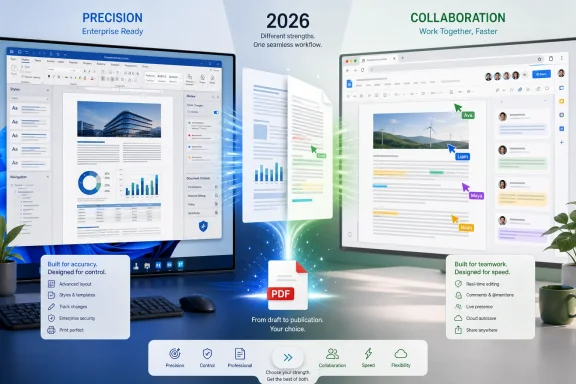
Microsoft Word and Google Docs now overlap more than ever, yet they still reflect two fundamentally different ideas about how documents should work. Word remains the stronger production environment for complex, highly formatted, print-ready, regulated, or automation-heavy documents, while Google Docs offers a cleaner path for rapid drafting, browser-based access, and frictionless collaboration. The better choice in 2026 is therefore not determined by which application has the longest feature list, but by where a document begins, how many people will touch it, what must happen to it before publication, and whether formatting precision matters more than collaborative speed.
Microsoft launched Word in 1983, long before cloud storage, browser applications, and real-time co-authoring became normal expectations. Its evolution reflects decades of demand from home users, publishers, legal departments, universities, governments, and multinational enterprises. That history explains both Word’s remarkable depth and the complexity that can confront newcomers.
Google Docs arrived in the mid-2000s with a different premise. Instead of treating a document as a local file that might later be shared, it treated the document as an online workspace from the beginning. Saving, sharing, revision history, comments, and simultaneous editing were built into the experience rather than added around it.
Those origins continue to shape both products. Word starts with a powerful document editor and extends it into the cloud through OneDrive, SharePoint, Microsoft 365, and Copilot. Google Docs starts with a collaborative cloud object and gradually adds richer formatting, workflow components, and Gemini-powered assistance.
The remaining differences are about depth, consistency, and emphasis. Word still provides more control when a document behaves like a publication or business artifact. Google Docs remains more approachable when a document behaves like a shared workspace.
Google Docs presents a comparatively restrained toolbar and conventional menu system. Common actions remain visible, while less frequently used controls are placed in menus. This reduces the amount of visual competition and makes the application feel quicker to learn.
Word’s complexity is therefore not entirely accidental clutter. Many Ribbon commands exist because professional users rely on them. The challenge for Microsoft is exposing those tools without making a blank document feel like the control panel of a publishing system.
This matters because discoverability, rather than raw capability, often determines usability. A feature that technically exists but cannot be located might as well be absent for a casual user. Google generally performs better at keeping everyday functions obvious, while Word rewards users who invest time in styles, templates, keyboard shortcuts, and the Quick Access Toolbar.
Google Docs covers the most common requirements but provides less control at the edges. A straightforward business report may look excellent, yet a document containing multiple page orientations, sophisticated numbering schemes, floating objects, custom fields, and publication-specific layout rules is more naturally handled in Word.
Styles support more than visual appearance. They feed navigation, accessibility, automated tables of contents, document structure, and reliable global changes. Altering one heading style can update hundreds of headings without individually editing them.
Google Docs also provides paragraph styles and heading levels, but Word offers a more extensive system for building and managing complex templates. This is particularly important for corporate reports, policy documents, academic manuscripts, legal submissions, and technical manuals.
Word is better when page boundaries are operational requirements. Widow and orphan controls, section breaks, print-specific margins, precise object positioning, embedded fonts, and advanced PDF options all matter when the final file must reproduce predictably.
Neither application replaces professional desktop-publishing software for every design project. Still, Word occupies more of the space between a basic word processor and a dedicated layout platform.
The experience remains exceptionally fluid because everyone is interacting with the same cloud-native document. There is rarely a need to determine which attachment is current or combine edits from multiple emailed copies.
For organizations already standardized on Microsoft 365, Word collaboration can be just as practical as Google Docs. Teams can open a shared file from Microsoft Teams, SharePoint, OneDrive, a browser, or the desktop app while retaining familiar review controls.
Word also has an advantage when revisions require formal adjudication. Its Track Changes implementation, markup views, acceptance controls, document comparison, and ability to combine separately edited copies remain valuable in legal, editorial, and contractual work.
Co-authoring can also encounter conflicts when connectivity fails or incompatible document elements interfere with synchronization. Microsoft provides recovery and conflict-resolution mechanisms, but the experience can feel more complicated than Google Docs’ unified browser model.
A successful Word collaboration workflow therefore requires a simple rule: keep the authoritative document in a supported cloud location and share a link rather than distributing attachments. Without that discipline, users can quickly recreate the version-control problems cloud collaboration was meant to solve.
Installed versions of Word can create and edit local files normally after installation and activation. Microsoft 365 applications require periodic connectivity for licensing, updates, and cloud services, but everyday desktop editing does not require a permanent internet connection. Office 2024 also provides locally installed applications through a one-time-purchase model, although it does not receive the continuing feature additions delivered to Microsoft 365 subscribers.
Offline changes synchronize after the connection returns. This works well for planned travel or intermittent connectivity, but it is less reassuring when an outage occurs before offline access has been enabled.
Mobile applications make offline access more straightforward because individual documents or recent files can be stored on the device. Even so, Google’s model remains cloud-first rather than local-first.
Google Docs removes many file-management decisions from everyday work. Saving happens automatically, and the authoritative document normally resides in Google Drive. This is convenient, but it also means access depends on accounts, permissions, administrative policies, and the continued availability of the service.
Neither model automatically guarantees good governance. Local Word files can be lost, duplicated, or exposed by poor backup practices, while cloud documents can be overshared, deleted, or locked behind an inaccessible account.
Google Docs can open, edit, and export Microsoft Office files, often without visible problems. For ordinary reports and letters, interoperability is usually sufficient. Difficulties arise when the source document depends on advanced Word features or fonts that are unavailable in the browser environment.
These changes are especially risky in documents where page and paragraph references have legal or procedural meaning. A contract, tender response, regulatory filing, or court submission cannot always tolerate a reflowed page.
Google Docs standardizes appearance effectively when everyone stays inside Google’s environment. The greater risk emerges when a complex DOCX file repeatedly moves between Word and Docs.
Word also supports detailed reference management, captions, cross-references, bibliographies, equations, content controls, document protection, comparison tools, and template systems. These capabilities make it suitable for documents that behave almost like small applications.
Word handles these requirements more comprehensively. Its Navigation pane, outline controls, section architecture, and reference tools help users manage documents that would otherwise become unwieldy.
Google Docs can handle lengthy files, and document tabs can divide content into navigable areas. However, performance, formatting precision, and structural management can become concerns as complexity grows. Splitting a large project into several Docs may improve usability, but then users need a separate process to assemble and publish the final work.
This model is useful when the document is not merely a finished artifact. A shared project brief might also serve as a status tracker, meeting record, file index, and task-coordination surface.
Word increasingly supports similar concepts through Microsoft 365 components, Loop integration, templates, and cloud services. Nevertheless, Google Docs often makes lightweight workflow elements feel more native and immediate.
Google’s Gemini integration in Docs offers comparable assistance. It can create drafts, summarize material, revise tone, develop ideas, and work with information from the broader Google Workspace environment when supported by the user’s plan and permissions.
Gemini benefits from Google Docs’ cloud-native simplicity. It can help move a team from notes to a shared draft without introducing a separate application or file-management step. For organizations centered on Gmail, Drive, Meet, and Chat, that continuity can be more important than Word’s deeper publishing controls.
Google Docs remains available without charge for ordinary consumer use, but advanced business administration, larger organizational storage, enterprise security, and many premium AI capabilities belong to paid Workspace plans. Microsoft similarly offers Word for the web at no charge for basic use, while installed desktop applications and higher-tier Copilot capabilities generally require an eligible purchase or subscription.
Users should treat AI as an accelerator rather than an authority. Sensitive documents require additional scrutiny because prompts, referenced files, organizational permissions, data-handling commitments, and retention policies differ across consumer and enterprise configurations.
That integration is particularly useful for users moving between Outlook, Excel, PowerPoint, and Word. A chart can originate in Excel, correspondence can be generated through mail merge, and a finalized document can flow through established Windows-based approval and printing processes.
Browser dependence can even be beneficial. Users receive a consistent interface across Windows, ChromeOS, macOS, and Linux without managing separate desktop releases. Updates appear centrally, and collaborators avoid many version mismatches.
However, users who depend on extensive keyboard customization, complex printing, locally installed add-ins, advanced font handling, or automation will generally find Word more capable on a Windows PC.
The remaining distinction is functional rather than visual. Word’s desktop client still has capabilities that Word for the web and Google Docs do not match, including offline authoring by default, macros, advanced mail merge, detailed document comparison, and deeper layout controls.
Word remains attractive when a school, employer, or household already provides Microsoft 365. Its templates, advanced proofreading, equation tools, citation features, and compatibility with institutional requirements can outweigh the steeper learning curve.
Word for the web provides basic browser editing without requiring the full desktop purchase. Schools and employers may provide Microsoft 365 accounts. Conversely, Google Workspace organizations pay for administration, business email, storage, security, and premium capabilities even though consumer Docs is available at no charge.
Users should assess the total package rather than one application. Microsoft 365 subscriptions can include desktop productivity applications and cloud storage, while Google subscriptions combine Docs with Drive, Gmail, Meet, administrative controls, and other services.
Still, advanced Word proficiency remains a meaningful workplace skill in industries that depend on DOCX templates, formal revision cycles, or complex reports. Google Docs proficiency is equally relevant in organizations that prioritize distributed teamwork, fast review, and browser-managed devices.
Microsoft’s position is strongest in enterprises already using Windows, Entra ID, Microsoft 365, Teams, SharePoint, OneDrive, Defender, and Purview. Word becomes one component of a larger information-governance system rather than an independent application.
Google Workspace offers its own administrative, security, retention, and compliance ecosystem. It can be particularly effective for organizations that favor browser-managed endpoints, Chromebooks, simplified deployment, and cloud-native workflows.
Mixed environments also increase the chance that documents will be downloaded, converted, copied, or shared through unintended channels. The cost of one formatting error or exposed confidential file can exceed the savings from choosing a cheaper license.
Enterprises should standardize the primary workflow while preserving carefully governed exceptions. A marketing department may need Word for print-ready deliverables even if the wider organization drafts in Google Docs. A Microsoft-centered company may still accept Google Docs from external partners through a defined conversion and review process.
The reverse also applies. A company whose processes rely on Google Drive links, Apps Script, Workspace add-ons, browser-based forms, and shared Docs may gain little by moving to desktop Word simply because it has more formatting features.
Word offers an integrated Accessibility Checker in desktop and web versions. It can identify problems such as missing alternative text, poor reading order, unclear links, insufficient table structure, and other issues that may affect readers with disabilities.
Google Docs’ relative simplicity can encourage consistent structure, but users can still create inaccessible content through visual-only formatting. Making text large and bold does not give it the semantic role of a heading.
Word’s advanced layout options create both opportunities and risks. They enable sophisticated accessible publications when used correctly, but floating text boxes, decorative objects, manual spacing, and complicated tables can produce a confusing reading order.
Google Docs’ convenience can encourage users to treat every link as harmless. Browser profiles, personal accounts, external sharing, and offline copies all require governance. Its lighter production controls may also push teams into last-minute Word conversions, where subtle layout errors are easiest to miss.
The critical issue will be control. Users need clear previews, reliable undo mechanisms, citations to internal source material, permission-aware retrieval, and audit trails showing what the AI changed.
This shift may blur the boundary between a document, project page, database, and collaboration board. Traditional files will not disappear, particularly in legal and regulatory workflows, but more documents will remain living workspaces rather than static final products.
The winning platform will not simply import a competitor’s format. It will preserve structure, revisions, accessibility information, comments, and visual fidelity without forcing users to understand the conversion process.
Microsoft Word remains the better choice for users who require advanced formatting, dependable page layout, sophisticated review tools, automation, or deep Windows and enterprise integration. Google Docs is often the better choice for rapid collaboration, straightforward browser access, simple administration, and teams that value shared momentum over publication-level control. In 2026, the smartest decision is not to declare one universal winner, but to match the tool to the document’s lifecycle: draft where collaboration is easiest, finalize where fidelity is strongest, and avoid unnecessary conversion between the two.
 Overview
Microsoft launched Word in 1983, long before cloud storage, browser applications, and real-time co-authoring became normal expectations. Its evolution reflects decades of demand from home users, publishers, legal departments, universities, governments, and multinational enterprises. That history explains both Word’s remarkable depth and the complexity that can confront newcomers.Google Docs arrived in the mid-2000s with a different premise. Instead of treating a document as a local file that might later be shared, it treated the document as an online workspace from the beginning. Saving, sharing, revision history, comments, and simultaneous editing were built into the experience rather than added around it.
Those origins continue to shape both products. Word starts with a powerful document editor and extends it into the cloud through OneDrive, SharePoint, Microsoft 365, and Copilot. Google Docs starts with a collaborative cloud object and gradually adds richer formatting, workflow components, and Gemini-powered assistance.
The gap has narrowed
It is no longer accurate to describe Word as purely desktop software or Google Docs as merely a lightweight browser editor. Word supports browser-based editing, AutoSave, sharing links, version history, comments, and real-time co-authoring. Google Docs can work offline, export to common formats, handle substantial reports, and support structured workflows through smart chips, document tabs, templates, and building blocks.The remaining differences are about depth, consistency, and emphasis. Word still provides more control when a document behaves like a publication or business artifact. Google Docs remains more approachable when a document behaves like a shared workspace.
Interface and Everyday Usability
Microsoft Word’s Ribbon interface groups features into tabs such as Home, Insert, Layout, References, Review, and Mailings. This organization is logical once learned, but the volume of commands can be intimidating. A user who wants to adjust a heading may encounter styles, themes, paragraph settings, fonts, spacing controls, navigation tools, and accessibility recommendations before understanding which option governs the result.Google Docs presents a comparatively restrained toolbar and conventional menu system. Common actions remain visible, while less frequently used controls are placed in menus. This reduces the amount of visual competition and makes the application feel quicker to learn.
Simplicity has limits
Google Docs’ cleaner interface partly results from offering fewer deeply specialized controls. That is an advantage for letters, meeting notes, reports, classroom work, and collaborative drafts, but it can become a limitation when users need precise section formatting, advanced cross-references, custom document fields, or detailed pagination.Word’s complexity is therefore not entirely accidental clutter. Many Ribbon commands exist because professional users rely on them. The challenge for Microsoft is exposing those tools without making a blank document feel like the control panel of a publishing system.
Search changes the learning curve
Both applications increasingly reduce reliance on menu memorization. Users can search for commands, type natural-language requests into AI assistants, or use contextual controls that appear after selecting an object.This matters because discoverability, rather than raw capability, often determines usability. A feature that technically exists but cannot be located might as well be absent for a casual user. Google generally performs better at keeping everyday functions obvious, while Word rewards users who invest time in styles, templates, keyboard shortcuts, and the Quick Access Toolbar.
Formatting and Document Design
Word’s strongest advantage appears when formatting is part of the deliverable rather than a decorative afterthought. It offers mature controls for page size, margins, columns, sections, line numbering, headers, footers, footnotes, endnotes, captions, citations, indexes, tables of contents, text wrapping, and page breaks.Google Docs covers the most common requirements but provides less control at the edges. A straightforward business report may look excellent, yet a document containing multiple page orientations, sophisticated numbering schemes, floating objects, custom fields, and publication-specific layout rules is more naturally handled in Word.
Styles are Word’s hidden superpower
Many users format Word documents by manually changing font size, weight, and spacing. That approach works for short files but becomes fragile in long documents. Word’s style system allows headings, body text, captions, quotations, and other elements to be governed consistently.Styles support more than visual appearance. They feed navigation, accessibility, automated tables of contents, document structure, and reliable global changes. Altering one heading style can update hundreds of headings without individually editing them.
Google Docs also provides paragraph styles and heading levels, but Word offers a more extensive system for building and managing complex templates. This is particularly important for corporate reports, policy documents, academic manuscripts, legal submissions, and technical manuals.
Print remains a dividing line
Google Docs is well suited to documents primarily consumed on screens or printed with uncomplicated layouts. Its pageless mode can be especially useful for wide tables and continuously scrolling collaborative content.Word is better when page boundaries are operational requirements. Widow and orphan controls, section breaks, print-specific margins, precise object positioning, embedded fonts, and advanced PDF options all matter when the final file must reproduce predictably.
Neither application replaces professional desktop-publishing software for every design project. Still, Word occupies more of the space between a basic word processor and a dedicated layout platform.
Collaboration and Review
Google Docs established the modern expectation that several people should be able to edit one document simultaneously. Collaborators can join through a sharing link, see each other’s cursors, leave comments, assign tasks, suggest changes, and inspect earlier versions.The experience remains exceptionally fluid because everyone is interacting with the same cloud-native document. There is rarely a need to determine which attachment is current or combine edits from multiple emailed copies.
Word has become a serious collaborator
Word now supports real-time co-authoring when documents reside in OneDrive or SharePoint. AutoSave, comments, mentions, Track Changes, sharing permissions, and version history allow Microsoft 365 users to maintain a collaborative workflow without abandoning the desktop application.For organizations already standardized on Microsoft 365, Word collaboration can be just as practical as Google Docs. Teams can open a shared file from Microsoft Teams, SharePoint, OneDrive, a browser, or the desktop app while retaining familiar review controls.
Word also has an advantage when revisions require formal adjudication. Its Track Changes implementation, markup views, acceptance controls, document comparison, and ability to combine separately edited copies remain valuable in legal, editorial, and contractual work.
Where Word collaboration can falter
Word’s flexibility introduces additional states. A document might be stored locally, attached to an email, synchronized through OneDrive, downloaded from SharePoint, opened in compatibility mode, or edited in a desktop version with features unavailable on the web.Co-authoring can also encounter conflicts when connectivity fails or incompatible document elements interfere with synchronization. Microsoft provides recovery and conflict-resolution mechanisms, but the experience can feel more complicated than Google Docs’ unified browser model.
A successful Word collaboration workflow therefore requires a simple rule: keep the authoritative document in a supported cloud location and share a link rather than distributing attachments. Without that discipline, users can quickly recreate the version-control problems cloud collaboration was meant to solve.
Offline Work and File Ownership
The claim that Google Docs is inherently online while Word is inherently offline is outdated. Both can operate without an active connection, although they reach that capability differently.Installed versions of Word can create and edit local files normally after installation and activation. Microsoft 365 applications require periodic connectivity for licensing, updates, and cloud services, but everyday desktop editing does not require a permanent internet connection. Office 2024 also provides locally installed applications through a one-time-purchase model, although it does not receive the continuing feature additions delivered to Microsoft 365 subscribers.
Google Docs requires preparation
Google Docs supports offline creation and editing, but desktop browser access must be configured in advance. Users generally need a supported Chromium-based browser, the appropriate offline extension, sufficient local storage, and selected files made available before losing connectivity.Offline changes synchronize after the connection returns. This works well for planned travel or intermittent connectivity, but it is less reassuring when an outage occurs before offline access has been enabled.
Mobile applications make offline access more straightforward because individual documents or recent files can be stored on the device. Even so, Google’s model remains cloud-first rather than local-first.
Control versus convenience
Word gives users more obvious control over where files reside. A document can remain on a local drive, network share, removable device, OneDrive folder, or SharePoint library. That flexibility can help organizations with specific retention, sovereignty, or offline requirements.Google Docs removes many file-management decisions from everyday work. Saving happens automatically, and the authoritative document normally resides in Google Drive. This is convenient, but it also means access depends on accounts, permissions, administrative policies, and the continued availability of the service.
Neither model automatically guarantees good governance. Local Word files can be lost, duplicated, or exposed by poor backup practices, while cloud documents can be overshared, deleted, or locked behind an inaccessible account.
Compatibility and Document Fidelity
The DOCX format remains a de facto standard for editable business documents. Word naturally provides the most complete implementation of its own format, including advanced layout instructions, fields, embedded objects, tracked revisions, and template behavior.Google Docs can open, edit, and export Microsoft Office files, often without visible problems. For ordinary reports and letters, interoperability is usually sufficient. Difficulties arise when the source document depends on advanced Word features or fonts that are unavailable in the browser environment.
Formatting differences are not merely cosmetic
A substituted font can change line lengths, which can move a paragraph to another page, alter a table’s dimensions, or separate a caption from its figure. Text wrapping around images may shift, numbered lists can be reinterpreted, and section-level settings may not survive repeated conversions.These changes are especially risky in documents where page and paragraph references have legal or procedural meaning. A contract, tender response, regulatory filing, or court submission cannot always tolerate a reflowed page.
Google Docs standardizes appearance effectively when everyone stays inside Google’s environment. The greater risk emerges when a complex DOCX file repeatedly moves between Word and Docs.
Choose a finalization platform
Mixed-platform teams should decide which application owns the final version. A sensible workflow is:- Choose the authoritative format before heavy editing begins.
- Keep collaborative drafting in one platform wherever possible.
- Avoid repeatedly converting between Google Docs and DOCX.
- Open exported files in the target application for a final inspection.
- Distribute a PDF when recipients need visual consistency rather than editing rights.
Advanced and Professional Features
Word’s feature advantage becomes decisive in workflows that extend beyond ordinary writing. Mail merge can generate personalized letters, labels, envelopes, or other records from structured data. Macros can automate repetitive processes, while fields can display calculated or dynamically updated information.Word also supports detailed reference management, captions, cross-references, bibliographies, equations, content controls, document protection, comparison tools, and template systems. These capabilities make it suitable for documents that behave almost like small applications.
Long-document management
A 50-page collaborative memo and a 500-page technical manual are not the same problem. Long publications require dependable heading structures, cross-references, indexes, tables of figures, master templates, and controlled pagination.Word handles these requirements more comprehensively. Its Navigation pane, outline controls, section architecture, and reference tools help users manage documents that would otherwise become unwieldy.
Google Docs can handle lengthy files, and document tabs can divide content into navigable areas. However, performance, formatting precision, and structural management can become concerns as complexity grows. Splitting a large project into several Docs may improve usability, but then users need a separate process to assemble and publish the final work.
Google’s workflow-oriented alternative
Google has focused less on replicating every traditional publishing feature and more on turning documents into active workspaces. Smart chips can reference people, files, dates, and events. Building blocks support meeting notes, project tracking, communications, and reusable workflow structures.This model is useful when the document is not merely a finished artifact. A shared project brief might also serve as a status tracker, meeting record, file index, and task-coordination surface.
Word increasingly supports similar concepts through Microsoft 365 components, Loop integration, templates, and cloud services. Nevertheless, Google Docs often makes lightweight workflow elements feel more native and immediate.
AI Assistance: Copilot Versus Gemini
Artificial intelligence has become another major point of competition. Microsoft Copilot in Word can help draft, summarize, rewrite, refine, and interrogate documents. Depending on the account, license, rollout stage, and organizational configuration, it may also use relevant work context from Microsoft 365 to create more grounded output.Google’s Gemini integration in Docs offers comparable assistance. It can create drafts, summarize material, revise tone, develop ideas, and work with information from the broader Google Workspace environment when supported by the user’s plan and permissions.
AI does not erase the underlying differences
Copilot works inside Word’s richer formatting and document-production environment. This creates opportunities to combine generative assistance with built-in styles, review controls, and enterprise content. Microsoft has also been developing more agent-like editing capabilities that can make changes directly within a document, subject to licensing and rollout availability.Gemini benefits from Google Docs’ cloud-native simplicity. It can help move a team from notes to a shared draft without introducing a separate application or file-management step. For organizations centered on Gmail, Drive, Meet, and Chat, that continuity can be more important than Word’s deeper publishing controls.
Licensing requires careful attention
Consumers should not assume that every Copilot or Gemini feature is included merely because they can open Word or Google Docs. AI entitlements vary by personal subscription, business edition, enterprise agreement, region, administrator policy, and staged deployment.Google Docs remains available without charge for ordinary consumer use, but advanced business administration, larger organizational storage, enterprise security, and many premium AI capabilities belong to paid Workspace plans. Microsoft similarly offers Word for the web at no charge for basic use, while installed desktop applications and higher-tier Copilot capabilities generally require an eligible purchase or subscription.
Verification remains essential
AI-generated prose can be convincing while still being incorrect, incomplete, repetitive, or based on misunderstood context. It may also normalize a writer’s voice into generic corporate language.Users should treat AI as an accelerator rather than an authority. Sensitive documents require additional scrutiny because prompts, referenced files, organizational permissions, data-handling commitments, and retention policies differ across consumer and enterprise configurations.
Windows 11 Integration
Word naturally delivers the more integrated experience on Windows 11. The desktop application works with local files, OneDrive synchronization, Windows search, printing systems, installed fonts, clipboard features, Microsoft Teams, SharePoint, and other Microsoft 365 applications.That integration is particularly useful for users moving between Outlook, Excel, PowerPoint, and Word. A chart can originate in Excel, correspondence can be generated through mail merge, and a finalized document can flow through established Windows-based approval and printing processes.
Google Docs still works well on Windows
Google Docs does not need a native Windows desktop client to be effective. Modern browsers provide a capable application environment, and Drive for desktop can help connect cloud storage with Windows File Explorer.Browser dependence can even be beneficial. Users receive a consistent interface across Windows, ChromeOS, macOS, and Linux without managing separate desktop releases. Updates appear centrally, and collaborators avoid many version mismatches.
However, users who depend on extensive keyboard customization, complex printing, locally installed add-ins, advanced font handling, or automation will generally find Word more capable on a Windows PC.
Progressive web expectations
Users increasingly expect web applications to behave like installed software. A Docs shortcut can be pinned, launched in its own window, and integrated into a browser profile, narrowing the psychological difference between web and desktop applications.The remaining distinction is functional rather than visual. Word’s desktop client still has capabilities that Word for the web and Google Docs do not match, including offline authoring by default, macros, advanced mail merge, detailed document comparison, and deeper layout controls.
Consumer and Education Impact
For many home users, Google Docs is the easier default. It requires no traditional software installation, saves automatically, and makes sharing simple. Students can move between school, library, phone, Chromebook, and home computer without carrying files on removable media.Word remains attractive when a school, employer, or household already provides Microsoft 365. Its templates, advanced proofreading, equation tools, citation features, and compatibility with institutional requirements can outweigh the steeper learning curve.
The real cost is broader than price
Google Docs is often described as free, while Word is described as paid. That comparison omits several important distinctions.Word for the web provides basic browser editing without requiring the full desktop purchase. Schools and employers may provide Microsoft 365 accounts. Conversely, Google Workspace organizations pay for administration, business email, storage, security, and premium capabilities even though consumer Docs is available at no charge.
Users should assess the total package rather than one application. Microsoft 365 subscriptions can include desktop productivity applications and cloud storage, while Google subscriptions combine Docs with Drive, Gmail, Meet, administrative controls, and other services.
Skills can be transferable
Learning styles, comments, headings, version history, permissions, and accessible document structure is more valuable than memorizing one toolbar. Those concepts transfer between platforms.Still, advanced Word proficiency remains a meaningful workplace skill in industries that depend on DOCX templates, formal revision cycles, or complex reports. Google Docs proficiency is equally relevant in organizations that prioritize distributed teamwork, fast review, and browser-managed devices.
Enterprise and Administrative Considerations
Large organizations do not select a word processor in isolation. Identity, device management, compliance, retention, eDiscovery, data-loss prevention, classification, encryption, audit records, and integration with existing systems all influence the decision.Microsoft’s position is strongest in enterprises already using Windows, Entra ID, Microsoft 365, Teams, SharePoint, OneDrive, Defender, and Purview. Word becomes one component of a larger information-governance system rather than an independent application.
Google Workspace offers its own administrative, security, retention, and compliance ecosystem. It can be particularly effective for organizations that favor browser-managed endpoints, Chromebooks, simplified deployment, and cloud-native workflows.
Standardization reduces hidden costs
Supporting both platforms may appear flexible but can create indirect costs. Help desks must troubleshoot two permission models, two storage systems, two sets of file behaviors, and two AI-governance frameworks.Mixed environments also increase the chance that documents will be downloaded, converted, copied, or shared through unintended channels. The cost of one formatting error or exposed confidential file can exceed the savings from choosing a cheaper license.
Enterprises should standardize the primary workflow while preserving carefully governed exceptions. A marketing department may need Word for print-ready deliverables even if the wider organization drafts in Google Docs. A Microsoft-centered company may still accept Google Docs from external partners through a defined conversion and review process.
Automation can decide the winner
Existing templates, macros, add-ins, document-management integrations, and approval systems often matter more than user-interface preference. Rebuilding years of Word automation in another platform can be expensive and risky.The reverse also applies. A company whose processes rely on Google Drive links, Apps Script, Workspace add-ons, browser-based forms, and shared Docs may gain little by moving to desktop Word simply because it has more formatting features.
Accessibility and Inclusive Document Creation
Both Word and Google Docs support accessible document practices, including heading structures, alternative text, keyboard navigation, screen-reader compatibility, and collaboration features that can reduce barriers.Word offers an integrated Accessibility Checker in desktop and web versions. It can identify problems such as missing alternative text, poor reading order, unclear links, insufficient table structure, and other issues that may affect readers with disabilities.
Tools cannot replace good structure
An accessibility checker can flag obvious problems, but it cannot guarantee that a document is understandable. Writers still need meaningful headings, descriptive links, readable typography, sufficient contrast, logical tables, and clear language.Google Docs’ relative simplicity can encourage consistent structure, but users can still create inaccessible content through visual-only formatting. Making text large and bold does not give it the semantic role of a heading.
Word’s advanced layout options create both opportunities and risks. They enable sophisticated accessible publications when used correctly, but floating text boxes, decorative objects, manual spacing, and complicated tables can produce a confusing reading order.
Strengths and Opportunities
Neither platform needs to imitate the other completely. Their strongest opportunities come from improving their distinctive advantages while removing unnecessary friction.Microsoft Word
- Word provides the broadest set of tools for professional document production, including advanced layout, structured references, mail merge, macros, comparisons, and detailed review workflows.
- Its integration with Windows 11 and Microsoft 365 gives it a strong position in established business environments.
- Desktop and browser editions let organizations combine full local capability with cloud collaboration.
- Copilot can reduce the time spent drafting, summarizing, restructuring, and reviewing content when licensing and governance are properly configured.
- Microsoft can improve adoption by simplifying feature discovery and making collaboration states clearer to occasional users.
Google Docs
- Google Docs offers one of the lowest-friction collaboration experiences available, particularly for users working across devices and operating systems.
- Automatic saving and cloud-native version history reduce dependence on manual file management.
- A restrained interface makes common writing tasks easier to learn.
- Smart chips, building blocks, and Workspace connections allow documents to function as lightweight operational hubs.
- Google can expand professional adoption by improving complex formatting, large-document performance, and round-trip DOCX fidelity.
Risks and Concerns
The choice between Word and Google Docs also introduces risks that extend beyond formatting preferences.Shared concerns
- AI-generated text can introduce factual errors, fabricated details, and confidential information into polished-looking documents.
- Cloud sharing links can expose sensitive content when permissions are broader than intended.
- Account loss, licensing changes, or administrative misconfiguration can interrupt access to important files.
- Converting documents between formats can alter fonts, pagination, numbering, fields, comments, and embedded objects.
- Automatic saving protects against many failures but can also preserve unwanted edits, making version-history literacy essential.
- Platform lock-in can grow through templates, macros, add-ons, automation, storage structures, and AI-specific workflows.
Platform-specific concerns
Word’s depth can lead to inconsistent formatting when users bypass styles and manually adjust every paragraph. Local files and emailed attachments can fragment the revision history, while macro-enabled documents introduce additional security considerations.Google Docs’ convenience can encourage users to treat every link as harmless. Browser profiles, personal accounts, external sharing, and offline copies all require governance. Its lighter production controls may also push teams into last-minute Word conversions, where subtle layout errors are easiest to miss.
What to Watch Next
The next phase of competition will center less on basic writing and more on how each platform understands, transforms, and governs organizational knowledge.Agentic document editing
Copilot and Gemini are moving beyond single-paragraph generation toward multi-step document changes. Future assistants may restructure reports, apply templates, update tables from approved sources, generate summaries for different audiences, and check drafts against organizational policies.The critical issue will be control. Users need clear previews, reliable undo mechanisms, citations to internal source material, permission-aware retrieval, and audit trails showing what the AI changed.
The document as a workspace
Google’s smart-canvas strategy points toward documents that contain people, dates, tasks, files, status fields, and interactive components. Microsoft is pursuing a related direction across Word, Loop, Teams, SharePoint, and the broader Microsoft 365 environment.This shift may blur the boundary between a document, project page, database, and collaboration board. Traditional files will not disappear, particularly in legal and regulatory workflows, but more documents will remain living workspaces rather than static final products.
Greater pressure for interoperability
Organizations increasingly collaborate across platform boundaries. Customers, suppliers, schools, contractors, and government agencies may all use different productivity suites.The winning platform will not simply import a competitor’s format. It will preserve structure, revisions, accessibility information, comments, and visual fidelity without forcing users to understand the conversion process.
Microsoft Word remains the better choice for users who require advanced formatting, dependable page layout, sophisticated review tools, automation, or deep Windows and enterprise integration. Google Docs is often the better choice for rapid collaboration, straightforward browser access, simple administration, and teams that value shared momentum over publication-level control. In 2026, the smartest decision is not to declare one universal winner, but to match the tool to the document’s lifecycle: draft where collaboration is easiest, finalize where fidelity is strongest, and avoid unnecessary conversion between the two.
References
- Primary source: SSBCrack
Published: 2026-07-21T03:11:37+00:00
Comparing Microsoft Word and Google Docs: A Look at Features and Usability - SSBCrack News
When discussing word processors, Microsoft Word frequently comes to mind as a leading choice, especially among those familiar with its extensive features andnews.ssbcrack.com - Official source: workspace.google.com
Google Docs: Online Document & PDF Editor | Google Workspace
Create online documents and edit PDFs with Google Docs. Collaborate in real-time from any device and use AI to generate drafts, templates, and more. workspace.google.com
- Official source: support.google.com
- Official source: support.microsoft.com
Edit with Copilot in Word | Microsoft Support
Learn how to use Agent Mode in Word for an even more interactive Copilot experience. Share your ideas and let Copilot draft, refine, and format for you.support.microsoft.com
