
 Google’s AI Push Has Reached the Blank Page
The blank document used to be one of the last quiet places in consumer software. Open Docs, type words, close tab. Google’s Gemini rollout changes that bargain by turning the writing surface itself into a prompt surface, complete with a conspicuous invitation to ask the machine to draft, rewrite, summarize, polish, or otherwise mediate the act of writing.
For some users, that is exactly the point. Gemini in Docs can be useful when the task is formulaic, when a rough memo needs structure, or when a blank page is more intimidating than helpful. Google’s argument is that AI belongs where work already happens, not in a separate chatbot window waiting for copy-and-paste.
But the same design feels different when the user did not ask for it. A persistent “Write with Gemini” bar at the bottom of a document is not merely a feature tucked away in a menu. It is a standing suggestion that your own editor has become an AI prompt box, and that is a more aggressive intervention than the old red underline or autocomplete nudge.
This is why the annoyance has spread beyond ordinary “I hate change” software grumbling. Writers, students, lawyers, administrators, and anyone working with sensitive or highly authored text may reasonably see the Gemini bar as clutter, pressure, or a governance problem. The irritation is not that Google built an AI tool. It is that Google put the tool in the user’s line of sight and made the exit harder to find than the entrance.
The Fast Fix Is Hidden in Plain Sight
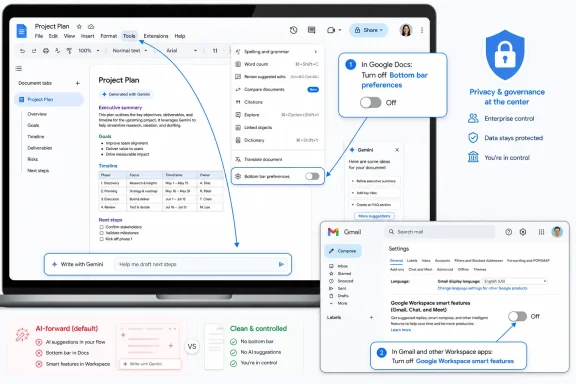
The quickest way to remove the Gemini prompt from Google Docs is inside Docs itself. Open the document, look at the top menu bar, choose Gemini, then open Bottom bar preferences and turn off the bottom bar. That removes the persistent prompt field from the document interface.
This is the least disruptive answer because it targets the visible annoyance without changing broader account behavior. Gmail can keep Smart Compose. Calendar can still infer events. Drive can keep whatever smart conveniences your account already permits. For users who mostly want the bottom of their document back, this is the fix to try first.
The catch is that it is a document-level or interface-level control, not necessarily a philosophical rejection of Gemini across Workspace. It cleans up the page, but it does not amount to a broad AI opt-out. That distinction matters because Google’s Workspace AI features are no longer a single feature with a single switch.
The design also illustrates the problem. A user bothered by a bar at the bottom of a document might reasonably look in Docs settings, account privacy, or the Gemini side panel. Instead, the relevant control sits under a Gemini menu item whose label does not scream “turn this thing off.” It is discoverable only after someone tells you where to look.
The Deeper Switch Lives in Gmail, Because Workspace Is Really One Product Now
For users who want a broader shutdown, the relevant path begins in Gmail rather than Docs. Open Gmail, click the gear icon, choose See all settings, and look for the Google Workspace smart features section. From there, Manage Workspace smart feature settings exposes the controls that govern smart features across Workspace apps.
Turning off smart features in Google Workspace can suppress Gemini prompts and related AI-driven behaviors across Docs, Gmail, Calendar, Drive, and other Workspace surfaces. This is the setting users reach for when they are not merely irritated by a single Docs bar but want Google’s productivity suite to stop behaving like an AI assistant by default.
The oddity is not accidental. Google increasingly treats Workspace as a connected data environment rather than a bundle of separate apps. Gmail is not just mail; it feeds Calendar events, Drive context, Meet summaries, and now Gemini-driven cross-app assistance. In that model, Gmail settings become a kind of control panel for the broader productivity graph.
That makes architectural sense for Google and administrative sense for Workspace tenants, but it is confusing for individuals. If the irritant appears in Docs, the average user expects the durable off switch to live in Docs. When the durable switch lives in Gmail, the product is quietly teaching users that the document editor is only one room in a much larger house.
The Price of Silence Is Losing Features You May Actually Like
The deeper switch is powerful because it is broad. It is also blunt. Turn off Workspace smart features and you may lose conveniences that predate the current Gemini branding, including Smart Compose, Smart Reply, summary cards, automatic event surfacing, and other features that many users have come to treat as ordinary productivity plumbing.
That is the trade-off Google has created by grouping AI-era features with long-running “smart” features. The user who objects to a generative writing prompt may not object to flight details appearing in Calendar. The editor who wants a clean page may still want Gmail to suggest the end of a sentence. The administrator who wants to limit Gemini exposure may not want to degrade every harmless assistive feature in the suite.
This bundling creates a practical consent problem. Users are not simply choosing “AI on” or “AI off.” They are choosing among packages of behavior, some generative and some not, some visible and some ambient, some annoying and some useful. Google can say the controls exist, and technically that is true. But a control that shuts off too much at once is not the same thing as a precise preference.
The smartest product design would separate the categories cleanly. One switch for generative AI prompts in the writing surface. Another for cross-app data use. Another for old-style autocomplete and classification. Instead, users are being pushed into a bundled bargain that makes opting out feel punitive.
Privacy Is the Subtext Even When the Feature Is Just Annoying
For many users, the first reaction to the Gemini bar is aesthetic: it is in the way. The second reaction is usually privacy: what exactly is it reading, where does the prompt go, and how much of the document becomes part of Google’s AI systems? Those questions are not paranoia. They are the natural result of placing a generative AI prompt inside a document editor.
Google has repeatedly distinguished between using user content to provide features and using content to train foundation models. That distinction matters, and it should not be collapsed into a simple claim that “AI is reading everything.” Workspace customers also operate under different contractual and administrative controls than free consumer accounts, which further complicates any one-size-fits-all answer.
But the user experience often fails to communicate those distinctions at the moment that matters. A bar appears in the document. It invites writing with Gemini. It is persistent. The average person does not parse data-processing boundaries from interface chrome; they infer intent from design.
That is why the backlash is sticky even when some privacy fears are overstated. Users do not need to prove that their document is being used to train a model in order to object to an AI affordance living on the page. The threshold for trust is higher when the product deals with drafts, contracts, medical notes, HR files, schoolwork, or unpublished reporting.
Enterprise IT Sees a Governance Problem, Not a Cute Writing Tool
In business and education environments, the Gemini bar is more than an annoyance. It is a policy surface. Administrators have to decide whether generative AI should be available to all users, limited to certain organizational units, disabled in specific apps, or governed through Workspace editions and admin-console settings.
The problem is that AI controls are still evolving faster than many organizations’ internal policies. Legal, security, HR, and records teams may not have agreed on whether employees can use generative AI on confidential drafts. Teachers may not know whether Gemini availability changes academic integrity rules. Regulated industries may need auditability before convenience.
This is where Google’s consumer-style rollout rhythm can clash with enterprise reality. A prompt that looks like a harmless productivity nudge to a product manager can look like unmanaged data flow to a security team. The more visible Gemini becomes inside everyday tools, the harder it is for administrators to treat AI as an optional pilot.
The lesson for IT departments is straightforward: do not wait for users to complain before reviewing Workspace AI controls. Check admin settings, document policy, communicate what is enabled, and explain what turning off smart features will affect. Silence from IT will be interpreted as permission by some users and as negligence by others.
Microsoft Users Should Recognize the Pattern
WindowsForum readers have seen this movie before, only with a different logo. Microsoft’s Copilot push through Windows, Edge, Microsoft 365, and Bing follows the same strategic logic: AI must be inserted where users already spend time. The assistant is no longer a destination. It is becoming interface furniture.
The tension is also the same. Vendors see AI surfaces as the next productivity layer and a way to defend subscription value. Users see another icon, panel, prompt, or background service arriving before they asked for it. Administrators see yet another policy domain that must be mapped against identity, compliance, data residency, logging, and acceptable use.
Google’s Gemini bar in Docs is therefore not a small Google-only controversy. It is a symptom of the larger platform race to normalize AI as a default part of work. The battle is not whether AI tools exist. It is whether users retain meaningful control over when those tools appear and what they can touch.
The most frustrating part is that the vendors often have the technical ability to build better controls. They can target features by app, tenant, group, license, region, and user. When the user-facing controls remain vague or bundled, that is not a technical limitation so much as a product choice.
The Clean Page Is Now a Settings Exercise
For now, the practical advice is to start small. If your problem is the visible “Write with Gemini” strip in Docs, use the Docs menu and disable the bottom bar. If your problem is Gemini’s broader presence across Workspace, use Gmail’s smart feature settings and decide whether the loss of related conveniences is worth the cleaner, less AI-forward experience.
The important point is to understand the scope of each switch before flipping it. The bottom-bar preference is cosmetic and local. The Workspace smart features setting is broader and may remove features you did not think of as Gemini. In a work or school account, your administrator may also have controls or defaults that override what an individual user expects to see.
This is also a reminder to document personal settings after changing them. Cloud apps evolve continuously, and interface experiments can arrive unevenly across accounts. If Gemini reappears after an update, a browser change, or an account switch, the issue may not be that the setting “failed” so much as that Google has multiple overlapping places where AI features can surface.
Users should also distinguish between hiding a prompt and changing data-use preferences. Removing the bottom bar gives back screen space. Turning off Workspace smart features changes a broader class of personalization and assistance. Those are related goals, but they are not identical.
The Real Opt-Out Is Knowing Which Compromise You Are Making
The Gemini-in-Docs dispute is really about who gets to define the default writing environment. Google believes the default should be AI-assisted because that is where its product strategy, subscription value, and competitive posture are headed. A significant number of users believe the default should remain human-first, quiet, and minimally suggestive.
Neither side is hard to understand. Generative AI is useful enough that ignoring it would make Workspace feel dated. But writing tools are intimate software, and intimacy raises the cost of intrusion. A spreadsheet formula suggestion and a prose-writing prompt do not land the same way.
Google could defuse much of this by making the first-run experience explicit and granular. Ask whether the user wants Gemini in the document canvas. Offer “show only when I click Gemini.” Separate generative writing from classic smart features. Give Workspace admins a clean map of what each control changes.
Until then, the burden falls on users and IT teams to reverse-engineer the intent of settings menus. That is not a great look for a company whose best products historically won because they felt obvious.
The Settings Worth Remembering Before the Next AI Prompt Arrives
The immediate fix is easy, but the larger lesson is that AI controls are becoming as important as notification settings, privacy toggles, and browser permissions. If an assistant can appear inside the place where work is created, then knowing how to dismiss it is now basic digital hygiene.
- The fastest way to remove the visible “Write with Gemini” bar in Google Docs is to open the Gemini menu and disable it under Bottom bar preferences.
- The broader way to suppress Gemini-style prompts across Workspace is to turn off Google Workspace smart features from Gmail’s full settings page.
- Turning off Workspace smart features can also remove older conveniences such as Smart Compose, Smart Reply, summary cards, and automatic event surfacing.
- Hiding the Docs bottom bar is not the same thing as making a broad privacy or data-use change across a Google account.
- Business and school users may be subject to administrator-controlled Workspace settings that differ from consumer Google accounts.
- The real trade-off is not AI versus no AI, but granular user control versus bundled platform defaults.
The backlash to Gemini in Docs will not stop Google’s AI strategy, just as complaints about Copilot have not stopped Microsoft’s. But it should push both companies toward a more mature bargain: AI can be powerful without being omnipresent, useful without being nagging, and available without turning every blank page into a prompt box. For now, reclaiming that blank page is possible — but the fact that users need a guide to do it tells us exactly where the next fight over productivity software is headed.
