

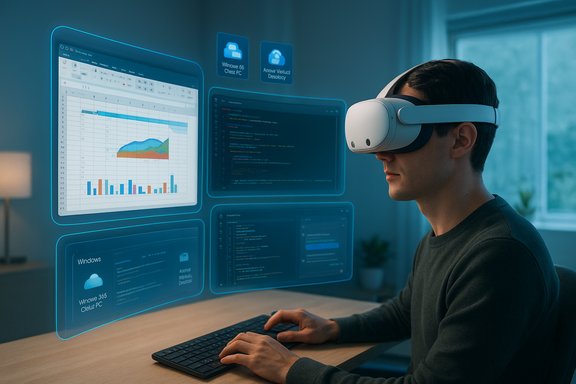
Microsoft and Meta have opened the door to a mainstream, headset-driven Windows desktop: Mixed Reality Link for Windows 11 is now rolling out broadly to Meta Quest 3 and Quest 3S users, turning those headsets into fully capable virtual Windows workstations that can connect to local PCs and cloud-hosted Windows instances.
Background
Microsoft introduced Mixed Reality Link as a way to bring the full Windows 11 experience into headset-based mixed reality environments during public previews that began in late 2024. Since then the feature has been refined in collaboration with Meta, and the general availability announcement coincides with Meta’s Horizon OS updates that enable the experience on Quest 3 and Quest 3S devices. Mixed Reality Link is positioned as a productivity-first use of mixed reality: instead of just gaming or immersive media, the feature focuses on recreating multi‑monitor Windows workflows inside a headset, and it supports both local PC connections and cloud-hosted Windows desktops such as Windows 365 Cloud PC, Azure Virtual Desktop, and Microsoft Dev Box. That dual local/cloud approach is a deliberate bet on flexibility for both consumers and enterprise users.How Mixed Reality Link works — the practical mechanics
Pairing and initial setup
Getting started requires two pieces of software: the Mixed Reality Link app on a Windows 11 PC (available through the Microsoft Store) and the corresponding Windows App on the Meta Quest headset. After installing the PC-side app, users pair their headset by scanning a pairing prompt and confirming on the PC and headset. The process is designed to be quick — Microsoft emphasizes “seconds to connect” — and the Quest interface includes direct pairing helpers such as looking at a keyboard to prompt a connection in some Horizon OS builds.Local and cloud connection modes
Mixed Reality Link supports:- Direct local connections to a Windows 11 PC over the local network (wired or wireless).
- Cloud-hosted Windows sessions, including Windows 365 Cloud PC, Azure Virtual Desktop, and Microsoft Dev Box, allowing users to use remote compute and storage with the same headset UI.
Virtual display model and input
The system exposes virtual displays to the headset that behave like high-resolution monitors. Users can position, scale, and arrange multiple virtual screens in their field of view and use existing peripherals — keyboards, mice, and controllers — as input. Quest passthrough and hand-tracking features are used to blend physical and virtual inputs when needed. The experience intentionally mimics familiar multi-monitor Windows workflows rather than replacing them with novel app metaphors.Minimum requirements and technical specifications
Microsoft has published a concrete list of minimum and recommended requirements for Mixed Reality Link. Key points include:- Windows 11 Version 22H2 or newer on the host PC.
- GPU guidance ranges from Intel integrated UHD 620 on modern 8th-gen Intel CPUs up to NVIDIA GeForce GTX 9xx series or newer and AMD Radeon RX 5000 series or newer for discrete GPUs.
- ARM support is explicitly mentioned for Snapdragon X-series devices (and community reports and coverage indicate expanded Windows-on-ARM compatibility surfaced during updates).
- Network recommendations include gigabit LAN, 5 GHz (6 GHz recommended) Wi‑Fi, and specific ports (TCP 8264, 8265 and UDP 8266) when required.
What the experience actually feels like
Multi‑monitor productivity in mixed reality
Users report a convincing multi‑monitor experience: virtual displays act like real external monitors, but with additional flexibility to resize, curve, and place them anywhere in the virtual space. Microsoft and reviewers note an immersive ultrawide mode that curves displays to better fit peripheral vision and reduce head rotation. This design makes large spreadsheets, code editors, and web apps feel usable in a way that generic flat VR screens rarely have.Passthrough and “stay-connected” modes
An important practical feature is passthrough: you can toggle to a view that blends the real world and virtual displays, letting you see your keyboard, desk, and surroundings. Meta’s passthrough has improved over recent Horizon OS updates, and Windows builds a small suite of interaction helpers (like virtual keyboard overlays) to make switching between real and virtual input less jarring.Input fidelity and limitations
Headset controllers and hand tracking work for window management and gestures, but traditional keyboard and mouse remain the primary input for heavy productivity. Some early users reported quirks — controller clicking inconsistencies or input focus issues in cloud sessions — and Microsoft has been iterating through preview updates to improve reliability. Expect the best experience with a physical keyboard and stable network conditions.How Mixed Reality Link stacks up against Apple Vision Pro
The new Windows-on‑Quest experience invites an obvious comparison to Apple Vision Pro. The core differences are pricing, platform philosophy, and hardware trade-offs.- Price: The Meta Quest 3S starts at roughly $299 (commonly listed at $299.00 MSRP for the 128 GB model), while the Apple Vision Pro launched at $3,499. That stark cost gap places a Quest-based Windows desktop within reach of many more consumers and small business users.
- Platform approach: Meta’s strategy has been quantity and accessibility — cheaper headsets, broad app distribution, and tight integration with a mobile-first ecosystem. Apple’s Vision Pro emphasizes premium hardware, tightly curated visionOS experiences, and a higher-cost, higher-performance approach. Both platforms aim for productivity use cases, but Meta’s offering is intentionally more price-accessible.
- Capability trade-offs: Vision Pro offers higher-end display tech, more advanced optical stacks (micro‑OLED), and deeper platform-level integration with Apple services — factors that can translate to clearer text, better mixed-reality depth rendering, and different developer ecosystems. Meta’s Quest 3/3S provides very capable mixed reality at a fraction of the price, but with compromises in display technology and certain hardware sensors that affect depth and passthrough fidelity.
Enterprise and cloud implications
Windows 365, Azure Virtual Desktop and Dev Box support
Mixed Reality Link’s explicit support for Windows 365 Cloud PC, Azure Virtual Desktop, and Microsoft Dev Box is significant. It allows organizations to deliver managed, policy‑controlled Windows environments to employees who are mobile or who want private, distraction‑free workspaces using headsets. Cloud-hosted Windows instances also reduce local hardware constraints and centralize compliance, backup, and access controls — a clear win for managed IT environments.Security and compliance considerations
Using headsets to access corporate desktops raises new security vectors. IT teams must account for:- Authentication flows when pairing devices and starting sessions.
- Device posture and conditional access (how to enforce device compliance on headsets or the connecting PC).
- Data leakage from passthrough or camera-enabled AR features.
- Network segmentation and VPN/Zero Trust tunneling for cloud-hosted Windows sessions.
Remote work and hybrid office use-cases
The headset-to-Windows workflow suits knowledge workers who travel, hot-desk, or need distraction isolation. A developer, analyst, or designer can dock into an enterprise Cloud PC and see three or more virtual displays without carrying a multi-monitor rig. That portability may reshape how IT provisions remote workers, but it also raises questions about ergonomics, fatigue, and long work sessions in headsets.Strengths and practical benefits
- Affordability and accessibility: Meta’s Quest 3S pricing makes immersive Windows desktops an option for many consumers and small businesses, reducing the entry barrier that premium devices present.
- Flexible local + cloud modes: The ability to choose direct local connections for low latency and Cloud PCs for mobility gives users flexibility and helps IT adopt the feature incrementally.
- True multi‑monitor workflows: Virtual monitors can be resized and arranged in ways physical panels can’t, enabling unique work layouts like ultrawide curved displays that wrap into peripheral vision. This can improve task switching and reduce desktop clutter for some users.
- Rapid iteration from preview to GA: Microsoft and Meta moved from public preview to broader availability while addressing stability, localization, and performance — a sign that both firms prioritized reliability before full release.
Risks, limitations, and what to watch
Performance constraints and latency
Even with modern GPUs and Wi‑Fi, mixed reality desktop use is sensitive to latency and throughput. Complex windows, multiple high-resolution displays, or graphics workloads can strain the connection and reveal artifacts or lag — particularly in wireless setups or over congested networks. Users intending to run GPU-heavy workloads should prefer wired or local connections with robust hardware.Ergonomics, eye strain, and session length
Headsets remain a different ergonomic model than monitors. Long sessions can cause neck strain, eye fatigue, or thermal discomfort. While passthrough and hybrid modes reduce isolation, enterprises and users should plan for realistic session durations, breaks, and adjustable setups to avoid prolonged discomfort. This is a genuine human factors concern that will determine whether headsets become daily drivers or ad-hoc tools.Privacy and camera/passthrough exposure
Passthrough and camera access can reveal physical environments to apps or third parties depending on permissions. Organizations must consider privacy policies and device-management controls to prevent accidental exposure of sensitive information visible through headset cameras.Fragmentation and platform differences
The Quest ecosystem and visionOS differ significantly. Developers who optimize for one platform may need to rework UI and interactions for another. Mixed Reality Link’s success depends in part on whether app developers and enterprises adopt headset-aware UX patterns that respect focus, input, and accessibility on headsets.Regional availability and store quirks
Early preview users experienced geographic availability issues and store visibility quirks, especially around the Microsoft Store or Quest store entries during early rollouts. While GA should resolve most of these issues, region settings and store caches can still trip up installs.Quick setup checklist (practical step‑by‑step)
- Confirm your PC is running Windows 11 Version 22H2 or newer and update system drivers.
- Install Mixed Reality Link from the Microsoft Store and the Windows App for Quest on the headset.
- Ensure your network meets recommendations (5 GHz or 6 GHz Wi‑Fi, strong signal or wired LAN). Open required ports if on a gated network (TCP 8264/8265, UDP 8266).
- Pair the headset via the app pairing flow and test a local Windows connection first to validate latency and input behavior.
- If using Windows 365 or Azure Virtual Desktop, confirm identity and conditional access policies with your IT admin and test a brief session to confirm performance.
What this means for developers and the ecosystem
Mixed Reality Link lowers the barrier to mainstream mixed‑reality productivity by enabling a familiar Windows environment instead of forcing new interaction paradigms. For developers, that means:- A potential new distribution channel for Windows apps via headset productivity workflows.
- An opportunity to refine app UIs for comfort at typical headset resolutions and viewing distances.
- A need to consider input modes (hand tracking vs. keyboard/mouse) and session persistence across local and cloud-hosted sessions.
Final analysis and outlook
Mixed Reality Link’s broad availability on Meta Quest 3 and 3S is a pivotal moment: it brings a credible, low-cost mixed‑reality Windows workstation to a mainstream audience and ties Microsoft’s desktop strategy directly into both local and cloud PC paradigms. For many users and organizations, the price/utility equation now favors experimentation: a $299–$499 Quest device can deliver a private, multi-monitor experience that previously required expensive monitors or a premium headset. However, important caveats remain. Real productivity adoption depends on ergonomics, session comfort, reliable low-latency connections, and enterprise security controls. The initial GA release addresses stability and localization after months of previews, but this is the beginning of a longer maturation path: developers must adapt apps, IT must codify policies, and users must decide whether headsets fit their daily workflows or serve as niche tools for travel and focused work. The comparison with Apple Vision Pro crystallizes the market split: Apple competes on premium hardware and tightly integrated experiences at a luxury price, while Meta and Microsoft are competing on accessibility, scale, and practical integration with the world’s most widely used desktop OS. That positioning makes immersive Windows workspaces more likely to see real-world uptake in the near term — especially for businesses looking to provision managed Cloud PCs to employees on a budget. In short: Mixed Reality Link is not a polished, all‑in‑one replacement for a desk setup today, but it is the most convincing, economical path yet to a functional headset-based Windows desktop. Its success will hinge on real-world ergonomics, network reliability, enterprise security integration, and whether developers optimize their apps for the head-worn form factor. For consumers and IT teams alike, now is the time to test, measure, and plan — because the desktop is going to be a lot more portable than it used to be.Source: Engadget Mixed Reality Link for Windows 11 and Meta Quest headsets is now available to everyone
