

Mounting a folder as a drive in Windows 11 is a small trick that can pay big dividends: it gives you a predictable drive letter for deep folders, helps older programs that insist on short paths, and makes large project directories feel like first‑class storage in File Explorer.
Windows has several distinct concepts that people commonly refer to as “mounting”: assigning a drive letter to a storage volume, mapping a network share to a drive letter, creating a virtual drive that points at a local folder, and creating NTFS mount points that attach an entire volume to an empty folder. Each solves different problems and behaves differently under the hood.
Conclusion: for a fast, visible drive letter use SUBST; for anything that must survive reboots or service contexts, use one of the persistence techniques or the proper Windows mapping/mounting tools.
Source: Guiding Tech How to Mount a Folder as a Drive in Windows 11 – And Why to Do It
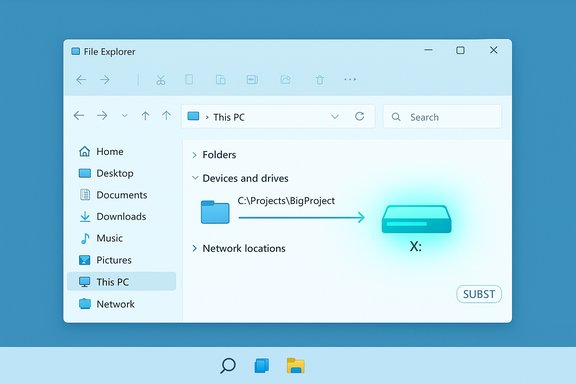 Background / Overview
Windows has several distinct concepts that people commonly refer to as “mounting”: assigning a drive letter to a storage volume, mapping a network share to a drive letter, creating a virtual drive that points at a local folder, and creating NTFS mount points that attach an entire volume to an empty folder. Each solves different problems and behaves differently under the hood.- A drive-letter mapping (e.g., Z
 can point to a physical disk, a network share, or — via tools such as SUBST — to a local folder so that the folder appears as a drive in This PC.
 - A network mapped drive uses SMB/UNC paths (\server\share) and is the standard way to make remote folders look like local drives in Explorer. This is often done with File Explorer, net use, or PowerShell and is covered by standard Windows tooling and credential handling. Many guides walk through the GUI and command‑line mapping workflows.
- NTFS mount points (created with Disk Management or mountvol) attach an entire volume to an empty NTFS folder — useful when you want to combine volumes without using another drive letter. mountvol and Disk Management are the right tools when you’re attaching volumes rather than faking drive letters for folders.
Why mount a folder as a drive?
There are three concrete, practical reasons to mount a folder as a drive:- Convenience: A drive letter under “This PC” is quicker to access and easier to pin in applications than a long nested path. For frequently used project trees, a drive letter reduces navigation friction.
- Compatibility: Older or poorly written software often expects a short path or an actual drive letter and may fail when given a long nested path or a UNC path. Giving such apps a simple letter can be a quick compatibility fix.
- Organization / workflow: For complicated projects with deep folder trees (multimedia projects, large codebases, VM images), making the primary project folder look and behave like a drive can streamline backup, restore, and development workflows.
Method 1 — The quick way: SUBST (Command Prompt)
The fastest and most widely used method to mount a folder as a drive letter is the built‑in SUBST command. SUBST creates a virtual drive letter that maps to a local path.How it works (quick steps)
- Open Run (Win + R), type cmd and press Enter (start a normal, non‑elevated Command Prompt).
- Create the virtual drive with:
- subst X: "C:\Path\To\Folder"
- Replace X with an unused letter and the path with your folder in quotes.
- The new drive (X appears in File Explorer and behaves like a drive for most file operations.
- Remove it with:
- subst X: /d
- subst P: "C:\Users\Alice\Projects\BigProject"
- Visit P: in File Explorer.
Important behavioral notes and limits
- Temporary by default: SUBST mappings are session-scoped — they do not persist across reboots. They will disappear on restart unless you take steps to re-create them at logon. Microsoft’s command help and community resources reiterate that SUBST-created drives are not persisted by default and recommend startup scripts or registry entries to make them persistent.
- Not a real volume: Disk management tools (chkdsk, format, etc. should not be used against SUBST drives; SUBST marks certain operations as unsupported for drives it creates. Microsoft documents commands that don’t work on SUBST drives.
- Local-only: SUBST maps local paths only — it cannot directly create a drive that points to a UNC network location (\server\share). Use net use or New‑PSDrive for network shares.
- Elevation / session visibility: Running SUBST from an elevated administrator prompt may create mappings visible only to the elevated session, and not visible to the regular logged‑in user context (or vice versa). The simplistic advice “don’t run Command Prompt as Admin or it won’t work” is an oversimplification: the real issue is mixed session contexts. If you create the mapping in a different security context than the interactive Explorer session, visibility can differ. There are known workarounds (EnableLinkedConnections registry and careful task scheduling) but the practical advice is to create SUBST mappings in the user context where Explorer runs.
Quick recipe: temporary mapping
- Open a normal (non‑elevated) Command Prompt.
- subst J: "C:\Work\MyProject"
- Use J: in Explorer or apps.
- To remove: subst J: /d
Method 2 — Make the mapping stick (persistent options)
Because SUBST disappears at reboot, people commonly want the mapping to persist across logins. There are a few canonical ways to make a SUBST mapping reappear at sign‑in.Option A — Desktop shortcut in Startup (simple, user‑level)
This is the method Guiding Tech recommends and it’s quick to implement:- Right‑click Desktop → New → Shortcut.
- For the target put:
- subst X: "C:\Users\John Smith\Documents"
- Name the shortcut and finish.
- Copy the shortcut into:
- %AppData%\Microsoft\Windows\Start Menu\Programs\Startup
- The shortcut runs at sign‑in and recreates the SUBST mapping for that user.
Option B — Run SUBST on boot via Run registry or scheduled task (more control)
- Add a Run key under HKEY_CURRENT_USER\Software\Microsoft\Windows\CurrentVersion\Run with the SUBST command string to run at logon.
- Or create a Scheduled Task set to run At logon for the user — you can choose whether it runs with highest privileges. Use a short delay (Start‑Sleep) to give network stacks and Explorer time to initialize if your mapping depends on a network mount or other services.
Option C — Registry DOS Devices (system-level persistence)
It’s possible to add persistent DOS device entries to the registry under:- HKEY_LOCAL_MACHINE\SYSTEM\CurrentControlSet\Control\Session Manager\DOS Devices
- Name: "X:"
- Type: REG_SZ
- Data: "\??\C:\Path\To\Folder"
Alternative approaches (when SUBST isn’t the right tool)
SUBST is great for user-level convenience, but it isn’t the only way to achieve similar results — and in many scenarios other tools are a better fit.Map a network share (net use or New‑PSDrive)
If the folder actually sits on another machine (a NAS or server), you should map it as a network drive using:- File Explorer → Map network drive (GUI),
- net use \server\share /persistent:yes (Command Prompt),
- New‑PSDrive -Name X -PSProvider FileSystem -Root "\server\share" -Persist (PowerShell).
NTFS mount points and mountvol (attach a volume to a folder)
If you want to mount an entire volume at a folder instead of using a new drive letter, use Disk Management or mountvol. This is the correct tool when the entity you are mounting is a real block device (external disk or additional partition), not a folder. mountvol is the command‑line utility to create and remove mount points and has administrator requirements.Junctions and symbolic links (mklink)
If the objective is simply to make a folder appear at a different path (not necessarily as a drive) consider NTFS junctions or symbolic links:- mklink /J LinkFolder TargetFolder (creates a junction)
- mklink /D LinkFolder TargetFolder (creates a directory symbolic link)
Virtual hard disk (VHD/VHDX)
For advanced scenarios you can create and mount a VHD/VHDX and assign it a drive letter or mount it to an empty folder. This is a true disk image with its own filesystem, useful for isolated storage containers or portable images.Practical recipes: which method to choose (decision tree)
- You need a short-lived convenience drive for a single session:
- Use SUBST from a normal command prompt.
- You need the mapping every time you log in (single user, local folders):
- Create a Desktop shortcut that runs SUBST and place it in Startup OR use a Scheduled Task at logon.
- You need the mapping available before logon or for services:
- Use the registry DOS Devices method or attach a volume with Disk Management (if you control system-level configuration).
- The folder is on another machine (network share):
- Use net use /persistent:yes or New‑PSDrive -Persist (with proper scoping) — do not use SUBST.
- You want access to an entire additional disk at a folder path:
- Use Disk Management or mountvol to create an NTFS mount point.
Risks, caveats and practical troubleshooting
- Not all tools treat SUBST drives like physical volumes. Microsoft lists commands that shouldn’t be used on SUBST drives (format, chkdsk for example), and some backup or low‑level utilities may not operate correctly.
- Elevation / session scope mismatch. If you create mappings from an elevated prompt or from a different user account, Explorer running in the interactive user session may not see them. If mappings are created in a different security context they may be invisible. There are registry tweaks (EnableLinkedConnections) and task/scheduling workarounds, but the simplest approach is to create mappings in the same context as the user.
- Persistence pitfalls. New‑PSDrive’s -Persist is useful but not a silver bullet; scripts that run in non‑interactive scopes can fail to create truly persistent mappings unless they are dot‑sourced or run in the correct scope. There are active community discussions and Microsoft documentation notes about how -Persist behaves differently in scripts versus interactively. If you need enterprise‑grade persistence, use Group Policy Preferences, scheduled tasks, or net use in a logon script.
- Security and credential handling. Never store plain‑text passwords in startup scripts. For network mappings use Credential Manager, scheduled tasks with the appropriate principal, or secure PowerShell credential objects (Export‑Clixml with DPAPI for single‑user encryption).
- Disk letter collisions. Choose high letters (Z:, Y:, etc. to minimize conflicts with removable drives and future devices. Tools like USBDLM can help manage predictable USB drive letters on systems with many removable devices. Community resources cover common approaches to minimize collisions and automation strategies.
- Backup and recovery considerations. Because SUBST is a view rather than a separate volume, backup software that expects a real volume may treat the underlying folder differently. Test backups after creating mappings.
Advanced: making a SUBST-like mapping available to services and early boot
If your use case truly requires that the mapping be present during system startup or available to services running in the system context, SUBST as a user startup shortcut is insufficient. Two approaches exist:- Registry DOS Devices — Edit HKEY_LOCAL_MACHINE\SYSTEM\CurrentControlSet\Control\Session Manager\DOS Devices to add an X: entry pointing to \??\C:\Folder. This creates a system-level DOS device and is evaluated early. Proceed carefully — incorrect registry edits can cause system instability.
- Create a VHD/VHDX and attach it as a volume — Create a virtual disk file and configure it to mount at boot via Disk Management or by scripting with PowerShell and a scheduled task run with highest privileges. This is heavier weight but results in a real block device with predictable behavior.
Step‑by‑step quick reference (copy/paste)
- Create a temporary SUBST:
- cmd (normal prompt)
- subst X: "C:\Path\To\Folder"
- Remove SUBST:
- subst X: /d
- Make SUBST run at login via shortcut:
- Right‑click Desktop → New → Shortcut
- Target: subst X: "C:\Path\To\Folder"
- Place the shortcut in %AppData%\Microsoft\Windows\Start Menu\Programs\Startup
- Map a network share with net use:
- net use Z: "\server\share" /persistent:yes
- Create a persistent network mapping with PowerShell:
- New-PSDrive -Name Z -PSProvider FileSystem -Root "\server\share" -Persist -Scope Global
- Mount a physical volume to an empty folder (admin):
- Use Disk Management → Change Drive Letter and Paths → Add → Mount in the following empty NTFS folder
- Or use mountvol at the command line.
Final recommendations
- For most users wanting a convenient drive letter for a local folder, SUBST + a Startup shortcut is the easiest, lowest‑risk approach.
- If you need enterprise-grade persistence, early‑boot availability, or service access, prefer registry DOS devices, Disk Management mount points, or VHDs — these are system-level solutions and require admin care.
- For network folders, use net use or New‑PSDrive -Persist with correct scoping and credential handling; avoid trying to force network shares through SUBST.
- Avoid running mapping commands in the wrong security context — create them in the same user session that runs Explorer; otherwise mappings can be invisible due to UAC session separation.
- Test backups, shortcuts, and any automation thoroughly to ensure the mappings are available when your apps need them.
Conclusion: for a fast, visible drive letter use SUBST; for anything that must survive reboots or service contexts, use one of the persistence techniques or the proper Windows mapping/mounting tools.
Source: Guiding Tech How to Mount a Folder as a Drive in Windows 11 – And Why to Do It
