

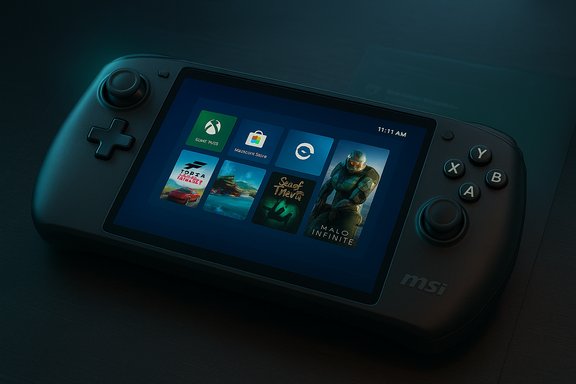
Microsoft has quietly widened the Xbox Full Screen Experience (FSE) beyond the ROG Xbox Ally family, rolling the console‑style, controller‑first shell out to additional Windows 11 handhelds via the Windows Insider Preview — most notably the MSI Claw — and exposing the path that will let more OEMs ship a handheld experience that looks and behaves more like a console than a traditional Windows desktop.
Microsoft built the Xbox Full Screen Experience as a session posture layered on top of Windows 11: it’s not a new operating system but a full‑screen shell that elevates a chosen “home app” (the Xbox PC app by default), hides ordinary desktop ornaments, and defers or suppresses many background tasks and startup apps while the shell is active. The goal is to reduce OS noise on thermally constrained handheld hardware and present a thumb‑friendly, controller‑first navigation surface for launching and switching between games. The most recent staged rollout is tied to Windows 11 Insider Preview Build 26220.7051 (KB5067115), which Microsoft shipped to the Dev and Beta channels as part of the 25H2 enablement wave. That build contains the FSE plumbing and the Settings UI controls that let supported handhelds opt into the mode; OEM enablement and server‑side flags determine whether a particular device will see the option.
Typical steps reported by multiple hands‑on guides:
Source: xiaomitoday.com Microsoft Brings Xbox Full Screen Experience to More Windows 11 Handhelds
 Background
Microsoft built the Xbox Full Screen Experience as a session posture layered on top of Windows 11: it’s not a new operating system but a full‑screen shell that elevates a chosen “home app” (the Xbox PC app by default), hides ordinary desktop ornaments, and defers or suppresses many background tasks and startup apps while the shell is active. The goal is to reduce OS noise on thermally constrained handheld hardware and present a thumb‑friendly, controller‑first navigation surface for launching and switching between games. The most recent staged rollout is tied to Windows 11 Insider Preview Build 26220.7051 (KB5067115), which Microsoft shipped to the Dev and Beta channels as part of the 25H2 enablement wave. That build contains the FSE plumbing and the Settings UI controls that let supported handhelds opt into the mode; OEM enablement and server‑side flags determine whether a particular device will see the option. What changed in this update — the headline facts
- The Windows Insider build (Build 26220.7051 / KB5067115) expanded preview availability of the Xbox Full Screen Experience to more Windows handhelds, with MSI Claw devices being named as the first non‑ASUS hardware to join the preview.
- On supported devices the FSE control is exposed under Settings > Gaming > Full screen experience, where you choose a home app (Xbox by default) and optionally set “Enter full screen experience on startup.” You can also enter or exit FSE from Task View or the Game Bar during a session.
- Microsoft is collecting telemetry and user feedback via Feedback Hub (Gaming and Xbox > Gaming Handhelds) as part of a staged, controlled feature rollout — the company explicitly uses server gating and phased enablement to limit exposure while it gathers data.
How the Full Screen Experience works (technical overview)
Session posture, not a kernel change
FSE implements a focused runtime posture rather than changing kernel scheduling, GPU drivers, or anti‑cheat models. Under the hood Windows remains Windows: drivers, subsystems, and the kernel continue to operate normally. FSE alters shell components, startup app behavior, and system policies for the active session to reduce background CPU wakeups, conserve memory, and mute distractions.Visible UX and navigation changes
- A full‑screen, tile‑based launcher becomes the primary surface; the Xbox PC app is the default home app and aggregates Game Pass, Microsoft Store/Xbox purchases, and locally installed titles into a single grid.
- Controller‑first navigation is emphasized: Game Bar and Task View are adapted for thumb use, an on‑screen controller keyboard and controller-driven login flows are supported, and a hardware Xbox button (on devices that include one) is mapped for overlays and quick switching.
- Standard desktop elements such as the taskbar, wallpaper and file explorer ornaments can be hidden while FSE is active, strengthening immersion and reducing non‑essential memory and CPU usage.
Resource trimming and responsiveness
When a device boots into FSE (or the shell is activated), Windows deliberately delays or suppresses certain desktop startup apps and background maintenance tasks. The practical effect on some devices is reduced idle CPU wakeups and reclaimed RAM, which can translate to steadier frame pacing on handheld APUs. Early hands‑on reports and Microsoft’s preview notes describe deferred maintenance, muted notifications and paused background activities while the session is active to avoid interruptions and help keep frame rates stable.Devices, availability and OEM strategy
Where it is now
- Preinstalled: ASUS ROG Xbox Ally and ROG Xbox Ally X launched with FSE as an integrated, out‑of‑box experience.
- Preview expansion: MSI Claw models have entered the preview stage under Build 26220.7051, making them the first non‑ASUS handhelds to see the FSE toggle in Insiders. Microsoft says additional OEM handhelds will enable FSE in the coming months.
A staged rollout by design
Microsoft uses Controlled Feature Rollout (CFR) gating and device entitlements. The binary for FSE may be present across builds, but serverside flags and OEM entitlements determine visibility. This staged approach reduces blast radius and gives Microsoft and OEMs time to gather real‑world telemetry before wide availability. Insiders will see variant experiences depending on channel, region, hardware and Microsoft/OEM flags.How to enable FSE (official and community methods)
Official, supported path (recommended)
- Join the Windows Insider Program (Dev or Beta channel that contains the 25H2 preview build).
- Install Windows 11 build 26220.7051 (KB5067115) or later, and update the Xbox PC app to the latest preview or stable release.
- Open Settings > Gaming > Full screen experience. Choose the Xbox app (or another installed home app) and toggle “Enter full screen experience on startup” if you prefer booting directly into the shell.
- Use Task View or Game Bar to exit FSE when you need full desktop access.
Community / unofficial methods (use with extreme caution)
Enthusiast communities have documented a manual unlock path when the Settings toggle does not appear. The common sequence combines ViVeTool (a third‑party feature‑flag utility) and a registry tweak that marks the device as a handheld form factor.Typical steps reported by multiple hands‑on guides:
- Download ViVeTool and run the following feature enables:
- ViVeTool.exe /enable /id:52580392
- ViVeTool.exe /enable /id:50902630
- Add or edit the registry DWORD at Computer\HKEY_LOCAL_MACHINE\SOFTWARE\Microsoft\Windows NT\CurrentVersion\OEM named DeviceForm and set its value to hex 0x2E (decimal 46).
- Reboot and check Settings > Gaming for the Full screen experience toggle.
- These methods are unsupported by Microsoft and can cause unexpected UI regressions, controller or input glitches, broken task switching, or other stability problems. Multiple community threads report the FSE option appearing then disappearing or failing to actually launch the console shell even after being enabled. Back up your device and have a recovery plan before attempting community unlocks.
What this means for gamers and developers
Benefits
- Cleaner, controller‑first UX: FSE reduces friction for short play sessions, letting handheld owners pick up and play without fiddling with the desktop. Big tiles and thumb‑focused navigation matter on small screens.
- Lowered background noise: For thermally constrained handheld APUs, trimming non‑essential services can reduce micro‑stutters and improve frame stability in long play sessions where thermal throttling is a factor.
- Preservation of openness: Because Windows remains underneath, users can still run Steam, Epic, GOG, Battle.net and other PC storefronts — FSE is a launcher and posture rather than a walled garden.
Trade‑offs and limitations
- Compatibility gaps: FSE alters session behavior but does not change anti‑cheat, DRM or kernel‑level driver models. Titles that depend on specific launchers, kernel drivers, or particular background services may still behave differently, and troubleshooting will often require cross‑discipline work (drivers, firmware, app vendors).
- Fragmentation risk: Because OEMs must enable FSE per device and driver/firmware maturity varies across handhelds, early availability may look inconsistent; some devices may gain a polished FSE experience quickly while others lag.
- Stability and support: Preview builds and community unlocks can be buggy. Enterprise or mission‑critical users should not enable FSE on production hardware until OEM‑validated images and drivers are available.
Developer implications
- Handheld certification and optimization: Developers targeting handhelds should pay attention to Microsoft’s Handheld Compatibility Program and consider adapting UI scaling, input mapping and performance budgets to support FSE sessions. Smaller screens and controller‑centric inputs change UX assumptions.
- Telemetry and patching: Because the session posture can defer background tasks and affect runtime characteristics, developers should test with FSE enabled to ensure launches, cloud saves, DRM, and anti‑cheat behave as expected when the desktop is suppressed.
Security, privacy and enterprise considerations
- Unsupported hacks: Using feature flag tools and registry edits can inadvertently enable unsupported code paths and change device identity metadata (DeviceForm). This may complicate enterprise management, compliance scanning or recovery workflows. Enterprises should restrict Insider/pre‑release channels on managed hardware and validate recovery images before experimenting with FSE.
- Telemetry and consent: Microsoft’s staged rollout and Feedback Hub loops mean telemetry will drive refinement. Administrators should review telemetry and privacy settings for Insiders and ensure users understand what telemetry is being sent when participating in previews.
- Notifications and maintenance: The FSE posture mutes notifications and defers certain maintenance while active to avoid interruptions. For managed devices that require timely updates or security scans, policies must account for those deferred activities so compliance and patching cadence are not silently delayed.
Early hands‑on findings, measured gains and what to watch for
Independent testing and community reporting show a mix of outcomes. On some handhelds FSE’s minimization of desktop startup tasks and background services can free noticeable memory and reduce idle CPU wakeups, which in certain titles and scenarios produces smoother sustained performance. But results vary wildly depending on:- the device’s firmware and driver maturity,
- the set of installed background services, and
- whether a specific game relies on launchers or kernel‑level components.
Practical recommendations
For enthusiasts, testers and IT pros the following practical checklist balances curiosity with safety.- If you want to try FSE: use the official Insider path (Dev/Beta) on a secondary device, update the Xbox PC app, and enable FSE via Settings > Gaming. Back up the system image first.
- If the toggle is missing: resist the urge to apply community unlocks on a production machine. If you proceed, do so only on disposable hardware, follow community guides carefully, and document exactly what you change (ViVeTool commands and the DeviceForm registry edit are the common pieces). Expect to need driver or firmware rollbacks in some cases.
- For developers: add FSE to your QA matrix for handheld‑targeted releases. Test with FSE enabled to validate launch paths, DRM/anti‑cheat compatibility, save/sync, and overlays.
- For enterprises and managed fleets: block Insider channels on production hardware and only permit testing in controlled labs with clear rollback paths. Assess how deferred maintenance and muted notifications interact with your compliance requirements.
Risks, unanswered questions and what to monitor next
- How quickly will OEMs push driver/firmware updates to ensure consistency? Early impressions show that the experience is only as good as the firmware and driver stack. OEM cadence will be the limiting factor for mass adoption.
- Will the FSE posture introduce hard‑to‑diagnose support cases? The combination of server‑gated features, Insider bits, OEM entitlements and community unlocks creates complexity that could result in flaky support tickets and confusing troubleshooting paths.
- Can FSE be extended safely to laptops or other form factors? The DeviceForm registry angle and form‑factor gating suggest Microsoft is intentionally narrowing FSE to handheld‑like devices for now; broader application would require careful UX and power management design. Community experiments hint at possibilities, but the route to general availability will require more validation.
Final takeaways
Microsoft’s rollout of the Xbox Full Screen Experience to additional Windows 11 handhelds represents a significant, platform‑level push to make Windows portable gaming feel more like a dedicated console. By implementing FSE as a layered session posture rather than a forked OS, Microsoft preserves the openness of Windows while offering a cleaner, controller‑first surface that can materially improve handheld usability and sustained game responsiveness — when drivers and firmware are in sync. For early adopters, the official Insider path is the safest way to preview the feature; community unlocks exist but carry real risk and are explicitly unsupported. OEMs, developers and enterprise teams all have an active role to play in testing, optimizing and validating FSE: this is a staged platform change, not a finished switch — and how quickly it matures will depend on coordination across Microsoft, OEMs, drivers and game developers. Microsoft’s FSE initiative is a pragmatic answer to a clear problem: how to make a full desktop OS behave like a console on handheld hardware. The preview’s expansion to MSI Claw is the first public step beyond ASUS’ Ally family, and it signals a broader intent: Windows can become the default handheld gaming surface — but the journey from preview to polished ecosystem is only just beginning.Source: xiaomitoday.com Microsoft Brings Xbox Full Screen Experience to More Windows 11 Handhelds
