

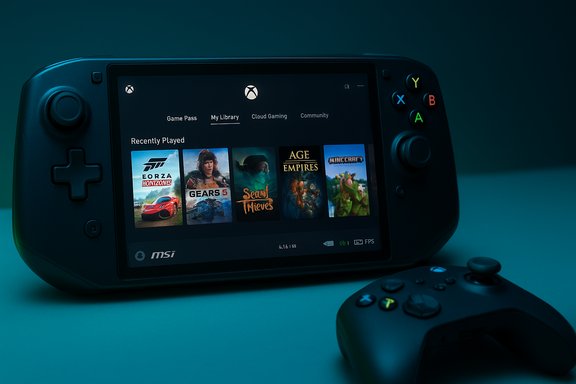
Microsoft’s console-style Full Screen Experience has finally arrived for MSI’s Claw handhelds via the Windows 11 Insider preview, offering a controller-first launcher, measurable runtime trimming, and modest frame‑rate gains — but it’s a preview feature with real-world caveats that owners should test cautiously before making it a daily driver.
The Full Screen Experience (FSE) is a layered Windows 11 session posture that makes a chosen “home app” — typically the Xbox PC app — the device’s primary interface. Instead of loading the full Windows desktop and its dozens of auxiliary startup tasks, FSE runs a full‑screen, controller‑friendly launcher and defers or suppresses non‑essential background processes and Explorer ornamentation while that session is active. The stated goals are practical: reduce memory pressure, lower idle CPU wakeups (which can cause micro‑stutters), and present a low‑friction, console‑like flow on small handheld screens. Microsoft shipped the experience preinstalled on the ASUS ROG Xbox Ally family and has been expanding it through controlled Insider preview flights. The recent expansion to MSI Claw units is distributed as part of the Windows 11 Insider cumulative preview (Build 26220.7051 / KB5067115) and appears as an opt‑in toggle under Settings → Gaming → Full screen experience on supported devices. It’s gated by Microsoft/OEM entitlements, so availability will vary by channel, region, and device.
Microsoft’s Full Screen Experience on the MSI Claw is not a revolution that remakes Windows, but it is a pragmatic and high‑value iteration: it demonstrably frees system memory, reduces session noise, and gives handheld Windows PCs a cleaner, console‑like entry point. The improvements are most visible on devices with tighter memory or heavier background services; on well‑tuned 32GB systems the differences will be less dramatic. As a preview, FSE already shows the direction Microsoft intends for handheld gaming on Windows — a direction that will require continued polish from Microsoft and coordinated driver and firmware updates from OEMs before it becomes a seamless, everyday experience.
Source: NoobFeed MSI Claw 8 AI Plus Gets Windows 11 Full Screen Experience Upgrade | NoobFeed
 Background / Overview
The Full Screen Experience (FSE) is a layered Windows 11 session posture that makes a chosen “home app” — typically the Xbox PC app — the device’s primary interface. Instead of loading the full Windows desktop and its dozens of auxiliary startup tasks, FSE runs a full‑screen, controller‑friendly launcher and defers or suppresses non‑essential background processes and Explorer ornamentation while that session is active. The stated goals are practical: reduce memory pressure, lower idle CPU wakeups (which can cause micro‑stutters), and present a low‑friction, console‑like flow on small handheld screens. Microsoft shipped the experience preinstalled on the ASUS ROG Xbox Ally family and has been expanding it through controlled Insider preview flights. The recent expansion to MSI Claw units is distributed as part of the Windows 11 Insider cumulative preview (Build 26220.7051 / KB5067115) and appears as an opt‑in toggle under Settings → Gaming → Full screen experience on supported devices. It’s gated by Microsoft/OEM entitlements, so availability will vary by channel, region, and device. What the Full Screen Experience actually does
Core mechanics
- The selected home app (e.g., Xbox PC app) runs as the full‑screen shell and becomes the primary UX.
- Many desktop visual elements and non‑essential startup agents (wallpaper, taskbar ornamentation, some background services) are delayed until the user explicitly returns to the desktop.
- Game Bar and Task View are adapted for controller navigation; common system actions are mapped for thumb reachability.
- The feature does not modify kernel scheduling, GPU drivers, or anti‑cheat modules — performance changes come from userland trimming, not driver or kernel-level changes.
Expected benefits
- Reclaimed RAM for games (Microsoft’s early testing cites roughly 2GB reclaimed in some scenarios).
- Fewer background CPU wakeups and interrupts that can cause inconsistent frame times.
- Faster, more consistent “pick up and play” behavior for handheld sessions.
- Optionally boot directly into the Xbox‑led launcher to make the device behave more like a dedicated console.
MSI Claw rollout: what changed and how to enable it
Microsoft included FSE support for “MSI Claw models” in the Insider build notes for Build 26220.7051, and early testers and outlets confirmed the toggle appearing for Claw owners enrolled in Dev or Beta channels. Once present, the control lives at Settings → Gaming → Full screen experience; choose your home app (Xbox by default) and optionally toggle “Enter full screen experience on startup.” Entry/exit can also be made via Game Bar, Task View, or the F11 shortcut. Practical prerequisites reported by testers:- Be enrolled in the appropriate Windows Insider channel (Dev/Beta when the preview was distributed).
- Update Windows to the preview build that contains the FSE binaries.
- Install/update the Xbox PC app (some testers needed the Xbox app preview via Xbox Insider Hub to make the option visible).
- Update OEM utilities and firmware (MSI Center, BIOS, OSD) to reduce overlay conflicts.
Hands‑on performance: memory, FPS, and battery
RAM and system overhead
Independent reporting and Microsoft’s own testing converge on the central claim that FSE can free a meaningful amount of RAM for games by not loading many desktop components. Microsoft engineers have stated early tests reclaim roughly 2GB of RAM in the compact mode used on Ally devices; community testers and outlets have seen reclaimed memory in the 1–2GB range depending on installed apps and background services. That tracks with the NoobFeed hands‑on readout that shows desktop mode using about 7.3GB and FSE using 6.2GB in their measurement, a ~1.1GB reduction for that particular test environment. These figures are consistent in direction if not identical in magnitude across reports; exact savings depend on which startup apps and services are present on a given system. Important caveat: reclaimed RAM is highly environment‑dependent. A heavily “debloated” Windows image with few auto‑start apps will show less absolute RAM gain than a stock OEM image loaded with utilities and background agents. Conversely, systems with limited RAM (16GB) will feel the benefit more than 32GB‑equipped machines.Frame‑rate comparisons (what reviewers and community testing show)
Multiple test reports show modest but measurable FPS improvements with FSE enabled. The size of the gain varies widely by title, resolution, power target, and whether the workload is GPU‑ or CPU‑bound:- NoobFeed’s tests reported Cyberpunk 2077 at 1200p/30W: desktop 55.37 FPS → FSE 61.26 FPS, and Steam Deck preset 1200p/30W: 49.66 → 58.32 FPS (their repeated runs showed consistent improvements).
- Community benchmarks and hands‑on previews for ROG Ally devices recorded double‑digit percentage gains in some cases; more typical, conservative gains are single‑digit to low‑teens percent for modern AAA titles on thermally constrained APUs.
- Some titles — especially those that are primarily GPU‑bound or that saturate VRAM — show little to no FPS difference because the bottleneck isn’t desktop overhead. Testers explicitly report no change in games that are heavy on VRAM or where background CPU wakeups are not the main limiter.
Battery life and power
The effect on active gaming battery life appears negligible in most hands‑on testing. NoobFeed and multiple community testers observed unchanged power draw under load, indicating that FSE’s primary win is in resource allocation rather than lowering active power consumption. That said, Microsoft’s internal testing found that if a device boots directly into FSE and is then put to sleep, the idle sleep draw can be materially lower (Microsoft cited roughly one‑third idle power draw in FSE‑sleep vs desktop‑sleep in early tests). In practical terms, battery advantages for active gaming are limited; the biggest real battery wins are observed in idle/sleep states and in scenarios where background tasks and polling would otherwise wake the CPU frequently.UX, discoverability, and missing features
The FSE launcher is a purposeful, simplified shell but it is not yet as configurable as competing console‑style launchers. Early criticisms and practical limits include:- Limited customization compared with Steam’s Big Picture / Deck UI and vendor launchers (e.g., MSI Center M). The layout is currently more constrained and offers fewer personalization options.
- “My Apps” detection can miss non‑game applications, making it awkward to launch productivity or utility apps without workarounds; many users add non‑game apps into Steam as “non‑Steam games” to force discovery. That’s clunky and points to a missing, first‑class app‑launcher experience in the Xbox home app today.
- Controller navigation works well for many flows, but some UI screens and third‑party storefront flows still assume mouse/keyboard, resulting in awkward edge cases. Reddit threads and community posts document varying degrees of polish across store integrations.
Compatibility, stability and risks
FSE is distributed through Insider preview builds and is often gated by server‑side entitlements. That combination produces a few operational risks users must accept:- Preview software risks: Insider channel builds can introduce regressions not present in stable releases. Testers should treat FSE as preview software unless the feature has reached stable rollout on their device.
- OEM utility conflicts: Overlays and system utilities (MSI Center, in‑OS OSDs, Armoury Crate variants) can conflict with FSE’s session posture and controller mappings. Keep firmware and vendor software updated before enabling FSE.
- Service entitlements and timing: Even identical hardware might not show the option immediately because Microsoft and the OEM gate features by device entitlement. This causes confusion among users who expect a uniform rollout.
- Edge cases with anti‑cheat or overlays: While FSE does not change kernel modules or drivers, test critical competitive games and anti‑cheat protected titles after enabling FSE; rare compatibility problems have been observed in early preview windows and may require temporary rollback.
How to enable Full Screen Experience on an MSI Claw (recommended steps)
- Create a full system backup or a recovery USB before modifying preview channels.
- Enroll the device in the Windows Insider Program (Dev/Beta when the FSE preview is available).
- Update Windows to the build that includes FSE (Build 26220.7051 / KB5067115 or later where the feature is enabled for your device).
- Install or update the Xbox PC app (join the Xbox PC app preview in Xbox Insider Hub if required).
- Update MSI Center, OSD, BIOS and GPU drivers, then reboot.
- Open Settings → Gaming → Full screen experience, choose Xbox (or another available home app), and optionally select Enter full screen experience on startup.
What this means for the Windows handheld ecosystem
Microsoft’s decision to make FSE an OEM‑enabled posture inside Windows — rather than a separate OS — reflects a specific strategic choice: preserve Windows’ openness while offering a console‑style front end when desired. By enabling OEMs like ASUS and now MSI Claw, Microsoft signals that it wants to make Windows handhelds more approachable to mainstream gamers without sacrificing compatibility with Steam, Epic, GOG, and PC Game Pass. Early adopters (ROG Ally family, MSI Claw) are the testbeds; additional partners such as Lenovo have indicated timelines for their devices. Expect a phased expansion over the coming months as Microsoft and OEMs iterate on driver and firmware hooks. This approach has competitive implications for Valve’s SteamOS/Deck ecosystem. SteamOS still holds advantages in low‑level system control and a mature handheld‑first UI, and community benchmarking sometimes shows Linux variants outperforming Windows for sustained frame rates. FSE narrows the usability gap on Windows handhelds but does not remove the fundamental tradeoffs between an OS tailored for handheld gaming and a general‑purpose desktop OS.Strengths, shortcomings, and the verdict
Notable strengths
- Practical, non‑invasive optimization: FSE reclaims runtime resources without rewriting the kernel or drivers.
- Controller‑first UX: A cleaner, faster path to games for handheld devices.
- OEM extension: Broadening support beyond a single vendor demonstrates Microsoft’s intent to make handheld Windows smoother across the ecosystem.
Potential risks and shortcomings
- Preview instability: Being distributed through Insider builds means early adopters will encounter bugs and gating oddities.
- Inconsistent gains: Memory savings and FPS benefits are real but vary by hardware, installed software, and the title tested.
- Limited app launcher polish: Missing first‑class support for non‑game apps and limited layout customization reduce usability for some workflows.
Final assessment
The Full Screen Experience on MSI Claw handhelds is a meaningful, well‑targeted optimization that delivers the most value to users who run Windows in its stock OEM form (with standard background services) and to those on memory‑constrained systems. Enthusiasts and testers will appreciate the resource gains and the cleaner launcher; cautious daily users should wait for a stable rollout or validate the experience in a controlled way before committing to a permanent change.Practical recommendations for MSI Claw owners
- If stability matters (daily driver, work, competitive play): wait for stable channel availability or at least prefer Release Preview / Beta channels rather than Dev.
- If curious and comfortable with Insider previews: follow the steps above but back up first and keep MSI Center, BIOS, and GPU drivers up to date.
- Test your critical games and accessories (controllers, headsets) after enabling FSE, and confirm that anti‑cheat titles behave normally.
- For non‑gaming apps you want quick access to, temporarily add them to Steam as non‑Steam games or rely on the desktop switch until the Xbox home app matures.
Microsoft’s Full Screen Experience on the MSI Claw is not a revolution that remakes Windows, but it is a pragmatic and high‑value iteration: it demonstrably frees system memory, reduces session noise, and gives handheld Windows PCs a cleaner, console‑like entry point. The improvements are most visible on devices with tighter memory or heavier background services; on well‑tuned 32GB systems the differences will be less dramatic. As a preview, FSE already shows the direction Microsoft intends for handheld gaming on Windows — a direction that will require continued polish from Microsoft and coordinated driver and firmware updates from OEMs before it becomes a seamless, everyday experience.
Source: NoobFeed MSI Claw 8 AI Plus Gets Windows 11 Full Screen Experience Upgrade | NoobFeed
