• Thread Author
Microsoft’s Copilot has moved decisively from being a conversational assistant to behaving like a personal, background worker: the company’s Copilot Tasks launch — introduced as a research preview on February 26, 2026 — promises AI that not only advises but executes, running its own browser and computer to complete multi‑step tasks on your behalf while keeping you in the loop.

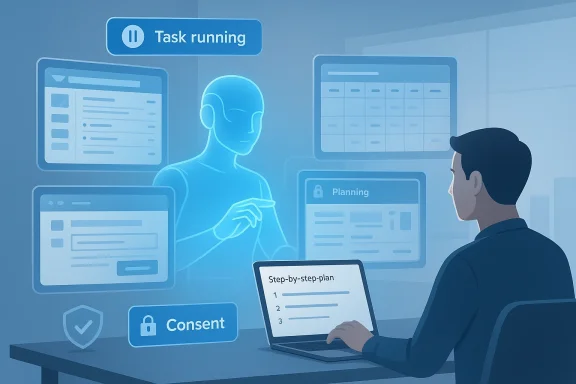
A person uses a laptop to view a step-by-step plan while an AI assistant guides a planning session.Background / Overview​

Microsoft announced Copilot Tasks on February 26, 2026, framing it as the next chapter in Copilot’s evolution: “from answers to actions.” The feature is initially available as a limited research preview for a small number of testers, with a public waitlist open for early access. Microsoft’s own description emphasizes that Tasks will operate across apps and services — from email and calendars to web pages and attachments — and is intended for everyday, personal use as much as work-focused workflows.
Independent technology outlets and product observers corroborated Microsoft’s timeline and core claims in the days following the announcement, describing Copilot Tasks as part of a broader industry shift toward agentic AI — systems that plan and act over time rather than replying to one-off prompts. Several outlets also framed the launch as Microsoft’s strategic bet on leveraging deep Microsoft 365 and Windows integration to offer a consumer-friendly, yet powerful, agent experience.
This article summarizes what Copilot Tasks claims to do, verifies the central technical and policy points Microsoft announced, evaluates the practical benefits, and critically examines the security, privacy, reliability, and legal risks this agentic turn brings. It also offers concrete guidance for consumers, IT leaders, and security teams on how to pilot the technology safely.

What Copilot Tasks says it can do​

Microsoft’s Copilot team and public coverage outlined a clear set of everyday scenarios where Copilot Tasks can operate autonomously, including:
  • Recurring inbox management — surface urgent emails each evening, draft responses, and unsubscribe from promotional lists you never open.
  • Apartment and job search automation — monitor new rental or job listings, compile options that match your criteria, and schedule viewings or interviews.
  • Meeting and travel briefings — compile pre‑meeting briefings, summarize travel plans, and analyze how your time allocation aligns with priorities.
  • Document generation and conversion — transform a syllabus into a study plan with practice tests; convert emails and attachments into a slide deck.
  • Shopping, services, and appointments — organize events (invitations, RSVPs), compare tradespeople and book one, analyze used car listings and schedule test drives.
  • Logistics and price monitoring — book rides timed to flights and auto‑adjust when delays occur; watch hotel rates and rebook if prices fall.
  • Subscription housekeeping — identify unused subscriptions and cancel them on your behalf.
Microsoft describes the feature as a “to‑do list that does itself”: users issue natural language commands, Copilot designs a plan, runs steps in the background with its own browser and computer, and returns results. For sensitive actions such as sending messages or making payments, Microsoft emphasizes a consent‑first approach — the agent will ask for explicit confirmation before completing meaningful transactions.

How Copilot Tasks works — verified technical points​

Microsoft’s official blog post (Feb 26, 2026) is the primary source for the technical description. What we can verify from Microsoft’s messaging and independent reporting:
  • Copilot Tasks runs as an autonomous agent that can plan and execute multi‑step tasks without continuous prompts from the user. It can be scheduled, recurring, or one‑off.
  • It uses a browser‑based execution environment and can interact with web pages, third‑party services, and apps — essentially automating steps a human would perform in a browser.
  • The feature is rolling out as a research preview to a small group first; Microsoft has opened a waitlist for broader testing. No general availability date or pricing was announced at the preview launch.
  • Microsoft asserts that Copilot will pause and request explicit approval before taking “meaningful” actions like spending money or sending messages on someone’s behalf, and that users can review, pause, or cancel tasks at any time.
Several reputable technology outlets independently reported the same set of behaviors, confirming the preview timing and the consent before sensitive action guarantee announced by Microsoft. Other outlets additionally reported the feature’s potential inclusion in consumer‑level Copilot subscriptions in the future, but those claims remain speculative until Microsoft makes an explicit availability or pricing announcement.
Important verification notes and limitations
  • Microsoft’s blog and subsequent reporting confirm the preview start date and the core behavioral claims (background execution, consent gates, dashboard controls).
  • What remains unverified from public materials is the full technical architecture (for example, whether agent browsing uses ephemeral credentials, how third‑party sites with anti‑bot protections are handled, or the exact sandboxing and credential isolation mechanisms). Those internal implementation details were not disclosed and will need to be assessed once Microsoft publishes technical controls or documentation for enterprise customers.

The practical upside: why Copilot Tasks matters​

Copilot Tasks transforms a helper into a worker. That shift yields several concrete advantages for both consumers and organizations.

1) Real time savings for routine, multistep chores​

Many useful tasks take many small steps: scouring listings, comparing options, filling forms, and coordinating schedules. Automating those steps yields high leverage. For consumers, this can mean fewer hours spent on shopping, job hunting, or admin; for knowledge workers, Copilot Tasks can triage email, prepare briefing packages, and assemble deliverables that previously required many manual actions.

2) Natural language as a universal interface​

Because Copilot Tasks accepts plain‑English goals and orchestrates subtasks, non‑technical users gain access to automation without building flows, macros, or integrations. That lowers the activation energy for automation across a broad user base.

3) Deep Microsoft ecosystem advantage​

Microsoft’s integration into Outlook, Teams, Windows, and Microsoft 365 gives Copilot a privileged view of calendars, emails, and files that other consumer agents (which lack those enterprise hooks) do not. That enables contextual, workplace‑grade action that can be far more useful than a generic web‑only agent.

4) A clear human‑in‑the‑loop model​

The design claim that Copilot will ask for confirmation before sensitive operations preserves human oversight while allowing safe degrees of autonomy. If implemented correctly, this hybrid approach reduces risk while unlocking automation benefits.

The competitive landscape (briefly)​

Microsoft’s Copilot Tasks joins a fast‑growing field of agentic AI offerings. Recent months have seen agent features from Anthropic (Claude Cowork), OpenAI (Agent Modes), Google’s Gemini agent work, and several emergent players offering desktop or browser automation. Microsoft’s differentiator is its combination of consumer reach (Windows, Edge) and enterprise data surface area (Microsoft 365), which could make Copilot Tasks the most broadly useful personal agent for users embedded in Microsoft’s ecosystem.

The hard realities: risks, failure modes, and governance gaps​

Agentic AI executing actions on behalf of people introduces a new set of risks that are more operational and legal — not simply “AI hallucination” problems alone.

1) Security and account abuse​

When an automated agent logs into third‑party sites, interacts with forms, or makes bookings, it either uses stored credentials, delegated APIs, or automates a browser session. Each option has tradeoffs:
  • Stored credentials present a high‑value target for attackers if improperly protected.
  • Browser automation that replays user sessions can trigger anti‑bot defenses and may leak tokens or session cookies if not properly isolated.
  • Delegated APIs (OAuth) are safer but require third‑party integrations and explicit developer support.
If credential isolation, encryption at rest, and short‑lived tokens are not rigorously enforced, Copilot Tasks could become a new attack vector for account takeover or data exfiltration.

2) Privacy leakage and over‑reach​

Agents that browse the web and aggregate personal information may access sensitive data in emails, calendars, or documents. Even with permissions, automated cross‑context searches risk revealing more than intended — e.g., surfacing a private negotiation in a compiled briefing, or including personal identifiers when contacting third parties.

3) Reliability and brittleness of web automation​

Many of the use cases hinge on robust, reliable interactions with non‑API web pages (booking forms, listings, contact forms). Web pages change frequently; small front‑end changes can break an agent’s workflow. That brittleness creates risk for user expectations (e.g., a scheduled booking fails silently or a deposit is not captured correctly).

4) Terms of Service and legal exposure​

Automated access to websites can violate terms of service. Booking platforms, classified sites, and service providers often prohibit bots or require explicit API usage. If Copilot Tasks accesses services in ways that contravene provider policies, users or Microsoft could be exposed to liability or blocked service.

5) Fraud, impersonation, and payment errors​

Even with a consent step, automating communications that impersonate a user (email drafting and sending) or execute payments introduces potential for fraud, mistakes, or disputes. For example, a merchant may treat agent‑placed bookings differently than human bookings, or a payment reversal could create disputes that are hard to trace.

6) Governance and auditability shortcomings​

Enterprises will demand full audit trails, role‑based controls, and the ability to limit agent scope. If Copilot Tasks lacks robust admin controls, conditional access integration, or granular logging, organizations may block its use — even if individuals want it.

Safety and security controls Microsoft should (and in many cases said it would) implement​

Microsoft’s announcement emphasizes consent and the ability to pause tasks; however, operationalizing safety requires deeper controls. Below are the essential technical and policy controls that must be present for wide adoption.
  • Implement least privilege OAuth flows for third‑party services with short‑lived tokens. Avoid storing raw credentials where possible and use delegated access.
  • Enforce ephemeral browsing sandboxes where agent sessions cannot access persistent credentials or unrelated OS resources. Sandboxes should scrub cookies and restrict cross‑origin data leakage.
  • Provide strong audit logging that records each automated step, network call, and decision point, with tamper‑evident integrity and exportable logs for compliance reviews.
  • Enable admin governance for enterprise tenants: policy templates, allowed/disallowed tasks, sensitivity label awareness, and per‑user whitelisting.
  • Require two‑step confirmation for high‑risk actions (payments, contract signings), ideally involving multi‑factor authentication bound to the user rather than a simple in‑agent prompt.
  • Offer explainability checkpoints in long workflows so users can review the plan before execution and intervene at clear breakpoints.
  • Build rate limits and respectful scraping policies to avoid violating third‑party sites’ terms and overwhelming services. Where possible, prefer API integrations or partnerships.
  • Provide clear user education and in‑product indicators showing when Copilot is acting autonomously, what data it used, and how to revoke access.
These controls help mitigate many realistic threats, but they require careful design and enterprise‑grade implementations before Copilot Tasks is broadly enabled in business settings.

Practical guidance for consumers and early adopters​

If you’re curious and on the waitlist, here’s a safe approach to explore Copilot Tasks without exposing yourself or your organization to undue risk.
  • Start with low‑risk automation: use Tasks for activity monitoring, price watching, or compiling non‑sensitive summaries rather than bookings or payments.
  • Use separate accounts where possible: create a dedicated consumer email or account for agent interactions (especially for shopping or bookings) so agent activity is isolated from primary work or banking accounts.
  • Inspect the task plan before execution: if Copilot presents a multi‑step plan, pause and examine the exact steps it intends to take.
  • Use credit cards with strong fraud protection and avoid saving primary financial instruments to automated agents until you’ve validated behavior.
  • Regularly review the Tasks Dashboard and audit logs (if available): ensure you can pause, cancel, and see what the agent did.
  • Watch for unexpected communications from third parties after agent interactions (booking confirmations, purchase receipts) and reconcile them immediately.

Practical checklist for IT leaders and security teams​

For organizations evaluating Copilot Tasks for pilot programs, policy and governance must be proactive. Consider the following checklist:
  • Define allowed use cases for the pilot and ban financial transactions or external bookings until controls are validated.
  • Require conditional access policies and MFA for any account the agent might touch.
  • Ensure sensitivity labels and data loss prevention (DLP) policies apply to agent‑generated artifacts and the agent’s ability to access sensitive sources is limited.
  • Demand exportable audit logs and clear procedures for incident response that include agent activity.
  • Negotiate vendor commitments for data residency, breach notifications, and support for integration with enterprise SIEM/SOAR tools.
  • Train help desks to recognize agent‑initiated anomalies (duplicate bookings, erroneous emails) and to remediate them quickly.
  • Conduct red‑team exercises simulating agent misuse (e.g., unauthorized bookings, credential misuse) to prove controls work in practice.

Legal and compliance considerations​

Agentic automation touches contract law, consumer protection, and third‑party terms. Legal teams should consider:
  • Whether agent actions constitute the user’s binding signature for services and purchases. Establish clear consent evidence — ideally, multi‑factor verification for binding commitments.
  • Whether automated access to third‑party services violates terms of service or scraping policies. Where possible, favor sanctioned API use or partner agreements.
  • Privacy regulation implications (GDPR, CCPA, etc.) if the agent processes or shares personal data on behalf of the user. Ensure data processing agreements and DPIAs (Data Protection Impact Assessments) are updated.
  • Product liability and consumer protection risks if the agent makes errors — who bears responsibility for an incorrect booking or financial loss?
Enterprises must treat the legal review as part of their risk acceptance before enabling agent capabilities for staff.

UX and human factors: why human‑in‑the‑loop really matters​

Copilot’s claim that it “asks for confirmation before meaningful actions” is central to user trust. But how and when that confirmation occurs is everything.
  • Instant, detailed checkpoints protect users but add friction. Microsoft must balance autonomy and control by allowing users to set their preferred risk tolerance (e.g., fully automated price rebooking under $X, but manual confirmation for >$X).
  • Clear UI indicators when the agent is acting — visible banners, persistent dashboard cards, and contextual logs — prevent confusion and help users spot unauthorized activity quickly.
  • Undo and reversal flows must be simple and reliable. When an agent books a hotel or unsubscribes an email, a one‑click undo reduces the fear of automated mistakes.
Design choices in these areas will determine whether users adopt the feature or distrust it.

What Microsoft and the broader industry must prove next​

The preview launch is a necessary proof of concept, but three things will determine whether agentic assistants become mainstream:
  • Reliability at scale — agents must robustly handle the chaotic real world of changing websites, CAPTCHAs, and incomplete data. Frequent breakage will kill adoption.
  • Safety by design — consent models, tokenization, and enterprise governance must be demonstrably airtight. Organizations will not accept weak controls for staff agents that touch corporate data.
  • Commercial clarity — Microsoft must clarify availability, pricing, and supported regions; lack of clarity stalls enterprise procurement and consumer subscriptions.
Over the next months, Microsoft should publish detailed developer and admin documentation, technical security whitepapers, and partner APIs so the community can audit safety claims and build compliant integrations.

Final assessment: bold idea, correct direction, guarded optimism​

Copilot Tasks is a natural and ambitious next step for digital assistants. Moving from chat to actions addresses a painful human problem — the tedium of boring, repetitive multi‑step tasks — and gives Microsoft an opportunity to embed Copilot more deeply into everyday workflows.
The strengths are obvious: powerful automation for everyday problems, natural language access, and the competitive advantage of Microsoft’s ecosystem. But the risks are equally real: security, privacy, legal exposure, brittle web automation, and the governance implications of allowing software to act on people’s behalf.
If Microsoft follows through on the consent‑first promises, publishes the underlying safety and isolation mechanisms, and provides robust enterprise governance and auditability, Copilot Tasks could become a transformative personal agent. If it does not, the technology risks creating an operational headache and regulatory scrutiny that could delay adoption.
For early adopters: experiment cautiously, prioritize low‑risk scenarios, and insist on transparent logs and revocation mechanisms. For Microsoft: demonstrate in technical detail how credentials, sandboxes, and audits work; partner with key platforms to reduce brittle web automation; and offer simple guardrails so users and organizations can adopt agentic AI with confidence.
The era of agents has clearly begun. Copilot Tasks is Microsoft’s audition to be the agent millions trust on their desktops and phones — but trust is earned by proving safety, reliability, and accountability in the messy reality of everyday digital life.

Conclusion
Copilot Tasks is a pivotal moment for consumer and productivity AI: it makes good on the promise that AI should stop being merely conversational and begin to do. The preview release is the right first step — inviting real users to test the experience — but meaningful adoption will require Microsoft to back headline claims with concrete, auditable technical controls and enterprise governance. If Microsoft can deliver that combination of usefulness and accountability, Copilot Tasks could redefine what people expect from personal computing: not just answers, but trusted execution.

Source: Cloud Wars Microsoft Copilot Tasks: Microsoft Pushes Copilot from Chatbot to Personal AI Agent
 

Sometimes a Windows PC looks healthy — the volume icon is normal, sliders aren’t muted — but no sound reaches the speakers or wired headphones. That disconnect between what Windows reports and what you actually hear is an old but persistent class of problems that can be caused by a wrong output selection, muted or low volume at app or device level, problematic audio enhancements, driver or service failures, or physical connection issues. This feature walks through every practical fix from the simplest checks to advanced recovery steps, explains why each step works, highlights common pitfalls, and flags when to escalate to driver vendors or hardware service. The guidance below consolidates Microsoft’s official troubleshooting flow with independent testing and community evidence to give you a reliable, step‑by‑step recovery plan.

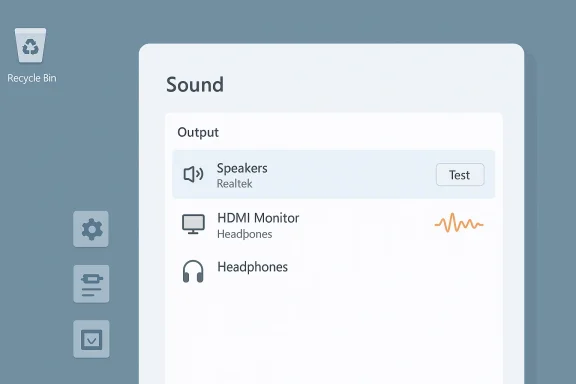
Sound settings panel listing output devices (Speakers, HDMI Monitor, Headphones) with a Test button.Background / Overview​

Windows audio is a layered system: applications hand audio to the Windows audio stack, which then routes sound to a selected output device (speakers, headphones, HDMI audio, Bluetooth). That routing depends on three things: the selected output device, the device drivers (and any device-specific software), and several system services that manage audio playback. When any of those layers fails — or when the chosen output has no active connection — you get the “no sound” symptom even though the OS appears to be working. Microsoft documents a compact set of first-line solutions that address the most common misconfigurations: pick the right output, set a default playback device, and disable audio enhancements that can interfere with playback.
Community troubleshooting logs show these problems appear across Windows versions and hardware generations, from onboard Realtek chips to discrete sound cards and HDMI/DisplayPort audio outputs. Users repeatedly report situations where Windows chooses a monitor or digital output as the default device after an update, or where driver updates re-enable enhancements or switch sample rates, producing silence or very poor audio. Those community threads illustrate the frequency and variety of the underlying causes.

Quick checks — do these first (the five‑minute triage)​

These cover the majority of “no sound” incidents. Do them in order.
  • Verify the physical connections: ensure speakers/headphones are plugged into the correct jack and powered (if applicable). Test the same headphones on a phone to exclude a bad headset.
  • Check the selected output device: open Settings > System > Sound and confirm the correct device is selected under Output. If you see multiple devices (headphones, speakers, monitor HDMI), pick the one you expect. This is the single most common cause.
  • Ensure volume isn’t muted: check the system tray volume icon, the app’s volume (e.g., a browser or media player), and any physical volume wheel on your speakers or keyboard.
  • Quick test using the sound control panel: Right‑click the sound icon > Sound settings > More sound settings > Playback tab. Run a Test on the device you expect to use. If the test has no output but other devices do, Windows is routing audio elsewhere.
If sound returns after these steps, stop here — but keep reading for ways to prevent regressions.

Solution 1 — Select the correct audio output device (detailed)​

Windows can list multiple output devices: internal speakers, external speakers, a headset, an HDMI/DP monitor, or a Bluetooth sink. A single click in the Settings app will switch outputs, but hidden problems can persist: disabled or ghost devices, or outputs auto‑selected after driver or Windows updates.

Step‑by‑step​

  • Open Settings > System > Sound.
  • Under Output, confirm the device you want is selected.
  • If the device you expect isn’t listed, open More sound settings and, in the Playback tab, right‑click empty space and enable Show Disabled Devices and Show Disconnected Devices. Re-enable the missing device if present.

Why it works​

Windows will only send audio to the selected output. When drivers expose multiple endpoints (for example, “Speakers (Realtek)” and “Speakers (NVIDIA HDMI)”), the OS can default to the wrong one after updates or when a monitor is connected. Re‑selecting the right one restores routing.

Solution 2 — Set the default playback device in the classic Control Panel​

The Settings app is convenient, but the classic Sound control panel still gives the clearest device list and the Set as default control.
  • In Settings > System > Sound, click More sound settings to open the classic Control Panel dialog.
  • Under the Playback tab, right‑click the device you want and choose Set as Default Device (and Set as Default Communication Device if you also use it for calls). Then Test.
Why use the classic panel? Some drivers and legacy apps still look there; it also exposes disabled devices you can re-enable.

Solution 3 — Turn off audio enhancements (a frequent culprit)​

Windows and many audio drivers include audio enhancements (bass boost, spatial sound, virtual surround, and proprietary effects). These are intended to improve perceived sound but can break playback due to driver bugs, incorrect sample rate negotiation, or conflicts with third‑party audio software (Dolby, Nahimic, Sonic Studio, etc.). Microsoft’s official guidance explicitly lists disabling enhancements as a recommended step for no‑sound issues.

How to disable​

  • Settings > System > Sound.
  • Under Output, click the device name (e.g., your speakers or headphones).
  • Scroll to Advanced settings and set Audio enhancements to Off (or disable individual enhancements in the Control Panel’s device properties). If a driver package supplies its own enhancement UI (Realtek, Dolby), disable effects there too.

Caveats and community experience​

Some users report enhancements re‑enabling after Windows updates or driver reinstalls; others need to disable effects in multiple places (Windows settings plus vendor software). If disabling enhancements doesn’t work, continue with the deeper steps below.

Deeper troubleshooting — drivers, services, and device manager​

If the quick fixes fail, the sound stack or driver may be corrupted, missing, or misconfigured.

1. Restart the Windows Audio service​

  • Press Win+R, type services.msc, find Windows Audio, right‑click and Restart. Also check Windows Audio Endpoint Builder and restart it if needed.
Restarting these services refreshes the OS components that manage device enumeration and audio routing — an often effective fix for intermittent failures.

2. Update, roll back, or reinstall the driver​

  • Device Manager > Sound, video and game controllers.
  • Right‑click your audio device > Update driver > Search automatically. If a recent driver caused the problem, Roll back driver if available.
  • If the device is missing or shows an error, right‑click and Uninstall device, then use Scan for hardware changes to force Windows to re-detect and re-install the driver.
Use the motherboard or PC vendor driver package for best compatibility (Realtek, Intel, NVIDIA for HDMI). If Windows Update installed a problematic driver recently, download the vendor’s certified driver and install it manually. Community troubleshooting threads show that Windows updates sometimes switch the installed endpoint or omit vendor features, and installing the vendor package usually resolves it.

3. Use the built‑in audio troubleshooter​

  • Settings > System > Troubleshoot > Other troubleshooters > Playing Audio > Run.
The troubleshooter automates many checks (driver status, mute state, service status) and can automatically reassign default devices.

HDMI, DisplayPort, and monitor audio — special notes​

When you connect a monitor with speakers or an AV receiver via HDMI/DP, Windows may automatically switch output to that device. If the monitor is off or its speaker path is muted, you'll get no sound even though Windows shows an active device.
  • Check your monitor/TV volume and input settings.
  • In Windows Sound > Playback, choose Speakers (NVIDIA HDMI) or similar only if you want audio through the monitor.
  • For multi‑display setups, it can help to disable unused digital outputs in the Playback tab and keep your primary speakers as the default. Community reports confirm HDMI endpoints are a frequent source of silent output after driver or display connection changes.

Bluetooth headsets — pairing quirks and quality tradeoffs​

Bluetooth audio uses multiple profiles. If Windows connects a headset using the Hands‑Free profile (for calls), audio may appear in mono with low fidelity, or you may lose media playback quality. Also, connecting a Bluetooth headset without making it the default output will result in silence.
  • Re‑pair the device and make it the default playback device in Sound settings.
  • If you need stereo music while also using the mic, ensure the headset supports Bluetooth LE Audio or use a wired connection for high fidelity. Windows 11 has improved Bluetooth behaviors but device and driver firmware still matter.

Exclusive mode and per‑app volume — hidden traps​

  • Some apps request exclusive audio control; if they crash or misbehave they can block system sound.
  • In the device Properties > Advanced tab, uncheck Allow applications to take exclusive control of this device to prevent one app from monopolizing audio.
  • Also check the Volume Mixer to make sure the application you’re using isn’t at zero.

Advanced fixes for stubborn cases​

If you’ve exhausted the above, try these professional steps.
  • Run SFC and DISM:
  • Open an elevated Command Prompt.
  • Run: sfc /scannow
  • Then: DISM /Online /Cleanup-Image /RestoreHealth
These commands repair corrupted system files and the Windows image.
  • Clean driver install:
  • Download the vendor’s latest driver.
  • Boot to Safe Mode and uninstall sound drivers and vendor software.
  • Reboot and install the vendor driver freshly.
  • Check BIOS/UEFI:
  • Ensure onboard audio is enabled if you rely on integrated audio.
  • Some motherboards have physical jacks that can be disabled in firmware.
  • Test with a Linux live USB or another OS:
  • This helps separate hardware vs. Windows software problems. If audio works outside Windows, the issue is software/driver related.
Community posts and vendor support pages frequently recommend the clean driver reinstall and SFC/DISM flow for recurring or update-induced audio failures.

When audio enhancements or vendor software repeatedly break audio​

If disabling enhancements solves the no‑sound issue but Windows or vendor updates re-enable them, you have a persistent configuration problem. Two strategies reduce recurrence:
  • Remove or disable vendor enhancement services: uninstall Dolby/Nahimic/DTS/Realtek “manager” apps, or disable their service entries. Be cautious with uninstalling: prefer disabling and testing first.
  • Lock the enhancement setting via Group Policy or registry for managed environments (IT admins). For consumer PCs, add a routine check to your recovery plan after major Windows updates.
Vendor packages sometimes re‑apply effects to support proprietary features (virtual surround, equalizers). If audio must be reliable (work machine), favor the simplest driver + Windows control path and avoid extra enhancement layers. Independent guides and audio vendors warn that enhancements may degrade fidelity or break samples — a tradeoff between convenience effects and stability.

Practical checklist for IT support and power users​

  • Confirm speakers/headphones work on another device.
  • Verify correct Output device in Settings > System > Sound. Test.
  • Set default device in More sound settings > Playback. Test.
  • Disable Audio enhancements for the device. Test.
  • Restart Windows Audio service.
  • Run Playing Audio troubleshooter.
  • Update/roll back/reinstall audio drivers (use vendor-provided packages).
  • Check HDMI/monitor/TV settings if using display audio.
  • Turn off Exclusive Mode in the device Advanced properties.
  • Run SFC /scannow and DISM if system files might be damaged.
  • Reinstall or remove vendor “audio manager” software if it keeps re‑enabling broken enhancements.
  • If all else fails, test hardware in another OS to isolate hardware fault.

Risks, caveats, and verification steps​

  • Driver installs from unknown sources can destabilize your system. Always prefer vendor pages or Windows Update unless you’re troubleshooting a driver that Windows refuses to install.
  • Disabling enhancements may change the sound character. If you need vendor features (e.g., headset spatialization), re-enable one effect at a time and test to find the exact problematic option.
  • Some fixes (registry edits, BIOS changes, driver removal) are higher‑risk. Back up drivers and create a system restore point before making broad changes.
  • If you're in a corporate or managed environment, coordinate with IT before changing drivers or policies; some endpoints are centrally managed.
Community experience shows many users fix recurring no‑sound cases by targeting the device default + enhancements combo, but large organizations may prefer scripted, centrally controlled remediation to avoid repeat work.

When to contact vendor support or service​

  • Hardware fault: no audio on any OS or with known‑good external devices — likely hardware failure (jack, audio codec, or motherboard).
  • Reproducible driver regression after a specific Windows update: collect logs, driver names and versions, and contact vendor or Microsoft Support.
  • If vendor driver repeatedly reinstates problematic enhancements or installs incompatible components after Windows updates, escalate to vendor support with recorded test steps.
When preparing to contact support, gather:
  • Windows build and OS version.
  • Device Manager audio device name and driver version.
  • A concise timeline: when the problem started and what changed (Windows update, driver install, new peripheral).
  • Test results: audio in another OS or device, and whether enhancements off fixes the issue.

Practical examples and short scripts (for power users)​

  • Quickly restart audio services in an elevated PowerShell:
  • Restart-Service -Name AudioEndpointBuilder,AudioSrv
  • Test sound again.
  • Use Device Manager automation tools in enterprise environments to push vendor drivers or revert problematic updates.
These commands are low risk and good first steps for systems management workflows.

Conclusion​

“No sound” on a Windows PC is a common but solvable set of problems. The fastest fixes are the simplest: pick the correct output, set the default playback device, and turn off audio enhancements. When those don’t work, systematically restart audio services, run the built‑in troubleshooter, and update or reinstall drivers from the hardware vendor. For persistent or update-caused regressions, clean installations of vendor drivers and removal of third‑party enhancement suites are effective next steps. If hardware fails across operating systems, plan for repair or replacement.
This consolidated workflow blends Microsoft’s official guidance with independent vendor and community experience to give you an efficient troubleshooting path — from five‑minute triage to advanced recovery — while highlighting tradeoffs and escalation criteria so you can resolve the problem with confidence.

Source: Microsoft Support Fix audio issues when no sound plays from speakers or headphones in Windows - Microsoft Support
 

If you’ve seen the Windows Update or installer failure labeled Error 0x80070643, you’re not alone — it’s a common, frustrating failure that can surface for several different reasons. This guide pulls together the practical fixes, explains why the error happens, highlights what to try first, and provides safe, verifiable steps to get your system updating again. The fixes range from one‑click troubleshooting to manual resets of Windows update components and .NET fixes; follow them in order and stop when the update succeeds.

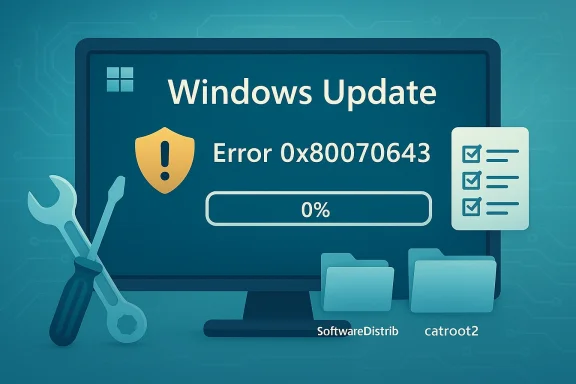
Windows Update shows error 0x80070643 with 0% progress on a blue screen.Overview: what 0x80070643 means and why it’s tricky​

Error code 0x80070643 is a generic Windows installation/upgrade failure (ERROR_INSTALL_FAILURE). That generic label means the root cause can vary: a corrupt update cache, a broken or mismatched .NET Framework component, interference from antivirus/MSI installers, insufficient space (including a too‑small recovery partition for some WinRE updates), or corrupted update‑related system folders such as SoftwareDistribution or Catroot2. Microsoft documentation and community troubleshooting threads confirm the code is a catch‑all for installation failures and recommend a small set of repeatable recovery steps.
Because the code is generic, the repair path is deliberately layered: quick diagnostic tools first, then cache resets and component repairs, and finally component‑specific approaches such as repairing .NET or adjusting recovery partition size if the update is a WinRE package. PCWorld and Microsoft guidance point to this tiered approach and to a Microsoft acknowledgement that some specific WinRE updates will throw this code despite not indicating an actual device failure.

Background: how Windows update components interact​

Windows Update downloads metadata and package files into a staging area (the SoftwareDistribution folder) and uses cryptographic services and the catroot2 folder to verify signatures. The Windows Update Agent (wuauserv), Background Intelligent Transfer Service (BITS), and cryptographic services coordinate downloads, staging and installation. If any of these services, their cached files, or supporting frameworks (.NET, MSI) are corrupted or blocked, an installer can fail with 0x80070643.
Community troubleshooting — often the source of many practical command sequences — repeatedly shows two patterns:
  • Deleting/renaming the SoftwareDistribution folder so Windows rebuilds a fresh cache often clears incomplete or corrupt downloads.
  • Resetting or clearing Catroot2 (after stopping cryptographic services) solves signature verification and catalog problems that can block installation.
These two patterns are staples because they address the two most common local corruption points in Windows Update.

Quick wins — start here (fastest, safest)​

  • Run the Windows Update Troubleshooter (built into Settings). This is the least invasive first step and can fix many simple issues automatically:
  • Settings → System → Troubleshoot → Other troubleshooters → run Windows Update.
  • Reboot and try the update again. Microsoft’s troubleshooting flow recommends this as the first action.
  • Restart your machine and try the update again. Simple reboots clear temporary locks and incomplete transactions.
  • Temporarily disable third‑party antivirus or security tools during the update attempt. Many installers fail because a third‑party security product blocks an MSI or the update’s verification step. Re‑enable the AV after testing.
  • Ensure you’re installing with an administrator account (elevation matters for install and service control commands).
These steps are safe and quick; if the update still fails, move on to the more hands‑on fixes below.

Rebuild the update cache: SoftwareDistribution reset​

Why: The SoftwareDistribution folder is where Windows stores downloaded updates and metadata. Corrupt or partial downloads there commonly trigger install failures. Clearing it forces Windows to re‑download clean copies.
Steps (safe, reversible):
  • Open an elevated Command Prompt (search “cmd”, right‑click → Run as administrator).
  • Stop Windows Update services:
  • net stop wuauserv
  • net stop bits
  • In File Explorer, navigate to C:\Windows\SoftwareDistribution\ and delete all files and folders inside (Shift+Del to permanently remove). Alternatively, rename the folder to SoftwareDistribution.old if you prefer a fallback.
  • Start the services again:
  • net start bits
  • net start wuauserv
  • Reboot and retry the update.
Community threads and troubleshooting write‑ups repeatedly show this fix resolving many update errors, including those that originally reported 0x80070643.
Caveat: deleting SoftwareDistribution removes the local download cache — Windows will re‑download updates, so allow extra time and network usage on the next check.

Reset catroot2: fix signature and catalog errors​

Why: The catroot2 folder holds cryptographic catalog files used during update installation. If those catalog files are damaged, signature verification can fail and an installer may abort.
Safe reset procedure:
  • Open an elevated Command Prompt (Win + R → type cmd → Ctrl+Shift+Enter).
  • Stop the Cryptographic Services: net stop cryptsvc
  • Back up and clear the folder:
  • xcopy %systemroot%\system32\catroot2 %systemroot%\system32\catroot2.old /s
  • Then, in File Explorer, open C:\Windows\System32\catroot2 and delete its contents (Shift+Del).
  • Restart the service: net start cryptsvc
  • Reboot and retry the update.
This sequence is commonly recommended and documented in repair scripts and forum best practices; it preserves a backup and forces Windows to recreate catroot2 on service restart.

Verify core system integrity: SFC and DISM​

Why: If system files or the component store are damaged, installers and the Update Agent can fail.
Commands (run from an elevated Command Prompt or PowerShell):
  • sfc /scannow — scans and repairs protected system files.
  • DISM /Online /Cleanup-Image /ScanHealth
  • DISM /Online /Cleanup-Image /RestoreHealth — repairs the component store from Windows Update or a specified source.
Run SFC first; if SFC reports issues it couldn’t fix, run DISM and then SFC again. These are Microsoft‑recommended tools for corruption that blocks updates.

Repair or reinstall .NET Framework (if the installer mentions .NET)​

Why: Many MSI based installers (and some Windows updates) depend on the .NET Framework. If .NET is corrupted, installers fail with 0x80070643.
Approach:
  • Run the Microsoft .NET Framework Repair Tool (official tool from Microsoft) to detect and repair common .NET issues.
  • If that doesn’t work, uninstall problem .NET versions via Programs & Features (or use DISM to enable .NET 3.5 if that’s the dependency), then reinstall the needed .NET runtime.
  • For .NET 3.5 installs that fail, consider using the offline installation method (install from Windows installation media) or enable the feature through Windows Features.
Microsoft Q&A and several vendor support notes call out .NET corruption as a leading cause when installers return 0x80070643; repairing .NET is therefore a vital diagnostic step.
Caution: Don’t remove .NET versions that are system‑required without verifying dependencies. Use the repair tool first.

Re‑register Windows Update files and reset Windows Update components (advanced)​

Why: If services are misregistered or DLLs that Windows Update relies on are broken, re‑registering them and resetting state can help.
Recommended sequence (elevated Command Prompt — this is advanced):
  • Stop services:
  • net stop wuauserv
  • net stop cryptsvc
  • net stop bits
  • net stop msiserver
  • Rename SoftwareDistribution and Catroot2 (as fallback):
  • ren C:\Windows\SoftwareDistribution SoftwareDistribution.old
  • ren C:\Windows\System32\catroot2 catroot2.old
  • Re‑register Windows Update DLLs (regsvr32 commands for multiple DLLs — many troubleshooting scripts include a long list to reapply). Examples: regsvr32 wuapi.dll, regsvr32 wuaueng.dll, regsvr32 wups.dll, etc.
  • Reset Winsock (netsh winsock reset).
  • Restart services and reboot.
This more aggressive reset is often effective when there are permission, registration or component service problems; Microsoft support scripts and forum experts recommend it when simpler steps fail.
Risk: the sequence touches core services. If you’re uncomfortable, create a system restore point or backup before running the script.

Special case: WinRE-related 0x80070643 and recovery partition sizing​

In some recent specific update rollouts (for example, certain WinRE or recovery environment updates), Microsoft has documented that devices can report 0x80070643 even though the underlying update either completed later after a reboot or failed due to insufficient recovery partition size. Microsoft and reporting outlets advised either letting the update sequence complete after a reboot or increasing the recovery partition if the update repeatedly fails due to space constraints. If your logs or update UI point to a WinRE or recovery component, check Microsoft’s support guidance for that KB and consider inspecting the recovery partition size before aggressive troubleshooting.
How to detect this:
  • The failed update name in Windows Update will reference WinRE or recovery environment.
  • Event logs may show the installer referencing a small recovery partition or an ERROR_INSTALL_FAILURE tied to WinRE components.
If that’s the cause, a temporary workaround is to hide that particular update (so other updates proceed) and address the recovery partition resizing more deliberately, or follow Microsoft’s KB guidance specific to the update in question.

When the MSI installer (3rd‑party software) fails with 0x80070643​

If a third‑party MSI (e.g., a vendor installer, Visual C++ redistributable, or application setup) throws 0x80070643, the troubleshooting path differs slightly:
  • Look at the MSI log or Event Viewer (Application log) to identify which MSI component failed.
  • Try repairing the related Microsoft Visual C++ Redistributables, .NET frameworks, or uninstalling/reinstalling the app.
  • Run the Program Install and Uninstall troubleshooter (Microsoft’s Fix It utility) to clear installer state.
  • If the installer is delivered by Intune/WSUS/Azure pipelines, confirm the package itself is not corrupted or blocked.
Community troubleshooting frequently uncovers MSI package corruption or leftover installer state as the root issue for 0x80070643 in these cases.

Diagnostic checklist — what to collect before escalating​

If none of the previous steps fixes the issue, collect information before contacting support or performing an in‑place upgrade:
  • Exact update or KB number that fails (copy from Windows Update history).
  • Error code and any hex subcodes logged in Event Viewer (Applications and Services Logs → Microsoft → Windows → WindowsUpdateClient → Operational).
  • Recent SFC/DISM results and their output (whether repairs were made).
  • WindowsUpdate.log output (use Get‑WindowsUpdateLog in PowerShell on modern Windows).
  • MSI logs for third‑party installers (often created in %temp% or as directed by the installer switches).
Having these items ready shortens support interactions and helps pinpoint whether the problem is local corruption or a broader rollout issue.

Safe escalation: in‑place upgrade and last resorts​

If troubleshooting doesn’t work, a safe escalation path is:
  • Create a full backup (system image or user data).
  • Try an in‑place repair/upgrade to the same Windows build (this preserves apps/settings while replacing system files). This is a supported Microsoft repair path that resolves persistent component store problems.
  • If the in‑place upgrade fails or isn’t possible, consider a clean install after backing up data.
Use in‑place repair only after trying the other targeted fixes above; it’s effective but takes time and is heavier than a component reset. Many community reports show in‑place repair clears stubborn update failures that resist other remediation.

Practical, ordered troubleshooting checklist (run these in order)​

  • Reboot and try the update again.
  • Run Windows Update Troubleshooter.
  • Temporarily turn off third‑party antivirus.
  • Clear SoftwareDistribution and retry.
  • Reset catroot2 (stop cryptsvc, clear folder, restart).
  • Run sfc /scannow and DISM /RestoreHealth.
  • Repair .NET Framework with Microsoft’s repair tool if logs or installers reference .NET.
  • Re‑register Windows Update DLLs and reset services (advanced).
  • If update references WinRE or recovery, confirm recovery partition size and follow the specific KB guidance; consider hiding that update temporarily if it blocks others.
  • Collect logs and escalate to Microsoft Support or vendor support if a third‑party installer is failing.

What to watch for — common pitfalls and risks​

  • Do not delete or modify system files outside the recommended folders unless you fully understand the risk.
  • When clearing caches, prefer renaming (SoftwareDistribution.old) if you want an easy rollback rather than full deletion.
  • Resetting catroot2 is safe when done as described, but don’t delete other System32 contents.
  • Running aggressive repair scripts (mass regsvr32, registry edits) can fix problems but also introduce new ones if copy/pasted from untrusted sources. Prefer official Microsoft guidance or published scripts from reputable community sources.
  • If the issue is part of a known Microsoft rollout bug (e.g., a WinRE update that reports 0x80070643 erroneously), aggressive local changes may be unnecessary; check Microsoft’s support notes for that KB before heavy interventions.

Final thoughts: a pragmatic mindset for 0x80070643​

Error 0x80070643 is frustrating because the code itself is generic. Treat it as a symptom rather than a single disease: start with the safe, automated tools, then clear caches that commonly hold corrupt downloads, repair system and framework components, and finally run targeted resets for update services. When you document the failing KB or installer and collect logs, you can usually either resolve the issue yourself or present precise information to support channels, which accelerates a fix.
Community troubleshooting threads and Microsoft guidance converge on the same usable checklist: troubleshooter → clear caches → repair .NET/component store → advanced reset or in‑place repair when needed. Using that structured approach keeps the process efficient and reduces risk to your system.

If you want, run the first three quick checks now (troubleshooter, reboot, and temporary AV disable) and report back the exact failing KB or installer name plus any Event Viewer errors — I can then provide the specific commands and log checks for your scenario.

Source: Guiding Tech How to Fix Error Code 0x80070643
 

Back
Top