

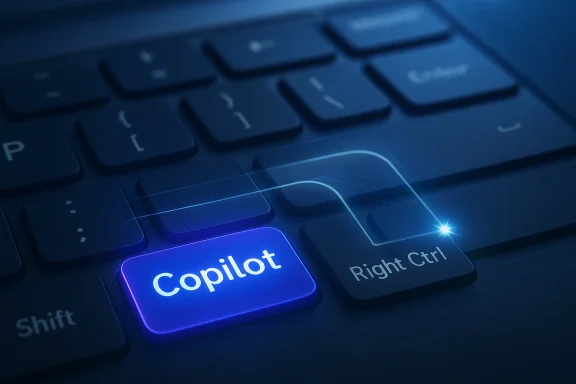
Microsoft’s keyboard redesign — a dedicated Copilot key sitting where the right Ctrl/Menu key used to be — kicked off an unexpectedly fierce debate about habit, productivity, and control. Now a tiny open‑source utility called NoCopilotKey promises to restore the familiar right Ctrl behavior on affected machines, giving power users an escape hatch from a hardware‑level change they never asked for. This feature story walks through how NoCopilotKey works, why it exists, what Microsoft has and hasn’t offered as an official fix, the practical and security trade‑offs of running such tools, and what this episode tells us about the evolving relationship between operating‑system vendors, OEMs, and the people who actually use keyboards every day. (windowscentral.com) (github.com)
Microsoft began pushing a new hardware motif in 2024: the dedicated Copilot key on new Windows 11 keyboards, presented as part of the Copilot+ PC story and billed by some as the largest keyboard change in decades. The key’s goal was simple on paper — give users a single button to summon Microsoft’s system‑level AI assistant — but in practice it replaced an existing, well‑used modifier and menu key positioned on the keyboard’s right side. That displacement touched a surprisingly raw nerve: beyond nostalgia, the right Ctrl (and the older Menu key) powers a large number of muscle‑memory shortcuts that many users rely on for editing, navigation, development, and accessibility. (windowscentral.com)
Microsoft later added some remapping options for the Copilot key in preview builds and acknowledged the need for customization in enterprise scenarios, but support has been partial, subject to change, and — at times — limited in what it allows. That gap left an opening for community developers to build small utilities that detect the Copilot key’s unusual scancode sequence and synthesize a right Ctrl press when that key is triggered. One of the more visible projects doing just that is NoCopilotKey, published on GitHub and circulating through social communities.
Key technical points from the repository and README:
If you’re considering it: weigh your environment (corporate vs. personal), review the source or build it yourself, test carefully, and keep recovery options nearby. And regardless of whether you run NoCopilotKey or not, this episode is a useful reminder that hardware changes matter — especially when they alter tiny, habitual interactions that keep our desktops humming.
NoCopilotKey and similar projects make a practical point: when the desktop changes around you, the community will often move fastest to put the pieces back in place. Whether that’s a long‑term solution depends on whether vendors listen, provide robust, low‑level remapping options, or offer keyboard SKUs that respect established layouts. Until then, the little utilities and the discussions they inspire will continue to be an important part of the Windows user experience conversation. (github.com)
Source: Windows Central https://www.windowscentral.com/arti...key-slap-in-the-face-from-a-daring-developer/
 Background / Overview
Microsoft began pushing a new hardware motif in 2024: the dedicated Copilot key on new Windows 11 keyboards, presented as part of the Copilot+ PC story and billed by some as the largest keyboard change in decades. The key’s goal was simple on paper — give users a single button to summon Microsoft’s system‑level AI assistant — but in practice it replaced an existing, well‑used modifier and menu key positioned on the keyboard’s right side. That displacement touched a surprisingly raw nerve: beyond nostalgia, the right Ctrl (and the older Menu key) powers a large number of muscle‑memory shortcuts that many users rely on for editing, navigation, development, and accessibility. (windowscentral.com)Microsoft later added some remapping options for the Copilot key in preview builds and acknowledged the need for customization in enterprise scenarios, but support has been partial, subject to change, and — at times — limited in what it allows. That gap left an opening for community developers to build small utilities that detect the Copilot key’s unusual scancode sequence and synthesize a right Ctrl press when that key is triggered. One of the more visible projects doing just that is NoCopilotKey, published on GitHub and circulating through social communities.
Why the Copilot key provoked such strong reactions
The keyboard is a personal, tactile UI
Most of us don’t think about the keyboard as a design decision — it’s a tool whose layout we internalize until the positions, pressures, and transitions become invisible. Replace that tiny piece of muscle memory and a surprising amount of work slows down. The right Ctrl (and the Menu key adjacent to it on traditional layouts) is the difference between a reflexive Ctrl+Arrow word‑jump or a multi‑key chord and having to reach for your mouse. For keyboard‑centric users — programmers, editors, power users, accessibility dependent people — this is not small. (windowscentral.com)The hardware vs. software control problem
When a key is removed at the hardware level — physically relocated or repurposed by OEMs — the solution space narrows. Software remapping tools can translate scancodes to different actions, but the fidelity matters: some remappers operate at the OS layer and are acceptable for most apps but break in games or low‑level contexts; others require driver/firmware support to be seamless. Microsoft’s early messaging suggested remapping options would appear in Windows, and later Insider builds introduced ways to repurpose the Copilot key for launching apps, but not always restoring the exact low‑level semantics of the right Ctrl key. That partial remediation left people looking to community fixes.Meet NoCopilotKey: what it is and how it claims to work
A small utility with a single mission
NoCopilotKey is an open‑source utility that runs in the background and translates the Copilot key’s hardware behaviour into a synthetic Right Control press. The project’s author documents the problem and explains how the Copilot key emits an unusual sequence of events (Left Win down, Left Shift down, F23 down, followed by the corresponding releases) instead of a simple single key scancode. NoCopilotKey watches for that three‑key sequence, blocks the original events, and injects Right Ctrl pressed and released to the system so the rest of the OS and apps see a normal Ctrl keypress — not Win+Shift+F23. (github.com)Key technical points from the repository and README:
- The program installs a low‑level keyboard hook (via SetWindowsHookEx) and uses SendInput to synthesize Right Ctrl. (github.com)
- It uses timing and sequence rules to distinguish the Copilot key from normal uses of the Left Windows or Left Shift keys, minimizing false positives. (github.com)
- The author provides an installer and a simple background executable, plus a changelog showing rapid fixes for edge cases like gaming overlays and startup behavior. (github.com)
Why the developer took the low‑level approach
A userland remapping (for example, mapping Win+Shift+F23 to Right Ctrl in PowerToys) works in many contexts but may still leave blind spots: games running with anti‑cheat, virtualization hosts, or early boot contexts may not honor a remap that happens inside the logged‑in session. NoCopilotKey’s approach attempts to intercept and rewrite the raw input stream so the OS and apps never see the original Win+Shift+F23 events at all. That’s the difference between a visible remapping and a near‑transparent restoration of expected hardware semantics. The repository documents these design decisions and demonstrates why the author chose this path. (github.com)Official options versus community workarounds
What Microsoft has offered (and where it fell short)
Microsoft publicly promoted the Copilot key as part of the Copilot+ PC ecosystem and later introduced remapping controls in Windows 11 Insider builds, allowing the key to launch other apps. That move acknowledged user demand for control, and Microsoft’s IT pro communications advised enterprise admins to make practical choices for deployment. Still, those remapping tools historically did not guarantee full low‑level parity with a right Ctrl press in every context, and Microsoft at times paused or adjusted feature rollout due to stability concerns. In short: official options exist, but they aren’t always equivalent to restoring the original key semantics, and rollout timing varied.Community projects filled a gap
Before and after Microsoft added official remap controls, community solutions proliferated:- AutoHotkey scripts and small remapper repos (several examples are available on GitHub) that listen for the Win+Shift+F23 sequence and send a Right Ctrl. These tend to be lightweight but may require AutoHotkey runtime and are visible at the session layer.
- Compiled small utilities like NoCopilotKey that run as a background process and claim to intercept and rewrite at a lower level, with installers and startup integration to stay resident across reboots. (github.com)
A closer look: how NoCopilotKey detects and synthesizes the right Ctrl
The Copilot key’s idiosyncratic signal
On modern affected laptops, pressing the Copilot key does not produce a single “Copilot” scancode. Instead it emits a sequence of events: Left Windows down, Left Shift down, F23 down; then the releases happen in reverse order. That unusual ordering is distinctive and can be detected reliably if the hook logic tracks key state and timing. The NoCopilotKey code implements rules like:- Block the raw LeftWin/LeftShift events while watching for an F23 press within a brief timeout.
- If the triple sequence completes, prevent the original sequence from propagating and instead inject a RightCtrl press via SendInput.
- On key release, synthesize a RightCtrl release and make sure any delayed or real LeftWin/LeftShift releases are replayed to avoid disturbing the user's normal use of those keys in other contexts. (github.com)
Risks, limitations, and safety considerations
NoCopilotKey (and any similar third‑party input hook) comes with important caveats that readers should weigh before installing:- Security and trust. Any program that installs a system‑wide keyboard hook and synthesizes input is, by definition, a privileged tool. You must trust the author or audit the source yourself. NoCopilotKey is open source, which helps, but compile‑time binaries from third parties still require caution. Review the code or build from source when possible. (github.com)
- Reliability in all contexts. Even well‑written hooks can break in corner cases: games with anti‑cheat, elevated processes, secure screens (like certain login or UAC prompts), and virtualization host shortcuts may behave differently. Expect occasional edge behaviors and have a path to disable the utility quickly (Task Manager or Safe Mode). (github.com)
- Updates and maintenance. Because this is a small community project, long‑term maintenance depends on the author or contributors. If Microsoft changes how the Copilot key is reported (firmware change, driver update, or Windows behavior), the utility may stop working until updated. The project’s commit history shows active maintenance as of its recent releases, but that can change. (github.com)
- Official policy and support. OEMs and corporate IT may have policies prohibiting unsigned third‑party utilities or require standardized configurations. Installing such a tool on a corporate laptop could violate support rules. Check with your organization before deploying widely.
- Prefer building from source or inspecting the repository’s code to ensure there’s no malicious behavior.
- Test in a disposable environment or secondary device first.
- Keep an uninstall plan handy: know how to stop the process and remove the startup entry.
- Keep antivirus and platform protections enabled and be ready to restore from backup if something goes wrong.
Alternatives and practical workarounds
Not ready to run a keyboard hook? Consider these options:- Use Microsoft-provided remapping controls (where available). Windows Insider builds introduced settings to repurpose the Copilot key to launch apps; while not identical to restoring low‑level Right Ctrl semantics, it may be enough for many users. Enterprise admins can also configure behavior via group policy and deployment tooling in some contexts.
- PowerToys Keyboard Manager & AutoHotkey: For many desktop apps and workflows, remapping Win+Shift+F23 to Right Ctrl via PowerToys or AutoHotkey is enough. These solutions are familiar to many Windows power users and are easier to audit than compiled binaries. They can, however, fall short inside certain low‑level contexts like some full‑screen games.
- External keyboard. If you frequently need the right Ctrl and have an external USB keyboard, plug it in. That may be the simplest, most robust answer for workstation use. No firmware changes required.
- Talk to OEM support. Pushback works: users and IT admins contacting OEMs and retailers can influence future keyboard designs or optional SKUs that keep the traditional layout.
Broader implications: AI buttons and the modern PC
This kerfuffle over a single key is a useful probe into larger forces shaping personal computing today.- Vendor‑driven hardware changes matter. When a major platform vendor remaps a physical input to emphasize a particular feature, it changes usage patterns and expectations. The keyboard is foundational, and small changes add friction. The Copilot key story shows how hardware choices can become lightning rods for user frustration. (windowscentral.com)
- Community fixes remain essential. The speed at which small utilities like NoCopilotKey and AutoHotkey scripts appear highlights the resilience and creativity of the community. These projects are not just stopgaps; they’re signals that users expect control and will build it if vendors don’t provide it. (github.com)
- Microsoft’s approach has shifted. After a year of aggressively surfacing Copilot across Windows, Microsoft has also dialed back or rethought several Copilot integrations in response to feedback, stability concerns, and changing priorities — a sign that even large vendors must iterate on user expectations. That back‑and‑forth creates windows of uncertainty where community tools flourish.
Walkthrough: deciding whether to try NoCopilotKey (practical checklist)
- Confirm your device’s behavior. Press the unwanted Copilot key and use a key‑event viewer or test page to see if your system reports Win+Shift+F23 or a similar composite event. That’s the pattern NoCopilotKey watches for. (github.com)
- Evaluate risk tolerance. If you’re on a corporate laptop or you cannot afford downtime, prefer official remapping or external keyboards. If you’re a tech‑savvy owner with backups and a spare machine, community tools are a reasonable avenue.
- Prefer source review. If you or a colleague can read C#/C++ or follow the build process, compile from the NoCopilotKey repository yourself. Running compiled binaries from third parties is more convenient but increases trust requirements. (github.com)
- Test in stages. Install, reboot, and watch for stuck modifiers, odd Win key behavior, or failure in full‑screen applications. If issues appear, disable the tool and report them to the project’s issue tracker so maintainers can improve it for others. (github.com)
- Keep an uninstall plan. Know how to stop the process via Task Manager and how to remove the startup entry or uninstall via the provided installer.
Why this matters beyond keyboards
A single key’s replacement is a small change with outsized cultural weight because it touches how people work. The Copilot key saga touches on:- Accessibility and inclusivity: Users who rely on keyboard navigation can be disproportionately affected by layout changes. Hardware standardization should account for that. (windowscentral.com)
- Trust and control: When vendors push integrated experiences (AI assistants, hardware buttons) without full transparency or user control, communities will respond with hacks, forks, and alternatives. That is the ecosystem’s feedback loop.
- The tension between marketing and muscle memory: Copilot is a strategic product for Microsoft; selling new Copilot+ hardware makes sense for the company. Users, however, care mostly about getting work done quickly with minimal friction. Design decisions that prioritize discoverability over established patterns create friction that is hard to justify in purely productivity terms. (windowscentral.com)
Conclusion
NoCopilotKey is a tidy, pragmatic example of community software stepping in where official tooling either lagged or didn’t meet user expectations. It demonstrates how a small, focused project can restore a familiar and deeply useful piece of hardware semantics — the right Ctrl key — by intercepting a quirky Copilot key sequence and synthesizing the expected input. For many users, the tool will be a welcome bridge back to comfort and speed; for others, the potential security and compatibility trade‑offs counsel caution.If you’re considering it: weigh your environment (corporate vs. personal), review the source or build it yourself, test carefully, and keep recovery options nearby. And regardless of whether you run NoCopilotKey or not, this episode is a useful reminder that hardware changes matter — especially when they alter tiny, habitual interactions that keep our desktops humming.
NoCopilotKey and similar projects make a practical point: when the desktop changes around you, the community will often move fastest to put the pieces back in place. Whether that’s a long‑term solution depends on whether vendors listen, provide robust, low‑level remapping options, or offer keyboard SKUs that respect established layouts. Until then, the little utilities and the discussions they inspire will continue to be an important part of the Windows user experience conversation. (github.com)
Source: Windows Central https://www.windowscentral.com/arti...key-slap-in-the-face-from-a-daring-developer/
