

Notepad has quietly stopped being “that little blank window you open to paste text into” and started acting like a pocket-sized writing assistant — and for many Windows users the difference is immediate: three simple AI actions — Rewrite, Summarize, and Write — make what used to be manual, tedious editing work into a few keyboard shortcuts and clicks. The changes are modest on the surface, but when you combine them with Microsoft’s credit model, on‑device fallbacks for qualifying hardware, and a few practical workflow adjustments, Notepad can go from scratchpad to a genuinely useful stage in a notes workflow without dragging you into a full Microsoft Office pipeline.
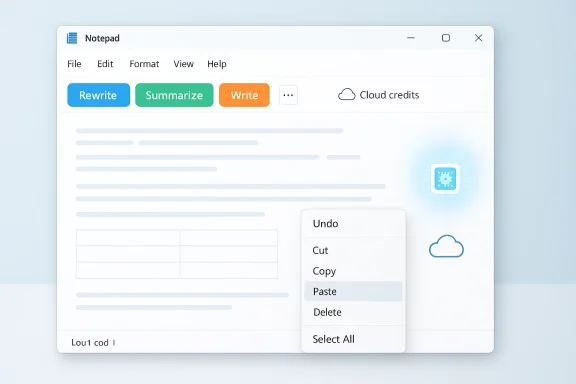
Notepad’s identity has always been minimal: fast to open, no formatting baggage, and reliably available. Over the last year Microsoft layered three generative AI actions into Notepad — Rewrite, Summarize, and Write — surfaced in the app through a Copilot toolbar and right‑click / keyboard shortcuts. On many consumer devices these actions call cloud models and consume monthly AI credits provided to Microsoft 365 subscribers; on certain “Copilot+” PCs with an NPU they can run locally without requiring a subscription or constant internet connection.
The result is a hybrid model: most users will see AI features as part of their Microsoft 365 experience (and subject to monthly credits), while users on qualifying hardware get on‑device options that keep content local and reduce dependency on cloud services. That hybrid approach is the real story: it lets Notepad remain lightweight while giving users access to modern generative tools when they want them.
Accessibility note: the AI features are surfaced with keyboard shortcuts and the familiar right‑click menu, and Microsoft has said it’s adding toggles and per‑app settings to allow disabling AI assistance when it’s not desired.
A practical takeaway: treat Notepad as an on‑ramp to generative assistance — an efficient place to shape and refine text quickly. For tasks that need continuous audio capture, enterprise audit trails, or advanced knowledge‑graph lookups, keep the heavier, purpose‑built tools in your kit and use Notepad to accelerate the “human edit” part of the loop.
Use Notepad for what it’s now optimized for: quick text editing, fast drafting, and efficient summarization. For live capture, deep compliance needs, or high‑stakes fact-finding, layer in purpose-built transcription, enterprise Copilot services, or human verification. With a few workflow shifts — batch selections, clear prompts, and a watchful eye on credit usage — Notepad can stop being “that app for pasting” and become the first stop in a productive, AI‑augmented note workflow.
Source: Guiding Tech 3 Ways AI Supercharges Your Notepad Workflow
 Background / Overview
Notepad’s identity has always been minimal: fast to open, no formatting baggage, and reliably available. Over the last year Microsoft layered three generative AI actions into Notepad — Rewrite, Summarize, and Write — surfaced in the app through a Copilot toolbar and right‑click / keyboard shortcuts. On many consumer devices these actions call cloud models and consume monthly AI credits provided to Microsoft 365 subscribers; on certain “Copilot+” PCs with an NPU they can run locally without requiring a subscription or constant internet connection.The result is a hybrid model: most users will see AI features as part of their Microsoft 365 experience (and subject to monthly credits), while users on qualifying hardware get on‑device options that keep content local and reduce dependency on cloud services. That hybrid approach is the real story: it lets Notepad remain lightweight while giving users access to modern generative tools when they want them.
How to turn AI on in Notepad (practical checklist)
If you don’t see the AI options, here’s a quick checklist to confirm and enable them.- Open Notepad.
- Click the Settings cogwheel in the top-right of the Notepad window.
- Under AI Features, make sure the Copilot toggle is enabled.
- Verify you’re signed in with the Microsoft account tied to your Microsoft 365 subscription if you want access to the subscriber credit allotment.
- If you’re on a Copilot+ PC (hardware with NPU certification), local on‑device execution may be available automatically; no subscription is required for local inference.
The three core AI features and how to use them
1) Rewrite — polish rough text fast
- What it does: takes highlighted text and produces alternate phrasings, different tones, or concise/expanded rewrites.
- When to use it: quick cleanup after a brainstorm, make an internal note sound professional, or change tone without rewriting by hand.
- How to use it:
- Highlight the text you want to improve.
- Press Ctrl + D or right‑click → Rewrite, or click the Rewrite button on the Copilot toolbar.
- Pick a length/tone option from the dialog and request a rewrite.
- Review up to three variations and click Replace on the preferred version.
2) Summarize — compress long notes to essentials
- What it does: collapses selected text into a short summary, often as bullet points.
- Best use cases: meeting notes, lecture transcriptions, long pasted articles.
- How to use it:
- Highlight the section you want condensed.
- Press Ctrl + M, right‑click → Summarize, or use the Copilot toolbar.
- Choose the target length (short/medium/long) and insert the summary below the original.
3) Write — generate new content from prompts
- What it does: creates new blocks of text based on a plain‑English prompt (emails, checklists, reminders).
- Use it for: escaping writer’s block, producing templated messages, or drafting a first pass of something you’ll refine.
- How to use it:
- Click or position the cursor where you want new text.
- Press Ctrl + Q, right‑click → Write, or use the toolbar.
- Describe what you want (e.g., “Create a friendly reminder email about the 3PM sync; include agenda items”).
- Send the request, then Keep Text or ask for another draft.
How AI credits work and how to get the most out of them
Microsoft’s consumer Microsoft 365 plans include a monthly allotment of AI credits that pay for Copilot-style actions across apps. The typical consumer allocation is 60 AI credits per month for Microsoft 365 Personal and Family owners; accounts without subscription access receive a much smaller allotment. Paid Copilot plans (Copilot Pro / business tiers) offer much larger or effectively unlimited usage for heavy users.- Credit economy rules to live by:
- Each explicit AI action (rewrite, summarize, generate) consumes credits.
- More tokens = more credit cost in many implementations, so larger selections and longer prompts can consume more credits but also deliver more value per action.
- You can check your balance from your Microsoft account pages; Notepad may also show credit balances in-app on some builds.
- Use single, large selections rather than many tiny calls. Summarizing or rewriting a 1,500‑word block in one call is usually more credit‑efficient than many 50‑word calls.
- Combine tasks in one prompt. Instead of two separate actions (“summarize” then “rewrite summary”), ask Write to produce a summary and a subject line in a single prompt.
- Prefer the on‑device path if you have a Copilot+ PC: local execution preserves credits and keeps content on your machine.
Real‑world workflows: three practical scenarios
A. The meeting-to-summary loop (fast capture + condense)
- Record the meeting with a transcription tool (Teams transcription, Otter, or similar) — Notepad itself doesn’t capture audio.
- Copy the raw transcript into Notepad.
- Use Summarize on the entire transcript to produce bullet points and action items.
- Run Rewrite on the action items to convert them into assignable tasks with owners and deadlines.
B. Research note triage (clip, tag, distill)
- Clip relevant sections from web articles or PDFs into Notepad as you research.
- Use Write to generate a short “findings” paragraph and Summarize to create a one-line takeaway for each clip.
- Build a quick table (Notepad’s newer lightweight table support helps) to track source, takeaway, and confidence level.
C. Drafting communications (templates with tone control)
- Type a one‑line brief: “Audience: customers; purpose: delay notification; tone: apologetic but helpful.”
- Place cursor and use Write with the brief plus key facts.
- Review and use Rewrite to adjust tone, length, or clarity.
What Notepad’s AI can’t (yet) do — realistic limits and where other tools belong
- Not a transcriber: Notepad does not capture audio directly or transcribe live meetings. Use dedicated transcription tools (Teams built‑in transcription, Otter.ai, Voice Recorder + external transcription) before feeding text into Notepad.
- Limited external integration: Notepad’s AI acts on the text you place into the app; it doesn’t reach out to arbitrary file locations on your PC without you opening or copying those files into Notepad. It’s not a background assistant scanning your drives.
- Accuracy and hallucination risk: generative rewrites and summaries can introduce errors or omit crucial nuance. Always verify facts, especially dates, numerical data, names, and technical details.
- Privacy and policy nuance: depending on whether your request runs on‑device or in the cloud, different data handling and logging policies apply. On‑device inference keeps content local, but cloud model calls may be processed per Microsoft’s privacy and telemetry policies.
Security, privacy, and governance — what IT teams should know
- Local model vs cloud: on Copilot+ certified hardware, Notepad can use on‑device models to process requests without sending text to cloud services — this is the privacy‑friendliest path for sensitive notes or regulated environments.
- Cloud calls and telemetry: when Notepad falls back to cloud models (or when users are on non‑Copilot+ hardware), AI requests likely go through Microsoft services. Organizations must account for that in information‑handling policies.
- Administrative controls: enterprises can disable Notepad AI features centrally with ADMX/Intune policies. If your organization restricts AI tools, your endpoint management team should deploy the relevant policy to avoid accidental data leakage.
- Audit and compliance: Notepad itself isn’t an auditable data processing service the way enterprise Copilot deployments are; if you need logging, retention, and eDiscovery for AI interactions, plan to use centrally managed Copilot services that support enterprise compliance features.
- Provide clear user guidance about what types of content should not be pasted into Notepad when AI features are enabled (sensitive PII, patient data, proprietary code snippets).
- Prefer hardware-validated on‑device execution where possible for sensitive environments.
- Disable Notepad AI centrally in high‑risk groups while allowing pilots in controlled teams.
UX and accessibility updates: more than AI
Notepad’s AI rollout has not been an isolated change. Microsoft paired the writing tools with small but meaningful editor improvements — tabbed documents, a lightweight formatting toolbar, native table insertion, and streaming AI output on newer builds — that change how people use Notepad beyond the Copilot features. Streaming output means you see token‑by‑token generation in the Notepad window for longer outputs, reducing perceived latency and improving interactivity for longer drafts.Accessibility note: the AI features are surfaced with keyboard shortcuts and the familiar right‑click menu, and Microsoft has said it’s adding toggles and per‑app settings to allow disabling AI assistance when it’s not desired.
Risks, tradeoffs, and editorial caution
- Overreliance: It’s easy to lean on Rewrite/Write to produce polished text quickly, but habitually accepting AI output without careful review increases the chance of factual mistakes or tone mismatches.
- Privacy missteps: pasting sensitive proprietary or regulated data into an AI box that calls cloud models can create compliance exposure. The conservative approach is to use on‑device inference or avoid cloud calls entirely for sensitive material.
- Behavioral drift: Notepad’s core appeal is immediacy and simplicity; layering AI into that flow risks making the app feel “opinionated.” Some users will appreciate the help; others will miss the uncluttered scratchpad.
- Credit surprises: heavy users who don’t track AI credits can burn through monthly allotments. Educate users on credit costs and present alternatives (delay until on‑device run, combine prompts, or use a paid Copilot tier).
Quick advanced tips — squeeze more value, spend fewer credits
- Batch your edits: collect multiple sections and run a single Summarize or Rewrite on the whole block.
- Use prompt scaffolds: put a short instruction line above the selection like “Audience: VP product; 3 bullets; no jargon” to guide the model.
- Save good prompts as templates: keep a small list of common prompt phrases in a scratch file for repeatable tasks: meeting minutes, PR followups, customer replies.
- Use the table feature for structured notes: Notepad’s lightweight table insertion is ideal for short metadata tables (source / takeaway / confidence).
- Prefer local inference whenever possible to preserve credits and reduce latency.
What to expect next
Notepad’s AI tools are still maturing: expect improved paraphrase fidelity, finer control over tone/format, deeper integration with clipboard history, and additional admin controls across Windows deployments. Microsoft is also experimenting with streaming and table features in Insider builds and rolling them out gradually; that means behavior you see today might be extended, constrained, or rebalanced in coming updates.A practical takeaway: treat Notepad as an on‑ramp to generative assistance — an efficient place to shape and refine text quickly. For tasks that need continuous audio capture, enterprise audit trails, or advanced knowledge‑graph lookups, keep the heavier, purpose‑built tools in your kit and use Notepad to accelerate the “human edit” part of the loop.
Conclusion
Notepad’s AI additions are small changes with outsized practical payoffs. The Rewrite, Summarize, and Write actions let you transform messy notes into usable artifacts in minutes, and for most users the model of monthly AI credits plus the option of on‑device execution balances convenience, cost, and privacy.Use Notepad for what it’s now optimized for: quick text editing, fast drafting, and efficient summarization. For live capture, deep compliance needs, or high‑stakes fact-finding, layer in purpose-built transcription, enterprise Copilot services, or human verification. With a few workflow shifts — batch selections, clear prompts, and a watchful eye on credit usage — Notepad can stop being “that app for pasting” and become the first stop in a productive, AI‑augmented note workflow.
Source: Guiding Tech 3 Ways AI Supercharges Your Notepad Workflow
