

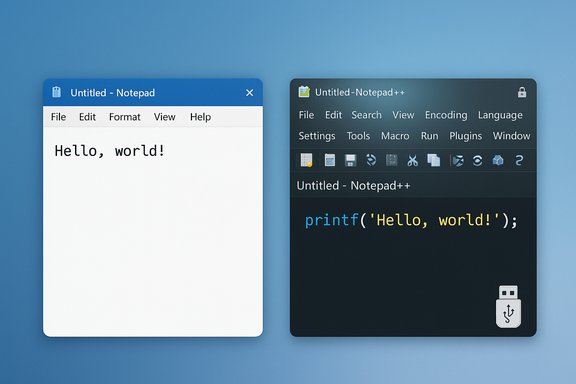
Notepad was the little, unflappable workhorse of Windows for decades — and that’s exactly why the recent parade of feature upgrades, AI prompts, and subscription nudges has driven many users to abandon it in favor of alternatives like Notepad++. A good number of Windows enthusiasts and tech writers now argue that Microsoft’s attempts to turn Notepad into a modern, AI-assisted editor have unintentionally undone the app’s core value: simplicity. The switch is not merely sentimental; it’s practical. Replacing the modern Notepad with a purpose-built, free editor such as Notepad++ restores predictability, performance, and a robust toolset — without the telemetry and paywall tradeoffs that have accompanied Microsoft’s recent updates.
Notepad’s strength was always its explicit limitation: plain text only, no hidden formatting, tiny footprint, and instant launch time. For decades that made it ideal for quick configuration edits, short scripts, and any task where invisible characters and format corruption would be harmful. That baseline expectation — that editing a .txt file would not change it in invisible ways — is why so many professionals relied on Notepad even as more full-featured editors proliferated.
Microsoft’s strategy changed in 2024–2025. Windows 11’s Notepad started receiving incremental but meaningful capabilities: lightweight formatting, Markdown support, tabbed documents, and integrated AI features for generating and rewriting text. The new formatting toolbar and Markdown views were rolled out via the Windows Insider channels and documented by Microsoft, marking a meaningful reorientation of the app. At the same time, Microsoft introduced AI-powered helpers — features that can “rewrite,” “summarize,” or “write” text inside Notepad. Those features exposed two important realities: first, Microsoft was integrating Copilot-style functionality across Windows inbox apps; second, some of that AI functionality requires Microsoft account sign-in and subscription entitlements (AI credits tied to Microsoft 365 or Copilot tiers). The net effect was predictable: a classic tool with zero friction started to feel like a product funnel for Microsoft subscriptions.
These core strengths make Notepad++ particularly suited for developers, system admins, and anyone who needs deterministic, repeatable editing without cloud involvement. Independent reviews and long-term community usage statistics underscore its staying power.
Source: How-To Geek I replaced Microsoft's Bloated Notepad with this free app
 Background / Overview
Notepad’s strength was always its explicit limitation: plain text only, no hidden formatting, tiny footprint, and instant launch time. For decades that made it ideal for quick configuration edits, short scripts, and any task where invisible characters and format corruption would be harmful. That baseline expectation — that editing a .txt file would not change it in invisible ways — is why so many professionals relied on Notepad even as more full-featured editors proliferated.Microsoft’s strategy changed in 2024–2025. Windows 11’s Notepad started receiving incremental but meaningful capabilities: lightweight formatting, Markdown support, tabbed documents, and integrated AI features for generating and rewriting text. The new formatting toolbar and Markdown views were rolled out via the Windows Insider channels and documented by Microsoft, marking a meaningful reorientation of the app. At the same time, Microsoft introduced AI-powered helpers — features that can “rewrite,” “summarize,” or “write” text inside Notepad. Those features exposed two important realities: first, Microsoft was integrating Copilot-style functionality across Windows inbox apps; second, some of that AI functionality requires Microsoft account sign-in and subscription entitlements (AI credits tied to Microsoft 365 or Copilot tiers). The net effect was predictable: a classic tool with zero friction started to feel like a product funnel for Microsoft subscriptions.
What changed in Notepad — a technical snapshot
From plain text to Markdown and formatting
Microsoft added lightweight formatting to Notepad, including bold, italics, headings, lists, hyperlinks, and a toggle to switch between formatted Markdown view and raw Markdown syntax. These features were introduced through Insider channels and are intended to let users write richer notes without leaving the Inbox app. Microsoft’s release notes explicitly describe a formatting toolbar and a switch to clear formatting when needed.Tabs and session management
Tabs brought Notepad into multi-document territory — useful, yes, but another departure from the original single-file, instant-open promise that made Notepad convenient for tiny edits and quick pastes.Copilot/AI features and the subscription friction
Notepad’s AI features — labelled in various messaging as Rewrite, Write, or Summarize — may run locally on Copilot-enabled devices or via cloud models depending on your configuration and Microsoft’s rollout. Critically, advanced use of these features is tied to AI credits and Microsoft 365 subscription levels: Microsoft 365 Personal and Family plans include monthly AI credits, and Copilot Pro/paid tiers offer expanded access. That means users who attempt to access AI rewriting may hit sign-in prompts or paywalls unless they have the necessary subscription or credits. Microsoft’s own support pages and reporting confirm the AI-credit model for Notepad’s AI tools. Important caveat: Microsoft’s deployment model is evolving. Some features may work locally (on-device AI) for certain Copilot+ machines without consuming cloud credits; other features still route through cloud services and will be governed by subscription policies. Always check your Notepad settings and Microsoft account entitlements to understand which path you’ll use.Why many users (and a growing number of writers) abandoned Notepad
- Notepad’s incremental feature creep has created feature and policy mismatch — a minimalist app now displaying subscription gates and account sign-in prompts.
- AI features raise privacy and telemetry questions for people who rely on local-only text editing, especially when the rewrite functionality can be cloud-backed.
- The classic value proposition (a deterministic editor that never alters invisible characters or file encodings) weakened as Microsoft layered Markdown rendering and “smart” editing.
- There’s already a mature alternative: Notepad++, which is free, battle-tested, feature-rich, and designed specifically for text- and code-editing scenarios. How-To Geek’s write-up that inspired this discussion explicitly switched to Notepad++ for these reasons.
Notepad++: the replacement the modern Notepad aims to be
Notepad++ is not new. Development began in September 2003 and the first public release dates to November 2003. It was conceived as a fast, Windows-native alternative to bloated cross-platform editors, built in C++ and powered by the Scintilla editing component. Two decades later it remains one of the most widely recommended Windows text editors. Why Notepad++ is a compelling replacement:- Feature depth without bloat: Notepad++ supports syntax highlighting for dozens of languages, tabbed editing, code folding, session management, and large-file handling while remaining lightweight.
- Macros: Record and replay repetitive edits — a major time-saver for batch edits across logs, config files, or modding tasks.
- Advanced search and replace: Full regular expression support and cross-file “Find in Files” lets you perform surgical replacements across directories.
- Plugin ecosystem: Hundreds of plugins extend functionality from linting and formatting to language support and automation. A built-in Plugins Admin organizes installation and updates.
- Portability and open-source licensing: It’s free & open-source (GPL), with portable builds that can run without installer changes, important for secure or locked-down environments.
Deep dive: Notepad++ features that matter in practice
1) Macros — automate the boring stuff
Macros in Notepad++ record key sequences and actions so you can replay them with a keystroke. They’re safe, local, and perfect for repetitive text transformations (reformatting lists, normalizing whitespace, or tweaking dozens of config files the same way). For power users this is a major productivity multiplier.2) Advanced Search & Replace with Regex
Notepad++’s search supports regular expressions and cross-file replacements. This allows precise operations like “replace the second occurrence of a token only when it appears after X and before Y” — something you can’t do in basic editors. It’s a blunt tool for precision work.3) Plugins and extensibility
- Plugin Manager (Plugins Admin) ships in modern Notepad++ builds.
- Popular plugins: PythonScript (scripting and automation), Compare (diffing files), NppFTP (remote editing), and XML Tools.
- Plugin caveat: plugin quality and maintenance vary; install only trusted, actively maintained plugins for production tasks.
4) Performance and file handling
Notepad++ opens large files more reliably than classic Notepad, supports column editing, multiple-caret editing, and split views for side-by-side comparisons.5) Security and portability
Open-source code can be audited; portable builds mean you can carry a curated editor on a USB drive without needing admin rights for installation.These core strengths make Notepad++ particularly suited for developers, system admins, and anyone who needs deterministic, repeatable editing without cloud involvement. Independent reviews and long-term community usage statistics underscore its staying power.
Practical migration: replacing Notepad with Notepad++ (step-by-step)
Below is a pragmatic checklist to install Notepad++, restore classic Notepad behaviors if you want them, and make Notepad++ your default text editor. These steps are designed for Windows 11 but work similarly on Windows 10.- Download and install Notepad++ from the official site or a trusted package manager (winget/chocolatey). Choose the portable build if you prefer no-install usage.
- (Optional) Restore classic Notepad behavior: if Windows is launching the modern, store-packaged Notepad and you want the legacy exe back, open Settings → Apps → Advanced app settings → App execution aliases and toggle off the Notepad alias. After doing this, running notepad.exe will launch the classic binary in C:\Windows\notepad.exe. This is a reversible, non-destructive approach.
- Make Notepad++ the default app for text file types:
- Open Settings → Apps → Default apps.
- Search “.txt” and change the default from Notepad to Notepad++, or right‑click a .txt file → Open with → Choose another app → Always use this app.
- Repeat for other extensions you want Notepad++ to handle (.log, .cfg, .bat, .ini, etc.. Windows Central’s walkthrough is a useful reference for the default-apps workflow.
- Configure preferences:
- Set default encoding to UTF‑8 and disable BOM if you need strict plain-text compatibility.
- Configure tabs/spaces and enable session snapshot/backup as needed.
- Add a few practical plugins via Plugins Admin (e.g., Compare, NppFTP, PythonScript) but install only what you will use.
- Practice: run a small test: use “Find in Files” in a sandbox folder to learn regex replacements safely.
- Keep the classic Notepad around as a fallback while you get comfortable.
- Back up plugin settings and the Notepad++ config xml before a big change.
- For enterprise environments, prefer the signed installer and validate installers against checksums.
Security, governance, and plugin risk flags
- Plugin maintenance varies. Some plugins are authored by single contributors and may become unmaintained. For critical workflows, prefer widely used and actively updated plugins.
- Portable builds and open-source code reduce surface area for telemetry — but always download from the official Notepad++ site or GitHub releases. Verify checksums where available.
- If you replace built-ins with third-party tools across many endpoints, inventory and patching become administrative tasks — track updates and test them with the same rigor you’d apply to other third‑party software. Community guidance and adoption checklists warn about plugin maintenance and the need for cautious onboarding.
The trade-offs: what you gain and what you give up
- Gains with Notepad++:
- Predictability, advanced editing features, powerful search and automation, local-only workflows, and a mature plugin ecosystem.
- Freedom from subscription entanglement and cloud-based AI credits for everyday editing tasks.
- Trade-offs:
- Slightly more complexity and an initial learning curve to harness macros and regex.
- Plugin management overhead.
- If you rely on Microsoft’s AI features (e.g., cloud-powered Rewrite integrated into Notepad), you’ll lose that convenience — intentionally so if you prefer local control.
How to disable or avoid the modern Notepad’s AI nudges (practical notes)
- Avoiding the AI features entirely is possible: Notepad’s settings allow you to opt out of Rewrite/Write prompts, and toggling off the execution alias restores classic notepad.exe by default launches. If you do not want Microsoft account sign-in prompts when editing small text files, disable AI features in Notepad settings and use classic notepad.exe or Notepad++ as your editor of choice. Community how‑tos and Microsoft’s own support guidance explain these options and the alias toggle in Settings.
- If you do need AI in a local, offline capacity, some Copilot+ PCs and on-device models enable local generation without cloud credits. Availability varies by hardware and Microsoft’s rolling updates; verify your machine’s Copilot+ status and the Notepad build you have.
Critical analysis: strengths, risks, and the long-term picture
Strengths of Microsoft’s Notepad evolution:- Microsoft is innovating the inbox apps to meet modern writing patterns — Markdown and formatting in Notepad make sense for users who want quick rich text in a lightweight shell.
- Integrating AI can reduce context switching for draft generation and polishing.
- Monetization model and account gating: locking advanced features behind Microsoft 365 credits introduces friction into an app that historically had none. That undermines expectations of a forever-free, offline editor for many users.
- Privacy uncertainty: whenever an app offers cloud-based generation, users must consider where text is sent, whether it’s retained, and whether prompts are used for model training. Microsoft publishes guidance, but behavior varies by feature and region.
- Fragmentation of user base: some users will cling to classic Notepad or Notepad++, while others embrace the AI features — the experience will diverge depending on Windows build, hardware, and subscription status.
- Microsoft will likely continue to fold AI into system apps where it provides measurable utility. That’s strategic and predictable given its investments and Copilot ambitions. Reuters, among others, has covered Copilot expansions into consumer M365 plans; expect AI entanglement to increase in inbox apps.
- Community-driven alternatives (Notepad++, Files, Everything, ShareX, etc. will maintain traction because they offer targeted, local-first solutions without subscription fences. For users who prioritize determinism, these alternatives are a safer choice.
Practical recommendations (for Windows power users)
- If you regularly edit configuration files, scripts, logs, or need automated replacements, install Notepad++ and configure it for UTF‑8 no BOM, with sensible tab width and automatic session saving.
- Keep classic Notepad or restore it via App execution aliases if you want the exact legacy behavior for occasional quick notes.
- Audit plugins before installing: prefer official plugins, check recent commits, and avoid plugins that require external servers or obscure privileges.
- For enterprises, establish a small software policy: distribute a curated Notepad++ installer (signed) and a plugin whitelist to limit attack surface and maintenance tasks.
- If you want AI-assisted writing without cloud exposure, evaluate Copilot+ hardware options and local model support, but be prepared for variations across devices and builds.
Conclusion
Notepad’s metamorphosis from a minimal plain-text tool into a Markdown-and-AI-capable editor is well-intentioned, but it undermines a core promise that made Notepad indispensable: simplicity without strings attached. For users who need reliability, determinism, and more power without subscription-led surprises, Notepad++ remains the most pragmatic and proven free replacement. It delivers macros, regex search-and-replace, a vibrant plugin ecosystem, and portable, local-first operation — everything Microsoft’s “enhanced” Notepad aspires to be but now bundles with account and credit complexity. The decision to replace Notepad with Notepad++ is not merely aesthetic; it’s a reclaiming of control: over your files, your workflows, and the privacy of the text you edit.Source: How-To Geek I replaced Microsoft's Bloated Notepad with this free app
