

Microsoft’s October 2025 Windows updates deliver a mix of security hardening, staged AI features, and meaningful device-management improvements that together sharpen the enterprise upgrade path to Windows 11 while raising practical deployment questions for IT teams — from new hotpatch behavior and Intune settings for 25H2 to a redesigned Start, enhanced File Explorer AI actions, and lifecycle milestones that accelerate Windows 10 migration planning.
Microsoft shipped October 2025 updates as both the regular Patch Tuesday cumulatives and an optional non‑security preview that surfaces several user-facing refinements ahead of a broader rollout. For Windows 11 the primary security cumulative (KB5066835) advances devices to builds in the mid-26100/26200 series and consolidates staged features, while a simultaneous optional preview (distributed as KB5067036 in Release Preview channels) exposes redesigned UI elements and productivity tweaks for testing and pilot programs.
This release cycle is notable for three intersecting trends:
In short: October 2025’s Windows updates give administrators better tools to manage the modern Windows estate and surface productivity gains, but they also demand disciplined pilot testing, careful privacy and licensing reviews, and updated rollback and observability practices to avoid being surprised by regressions or uneven feature availability.
Source: Microsoft - Message Center Windows news you can use: October 2025 - Windows IT Pro Blog
 Background
Microsoft shipped October 2025 updates as both the regular Patch Tuesday cumulatives and an optional non‑security preview that surfaces several user-facing refinements ahead of a broader rollout. For Windows 11 the primary security cumulative (KB5066835) advances devices to builds in the mid-26100/26200 series and consolidates staged features, while a simultaneous optional preview (distributed as KB5067036 in Release Preview channels) exposes redesigned UI elements and productivity tweaks for testing and pilot programs.This release cycle is notable for three intersecting trends:
- Security-first packaging: Monthly cumulatives remain the authoritative path for security fixes and servicing-stack updates, with user-facing changes gated and often enabled server‑side later.
- AI surface area expansion: File Explorer, Click-to-Do, and Settings gain Copilot-style actions and contextual AI shortcuts, with availability tied to licensing and Copilot+ hardware.
- Faster, staged enablement: Microsoft is using smaller enablement packages and hotpatch-like delivery mechanics to accelerate fixes and staged feature flips, while controlling exposure via phased rollouts.
What changed in October 2025 — the essentials
Security and servicing (the baseline)
- The October cumulative for Windows 11 (KB5066835) is primarily a security rollup that also includes a servicing stack update intended to improve update reliability and prepare devices for staged feature activation. Installing the cumulative moves 24H2 and 25H2 devices into the 26100.6899 and 26200.6899 build families respectively.
- Microsoft continues to emphasize express/differential delivery via Windows Update for most devices while providing .msu catalog packages for scripted or disconnected deployments.
Optional preview: KB5067036 and visible UX changes
- The optional October preview (KB5067036) introduces a redesigned Start menu, tweaks to the battery and on‑screen indicators, and additional Copilot integrations for File Explorer and the Settings AI agent. The preview is being distributed to Release Preview and to devices that opt into “get the latest updates as soon as available,” and Microsoft gates features with server-side flags.
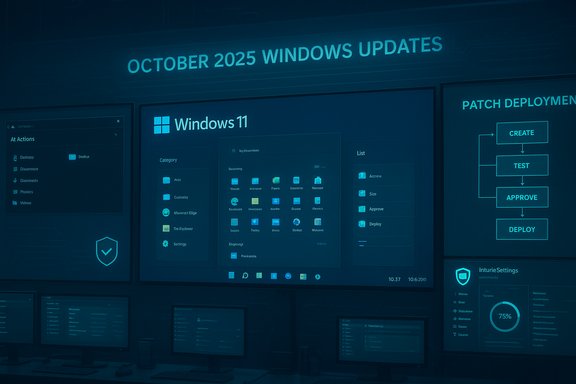
- The Start redesign adds a scrollable All Apps surface and three presentation modes (Category, Grid, List), remembers view state, and surfaces Phone Link integration; the new experience is tied to specific October preview builds and remains subjected to phased rollout control.
- Small but helpful user-facing polish includes colored battery icons indicating charging state, simplified overlays that do not obscure percentage bars, and renaming “Email & accounts” to “Your accounts” in Settings to consolidate account management.
AI and productivity: File Explorer and Copilot
- File Explorer AI Actions — right-click context actions such as Blur Background, Erase Objects, Visual Search, and document summarization — are being rolled out gradually and may depend on Microsoft 365 Copilot subscriptions and Copilot+ hardware. These actions push AI deeper into everyday file workflows but also require careful privacy and licensing evaluation.
- Microsoft 365 Copilot features are being surfaced in the Get Started experience on commercial devices with active subscriptions, signaling closer coupling between Copilot licensing and visible OS features.
Device management and deployment: new controls and guidance
Hotpatches and smaller updates — speed vs. scope
- Microsoft’s deployment model increasingly favors smaller, targeted updates (often described as hotpatches or out‑of‑band hotfixes) for quick remediation of critical regressions. These updates are typically smaller than full cumulatives and are designed to improve security and compliance velocity by reducing download and install times, particularly in large estates. Microsoft has used out‑of‑band mechanisms and Known Issue Rollback (KIR) to rapidly address emergent issues observed after a large cumulative.
Microsoft Intune — new settings and analytics
- Intune Settings Catalog received new settings for Windows 11, version 25H2 that let administrators control newly exposed OS behaviors without custom images or scripts. This simplifies configuration profiles for enterprises choosing to pilot 25H2 features.
- Intune Advanced Analytics is being highlighted as a way to gain deeper insights into device health, user experience, and organizational trends — useful for troubleshooting staged rollouts, monitoring hotpatch adoption, and assessing readiness for wider 25H2 enablement.
- The Windows 11 upgrade guidance includes 10 key Intune capabilities — readiness insights, policy controls, and app compatibility tools — to simplify migrations to Windows 11. These capabilities should form the backbone of any enterprise upgrade plan.
Provisioned in‑box apps: manageable removal via policy
- A welcome operational improvement: admins can now remove select provisioned in‑box apps with a policy rather than relying on custom imaging or complex scripting. This policy is available for devices running Windows 11 Enterprise, version 25H2 and Windows 11 Education, version 25H2, and can significantly reduce image maintenance overhead.
Frontline and emergency‑services device guidance
- Microsoft provides targeted guidance for managing mobile and frontline devices used by emergency services and early responders, emphasizing real‑time access, simplified provisioning, and robust connectivity patterns for teams in the field. These recommendations intersect with Windows 365 and Azure Virtual Desktop (AVD) deployment choices.
Cloud, VDI, and Windows 365: new options and previews
Ephemeral OS disk on Azure Virtual Desktop (public preview)
- Ephemeral OS disk support for Azure Virtual Desktop is in public preview and is aimed at stateless workloads: it stores the OS on session host local storage instead of remote storage to enable faster session host creation and improved performance for certain use cases. For admins running non‑persistent or pooled VDIs, this can reduce provisioning time and storage costs, but it requires revisiting backup, image servicing, and security postures associated with local OS storage.
Windows 365: connection option guidance
- Microsoft published guidance to help identify the ideal connection option for Windows 365 Cloud PCs: Windows 365 Link, Windows 365 Boot, Windows 365 Switch, and the Windows App all serve different scenarios. Choosing the right connection method depends on device form factor, network reliability, boot experience requirements, and user workflow needs.
Windows 10 ESU scenarios for Windows 365 and AVD
- With Windows 10 reaching end of support on October 14, 2025, Microsoft provides ESU (Extended Security Updates) scenarios for Windows 365 and Azure Virtual Desktop to help customers bridge migration timelines — including guidance for existing session hosts, creating new session hosts, and Microsoft 365 Apps support under ESU. These plans are practical but time‑limited and may carry licensing implications.
Start menu redesign, taskbar, and UX polish — what to expect
Redesigned Start: three presentation modes and faster app access
- The October preview makes the entire app inventory accessible from the main Start surface with a scrollable All Apps section and three presentation modes: Category view (automatic grouping), Grid view (multi-column alphabetical), and List view (compact alphabetic scanning). The OS remembers your chosen view and allows hiding the Recommended section to prioritize installed apps. The feature is available after installing the optional preview bits (builds identified in the October preview) but remains gated by Microsoft’s phased rollout controls.
Battery and on‑screen indicators
- Battery icons now use colored icons to indicate charging states and include simplified overlays that do not block the percentage bar. There is also a user option to explicitly display battery percentage. On‑screen hardware indicators (volume, brightness, airplane mode) can be repositioned via Settings, which improves ergonomics on multi‑monitor setups.
Productivity tradeoffs
- These UX refinements aim to reduce friction and return familiar ergonomics to power users, but they are rolled out gradually and may create temporary variance among devices within the same organization — a potential help-desk source if pilots and support teams aren’t aligned.
Security posture and regressive events — the risk picture
Known regressions and rapid fixes
- The October cumulative rollout encountered at least one high-impact regression affecting localhost HTTP/2 connections and USB input in the Windows Recovery Environment (WinRE) after the October 14 cumulative, prompting Microsoft to deliver targeted out‑of‑band fixes and employ Known Issue Rollback where appropriate. These events underscore that even security-focused cumulatives can introduce unexpected platform regressions that materially affect developers and recovery workflows.
AI, privacy, and licensing risk
- AI features tied to Microsoft 365 Copilot and Copilot+ hardware bring productivity benefits but also introduce complexity:
- Privacy: Some AI actions may route data to cloud services; organizations must review data-handling and telemetry settings before broad enablement.
- Licensing gating: Some features require Microsoft 365 Copilot entitlements or Copilot+ hardware, meaning feature visibility may vary across users and add procurement decisions to pilot plans.
Lifecycle and migration urgency
- With Windows 11, version 23H2 (Home/Pro) reaching end of servicing on November 11, 2025, and Windows 10 already at end of support as of October 14, 2025, organizations face real timelines for migration, ESU enrollment, or adopting Windows 365/VDI alternatives. These deadlines make October’s security and management changes more than cosmetic — they affect risk exposure and compliance.
Deployment playbook — prioritized checklist for IT teams
- Inventory and build validation
- Run winver on representative devices to capture baseline builds and map which machines are on 23H2, 24H2, or 25H2. The new Start bits require October preview builds if you plan to pilot those UX changes.
- Pilot KB5067036 in a controlled ring
- Use Windows Update rings or Release Preview to stage the optional preview (KB5067036) to a pilot group to validate Start, File Explorer AI actions, and battery UI changes before broad deployment. Expect server-side gating to delay visibility even after installing the preview bits.
- Harden update rollback and recovery procedures
- Prepare rollback plans that account for servicing stack persistence (SSUs are not always removable), and track hotpatch vs cumulative distribution. Validate WinRE input and local developer workflows (e.g., localhost HTTP/2) during pilot to detect regressions early.
- Validate Copilot and AI controls
- Review Microsoft 365 Copilot licensing entitlements, privacy controls, and telemetry settings. Map which AI Actions will surface based on your Copilot+ hardware footprint and subscription status. Do not assume universal availability.
- Use Intune for targeted configuration and removal policies
- Use the Intune Settings Catalog additions for 25H2 to apply configurations and the new policy to remove provisioned in‑box apps for Enterprise/Education SKUs. Leverage Intune Advanced Analytics to monitor rollout health.
- Reconsider image strategy where ephemeral OS disks or Windows 365 make sense
- Evaluate ephemeral OS disk for AVD pooled/stateless scenarios to speed provisioning, and consider Windows 365 Cloud PC connection options for endpoint modernization where ESU or Windows 10 migration is constrained.
Recommended test plan: what to validate in pilot rings
- Update install behavior and reporting (hotpatch vs cumulative).
- WinRE USB input and recovery workflows to ensure outage recoverability.
- Developer loopback scenarios (localhost HTTP/2) and CI pipelines.
- Copilot AI Actions in File Explorer with representative user accounts (including Microsoft 365 licensing contexts).
- Intune policy application for new 25H2 settings and the provisioned‑apps removal policy on Enterprise/Education images.
- Ephemeral OS disk performance and image update/patching workflows for AVD session hosts.
Strategic analysis — strengths, risks, and the road ahead
Strengths
- Faster remediation and more granular updates reduce mean-time-to-patch for critical fixes and allow Microsoft to respond quickly to regressions without forcing a full cumulative on every machine. This is operationally valuable for large enterprises.
- Improved management controls in Intune and the ability to remove provisioned apps via policy reduce imaging complexity and accelerate standardization across fleets.
- AI integrated where it helps — contextual actions in File Explorer, Click-to-Do improvements, and an in‑Settings AI agent can materially speed common tasks for knowledge workers when licenses and privacy settings are addressed.
Risks and open questions
- Staged rollouts create heterogeneity: different devices in the same tenant may show different UI and feature sets simultaneously, complicating support and documentation. Plan help-desk playbooks accordingly.
- Privacy and data residency: AI features that use cloud processing require careful policy review. Administrators must explicitly evaluate which AI actions route data off‑device and whether tenant controls mitigate exposure.
- Regression exposure remains real: even tightly tested cumulatives have produced significant post‑release regressions (e.g., localhost HTTP/2, WinRE USB input), so conservative pilot rings and robust rollback processes remain mandatory.
- Licensing complexity: Copilot entitlements and Copilot+ hardware gating mean the promise of OS‑level AI is distributed unevenly; procurement and governance must catch up to feature availability.
Bottom line and recommendations
The October 2025 updates mark a practical inflection: Microsoft continues to embed AI at the OS level while improving patching agility and device management controls that ease the path to Windows 11, version 25H2. For IT teams that must reconcile security, compliance, and user productivity, the playbook is clear:- Treat October cumulatives as a security imperative but validate recovery and developer scenarios in pilot rings before broad rollout.
- Use Intune’s updated Settings Catalog and Advanced Analytics to automate readiness checks and monitor rollout health.
- Plan Copilot/AI enablement conservatively — validate licensing, privacy controls, and data routing before enabling AI actions enterprise‑wide.
- If using AVD pooled hosts or Windows 365, evaluate ephemeral OS disks and Windows 365 connection methods as a way to reduce provisioning time and simplify endpoint management.
In short: October 2025’s Windows updates give administrators better tools to manage the modern Windows estate and surface productivity gains, but they also demand disciplined pilot testing, careful privacy and licensing reviews, and updated rollback and observability practices to avoid being surprised by regressions or uneven feature availability.
Source: Microsoft - Message Center Windows news you can use: October 2025 - Windows IT Pro Blog
