

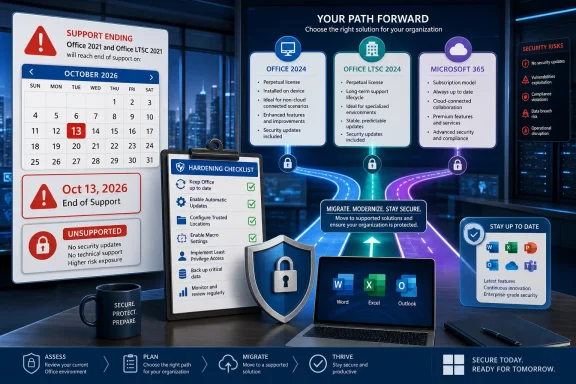
Office 2021 can stay in production until October 13, 2026. After that date, the apps are not expected to stop launching or opening documents, but they lose Microsoft security updates, bug fixes, technical support, and Microsoft Update servicing. That is the operational takeaway: unsupported Office still runs, but every new Office flaw becomes your problem to manage.
The payoff is simple:
The first move is inventory. On each Windows PC, confirm which Office product is actually installed. For many click-to-run Office installations, the product name is visible from an Office app’s account or product information area. If the machine is managed by IT, collect that information centrally through endpoint management, software inventory, asset discovery, or audit tooling rather than relying on users to self-report.
Next, make sure Office 2021 is fully current while it is still supported. Microsoft’s exact interface can vary by product, channel, policy, and installation type, so treat any menu path as guidance rather than a universal guarantee: in many Office desktop apps, update controls are found from the app’s account or product information screen, often under update options. If updates are disabled by policy, administrators should verify the servicing configuration centrally instead of asking users to improvise.
That step matters because October 13, 2026 is not a shutdown switch. Office 2021 will not suddenly become useless the next morning. The danger is quieter: every unpatched document parser, macro pathway, Outlook attachment workflow, and add-in dependency becomes part of your permanent risk profile unless you reduce exposure before support ends.
For individual users, the immediate checklist is straightforward: update Office, back up templates and Outlook data, remove unused add-ins, review macro exposure, and decide whether the next paid move is Office 2024, Office LTSC 2024 through an organization, or Microsoft 365. For administrators, the same work becomes a project plan: inventory, hardening baseline, pilot migration, procurement, user testing, and a final internal cutoff date that lands before October 13, 2026.
WindowsForum readers have already been circling the same issue from several angles. In the Office 2021 versus Microsoft 365 debate, the recurring question is whether subscription fees deliver enough practical value to justify moving away from a lifetime-license mindset. In WindowsForum discussions about Office apps losing support on Windows 10, Microsoft 365 disabling key features in outdated apps starting in January 2026, Microsoft Store Office installations needing migration to click-to-run, and the broader Windows 10 and Office support cliff, the theme is consistent: support calendars are becoming operational planning problems, not just product news.
That distinction is the article’s central point. A working application is not the same as a supported application. If Word, Excel, Outlook, PowerPoint, or Access still open after the support date, that does not mean the deployment is safe to normalize. It means the organization or user has accepted the remaining risk.
The answer depends on the workload. A home user opening local family documents is not in the same risk class as an accountant exchanging macro-enabled spreadsheets with external clients, a law office receiving attachments from unknown senders, or a school running old templates and plug-ins across hundreds of endpoints. End of support turns those differences into policy decisions.
This is also where the perpetual-license debate becomes practical rather than ideological. Office 2024 and Office LTSC 2024 keep the non-subscription route alive. They do not remove the need for planning, and they do not provide indefinite servicing, but they give users and organizations an alternative to Microsoft 365 when a fixed-feature Office release is the better fit.
The table is not a moral ranking. It is a workload match. A family PC, a volunteer group, a factory workstation, a legal office, and a cloud-first startup should not all make the same Office decision.
Start by separating devices into three groups.
The first group contains machines that can move quickly to Office 2024, Office LTSC 2024, or Microsoft 365 with little testing. These are straightforward systems with ordinary Word, Excel, PowerPoint, and Outlook use, few customizations, and limited exposure to complex files.
The second group contains machines that need validation. These systems rely on add-ins, macro-enabled workbooks, mail merge, Access databases, shared templates, document automation, accounting exports, or Outlook customizations.
The third group contains machines that should not be running Office 2021 past October 13, 2026 at all because they handle untrusted files, regulated data, financial documents, legal records, executive communications, or high-value business processes.
For power users, the same logic applies at smaller scale. Make a list of the documents and workflows you cannot afford to break: invoice templates, proposal templates, mail merge files, Excel workbooks with macros, Access databases, Outlook archives, shared calendars, signatures, and third-party add-ins. If you cannot name the dependency, you cannot test it before migration.
WindowsForum’s user reports around Office 2021 versus Microsoft 365 show why this matters. Many users are not refusing change for its own sake; they are trying to decide whether ongoing subscription fees actually improve their day-to-day work enough to justify the cost. That is a valid question, but it can only be answered honestly after the current Office estate is visible.
Review each Office app’s security and trust settings. In many Office desktop installations, these controls are available through the app’s options area under a Trust Center or security settings section, but the exact labels and locations can vary by app, installation type, update channel, and administrator policy. Do not treat one visible menu path as proof that every user has the same configuration.
The principles are more important than the label on the button:
Outlook deserves special attention because email is where many Office files first arrive. Users who routinely preview or open attachments from unknown senders are in a different risk class from users who only open documents from internal shares. If Office 2021 remains in place, attachment handling, mail filtering, user training, and add-in review become part of the Office support plan.
If you want to avoid Microsoft 365, make a perpetual-license migration boring. Test Office 2024 or Office LTSC 2024 early, validate your files, confirm your add-ins, and document the differences users will actually notice. A perpetual license is only useful if you can deploy it without drama.
For home users and small offices, Office 2024 is the obvious candidate to evaluate. It preserves the familiar one-time-purchase model for people who want local desktop Office apps without an ongoing Microsoft 365 subscription. The trade-off is that you are buying a static generation of Office rather than joining Microsoft’s rolling service model.
For enterprises and managed organizations, Office LTSC 2024 is the relevant branch of the conversation. LTSC is not a magic loophole; it is a product for organizations that need a stable, locked-down Office release rather than continuous feature churn. If your estate values predictability over new cloud-connected features, it belongs in the migration discussion.
Microsoft 365 still has a legitimate place. If your users need cloud storage integration, cross-device licensing, collaborative editing, Teams-centered workflows, and continuous feature delivery, the subscription case is stronger. But that is a value argument, not an inevitability argument, and administrators should compare it against the perpetual route on cost, operational fit, user impact, and risk.
WindowsForum readers have also flagged Microsoft 365 changes affecting outdated apps starting in January 2026. That discussion reinforces the same planning lesson: even subscription-connected Office environments are not exempt from version and support pressure. The difference is the servicing model, not the disappearance of lifecycle management.
A perpetual Office license concentrates cost up front and gives users a stable suite for a defined lifecycle. That is attractive for PCs with predictable workloads, limited collaboration needs, or owners who dislike recurring software bills. It can also make budgeting easier for households and small organizations that do not want productivity software bundled into another subscription.
Microsoft 365 spreads cost over time and bundles the apps into a service relationship. That can be efficient if the included services replace other spending or reduce administrative friction. It can also be wasteful if users only need Word, Excel, PowerPoint, and Outlook in their traditional desktop forms.
For sysadmins, the hidden cost is migration frequency. Staying on Office 2021 too long creates security debt. Moving to Office 2024 or Office LTSC 2024 buys time but starts another lifecycle clock. Moving to Microsoft 365 trades the standalone-suite support cliff for continuous servicing, but it also means accepting Microsoft’s ongoing changes as part of the operating environment.
The right answer is rarely universal. The point of the pre-October 2026 checklist is to preserve the option to choose instead of turning the deadline into a forced subscription event.
Create a test set from actual work. Include macro-enabled files, large spreadsheets, mail merge documents, shared templates, PDFs generated from Office, embedded objects, files exchanged with outside partners, and documents that have historically been fragile.
Then test the workflow, not just the file-open event.
If Office 2021 must remain after October 13, 2026, reduce what those PCs can touch. Keep them away from untrusted attachments, external document intake, privileged administrative work, and sensitive workflows where possible. Avoid using unsupported Office on systems that also handle identity, finance, legal, executive, or operational data.
This is where administrators should be blunt with business owners. “It still works” is not the same as “it is still supported.” Once Microsoft stops issuing security fixes for Office 2021, the organization owns the residual risk. That risk may be acceptable for an isolated legacy workflow; it is much harder to justify for general-purpose email and document handling.
Home users can apply the same principle without enterprise tooling. Do not use an unsupported Office install as your primary way to open random attachments from email or the web. If you keep it for old documents, treat it like a legacy tool: useful, familiar, and increasingly inappropriate for hostile inputs.
The timeline should be tied to that date, not padded with invented deadlines. Work backward from October 13, 2026:
The user-facing message also matters. “Microsoft is killing Office 2021” may be emotionally satisfying, but it is not operationally useful. A better message is: “Office 2021 will keep working after October 13, 2026, but it will stop receiving security fixes and support, so we are moving before that happens.”
A PC that is already on the wrong side of another support boundary should not be treated as a safe harbor for Office 2021. If the operating system, Office suite, browser, and security tooling are all aging at once, the risk is cumulative. The weakest link becomes the way in.
That is why the migration checklist should include the Windows platform beneath Office. Confirm whether the machine itself is staying in service, being upgraded, being replaced, or being retired. There is little value in buying a new Office license for a PC that is about to leave the fleet.
WindowsForum’s coverage of Microsoft Store Office end-of-support friction points to the same practical concern: installation type matters. A user may think they simply have “Office,” while IT may discover different deployment channels, update behaviors, or servicing assumptions. That should be resolved during inventory, not during the final migration week.
For enthusiasts, this is the moment to rationalize the whole setup. If a machine is a daily driver, keep it on supported software. If it is a lab box, offline archive, or retro workstation, treat it accordingly. The danger comes from pretending those categories are the same.
That does not make perpetual licensing irrational. It makes lifecycle awareness mandatory. If you choose Office 2024 or Office LTSC 2024, write down the reason, the machines covered, the workloads validated, and the date you will revisit the decision.
Microsoft 365 has its own trade-off in reverse. You avoid the same fixed end-of-support cliff for a standalone suite, but you accept a service model where features, integration points, and licensing assumptions can change over time. For many organizations, that is a good trade. For others, it is precisely the concern that keeps them evaluating perpetual Office.
The most mature answer is not loyalty to one model. It is matching the license model to the workload. Stable, local, predictable document work can justify perpetual Office. Collaboration-heavy, cloud-integrated, frequently changing work may justify Microsoft 365. Mixed environments may need both.
If you harden Office 2021 now and test the next platform before the pressure arrives, October 13, 2026 becomes a managed transition instead of an emergency purchase.
The payoff is simple:
- Stay on Office 2021 temporarily if your files are local, your exposure to unknown attachments is low, and you need time to test a replacement before October 13, 2026.
- Move to Office 2024 if you are a home user, freelancer, or small office that wants a one-time purchase and does not need Microsoft 365’s rolling service model.
- Move to Office LTSC 2024 if you are an organization that needs a stable, managed, non-subscription Office release for controlled environments.
- Move to Microsoft 365 if collaboration, cloud storage, cross-device access, Teams-connected workflows, and continuous servicing are worth the subscription cost.
 The Playbook Starts Before the Deadline, Not After It
The first move is inventory. On each Windows PC, confirm which Office product is actually installed. For many click-to-run Office installations, the product name is visible from an Office app’s account or product information area. If the machine is managed by IT, collect that information centrally through endpoint management, software inventory, asset discovery, or audit tooling rather than relying on users to self-report.Next, make sure Office 2021 is fully current while it is still supported. Microsoft’s exact interface can vary by product, channel, policy, and installation type, so treat any menu path as guidance rather than a universal guarantee: in many Office desktop apps, update controls are found from the app’s account or product information screen, often under update options. If updates are disabled by policy, administrators should verify the servicing configuration centrally instead of asking users to improvise.
That step matters because October 13, 2026 is not a shutdown switch. Office 2021 will not suddenly become useless the next morning. The danger is quieter: every unpatched document parser, macro pathway, Outlook attachment workflow, and add-in dependency becomes part of your permanent risk profile unless you reduce exposure before support ends.
For individual users, the immediate checklist is straightforward: update Office, back up templates and Outlook data, remove unused add-ins, review macro exposure, and decide whether the next paid move is Office 2024, Office LTSC 2024 through an organization, or Microsoft 365. For administrators, the same work becomes a project plan: inventory, hardening baseline, pilot migration, procurement, user testing, and a final internal cutoff date that lands before October 13, 2026.
WindowsForum readers have already been circling the same issue from several angles. In the Office 2021 versus Microsoft 365 debate, the recurring question is whether subscription fees deliver enough practical value to justify moving away from a lifetime-license mindset. In WindowsForum discussions about Office apps losing support on Windows 10, Microsoft 365 disabling key features in outdated apps starting in January 2026, Microsoft Store Office installations needing migration to click-to-run, and the broader Windows 10 and Office support cliff, the theme is consistent: support calendars are becoming operational planning problems, not just product news.
Microsoft Is Ending Support, Not Your Installation
Microsoft’s support language is careful and important. After October 13, 2026, Office 2021 applications continue to work, but Microsoft no longer provides security updates, bug fixes, technical support, or Microsoft Update software updates for that suite. Microsoft also warns that unsupported Office versions can expose users to security risks.That distinction is the article’s central point. A working application is not the same as a supported application. If Word, Excel, Outlook, PowerPoint, or Access still open after the support date, that does not mean the deployment is safe to normalize. It means the organization or user has accepted the remaining risk.
The answer depends on the workload. A home user opening local family documents is not in the same risk class as an accountant exchanging macro-enabled spreadsheets with external clients, a law office receiving attachments from unknown senders, or a school running old templates and plug-ins across hundreds of endpoints. End of support turns those differences into policy decisions.
This is also where the perpetual-license debate becomes practical rather than ideological. Office 2024 and Office LTSC 2024 keep the non-subscription route alive. They do not remove the need for planning, and they do not provide indefinite servicing, but they give users and organizations an alternative to Microsoft 365 when a fixed-feature Office release is the better fit.
Decision Table: Which Office Path Fits?
| Path | Best fit | Main benefit | Main risk |
|---|---|---|---|
| Stay on Office 2021 temporarily | Users or organizations that need more time to test files, macros, add-ins, Outlook profiles, or procurement options before October 13, 2026 | Avoids rushed migration and preserves current workflows during validation | Becomes unsafe to normalize after support ends; unsupported Office still runs but loses patches and support |
| Move to Office 2024 | Home users, freelancers, and small offices that want desktop Office apps through a one-time purchase | Keeps the perpetual-license model for users who do not want Microsoft 365 | Fixed feature set; another lifecycle clock begins |
| Move to Office LTSC 2024 | Managed organizations that need a stable, controlled Office release rather than continuous feature changes | Predictable deployment model for locked-down or regulated environments | Not a loophole for indefinite support; requires IT planning and volume-licensing fit |
| Move to Microsoft 365 | Users who need cloud storage integration, collaboration, cross-device access, Teams-centered workflows, and continuous updates | Reduces the standalone-suite lifecycle cliff and adds service features | Ongoing subscription cost and exposure to service-model changes |
The First Week Is for Finding the Hidden Office Estate
The biggest mistake is treating Office 2021 as a single installed product. In the real world, it is an ecosystem of templates, Outlook profiles, PST files, OST caches, signatures, add-ins, macros, Access databases, printer workflows, line-of-business exports, and user habits fossilized over years. The suite may be easy to identify; the dependency graph is not.Start by separating devices into three groups.
The first group contains machines that can move quickly to Office 2024, Office LTSC 2024, or Microsoft 365 with little testing. These are straightforward systems with ordinary Word, Excel, PowerPoint, and Outlook use, few customizations, and limited exposure to complex files.
The second group contains machines that need validation. These systems rely on add-ins, macro-enabled workbooks, mail merge, Access databases, shared templates, document automation, accounting exports, or Outlook customizations.
The third group contains machines that should not be running Office 2021 past October 13, 2026 at all because they handle untrusted files, regulated data, financial documents, legal records, executive communications, or high-value business processes.
For power users, the same logic applies at smaller scale. Make a list of the documents and workflows you cannot afford to break: invoice templates, proposal templates, mail merge files, Excel workbooks with macros, Access databases, Outlook archives, shared calendars, signatures, and third-party add-ins. If you cannot name the dependency, you cannot test it before migration.
WindowsForum’s user reports around Office 2021 versus Microsoft 365 show why this matters. Many users are not refusing change for its own sake; they are trying to decide whether ongoing subscription fees actually improve their day-to-day work enough to justify the cost. That is a valid question, but it can only be answered honestly after the current Office estate is visible.
Hardening Office 2021 Means Treating Documents as Code
Office security is uncomfortable because documents are not just documents. They can contain macros, embedded objects, external links, add-ins, scripts, and data connections. If Office 2021 is going to remain in use close to October 13, 2026, the goal should be to make risky behavior explicit instead of convenient.Review each Office app’s security and trust settings. In many Office desktop installations, these controls are available through the app’s options area under a Trust Center or security settings section, but the exact labels and locations can vary by app, installation type, update channel, and administrator policy. Do not treat one visible menu path as proof that every user has the same configuration.
The principles are more important than the label on the button:
- Keep protected or restricted viewing behavior enabled for files from the internet and other untrusted sources.
- Avoid broad trusted locations where downloaded, synced, or emailed files can land.
- Remove trusted locations that nobody can explain.
- Review trusted documents instead of letting old approvals live forever.
- Disable or restrict unused add-ins.
- Treat macros as executable code, not document decoration.
- Prefer signed, known, business-critical macros over broad macro trust.
- Do not allow old convenience settings to become the default security policy.
Outlook deserves special attention because email is where many Office files first arrive. Users who routinely preview or open attachments from unknown senders are in a different risk class from users who only open documents from internal shares. If Office 2021 remains in place, attachment handling, mail filtering, user training, and add-in review become part of the Office support plan.
Make Microsoft 365 a Choice, Not a Panic Button
Refusing to upgrade is not a strategy. Preserving the ability to choose is.If you want to avoid Microsoft 365, make a perpetual-license migration boring. Test Office 2024 or Office LTSC 2024 early, validate your files, confirm your add-ins, and document the differences users will actually notice. A perpetual license is only useful if you can deploy it without drama.
For home users and small offices, Office 2024 is the obvious candidate to evaluate. It preserves the familiar one-time-purchase model for people who want local desktop Office apps without an ongoing Microsoft 365 subscription. The trade-off is that you are buying a static generation of Office rather than joining Microsoft’s rolling service model.
For enterprises and managed organizations, Office LTSC 2024 is the relevant branch of the conversation. LTSC is not a magic loophole; it is a product for organizations that need a stable, locked-down Office release rather than continuous feature churn. If your estate values predictability over new cloud-connected features, it belongs in the migration discussion.
Microsoft 365 still has a legitimate place. If your users need cloud storage integration, cross-device licensing, collaborative editing, Teams-centered workflows, and continuous feature delivery, the subscription case is stronger. But that is a value argument, not an inevitability argument, and administrators should compare it against the perpetual route on cost, operational fit, user impact, and risk.
WindowsForum readers have also flagged Microsoft 365 changes affecting outdated apps starting in January 2026. That discussion reinforces the same planning lesson: even subscription-connected Office environments are not exempt from version and support pressure. The difference is the servicing model, not the disappearance of lifecycle management.
The Cost Comparison Is Also a Lifecycle Comparison
The lazy comparison is one-time purchase versus monthly bill. The better comparison is lifecycle, servicing, and workflow fit.A perpetual Office license concentrates cost up front and gives users a stable suite for a defined lifecycle. That is attractive for PCs with predictable workloads, limited collaboration needs, or owners who dislike recurring software bills. It can also make budgeting easier for households and small organizations that do not want productivity software bundled into another subscription.
Microsoft 365 spreads cost over time and bundles the apps into a service relationship. That can be efficient if the included services replace other spending or reduce administrative friction. It can also be wasteful if users only need Word, Excel, PowerPoint, and Outlook in their traditional desktop forms.
For sysadmins, the hidden cost is migration frequency. Staying on Office 2021 too long creates security debt. Moving to Office 2024 or Office LTSC 2024 buys time but starts another lifecycle clock. Moving to Microsoft 365 trades the standalone-suite support cliff for continuous servicing, but it also means accepting Microsoft’s ongoing changes as part of the operating environment.
The right answer is rarely universal. The point of the pre-October 2026 checklist is to preserve the option to choose instead of turning the deadline into a forced subscription event.
The Migration Test Should Use Real Files, Not Demo Documents
Office migrations fail in the boring corners. A pristine Word document opens almost anywhere. The problem is the 12-year-old template with custom styles, the Excel workbook with macros, the Access front end nobody wants to own, or the Outlook add-in that quietly keeps a department moving.Create a test set from actual work. Include macro-enabled files, large spreadsheets, mail merge documents, shared templates, PDFs generated from Office, embedded objects, files exchanged with outside partners, and documents that have historically been fragile.
Then test the workflow, not just the file-open event.
Migration Validation Checklist
Macros and VBA
- Identify every macro-enabled workbook, template, and document that users rely on.
- Record the owner of each macro-enabled file.
- Open each file in the target Office version.
- Run the macro from a standard user account, not only from an administrator account.
- Confirm whether the macro depends on trusted locations, signed code, external references, mapped drives, or old file paths.
- Test save, export, print, and PDF output after the macro runs.
- Document any warnings users will see so support staff can distinguish expected prompts from real failures.
- Remove or retire macro-enabled files that no longer have a business owner.
Outlook profiles and mail workflows
- Confirm account setup for each mail account type in the target environment.
- Validate access to primary mailboxes, shared mailboxes, delegated mailboxes, and calendars.
- Check signatures, rules, categories, autocomplete expectations, and archive access.
- Confirm whether PST or OST files are still required and where they are stored.
- Test search, calendar invites, recurring meetings, meeting updates, and attachments.
- Verify that users can send, receive, reply, forward, and attach files without workflow surprises.
- Test any mail merge or send-to-mail-recipient workflow that depends on Office and Outlook together.
Add-ins and integrations
- List every Office add-in installed on pilot machines.
- Identify the add-in owner, vendor, version, and business purpose.
- Disable unused add-ins before migration instead of carrying them forward blindly.
- Test required add-ins in the target Office version with real user accounts.
- Validate sign-in, licensing, toolbar visibility, document actions, exports, and error handling.
- Check whether any add-in depends on a browser control, local service, legacy runtime, or line-of-business application.
- Document add-ins that block migration and assign an owner for remediation.
Critical spreadsheets and business files
- Build a test set of high-value Excel workbooks from finance, operations, reporting, inventory, HR, and project teams.
- Open the workbook in the target Office version and confirm that formulas recalculate as expected.
- Refresh data connections, pivots, Power Query items, linked workbooks, and external references where used.
- Compare key totals, reports, charts, and exported files against known-good output.
- Test printing, PDF export, password protection, sheet protection, and shared storage behavior.
- Send the output to the person or system that normally consumes it.
- Do not mark the file compatible until the business process produces the same trusted result.
Templates, documents, and output
- Test normal templates, letterhead, labels, envelopes, mail merge, and proposal documents.
- Confirm fonts, page breaks, headers, footers, tables, styles, and tracked changes behavior.
- Export to PDF and compare layout-sensitive documents.
- Test documents stored on local drives, network shares, OneDrive, SharePoint, or other synchronized locations where applicable.
- Confirm that users can create new documents from templates, not just open existing files.
Unsupported Office Should Be Segmented, Not Normalized
Some machines may miss the October 13, 2026 support deadline. That is not ideal, but it is realistic. The question is whether those machines become documented exceptions or invisible liabilities.If Office 2021 must remain after October 13, 2026, reduce what those PCs can touch. Keep them away from untrusted attachments, external document intake, privileged administrative work, and sensitive workflows where possible. Avoid using unsupported Office on systems that also handle identity, finance, legal, executive, or operational data.
This is where administrators should be blunt with business owners. “It still works” is not the same as “it is still supported.” Once Microsoft stops issuing security fixes for Office 2021, the organization owns the residual risk. That risk may be acceptable for an isolated legacy workflow; it is much harder to justify for general-purpose email and document handling.
Home users can apply the same principle without enterprise tooling. Do not use an unsupported Office install as your primary way to open random attachments from email or the web. If you keep it for old documents, treat it like a legacy tool: useful, familiar, and increasingly inappropriate for hostile inputs.
The Calendar Gives IT Enough Time to Avoid a Panic Buy
October 13, 2026 sounds far away until procurement, testing, user training, and budget cycles enter the room. The smart move is to set an internal deadline earlier than Microsoft’s support date. If October 13, 2026 is the cliff, your organization’s target should be the guardrail.The timeline should be tied to that date, not padded with invented deadlines. Work backward from October 13, 2026:
- Inventory Office 2021 installations while support remains active.
- Identify machines that are simple upgrades.
- Identify machines blocked by macros, add-ins, Outlook dependencies, Access databases, or critical spreadsheets.
- Choose the replacement path: Office 2024, Office LTSC 2024, Microsoft 365, or a mixed model.
- Pilot the target Office version with real users and real files.
- Resolve blockers before the final quarter leading into October 13, 2026.
- Keep post-deadline Office 2021 only as a documented exception.
The user-facing message also matters. “Microsoft is killing Office 2021” may be emotionally satisfying, but it is not operationally useful. A better message is: “Office 2021 will keep working after October 13, 2026, but it will stop receiving security fixes and support, so we are moving before that happens.”
The Windows 10 Shadow Makes This More Than an Office Story
Office 2021’s support date lands in a broader period of Microsoft ecosystem churn. WindowsForum readers have already seen overlapping discussions about Windows 10’s October 2025 support milestone, Office apps on Windows 10, Microsoft Store Office app transitions, and Microsoft 365 feature changes for outdated clients. The result is a support-calendar pileup that makes isolated planning dangerous.A PC that is already on the wrong side of another support boundary should not be treated as a safe harbor for Office 2021. If the operating system, Office suite, browser, and security tooling are all aging at once, the risk is cumulative. The weakest link becomes the way in.
That is why the migration checklist should include the Windows platform beneath Office. Confirm whether the machine itself is staying in service, being upgraded, being replaced, or being retired. There is little value in buying a new Office license for a PC that is about to leave the fleet.
WindowsForum’s coverage of Microsoft Store Office end-of-support friction points to the same practical concern: installation type matters. A user may think they simply have “Office,” while IT may discover different deployment channels, update behaviors, or servicing assumptions. That should be resolved during inventory, not during the final migration week.
For enthusiasts, this is the moment to rationalize the whole setup. If a machine is a daily driver, keep it on supported software. If it is a lab box, offline archive, or retro workstation, treat it accordingly. The danger comes from pretending those categories are the same.
The Real Ownership Test Comes After the Purchase
Perpetual Office licenses are often described as “owning Office,” but that phrase has always needed an asterisk. You own the right to use that release under its license terms; you do not own an indefinite stream of fixes. Office 2021 proves the point.That does not make perpetual licensing irrational. It makes lifecycle awareness mandatory. If you choose Office 2024 or Office LTSC 2024, write down the reason, the machines covered, the workloads validated, and the date you will revisit the decision.
Microsoft 365 has its own trade-off in reverse. You avoid the same fixed end-of-support cliff for a standalone suite, but you accept a service model where features, integration points, and licensing assumptions can change over time. For many organizations, that is a good trade. For others, it is precisely the concern that keeps them evaluating perpetual Office.
The most mature answer is not loyalty to one model. It is matching the license model to the workload. Stable, local, predictable document work can justify perpetual Office. Collaboration-heavy, cloud-integrated, frequently changing work may justify Microsoft 365. Mixed environments may need both.
The October 2026 Office Plan That Actually Preserves Choice
The narrow deadline is easy: Office 2021 support ends on October 13, 2026, and the applications continue running after that without Microsoft’s security patch safety net. The useful plan is broader: harden now, test replacements early, and make unsupported Office an exception rather than a habit.- Confirm every Office 2021 installation that will remain in service.
- Bring Office 2021 up to date while it is still supported, using the update mechanism appropriate to the installation and management model.
- Review Office security and trust settings, especially macro behavior, add-ins, trusted documents, trusted locations, external content, and protected viewing behavior.
- Inventory real Office dependencies, including Outlook profiles, templates, macros, Access databases, add-ins, mail merge files, PST files, and business-critical spreadsheets.
- Pilot Office 2024, Office LTSC 2024, or Microsoft 365 with real user files before committing to a licensing path.
- Validate macros, Outlook profiles, add-ins, and critical spreadsheets using a checklist rather than a casual “it opened” test.
- Set an internal migration target before October 13, 2026.
- Treat any post-deadline Office 2021 machine as a documented exception with reduced exposure to untrusted documents and email attachments.
If you harden Office 2021 now and test the next platform before the pressure arrives, October 13, 2026 becomes a managed transition instead of an emergency purchase.
Frequently Asked Questions
Will Office 2021 stop working after October 13, 2026?
No. The central point is that Office 2021 is expected to continue running after October 13, 2026. The problem is that it will no longer receive Microsoft security updates, bug fixes, technical support, or Microsoft Update servicing. It may still open documents, but it becomes an unsupported application.Is staying on Office 2021 until October 13, 2026 reasonable?
Yes, if you use the remaining time deliberately. Staying temporarily can be reasonable while you inventory installations, apply available updates, review security settings, test files, and choose a replacement path. It is not reasonable to ignore the deadline and let unsupported Office become the default.Should home users move to Microsoft 365?
Not automatically. If you mainly need desktop Word, Excel, PowerPoint, and Outlook and dislike subscriptions, Office 2024 may be the better candidate to evaluate. Microsoft 365 makes more sense if you want its service bundle: cloud storage, collaboration, cross-device use, and continuous feature updates.Should businesses choose Office 2024 or Office LTSC 2024?
Small businesses that want a one-time purchase may look at Office 2024. Managed organizations that need a stable, controlled release should evaluate Office LTSC 2024 if it fits their licensing and deployment model. Neither path removes lifecycle planning; both should be tested with real files and workflows before rollout.When does Microsoft 365 make the most sense?
Microsoft 365 makes the most sense when the subscription replaces or improves other workflows: collaboration, shared storage, Teams-centered work, cross-device access, and continuous servicing. It is less compelling when users only need traditional desktop Office apps and rarely use the connected services.What is the biggest migration risk?
The biggest risk is not ordinary documents. It is hidden dependency: macros, Outlook profiles, add-ins, Access databases, linked spreadsheets, templates, mail merge workflows, and business files that nobody has tested in the replacement version.What should I test before leaving Office 2021?
Test the work, not just the file. Run macros, refresh spreadsheets, validate Outlook profiles, check add-ins, confirm signatures and shared mailboxes, export PDFs, print documents, recalculate reports, and compare business-critical output against known-good results.Is unsupported Office safe if I only use it offline?
Offline or isolated use is lower risk than using unsupported Office for email attachments and internet-downloaded files. If you keep Office 2021 after October 13, 2026, treat it as a legacy tool and limit its exposure to hostile or unknown documents.What should IT tell users?
Use plain operational language: “Office 2021 will keep working after October 13, 2026, but it will stop receiving security fixes and support. We are migrating before that happens so documents, email, macros, and add-ins keep working safely.”References
- Primary source: support.microsoft.com
Finalización del soporte para Office 2021 | Microsoft Support
El soporte técnico para Office 2021 finalizará el 13 de octubre de 2026. Todas las aplicaciones de Office 20121 seguirán funcionando, pero podría estar expuesto a riesgos de seguridad. Actualizar a Microsoft 365.support.microsoft.com - Primary source: WindowsForum
Microsoft Office 2021 vs. Microsoft 365: Which Is the Better Choice in 2025? | Windows Forum
For many PC users, choosing the right productivity suite comes down to a simple question: Do ongoing subscription fees really offer enough value to justify...windowsforum.com
