

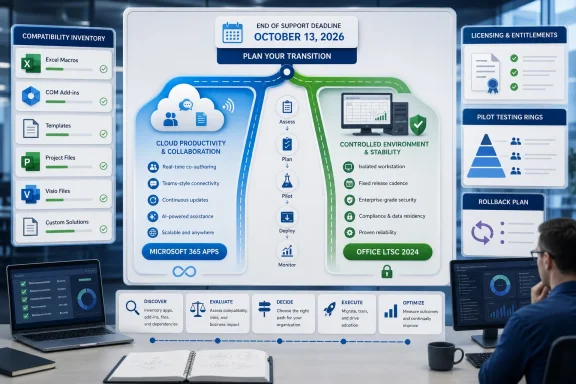
Office LTSC 2021 reaches end of support on October 13, 2026, leaving organizations with a workload-by-workload choice: move users who need cloud-connected collaboration and continuing features to Microsoft 365 Apps, while reserving Office LTSC 2024 for regulated, isolated, or tightly controlled devices that cannot follow a continuously serviced model. The wrong move is a blanket replacement made without first identifying the add-ins, macros, templates, Project and Visio installations, licensing constraints, and business integrations attached to each Office deployment.
Microsoft detailed the deadline in its lifecycle announcement, warning that security updates, bug fixes, and technical support stop after October 13. With less than three months remaining, application compatibility inventory—not procurement—is now the critical path.
An Office estate is rarely just Word, Excel, PowerPoint, and Outlook. The visible applications may be straightforward to replace, but the business process around them can depend on old COM add-ins, signed or unsigned macros, templates stored on file shares, document-management plugins, accounting exports, label-printing tools, database connections, and line-of-business applications that automate Office.
IT teams should begin with a practical inventory that records both the installed software and the work performed with it:
The same distinction applies to templates. A
That does not mean every Office LTSC 2021 device belongs on it. A defensible placement decision should consider six factors.
This matrix should be applied to workloads, not merely departments. Finance may need Microsoft 365 Apps for collaboration while retaining a controlled LTSC workstation for a legacy reporting process. Engineering may place general-purpose desktops on Microsoft 365 Apps but keep an isolated lab on LTSC 2024.
A mixed estate is more complicated to operate, but it can be more rational than forcing fundamentally different workloads onto one servicing model. The price of that flexibility is disciplined configuration management, separate deployment groups, clear ownership, and accurate licensing records.
Its lifecycle also demands attention. Office LTSC 2024 support ends on October 9, 2029, with no Extended Support, so migrating from LTSC 2021 to LTSC 2024 creates roughly a three-year runway from the 2026 deadline rather than a fresh decade of support.
That shortened horizon changes the business case. LTSC 2024 makes sense where a fixed release is a documented operational requirement, but it is less persuasive as a general-purpose way to postpone subscription or cloud decisions. An organization beginning a large LTSC 2024 rollout now should already include its 2029 replacement in lifecycle and budget planning.
Microsoft lists Office LTSC 2024 as supported on Windows 11, Windows 11 LTSC 2024, Windows 10 LTSC 2019 and 2021, Windows Server 2022, and Windows Server 2025. Administrators must evaluate the complete platform combination, however; choosing a supported Office release does not resolve the lifecycle, application, or compliance status of the underlying operating system.
WindowsForum has previously tracked the related migration pressure around Windows 10 and the end of support for Office 2016 and Office 2019. The lesson carries forward: replacing one unsupported layer while leaving dependent components untested can exchange a known deadline for a less visible operational risk.
Each pilot workload needs a named owner and explicit success criteria. Those criteria might include opening and saving representative files, executing approved macros, loading required add-ins, exporting data, printing through the expected workflow, sending documents to connected systems, and completing activation after deployment.
Use at least three logical rings:
Keep a decision log for exceptions. If an application owner insists that a system remain on Office LTSC 2021 beyond October 13, record the business reason, affected devices, risk acceptance, compensating controls, and target removal date. Unsupported Office must be treated as an exception, not an invisible extension of the migration schedule.
Do not assume that purchasing the destination product settles licensing for every deployment pattern. Confirm entitlements for users, shared devices, servers, disconnected systems, virtualized environments, Project, and Visio with the organization’s licensing specialists or Microsoft representative.
Coexistence deserves the same caution. A design that expects old and new Office components to remain installed together should be validated on the exact target configuration rather than inferred from a successful clean installation. The safest deployment sequence is the one proven against the organization’s real applications, architecture, configuration, and activation model.
Project and Visio are particularly easy to miss because they may be installed on only a fraction of endpoints. Yet those users often handle high-value schedules, engineering diagrams, process maps, and specialized templates. Inventory the 2021 products, their files, add-ins, data connections, licensing, and automation separately, then determine whether their destination should be the corresponding LTSC 2024 product or an appropriate subscription offering.
The immediate milestone is therefore a completed dependency inventory with application owners and pilot candidates. Microsoft 365 Apps should be the default destination where continuous servicing and cloud-backed capabilities are acceptable; Office LTSC 2024 should be a documented exception for workloads that genuinely require a fixed, on-premises release.
The remaining months are enough for a controlled migration only if testing begins now. Every unidentified macro, forgotten Visio installation, shared-device activation assumption, or unowned COM add-in consumes part of that runway—and October 13, 2026, will not move to accommodate the backlog.
Microsoft detailed the deadline in its lifecycle announcement, warning that security updates, bug fixes, and technical support stop after October 13. With less than three months remaining, application compatibility inventory—not procurement—is now the critical path.
 Build the Inventory Before Choosing the Product
An Office estate is rarely just Word, Excel, PowerPoint, and Outlook. The visible applications may be straightforward to replace, but the business process around them can depend on old COM add-ins, signed or unsigned macros, templates stored on file shares, document-management plugins, accounting exports, label-printing tools, database connections, and line-of-business applications that automate Office.IT teams should begin with a practical inventory that records both the installed software and the work performed with it:
- Identify every device running Office LTSC 2021, including shared PCs, virtual desktops, kiosks, laboratory systems, training rooms, and intermittently connected laptops.
- Record the installed edition, architecture, deployment method, update configuration, activation arrangement, and associated licensing entitlement.
- Enumerate Office add-ins, COM components, macros, templates, data connections, mail integrations, document-management extensions, and applications that launch or automate Office.
- Inventory Project and Visio separately rather than assuming they are covered by the core Office migration.
- Assign an owner to every business-critical dependency and document who can approve its replacement, remediation, or retirement.
- Classify each workload by cloud dependency, connectivity, update tolerance, compliance restrictions, shared-device requirements, and feature expectations.
- Move representative systems into pilot rings and define measurable success criteria before deploying either Microsoft 365 Apps or Office LTSC 2024 broadly.
- Document a rollback method that restores both the Office client and the supporting integrations if testing exposes a blocking failure.
The same distinction applies to templates. A
.dotm or .xltm file may appear to be ordinary user content while containing VBA code, custom controls, references, or assumptions about local paths. Testing only whether Word or Excel opens successfully will not prove that the underlying workflow still functions.Microsoft 365 Apps Is the Default, Not the Universal Answer
Microsoft recommends Microsoft 365 Apps as the primary supported migration path. It is the stronger fit for users who depend on Microsoft 365 services, real-time collaboration, continuing feature delivery, AI-driven automation, or advanced security and compliance capabilities designed for hybrid work.That does not mean every Office LTSC 2021 device belongs on it. A defensible placement decision should consider six factors.
| Decision factor | Microsoft 365 Apps is the stronger fit when… | Office LTSC 2024 is the stronger fit when… |
|---|---|---|
| Cloud dependency | Users regularly rely on cloud-connected services and collaboration. | The workload must remain local, isolated, or minimally cloud-dependent. |
| Update tolerance | The organization can validate and manage a continuously serviced application. | The workflow requires a fixed feature set with no post-release feature additions. |
| Shared-device use | Licensing, activation, identity, and the deployment design have been validated for the shared environment. | A fixed, device-oriented deployment better matches the approved operating model. |
| Licensing | Subscription licensing aligns with user assignment and lifecycle planning. | The organization has the appropriate commercial volume-licensing path for LTSC. |
| Compliance | Cloud-backed security and compliance capabilities are permitted or required. | Policy or regulation prevents the relevant workload from moving to the cloud. |
| Feature needs | Collaboration, automation, and continuing improvements are business requirements. | Stability and restricted change outweigh access to new features. |
A mixed estate is more complicated to operate, but it can be more rational than forcing fundamentally different workloads onto one servicing model. The price of that flexibility is disciplined configuration management, separate deployment groups, clear ownership, and accurate licensing records.
LTSC 2024 Buys Stability, Not a Long Reprieve
For commercial organizations unable to move appropriate systems to the cloud, Microsoft identifies Office LTSC 2024 as the current on-premises alternative. It receives no feature updates and omits cloud-backed capabilities available through Microsoft 365 Apps, including real-time collaboration, AI-driven automation, and advanced hybrid-work security and compliance features.Its lifecycle also demands attention. Office LTSC 2024 support ends on October 9, 2029, with no Extended Support, so migrating from LTSC 2021 to LTSC 2024 creates roughly a three-year runway from the 2026 deadline rather than a fresh decade of support.
That shortened horizon changes the business case. LTSC 2024 makes sense where a fixed release is a documented operational requirement, but it is less persuasive as a general-purpose way to postpone subscription or cloud decisions. An organization beginning a large LTSC 2024 rollout now should already include its 2029 replacement in lifecycle and budget planning.
Microsoft lists Office LTSC 2024 as supported on Windows 11, Windows 11 LTSC 2024, Windows 10 LTSC 2019 and 2021, Windows Server 2022, and Windows Server 2025. Administrators must evaluate the complete platform combination, however; choosing a supported Office release does not resolve the lifecycle, application, or compliance status of the underlying operating system.
WindowsForum has previously tracked the related migration pressure around Windows 10 and the end of support for Office 2016 and Office 2019. The lesson carries forward: replacing one unsupported layer while leaving dependent components untested can exchange a known deadline for a less visible operational risk.
Pilot Rings Need Owners, Evidence, and a Way Back
A pilot should reproduce real work rather than confirm that Office launches. Start with IT and low-risk volunteers, then expand to users who represent the organization’s most important application patterns: heavy Excel automation, Outlook integrations, document-management systems, shared workstations, Project scheduling, and Visio diagramming.Each pilot workload needs a named owner and explicit success criteria. Those criteria might include opening and saving representative files, executing approved macros, loading required add-ins, exporting data, printing through the expected workflow, sending documents to connected systems, and completing activation after deployment.
Use at least three logical rings:
- The validation ring should contain IT-managed test devices and copies of representative configurations.
- The business pilot ring should include users from each dependency class and application owner group.
- The production ring should expand only after blockers have owners, resolutions, or formally accepted workarounds.
Keep a decision log for exceptions. If an application owner insists that a system remain on Office LTSC 2021 beyond October 13, record the business reason, affected devices, risk acceptance, compensating controls, and target removal date. Unsupported Office must be treated as an exception, not an invisible extension of the migration schedule.
Click-to-Run and Licensing Can Derail a Technically Sound Plan
Application compatibility is only one workstream. Before broad deployment, administrators should test how the selected Office package installs, removes or replaces the existing Click-to-Run configuration, receives updates, activates, and behaves alongside any separately licensed Office-family products.Do not assume that purchasing the destination product settles licensing for every deployment pattern. Confirm entitlements for users, shared devices, servers, disconnected systems, virtualized environments, Project, and Visio with the organization’s licensing specialists or Microsoft representative.
Coexistence deserves the same caution. A design that expects old and new Office components to remain installed together should be validated on the exact target configuration rather than inferred from a successful clean installation. The safest deployment sequence is the one proven against the organization’s real applications, architecture, configuration, and activation model.
Project and Visio are particularly easy to miss because they may be installed on only a fraction of endpoints. Yet those users often handle high-value schedules, engineering diagrams, process maps, and specialized templates. Inventory the 2021 products, their files, add-ins, data connections, licensing, and automation separately, then determine whether their destination should be the corresponding LTSC 2024 product or an appropriate subscription offering.
The October Deadline Is Now a Testing Deadline
By October 13, organizations should have Office LTSC 2021 removed from normal production use, not merely have licenses ordered or a migration project approved. Microsoft’s cutoff ends security updates, bug fixes, and technical support on that date, and continued operation may create both security exposure and compliance problems.The immediate milestone is therefore a completed dependency inventory with application owners and pilot candidates. Microsoft 365 Apps should be the default destination where continuous servicing and cloud-backed capabilities are acceptable; Office LTSC 2024 should be a documented exception for workloads that genuinely require a fixed, on-premises release.
The remaining months are enough for a controlled migration only if testing begins now. Every unidentified macro, forgotten Visio installation, shared-device activation assumption, or unowned COM add-in consumes part of that runway—and October 13, 2026, will not move to accommodate the backlog.
References
- Primary source: learn.microsoft.com
Office LTSC 2024 - Microsoft Lifecycle | Microsoft Learn
Office LTSC 2024 follows the Fixed Lifecycle Policy.learn.microsoft.com - Primary source: WindowsForum
Windows 10 End of Support in 2025: Explore LTSC and Upgrade Strategies | Windows Forum
With official free support for Windows 10 ending in October 2025, users and organizations face a crossroads that is influencing their upgrade strategies and...windowsforum.com
