

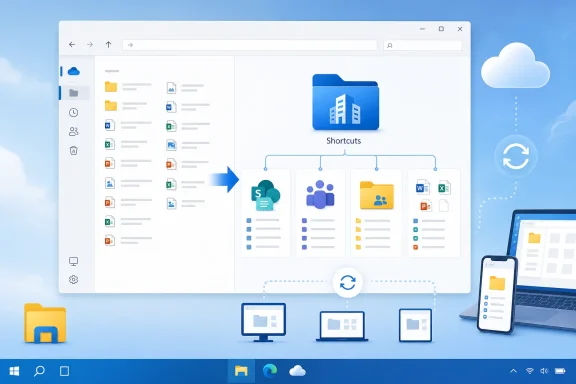
Microsoft is rolling out a deceptively useful OneDrive improvement that gives newly added shortcuts a proper home instead of scattering them across the root of My files. Beginning in July 2026, OneDrive on the web can place shortcuts in an automatically created Shortcuts folder, visually distinguished by its color and building icon, while preserving the option to save them in the traditional root location. It is a small interface change, but one that addresses a persistent organizational problem for people whose OneDrive has become a front door to dozens of SharePoint sites, Teams workspaces, shared folders, and collaborative projects.
That arrangement is more useful than an ordinary web bookmark. Supported shortcuts can appear across OneDrive on the web, the OneDrive mobile apps, Windows File Explorer, and macOS Finder, giving users a familiar file-system path into content that is physically stored elsewhere.
Microsoft increasingly recommends OneDrive shortcuts as the more versatile alternative to the older SharePoint Sync button. A shortcut follows the user between devices, whereas a traditional library synchronization relationship is configured separately on each device.
A typical employee might have shortcuts for an operating department, several active projects, a corporate template library, a manager’s shared folder, and multiple Teams channels. Each shortcut competed visually with the employee’s own folders and files, making the OneDrive root increasingly difficult to scan.
Users could manually create a folder and move shortcuts into it, but that relied on every person recognizing the problem and organizing the content consistently. Microsoft is now turning that workaround into a first-class OneDrive choice.
The key improvement is that organization happens at the moment the shortcut is created. Users no longer need to add the item to the root, navigate back to My files, select it, open the Move command, and find a suitable destination.
The expected workflow is straightforward:
If a compatible folder named Shortcuts already exists, available rollout information indicates that OneDrive can reuse it instead of creating an unnecessary duplicate. That behavior will matter in organizations where employees have already adopted a manually created folder as a workaround.
That distinction should reduce uncertainty for less technical users. OneDrive shortcuts often look and behave enough like normal folders that people do not immediately understand where the underlying files are stored or who owns them.
The roadmap entry was created on June 3, 2026, and updated on July 21, 2026. The update applies to OneDrive on the web and is being delivered through the General Availability release ring.
Organizations may nevertheless want to update internal documentation. Any guide that tells employees an added shortcut will always appear in the root of My files will become incomplete once the new destination dialog reaches the tenant.
That flexibility is important because organizations use different information architectures. One person may want Shortcuts at the top level, while another may prefer to place it inside a broader folder named Workspaces, Clients, or Shared Resources.
Renaming the folder may also help multilingual organizations or teams with established terminology. However, changing its name could reduce the value of standardized support instructions, particularly if a help desk expects everyone to see an item called Shortcuts.
This conservative behavior avoids breaking established paths and user habits. An automatic migration could change the local File Explorer path to a shared folder, potentially disrupting pinned locations, recently used file references, scripts, application links, or user-created desktop shortcuts.
The trade-off is that OneDrive will not instantly become tidy. Users with a cluttered root will still need to decide whether to move older shortcuts into the new folder.
This distinction affects storage, permissions, recovery, and lifecycle management. The folder’s convenient placement should not be interpreted as proof that the user owns the content behind it.
When synchronized successfully, it can appear in File Explorer as a traversable folder hierarchy. Users can open documents, work in Office applications, and interact with cloud files through the same OneDrive sync engine that handles their own content.
The new Shortcuts folder therefore has implications beyond the OneDrive website. Once synchronized, it may become a visible organizational layer inside the user’s local OneDrive directory.
OneDrive – Organization\Project Documents
may instead appear conceptually as:
OneDrive – Organization\Shortcuts\Project Documents
Modern Windows and Microsoft 365 applications handle long paths better than older software, but path depth still matters. Legacy programs, scripts, synchronization tools, archive utilities, and line-of-business applications may retain assumptions about path length or exact folder locations.
Users should be especially careful when moving established shortcuts if applications already reference documents through the old path. The underlying cloud content may remain unchanged while the local route used to reach it changes.
Because the Shortcuts folder behaves as a OneDrive folder, it should flow through the sync app according to the user’s synchronization settings. Selective synchronization, Files On-Demand state, account configuration, and service-side compatibility can all influence what appears locally.
Teams channel documents are generally stored in SharePoint, while files shared in certain chat contexts may reside in OneDrive. Shortcuts give users a way to assemble relevant folders from these distributed locations into a personal working view.
This is particularly valuable for employees who belong to many Teams but actively work with only a few folders from each. Rather than opening a team, selecting a channel, switching to its Files experience, and navigating through a document library, the employee can surface the required folder in OneDrive.
A SharePoint library or folder cannot normally be synchronized through both a OneDrive shortcut and a traditional Sync relationship at the same time. Attempts to combine them may produce an error indicating that a shortcut from the shared library is already being synchronized.
Organizations still need sensible site naming, ownership policies, archival processes, metadata, permissions, and lifecycle controls. Navigation hygiene cannot substitute for content governance.
The benefit will be most visible to people who use OneDrive as an everyday file system rather than merely a background backup destination. A root crowded with shared photo collections, household records, and collaborative folders can become difficult to distinguish from personally owned files.
A person may have full editing rights to a shared folder without owning it. The owner can revoke access, move the original folder, delete it, or change permissions, and those actions can affect the shortcut even though it appears within the recipient’s OneDrive.
The new folder can encourage a healthier mental model: these locations are available through OneDrive, but they may not belong to the current account.
Local storage is a separate issue. If Windows downloads files for offline use, those files can occupy disk space even though their cloud ownership remains elsewhere.
A consistent Shortcuts folder creates a recognizable convention. Help-desk staff can instruct users to look in one place, training materials can show a standard layout, and employees moving between devices can encounter a more predictable hierarchy.
An onboarding checklist could instruct an employee to add shortcuts for:
The building icon may signal that the folder contains organizational resources rather than purely personal files. Support personnel can use that distinction when diagnosing access problems, synchronization conflicts, or unexpected ownership behavior.
Organizations that need mandatory navigation, standardized workspace discovery, or role-based content presentation should continue using SharePoint navigation, Teams policies, intranet portals, Viva Connections, or other managed discovery mechanisms.
This matters if a user shares the Shortcuts folder itself. Recipients may see the organizational structure or shortcut names, but access to the target content remains governed by the original location’s permissions.
Shortcut visibility and content authorization are separate layers. Users should not treat the presence of a shortcut as evidence that everyone who can see it can open its destination.
That feature can be useful when multiple departments use generic folder names such as Documents, General, Shared, or Files. A user can apply a clearer personal label without forcing a rename on the source library.
Changes inside the target are different. Editing, moving, renaming, or deleting actual files within the shared folder may be visible to collaborators and may alter shared content.
Deleting files inside the shortcut is a real content operation. Depending on permission and synchronization state, it can remove items for everyone who relies on that location and send them to a SharePoint or OneDrive recycle bin controlled by the content owner.
Files On-Demand ordinarily allows cloud content to appear in File Explorer without downloading every file immediately. Status icons indicate whether an item is online-only, locally available, or pinned to remain available on the device.
The dedicated folder does not change those storage states. It changes where the shortcut is organized, not the underlying synchronization architecture.
This is especially significant when the shortcut points to a large SharePoint library with years of departmental records. The shortcut may be easy to add, but making all its content permanently available offline is a separate and potentially expensive decision.
Administrators should teach users to distinguish among these states:
Conversely, if a shortcut already exposes the folder through OneDrive, trying to synchronize its parent library separately can produce a conflict. A tidy Shortcuts folder may make these relationships easier to see, but it does not remove the architectural limitation.
A cautious cleanup process would be:
Training should emphasize three principles:
Support teams should avoid assuming that a missing option indicates a damaged account. The first troubleshooting step during late July 2026 should be to verify whether the feature has reached the affected user and whether that person is adding the shortcut through OneDrive on the web.
It will also be worth checking whether the final interface differs among personal, business, education, and government accounts. Microsoft occasionally adjusts wording or destination options as a cloud feature moves through production.
macOS Finder and the OneDrive mobile apps are also relevant because one of the central advantages of shortcuts is that they follow the user. A destination chosen on the web should remain understandable across every device where the account is used.
Future management improvements could make the feature more attractive to regulated enterprises. Administrators may eventually want inventory, health reporting, migration tools, or policy-driven default placement rather than relying entirely on user choice.
Even without those additions, this rollout signals that Microsoft recognizes shortcut proliferation as a genuine usability problem. The company is refining OneDrive not merely as storage, but as the user’s navigational layer across Microsoft 365.
The new OneDrive Shortcuts folder will not transform cloud collaboration on its own, but it solves a visible problem with a sensible, low-friction design. For Windows users, the change promises a cleaner My files root and a more predictable File Explorer hierarchy; for enterprises, it offers a simple convention for organizing shared workspaces without abandoning the portability of OneDrive shortcuts. Its success will depend on users understanding that tidier navigation does not alter ownership, permissions, synchronization limits, or the consequences of deleting shared content—but with those caveats understood, this is precisely the kind of small quality-of-life improvement that can make Microsoft 365 feel substantially less chaotic.
 Background
How OneDrive shortcuts became essential
The “Add shortcut to OneDrive” command was designed to bridge the gap between personal cloud storage and shared Microsoft 365 content. A user can take a folder shared from another person’s OneDrive, a SharePoint document library, or a Teams-connected site and make it appear within their own OneDrive file hierarchy.That arrangement is more useful than an ordinary web bookmark. Supported shortcuts can appear across OneDrive on the web, the OneDrive mobile apps, Windows File Explorer, and macOS Finder, giving users a familiar file-system path into content that is physically stored elsewhere.
Microsoft increasingly recommends OneDrive shortcuts as the more versatile alternative to the older SharePoint Sync button. A shortcut follows the user between devices, whereas a traditional library synchronization relationship is configured separately on each device.
The organizational problem
The original experience placed added shortcuts directly in the root of My files. That was convenient when someone had two or three shared locations, but it did not scale gracefully once organizations began treating Teams and SharePoint as their default collaborative storage platform.A typical employee might have shortcuts for an operating department, several active projects, a corporate template library, a manager’s shared folder, and multiple Teams channels. Each shortcut competed visually with the employee’s own folders and files, making the OneDrive root increasingly difficult to scan.
Users could manually create a folder and move shortcuts into it, but that relied on every person recognizing the problem and organizing the content consistently. Microsoft is now turning that workaround into a first-class OneDrive choice.
What Microsoft Is Changing
A destination choice during shortcut creation
When users add a shortcut, OneDrive will offer a choice between saving it in the dedicated Shortcuts folder or placing it in My files as before. Reports associated with the rollout also indicate that file shortcuts may offer an Other locations option, allowing more granular placement when supported.The key improvement is that organization happens at the moment the shortcut is created. Users no longer need to add the item to the root, navigate back to My files, select it, open the Move command, and find a suitable destination.
The expected workflow is straightforward:
- The user locates supported shared content in OneDrive, SharePoint, or another Microsoft 365 surface.
- The user selects Add shortcut to OneDrive or the equivalent command.
- OneDrive asks where the shortcut should be saved.
- The user selects the dedicated Shortcuts folder or another available destination.
- OneDrive confirms where the new shortcut has been placed.
Automatic folder creation
The Shortcuts folder is created automatically the first time the user chooses it. There is no separate setup process, tenant configuration requirement, or mandatory migration task.If a compatible folder named Shortcuts already exists, available rollout information indicates that OneDrive can reuse it instead of creating an unnecessary duplicate. That behavior will matter in organizations where employees have already adopted a manually created folder as a workaround.
A recognizable visual identity
Microsoft is giving the folder a distinct color and building icon so that it stands out from ordinary content. The visual treatment signals that this is an organizational container associated with shared or externally located resources, rather than merely another user-created directory.That distinction should reduce uncertainty for less technical users. OneDrive shortcuts often look and behave enough like normal folders that people do not immediately understand where the underlying files are stored or who owns them.
Availability and Rollout
General availability in July 2026
Microsoft 365 Roadmap ID 565028 lists the feature as Rolling out, with general availability scheduled for July 2026. The associated Microsoft 365 communication described a rollout beginning in mid-July and completing by late July, although cloud deployment schedules can shift if Microsoft encounters service or usability issues.The roadmap entry was created on June 3, 2026, and updated on July 21, 2026. The update applies to OneDrive on the web and is being delivered through the General Availability release ring.
Broad government-cloud coverage
The feature is scheduled for the following Microsoft 365 cloud environments:- Worldwide Standard Multi-Tenant customers are included in the general commercial rollout.
- Government Community Cloud organizations are included.
- GCC High environments are included.
- Department of Defense environments are included.
No immediate administrator action
The rollout does not require administrators to create the folder for users or deploy a new Windows configuration. Because the placement choice appears in OneDrive on the web, availability is controlled primarily through Microsoft’s cloud deployment.Organizations may nevertheless want to update internal documentation. Any guide that tells employees an added shortcut will always appear in the root of My files will become incomplete once the new destination dialog reaches the tenant.
How the Shortcuts Folder Behaves
It remains an ordinary movable folder
Despite its distinctive appearance and automatic creation, the Shortcuts folder is not intended to become a rigid system location. Microsoft says users can move, rename, share, or remove it in much the same way as another OneDrive folder.That flexibility is important because organizations use different information architectures. One person may want Shortcuts at the top level, while another may prefer to place it inside a broader folder named Workspaces, Clients, or Shared Resources.
Renaming the folder may also help multilingual organizations or teams with established terminology. However, changing its name could reduce the value of standardized support instructions, particularly if a help desk expects everyone to see an item called Shortcuts.
Existing shortcuts are not automatically reorganized
The new feature is primarily a destination option for shortcuts added after rollout. Existing shortcuts are expected to remain where users previously placed them rather than being moved automatically.This conservative behavior avoids breaking established paths and user habits. An automatic migration could change the local File Explorer path to a shared folder, potentially disrupting pinned locations, recently used file references, scripts, application links, or user-created desktop shortcuts.
The trade-off is that OneDrive will not instantly become tidy. Users with a cluttered root will still need to decide whether to move older shortcuts into the new folder.
The container does not change ownership
Putting a shortcut inside the Shortcuts folder does not transfer the underlying shared data into the user’s OneDrive. The shortcut remains a reference to content stored in another person’s OneDrive, a SharePoint site, or a Teams-connected document library.This distinction affects storage, permissions, recovery, and lifecycle management. The folder’s convenient placement should not be interpreted as proof that the user owns the content behind it.
Windows File Explorer Implications
OneDrive shortcuts are more than Windows shortcut files
Windows users may understandably associate the word “shortcut” with.lnk files, desktop icons, or simple links that point somewhere else. A OneDrive shortcut to a shared folder is architecturally different.When synchronized successfully, it can appear in File Explorer as a traversable folder hierarchy. Users can open documents, work in Office applications, and interact with cloud files through the same OneDrive sync engine that handles their own content.
The new Shortcuts folder therefore has implications beyond the OneDrive website. Once synchronized, it may become a visible organizational layer inside the user’s local OneDrive directory.
Paths may become longer
Moving shortcuts beneath another folder inserts an additional component into the Windows path. A location that previously appeared as:OneDrive – Organization\Project Documents
may instead appear conceptually as:
OneDrive – Organization\Shortcuts\Project Documents
Modern Windows and Microsoft 365 applications handle long paths better than older software, but path depth still matters. Legacy programs, scripts, synchronization tools, archive utilities, and line-of-business applications may retain assumptions about path length or exact folder locations.
Users should be especially careful when moving established shortcuts if applications already reference documents through the old path. The underlying cloud content may remain unchanged while the local route used to reach it changes.
File Explorer visibility depends on synchronization
The roadmap specifies OneDrive on the web as the delivery platform for the destination-selection experience. That does not mean the folder is necessarily web-only after creation.Because the Shortcuts folder behaves as a OneDrive folder, it should flow through the sync app according to the user’s synchronization settings. Selective synchronization, Files On-Demand state, account configuration, and service-side compatibility can all influence what appears locally.
SharePoint and Teams Context
A common front end for distributed content
The Shortcuts folder reinforces OneDrive’s role as a personalized access layer over Microsoft 365 storage. OneDrive, SharePoint, and Teams are often presented as separate products, but their file experiences share underlying services and document-library infrastructure.Teams channel documents are generally stored in SharePoint, while files shared in certain chat contexts may reside in OneDrive. Shortcuts give users a way to assemble relevant folders from these distributed locations into a personal working view.
This is particularly valuable for employees who belong to many Teams but actively work with only a few folders from each. Rather than opening a team, selecting a channel, switching to its Files experience, and navigating through a document library, the employee can surface the required folder in OneDrive.
Shortcuts versus the SharePoint Sync button
Microsoft supports two broad ways to expose SharePoint library content in File Explorer:- Add shortcut to OneDrive creates a user-level shortcut that can follow the user across devices.
- Sync establishes a device-specific synchronization relationship with a SharePoint library.
A SharePoint library or folder cannot normally be synchronized through both a OneDrive shortcut and a traditional Sync relationship at the same time. Attempts to combine them may produce an error indicating that a shortcut from the shared library is already being synchronized.
Information architecture still matters
A dedicated Shortcuts folder improves personal presentation, but it does not repair a badly designed SharePoint environment. If employees cannot determine which site is authoritative, who owns a library, or which project folder contains the current version, placing more shortcuts in a neat container merely hides the disorder.Organizations still need sensible site naming, ownership policies, archival processes, metadata, permissions, and lifecycle controls. Navigation hygiene cannot substitute for content governance.
Consumer Impact
A cleaner personal OneDrive root
Home users can accumulate shared folders from family members, volunteer groups, schools, and personal projects. The new folder gives those shared resources a predictable location without forcing the user to reorganize every shortcut manually.The benefit will be most visible to people who use OneDrive as an everyday file system rather than merely a background backup destination. A root crowded with shared photo collections, household records, and collaborative folders can become difficult to distinguish from personally owned files.
Better mental separation
Placing shortcuts together creates a useful conceptual boundary between “my content” and “content I can access.” That boundary is not a security control, but it can improve user understanding.A person may have full editing rights to a shared folder without owning it. The owner can revoke access, move the original folder, delete it, or change permissions, and those actions can affect the shortcut even though it appears within the recipient’s OneDrive.
The new folder can encourage a healthier mental model: these locations are available through OneDrive, but they may not belong to the current account.
No storage duplication simply from placement
A shared-folder shortcut does not ordinarily consume the recipient’s cloud-storage quota as if the entire folder had been copied into the account. The content continues to count against the owner’s storage allocation.Local storage is a separate issue. If Windows downloads files for offline use, those files can occupy disk space even though their cloud ownership remains elsewhere.
Enterprise Impact
Less root-level clutter at scale
The productivity gain from one fewer messy folder list may seem modest, but the value compounds across large organizations. Thousands of employees can spend small amounts of time searching, sorting, and explaining similarly named shared locations.A consistent Shortcuts folder creates a recognizable convention. Help-desk staff can instruct users to look in one place, training materials can show a standard layout, and employees moving between devices can encounter a more predictable hierarchy.
Improved onboarding and project work
Project-driven organizations frequently ask new participants to add shortcuts to several shared workspaces. The dedicated folder provides an obvious collection point for those resources.An onboarding checklist could instruct an employee to add shortcuts for:
- The department’s main document library.
- The employee handbook and policy folder.
- The active project workspace.
- The team’s templates and reference material.
- Any role-specific operational repository.
A small reduction in support friction
Users often struggle to distinguish synchronized SharePoint libraries, OneDrive shortcuts, shared folders, and ordinary local folders. The new visual container does not eliminate that complexity, but it gives support teams another contextual clue.The building icon may signal that the folder contains organizational resources rather than purely personal files. Support personnel can use that distinction when diagnosing access problems, synchronization conflicts, or unexpected ownership behavior.
No automatic governance control
Administrators should not mistake the folder for a managed catalog. Users can reportedly move, rename, share, or remove it, so the experience remains personal and flexible rather than centrally enforced.Organizations that need mandatory navigation, standardized workspace discovery, or role-based content presentation should continue using SharePoint navigation, Teams policies, intranet portals, Viva Connections, or other managed discovery mechanisms.
Permissions, Sharing, and Ownership
Shortcut placement does not grant access
Moving a shortcut into the Shortcuts folder does not alter permission to the target. Someone who lacks access to the underlying SharePoint or OneDrive location cannot gain access merely because another user shares or exposes the shortcut container.This matters if a user shares the Shortcuts folder itself. Recipients may see the organizational structure or shortcut names, but access to the target content remains governed by the original location’s permissions.
Shortcut visibility and content authorization are separate layers. Users should not treat the presence of a shortcut as evidence that everyone who can see it can open its destination.
Renaming may be personal
For supported shared-folder shortcuts, renaming a shortcut in OneDrive is generally a personal presentation change. The new label can appear across that user’s OneDrive experiences without changing the folder name seen by its owner and other collaborators.That feature can be useful when multiple departments use generic folder names such as Documents, General, Shared, or Files. A user can apply a clearer personal label without forcing a rename on the source library.
Changes inside the target are different. Editing, moving, renaming, or deleting actual files within the shared folder may be visible to collaborators and may alter shared content.
Removal is not the same as deletion
Users must distinguish Remove shortcut from deleting content. Removing a shortcut should detach the reference from the user’s OneDrive without deleting the underlying shared folder.Deleting files inside the shortcut is a real content operation. Depending on permission and synchronization state, it can remove items for everyone who relies on that location and send them to a SharePoint or OneDrive recycle bin controlled by the content owner.
Sync, Files On-Demand, and Storage
The shortcut participates in OneDrive synchronization
A OneDrive shortcut is not necessarily a lightweight web bookmark that remains isolated from the desktop sync client. When the relevant account is synchronized, the folder hierarchy can appear locally and participate in Files On-Demand behavior.Files On-Demand ordinarily allows cloud content to appear in File Explorer without downloading every file immediately. Status icons indicate whether an item is online-only, locally available, or pinned to remain available on the device.
The dedicated folder does not change those storage states. It changes where the shortcut is organized, not the underlying synchronization architecture.
Offline choices require care
A user who marks a large shortcut as Always keep on this device may trigger substantial downloading. That can consume local disk capacity, network bandwidth, and synchronization time.This is especially significant when the shortcut points to a large SharePoint library with years of departmental records. The shortcut may be easy to add, but making all its content permanently available offline is a separate and potentially expensive decision.
Administrators should teach users to distinguish among these states:
- Online-only content occupies minimal local space until opened.
- Locally available content has been downloaded but may be released automatically when Windows needs space.
- Always available content remains pinned locally until the user changes its status.
- A downloaded copy is separate from the shared original and does not automatically preserve collaboration.
Duplicate synchronization remains a concern
The new folder does not permit users to bypass the restriction against syncing the same SharePoint content through multiple mechanisms. If a library is already connected through the SharePoint Sync command, adding a shortcut to the same location may fail.Conversely, if a shortcut already exposes the folder through OneDrive, trying to synchronize its parent library separately can produce a conflict. A tidy Shortcuts folder may make these relationships easier to see, but it does not remove the architectural limitation.
Migration and Adoption Guidance
Existing users should reorganize selectively
There is no need to move every existing shortcut immediately. Users should first identify whether any shortcut path is referenced by applications, pinned in File Explorer, used in scripts, or included in automated workflows.A cautious cleanup process would be:
- Create or activate the dedicated Shortcuts folder through the new OneDrive experience.
- Identify older shortcuts currently stored in the My files root.
- Move one noncritical shortcut into the new folder.
- Allow OneDrive synchronization to complete on all relevant devices.
- Confirm that File Explorer, Office applications, and pinned links still work.
- Move remaining shortcuts in manageable groups.
- Update any documentation or automation that depends on the old paths.
Organizations should update training
Microsoft 365 adoption materials should explain the new placement option and the distinction between the shortcut container and its targets. Screenshots showing the old command may also need replacement.Training should emphasize three principles:
- A shortcut provides access but does not transfer ownership.
- Removing a shortcut is safer than deleting items through it.
- A shortcut and a traditional SharePoint library sync should not be configured for the same location.
Help desks should expect mixed experiences
Cloud rollouts do not reach every account simultaneously. During the deployment window, one user may see the Shortcuts destination while another user in the same organization still receives the older behavior.Support teams should avoid assuming that a missing option indicates a damaged account. The first troubleshooting step during late July 2026 should be to verify whether the feature has reached the affected user and whether that person is adding the shortcut through OneDrive on the web.
Strengths and Opportunities
The new OneDrive Shortcuts folder offers several practical benefits without forcing users into a rigid organizational model.- It reduces clutter at the root of My files. Personally owned folders and collaborative entry points no longer need to compete in one undifferentiated list.
- It makes shortcut placement intentional. Users choose a destination while adding the shortcut instead of reorganizing it afterward.
- It improves consistency across projects. Shared OneDrive, SharePoint, and Teams locations can be collected under a predictable container.
- It supports a clearer ownership model. The dedicated area can remind users that shortcut targets may be owned and governed elsewhere.
- It requires little deployment effort. The folder is created automatically, and the web experience arrives through Microsoft’s cloud rollout.
- It preserves user flexibility. The folder can be moved, renamed, shared, or removed rather than functioning as a locked system directory.
- It may simplify support instructions. Administrators can direct users to a recognizable folder when helping them locate shared workspaces.
- It strengthens OneDrive as a Microsoft 365 hub. OneDrive becomes a cleaner personalized front end for content distributed across multiple services.
Risks and Concerns
The feature also introduces several caveats that users and administrators should understand before reorganizing established environments.- Moving shortcuts can change local paths. Applications, pinned locations, scripts, and recent-file references may still point to the previous File Explorer path.
- An extra folder level increases path depth. Legacy applications may encounter problems with deeply nested SharePoint structures and long file names.
- Users may misunderstand ownership. Content appearing inside OneDrive can still belong to another person or SharePoint site.
- Sharing the container does not guarantee target access. Permissions remain attached to the original shared location.
- Deletion remains potentially hazardous. Removing a shortcut and deleting files within a shortcut are fundamentally different operations.
- Large shortcut targets can affect devices. Offline pinning may download substantial amounts of SharePoint data.
- Duplicate sync methods can conflict. Users cannot safely combine Add shortcut to OneDrive and the SharePoint Sync button for the same content.
- Existing clutter will remain. Microsoft is not expected to reorganize old shortcuts automatically.
- The folder is not a governance mechanism. Users can rename or move it, and it does not impose consistent information architecture.
- Rollout timing may vary. Some users may receive the web option earlier than others during the deployment window.
What to Watch Next
Completion of the July rollout
The first milestone is whether Microsoft completes deployment across commercial and government environments by the end of July 2026. Administrators should monitor the Microsoft 365 Message Center and test the experience with representative accounts rather than assuming roadmap status guarantees universal availability on a specific day.It will also be worth checking whether the final interface differs among personal, business, education, and government accounts. Microsoft occasionally adjusts wording or destination options as a cloud feature moves through production.
Cross-platform presentation
The destination selection begins on the web, but WindowsForum users will care most about the resulting behavior in File Explorer. The key questions are whether the custom visual identity appears consistently on Windows, how moved shortcuts affect Quick Access and recent items, and whether older sync-client versions display the folder correctly.macOS Finder and the OneDrive mobile apps are also relevant because one of the central advantages of shortcuts is that they follow the user. A destination chosen on the web should remain understandable across every device where the account is used.
Administrative controls and reporting
Microsoft already provides organizations with the ability to disable Add shortcut to OneDrive at the tenant level. What remains less comprehensive is centralized reporting that helps administrators understand which shortcuts users have created, where they point, and whether they overlap with traditional library sync relationships.Future management improvements could make the feature more attractive to regulated enterprises. Administrators may eventually want inventory, health reporting, migration tools, or policy-driven default placement rather than relying entirely on user choice.
Whether Microsoft expands the concept
A dedicated Shortcuts folder could become the foundation for richer workspace organization. Microsoft might eventually add grouping by site, owner, team, project, or activity, or expose clearer labels showing whether a target belongs to OneDrive, SharePoint, or Teams.Even without those additions, this rollout signals that Microsoft recognizes shortcut proliferation as a genuine usability problem. The company is refining OneDrive not merely as storage, but as the user’s navigational layer across Microsoft 365.
The new OneDrive Shortcuts folder will not transform cloud collaboration on its own, but it solves a visible problem with a sensible, low-friction design. For Windows users, the change promises a cleaner My files root and a more predictable File Explorer hierarchy; for enterprises, it offers a simple convention for organizing shared workspaces without abandoning the portability of OneDrive shortcuts. Its success will depend on users understanding that tidier navigation does not alter ownership, permissions, synchronization limits, or the consequences of deleting shared content—but with those caveats understood, this is precisely the kind of small quality-of-life improvement that can make Microsoft 365 feel substantially less chaotic.
References
- Primary source: Microsoft 365 Roadmap
Published: 2026-07-21T22:37:32.0478671Z
Microsoft 365 Roadmap | Microsoft 365
The Microsoft 365 Roadmap lists updates that are currently planned for applicable subscribers. Check here for more information on the status of new features and updates.www.microsoft.com
- Official source: support.microsoft.com
Add shortcuts to shared folders in OneDrive | Microsoft Support
Add shortcuts to shared folders in OneDrivesupport.microsoft.com - Official source: learn.microsoft.com
SharePoint shortcuts in OneDrive - should they sync to local drive? - Microsoft Q&A
We are moving a lot of our data into SharePoint. To make this easier for staff, I am telling them to add a shortcut to OneDrive from the SharePoint main screen. This however is synchronising all the SharePoint files to the local hard drive, filling it…learn.microsoft.com - Related coverage: supersimple365.com
Choose where to save shortcuts in OneDrive - Super Simple 365
Short VersionOneDrive is getting a new option when adding shortcuts, letting you save them to a dedicated Shortcuts folder rather than always dropping them in the root of My files. Due mid to late July 2026. DetailsWhen you add a shortcut in OneDrive, you'll be able to choose whether to... supersimple365.com
- Related coverage: geekrewind.com
How add Shortcuts to Add a Shared Folder in Your OneDrive | Geek Rewind
Easily add OneDrive shared folder shortcuts to 'My Files' for quick access across all your devices. Streamline collaboration and keep important doc…geekrewind.com - Related coverage: windowsforum.com
OneDrive Shortcuts Folder Arrives July 2026 to Stop Shared Folder Clutter | Windows Forum
Microsoft plans to roll out a new OneDrive option in July 2026 that lets users place newly added shared-folder shortcuts into a dedicated “Shortcuts” folder...windowsforum.com