

OnePlus Nord 4 connection failures to a PC are usually less dramatic than they feel: in most cases, the phone is fine, the computer is fine, and the problem sits somewhere in the narrow gap between cable quality, USB mode selection, Windows drivers, and OxygenOS behavior. The user-provided draft article points to the most common culprits already: a charging-only cable, the wrong USB connection mode, missing developer defaults, and a simple reboot or update that clears a handshake failure. In other words, this is one of those maddeningly ordinary problems that can block photo transfers, backups, and device management until a small setting is corrected.
USB connectivity problems between phones and PCs are old news, but they persist because the ecosystem is still fragmented. A modern Android phone has to negotiate with a Windows driver stack, a cable that may or may not support data, and a connection mode that may default to charging only. That is why a device can appear to be “working” while still refusing to show up as a storage device, media device, or backup target.
The OnePlus Nord 4 sits squarely in the middle of that reality. It ships with fast charging hardware and USB-C connectivity, but that does not automatically make every cable or port suitable for file transfer. The user’s draft correctly notes the practical distinction between the included charging cable and a genuine data-capable USB-C cable. That distinction matters because a cable can power the device perfectly well while silently failing the data lines.
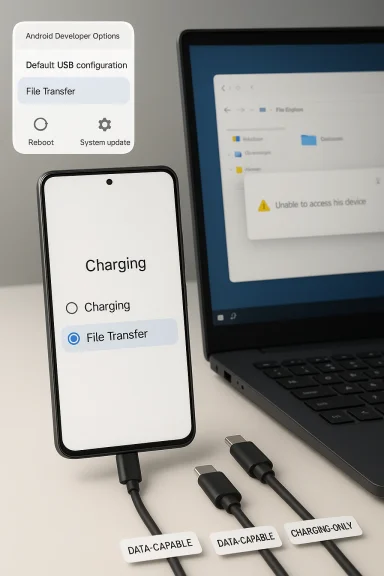
On the software side, Android’s MTP behavior has long been a source of confusion. A phone can default to Charging, Photo Transfer, or File Transfer, and Windows will only see the device properly when the right profile is selected. That is why the fix often begins on the phone itself, not in Device Manager. The fact that a notification should appear as soon as the cable is plugged in is a key clue; if it does not, the connection mode may be stuck or overridden.
Developer options add another layer. Setting the Default USB configuration to File Transfer makes the phone prefer a usable data profile instead of falling back to charging-only behavior. This is not a glamorous fix, but it is often the difference between “nothing happens” and a usable connection. The reason it helps is simple: it removes ambiguity from the handshake.
There is also a broader pattern here that is worth remembering. Most PC-to-phone connection failures are not hardware failures at all; they are state problems. A bad cable choice, a stale driver, an incomplete update, or a one-time USB negotiation glitch can break a routine task. That is why basic troubleshooting remains effective even in 2026, despite more advanced charging standards and better cables being available.
The simplest test is to swap in a known-good cable that you already trust for data transfer. If the phone shows up immediately, the issue was not the phone, Windows, or OxygenOS; it was the wire. That kind of failure is frustrating, but it is also the best-case scenario because it is cheap to fix.
A second useful check is the USB port on the PC. Front-panel ports, hubs, docking stations, and aging desktop headers can all introduce instability. A rear motherboard port is often the cleanest test because it removes extra variables. If the phone works there but not through a hub, the issue is almost certainly the path between them.
If that prompt does not appear, the draft’s recommended path through Developer options is a reasonable fallback. Enabling developer mode and setting Default USB configuration to File Transfer gives the phone a persistent preference. That is especially useful when the handset keeps reverting to charging-only mode after reboot or unplug.
Windows users should also remember that a USB connection involves both ends negotiating behavior. The phone may be ready for data, but Windows may still need the correct MTP response, driver binding, or device enumeration. If the prompt is missing on the phone and nothing appears in File Explorer on the PC, the problem is likely upstream of Windows Explorer itself.
A restart is particularly useful after a cable swap or USB mode change. Those changes can leave stale device state behind, and a reboot forces both sides to renegotiate from scratch. That is often enough to get a “stuck” phone to present itself correctly.
The same logic applies if the issue appears after a recent update. A reboot may flush broken sessions or a hung driver service that is not obvious to the user. The goal is not magic; it is simply resetting state.
The key point is not that every update will mention USB on the release notes. It is that low-level system improvements often touch communication behavior indirectly. Something as mundane as an updated device policy, power management tweak, or USB stack correction can change whether Windows sees the phone.
The same argument applies to the desktop side. Windows updates and chipset drivers can influence how ports enumerate devices, especially on newer USB controllers. That is why a connection failure should never be blamed on the handset alone.
This is where many users overcomplicate the problem. They jump immediately to third-party tools when Windows Device Manager and built-in troubleshooters may already provide the answer. If the phone appears in Device Manager with a warning icon, that is a strong clue that the communication path is alive but the driver layer is broken.
For stubborn cases, some users also benefit from updating the relevant chipset and USB controller drivers on the PC itself. This is especially true on desktops and laptops with newer controller hardware, where the USB stack may need vendor-specific support.
That difference can confuse troubleshooting because the same cable and same phone may produce different results depending on the computer. Users sometimes assume the phone is broken because File Explorer or Finder does nothing. In reality, the desktop platform may simply be expecting a different handshake.
Cross-platform testing also helps separate software from hardware. A cable that behaves inconsistently across machines may be marginal rather than fully dead. That is especially common with older or cheap USB-C cables that can still deliver power but not stable data.
The Nord 4’s charging ecosystem makes this even more likely. A cable that handles 100W SuperVOOC charging can create the impression that it is “better” than a plain USB-C cable, but power delivery and data transfer are separate design goals. A cable can excel at one and fail at the other.
The reality is more mechanical. A computer needs a stable data pathway, not just a live power line. If the data pins are missing, limited, or unstable, you get exactly the symptom the user described: a phone that seems connected but never actually connects.
The draft article’s advice aligns well with that principle. It focuses on the visible, low-risk fixes before moving into hidden settings. That makes the advice accessible for everyday readers who just want their phone to show up on the desktop again.
Enterprise and semi-pro users also have a slightly different risk profile. They may rely on managed devices, locked-down USB policies, or endpoint security tools that interfere with MTP behavior. In those environments, the problem may not be the cable at all, but a policy decision made by IT or security software.
This is why power users should document the exact failure mode. Does the phone charge? Does it appear in Device Manager? Does it show a transfer prompt and then disappear? Those distinctions matter when the issue is escalated to IT or manufacturer support.
For readers, the smartest response is to treat the connection as a chain. If one link fails, the whole task fails. The chain includes the cable, the port, the phone’s USB mode, the operating system’s driver stack, and the current firmware on both devices. When you check them in order, the fix usually reveals itself quickly.
Source: Technobezz OnePlus Nord 4 Not Connecting to PC? 10 Fixes (2026)
 Background
USB connectivity problems between phones and PCs are old news, but they persist because the ecosystem is still fragmented. A modern Android phone has to negotiate with a Windows driver stack, a cable that may or may not support data, and a connection mode that may default to charging only. That is why a device can appear to be “working” while still refusing to show up as a storage device, media device, or backup target.The OnePlus Nord 4 sits squarely in the middle of that reality. It ships with fast charging hardware and USB-C connectivity, but that does not automatically make every cable or port suitable for file transfer. The user’s draft correctly notes the practical distinction between the included charging cable and a genuine data-capable USB-C cable. That distinction matters because a cable can power the device perfectly well while silently failing the data lines.
On the software side, Android’s MTP behavior has long been a source of confusion. A phone can default to Charging, Photo Transfer, or File Transfer, and Windows will only see the device properly when the right profile is selected. That is why the fix often begins on the phone itself, not in Device Manager. The fact that a notification should appear as soon as the cable is plugged in is a key clue; if it does not, the connection mode may be stuck or overridden.
Developer options add another layer. Setting the Default USB configuration to File Transfer makes the phone prefer a usable data profile instead of falling back to charging-only behavior. This is not a glamorous fix, but it is often the difference between “nothing happens” and a usable connection. The reason it helps is simple: it removes ambiguity from the handshake.
There is also a broader pattern here that is worth remembering. Most PC-to-phone connection failures are not hardware failures at all; they are state problems. A bad cable choice, a stale driver, an incomplete update, or a one-time USB negotiation glitch can break a routine task. That is why basic troubleshooting remains effective even in 2026, despite more advanced charging standards and better cables being available.
The Most Likely Cause: Cable and Port Mismatch
The cable is still the first thing to inspect, and for good reason. A USB-C connector does not guarantee USB data support, and a cable bundled for charging can look identical to one that can carry files. The user’s draft is right to emphasize that the Nord 4’s included cable may be optimized for charging rather than reliable transfer in every setup.The simplest test is to swap in a known-good cable that you already trust for data transfer. If the phone shows up immediately, the issue was not the phone, Windows, or OxygenOS; it was the wire. That kind of failure is frustrating, but it is also the best-case scenario because it is cheap to fix.
Why the Wrong Cable Still Fools People
Many users assume that if a cable charges a phone fast, it must also support everything else. That assumption is understandable and often wrong. Fast charging and data transfer are related only at the connector level, not necessarily in the internal wiring.A second useful check is the USB port on the PC. Front-panel ports, hubs, docking stations, and aging desktop headers can all introduce instability. A rear motherboard port is often the cleanest test because it removes extra variables. If the phone works there but not through a hub, the issue is almost certainly the path between them.
- Use a known data-capable USB-C cable.
- Try a rear motherboard USB port.
- Avoid hubs during first-stage troubleshooting.
- Test with another PC if available.
- Confirm the phone charges and transfers data separately.
USB Mode and Android Handshake Settings
If the cable is not the issue, the next place to look is the USB mode on the phone. Android devices often connect in a conservative default state, and Windows cannot browse files until the device authorizes data access. On the Nord 4, that usually means selecting File Transfer from the USB notification shade when the phone is plugged in.If that prompt does not appear, the draft’s recommended path through Developer options is a reasonable fallback. Enabling developer mode and setting Default USB configuration to File Transfer gives the phone a persistent preference. That is especially useful when the handset keeps reverting to charging-only mode after reboot or unplug.
How to Make the Setting Stick
This is where a lot of users get trapped. They successfully switch the mode once, then disconnect and reconnect later only to discover the phone is back to charging. By making file transfer the default, you reduce those repeat failures. It is a small change, but it carries outsized practical value.Windows users should also remember that a USB connection involves both ends negotiating behavior. The phone may be ready for data, but Windows may still need the correct MTP response, driver binding, or device enumeration. If the prompt is missing on the phone and nothing appears in File Explorer on the PC, the problem is likely upstream of Windows Explorer itself.
- Tap the USB notification on the phone.
- Select File Transfer rather than charging.
- In Developer options, set Default USB configuration to file transfer.
- Reconnect after changing the setting.
- Watch for a new Windows device prompt.
Restarting Still Works More Often Than It Should
It is easy to dismiss a reboot as too basic, but basic does not mean ineffective. Restarting both the phone and the PC clears temporary state in the USB controller, the MTP stack, and any background service that may have latched onto the wrong configuration. The user’s draft correctly places this step high in the list.A restart is particularly useful after a cable swap or USB mode change. Those changes can leave stale device state behind, and a reboot forces both sides to renegotiate from scratch. That is often enough to get a “stuck” phone to present itself correctly.
Why Temporary Glitches Are So Common
USB is more fragile than many people realize because it depends on layered negotiations. The phone identifies itself, Windows requests drivers, the cable carries the signal, and the file protocol has to initialize cleanly. If any one of those steps is interrupted, the whole chain can fail even though the hardware is physically sound.The same logic applies if the issue appears after a recent update. A reboot may flush broken sessions or a hung driver service that is not obvious to the user. The goal is not magic; it is simply resetting state.
- Reboot the Nord 4.
- Restart the Windows PC or Mac.
- Reconnect with the verified data cable.
- Test before installing anything else.
- Retry after every major configuration change.
OxygenOS Updates and Compatibility Fixes
Software updates are not a cure-all, but they do matter. The draft’s suggestion to check for a OnePlus OxygenOS update is well grounded, because platform patches frequently include USB stability fixes, device-specific compatibility improvements, and general system refinements. When a phone and PC refuse to negotiate properly, outdated firmware is one of the possible causes.The key point is not that every update will mention USB on the release notes. It is that low-level system improvements often touch communication behavior indirectly. Something as mundane as an updated device policy, power management tweak, or USB stack correction can change whether Windows sees the phone.
Why Updates Can Repair “Invisible” Problems
USB faults are often emergent problems rather than single-feature bugs. The phone may have had a perfectly stable USB role before an update, a setting change, or a new PC driver created a mismatch. Updating the phone restores the manufacturer’s latest compatibility assumptions.The same argument applies to the desktop side. Windows updates and chipset drivers can influence how ports enumerate devices, especially on newer USB controllers. That is why a connection failure should never be blamed on the handset alone.
- Check for OxygenOS updates.
- Install any pending phone firmware patches.
- Update Windows before assuming the cable is bad.
- Re-test after rebooting both devices.
- Keep note of whether the failure started after an update.
Windows Driver and MTP Troubleshooting
When the Nord 4 still refuses to connect, Windows becomes the next suspect. The operating system relies on the correct MTP driver and device binding to expose phone storage in File Explorer. If the driver is corrupted, missing, or misbound, the phone may charge but never appear as a usable device.This is where many users overcomplicate the problem. They jump immediately to third-party tools when Windows Device Manager and built-in troubleshooters may already provide the answer. If the phone appears in Device Manager with a warning icon, that is a strong clue that the communication path is alive but the driver layer is broken.
What to Check in Device Manager
The first practical move is to inspect the device entry when the phone is plugged in. If Windows shows a generic portable device, an unknown device, or an MTP-related entry with an error, reinstalling the driver can help. Unplugging the phone, removing the device entry, rebooting, and reconnecting may force a cleaner re-detection.For stubborn cases, some users also benefit from updating the relevant chipset and USB controller drivers on the PC itself. This is especially true on desktops and laptops with newer controller hardware, where the USB stack may need vendor-specific support.
- Connect the phone with a data-capable cable.
- Open Device Manager and look for new or faulty entries.
- Uninstall the problematic device if it is clearly tied to the phone.
- Reboot the PC.
- Reconnect and let Windows reinstall drivers.
- Check for yellow warning icons.
- Look for portable device and MTP entries.
- Use official motherboard or laptop drivers.
- Avoid random driver-download sites.
- Retest after a clean reboot.
Mac Versus Windows: Different Rules, Same Symptoms
The user’s draft mentions both Windows PC and Mac, and that distinction matters. Windows typically uses MTP-style behavior to access Android file content, while macOS often requires a separate Android file transfer utility or equivalent workflow. If the Nord 4 connects to one platform and not the other, the root cause may be protocol handling rather than a phone defect.That difference can confuse troubleshooting because the same cable and same phone may produce different results depending on the computer. Users sometimes assume the phone is broken because File Explorer or Finder does nothing. In reality, the desktop platform may simply be expecting a different handshake.
Why Cross-Platform Testing Helps
Testing on another computer is one of the fastest ways to narrow the fault. If the Nord 4 works on a second PC or on a Mac using the proper file transfer method, the phone and cable are likely healthy. If it fails everywhere, the phone settings or cable quality deserve more attention.Cross-platform testing also helps separate software from hardware. A cable that behaves inconsistently across machines may be marginal rather than fully dead. That is especially common with older or cheap USB-C cables that can still deliver power but not stable data.
- Test on a second Windows PC if possible.
- Try a Mac only with the right transfer workflow.
- Compare behavior with the same cable.
- Observe whether the problem is universal or machine-specific.
- Use that result to narrow the next step.
Cable Quality, Power Delivery, and User Expectations
There is a deeper reason this class of problem keeps recurring: consumers increasingly assume that every USB-C accessory is functionally equivalent. It is not. The connector has standardized the shape, but not all cables are wired for the same capabilities, and power-only cables are still common enough to cause serious confusion.The Nord 4’s charging ecosystem makes this even more likely. A cable that handles 100W SuperVOOC charging can create the impression that it is “better” than a plain USB-C cable, but power delivery and data transfer are separate design goals. A cable can excel at one and fail at the other.
Why Marketing Language Misleads People
Charging marketing tends to emphasize speed, wattage, and convenience, while file transfer is rarely the headline feature. That leaves users with an incomplete mental model. They see USB-C, see fast charging, and assume the rest is automatic.The reality is more mechanical. A computer needs a stable data pathway, not just a live power line. If the data pins are missing, limited, or unstable, you get exactly the symptom the user described: a phone that seems connected but never actually connects.
- Treat charging cables as suspect for data until proven otherwise.
- Use cables explicitly known for file transfer.
- Don’t assume USB-C means “full-featured.”
- Consider age and wear as causes of failure.
- Keep one “known good” data cable for testing.
OnePlus Nord 4 Users: Practical Priority Order
For a Nord 4 owner, the most efficient path is to work from the cheapest and most reversible fix to the more technical ones. That means cable first, then connection mode, then restart, then software updates, and only then driver cleanup. This is the opposite of how many users think, but it is the right order because it saves time and reduces unnecessary changes.The draft article’s advice aligns well with that principle. It focuses on the visible, low-risk fixes before moving into hidden settings. That makes the advice accessible for everyday readers who just want their phone to show up on the desktop again.
A Clean Troubleshooting Sequence
The sequence matters because each step either resolves the problem or produces useful evidence. If a new cable works, stop there. If changing the USB mode fixes it, there is no need to dig through drivers. If nothing changes, then deeper software issues deserve attention.- Swap to a verified data cable.
- Select File Transfer on the phone.
- Set the default USB mode in Developer options.
- Restart both devices.
- Update OxygenOS and Windows.
- Reinstall the phone driver if needed.
What Enterprise and Power Users Should Watch
Although this sounds like a consumer support issue, it matters to power users too. A broken phone-to-PC connection can disrupt photo offloading, workstation sync, backup workflows, and device-based content capture. For anyone using the Nord 4 as part of a mobile productivity setup, the failure can interrupt a larger chain of work.Enterprise and semi-pro users also have a slightly different risk profile. They may rely on managed devices, locked-down USB policies, or endpoint security tools that interfere with MTP behavior. In those environments, the problem may not be the cable at all, but a policy decision made by IT or security software.
Why Managed PCs Fail Differently
Managed Windows systems can block removable media behavior, restrict device installation, or require signed drivers. That can make a perfectly healthy phone appear broken. If the Nord 4 works on a personal machine but not on a corporate laptop, the issue is likely policy-based.This is why power users should document the exact failure mode. Does the phone charge? Does it appear in Device Manager? Does it show a transfer prompt and then disappear? Those distinctions matter when the issue is escalated to IT or manufacturer support.
- Record what the PC actually detects.
- Note whether the phone charges normally.
- Compare personal and managed devices.
- Check for device control software.
- Escalate with concrete symptoms, not guesses.
Strengths and Opportunities
The good news is that this is usually a fixable problem, and most of the recommended steps are easy enough for non-technical users to try safely. The bigger opportunity is to turn a frustrating one-off into a repeatable troubleshooting habit that can help with other Android phones later. That makes the Nord 4 case useful beyond this single model.- Low-cost fixes come first, especially cable swapping and USB mode changes.
- No invasive repairs are needed in most cases.
- Developer options offer a durable setting for frequent file-transfer users.
- Restarting both devices often clears hidden session problems.
- OS updates can resolve compatibility gaps without extra hardware.
- Cross-platform testing quickly identifies whether the issue is phone-specific.
- Driver cleanup gives Windows users a path forward when the phone itself is fine.
Risks and Concerns
The main risk is wasting time on the wrong layer of the problem. Users may blame the phone when the cable is the issue, or they may keep reinstalling drivers when the phone is stuck in charging mode. There is also a smaller but real risk of chasing random advice from untrusted sites and making the system noisier instead of cleaner.- Charging-only cables are common and easy to misidentify.
- Hidden USB settings can be changed and forgotten, creating repeat confusion.
- Driver conflicts on Windows can persist after a simple reboot.
- Corporate device policies may block file transfer entirely.
- Cheap hubs and adapters often introduce intermittent failures.
- Outdated firmware can make otherwise good cables behave unpredictably.
- Over-troubleshooting can waste time and obscure the actual symptom.
Looking Ahead
The broader trend in mobile connectivity is not simplification; it is complexity hidden behind a universal connector. USB-C has reduced physical incompatibility, but it has not eliminated the need to understand data roles, driver behavior, and cable quality. The Nord 4 issue is a perfect example of why that distinction still matters in 2026.For readers, the smartest response is to treat the connection as a chain. If one link fails, the whole task fails. The chain includes the cable, the port, the phone’s USB mode, the operating system’s driver stack, and the current firmware on both devices. When you check them in order, the fix usually reveals itself quickly.
- Verify the cable first.
- Confirm File Transfer on the handset.
- Reboot both devices.
- Update the phone and computer.
- Check Windows Device Manager for driver issues.
Source: Technobezz OnePlus Nord 4 Not Connecting to PC? 10 Fixes (2026)
