

Microsoft is extending its newer Teams media optimization architecture to Teams published as a Remote App in Azure Virtual Desktop and to Cloud Apps in Windows 365, giving Windows endpoint users a lower-latency collaboration experience without running a full cloud desktop session. That sounds like a narrow infrastructure update, and in one sense it is. But it also marks a larger shift in how Microsoft wants cloud-hosted Windows work to feel: less like a remote computer with clever workarounds, and more like a local app whose heavy lifting happens in the right place. For IT teams still living with the ghosts of choppy VDI calls, this is not just a Teams feature; it is Microsoft tightening one of the weakest joints in the hybrid-work stack.
The old problem with Teams in virtual desktops has never been mysterious. Audio and video are unforgiving workloads, and when a user joins a meeting from a remote session, every extra hop matters. If camera, microphone, speaker, screen-share, and media processing all travel through the cloud-hosted Windows environment before reaching the Teams service, latency and resource consumption pile up quickly.
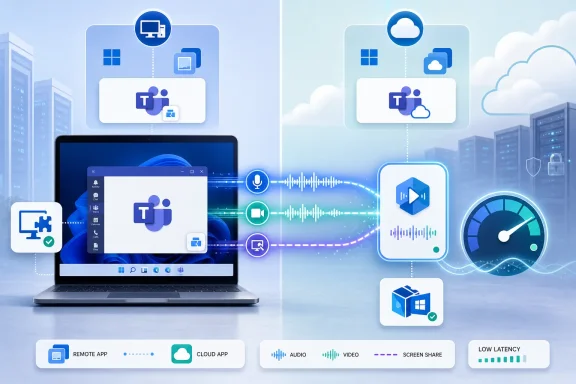
Optimization exists to avoid that path. Instead of making the session host do all the work, the client endpoint takes on the media job while the cloud desktop or app keeps enough control to make Teams behave as if it is running inside the remote environment. The user sees Teams in the published app or virtual session; the endpoint quietly handles the real-time media.
Microsoft’s new move is to bring that newer optimization model to the Remote App scenario. That matters because many organizations do not want to hand users an entire remote desktop for a single application. They want Teams, line-of-business apps, browsers, and productivity tools to appear as managed cloud-delivered apps, stitched into the local Windows experience.
Remote App has always promised that kind of neat separation. The risk was that collaboration apps would expose the illusion. A spreadsheet can tolerate a little remote-session weirdness; a Teams call cannot.
But WebRTC optimization was also a compromise architecture. It solved the worst problem — hauling real-time media through the session host — while leaving Microsoft with a separate media stack from the one powering the mainstream Teams client. As Teams became more central to work, that separation became harder to justify.
The replacement is Microsoft’s SlimCore-based architecture, a media engine aligned more closely with the native Teams experience. In practical terms, SlimCore is the component that lets Teams media run on the user’s physical endpoint while the Teams app remains integrated with the remote Windows session. The architecture relies on a client-side plug-in and a downloadable MSIX media engine rather than the older WebRTC redirector model.
That distinction will sound esoteric until something breaks. Then it becomes the difference between updating a client component and rebuilding a golden image, between a user seeing “optimized” and a help desk trying to decide whether the bug lives in Teams, Windows App, Azure Virtual Desktop, policy, profile containers, or the endpoint.
A full virtual desktop is a known quantity. IT controls the image, the host pool, the session behavior, the installed Teams client, and much of the user environment. Remote App is more surgical. It asks the remote infrastructure to deliver only the app experience, while the local Windows desktop remains the user’s primary shell.
That is attractive to organizations trying to avoid desktop sprawl. A call-center worker, contractor, frontline employee, or bring-your-own-device user may need access to a managed Teams instance without being dropped into a full Cloud PC or AVD desktop. The tighter the app feels, the less training and support overhead IT inherits.
The catch is that Teams is not a normal app. It is a meeting room, softphone, notification surface, screen-sharing tool, camera client, presence engine, and file collaboration hub wearing one icon. Remote App support for modern media optimization is therefore less a checkbox than a test of whether Microsoft’s app virtualization story can carry the applications people actually live in.
That move brings Windows 365 closer to the territory Azure Virtual Desktop has long occupied, but with Microsoft’s managed-service packaging. For smaller IT teams, Windows 365’s appeal is that it hides more of the plumbing. For enterprises, its appeal is often standardization: predictable Cloud PCs, licensing alignment, and integration with Intune and Microsoft 365.
Teams optimization in Cloud Apps is important because app delivery without good real-time communication support would be a half measure. If Microsoft wants Windows 365 to be more than “a desktop in a tab,” it needs the most visible Microsoft 365 workloads to behave properly in app form. Teams is the obvious place to prove the point.
It also reflects the broader direction of Windows endpoint strategy. Microsoft increasingly treats the local Windows device, the cloud-hosted Windows environment, and the Microsoft 365 app layer as parts of one managed continuum. The boundary between them is still technically real, but the user is not supposed to feel it.
The SlimCore model decouples the media engine from the remote desktop image more cleanly than older approaches. The plug-in on the endpoint can obtain and stage the media engine, and Microsoft can update the media path without forcing every organization to rebuild session hosts or march through a disruptive client rollout on the same schedule. In VDI, that is not a minor convenience.
Golden images are supposed to reduce chaos, but collaboration apps have always strained that model. Teams changes often, users expect consumer-grade immediacy, and security teams expect rapid patching. Non-persistent desktops, profile containers, endpoint client versions, MSIX policies, and network restrictions can turn what looks like a simple app update into a week of troubleshooting.
A media engine that updates separately does not eliminate that complexity. It moves some of it to the endpoint, to package policy, and to compatibility validation. But it also acknowledges reality: the meeting stack changes too quickly to be welded permanently to a static desktop image.
For the new architecture to work, the Windows endpoint needs the right Windows App or client components, the Teams plug-in, permission to install or stage the MSIX media engine, and access to the required Microsoft delivery endpoints. If policies block trusted app installation or MSIX registration, optimization can fail even though the remote app itself launches normally.
That creates a subtle management inversion. In classic VDI thinking, the endpoint can be treated as relatively disposable as long as it can connect. In optimized collaboration scenarios, the endpoint’s software state matters. Its client version, app package policies, device drivers, peripherals, and security controls all influence call quality.
This is where some organizations will discover that “cloud-hosted” does not mean “endpoint-neutral.” A locked-down Windows laptop, a thin client, and a home PC may all reach the same Remote App, but they may not produce the same Teams experience. Microsoft’s architecture narrows the gap; it does not erase physics or policy.
Microsoft’s own Teams VDI architecture has become a matrix of client versions, Teams versions, platform support, media engine packages, virtual channels, and known limitations. Windows endpoints are the first-class path for this specific Remote App improvement, but cross-platform support remains uneven across macOS, mobile, thin clients, and third-party VDI ecosystems. That is not unusual in VDI; it is simply the cost of redirecting a complex app across layers.
There are also feature boundaries. Some meeting modes and event scenarios may still fall back to server-side rendering or carry limitations. Screen sharing, give-and-take control, app protection, screen capture protection, certified peripherals, and HID behavior are all areas where small version differences can matter.
For administrators, the action item is not “turn it on and forget it.” It is to test the exact user path: endpoint type, Windows App version, Teams version, Remote App publication, security baseline, AppLocker or WDAC rules, peripheral redirection, and meeting scenarios. The status indicator in Teams becomes a first stop, not a final diagnosis.
But security teams will see trade-offs. The architecture depends on MSIX packages and endpoint-side components that may need explicit allowance in enterprise controls. Organizations using AppLocker, Windows Defender Application Control, restrictive Group Policy settings, or tightly curated software inventories will need to decide how the SlimCore packages are trusted, staged, monitored, and removed.
That is not a reason to avoid the feature. It is a reason to treat it as part of the endpoint baseline rather than a Teams-only tweak. If the media engine is now a first-class part of the collaboration stack, it belongs in patch validation, application control policy, logging, and help desk runbooks.
The security story is therefore less “Microsoft made Teams safer” than “Microsoft moved Teams media into a more maintainable shape.” In enterprise IT, maintainability is security’s unglamorous twin.
Windows 365 and Azure Virtual Desktop are now competing not just with traditional VDI vendors but with local devices, browser apps, SaaS workspaces, and zero-trust access tools. Users do not care that the app is easier to govern if every meeting starts with robotic audio. Administrators do not care that a call looks local if every update breaks the image.
The SlimCore architecture is Microsoft’s attempt to square that circle. Centralize the app and identity where it helps. Push media to the endpoint where physics demands it. Update components independently where release velocity demands it. Keep the user experience close enough to native that people stop thinking about the infrastructure.
That is the right direction, but it also makes the architecture harder to explain. The app is remote, the media is local, the control plane is cloud, the endpoint is managed, and the user expects it all to behave like a single installation. Welcome to modern Windows.
For Teams optimization, that matters because the client is not merely displaying pixels. It carries the plug-in path and participates in the virtual channel relationship that enables the media engine to do its work. If the Windows App is outdated, misconfigured, or unsupported in a given deployment scenario, Teams may fall back to legacy optimization or no optimization at all.
This is a meaningful change for organizations that once treated remote desktop clients as boring utilities. The client version now has direct implications for meeting quality, security posture, and feature availability. A stale client can be the reason a modern Teams deployment behaves like a throwback.
The practical result is that endpoint management and virtual desktop management can no longer be separate kingdoms. Intune teams, AVD administrators, Teams admins, security engineers, and help desk staff need a shared picture of what “optimized” means and how to prove it.
The fragility comes from the number of layers involved. A user may describe the problem as “Teams is bad,” but the root cause could be a blocked MSIX package, an old Windows App build, a missing plug-in, a restrictive application-control policy, a peripheral conflict, an unsupported endpoint, or a meeting type that is not optimized. The better the experience becomes when everything aligns, the more frustrating the edge cases will feel.
This is why Microsoft’s visible optimization indicators matter. Users and support teams need to know whether Teams is using the new SlimCore-based path, the older WebRTC path, or no optimization. Without that signal, troubleshooting devolves into superstition.
For WindowsForum readers, the lesson is familiar: the shiny feature is only as good as the deployment hygiene behind it. Version discipline, policy testing, and a clean endpoint baseline are what turn Microsoft’s architecture into a user-visible improvement.
A hybrid worker does not think in terms of Azure Virtual Desktop host pools or Windows 365 provisioning policies. They think in terms of whether they can join the 9 a.m. meeting, share the right window, hear the customer, and move on. Every failure in that chain gets blamed on “IT,” even if the root cause is a subtle interaction between cloud app delivery and local media capture.
Microsoft’s challenge is that Teams sits at the emotional center of this experience. A slow file share is annoying. A broken meeting is public. It happens in front of colleagues, managers, candidates, clients, or patients. That gives Teams media quality an outsized role in how users judge the entire cloud PC or virtual app strategy.
By improving Remote App support, Microsoft is acknowledging that collaboration is not an optional workload for virtualized Windows. It is one of the workloads that determines whether the model is credible.
For pilot deployments, IT teams should resist the urge to validate only a perfect path. Test the bad paths too. Try a machine with stricter MSIX policy. Try older and newer Windows App builds. Try common headsets. Try screen sharing with screen capture protection. Try a published Teams Remote App next to local Teams. Try the user who has three monitors and changes docking stations mid-call.
The point is not to prove Microsoft wrong. It is to find the seams before users do. A media optimization architecture can be technically elegant and still fail the enterprise sniff test if support teams cannot quickly identify which layer is misbehaving.
That is especially true because Teams is often the first app users open and the last app they close. A broken optimization state is not an obscure defect. It becomes the workday.
Microsoft’s optimization work for Teams Remote App is ultimately a bet that the future of Windows in the enterprise will be neither purely local nor purely remote. It will be assembled at runtime from cloud apps, managed endpoints, identity controls, virtual channels, and media engines that users never see. If Microsoft can make that complexity disappear behind a Teams window that simply works, Windows 365 and Azure Virtual Desktop become easier to defend as everyday platforms rather than contingency plans. If not, every stuttered call will remind users exactly how much machinery is hiding behind the mute button.
 Microsoft Moves the Meeting Out of the Datacenter
The old problem with Teams in virtual desktops has never been mysterious. Audio and video are unforgiving workloads, and when a user joins a meeting from a remote session, every extra hop matters. If camera, microphone, speaker, screen-share, and media processing all travel through the cloud-hosted Windows environment before reaching the Teams service, latency and resource consumption pile up quickly.Optimization exists to avoid that path. Instead of making the session host do all the work, the client endpoint takes on the media job while the cloud desktop or app keeps enough control to make Teams behave as if it is running inside the remote environment. The user sees Teams in the published app or virtual session; the endpoint quietly handles the real-time media.
Microsoft’s new move is to bring that newer optimization model to the Remote App scenario. That matters because many organizations do not want to hand users an entire remote desktop for a single application. They want Teams, line-of-business apps, browsers, and productivity tools to appear as managed cloud-delivered apps, stitched into the local Windows experience.
Remote App has always promised that kind of neat separation. The risk was that collaboration apps would expose the illusion. A spreadsheet can tolerate a little remote-session weirdness; a Teams call cannot.
WebRTC Did the Job Until Teams Outgrew It
For years, WebRTC-based optimization was the practical answer for Teams in Azure Virtual Desktop and related VDI platforms. It redirected media in a way that made Teams usable in environments where the unoptimized experience could burn CPU, saturate virtual channels, and leave users sounding like they were calling from the bottom of a server rack.But WebRTC optimization was also a compromise architecture. It solved the worst problem — hauling real-time media through the session host — while leaving Microsoft with a separate media stack from the one powering the mainstream Teams client. As Teams became more central to work, that separation became harder to justify.
The replacement is Microsoft’s SlimCore-based architecture, a media engine aligned more closely with the native Teams experience. In practical terms, SlimCore is the component that lets Teams media run on the user’s physical endpoint while the Teams app remains integrated with the remote Windows session. The architecture relies on a client-side plug-in and a downloadable MSIX media engine rather than the older WebRTC redirector model.
That distinction will sound esoteric until something breaks. Then it becomes the difference between updating a client component and rebuilding a golden image, between a user seeing “optimized” and a help desk trying to decide whether the bug lives in Teams, Windows App, Azure Virtual Desktop, policy, profile containers, or the endpoint.
Remote App Support Is the Important New Angle
The key development in Microsoft’s latest expansion is not merely that Teams gets better media optimization. It is that Teams can now be published as a Remote App in Azure Virtual Desktop and still use the newer optimization architecture when the requirements are met. That is a big operational distinction.A full virtual desktop is a known quantity. IT controls the image, the host pool, the session behavior, the installed Teams client, and much of the user environment. Remote App is more surgical. It asks the remote infrastructure to deliver only the app experience, while the local Windows desktop remains the user’s primary shell.
That is attractive to organizations trying to avoid desktop sprawl. A call-center worker, contractor, frontline employee, or bring-your-own-device user may need access to a managed Teams instance without being dropped into a full Cloud PC or AVD desktop. The tighter the app feels, the less training and support overhead IT inherits.
The catch is that Teams is not a normal app. It is a meeting room, softphone, notification surface, screen-sharing tool, camera client, presence engine, and file collaboration hub wearing one icon. Remote App support for modern media optimization is therefore less a checkbox than a test of whether Microsoft’s app virtualization story can carry the applications people actually live in.
Windows 365 Cloud Apps Push the Same Idea From the Other Side
Windows 365 has historically been easier to explain as a Cloud PC: a persistent Windows desktop streamed from Microsoft’s cloud. Cloud Apps for Windows 365 push the platform toward a more app-centric model. Instead of making the Cloud PC the visible object, Microsoft can surface cloud-hosted Windows apps more directly.That move brings Windows 365 closer to the territory Azure Virtual Desktop has long occupied, but with Microsoft’s managed-service packaging. For smaller IT teams, Windows 365’s appeal is that it hides more of the plumbing. For enterprises, its appeal is often standardization: predictable Cloud PCs, licensing alignment, and integration with Intune and Microsoft 365.
Teams optimization in Cloud Apps is important because app delivery without good real-time communication support would be a half measure. If Microsoft wants Windows 365 to be more than “a desktop in a tab,” it needs the most visible Microsoft 365 workloads to behave properly in app form. Teams is the obvious place to prove the point.
It also reflects the broader direction of Windows endpoint strategy. Microsoft increasingly treats the local Windows device, the cloud-hosted Windows environment, and the Microsoft 365 app layer as parts of one managed continuum. The boundary between them is still technically real, but the user is not supposed to feel it.
The New Media Engine Is Really an Update Strategy
Microsoft’s language around performance is the easy part: better audio, better video, improved reliability, stronger security, more responsive meetings. Those are the benefits users notice. But the more interesting benefit for administrators is lifecycle control.The SlimCore model decouples the media engine from the remote desktop image more cleanly than older approaches. The plug-in on the endpoint can obtain and stage the media engine, and Microsoft can update the media path without forcing every organization to rebuild session hosts or march through a disruptive client rollout on the same schedule. In VDI, that is not a minor convenience.
Golden images are supposed to reduce chaos, but collaboration apps have always strained that model. Teams changes often, users expect consumer-grade immediacy, and security teams expect rapid patching. Non-persistent desktops, profile containers, endpoint client versions, MSIX policies, and network restrictions can turn what looks like a simple app update into a week of troubleshooting.
A media engine that updates separately does not eliminate that complexity. It moves some of it to the endpoint, to package policy, and to compatibility validation. But it also acknowledges reality: the meeting stack changes too quickly to be welded permanently to a static desktop image.
The Endpoint Is No Longer a Dumb Window
The phrase “virtual desktop” still tempts people to imagine the endpoint as a thin pane of glass. That was always too simple, and Teams optimization makes it obviously wrong. The endpoint is an active participant.For the new architecture to work, the Windows endpoint needs the right Windows App or client components, the Teams plug-in, permission to install or stage the MSIX media engine, and access to the required Microsoft delivery endpoints. If policies block trusted app installation or MSIX registration, optimization can fail even though the remote app itself launches normally.
That creates a subtle management inversion. In classic VDI thinking, the endpoint can be treated as relatively disposable as long as it can connect. In optimized collaboration scenarios, the endpoint’s software state matters. Its client version, app package policies, device drivers, peripherals, and security controls all influence call quality.
This is where some organizations will discover that “cloud-hosted” does not mean “endpoint-neutral.” A locked-down Windows laptop, a thin client, and a home PC may all reach the same Remote App, but they may not produce the same Teams experience. Microsoft’s architecture narrows the gap; it does not erase physics or policy.
Better Calls Do Not Remove the Admin Work
The most optimistic reading of Microsoft’s update is that Teams in Remote App and Cloud Apps will now feel substantially closer to local Teams. The more realistic reading is that it can, if the environment is current and aligned. That caveat matters.Microsoft’s own Teams VDI architecture has become a matrix of client versions, Teams versions, platform support, media engine packages, virtual channels, and known limitations. Windows endpoints are the first-class path for this specific Remote App improvement, but cross-platform support remains uneven across macOS, mobile, thin clients, and third-party VDI ecosystems. That is not unusual in VDI; it is simply the cost of redirecting a complex app across layers.
There are also feature boundaries. Some meeting modes and event scenarios may still fall back to server-side rendering or carry limitations. Screen sharing, give-and-take control, app protection, screen capture protection, certified peripherals, and HID behavior are all areas where small version differences can matter.
For administrators, the action item is not “turn it on and forget it.” It is to test the exact user path: endpoint type, Windows App version, Teams version, Remote App publication, security baseline, AppLocker or WDAC rules, peripheral redirection, and meeting scenarios. The status indicator in Teams becomes a first stop, not a final diagnosis.
Security Gains Come With a Policy Bill
Microsoft is also framing the new architecture as an improvement for security. That argument has merit. A modern, maintained media engine with a clearer update path is preferable to a legacy optimization layer that drifts behind the main Teams client. The ability to update media components without touching the entire infrastructure reduces the temptation to postpone fixes.But security teams will see trade-offs. The architecture depends on MSIX packages and endpoint-side components that may need explicit allowance in enterprise controls. Organizations using AppLocker, Windows Defender Application Control, restrictive Group Policy settings, or tightly curated software inventories will need to decide how the SlimCore packages are trusted, staged, monitored, and removed.
That is not a reason to avoid the feature. It is a reason to treat it as part of the endpoint baseline rather than a Teams-only tweak. If the media engine is now a first-class part of the collaboration stack, it belongs in patch validation, application control policy, logging, and help desk runbooks.
The security story is therefore less “Microsoft made Teams safer” than “Microsoft moved Teams media into a more maintainable shape.” In enterprise IT, maintainability is security’s unglamorous twin.
Microsoft Is Quietly Retiring the Old VDI Bargain
The deeper story is that Microsoft is moving away from the old VDI bargain: accept a degraded app experience in exchange for centralized control. That bargain made sense when remote desktops were mostly about access to Windows applications, regulated data, or legacy environments. It makes less sense when the remote app is also the user’s phone, conference room, and daily collaboration hub.Windows 365 and Azure Virtual Desktop are now competing not just with traditional VDI vendors but with local devices, browser apps, SaaS workspaces, and zero-trust access tools. Users do not care that the app is easier to govern if every meeting starts with robotic audio. Administrators do not care that a call looks local if every update breaks the image.
The SlimCore architecture is Microsoft’s attempt to square that circle. Centralize the app and identity where it helps. Push media to the endpoint where physics demands it. Update components independently where release velocity demands it. Keep the user experience close enough to native that people stop thinking about the infrastructure.
That is the right direction, but it also makes the architecture harder to explain. The app is remote, the media is local, the control plane is cloud, the endpoint is managed, and the user expects it all to behave like a single installation. Welcome to modern Windows.
The Windows App Becomes the Gatekeeper
Microsoft’s consolidation around the Windows App is another important thread. The Windows App is increasingly the preferred front door for Windows 365, Azure Virtual Desktop, Microsoft Dev Box, Remote Desktop Services, and related cloud Windows experiences. That makes it more than a client; it becomes the policy-controlled runtime for Microsoft’s cloud endpoint ambitions.For Teams optimization, that matters because the client is not merely displaying pixels. It carries the plug-in path and participates in the virtual channel relationship that enables the media engine to do its work. If the Windows App is outdated, misconfigured, or unsupported in a given deployment scenario, Teams may fall back to legacy optimization or no optimization at all.
This is a meaningful change for organizations that once treated remote desktop clients as boring utilities. The client version now has direct implications for meeting quality, security posture, and feature availability. A stale client can be the reason a modern Teams deployment behaves like a throwback.
The practical result is that endpoint management and virtual desktop management can no longer be separate kingdoms. Intune teams, AVD administrators, Teams admins, security engineers, and help desk staff need a shared picture of what “optimized” means and how to prove it.
The User Experience Win Is Real, but Fragile
If Microsoft gets this right, the user should notice very little. Teams launches as a cloud-hosted Remote App or Windows 365 Cloud App, meetings connect quickly, microphones and cameras behave, screen sharing works, and the call feels normal. In enterprise software, “normal” is often the highest compliment available.The fragility comes from the number of layers involved. A user may describe the problem as “Teams is bad,” but the root cause could be a blocked MSIX package, an old Windows App build, a missing plug-in, a restrictive application-control policy, a peripheral conflict, an unsupported endpoint, or a meeting type that is not optimized. The better the experience becomes when everything aligns, the more frustrating the edge cases will feel.
This is why Microsoft’s visible optimization indicators matter. Users and support teams need to know whether Teams is using the new SlimCore-based path, the older WebRTC path, or no optimization. Without that signal, troubleshooting devolves into superstition.
For WindowsForum readers, the lesson is familiar: the shiny feature is only as good as the deployment hygiene behind it. Version discipline, policy testing, and a clean endpoint baseline are what turn Microsoft’s architecture into a user-visible improvement.
Hybrid Work Keeps Forcing Infrastructure Into the Foreground
The pandemic-era rush to make remote work possible is over. The harder phase is making remote and hybrid work boringly reliable. Teams optimization for Remote App is part of that second phase.A hybrid worker does not think in terms of Azure Virtual Desktop host pools or Windows 365 provisioning policies. They think in terms of whether they can join the 9 a.m. meeting, share the right window, hear the customer, and move on. Every failure in that chain gets blamed on “IT,” even if the root cause is a subtle interaction between cloud app delivery and local media capture.
Microsoft’s challenge is that Teams sits at the emotional center of this experience. A slow file share is annoying. A broken meeting is public. It happens in front of colleagues, managers, candidates, clients, or patients. That gives Teams media quality an outsized role in how users judge the entire cloud PC or virtual app strategy.
By improving Remote App support, Microsoft is acknowledging that collaboration is not an optional workload for virtualized Windows. It is one of the workloads that determines whether the model is credible.
The Real Test Will Be Monday Morning
The announcement sounds clean because announcements always do. The real test will come in production tenants with mixed endpoints, security baselines, old images, aggressive app control, and users who do not know or care whether their Teams window is local, remote, optimized, or half redirected through a plug-in.For pilot deployments, IT teams should resist the urge to validate only a perfect path. Test the bad paths too. Try a machine with stricter MSIX policy. Try older and newer Windows App builds. Try common headsets. Try screen sharing with screen capture protection. Try a published Teams Remote App next to local Teams. Try the user who has three monitors and changes docking stations mid-call.
The point is not to prove Microsoft wrong. It is to find the seams before users do. A media optimization architecture can be technically elegant and still fail the enterprise sniff test if support teams cannot quickly identify which layer is misbehaving.
That is especially true because Teams is often the first app users open and the last app they close. A broken optimization state is not an obscure defect. It becomes the workday.
The Practical Shape of Microsoft’s Teams Bet
For all the implementation detail, the immediate implications are straightforward. Microsoft is making Teams in cloud-delivered Windows apps less of a special case and more of a supported mainstream experience.- Organizations using Teams as a published Remote App in Azure Virtual Desktop now have a clearer path to the newer SlimCore-based media optimization model on Windows endpoints.
- Windows 365 Cloud Apps gain credibility when Teams can behave more like a responsive local collaboration client instead of a heavy app trapped in a remote session.
- Administrators should treat Windows App versions, Teams versions, plug-in health, and MSIX policy as part of the same operational chain.
- Security teams need to explicitly account for the media engine packages in application control, endpoint policy, and update validation.
- Help desks should learn to verify the Teams VDI status indicator before chasing generic audio, video, or profile-related fixes.
- The legacy WebRTC model is increasingly the fallback path, not the future Microsoft wants customers to standardize on.
Microsoft’s optimization work for Teams Remote App is ultimately a bet that the future of Windows in the enterprise will be neither purely local nor purely remote. It will be assembled at runtime from cloud apps, managed endpoints, identity controls, virtual channels, and media engines that users never see. If Microsoft can make that complexity disappear behind a Teams window that simply works, Windows 365 and Azure Virtual Desktop become easier to defend as everyday platforms rather than contingency plans. If not, every stuttered call will remind users exactly how much machinery is hiding behind the mute button.
References
- Primary source: redmondmag.com
Published: 2026-06-05T23:42:07.724298
Microsoft Optimizes Teams Remote App Experience for Windows 365 and Azure Virtual Desktop -- Redmondmag.com
Enhancements now generally available aim to improve performance and usability for Teams applications delivered through cloud desktops.redmondmag.com - Official source: learn.microsoft.com
What's new in Azure Virtual Desktop? - Azure - Azure Virtual Desktop | Microsoft Learn
Learn about new features and product updates for Azure Virtual Desktop.learn.microsoft.com - Official source: support.microsoft.com
My virtual desktop experience in Microsoft Teams isn't optimized | Microsoft Support
Troubleshoot connection and optimization while using a Virtual Desktop with Microsoft Teams.support.microsoft.com - Related coverage: docs.azure.cn
Use Microsoft Teams on Azure Virtual Desktop - Azure - Azure Virtual Desktop | Azure Docs
How to use Microsoft Teams on Azure Virtual Desktop.docs.azure.cn - Related coverage: docs.citrix.com
Optimization for Microsoft Teams (New) | Citrix Virtual Apps and Desktops™ 7 2503
Microsoft has launched a new version of Microsoft Teams for VDI environments. Citrix now supports optimization for this new version of Teams.docs.citrix.com
- Related coverage: bighatgroup.com
Windows 365 Weekly: Teams Media Optimizations Expand to iOS, Android, and macOS | Big Hat Group Inc.
Microsoft Teams media optimizations for Windows 365 Cloud PCs now include WebRTC GA on iOS/Android and SlimCore preview on macOS via Windows App, bringing local media processing to mobile and Mac endpoints.www.bighatgroup.com
- Official source: microsoft.com
Microsoft 365 Roadmap | Microsoft 365
The Microsoft 365 Roadmap lists updates that are currently planned for applicable subscribers. Check here for more information on the status of new features and updates.www.microsoft.com
- Official source: techcommunity.microsoft.com
Announcing Public Preview: New Microsoft Teams VDI Optimization for Omnissa | Microsoft Community Hub
Today, we’re excited to announce the tech preview of the new Microsoft Teams VDI optimization for Omnissa Horizon environments, bringing a modern,... techcommunity.microsoft.com
- Related coverage: citrix.com
Citrix Virtual Desktops hosted on Microsoft Azure drives superior scalability performance and reduces OpEx
PDF documentwww.citrix.com
- Related coverage: techzone.omnissa.com
- Related coverage: ryanmangansitblog.com
