

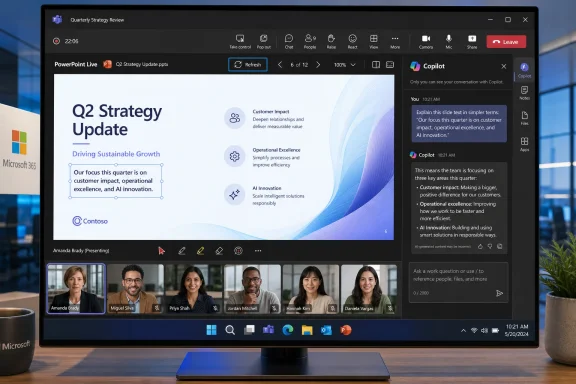
Microsoft has added Explain and Refresh to PowerPoint Live in Microsoft Teams in June 2026, giving attendees private Copilot explanations of selected slide text and giving presenters a one-click way to reload the latest saved deck without restarting the live presentation. The changes are small enough to miss in a Microsoft 365 admin digest, but they point to a larger shift in how Microsoft thinks meetings should work. PowerPoint Live is no longer just a nicer way to screen-share slides. It is becoming a managed meeting surface where content, context, and AI assistance are expected to move independently of the presenter’s voice.
The notable thing about Explain and Refresh is what they do not attempt to do. They do not promise to generate a better deck, redesign a slide, summarize an entire meeting, or replace the person at the front of the call. Instead, Microsoft is aiming at two pieces of friction that anyone who has sat through a modern Teams presentation will recognize immediately.
The first is the late-breaking deck problem. A finance number changes five minutes before the meeting, a product name gets corrected after the presenter has already joined, or a compliance slide has to be edited while everyone is waiting. In the old workflow, the presenter either lived with the stale file, stopped presenting and reshared, or performed the familiar Teams shuffle of switching windows while hoping the audience did not drift away.
Refresh turns that mess into a button. If the presentation has changed, the presenter can load the newest saved version and stay on the same slide. That sounds mundane, but mundane is exactly where collaboration software often succeeds or fails.
The second problem is audience confusion. People do not interrupt a live meeting every time they miss an acronym, fail to recognize a product code name, or need a technical phrase unpacked. They either keep quiet and lose the thread, or they ask a question that may derail the presenter’s rhythm. Explain gives attendees a private escape hatch: select text on the slide, ask Copilot to explain it, and read the answer in the Copilot pane.
That framing matters. Microsoft is not just adding AI to PowerPoint Live because every Microsoft 365 surface now seems destined to acquire a Copilot button. It is trying to make the meeting itself less brittle.
PowerPoint already has collaboration features, version history, and cloud storage through OneDrive and SharePoint. But presenting is a different state of work from editing. Once a deck is live inside Teams, the cost of changing course becomes social as much as technical: the presenter must pause, narrate the interruption, reshare the file, and hope everyone lands in the same place.
The new Refresh behavior narrows that gap. A presenter can reload the current saved version of the deck without ending the PowerPoint Live session and without jumping the audience away from the current slide. Microsoft also says presenters will see a confirmation when they are already showing the latest version, which is the sort of small status signal that prevents nervous clicking during a high-pressure call.
This is not live co-authoring magic in the consumer-demo sense. It is better understood as a controlled reload of the source material during presentation mode. That distinction is important for IT pros because it means the feature fits into existing Microsoft 365 document workflows rather than requiring a new meeting artifact or a new sharing model.
For teams that already store presentations in Microsoft 365 cloud locations, the benefit is obvious. A colleague can fix the number, save the file, and the presenter can bring that correction into the live meeting without the performative chaos of starting over. The more regulated or hierarchical the meeting, the more valuable that becomes.
An attendee can highlight text on a slide and ask Copilot to explain it. The response appears privately in the Copilot pane, not as a public chat interruption and not as a challenge to the presenter. In the right setting, that is a real accessibility and inclusion improvement.
Acronyms are the obvious use case. Enterprise slides are dense with internal shorthand, vendor labels, compliance references, project names, and industry vocabulary that may be second nature to one department and meaningless to another. A private explanation lets someone catch up without revealing that they were behind.
That can be particularly useful in cross-functional meetings. A security engineer, HR manager, product marketer, and finance analyst may all be staring at the same slide while bringing very different assumptions to it. Explain gives each attendee a way to translate the deck into their own context, at least when the slide content is mostly textual.
The risk is that private AI explanations may also create private interpretations. If Copilot explains a term too broadly, misses the company-specific meaning, or fails to understand how a phrase is being used in the meeting, the attendee may walk away with confidence rather than clarity. Microsoft’s own limitation warning matters here: Explain works best with text-based content, while complex visuals such as charts and diagrams may not be interpreted reliably.
This is consistent with Microsoft’s larger Microsoft 365 pattern. Baseline productivity improvements keep the suite sticky; Copilot capabilities are used to justify the premium AI license. PowerPoint Live becomes another place where organizations can feel the difference between standard Microsoft 365 and the Copilot tier.
For administrators, that distinction will matter when users ask why one attendee can select text and get an explanation while another cannot. The answer may not be a Teams version problem, a PowerPoint bug, or a policy misconfiguration. It may simply be licensing.
That creates a familiar support wrinkle. Microsoft is increasingly embedding Copilot entry points inside everyday workflows, but access depends on subscription type, tenant configuration, rollout status, and sometimes platform availability. The user sees a missing button; the admin sees a matrix.
Microsoft says both features are available for PowerPoint on Windows and Mac. That cross-platform availability helps, but it does not erase the licensing question. In mixed environments, Explain will be most useful only when the people who need contextual help have the Copilot entitlement to use it.
A selected phrase on a slide is a bounded prompt. The user is not asking Copilot to infer the politics of a project, synthesize a 90-minute meeting, or decide which department is right. They are asking for a term, acronym, or concept to be explained in place. That is the sort of interaction where AI assistance can feel less like a gimmick and more like an extension of search, glossary, and training tools.
The private nature of the interaction also reduces the social cost of curiosity. In many meetings, the most useful question is the one nobody wants to ask because it seems too basic. Explain gives users a way to ask that question quietly.
But narrow does not mean harmless. In enterprise decks, words often carry local meaning. “Pilot,” “GA,” “risk accepted,” “green,” “blocked,” “migration,” and “customer committed” can mean different things depending on the organization, project, or governance process. If Copilot offers a generic explanation, it may be technically correct and operationally misleading.
That is why presenters should not treat Explain as a substitute for clear slides. If a deck is loaded with unexplained abbreviations, ambiguous labels, and chart titles that require institutional memory, Copilot may reduce confusion but it will not fix the underlying communication failure. AI can patch over jargon; it cannot make a bad slide good.
Screen sharing treats a presentation as pixels. PowerPoint Live treats it as content. Once Teams knows that a deck is a deck, not just a window, Microsoft can add slide navigation, private viewing, accessibility features, analytics, and now Copilot interactions. The meeting surface becomes programmable.
That is the strategic value of PowerPoint Live. Microsoft can improve the presentation experience without asking users to abandon PowerPoint or Teams. It can also attach premium Copilot features to moments where users are already working, instead of asking them to go to a separate AI app.
The result is a slow unbundling of the live presentation. The presenter controls the narrative, the deck can be refreshed from the source file, attendees can privately inspect slides, and Copilot can explain selected content. Everyone is technically in the same meeting, but not everyone is experiencing the deck in exactly the same way.
That has benefits, but it also changes meeting discipline. If attendees are reading ahead, asking Copilot for explanations, and splitting attention between the speaker and the pane, presenters may need to design decks that tolerate more nonlinear consumption. The slide is no longer just a backdrop for speech; it is becoming an interactive document.
Users will ask whether Refresh means a deck updates automatically. They will ask whether Copilot can explain charts. They will ask why Copilot appears for one employee and not another. They will ask whether the AI answer is visible to the presenter, stored with the meeting, or governed by the same compliance controls as other Microsoft 365 Copilot interactions.
Those are not edge questions. They are the natural consequence of putting AI into the middle of live collaboration. The feature may be simple, but the environment is not.
Organizations that have already deployed Microsoft 365 Copilot should treat Explain as another training moment. Employees need to know that AI-generated explanations can be useful without being authoritative. They also need to know that sensitive meeting content remains subject to the organization’s Microsoft 365 governance posture, not magically outside it because it appears in a side pane.
Refresh needs its own lightweight guidance. Presenters should understand that the newest saved version matters, not an unsaved edit sitting on someone’s desktop. Teams should agree on who owns last-minute changes, especially in high-stakes meetings where a presenter may not want a deck altered unexpectedly.
A meeting rarely fails because nobody could generate a slide with AI. It fails because the wrong number was on the screen, the presenter lost two minutes resharing, half the audience did not understand an acronym, and nobody wanted to admit confusion. Microsoft’s two additions target exactly those failure modes.
Refresh lowers the temperature for presenters. Explain lowers the temperature for attendees. Neither one guarantees a better meeting, but both reduce the amount of social friction required to keep one moving.
That is also why these features feel more mature than many AI announcements. Explain is not framed as a replacement for expertise. It is a quiet assistive layer for moments when the audience needs help staying with the speaker. Refresh, meanwhile, is not AI at all; it is just an overdue acknowledgement that live files change.
The pairing is revealing. Microsoft’s future for work is not only Copilot answering prompts. It is also the surrounding workflow being adjusted so the AI and non-AI pieces reinforce each other.
The next phase of Teams and PowerPoint will not be defined by one dramatic AI feature that changes presentations overnight. It will be built from small controls like these, each removing a little friction from the strange ritual of people gathering around slides. If Microsoft can keep that focus — practical fixes first, AI where it actually reduces confusion — PowerPoint Live may become something rarer than a flashy demo: a meeting tool that makes the meeting itself feel less fragile.
 Microsoft Is Fixing the Awkward Parts of Live Decks, Not Reinventing Slides
The notable thing about Explain and Refresh is what they do not attempt to do. They do not promise to generate a better deck, redesign a slide, summarize an entire meeting, or replace the person at the front of the call. Instead, Microsoft is aiming at two pieces of friction that anyone who has sat through a modern Teams presentation will recognize immediately.The first is the late-breaking deck problem. A finance number changes five minutes before the meeting, a product name gets corrected after the presenter has already joined, or a compliance slide has to be edited while everyone is waiting. In the old workflow, the presenter either lived with the stale file, stopped presenting and reshared, or performed the familiar Teams shuffle of switching windows while hoping the audience did not drift away.
Refresh turns that mess into a button. If the presentation has changed, the presenter can load the newest saved version and stay on the same slide. That sounds mundane, but mundane is exactly where collaboration software often succeeds or fails.
The second problem is audience confusion. People do not interrupt a live meeting every time they miss an acronym, fail to recognize a product code name, or need a technical phrase unpacked. They either keep quiet and lose the thread, or they ask a question that may derail the presenter’s rhythm. Explain gives attendees a private escape hatch: select text on the slide, ask Copilot to explain it, and read the answer in the Copilot pane.
That framing matters. Microsoft is not just adding AI to PowerPoint Live because every Microsoft 365 surface now seems destined to acquire a Copilot button. It is trying to make the meeting itself less brittle.
Refresh Is the More Practical Feature Because Meetings Break in Practical Ways
Refresh is the less glamorous announcement, but for many workplaces it will be the more immediately useful one. Live presentations often involve decks that are still being edited right up to the point of delivery, especially in executive reviews, sales calls, incident briefings, training sessions, and project readouts. The fantasy of the polished deck locked down a day in advance rarely survives contact with real organizations.PowerPoint already has collaboration features, version history, and cloud storage through OneDrive and SharePoint. But presenting is a different state of work from editing. Once a deck is live inside Teams, the cost of changing course becomes social as much as technical: the presenter must pause, narrate the interruption, reshare the file, and hope everyone lands in the same place.
The new Refresh behavior narrows that gap. A presenter can reload the current saved version of the deck without ending the PowerPoint Live session and without jumping the audience away from the current slide. Microsoft also says presenters will see a confirmation when they are already showing the latest version, which is the sort of small status signal that prevents nervous clicking during a high-pressure call.
This is not live co-authoring magic in the consumer-demo sense. It is better understood as a controlled reload of the source material during presentation mode. That distinction is important for IT pros because it means the feature fits into existing Microsoft 365 document workflows rather than requiring a new meeting artifact or a new sharing model.
For teams that already store presentations in Microsoft 365 cloud locations, the benefit is obvious. A colleague can fix the number, save the file, and the presenter can bring that correction into the live meeting without the performative chaos of starting over. The more regulated or hierarchical the meeting, the more valuable that becomes.
Explain Turns the Audience Into Quiet Co-Pilots
Explain is more culturally interesting because it changes the etiquette of meetings. The traditional live presentation assumes a single shared pace: the presenter advances, the audience follows, and questions are either saved for later or inserted into the flow. PowerPoint Live already weakened that model by letting attendees move through slides privately, depending on meeting settings. Copilot now extends that idea from navigation to comprehension.An attendee can highlight text on a slide and ask Copilot to explain it. The response appears privately in the Copilot pane, not as a public chat interruption and not as a challenge to the presenter. In the right setting, that is a real accessibility and inclusion improvement.
Acronyms are the obvious use case. Enterprise slides are dense with internal shorthand, vendor labels, compliance references, project names, and industry vocabulary that may be second nature to one department and meaningless to another. A private explanation lets someone catch up without revealing that they were behind.
That can be particularly useful in cross-functional meetings. A security engineer, HR manager, product marketer, and finance analyst may all be staring at the same slide while bringing very different assumptions to it. Explain gives each attendee a way to translate the deck into their own context, at least when the slide content is mostly textual.
The risk is that private AI explanations may also create private interpretations. If Copilot explains a term too broadly, misses the company-specific meaning, or fails to understand how a phrase is being used in the meeting, the attendee may walk away with confidence rather than clarity. Microsoft’s own limitation warning matters here: Explain works best with text-based content, while complex visuals such as charts and diagrams may not be interpreted reliably.
The License Line Divides Convenience From Copilot Strategy
The licensing split tells the story Microsoft probably cares about most. Refresh requires a Microsoft 365 subscription. Explain requires both a Microsoft 365 subscription and a Microsoft 365 Copilot license. That means the operational fix is broadly available to Microsoft 365 users, while the AI comprehension layer remains part of the paid Copilot value proposition.This is consistent with Microsoft’s larger Microsoft 365 pattern. Baseline productivity improvements keep the suite sticky; Copilot capabilities are used to justify the premium AI license. PowerPoint Live becomes another place where organizations can feel the difference between standard Microsoft 365 and the Copilot tier.
For administrators, that distinction will matter when users ask why one attendee can select text and get an explanation while another cannot. The answer may not be a Teams version problem, a PowerPoint bug, or a policy misconfiguration. It may simply be licensing.
That creates a familiar support wrinkle. Microsoft is increasingly embedding Copilot entry points inside everyday workflows, but access depends on subscription type, tenant configuration, rollout status, and sometimes platform availability. The user sees a missing button; the admin sees a matrix.
Microsoft says both features are available for PowerPoint on Windows and Mac. That cross-platform availability helps, but it does not erase the licensing question. In mixed environments, Explain will be most useful only when the people who need contextual help have the Copilot entitlement to use it.
The AI Feature Is Useful Precisely Because It Is Narrow
Explain is not trying to summarize the presenter’s argument or answer every possible question about the meeting. That restraint is a strength. The more narrowly scoped an AI feature is, the easier it is for users to understand when to trust it and when to ignore it.A selected phrase on a slide is a bounded prompt. The user is not asking Copilot to infer the politics of a project, synthesize a 90-minute meeting, or decide which department is right. They are asking for a term, acronym, or concept to be explained in place. That is the sort of interaction where AI assistance can feel less like a gimmick and more like an extension of search, glossary, and training tools.
The private nature of the interaction also reduces the social cost of curiosity. In many meetings, the most useful question is the one nobody wants to ask because it seems too basic. Explain gives users a way to ask that question quietly.
But narrow does not mean harmless. In enterprise decks, words often carry local meaning. “Pilot,” “GA,” “risk accepted,” “green,” “blocked,” “migration,” and “customer committed” can mean different things depending on the organization, project, or governance process. If Copilot offers a generic explanation, it may be technically correct and operationally misleading.
That is why presenters should not treat Explain as a substitute for clear slides. If a deck is loaded with unexplained abbreviations, ambiguous labels, and chart titles that require institutional memory, Copilot may reduce confusion but it will not fix the underlying communication failure. AI can patch over jargon; it cannot make a bad slide good.
PowerPoint Live Is Becoming a Meeting Platform Inside the Meeting Platform
Teams has long been more than a video-calling app, and PowerPoint Live has long been more than screen sharing. Presenter view, attendee navigation, captions, chat, reactions, recordings, and meeting notes all point in the same direction: Microsoft wants meetings to be structured workflows rather than transient calls. Explain and Refresh fit neatly into that architecture.Screen sharing treats a presentation as pixels. PowerPoint Live treats it as content. Once Teams knows that a deck is a deck, not just a window, Microsoft can add slide navigation, private viewing, accessibility features, analytics, and now Copilot interactions. The meeting surface becomes programmable.
That is the strategic value of PowerPoint Live. Microsoft can improve the presentation experience without asking users to abandon PowerPoint or Teams. It can also attach premium Copilot features to moments where users are already working, instead of asking them to go to a separate AI app.
The result is a slow unbundling of the live presentation. The presenter controls the narrative, the deck can be refreshed from the source file, attendees can privately inspect slides, and Copilot can explain selected content. Everyone is technically in the same meeting, but not everyone is experiencing the deck in exactly the same way.
That has benefits, but it also changes meeting discipline. If attendees are reading ahead, asking Copilot for explanations, and splitting attention between the speaker and the pane, presenters may need to design decks that tolerate more nonlinear consumption. The slide is no longer just a backdrop for speech; it is becoming an interactive document.
Admins Should Watch the Defaults, the Data Boundaries, and the Support Queue
For IT departments, the immediate work is not likely to be deployment. Reports around the rollout indicate that these features do not require elaborate admin setup, and Refresh in particular should be relatively straightforward for eligible Microsoft 365 users. The real work is expectation management.Users will ask whether Refresh means a deck updates automatically. They will ask whether Copilot can explain charts. They will ask why Copilot appears for one employee and not another. They will ask whether the AI answer is visible to the presenter, stored with the meeting, or governed by the same compliance controls as other Microsoft 365 Copilot interactions.
Those are not edge questions. They are the natural consequence of putting AI into the middle of live collaboration. The feature may be simple, but the environment is not.
Organizations that have already deployed Microsoft 365 Copilot should treat Explain as another training moment. Employees need to know that AI-generated explanations can be useful without being authoritative. They also need to know that sensitive meeting content remains subject to the organization’s Microsoft 365 governance posture, not magically outside it because it appears in a side pane.
Refresh needs its own lightweight guidance. Presenters should understand that the newest saved version matters, not an unsaved edit sitting on someone’s desktop. Teams should agree on who owns last-minute changes, especially in high-stakes meetings where a presenter may not want a deck altered unexpectedly.
The Best Meeting Features Are the Ones That Lower the Temperature
There is a common trap in collaboration software: vendors chase spectacular demos while users drown in small interruptions. Explain and Refresh are not spectacular. That is why they are worth paying attention to.A meeting rarely fails because nobody could generate a slide with AI. It fails because the wrong number was on the screen, the presenter lost two minutes resharing, half the audience did not understand an acronym, and nobody wanted to admit confusion. Microsoft’s two additions target exactly those failure modes.
Refresh lowers the temperature for presenters. Explain lowers the temperature for attendees. Neither one guarantees a better meeting, but both reduce the amount of social friction required to keep one moving.
That is also why these features feel more mature than many AI announcements. Explain is not framed as a replacement for expertise. It is a quiet assistive layer for moments when the audience needs help staying with the speaker. Refresh, meanwhile, is not AI at all; it is just an overdue acknowledgement that live files change.
The pairing is revealing. Microsoft’s future for work is not only Copilot answering prompts. It is also the surrounding workflow being adjusted so the AI and non-AI pieces reinforce each other.
The Deck Now Has a Refresh Button and a Whisper Network
These are the concrete implications for WindowsForum readers watching Microsoft 365 and Teams evolve in real time:- Presenters can refresh a PowerPoint Live deck during a Teams meeting to load the latest saved version without restarting the presentation.
- Refresh is aimed at last-minute corrections, updated figures, and edits made while a meeting is already underway.
- Attendees with the required Copilot licensing can select slide text and ask Copilot for a private explanation inside the Copilot pane.
- Explain is best suited to text, acronyms, and unfamiliar terms, not complex charts, diagrams, or visual reasoning.
- Refresh requires a Microsoft 365 subscription, while Explain also requires a Microsoft 365 Copilot license.
- The features are available for PowerPoint on Windows and Mac, making licensing and rollout status more likely support issues than operating system choice.
The next phase of Teams and PowerPoint will not be defined by one dramatic AI feature that changes presentations overnight. It will be built from small controls like these, each removing a little friction from the strange ritual of people gathering around slides. If Microsoft can keep that focus — practical fixes first, AI where it actually reduces confusion — PowerPoint Live may become something rarer than a flashy demo: a meeting tool that makes the meeting itself feel less fragile.
References
- Primary source: Windows Report
Published: 2026-06-25T11:42:08.760413
PowerPoint Live in Teams Gets Copilot Explain & Instant Refresh
Microsoft adds Copilot Explain and live deck Refresh to PowerPoint Live, making Teams presentations easier for presenters and attendees. windowsreport.com
- Official source: support.microsoft.com
Edit with Copilot in PowerPoint | Microsoft Support
Edit with Copilot in PowerPointsupport.microsoft.com - Official source: learn.microsoft.com
Decide which Copilot is right for you | Microsoft Learn
Microsoft has several Copilot AI virtual assistants, including Microsoft 365 Copilot Chat, Microsoft 365 Copilot, Microsoft Copilot, Microsoft Security Copilot, GitHub Copilot, and Copilot Studio. Decide which Copilot is right for you and your organization. Which Copilot is right for me?learn.microsoft.com - Related coverage: windowscentral.com
Microsoft 365 is paywalling most of Copilot in its Office apps | Windows Central
Commercial customers will soon need a Microsoft 365 Copilot license to use Copilot Chat in Word, Excel, PowerPoint, and OneNote.www.windowscentral.com - Related coverage: supersimple365.com
Use Copilot to explain selected slide content in PowerPoint Live - Super Simple 365
Short VersionMicrosoft Teams meetings with PowerPoint Live will soon let attendees select slide text and get private, on-demand Copilot explanations. Now due mid to late June 2026. DetailsMicrosoft is enhancing the PowerPoint Live experience in Teams by introducing slide text selection with... supersimple365.com
- Official source: microsoft.com
Microsoft 365 Copilot Plans and Pricing—AI for Business | Microsoft 365
Explore AI subscription plans for Microsoft 365 Copilot—AI designed to enhance productivity. Discover Copilot pricing options tailored to your business needs.www.microsoft.com
- Official source: cdn-dynmedia-1.microsoft.com
Microsoft Copilot for Microsoft 365
Microsoft Copilot for Microsoft 365cdn-dynmedia-1.microsoft.com
- Official source: news.microsoft.com
- Related coverage: futurework.blog
Copilot News Roundup – Vesa Nopanen – Future Work today
Microsoft keeps moving fast, and April has brought so many Copilot updates that it is worth taking a look. We have a fresh capabilities in Word for high-stakes document workflows, a strong release …futurework.blog - Official source: powerpoint.cloud.microsoft
Copilot in PowerPoint: build slides with AI | Microsoft PowerPoint
Create presentations faster using Copilot in Microsoft PowerPoint to polish text, images, and slide design into a compelling narrative.powerpoint.cloud.microsoft - Related coverage: aguidetocloud.com
What's New in Microsoft 365 Copilot: June 2026
June 2026 brought Build: Microsoft Scout, Copilot Cowork GA, Claude in Copilot Chat, Federated Connectors GA and Word edits by default — in plain English.www.aguidetocloud.com - Related coverage: choc.org
- Related coverage: bluecommunity.blog
