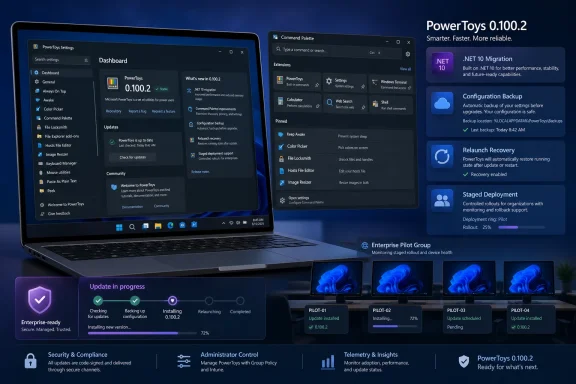
Deploy PowerToys 0.100.2 only to a representative pilot; 0.100.1 fixed several Command Palette issues and 0.100.2 fixed a memory leak. The supplied evidence does not verify an open monitor-placement or freezing regression, so multi-monitor testing is an exposure-based precaution rather than a response to a proven active defect.
Microsoft’s release notes document the servicing sequence. PowerToys 0.100.1 fixed Run history initialization, the Performance Monitor Dock showing “???” after restart, an incorrect Hibernate icon, and a pin-to-Dock dialog appearing for displays where the Dock was not enabled. PowerToys 0.100.2 then fixed a Command Palette memory leak identified in 0.100.1.
Organizations entering the 0.100 branch should therefore test the serviced 0.100.2 build rather than deploy 0.100.0 automatically. Broad approval should depend on whether representative users can complete their real workflows without recurring interruption.
Use three deployment groups:
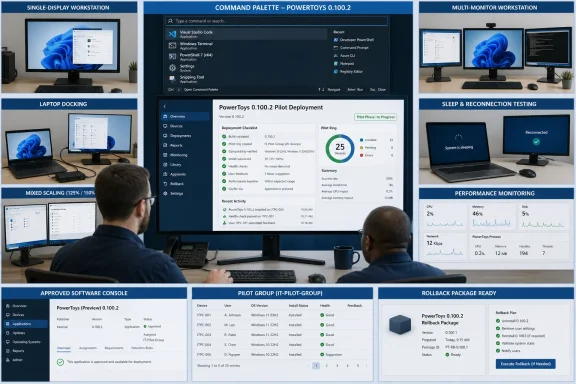
This segmentation does not imply that 0.100.2 is known to fail on multi-monitor systems. It recognizes that a single-screen test PC cannot adequately validate Dock placement, display reconnection, mixed scaling, or laptop docking for employees who depend on those configurations.
A launcher used occasionally to open Calculator has a different operational impact from one used throughout the day to invoke administrative tools, extensions, scripts, files, and pinned actions. Pilot membership should reflect that difference.
Approval should require all critical workflows to pass, no repeatable failure that blocks work, and no recurring interruption that forces users to restart PowerToys. A team may accept a documented cosmetic issue, but it should not silently treat an extension, script, shortcut, or Dock failure as a general pass.
That report supports a narrow operational lesson: servicing releases can matter to users who rely on PowerToys every day. It does not prove that the 0.100 branch has the same defects, nor does it establish an active monitor-placement or freezing problem in 0.100.2. The current deployment decision should rest on Microsoft’s documented 0.100.1 and 0.100.2 fixes plus results from the organization’s own representative pilot.
That excerpt does not establish a current freezing defect, a current monitor-placement defect, or the present status of the linked work. Administrators should inspect the live issue and linked follow-up for current status before approval. They should not characterize either page without reading its current contents, and they should not substitute an older proposal excerpt for current release notes or pilot evidence.
Use this procedure:
Microsoft’s release notes document the servicing sequence. PowerToys 0.100.1 fixed Run history initialization, the Performance Monitor Dock showing “???” after restart, an incorrect Hibernate icon, and a pin-to-Dock dialog appearing for displays where the Dock was not enabled. PowerToys 0.100.2 then fixed a Command Palette memory leak identified in 0.100.1.
Organizations entering the 0.100 branch should therefore test the serviced 0.100.2 build rather than deploy 0.100.0 automatically. Broad approval should depend on whether representative users can complete their real workflows without recurring interruption.
 Deployment Decision
Use three deployment groups:| User or system profile | Recommended action | Approval requirement |
|---|---|---|
| Single display; Command Palette is a noncritical convenience | Include in the initial 0.100.2 pilot | Activation, search, launch, shortcuts, restart, and sign-in tests pass |
| Multi-monitor or Dock-dependent workflow | Include representative hardware in a controlled pilot | Normal display arrangements, scaling, docking, sleep, and reconnection pass |
| Workflow-critical launcher use | Keep on the currently approved version during the pilot | Actual extensions, scripts, shortcuts, pinned actions, and recovery procedures pass |
A launcher used occasionally to open Calculator has a different operational impact from one used throughout the day to invoke administrative tools, extensions, scripts, files, and pinned actions. Pilot membership should reflect that difference.
Operational Pilot Checklist
- Inventory managed systems with PowerToys installed and identify employees who depend on Command Palette.
- Record each pilot PC’s current PowerToys version, Windows build, display count, scaling settings, docking hardware, enabled Command Palette extensions, assigned shortcuts, and critical pinned actions.
- Separate single-display PCs from multi-monitor workstations and laptops regularly connected to external displays.
- Obtain PowerToys 0.100.2 through the organization’s approved distribution channel. For a direct package deployment, use the official PowerToys GitHub Releases page; for a managed package channel, approve the exact 0.100.2 package there.
- Retain the package and deployment definition for the organization’s prior approved version.
- Install 0.100.2, open the current PowerToys settings interface, locate the displayed version, and confirm on-device that it reads 0.100.2. UI labels and navigation can change, so do not rely on an unverified fixed settings path.
- Run the workflow tests below and record the result, frequency, operational impact, and recovery required for every failure.
- Inspect the live GitHub issue #45201 and its linked follow-up before approval. Use the live pages to determine their current status; do not infer current behavior from the supplied historical excerpt.
- Review the newest official PowerToys release notes for any servicing build or newly documented limitation.
- Expand deployment only if the predefined approval criteria are met and the rollback procedure has been tested.
Command Palette and Dock tests
- Activate Command Palette through every assigned keyboard shortcut.
- Open and dismiss it repeatedly using the keyboard, mouse, and focus changes.
- Search for and launch frequently used applications, commands, files, and settings.
- Exercise required plugins and extensions, including rapid repeated activation.
- Test the Extension Gallery operations used by the organization.
- Run the scripts, administrative shortcuts, and custom actions employees need.
- Pin and unpin representative actions in the Dock.
- Verify Dock visibility and placement on each display arrangement used in practice.
- Open context menus for pinned and quick-access items.
- Restart PowerToys and check the Performance Monitor display.
- Check Hibernate and other power-command icons used by the pilot.
- Sign out and back in, then repeat activation and launch tests.
- Put the PC to sleep and resume it.
- Connect and disconnect external monitors.
- Dock and undock pilot laptops.
- Change the primary display where that is part of the user’s routine.
- Test mixed display scaling and laptop-lid state changes where applicable.
Approval should require all critical workflows to pass, no repeatable failure that blocks work, and no recurring interruption that forces users to restart PowerToys. A team may accept a documented cosmetic issue, but it should not silently treat an extension, script, shortcut, or Dock failure as a general pass.
WindowsForum User Reports Put Stability in Context
WindowsForum users have repeatedly focused on the practical reliability of Command Palette rather than treating each PowerToys release as a simple feature checklist. In WindowsForum’s report on PowerToys 0.97.2, the update was characterized as a small but important stability-and-polish release addressing regressions from the broader 0.97 cycle, including Command Palette and CursorWrap fixes.That report supports a narrow operational lesson: servicing releases can matter to users who rely on PowerToys every day. It does not prove that the 0.100 branch has the same defects, nor does it establish an active monitor-placement or freezing problem in 0.100.2. The current deployment decision should rest on Microsoft’s documented 0.100.1 and 0.100.2 fixes plus results from the organization’s own representative pilot.
Read the Dock Proposal Carefully
GitHub issue #45201 is a Command Palette Dock proposal and history record. The supplied excerpt says that the Dock shipped in PowerToys 0.98/CmdPal 0.9 and directs readers to linked follow-up work.That excerpt does not establish a current freezing defect, a current monitor-placement defect, or the present status of the linked work. Administrators should inspect the live issue and linked follow-up for current status before approval. They should not characterize either page without reading its current contents, and they should not substitute an older proposal excerpt for current release notes or pilot evidence.
Use an Explicit Rollback Procedure
Prepare rollback before installing the pilot. Microsoft’s official PowerToys installation documentation and the official PowerToys releases page should be checked when the runbook is created and again before execution, because supported installation commands, prerequisites, and package behavior can change.Use this procedure:
- Identify the approved source. Roll back through the same organization-approved channel used to manage PowerToys, such as the managed software platform or a package retained from the official GitHub Releases page. Verify the package’s version, architecture, and signature under normal organizational controls.
- Capture the failing state. Before changing the installation, record the installed version, Windows build, installer scope, enabled modules and extensions, shortcuts, display arrangement, scaling, reproduction steps, timestamps, logs, screenshots, and any relevant crash information.
- Capture configuration. Record or export the pilot user’s PowerToys configuration using only backup or export controls confirmed in the currently installed UI and current official documentation. Do not promise that settings will survive a downgrade or that a newer configuration is backward-compatible.
- Remove 0.100.2. Use the organization’s normal managed uninstall action or the current Windows uninstall method documented by Microsoft. Confirm that the 0.100.2 installation is no longer registered.
- Install the prior approved release. Deploy the retained prior package through the approved channel. Do not install an arbitrary older download or mix machine-wide and per-user deployment scopes.
- Verify the rollback. Open the current settings interface and confirm the displayed version on-device. Then test Command Palette activation, one critical launch action, required extensions, shortcuts, Dock behavior, and the affected display workflow.
- Restore only verified settings. If settings are absent, use a backup only when the current official documentation confirms that the restore method applies. Otherwise, reapply required settings manually from the captured configuration.
- Preserve evidence. Keep the pre-rollback logs, configuration record, package identifiers, deployment result, and post-rollback test outcome for support or issue reporting.
Frequently Asked Questions
Should everyone avoid PowerToys 0.100?
No. Deploy 0.100.2 to a representative pilot first. Users for whom Command Palette is noncritical generally present lower operational risk, while workflow-critical users should remain on the approved version until their actual tasks pass.Is PowerToys 0.100.2 known to have monitor-placement or freezing defects?
The supplied evidence does not establish either defect in 0.100.2. Multi-monitor, Dock, mixed-scaling, and keyboard-intensive workflows should still be tested because they create additional deployment exposure.Why not deploy PowerToys 0.100.0?
PowerToys 0.100.1 contains documented Command Palette corrections, and 0.100.2 fixes a memory leak identified in 0.100.1. A new 0.100 deployment should start with the serviced 0.100.2 package.What does issue #45201 establish?
It establishes proposal and development history for Command Palette Dock and points to linked follow-up work. The supplied excerpt does not establish a current placement or freezing regression. Inspect the live issue and linked follow-up for their current status.Are settings retained during rollback?
Do not assume so. Capture the configuration before uninstalling 0.100.2, verify the current official backup or export guidance, and be prepared to reapply settings manually. A backup created by a newer version should not be treated as backward-compatible without official confirmation.What should administrators check immediately before broad deployment?
Confirm pilot results, inspect the live Dock issue and linked follow-up, read the newest official release notes, verify that systems actually show 0.100.2, and ensure the prior approved package and tested rollback procedure remain available.References
- Primary source: github.com
Issues · microsoft/PowerToys · GitHub
Microsoft PowerToys is a collection of utilities that supercharge productivity and customization on Windows - Issues · microsoft/PowerToys github.com
- Primary source: WindowsForum
PowerToys Update 0.90.1: Enhanced Command Palette and User-Centric Fixes | Windows Forum
Microsoft’s commitment to its community is on full display with the latest PowerToys update addressing pressing issues with the Command Palette—a tool that...windowsforum.com