

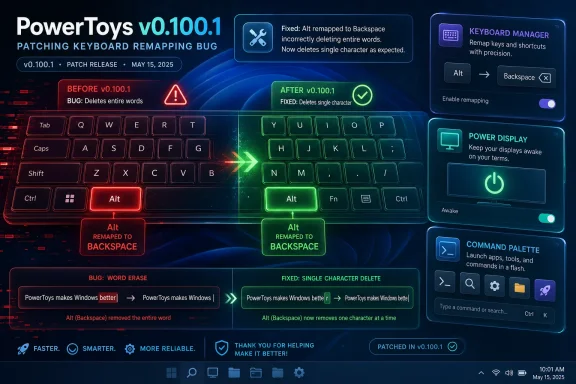
Microsoft released PowerToys v0.100.1 on June 24, 2026, as a patch for v0.100.0, fixing a Keyboard Manager bug that caused some remapped modifier keys to behave like system-key events and trigger unexpected actions in Windows apps. The headline example is wonderfully mundane and maddening: remapping Alt to Backspace could delete an entire word instead of a single character. That is the kind of bug that sends users checking their keyboard, their editor, their muscle memory, and finally their sanity. In this case, Microsoft’s answer is simple: it was PowerToys.
PowerToys v0.100.1 is not a glamorous update, and that is precisely why it matters. The previous v0.100.0 release was the sort of milestone build that gets attention: a rebuilt Shortcut Guide, a Command Palette Extension Gallery, multi-monitor Dock improvements, Power Display refinements, ZoomIt webcam overlays, and the broader modernization work that has made PowerToys feel less like a collection of clever hacks and more like a fast-moving Windows companion app.
But milestone builds have a habit of exposing the stress fractures in the plumbing. A new interface can be demoed. A new gallery can be screenshotted. A new dock can be praised or dismissed in a paragraph. A keyboard remapping bug, by contrast, announces itself by making ordinary typing feel haunted.
That is why v0.100.1 reads less like a victory lap and more like a corrective memo. Microsoft is tidying up the places where v0.100.0’s ambition collided with everyday use: Keyboard Manager, Power Display, Quick Access, Shortcut Guide, Command Palette, PowerToys Run, Color Picker, and ZoomIt all receive targeted fixes. None of these changes redefine PowerToys, but several of them make the difference between “useful utility” and “why did my PC just do that?”
The Keyboard Manager fix is the sharpest example because keyboard remapping sits at the boundary between convenience and trust. Users who remap keys are not merely changing preferences; they are rewriting the physical contract between hand and operating system. When that layer misfires, the whole machine feels unreliable.
The clearest case is Alt remapped to Backspace. A normal Backspace press deletes one character in most text fields. Alt plus Backspace, depending on the application, may be interpreted as a higher-level editing command, such as deleting a word or invoking an app-specific action. If PowerToys sends the remapped key in a way that still smells like Alt to the receiving application, the app reasonably does the wrong thing.
This is the kind of bug that is easy to underestimate from a changelog line. It does not crash the system, produce a blue screen, or corrupt a disk. Instead, it corrupts user expectation, and that is often worse for a productivity tool. A user who cannot trust Backspace after a remap is not going to patiently admire the elegance of the new settings UI.
There is also a deeper lesson here about where PowerToys lives in the Windows stack. It is not just painting extra buttons on top of the desktop. Tools like Keyboard Manager intercept and reinterpret input before applications receive it, which means they participate in a chain of behavior that Windows users experience as native, immediate, and invisible. Bugs at that layer feel like operating system bugs even when they originate in an optional utility.
That is why Microsoft’s fix lands with more weight than its size suggests. It restores the simple promise that a remap should be a remap, not a compound gesture accidentally smuggled into the app.
That bargain is changing. PowerToys now includes utilities that sit close to core workflows: window management, key remapping, command launching, display control, file previewing, text manipulation, and screen recording. It is no longer just a toy box for people who miss the old Windows 95-era ethos of Microsoft-sanctioned tinkering. It is becoming an unofficial power-user shell around Windows 10 and Windows 11.
The v0.100.0 release made that evolution explicit. The rebuilt Shortcut Guide tries to teach users the keyboard language of the active app. Command Palette is becoming a launcher, extension host, dock, and automation surface. Power Display reaches into monitor state, brightness, detection, and wake behavior. ZoomIt, long associated with Mark Russinovich’s presentation toolkit lineage, is growing into a more capable recording utility.
That breadth is impressive, but it also raises the cost of regression. A bug in Command Palette is not merely a bug in a launcher if the user has turned it into the front door for workflows. A bug in Power Display is not just a settings inconvenience if it prevents a monitor from waking properly. A bug in Keyboard Manager is not cosmetic if it changes the semantic meaning of input.
The practical result is that PowerToys is now important enough to be blamed like Windows. Users do not always distinguish between the OS and a Microsoft-built utility that starts with the system, lives in the tray, and modifies low-level behavior. For Microsoft, that is both success and responsibility.
That second fix is a reminder that modern Windows hardware is less uniform than the old desktop mental model suggests. A laptop may have an integrated GPU, a discrete GPU, an internal panel routed through one path, external displays routed through another, USB-C docks in the middle, firmware quirks underneath, and display control protocols that behave differently depending on the vendor. A utility that promises convenient display control inherits all of that complexity.
Power Display is one of the newer examples of PowerToys moving into territory that users have long wanted Windows to handle more gracefully. Monitor brightness, wake state, display profiles, and multi-monitor ergonomics are everyday problems, especially for hybrid workers moving between desks, docks, laptops, and conference rooms. If PowerToys can make that smoother, it earns a permanent place on machines that are otherwise tightly curated.
But display control is also one of those areas where a bug can feel disproportionate. If a dock item shows the wrong icon, a user shrugs. If a monitor refuses to wake after a control says it should, the user starts power-cycling hardware, unplugging cables, blaming drivers, or suspecting a firmware problem. The software may be small; the troubleshooting blast radius is not.
The v0.100.1 fixes therefore show Microsoft doing the unglamorous work required if Power Display is to become more than a neat tray widget. It has to survive real hardware, not just the clean abstraction of a settings page.
None of that sounds dramatic. Taken together, however, it reveals the awkward middle stage of Command Palette’s evolution. It is no longer just a launcher, but it is not yet a mature platform with years of hardened edge-case handling behind it. It is gaining extensions, docked items, settings surfaces, pinned metrics, multi-monitor awareness, and integration with package management. Every new role creates new states that have to be remembered, restored, and rendered correctly.
The Performance Monitor item showing “???” after restart is almost comic, but it is also exactly the sort of bug that makes a platform feel unfinished. Users can forgive missing features more easily than broken persistence. If a user pins a metric or command to a dock, the act carries an expectation: this thing will still be there, and it will still make sense, after the next reboot.
The Hibernate icon fix is smaller still, but it cuts to interface trust. Sleep and Hibernate are not the same action, and users who care about the difference usually care for a reason. A wrong icon does not necessarily trigger the wrong command, but it erodes confidence at precisely the point where the software is asking users to rely on quick visual recognition.
The “pin to dock” dialog fix is more architectural. Multi-monitor Dock support was one of v0.100.0’s major additions, but multi-monitor support is never just “draw the thing twice.” It means mapping intent to displays, remembering per-display state, handling absence and return, and ensuring that UI affordances do not offer impossible destinations. v0.100.1 closes one of those gaps.
But smart discovery tools have to be boringly reliable. In v0.100.1, Microsoft fixed a crash when navigating between Shortcut Guide sidebar sections. It also fixed number-key rendering in shortcut manifests, added a Postman shortcut manifest, and updated bundled manifests to use a literal number-key token so number keys render correctly across apps.
Those fixes point to the two hard problems Shortcut Guide is taking on. The first is application coverage: PowerToys needs manifests that describe shortcuts for specific software, and that means the value of the feature depends partly on breadth and accuracy. The second is representation: shortcuts must be rendered in a way that matches what users see on their keyboards and what applications actually expect.
Number keys sound trivial until they are not. A shortcut guide that displays ambiguous or incorrect key names is worse than an incomplete one because it teaches users the wrong gesture. This matters even more for apps with dense shortcut sets, where a single symbol, modifier, or number-row distinction can separate a useful command from a frustrating dead end.
Shortcut Guide is also a reminder that PowerToys is moving beyond utilities that act only when explicitly invoked. It is increasingly trying to interpret context. The active app matters. The monitor matters. The dock configuration matters. The user’s remaps matter. Context-aware tools are more helpful when they work, and more confusing when they do not.
PowerToys has always depended on a peculiar form of user goodwill. Enthusiasts recommend it because it solves little Windows annoyances elegantly. That recommendation is fragile. If a flyout crashes on launch or a picker paints its own window into the magnified view, the tool suddenly feels less like an official Microsoft utility and more like an overgrown sample app.
The Quick Access crash is especially important because launch surfaces create first impressions. If the thing that is supposed to help users reach the suite quickly crashes while opening or navigating, it undermines the larger v0.100 modernization story. A fast-moving utility suite needs an entry point that feels calm, not brittle.
The Color Picker bug is visual and almost absurd, but visual absurdity is costly in tools used by designers, developers, and anyone sampling colors from a screen. The whole point of a magnified picker is precision. If the utility’s own UI intrudes into the sampled view, the software becomes an obstacle to the task it exists to simplify.
These fixes are small, but they are part of the same discipline as the bigger Keyboard Manager repair. Power-user tools earn loyalty not by adding endless features, but by disappearing at the moment of use.
The VS Code Workspaces issue is a classic integration problem. PowerToys Run wants to surface recent workspaces because that is useful. VS Code changes where that data lives. Suddenly, a launcher feature that users treat as stable becomes stale or broken. The fix is straightforward in hindsight, but the broader lesson is that integrations age.
ZoomIt’s race condition is a different flavor of dependency. Audio initialization during recording involves timing, device availability, APIs, permissions, and hardware state. Race conditions are the bugs that make developers sigh because they often appear intermittently and resist easy reproduction. For users, they simply look like “recording is flaky.”
ZoomIt’s expansion into webcam overlays and richer recording workflows makes this more important. When ZoomIt was primarily a presentation zoom-and-annotation tool, a rough edge was annoying. As it becomes a lightweight capture tool for demos, tutorials, and presentations, reliability becomes central. Nobody wants to discover after a recording session that audio initialization lost a timing lottery.
This is the cost of making PowerToys more useful. Every integration with a popular app, device class, or Windows subsystem creates a maintenance obligation. Microsoft can move quickly precisely because PowerToys is not welded into Windows feature updates, but moving quickly does not exempt it from dependency churn.
That breadth is PowerToys’ selling point. It is also its future risk. A suite with this many tentacles into daily computing can delight users by smoothing rough edges Microsoft has not prioritized in Windows proper. It can also produce regressions that are difficult for ordinary users to attribute because they show up inside other apps, other devices, and other workflows.
For IT pros, this complicates the usual “just install PowerToys” advice. On personal machines, rapid updates are part of the fun. In managed environments, especially where users rely on remaps, display controls, or launcher workflows, PowerToys becomes another fast-moving endpoint component to test, pin, or monitor. That does not mean admins should avoid it. It means they should treat it as software that materially changes user interaction, not as a harmless accessory.
There is a security-minded angle here, too, though v0.100.1 is not a security release. Tools that intercept input, launch commands, install extensions, and integrate with package managers deserve the same governance questions as other productivity platforms. Who can install extensions? What is pinned to docks? Which remaps are allowed? How do updates roll out? PowerToys is still friendly and enthusiast-oriented, but its capabilities are not trivial.
Microsoft’s answer, implicitly, is velocity. Ship the big release, collect reports, patch the regressions. That model works well when the patch arrives quickly and the update mechanism behaves. It works less well when users get stuck on a problematic build or when organizations have to validate changes before deployment. v0.100.1 is therefore both a fix and a test of the PowerToys release model.
PowerToys v0.100.1 will not be remembered the way v0.100.0 might be, but it may matter more to the people who actually live inside these utilities every day. Big releases define the ambition; patch releases define the trust. Microsoft has spent the past few years turning PowerToys into a serious layer of Windows productivity, and that means the boring fixes now count as strategic work. The next challenge is making sure PowerToys can keep moving fast without making users wonder whether the keyboard, the monitor, or the launcher has quietly stopped meaning what it meant yesterday.
 The Small Patch That Explains the Big Release
PowerToys v0.100.1 is not a glamorous update, and that is precisely why it matters. The previous v0.100.0 release was the sort of milestone build that gets attention: a rebuilt Shortcut Guide, a Command Palette Extension Gallery, multi-monitor Dock improvements, Power Display refinements, ZoomIt webcam overlays, and the broader modernization work that has made PowerToys feel less like a collection of clever hacks and more like a fast-moving Windows companion app.But milestone builds have a habit of exposing the stress fractures in the plumbing. A new interface can be demoed. A new gallery can be screenshotted. A new dock can be praised or dismissed in a paragraph. A keyboard remapping bug, by contrast, announces itself by making ordinary typing feel haunted.
That is why v0.100.1 reads less like a victory lap and more like a corrective memo. Microsoft is tidying up the places where v0.100.0’s ambition collided with everyday use: Keyboard Manager, Power Display, Quick Access, Shortcut Guide, Command Palette, PowerToys Run, Color Picker, and ZoomIt all receive targeted fixes. None of these changes redefine PowerToys, but several of them make the difference between “useful utility” and “why did my PC just do that?”
The Keyboard Manager fix is the sharpest example because keyboard remapping sits at the boundary between convenience and trust. Users who remap keys are not merely changing preferences; they are rewriting the physical contract between hand and operating system. When that layer misfires, the whole machine feels unreliable.
Keyboard Manager Broke the One Rule of Remapping
Keyboard remapping has one unforgiving requirement: the substituted key must behave like the key the user intended, not like a ghost of the original input. In v0.100.0, Microsoft says modifier keys remapped to non-modifier keys could be delivered as system-key events. That phrasing is dry, but the effect was not.The clearest case is Alt remapped to Backspace. A normal Backspace press deletes one character in most text fields. Alt plus Backspace, depending on the application, may be interpreted as a higher-level editing command, such as deleting a word or invoking an app-specific action. If PowerToys sends the remapped key in a way that still smells like Alt to the receiving application, the app reasonably does the wrong thing.
This is the kind of bug that is easy to underestimate from a changelog line. It does not crash the system, produce a blue screen, or corrupt a disk. Instead, it corrupts user expectation, and that is often worse for a productivity tool. A user who cannot trust Backspace after a remap is not going to patiently admire the elegance of the new settings UI.
There is also a deeper lesson here about where PowerToys lives in the Windows stack. It is not just painting extra buttons on top of the desktop. Tools like Keyboard Manager intercept and reinterpret input before applications receive it, which means they participate in a chain of behavior that Windows users experience as native, immediate, and invisible. Bugs at that layer feel like operating system bugs even when they originate in an optional utility.
That is why Microsoft’s fix lands with more weight than its size suggests. It restores the simple promise that a remap should be a remap, not a compound gesture accidentally smuggled into the app.
PowerToys Is Becoming Important Enough to Be Blamed Like Windows
For years, PowerToys has occupied a comfortable psychological space: beloved by enthusiasts, tolerated by admins, and optional enough that rough edges were part of the charm. If FancyZones hiccupped, if a launcher result looked odd, if a utility needed a restart, the stakes were limited. Power users accepted some turbulence in exchange for features Windows itself did not provide.That bargain is changing. PowerToys now includes utilities that sit close to core workflows: window management, key remapping, command launching, display control, file previewing, text manipulation, and screen recording. It is no longer just a toy box for people who miss the old Windows 95-era ethos of Microsoft-sanctioned tinkering. It is becoming an unofficial power-user shell around Windows 10 and Windows 11.
The v0.100.0 release made that evolution explicit. The rebuilt Shortcut Guide tries to teach users the keyboard language of the active app. Command Palette is becoming a launcher, extension host, dock, and automation surface. Power Display reaches into monitor state, brightness, detection, and wake behavior. ZoomIt, long associated with Mark Russinovich’s presentation toolkit lineage, is growing into a more capable recording utility.
That breadth is impressive, but it also raises the cost of regression. A bug in Command Palette is not merely a bug in a launcher if the user has turned it into the front door for workflows. A bug in Power Display is not just a settings inconvenience if it prevents a monitor from waking properly. A bug in Keyboard Manager is not cosmetic if it changes the semantic meaning of input.
The practical result is that PowerToys is now important enough to be blamed like Windows. Users do not always distinguish between the OS and a Microsoft-built utility that starts with the system, lives in the tray, and modifies low-level behavior. For Microsoft, that is both success and responsibility.
The Monitor Fixes Point to a Messier Windows Reality
The Power Display fixes in v0.100.1 deserve more attention than they will probably get. Microsoft fixed a bug where selecting “On” in the monitor power-state control did not wake a monitor from standby. It also fixed built-in display detection and brightness control on dual-GPU laptops where the internal panel is driven by the discrete GPU.That second fix is a reminder that modern Windows hardware is less uniform than the old desktop mental model suggests. A laptop may have an integrated GPU, a discrete GPU, an internal panel routed through one path, external displays routed through another, USB-C docks in the middle, firmware quirks underneath, and display control protocols that behave differently depending on the vendor. A utility that promises convenient display control inherits all of that complexity.
Power Display is one of the newer examples of PowerToys moving into territory that users have long wanted Windows to handle more gracefully. Monitor brightness, wake state, display profiles, and multi-monitor ergonomics are everyday problems, especially for hybrid workers moving between desks, docks, laptops, and conference rooms. If PowerToys can make that smoother, it earns a permanent place on machines that are otherwise tightly curated.
But display control is also one of those areas where a bug can feel disproportionate. If a dock item shows the wrong icon, a user shrugs. If a monitor refuses to wake after a control says it should, the user starts power-cycling hardware, unplugging cables, blaming drivers, or suspecting a firmware problem. The software may be small; the troubleshooting blast radius is not.
The v0.100.1 fixes therefore show Microsoft doing the unglamorous work required if Power Display is to become more than a neat tray widget. It has to survive real hardware, not just the clean abstraction of a settings page.
Command Palette’s Rough Edges Are the Price of Becoming a Platform
Command Palette also receives a cluster of fixes in this patch. Microsoft corrected Run history initialization in AOT builds, fixed a Performance Monitor dock item that could show question marks after restart, changed the Hibernate command so it no longer uses the Sleep icon, and limited the “pin to dock” dialog to displays where the dock is enabled.None of that sounds dramatic. Taken together, however, it reveals the awkward middle stage of Command Palette’s evolution. It is no longer just a launcher, but it is not yet a mature platform with years of hardened edge-case handling behind it. It is gaining extensions, docked items, settings surfaces, pinned metrics, multi-monitor awareness, and integration with package management. Every new role creates new states that have to be remembered, restored, and rendered correctly.
The Performance Monitor item showing “???” after restart is almost comic, but it is also exactly the sort of bug that makes a platform feel unfinished. Users can forgive missing features more easily than broken persistence. If a user pins a metric or command to a dock, the act carries an expectation: this thing will still be there, and it will still make sense, after the next reboot.
The Hibernate icon fix is smaller still, but it cuts to interface trust. Sleep and Hibernate are not the same action, and users who care about the difference usually care for a reason. A wrong icon does not necessarily trigger the wrong command, but it erodes confidence at precisely the point where the software is asking users to rely on quick visual recognition.
The “pin to dock” dialog fix is more architectural. Multi-monitor Dock support was one of v0.100.0’s major additions, but multi-monitor support is never just “draw the thing twice.” It means mapping intent to displays, remembering per-display state, handling absence and return, and ensuring that UI affordances do not offer impossible destinations. v0.100.1 closes one of those gaps.
Shortcut Guide Shows the Risk of Teaching the Desktop New Tricks
The rebuilt Shortcut Guide was one of the signature features of v0.100.0. Instead of the older, more static Windows-key overlay concept, the new version appears as a side pane and can surface shortcuts relevant to the active application, alongside Windows and PowerToys shortcuts. That is a smart idea because shortcuts are only useful if users can discover them at the moment they need them.But smart discovery tools have to be boringly reliable. In v0.100.1, Microsoft fixed a crash when navigating between Shortcut Guide sidebar sections. It also fixed number-key rendering in shortcut manifests, added a Postman shortcut manifest, and updated bundled manifests to use a literal number-key token so number keys render correctly across apps.
Those fixes point to the two hard problems Shortcut Guide is taking on. The first is application coverage: PowerToys needs manifests that describe shortcuts for specific software, and that means the value of the feature depends partly on breadth and accuracy. The second is representation: shortcuts must be rendered in a way that matches what users see on their keyboards and what applications actually expect.
Number keys sound trivial until they are not. A shortcut guide that displays ambiguous or incorrect key names is worse than an incomplete one because it teaches users the wrong gesture. This matters even more for apps with dense shortcut sets, where a single symbol, modifier, or number-row distinction can separate a useful command from a frustrating dead end.
Shortcut Guide is also a reminder that PowerToys is moving beyond utilities that act only when explicitly invoked. It is increasingly trying to interpret context. The active app matters. The monitor matters. The dock configuration matters. The user’s remaps matter. Context-aware tools are more helpful when they work, and more confusing when they do not.
Quick Access and Color Picker Fix the Kind of Bugs That Make Utilities Feel Cheap
Quick Access gets a crash fix for unhandled XAML exceptions during launch or page navigation. Color Picker gets a fix for a bug where the main Color Picker window could appear inside the zoomed-in picker view. These are not the sorts of issues that dominate release coverage, but they matter to the perceived quality of the suite.PowerToys has always depended on a peculiar form of user goodwill. Enthusiasts recommend it because it solves little Windows annoyances elegantly. That recommendation is fragile. If a flyout crashes on launch or a picker paints its own window into the magnified view, the tool suddenly feels less like an official Microsoft utility and more like an overgrown sample app.
The Quick Access crash is especially important because launch surfaces create first impressions. If the thing that is supposed to help users reach the suite quickly crashes while opening or navigating, it undermines the larger v0.100 modernization story. A fast-moving utility suite needs an entry point that feels calm, not brittle.
The Color Picker bug is visual and almost absurd, but visual absurdity is costly in tools used by designers, developers, and anyone sampling colors from a screen. The whole point of a magnified picker is precision. If the utility’s own UI intrudes into the sampled view, the software becomes an obstacle to the task it exists to simplify.
These fixes are small, but they are part of the same discipline as the bigger Keyboard Manager repair. Power-user tools earn loyalty not by adding endless features, but by disappearing at the moment of use.
PowerToys Run and ZoomIt Reveal the Dependency Problem
PowerToys Run receives a fix for VS Code Workspaces discovery after Visual Studio Code moved recently opened workspace data to shared storage. ZoomIt receives a fix for a race condition in audio initialization during video recording. These two fixes live in different utilities, but they share a theme: PowerToys increasingly depends on changing behavior outside PowerToys itself.The VS Code Workspaces issue is a classic integration problem. PowerToys Run wants to surface recent workspaces because that is useful. VS Code changes where that data lives. Suddenly, a launcher feature that users treat as stable becomes stale or broken. The fix is straightforward in hindsight, but the broader lesson is that integrations age.
ZoomIt’s race condition is a different flavor of dependency. Audio initialization during recording involves timing, device availability, APIs, permissions, and hardware state. Race conditions are the bugs that make developers sigh because they often appear intermittently and resist easy reproduction. For users, they simply look like “recording is flaky.”
ZoomIt’s expansion into webcam overlays and richer recording workflows makes this more important. When ZoomIt was primarily a presentation zoom-and-annotation tool, a rough edge was annoying. As it becomes a lightweight capture tool for demos, tutorials, and presentations, reliability becomes central. Nobody wants to discover after a recording session that audio initialization lost a timing lottery.
This is the cost of making PowerToys more useful. Every integration with a popular app, device class, or Windows subsystem creates a maintenance obligation. Microsoft can move quickly precisely because PowerToys is not welded into Windows feature updates, but moving quickly does not exempt it from dependency churn.
The v0.100.1 Changelog Is a Map of PowerToys’ Future Risk
The most interesting thing about v0.100.1 is not any single fix. It is the breadth of the patch. In one small release, Microsoft touched input remapping, display power state, dual-GPU brightness handling, launcher history, extension dock rendering, app shortcut manifests, XAML flyout stability, color-picking UI, VS Code workspace discovery, and ZoomIt audio recording.That breadth is PowerToys’ selling point. It is also its future risk. A suite with this many tentacles into daily computing can delight users by smoothing rough edges Microsoft has not prioritized in Windows proper. It can also produce regressions that are difficult for ordinary users to attribute because they show up inside other apps, other devices, and other workflows.
For IT pros, this complicates the usual “just install PowerToys” advice. On personal machines, rapid updates are part of the fun. In managed environments, especially where users rely on remaps, display controls, or launcher workflows, PowerToys becomes another fast-moving endpoint component to test, pin, or monitor. That does not mean admins should avoid it. It means they should treat it as software that materially changes user interaction, not as a harmless accessory.
There is a security-minded angle here, too, though v0.100.1 is not a security release. Tools that intercept input, launch commands, install extensions, and integrate with package managers deserve the same governance questions as other productivity platforms. Who can install extensions? What is pinned to docks? Which remaps are allowed? How do updates roll out? PowerToys is still friendly and enthusiast-oriented, but its capabilities are not trivial.
Microsoft’s answer, implicitly, is velocity. Ship the big release, collect reports, patch the regressions. That model works well when the patch arrives quickly and the update mechanism behaves. It works less well when users get stuck on a problematic build or when organizations have to validate changes before deployment. v0.100.1 is therefore both a fix and a test of the PowerToys release model.
The Patch Notes Tell Users Where to Look First
For anyone running v0.100.0, this is one of those updates that should move from “eventually” to “soon,” especially if Keyboard Manager, Power Display, Shortcut Guide, or ZoomIt are part of the daily workflow. The update does not ask users to relearn the suite; it mainly removes traps introduced or exposed by the milestone release.- Users who rely on Keyboard Manager remaps should install v0.100.1 if modifier-to-non-modifier mappings have produced strange editing behavior.
- Users who saw Alt-to-Backspace delete whole words were likely hitting the remapped modifier event bug fixed in this patch.
- Users testing Power Display on multi-monitor or dual-GPU laptop setups should expect better monitor wake, detection, and brightness behavior after updating.
- Users exploring the new Command Palette Dock should see fewer rough edges around pinned items, restart state, and multi-monitor pinning.
- Users trying the rebuilt Shortcut Guide should get better stability when moving through sidebar sections and more accurate number-key rendering in shortcut manifests.
- Users recording with ZoomIt should benefit from a fix for an audio initialization race condition during video capture.
PowerToys v0.100.1 will not be remembered the way v0.100.0 might be, but it may matter more to the people who actually live inside these utilities every day. Big releases define the ambition; patch releases define the trust. Microsoft has spent the past few years turning PowerToys into a serious layer of Windows productivity, and that means the boring fixes now count as strategic work. The next challenge is making sure PowerToys can keep moving fast without making users wonder whether the keyboard, the monitor, or the launcher has quietly stopped meaning what it meant yesterday.
References
- Primary source: Neowin
Published: 2026-06-24T11:20:39.808239
Microsoft releases PowerToys v0.100.1, fixes a bug that made remapped keys misbehave - Neowin
PowerToys v0.100.1 is out, and if you've been having issues with remapped keys behaving unexpectedly, this update fixes that, and some more bugs. www.neowin.net
- Official source: learn.microsoft.com
Remap Keys and Shortcuts with PowerToys Keyboard Manager | Microsoft Learn
Learn how to remap keyboard keys and shortcuts using PowerToys Keyboard Manager. Customize your Windows keyboard layout and create custom shortcuts for improved productivity.learn.microsoft.com - Related coverage: gigazine.net
Microsoft's official tool suite, 'PowerToys,' has been revamped with a new shortcut key list feature, and a new extension gallery for the command palette has also been added. - GIGAZINE
The news blog specialized in Japanese culture, odd news, gadgets and all other funny stuffs. Updated everyday.gigazine.net - Related coverage: alternativeto.net
PowerToys 0.100 (not 1.0) launches with redesigned Shortcut Guide and Extension Gallery | AlternativeTo
PowerToys has launched version 0.100 (not 1.0), introducing a rebuilt Shortcut Guide side pane, the new Command Palette Extension Gallery, Power Display reliability fixes, and ZoomIt webcam overlayalternativeto.net - Official source: github.com
Releases · microsoft/PowerToys · GitHub
Microsoft PowerToys is a collection of utilities that supercharge productivity and customization on Windows - Releases · microsoft/PowerToys github.com
- Related coverage: pcworld.com
Microsoft PowerToys turns 20 and gets its best feature update yet | PCWorld
PowerToys is turning 20 and is getting a major update from Microsoft. It includes handy new features, a performance boost and many other improvements. All the details.www.pcworld.com
- Related coverage: windowsforum.com
PowerToys v0.100.0 Adds Command Palette Extension Gallery and Shortcut Guide Updates | Windows Forum
Microsoft released PowerToys v0.100.0 on June 9, 2026, bringing a built-in Command Palette Extension Gallery, a redesigned Shortcut Guide, multi-monitor...windowsforum.com - Related coverage: windowscentral.com
Windows 11 search and app launching are getting a speed boost | Windows Central
A new Extension Gallery in PowerToys streamlines how you find, install, and update Command Palette extensions.www.windowscentral.com - Related coverage: betanews.com
Microsoft releases PowerToys v0.100.0 with new Command Palette Extension Gallery, new Shortcut Guide and more - BetaNews
If you were thinking that PowerToys was getting close to a 1.x release, you may be surprised to see that the latest update in fact takes the version number upbetanews.com
- Related coverage: pureinfotech.com
PowerToys gets major changes and new features for Windows 11 in version 0.100 - Pureinfotech
PowerToys 0.100 adds a new Shortcut Guide, Extension Gallery, multi-monitor Dock support, faster Power Display, and .NET 10. pureinfotech.com
