

Microsoft’s latest PowerToys maintenance release is a lesson in pragmatic stewardship: a small, surgical patch—v0.97.2—addresses a handful of regressions introduced in the 0.97 cycle and, critically for many Windows 10 users, restores Image Resizer after an upgrade path problem tied to legacy sparse app packages. The release does not introduce new features, but it delivers important stability fixes across Advanced Paste, Cursor Wrap, Color Picker, the Command Palette localization, Light Switch, Workspaces, and several Explorer-integrated utilities—an explicit nod to reliability over novelty.
PowerToys began as an enthusiast project and has matured into a Microsoft-supported toolkit that sits between quick utility and system extension. Over the past year the project accelerated feature delivery—Command Palette received major enhancements, Advanced Paste added multi-provider AI model routing, and CursorWrap was added for multi-monitor pointer behavior. That momentum increased complexity and introduced a few platform-sensitive regressions, prompting a maintenance cadence of small, narrowly scoped patches. v0.97.2 is the latest of those stabilizing follow-ups.
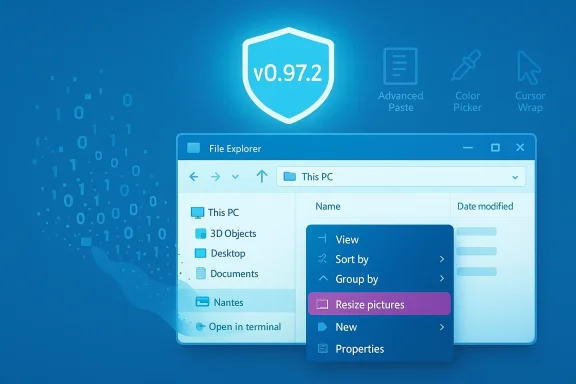
Image Resizer is one of the oldest and most broadly useful PowerToys utilities: a File Explorer shell extension that adds a right-click “Resize pictures” action for batch resizing. When that context-menu experience stops working for some users after an upgrade, the disruption is immediate and visible—photographers, content creators, helpdesk technicians, and everyday users notice quickly. The v0.97.2 patch fixes an upgrade-path regression that could leave Image Resizer non-functional on Windows 10 by cleaning up legacy sparse app package artifacts.
The v0.97.2 fix addresses a crash in the Advanced Paste settings page triggered by null values during JSON deserialization. In practice, that means the settings UI could fail to render for users with certain legacy or malformed configuration blobs—blocking access to configuration and increasing support friction. The patch makes the settings page robust to null entries by using correct null checking and the proper settings repository, restoring stability while leaving provider routing and model choices intact.
Note on unverifiable claims: any mention of specific cloud model names (for example, client-side notes referencing support for model IDs such as “GPT‑5.1”) in release notes or PR comments should be treated as compatibility readiness rather than an indication that a particular model is universally available from a provider. Model availability, region gating, and licensing remain controlled by the provider (Azure/OpenAI/etc.), and PowerToys’ changes only remove client-side barriers to calling those model IDs. Treat such mentions as preparatory compatibility rather than entitlements.
That said, the broader trend—PowerToys becoming an on‑ramp for local and cloud AI workflows—raises real governance and operational questions. Administrators must treat Advanced Paste like any external integration: plan provider whitelists, centralize key management, and prefer local models where policy or data sensitivity requires it. Shell extensions will remain a brittle integration point; staged testing and attention to installer artifacts will be essential to prevent future regressions.
For affected users, the path forward is clear: update to v0.97.2, verify Image Resizer restoration, and follow the recommended troubleshooting checklist if problems persist. For IT professionals, use the typical test → pilot → phased rollout approach, validate checksums and installer artifacts, and treat AI routing as a governed resource rather than a convenience toggle. The PowerToys project is responsive; when the team errs toward targeted fixes and clear release notes, that responsiveness earns confidence. This release is a solid example of that model in action.
Source: Windows Central PowerToys patch restores Image Resizer after legacy cleanup on Windows 10
 Background / Overview
PowerToys began as an enthusiast project and has matured into a Microsoft-supported toolkit that sits between quick utility and system extension. Over the past year the project accelerated feature delivery—Command Palette received major enhancements, Advanced Paste added multi-provider AI model routing, and CursorWrap was added for multi-monitor pointer behavior. That momentum increased complexity and introduced a few platform-sensitive regressions, prompting a maintenance cadence of small, narrowly scoped patches. v0.97.2 is the latest of those stabilizing follow-ups. Image Resizer is one of the oldest and most broadly useful PowerToys utilities: a File Explorer shell extension that adds a right-click “Resize pictures” action for batch resizing. When that context-menu experience stops working for some users after an upgrade, the disruption is immediate and visible—photographers, content creators, helpdesk technicians, and everyday users notice quickly. The v0.97.2 patch fixes an upgrade-path regression that could leave Image Resizer non-functional on Windows 10 by cleaning up legacy sparse app package artifacts.
What shipped in v0.97.2 — the changelog, explained
The v0.97.2 release is intentionally small on features and large on fixes. The prominent items called out by the maintainers and corroborated by independent coverage include:- Advanced Paste: Fix for a crash in the Advanced Paste settings page caused by null values during JSON deserialization. This was a settings-UI stability regression that could surface while configuring AI providers or custom actions.
- Image Resizer: Restored functionality on Windows 10 after upgrade by properly cleaning up legacy sparse app packages that interfered with the app’s ability to start. This corrects an upgrade-path regression rather than changing Image Resizer’s user-facing behavior.
- Quick Access & Measure Tool: Fixed a crash related to the IsShownInSwitchers property when Explorer isn’t running—an edge case in fast sessions or scripted automation.
- Color Picker: Resolved a contrast issue in the Color Picker UI to ensure swatches and labels remain legible across themes.
- Command Palette: Fixed localization strings for some Command Palette extensions so non-English users see properly translated text.
- Cursor Wrap: Fixed the “Automatically activate on utility startup” setting not persisting when disabled and added an option to disable wrapping when a single monitor is connected.
- Light Switch & Workspaces: Startup/theme application logic and DPI-aware overlay positioning fixes were included to address launch-state mismatches and mixed-DPI issues.
The Image Resizer regression: what broke, why it mattered, and how the fix works
What users experienced
After upgrading to a 0.97-series build, some Windows 10 users reported that right‑clicking images in File Explorer produced no Image Resizer dialog and no error—an effectively silent failure. Because Image Resizer is installed as a shell extension, the absence of the expected UI left users uncertain whether the action executed or simply failed to register. That silent failure is particularly disruptive for workflows that rely on fast, repeated image operations.Technical root cause (packaging + legacy artifacts)
At the heart of the problem was an interaction between how PowerToys distributed Image Resizer and how Windows 10 handles a particular packaging mechanism known as Sparse Packages. Sparse Packages allow app payloads to be structured in a way that can optimize streaming or installation, but Windows 10’s runtime can treat those packages differently than Windows 11, creating compatibility pitfalls for shell-launched components. The v0.97.2 change cleans up legacy sparse package artifacts left behind during upgrade paths so Image Resizer can be launched by Windows 10’s shell correctly. The repository discussion and the release notes describe this as a removal of an app manifest or cleanup of sparse-package registration that prevented the OS from starting the app.Why this fix matters
The practical effect is simple but important: Image Resizer’s right‑click workflow is restored on Windows 10 without changing its UI, presets, or behavior. For administrators who manage mixed Windows 10/11 environments, restoring parity keeps user workflows consistent across OS versions and reduces helpdesk calls and workarounds. For end users, the fix re-enables a quick, low-friction image tool that avoids the need to open a full image editor for routine resizing tasks.Advanced Paste: AI plumbing and why the settings fix matters
Advanced Paste is now one of the most consequential PowerToys utilities from a governance and privacy perspective. Over recent releases it evolved from a clipboard convenience into a configurable AI routing surface that can connect to cloud providers (Azure OpenAI, OpenAI, Google Gemini, Mistral) and local runtimes (Foundry Local, Ollama). That breadth delivers great flexibility but also increases the configuration surface and the potential for UI or settings crashes when expected data is missing.The v0.97.2 fix addresses a crash in the Advanced Paste settings page triggered by null values during JSON deserialization. In practice, that means the settings UI could fail to render for users with certain legacy or malformed configuration blobs—blocking access to configuration and increasing support friction. The patch makes the settings page robust to null entries by using correct null checking and the proper settings repository, restoring stability while leaving provider routing and model choices intact.
Other notable fixes and quality-of-life improvements
Cursor Wrap
Cursor Wrap’s teleporting-pointer behavior is a boon for multi-monitor users who want continuous pointer motion across display edges. v0.97.2 ensures the “Automatically activate on utility startup” preference persists when disabled and adds a pragmatic option to disable wrapping on single-monitor setups—addressing both a persistence bug and an annoying laptop-only behavior. These are small UX fixes but important for day-to-day predictability.Command Palette localization
Localization regressions are easy to overlook but materially affect global users. Fixing missing localized strings in PowerToys extensions ensures the Command Palette remains useful and accessible across language settings, which is crucial for a widely distributed utility like PowerToys.UI contrast and DPI fixes
Color Picker contrast corrections and Workspaces overlay DPI fixes reduce readability and positioning errors across themes and mixed-DPI multi-monitor setups. Those corrections keep the utilities usable for people who depend on accessibility and scaling fidelity.Cross-checking and verification
I cross-referenced the release notes and bug descriptions with the project’s official GitHub releases and independent coverage to confirm the claims and the scope of the fixes. The GitHub release notes list the fixes described above, and independent reporting reproduced the Image Resizer restoration and the Advanced Paste settings fix—providing two independent verifications of the same set of changes. For context about Image Resizer’s behavior as a shell extension, Microsoft’s documentation for Image Resizer clarifies its File Explorer integration and configuration options.Note on unverifiable claims: any mention of specific cloud model names (for example, client-side notes referencing support for model IDs such as “GPT‑5.1”) in release notes or PR comments should be treated as compatibility readiness rather than an indication that a particular model is universally available from a provider. Model availability, region gating, and licensing remain controlled by the provider (Azure/OpenAI/etc.), and PowerToys’ changes only remove client-side barriers to calling those model IDs. Treat such mentions as preparatory compatibility rather than entitlements.
Risks, governance, and operational recommendations
PowerToys’ recent expansions—particularly Advanced Paste’s multi-provider AI routing—introduce new governance considerations that administrators and careful users should treat seriously.- Data leakage risk: Routing clipboard contents to cloud models can expose sensitive or regulated data. Enterprises should restrict provider choices, centralize API key management, and prefer local inference for private content.
- Supply chain and trust: Local model hosts require downloading model artifacts. Verify model provenance, licensing, and expected resource demands before deploying across managed endpoints.
- Shell-extension fragility: File Explorer extensions interact deeply with the shell; changes in packaging or manifests can produce OS-version-specific failures. Test updates in pilot rings and monitor for context-menu regressions.
- Staged rollout: Use staged deployment (test → pilot → phased rollout) for production environments. Audit installer checksums and prefer controlled distribution tooling (winget, enterprise package repositories, or Microsoft Store policies) to avoid inconsistent timing of updates. The GitHub release includes installer hashes for verification.
Practical guidance: what to do if Image Resizer is missing or broken on Windows 10
If you or your users notice Image Resizer is missing or not responding after a PowerToys upgrade, follow these steps in order. The numbered list below is a practical troubleshooting checklist.- Confirm the PowerToys version — Ensure you’re on v0.97.2 or later. The release notes note the Image Resizer fix in v0.97.2; older builds may still have the issue.
- Restart File Explorer — Shell extension registration often requires an Explorer restart. Log off or restart explorer.exe from Task Manager to force registration. This can restore context-menu entries without a full reboot.
- Enable Image Resizer in PowerToys settings — Open PowerToys settings and ensure Image Resizer is toggled on; the utility can be disabled by configuration or policy.
- Reinstall or repair PowerToys — If problems persist, reinstall the matching architecture build (x64 vs ARM64). For controlled environments, validate installer checksums before deployment. The GitHub release page lists SHA‑256 hashes for the installers.
- Check for legacy sparse package artifacts — The v0.97.2 fix targets cleanup of legacy sparse package artifacts left behind during upgrades. If reinstalling doesn’t help, a clean uninstall and a fresh install of the v0.97.2 build usually clears leftover registration that prevents launch. If you administrate many machines, consider an automated uninstall → install script to expedite remediation.
- Group Policy and enterprise restrictions — Verify that Explorer shell extension policies or application whitelisting are not blocking the extension. Corporate image-builds or endpoint protection products can prevent shell extensions from registering correctly.
Long-term implications: what PowerToys’ maintenance cadence means for users and IT
PowerToys’ current cadence—frequent feature releases followed by small, fast patches—is operationally sensible but places a premium on disciplined rollouts in managed environments. The suite is increasingly powerful and relevant for power users and IT professionals, yet new capabilities that interact with the shell or external services will always carry integration risk.- For individual power users: the best practice is to keep PowerToys updated but allow time for hotfixes after major releases if you depend on mission-critical behaviors (like Image Resizer in helpdesk or content workflows).
- For IT administrators: adopt a pilot-and-phased approach. Validate the new build in a representative subset of devices (including mixed Windows 10 and 11 endpoints), verify plugin behaviors (Image Resizer context-menu, Advanced Paste provider routing), and confirm outbound network policies for cloud model providers. Use checksum verification and centrally managed deployment tooling.
- For the project: this episode demonstrates the value of conservative defaults and careful upgrade-path handling—small, frequent fixes are effective, but release engineering should guard corner-case installers and legacy packaging interactions with explicit migration scripts or automated cleanup paths.
Final assessment
PowerToys v0.97.2 is a responsible, narrowly scoped maintenance release that prioritizes stability and user experience over new features. Restoring Image Resizer on Windows 10 via cleanup of legacy sparse package artifacts is the most immediately visible win—one that reduces friction for a very common user flow. The Advanced Paste settings fix and the various UI and DPI corrections further tighten reliability across the suite. These are the sorts of engineering decisions that keep a widely used utility both powerful and trustworthy.That said, the broader trend—PowerToys becoming an on‑ramp for local and cloud AI workflows—raises real governance and operational questions. Administrators must treat Advanced Paste like any external integration: plan provider whitelists, centralize key management, and prefer local models where policy or data sensitivity requires it. Shell extensions will remain a brittle integration point; staged testing and attention to installer artifacts will be essential to prevent future regressions.
For affected users, the path forward is clear: update to v0.97.2, verify Image Resizer restoration, and follow the recommended troubleshooting checklist if problems persist. For IT professionals, use the typical test → pilot → phased rollout approach, validate checksums and installer artifacts, and treat AI routing as a governed resource rather than a convenience toggle. The PowerToys project is responsive; when the team errs toward targeted fixes and clear release notes, that responsiveness earns confidence. This release is a solid example of that model in action.
Source: Windows Central PowerToys patch restores Image Resizer after legacy cleanup on Windows 10
