

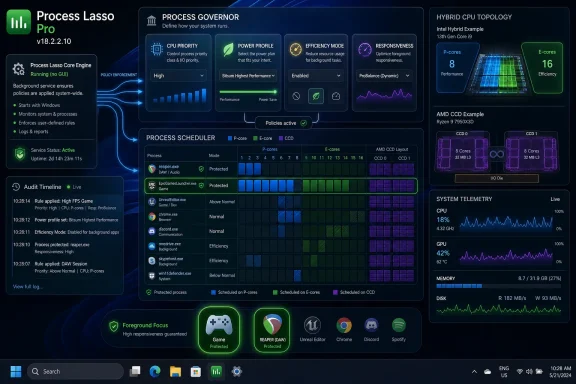
Process Lasso Pro v18.2.2.10, reviewed June 6, 2026, is Bitsum’s Windows process-automation utility for Windows 7 through Windows 11 and Windows Server releases through Server 2025, built around a background Process Governor that enforces CPU, priority, power, and responsiveness rules independently of its graphical interface. Its pitch is not that Windows lacks a scheduler, but that Windows still cannot know the intent behind every workload. That distinction matters more in 2026 than it did in the quad-core desktop era.
The modern PC is no longer a neat pile of interchangeable cores waiting for the operating system to divide work evenly. It is a landscape of performance cores, efficiency cores, processor groups, cache-rich CCDs, anti-cheat-protected games, background updaters, virtual machines, browser renderers, and AI-adjacent helper processes all competing for latency and throughput. Process Lasso Pro’s argument is that users and administrators need policy, not just observation. Version 18.x makes that argument with a sharper focus on heterogeneous hardware, and it exposes both the strength and the risk of putting yet another layer between Windows and the silicon.
Microsoft has spent years teaching Windows how to handle hybrid processors, power states, thread classes, foreground boosts, and efficiency hints. On a clean system with well-behaved applications, the default scheduler is usually good enough, and sometimes better than whatever a power user thinks they are doing after an evening of forum tweaking. That is the first caveat any honest review of Process Lasso has to state.
But “good enough” becomes less comforting when the machine is not clean, the workload is not well behaved, or the user’s definition of success is not the same as Microsoft’s. Windows is trying to balance fairness, power, thermals, responsiveness, and compatibility across millions of configurations. A workstation owner running a latency-sensitive DAW session, a streamer juggling OBS and a game, or an admin keeping a remote desktop host responsive under load may care less about fairness than about making one class of process stop bullying the rest of the machine.
That is where Process Lasso has always lived. It does not replace the Windows scheduler, and it does not magically create spare compute capacity. Instead, it creates a durable policy layer around process behavior: this app should avoid these cores, that app should trigger a power profile, this background task should be restrained when it crosses a threshold, and these settings should survive restarts without a user babysitting Task Manager.
The difference in v18.2.2.10 is that this policy layer increasingly maps onto hardware realities that Windows exposes but does not always let ordinary users persist cleanly. CPU Sets, Efficiency Mode, persistent affinities, and per-application performance profiles are not exotic ideas anymore. They are the vocabulary of modern desktop performance management.
That matters because many Windows “optimizer” tools collapse when the tray icon closes, the session logs off, or the user forgets to relaunch the app after an update. Process Lasso’s service-based design makes it feel less like a dashboard and more like a small policy daemon for Windows. If the GUI disappears, the rules do not.
This is also why Process Lasso has credibility in circles that usually distrust system-tuning software. It is not primarily a skin over Task Manager, nor is it a carnival of one-click miracle buttons. Its core value is persistence: persistent CPU affinities, persistent CPU Sets, persistent priority classes, persistent Efficiency Mode choices, application power profiles, watchdog actions, instance balancing, and process launch rules.
The trade-off is that persistence can preserve bad decisions just as faithfully as good ones. A user who permanently pins the wrong workload to the wrong cores can make a high-end CPU behave like a misconfigured lab experiment. Process Lasso gives the technically inclined user leverage, but leverage cuts both ways.
That distinction is crucial. ProBalance works by dynamically adjusting process priorities under defined conditions so that heavy background load does not drag the interactive desktop into molasses. It is less “overclocking” than traffic control.
In practice, that makes ProBalance most useful on machines where responsiveness matters under contention. A browser compiling WebAssembly in one corner, an archive operation in another, Windows Search waking up at the wrong time, and a foreground application waiting for input is precisely the kind of messy real-world load that makes raw CPU utilization graphs inadequate. The machine may not be “at 100 percent” in a way that looks catastrophic, but it can still feel hostile.
Process Lasso’s sensible restraint is that ProBalance generally avoids hammering foreground or performance-critical processes by default. That is a point in its favor. The software is at its best when it nudges obvious offenders rather than pretending that every workload benefits from aggressive micromanagement.
Process Lasso’s CPU Sets support is particularly relevant here because CPU Sets are softer than traditional affinity masks. Affinity is a hard wall: a process may run only where the mask permits. CPU Sets are a preference that gives Windows room to maneuver when load, power, or thread behavior demands flexibility.
That difference matters on hybrid processors. Hard-pinning a workload can solve one problem while creating another, especially if an application spawns more threads than expected or behaves poorly when constrained. CPU Sets offer a way to express intent without fully handcuffing the scheduler.
Efficiency Mode adds another layer. Windows 11 introduced it as a signal that a process is not time-critical, allowing the operating system to deprioritize it and potentially steer it toward more efficient execution. Process Lasso’s value is not merely that it can toggle Efficiency Mode, but that it can persist those choices per process. For users who have watched Windows classify the wrong thing as low urgency, the ability to say “never do that to this app again” is more than cosmetic.
Thread locality is not an obsession for benchmark hobbyists alone. If a workload benefits from shared cache, bouncing across the wrong topology can cost performance in ways that look like stutter, latency spikes, or underwhelming scaling. If a workload benefits from frequency instead, parking it on the cache-favored side may not be the right answer either.
Process Lasso cannot infer every application’s ideal topology. What it can do is let a knowledgeable user encode a policy once and stop repeating the ritual manually. Games can be nudged toward one CCD, background compute can be separated from latency-sensitive work, and recurring tools can be kept out of the path of the application that actually matters.
That is a power-user feature in the truest sense. It rewards understanding and punishes superstition. The best use of Process Lasso on these systems is not “set everything to high priority and hope,” but careful separation of workloads based on observed behavior.
For sysadmins, this matters because the annoying cases are rarely the ones you can fix interactively once. They are the helper processes, line-of-business apps, backup agents, render workers, and third-party services that return every boot or every login. If the desired behavior has to be reapplied manually, it is not management; it is ritual.
Still, priority enforcement is the area where Process Lasso users most need discipline. Raising a process priority is rarely a free win. Push the wrong process too high and the machine can become less responsive, not more. Lower the wrong service too aggressively and the symptoms may show up as delayed I/O, broken background tasks, or hard-to-diagnose slowness.
The mature view is that Process Lasso’s persistent priority tools are not performance confetti. They are guardrails. Their job is to keep known offenders in their lane and make known critical workloads less vulnerable to incidental pressure.
That can still be valuable. A background transcoder, indexer, scientific job, or runaway helper process may not need to finish as quickly as possible if doing so turns the rest of the desktop into a waiting room. Temporary restraint can make a shared workstation usable, a remote session manageable, or a gaming system less prone to ugly spikes.
The important word is “temporary.” Static constraints are blunt instruments. Dynamic limits become more interesting when they only intervene during contention or threshold violations. Process Lasso’s broader design is strongest when it reacts to conditions rather than freezing the whole machine into a permanently underutilized posture.
This is also where the software separates itself from the worst genre of Windows optimization utilities. It does not claim that throttling is secretly acceleration. It gives administrators and advanced users a mechanism to express that some workloads are less important than others.
The value of logging is not that it creates more graphs to stare at. It creates a trail. When a machine stutters at 2:13 p.m., the interesting question is not whether the user “felt lag,” but which process launched, which workload spiked, whether ProBalance intervened, whether a power profile changed, and whether a known offender crossed a threshold.
That audit trail matters for professionals managing repeat problems. A one-off freeze is folklore. A repeated pattern is a case. Process Lasso’s event logging and process-watch capabilities help convert “my PC feels slow sometimes” into something closer to an incident timeline.
The JSON export angle is also more important than it sounds. In a single-user enthusiast setup, exporting rules is convenience. In a fleet-like environment, or even a small studio with similarly configured workstations, portable configuration becomes the difference between artisanal tuning and reproducible policy.
That is not merely an implementation detail. Kernel drivers are a security and stability boundary. Poorly written drivers can crash systems, open attack surfaces, and create upgrade headaches when Microsoft tightens platform rules. A utility that stays in user mode and service territory may have less theoretical power, but it also carries less systemic risk.
For WindowsForum’s audience, that should land as a meaningful distinction. The Windows ecosystem has no shortage of tools promising lower latency through ever deeper hooks. Some are useful. Some are placebo. Some are liabilities waiting for the next cumulative update.
Process Lasso’s restraint is part of its appeal. It works with the scheduler rather than pretending to replace it wholesale. That makes it less glamorous than a kernel-level “gaming optimizer,” but more plausible as something you would leave running on a machine you actually depend on.
Affinity mistakes are the classic example. Pinning a game or workstation app to a subset of cores may reduce stutter in one title and kneecap another. Disabling access to efficiency cores may help latency-sensitive software but waste power or reduce throughput in mixed workloads. Forcing every important-looking process to High priority can create a hierarchy where too many kings fight over the same scheduler throne.
Anti-cheat systems and protected processes add another wrinkle. Some games and security-sensitive applications resist affinity or CPU Set manipulation, and users sometimes end up applying rules to launchers in hopes that child processes inherit them. That may work in some cases, fail silently in others, or create instability that looks like the game’s fault.
The right posture is empirical. Change one thing. Measure. Observe logs. Undo what does not help. Process Lasso is unusually good at making process policy durable, but durability should be earned.
Think of small render farms, engineering workstations, trading desks, broadcast machines, remote support boxes, kiosks with unruly vendor apps, and lab systems where a few processes regularly interfere with the interactive session. In these cases, the problem is not deployment at hyperscale. It is keeping a particular class of Windows machine responsive under known bad conditions.
The Process Governor model helps here because it does not require the GUI to be open and does not depend on the user making the right decision in the moment. Rules can be set, exported, reviewed, and reapplied. That is not the same as enterprise orchestration, but it is more operationally serious than “open Task Manager and lower that thing when it happens.”
The main limitation is governance. The more Process Lasso becomes part of a workstation standard, the more its rules need documentation. A future admin should be able to tell why a process is confined to certain cores or why a power profile changes when a specific application launches. Otherwise, yesterday’s clever fix becomes tomorrow’s mystery regression.
But the gaming use case is also where magical thinking spreads fastest. Not every game benefits from disabling E-cores. Not every title wants a custom affinity mask. Not every stutter comes from scheduling. Shader compilation, driver behavior, asset streaming, network jitter, anti-cheat overhead, and engine design can all masquerade as CPU scheduling problems.
Process Lasso’s Performance Mode and per-application power profile behavior are safer starting points than elaborate core surgery. Ensuring the system is not downclocking aggressively during a game is straightforward. Excluding a foreground game from ProBalance intervention is sensible. Moving every process on the system into an enthusiast’s handmade topology map is less sensible.
The best gaming configuration is usually boring: keep the game free of obvious background interference, avoid extreme priority changes, prefer CPU Sets over hard affinity when flexibility matters, and only pin workloads when testing shows a repeatable improvement. Process Lasso gives gamers enough rope to build a clean rigging system or tie knots around their ankles.
The software’s strongest claim is not raw speed. It is control under contention. It gives Windows users a vocabulary for expressing preference, priority, locality, and restraint at a level the stock interface still does not make convenient. That is useful on hybrid Intel systems, multi-CCD AMD systems, and ordinary PCs burdened by impolite background processes.
The caveat is that Process Lasso should not be treated as a universal recommendation for every Windows user. Many people are better served by uninstalling junk, updating drivers, fixing thermals, reducing startup load, or leaving the scheduler alone. Process Lasso is a tool for users who have a specific process-management problem or who understand enough about their workloads to create sensible policies.
In other words, the praise is warranted precisely because the product does not need to be sold as magic. Its value is concrete: persistent rules, low-overhead enforcement, practical automation, and visibility into process behavior. That is enough.
For enthusiasts, the product is a disciplined way to test and persist CPU and power-policy decisions without living inside Task Manager. For sysadmins, it can be a local enforcement tool for machines whose workloads are predictable enough to justify process-specific rules. For workstation users, it offers a way to protect responsiveness when expensive software, background services, and modern CPU topology collide.
The concrete lessons are straightforward:
The modern PC is no longer a neat pile of interchangeable cores waiting for the operating system to divide work evenly. It is a landscape of performance cores, efficiency cores, processor groups, cache-rich CCDs, anti-cheat-protected games, background updaters, virtual machines, browser renderers, and AI-adjacent helper processes all competing for latency and throughput. Process Lasso Pro’s argument is that users and administrators need policy, not just observation. Version 18.x makes that argument with a sharper focus on heterogeneous hardware, and it exposes both the strength and the risk of putting yet another layer between Windows and the silicon.
 Windows Scheduling Is Good, but It Is Not Omniscient
Microsoft has spent years teaching Windows how to handle hybrid processors, power states, thread classes, foreground boosts, and efficiency hints. On a clean system with well-behaved applications, the default scheduler is usually good enough, and sometimes better than whatever a power user thinks they are doing after an evening of forum tweaking. That is the first caveat any honest review of Process Lasso has to state.But “good enough” becomes less comforting when the machine is not clean, the workload is not well behaved, or the user’s definition of success is not the same as Microsoft’s. Windows is trying to balance fairness, power, thermals, responsiveness, and compatibility across millions of configurations. A workstation owner running a latency-sensitive DAW session, a streamer juggling OBS and a game, or an admin keeping a remote desktop host responsive under load may care less about fairness than about making one class of process stop bullying the rest of the machine.
That is where Process Lasso has always lived. It does not replace the Windows scheduler, and it does not magically create spare compute capacity. Instead, it creates a durable policy layer around process behavior: this app should avoid these cores, that app should trigger a power profile, this background task should be restrained when it crosses a threshold, and these settings should survive restarts without a user babysitting Task Manager.
The difference in v18.2.2.10 is that this policy layer increasingly maps onto hardware realities that Windows exposes but does not always let ordinary users persist cleanly. CPU Sets, Efficiency Mode, persistent affinities, and per-application performance profiles are not exotic ideas anymore. They are the vocabulary of modern desktop performance management.
The Process Governor Is the Product, Not the Window Around It
Process Lasso’s most important architectural decision is still the separation between its GUI and its Process Governor. The interface is where users observe, configure, and audit. The Governor is where the actual enforcement happens.That matters because many Windows “optimizer” tools collapse when the tray icon closes, the session logs off, or the user forgets to relaunch the app after an update. Process Lasso’s service-based design makes it feel less like a dashboard and more like a small policy daemon for Windows. If the GUI disappears, the rules do not.
This is also why Process Lasso has credibility in circles that usually distrust system-tuning software. It is not primarily a skin over Task Manager, nor is it a carnival of one-click miracle buttons. Its core value is persistence: persistent CPU affinities, persistent CPU Sets, persistent priority classes, persistent Efficiency Mode choices, application power profiles, watchdog actions, instance balancing, and process launch rules.
The trade-off is that persistence can preserve bad decisions just as faithfully as good ones. A user who permanently pins the wrong workload to the wrong cores can make a high-end CPU behave like a misconfigured lab experiment. Process Lasso gives the technically inclined user leverage, but leverage cuts both ways.
ProBalance Is a Seatbelt, Not a Turbocharger
The ProBalance algorithm remains the feature most closely associated with Process Lasso, and it is also the one most often misunderstood. Its purpose is not to raise benchmark scores or give a game extra frames by mysticism. It is designed to preserve responsiveness when one or more processes consume enough CPU to make the system feel stuck.That distinction is crucial. ProBalance works by dynamically adjusting process priorities under defined conditions so that heavy background load does not drag the interactive desktop into molasses. It is less “overclocking” than traffic control.
In practice, that makes ProBalance most useful on machines where responsiveness matters under contention. A browser compiling WebAssembly in one corner, an archive operation in another, Windows Search waking up at the wrong time, and a foreground application waiting for input is precisely the kind of messy real-world load that makes raw CPU utilization graphs inadequate. The machine may not be “at 100 percent” in a way that looks catastrophic, but it can still feel hostile.
Process Lasso’s sensible restraint is that ProBalance generally avoids hammering foreground or performance-critical processes by default. That is a point in its favor. The software is at its best when it nudges obvious offenders rather than pretending that every workload benefits from aggressive micromanagement.
Hybrid CPUs Made Manual Policy Relevant Again
Intel’s hybrid desktop chips and Windows 11’s Efficiency Mode changed the conversation around process control. Once a CPU contains cores with different performance and power characteristics, the old idea that every logical processor is roughly equivalent starts to break down. Scheduling is no longer just about how much CPU time a process receives, but where that time lands.Process Lasso’s CPU Sets support is particularly relevant here because CPU Sets are softer than traditional affinity masks. Affinity is a hard wall: a process may run only where the mask permits. CPU Sets are a preference that gives Windows room to maneuver when load, power, or thread behavior demands flexibility.
That difference matters on hybrid processors. Hard-pinning a workload can solve one problem while creating another, especially if an application spawns more threads than expected or behaves poorly when constrained. CPU Sets offer a way to express intent without fully handcuffing the scheduler.
Efficiency Mode adds another layer. Windows 11 introduced it as a signal that a process is not time-critical, allowing the operating system to deprioritize it and potentially steer it toward more efficient execution. Process Lasso’s value is not merely that it can toggle Efficiency Mode, but that it can persist those choices per process. For users who have watched Windows classify the wrong thing as low urgency, the ability to say “never do that to this app again” is more than cosmetic.
AMD’s CCD Problem Is Really a Locality Problem
The Process Lasso v18.x framing around AMD CCD-aware workflows is not marketing fluff, even if it can sound like the sort of enthusiast jargon that sells motherboards. On Ryzen chips with multiple Core Complex Dies, and especially on X3D parts where one CCD may have access to extra 3D V-Cache while another may clock differently, “which core” can matter in ways that generic utilization percentages do not capture.Thread locality is not an obsession for benchmark hobbyists alone. If a workload benefits from shared cache, bouncing across the wrong topology can cost performance in ways that look like stutter, latency spikes, or underwhelming scaling. If a workload benefits from frequency instead, parking it on the cache-favored side may not be the right answer either.
Process Lasso cannot infer every application’s ideal topology. What it can do is let a knowledgeable user encode a policy once and stop repeating the ritual manually. Games can be nudged toward one CCD, background compute can be separated from latency-sensitive work, and recurring tools can be kept out of the path of the application that actually matters.
That is a power-user feature in the truest sense. It rewards understanding and punishes superstition. The best use of Process Lasso on these systems is not “set everything to high priority and hope,” but careful separation of workloads based on observed behavior.
The Registry Enforcement Story Is Useful, but It Deserves Restraint
One of Process Lasso’s more administrator-friendly claims is its ability to persist priority and related process settings through Windows mechanisms rather than relying only on a live user-mode nudge after launch. That is the difference between a tweak and a rule.For sysadmins, this matters because the annoying cases are rarely the ones you can fix interactively once. They are the helper processes, line-of-business apps, backup agents, render workers, and third-party services that return every boot or every login. If the desired behavior has to be reapplied manually, it is not management; it is ritual.
Still, priority enforcement is the area where Process Lasso users most need discipline. Raising a process priority is rarely a free win. Push the wrong process too high and the machine can become less responsive, not more. Lower the wrong service too aggressively and the symptoms may show up as delayed I/O, broken background tasks, or hard-to-diagnose slowness.
The mature view is that Process Lasso’s persistent priority tools are not performance confetti. They are guardrails. Their job is to keep known offenders in their lane and make known critical workloads less vulnerable to incidental pressure.
CPU Limiting Is a Policy Tool, Not a Physics Hack
The Dynamic CPU Limiter is another feature that invites overinterpretation. It can constrain a process once it crosses a defined CPU threshold, but it cannot make a computationally expensive job finish at the same speed while consuming fewer resources. It moves pain around.That can still be valuable. A background transcoder, indexer, scientific job, or runaway helper process may not need to finish as quickly as possible if doing so turns the rest of the desktop into a waiting room. Temporary restraint can make a shared workstation usable, a remote session manageable, or a gaming system less prone to ugly spikes.
The important word is “temporary.” Static constraints are blunt instruments. Dynamic limits become more interesting when they only intervene during contention or threshold violations. Process Lasso’s broader design is strongest when it reacts to conditions rather than freezing the whole machine into a permanently underutilized posture.
This is also where the software separates itself from the worst genre of Windows optimization utilities. It does not claim that throttling is secretly acceleration. It gives administrators and advanced users a mechanism to express that some workloads are less important than others.
Telemetry Turns Tuning Into Evidence
Version 18’s expanded instrumentation, including GPU utilization in the main monitoring view, points Process Lasso toward a more complete role as a diagnostic tool. The CPU is no longer the only scarce resource that explains user-visible performance. GPU load, process launch history, power profile changes, and responsiveness events all contribute to the story.The value of logging is not that it creates more graphs to stare at. It creates a trail. When a machine stutters at 2:13 p.m., the interesting question is not whether the user “felt lag,” but which process launched, which workload spiked, whether ProBalance intervened, whether a power profile changed, and whether a known offender crossed a threshold.
That audit trail matters for professionals managing repeat problems. A one-off freeze is folklore. A repeated pattern is a case. Process Lasso’s event logging and process-watch capabilities help convert “my PC feels slow sometimes” into something closer to an incident timeline.
The JSON export angle is also more important than it sounds. In a single-user enthusiast setup, exporting rules is convenience. In a fleet-like environment, or even a small studio with similarly configured workstations, portable configuration becomes the difference between artisanal tuning and reproducible policy.
The Absence of a Kernel Driver Is a Feature
One of the more reassuring things about Process Lasso is what it generally does not try to be. It does not need to install a proprietary kernel driver to perform its primary functions. It works through Windows-exposed mechanisms: priorities, affinities, CPU Sets, power profiles, Efficiency Mode, and service-based monitoring.That is not merely an implementation detail. Kernel drivers are a security and stability boundary. Poorly written drivers can crash systems, open attack surfaces, and create upgrade headaches when Microsoft tightens platform rules. A utility that stays in user mode and service territory may have less theoretical power, but it also carries less systemic risk.
For WindowsForum’s audience, that should land as a meaningful distinction. The Windows ecosystem has no shortage of tools promising lower latency through ever deeper hooks. Some are useful. Some are placebo. Some are liabilities waiting for the next cumulative update.
Process Lasso’s restraint is part of its appeal. It works with the scheduler rather than pretending to replace it wholesale. That makes it less glamorous than a kernel-level “gaming optimizer,” but more plausible as something you would leave running on a machine you actually depend on.
Where Process Lasso Can Make a System Worse
The danger with a tool this capable is not that it is snake oil. The danger is that it lets users turn half-remembered advice into permanent configuration. A bad Task Manager tweak dies at reboot. A bad Process Lasso rule can become part of the machine’s personality.Affinity mistakes are the classic example. Pinning a game or workstation app to a subset of cores may reduce stutter in one title and kneecap another. Disabling access to efficiency cores may help latency-sensitive software but waste power or reduce throughput in mixed workloads. Forcing every important-looking process to High priority can create a hierarchy where too many kings fight over the same scheduler throne.
Anti-cheat systems and protected processes add another wrinkle. Some games and security-sensitive applications resist affinity or CPU Set manipulation, and users sometimes end up applying rules to launchers in hopes that child processes inherit them. That may work in some cases, fail silently in others, or create instability that looks like the game’s fault.
The right posture is empirical. Change one thing. Measure. Observe logs. Undo what does not help. Process Lasso is unusually good at making process policy durable, but durability should be earned.
The Enterprise Case Is Narrow but Real
Process Lasso Pro is not a replacement for Group Policy, Intune, Defender for Endpoint, Windows Admin Center, or a proper observability stack. It is not trying to be the central nervous system of a Windows fleet. But there are environments where a local process policy engine fills a gap Microsoft’s mainstream management tools do not address cleanly.Think of small render farms, engineering workstations, trading desks, broadcast machines, remote support boxes, kiosks with unruly vendor apps, and lab systems where a few processes regularly interfere with the interactive session. In these cases, the problem is not deployment at hyperscale. It is keeping a particular class of Windows machine responsive under known bad conditions.
The Process Governor model helps here because it does not require the GUI to be open and does not depend on the user making the right decision in the moment. Rules can be set, exported, reviewed, and reapplied. That is not the same as enterprise orchestration, but it is more operationally serious than “open Task Manager and lower that thing when it happens.”
The main limitation is governance. The more Process Lasso becomes part of a workstation standard, the more its rules need documentation. A future admin should be able to tell why a process is confined to certain cores or why a power profile changes when a specific application launches. Otherwise, yesterday’s clever fix becomes tomorrow’s mystery regression.
For Gamers, the Best Feature May Be Knowing When to Stop
Process Lasso has a long association with gaming performance, and for understandable reasons. Games are latency-sensitive, modern titles spawn multiple helper processes, launchers complicate inheritance, and hybrid CPUs have made core placement newly visible. A utility that can keep background noise away from a game has obvious appeal.But the gaming use case is also where magical thinking spreads fastest. Not every game benefits from disabling E-cores. Not every title wants a custom affinity mask. Not every stutter comes from scheduling. Shader compilation, driver behavior, asset streaming, network jitter, anti-cheat overhead, and engine design can all masquerade as CPU scheduling problems.
Process Lasso’s Performance Mode and per-application power profile behavior are safer starting points than elaborate core surgery. Ensuring the system is not downclocking aggressively during a game is straightforward. Excluding a foreground game from ProBalance intervention is sensible. Moving every process on the system into an enthusiast’s handmade topology map is less sensible.
The best gaming configuration is usually boring: keep the game free of obvious background interference, avoid extreme priority changes, prefer CPU Sets over hard affinity when flexibility matters, and only pin workloads when testing shows a repeatable improvement. Process Lasso gives gamers enough rope to build a clean rigging system or tie knots around their ankles.
The Reviewer’s Praise Is Mostly Earned, with One Important Caveat
The submitted review describes Process Lasso Pro v18.2.2.10 as a mature, technically sound bridge between Windows’ default scheduler and the needs of high-performance computing. That is a fair assessment if “high-performance computing” is read broadly enough to include workstation-class desktop workloads, not just clusters and formal HPC environments.The software’s strongest claim is not raw speed. It is control under contention. It gives Windows users a vocabulary for expressing preference, priority, locality, and restraint at a level the stock interface still does not make convenient. That is useful on hybrid Intel systems, multi-CCD AMD systems, and ordinary PCs burdened by impolite background processes.
The caveat is that Process Lasso should not be treated as a universal recommendation for every Windows user. Many people are better served by uninstalling junk, updating drivers, fixing thermals, reducing startup load, or leaving the scheduler alone. Process Lasso is a tool for users who have a specific process-management problem or who understand enough about their workloads to create sensible policies.
In other words, the praise is warranted precisely because the product does not need to be sold as magic. Its value is concrete: persistent rules, low-overhead enforcement, practical automation, and visibility into process behavior. That is enough.
The v18.2.2.10 Verdict Belongs to the Machines That Refuse to Stay Simple
Process Lasso Pro v18.2.2.10 lands in a Windows ecosystem where the old advice to “let the OS handle it” is still often correct, but no longer complete. The OS can manage resources; it cannot always infer human priority. Bitsum’s utility exists in that gap.For enthusiasts, the product is a disciplined way to test and persist CPU and power-policy decisions without living inside Task Manager. For sysadmins, it can be a local enforcement tool for machines whose workloads are predictable enough to justify process-specific rules. For workstation users, it offers a way to protect responsiveness when expensive software, background services, and modern CPU topology collide.
The concrete lessons are straightforward:
- Process Lasso Pro is most valuable when a machine has recurring contention problems, not when a user merely wants a higher benchmark score.
- The Process Governor architecture is the key design choice because rules continue to run without the GUI.
- CPU Sets are often a safer first step than hard affinities because they express preference while preserving scheduler flexibility.
- Efficiency Mode persistence is useful on Windows 11 systems where Microsoft’s default classification does not match the user’s intent.
- AMD CCD and Intel P-core/E-core tuning can help, but only when the user validates changes against real workloads.
- The software’s lack of a proprietary kernel driver for its core functions is a meaningful stability and security advantage.
References
- Primary source: Scientific Frontline
Published: 2026-06-07T21:10:10.641887
Process Lasso Pro
Process Lasso Pro v18.2.2.10 operates as a low-level systems management utility specifically architected for the Windows NT kernelwww.sflorg.com
- Related coverage: bitsum.com
Process Lasso FAQ
How free is Process Lasso? Process Lasso is mostly free, but a Pro license offers access to the full set of features. What are the installation requirements for Process Lasso? Workstation: Windows 7, 8, 10, 11.Server: Windows 2008r2, 2016, 2019, 2022. Memory and disk requirements are... bitsum.com
- Related coverage: process-lasso-lite.fr.uptodown.com
Process Lasso 18.2.2.10 pour Windows - Téléchargement sécurisé depuis Uptodown
Télécharge Process Lasso pour Windows gratuitement. Pour gérer et contrôler tous les processus actifs. Process Lasso est un gestionnaire de processus...process-lasso-lite.fr.uptodown.com - Related coverage: soft.softodrom.ru
Process Lasso - скачать программу бесплатно / Система
Cкачать приложение Process Lasso 18.2.2.10 бесплатно без регистрации. Программы в категории Система / Настройкаsoft.softodrom.ru
- Related coverage: filehorse.com
Process Lasso 18.2.2.10 (32-bit) - Download for Windows
Download Process Lasso 18.2.2.10 (32-bit) for Windows PC - Safe and Secure from FileHorse. www.filehorse.com
- Related coverage: softpedia.com
Process Lasso Server - Download - Softpedia
Download Process Lasso Server 18.2.2.10 / 18.2.3.1 Beta - Offering a wide array of tools, this comprehensive task management and monitoring utility provides granular control over your server's running processeswww.softpedia.com
- Related coverage: chip.de
Process Lasso - Download - CHIP
Process Lasso 18.2.2.10 Deutsch: Lahme PC-Krücke statt Turbo-Computer? Die Software "Process Lasso" bringt auch ältere Systeme wieder auf Trab.www.chip.de - Related coverage: programosy.pl
Process Lasso 18.2.2.10 download - Programy & Spolszczenia
Process Lasso - program zarządzający procesami systemu Windows. Mamy możliwość wyboru które procesy są dla nas ważne, aby właśnie dla nich była prz...www.programosy.pl
