

Microsoft and Meta have quietly turned the Quest 3 into a bona fide Windows workstation — one you can don and carry anywhere — by rolling out Windows 11’s Mixed Reality Link to the Quest 3 and Quest 3S, bringing an Apple Vision Pro–style virtual desktop experience to a far more affordable headset ecosystem.
Microsoft first introduced the idea of streaming a full Windows 11 desktop into a mixed‑reality headset as a preview feature in late 2024. That preview has now moved into a broader public rollout through a combination of Microsoft’s Mixed Reality Link app for Windows and Meta’s Horizon OS updates for Quest headsets. The core promise is simple: stream your Windows 11 local PC or your Windows 365 Cloud PC into a headset and use multiple virtual monitors, switch between immersive and passthrough views, and treat the headset as an extension of your desktop. This is not Microsoft's Remote Desktop replacement or RDP in the traditional sense; it’s a streaming/compositing integration built around the Windows app ecosystem and Windows 365, designed for low latency and readable text in productivity scenarios. Microsoft is shipping Mixed Reality Link as a Microsoft Store app on Windows 11 and coordinating with Meta so Quest 3 owners can pair their headset and start using their desktop in mixed reality.
For anyone ready to try it, the practical path is clear: update Windows 11 and your Quest, install Mixed Reality Link, run pairing with a fast local network, and evaluate the feature for your primary tasks. Expect rapid evolution: both software and hardware will iterate quickly, and the space between novelty and daily utility is shrinking — but it isn’t fully closed yet.
Source: The Verge Windows 11’s Vision Pro-like remote desktop is now widely available on Quest 3
 Background
Microsoft first introduced the idea of streaming a full Windows 11 desktop into a mixed‑reality headset as a preview feature in late 2024. That preview has now moved into a broader public rollout through a combination of Microsoft’s Mixed Reality Link app for Windows and Meta’s Horizon OS updates for Quest headsets. The core promise is simple: stream your Windows 11 local PC or your Windows 365 Cloud PC into a headset and use multiple virtual monitors, switch between immersive and passthrough views, and treat the headset as an extension of your desktop. This is not Microsoft's Remote Desktop replacement or RDP in the traditional sense; it’s a streaming/compositing integration built around the Windows app ecosystem and Windows 365, designed for low latency and readable text in productivity scenarios. Microsoft is shipping Mixed Reality Link as a Microsoft Store app on Windows 11 and coordinating with Meta so Quest 3 owners can pair their headset and start using their desktop in mixed reality. What’s included in the rollout (the short version)
- Mixed Reality Link (Windows app): Install on Windows 11 (22H2 or later) to allow a Quest 3/3S to stream your local desktop or a Windows 365 Cloud PC.
- Horizon OS v81+ (Quest side): Meta has enabled pairing and desktop display features in recent Horizon OS updates (wider rollout after earlier v72/v72‑era previews). Users can choose immersive virtual displays or passthrough to see their physical surroundings while using virtual monitors.
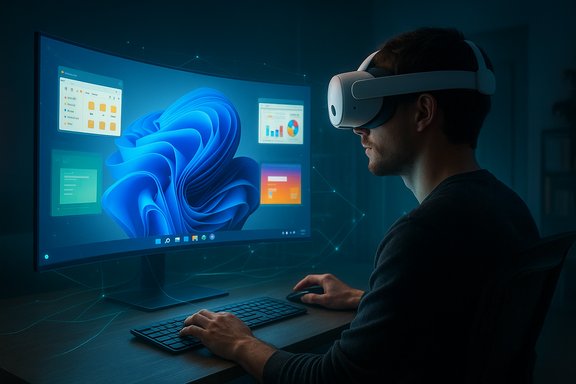
- Ultrawide / Curved mode: An optional immersive ultrawide display that curves around your view, designed to mimic the Vision Pro’s large spatial displays. Early sightings and testing showed both multi‑monitor floating windows and a continuous curved ultrawide layout.
- New Quest conveniences: Resize and rescale displays across apps, a Full Passthrough quick‑check gesture (double‑tap or action button on Quest 3S), and the ability to have more simultaneous apps — Meta recently increased multi‑app capacity (up to 12 apps in some builds).
How it works: the pairing and data path
The basic flow
- Install Mixed Reality Link from the Microsoft Store on a Windows 11 PC (requires Windows 11 22H2 or later and certain network/hardware conditions).
- On the Quest 3/3S, enable the experimental “Pair to PC with Microsoft Mixed Reality Link” option in Advanced settings (this option first appeared during preview releases and is rolling out broadly). Look at your keyboard (or follow the on‑screen pairing prompts); a virtual “Pair” button appears and initiates the handshake.
- On the PC press Windows+Y to show a QR code (or follow the Mixed Reality Link flow), scan with the headset, and accept pairing. Once paired, your Windows desktop can be streamed locally or via Windows 365 Cloud PC.
Streaming and inputs
- The PC renders your Windows 11 desktop and streams decoded frames to the headset (wireless over the LAN or wired via USB when supported). Microsoft and Meta recommend using 5 GHz or 6 GHz Wi‑Fi (Wi‑Fi 6/6E) and a robust local network to reduce latency and packet loss.
- For now, input primarily uses devices attached to the PC (local keyboard and mouse). Bluetooth keyboard/mouse passed directly from the headset to the PC is a requested feature but not universally supported at launch. Controller and hand‑tracking interactions are supported for UI tasks, but real typing still flows through the PC’s peripherals.
Verified technical specifics
Microsoft’s support documentation and multiple independent hardware reviews confirm the minimum requirements and headset specifications important to the experience.- Windows requirement: Windows 11 Version 22H2 or later is required for Mixed Reality Link. Microsoft published setup steps and minimum hardware/network recommendations in its Mixed Reality Link support article.
- Quest 3 display: Meta’s Quest 3 uses dual LCD panels at roughly 2064 × 2208 pixels per eye, with a broad refresh window and a ~110° horizontal field of view; the Quest 3S is a lower‑resolution, more affordable variant with ~1832 × 1920 pixels per eye. These display characteristics affect legibility and the usable virtual monitor size. Multiple independent reviews confirm those numbers.
- Network ports and recommendations: Microsoft lists specific inbound ports (8264 TCP, 8265 TCP, 8266 UDP) and strongly recommends a robust 5 GHz/6 GHz Wi‑Fi connection or a Gigabit LAN for the PC. These are practical considerations for minimizing latency and ensuring stable streams.
Experience and features in practice
Multi‑monitor and ultrawide modes
The Mixed Reality Link preview and Meta’s Horizon OS updates let you create multiple virtual monitors (Microsoft indicates up to three virtual monitors via Mixed Reality Link, while Quest OS changes allow juggling many app windows). Meta’s UI also offers an immersive ultrawide curved mode that spans your peripheral vision — visually similar to Vision Pro’s large virtual displays, but executed on Quest hardware. Early user reports indicate the ultrawide feels more like one continuous workspace, helpful for task switching and single‑app focus such as spreadsheets or code editors.Passthrough vs Full immersion
You can operate in full immersion (virtual environment blocks the real world) or passthrough mode (real‑world view with virtual overlays). Meta’s Full Passthrough quick‑check action (double‑tap or action button on 3S) is intended for convenience — peek at your drink or keyboard without taking the headset off. This reduces friction for short tasks and increases safety in physical spaces.Multi‑app and rescaling
Meta’s updates allow resizing and rescaling displays across apps and, in some builds, opening more apps at once (Meta has pushed the simultaneous apps cap higher in recent Horizon OS updates). That makes the Quest more practical for real multitasking rather than single‑app use.Step‑by‑step: get started (practical checklist)
- Update Windows 11 to the latest build (22H2 or newer) and install Mixed Reality Link from Microsoft Store.
- Update your Quest 3/3S to the latest Horizon OS (v81+ rollout will expose broader features). Check Advanced > Experimental for “Pair to PC with Microsoft Mixed Reality Link” and enable it.
- Ensure both PC and Quest are on the same high‑quality local network (Wi‑Fi 6/6E recommended). Open firewall ports if necessary (8264/8265/8266).
- On PC press Windows+Y or launch Mixed Reality Link to display the pairing QR code and scan it with the Quest when prompted. Accept pairing flows on both devices.
- Configure virtual monitors, choose immersive/ passthrough modes, and set the display layout that works for your workflow. Use the headset’s passthrough quick‑tap to glance at the physical world safely.
Strengths and practical benefits
- Cost‑effective spatial desktop: Compared with high‑end mixed‑reality devices, a Quest 3 + PC offers a convincing virtual desktop at a fraction of the price. The hardware is widely available and well‑supported by third‑party apps already.
- Plug‑and‑play productivity: When network and hardware conditions are met, setup is straightforward and pairing is fast — in many cases a few seconds to connect. Microsoft aimed for frictionless pairing similar to a phone/tablet experience.
- Flexible local/cloud options: You can stream a local PC or a Windows 365 Cloud PC, which is attractive for enterprises that want to centralize security and manageability.
- Seamless context switching: Passthrough and Full Passthrough gestures reduce the friction of moving between digital and physical tasks without removing the headset.
Risks, limitations, and caveats
- Network sensitivity and real‑world latency: Performance hinges on local network quality. Packet loss, interference, or weak Wi‑Fi can produce pixelation, input lag, or disconnects. Vendor testing often occurs under ideal lab conditions — real homes and offices vary widely. Treat low‑latency claims with caution until validated in your environment.
- Input model limitations: Early previews and community reports confirm that keyboard and mouse attached to the PC, not the headset, provide the most reliable input. Native Bluetooth keyboard/mouse passthrough from the headset is not guaranteed at launch, limiting some mobile workflows.
- Readability and text fidelity: Quest 3 has very capable per‑eye resolution, but it is not Vision Pro class. Small text, dense UI, or fine typography could be harder to read than on modern 4K physical monitors; users should test text‑heavy apps before committing.
- Battery and comfort: Headset battery life is limited (roughly two hours for active use depending on workload), and long sessions can cause discomfort or eye strain for some users. This makes the setup better suited to short bursts of focused work rather than an all‑day replacement for a physical monitor stack.
- Enterprise controls and security posture: Streaming full desktops to headsets raises new questions — device management, firmware update security, passthrough camera privacy, and network segmentation. Enterprises should treat the feature as preview technology until robust management and SLAs exist.
Enterprise and IT implications
Mixed Reality Link is a potential productivity tool, but it needs careful piloting in managed environments:- Pilot before deploying: Run controlled pilots that include lots of network testing, QoS rules, and endpoint management checks. Don’t roll this into production workflows without metrics and controls.
- Prefer Windows 365 for sensitive data: Cloud PCs centralize data and policies and reduce the risk of local device exposure. If security is paramount, Windows 365 is a safer, more controllable route than local PC streaming.
- Update device security posture: Manage firmware updates and verify that passthrough camera data and device telemetry comply with corporate privacy requirements. Consider network segmentation and monitor logs for unusual pairing attempts.
Competitive context: Quest 3 vs Apple Vision Pro vs third‑party apps
- Apple Vision Pro offers far higher per‑eye resolution and a different integrated OS‑to‑hardware story, but costs thousands of dollars. Quest 3 provides a compelling, lower‑cost alternative for many users despite lower peak fidelity. The Quest pairing model depends on a local network and a Windows PC or cloud PC, while Vision Pro can pair directly to a Mac in certain scenarios.
- Third‑party tools (Virtual Desktop, Immersed, etc. already offered desktop streaming to Quest devices before Mixed Reality Link. These tools remain viable alternatives, especially for users on older headsets or with non‑Windows setups. Microsoft + Meta aim to provide a native, integrated option that reduces third‑party friction for Windows users but does not immediately eliminate those alternatives.
Recommendations for enthusiasts and productivity users
- Use a wired Ethernet connection for your PC where possible and reserve a dedicated 5 GHz/6 GHz Wi‑Fi band for the headset to minimize interference.
- Test readability with the apps you use most (IDE, spreadsheets, document editors) before replacing physical monitors; adjust virtual display scale to find the sweet spot for your eyes.
- Keep the PC unlocked and awake during pairing; the headset cannot connect to a locked system for security reasons per Microsoft’s documentation.
- For enterprise pilots, start with Windows 365 Cloud PCs to retain central policy control and to shield sensitive local endpoints.
Broader implications and critical analysis
This rollout is strategically important for both Microsoft and Meta. For Microsoft, it advances Windows as a composable service that can be delivered into multiple devices and form factors; Mixed Reality Link showcases Windows 11 as a destination OS for spatial computing experiences. For Meta, the capability helps position Quest 3 as more than a gaming device — it strengthens the narrative that mixed reality can be a productivity platform, expanding Quest’s addressable use cases. However, several risks temper the excitement. The user experience is tightly coupled to local network quality, the maturity of device drivers (especially on Arm/ Snapdragon X platforms), and the reliability of hand, controller, and keyboard input routing. Early adopters have already documented pairing quirks, regional store availability issues, and variable performance across PC hardware. These are expected in a preview phase, but they matter for adoption beyond enthusiasts. From a market perspective, this democratizes the spatial desktop concept. Apple’s Vision Pro remains a high‑end, tightly integrated offering; Microsoft + Meta’s approach is lower cost and more accessible, which could accelerate mainstream experimentation with mixed reality productivity. That said, to convert curiosity into routine work behavior, improvements in ergonomics, battery life, input models, and enterprise manageability will be necessary.Conclusion
Mixed Reality Link on Quest 3 transforms a mainstream, affordable headset into a credible Windows 11 productivity device — offering multi‑monitor virtual workspaces, immersive ultrawide views, and passthrough convenience that echoes Vision Pro’s ambitions at a fraction of the cost. The technology is real and usable today for many workflows, but it arrives as preview software: network quality, input limitations, battery life, and manageability remain the primary constraints. Enthusiasts and early adopters will find this an exciting, cost‑effective way to experiment with spatial desktops; enterprises should pilot with caution and prioritize Windows 365 and robust network controls.For anyone ready to try it, the practical path is clear: update Windows 11 and your Quest, install Mixed Reality Link, run pairing with a fast local network, and evaluate the feature for your primary tasks. Expect rapid evolution: both software and hardware will iterate quickly, and the space between novelty and daily utility is shrinking — but it isn’t fully closed yet.
Source: The Verge Windows 11’s Vision Pro-like remote desktop is now widely available on Quest 3
