

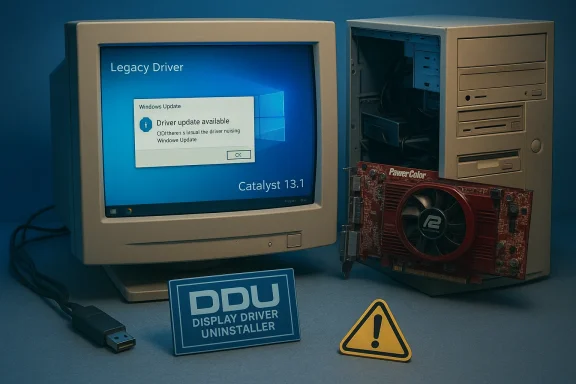
If you still own a PowerColor ATI Radeon HD 2600 XT and you're hunting for a cheap Windows 10 driver, the short version is blunt but practical: you can get a stable, basic display driver through Microsoft Windows Update, you can attempt to restore older Catalyst features by manually installing archived AMD drivers (Catalyst 13.1) at your own risk, and the “one‑click” cheap driver bundles you’ll find floating around the web are a security and stability minefield. Practical recovery is possible for hobbyists and legacy‑hardware fans, but it’s a careful, risk‑aware process — and for anyone who needs modern decode, gaming or security guarantees, a modest hardware upgrade is the saner long‑term choice.
The Radeon HD 2600 XT (RV630) launched in mid‑2007 as a mainstream DirectX 10–era part. Typical retail cards shipped with 256–512 MB of GDDR memory on a 128‑bit bus, roughly 120 unified shader processors, and a low TDP that made them attractive for mainstream desktops and early Mac Pro factory options. Hardware specs, vendors’ aftermarket coolers, and contemporary reviews (for example the PowerColor HD 2600 XT review) show the card was well suited in its day for video playback and light 3D workloads.
AMD moved the HD 2000/3000/4000 families into legacy status years ago. The last full, vendor‑packaged driver set intended for these GPUs is Catalyst 13.1, which was built and validated against Windows 7 / Windows 8 kernels — not modern Windows 10 builds. AMD’s official guidance is explicit: for Windows 10, driver support for these families is only available via Windows Update (the Microsoft‑signed legacy driver, often referenced as driver family 8.970.x), and AMD does not plan further Catalyst releases for these cards. That policy shapes every realistic path for getting a working display stack on contemporary machines.
Acknowledgement: The practical steps above reflect consolidated community practice and vendor guidance for legacy Radeon families; AMD’s legacy support pages and Microsoft’s lifecycle pages are the canonical starting points if you proceed.
Source: Born2Invest https://born2invest.com/?b=style-231978812/
 Background / Overview
The Radeon HD 2600 XT (RV630) launched in mid‑2007 as a mainstream DirectX 10–era part. Typical retail cards shipped with 256–512 MB of GDDR memory on a 128‑bit bus, roughly 120 unified shader processors, and a low TDP that made them attractive for mainstream desktops and early Mac Pro factory options. Hardware specs, vendors’ aftermarket coolers, and contemporary reviews (for example the PowerColor HD 2600 XT review) show the card was well suited in its day for video playback and light 3D workloads.AMD moved the HD 2000/3000/4000 families into legacy status years ago. The last full, vendor‑packaged driver set intended for these GPUs is Catalyst 13.1, which was built and validated against Windows 7 / Windows 8 kernels — not modern Windows 10 builds. AMD’s official guidance is explicit: for Windows 10, driver support for these families is only available via Windows Update (the Microsoft‑signed legacy driver, often referenced as driver family 8.970.x), and AMD does not plan further Catalyst releases for these cards. That policy shapes every realistic path for getting a working display stack on contemporary machines.
What “working” means on Windows 10 today
There are three realistic outcomes when you try to run an HD 2600 XT on Windows 10:- Safest / lowest‑risk: Let Windows Update install Microsoft’s signed legacy driver. This delivers correct resolutions, basic 2D acceleration and acceptable video playback for legacy codecs. It keeps kernel components signed and avoids unsigned binaries. This should be your starting point.
- Feature‑complete (advanced, risky): Manually install extracted components from AMD’s archived Catalyst 13.1 package if the INge explicitly lists your card’s hardware ID (PCI\VEN_1002&DEV_xxxx). This can sometimes restore older Catalyst Control Center features and legacy UVD offload, but it requires careful, reversible steps and acceptance of trade‑offs (unsigned driver files, compatibility gaps, Windows Update re recommended:** Use third‑party repackaged installers, “cheap driver” marketplaces, or one‑click driver updaters. These are frequently modified, unsigned, and may bundle unwanted software or malware. Avoid them unless you can cryptographically verify exactly what you are installing.
Why Microsoft’s Windows Update path is the recommended baseline
Windows Update provides a signed driver from Microsoft’s driver catalog that is vetted against the OS. For legacy GPUs the Microsoft driver is the lowest‑risk option because:- It preserves kernel signing and reduces attack surface from unsigned kernel modules.
- It’s installed and updated through the normal Windows update pipeline, minimizing future reversion or conflict.
- It provides the baseline features most users need — proper resolution, multi‑monitor support, and desktop/video acceleration.
Why the archived Catalyst 13.1 route exists — and why it’s tricky
Catalyst 13.1 is the last full AMD release that includes the HD 2000/3000/4000 families. Enthusiasts salvage older features by extracting the Catalyst package and manually installing the display driver INF via Device Manager (“Have Disk…”). That approach can restore legacy utilities and some UVD features but has several real downsides:- The installer was validated against older kernels; some binaries may rely on driver models or service behaviors that changed in Windows 10.
- Catalysts for these families may be unsigned (or their signatures won’t satisfy current Secure Boot rules), which leads to driver enforcement obstacles.
- Windows Update may later revert your driver to Microsoft’s packaged version, so you must pause automatic driver installs while testing.
ath, do so on a test machine and follow a conservative workflow: inventory your hardware ID; create a disk image or System Restore point; download DDU and stage it on removable media in case a cleanup is needed; extract the Catalyst package and confirm your card’s device ID is present in the Display.Driver*.inf before attempting an installation.
Step‑by‑step conservative workflow (advanced usered steps are the conservative method used by experienced hobbyists to try restoring Catalyst functionality. Each step lists what it changes and why.
- Inventory and backup.
- Copy your GPU Hardware ID: Device Manager → Display adapters → right‑click → Properties → Details → Hardware Ids (copy PCI\VEN_1002&DEV_xxxx).
- Create a System Restore point and, ideally, a full disk image. Driver changes can make a machine unbootable.
- Stage emergency tools.
- Download and archive Display Driver Uninstaller (DDU) onto removable media. DDU is widely used to fully clean vendor graphics drivers when standard uninstall fails; manufacturers and support articles document its use. Bootable recovery media or safe‑mode access is useful if the system refuses to boot after a driver change.
- Try Windows Update first (recommended).
- Settings → Update & Security → Windows Update → Check for updates → View optional updates → Drivers. Install Microsoft’s driver and validate desktop, video playback, and multi‑monitor behavior. If it meets your needs, stop here.
- If you need Catalyst features, prepare the archived package.
- Download AMD’s legacy Catalyst 13.1 package (for Windows 7/8 era) from AMD’s archives. Extract the driver package without running the bundled installer. Use a file‑extract tool to view the Display.Driver*.inf files. Verify the INF lists your hardware ID. Do not run an automated installer unless you know the INF is correct.
- Clean the existing driver.
- Boot into Safe Mode and run DDU to cleanly remove existing AMD/Microsoft display drivers. This prevents conflicts and reduces the chance of an unbootable state after manual install. Intel and other vendors document DDU as a supported troubleshooting tool.
- Manual INF install via Device Manager.
- In Device Manager, right‑click the display adapter entry → Update driver → Browse my computer for drivers → Let me pick from a list → Have Disk → Point to the extracted folder that contains the correct .inf. Install only the Display Driver component. Reboot and test. Microsoft documents this Device Manager workflow. (learn.microsoft.com)
- If Windows blocks the driver because it’s unsigned, consider the implications.
- Temporarily disabling driver signature enforcement or enabling Test Mode can allow installation of unsigned drivers, but it reduces system security and may not work on systems with Secure Boot enabled. If you use these flags, revert them afterward. Use this only on machines where you accept the additional risk. Community guides and Microsoft‑style documentation explain the methods and caveats.date and monitor.
- After a successful manual install, pause automatic driver updates to avoid rollback to Microsoft’s driver. Test video playback, multi‑monitor behavior, and any legacy Catalyst utilities you need. If anything goes wrong, use DDU in Safe Mode to revert to a clean state.
The security and compatibility risks you must accept
Running archival or manually installed legacy drivers on modern Windows is not risk‑free:- Unsigned or mismatched binaries can open kernel attack vectors. Unsigned drivers bypass Microsoft’s driver signing controls and can be exploited. Disabling signature enforcement further reduces protections.
- Windows Update reversion. Wlace your manual driver with the Microsoft‑signed legacy driver, erasing restored features. Pausing updates is possible but shifts ongoing maintenance burden onto you.
- End of OS support. Windows 10 reached end of support on October 14, 2025. Running an unsupported OS plus legacy drivers increases long‑term exposure to unpatched vulnerabilities; consider Extended Security Updates or move to Windows 11 where possible.
- Third‑party repackagers. Driver bundles marketed as “cheap” or “universal Windows 10 HD 2600 XT drivers” are commonly edited, unsigned, and sometimes malicious. Avoid them unless you can verify digital checksums and signatures.
Practical alternatives: when replacement is the best answer
For users who need modern multimedia features (hardware HEVC/AV1 decode), current gaming compatibility, or a secure, supported environment, a small hardware upgrade is often less expensive and far less risky than chasing legacy drivers.- A low‑end modern GPU from recent market generations will deliver correct drivers from AMD/NVIDIA with fte support.
- For HTPCs or basic desktops, even modest integrated GPUs in recent CPUs provide superior codec support and power/performance balance.
Troubleshooting quick reference
- Black screen after a driver install: Boot to Safe Mode, run DDU to clean, then reinstall Microsoft’s Windows Update driver.
- Windows refuses to allow an INF install: Confirm the INF contains your hardware ID and check Secure Boot / driver signature enforcement settings. Temporarily disabling signature enforcement may help but comes with risk.
- Catalyst Control Center missing or partially functional: This is expected; many Catalyst UI features rely on legacy services and installers that aren’t compatible with modern Windows. Extracting only the display driver may be required rather than running the full legacy package.
Summary analysis: strengths, limits, and final recommendations
Strengths- The HD 2600 XT is a durable piece of hardware that still handles basic desktop use and older video codecs needed for legacy content. Historic reviews highlight its low power draw and capable multimedia features for the era.
- Microsoft’s signed legacy driver via Windows Update provides a low‑risk path to a usable desktop experience on Windows 10.
- AMD’s last full Catalyst release for these GPUs was Catalyst 13.1, validated for Windows 7/8 — not Windows 10. Restoring full Catalyst features requires manual, potentially unsafe steps.
- Windows 10’s end of support (October 14, 2025) materially increases the security risk of running legacy drivers on an unsupported platform. Long‑term reliance on such a stack is not recommended for production machines.
- Start with Windows Update and accept the Microsoft‑signed driver if it meets your needs.
- If you must recover Catalyst features: use the conservative, tested workflow described above, perform full backups, use DDU for clean installs, verify INF device IDs, and keep the machine offline/test‑only when experimenting.
- Avoid “cheap driver” repackagers and unverified third‑party bundles. If you need modern codecs, gaming, or security, buy a small current GPU or upgrade to a hardware platform supported under Windows 11.
Acknowledgement: The practical steps above reflect consolidated community practice and vendor guidance for legacy Radeon families; AMD’s legacy support pages and Microsoft’s lifecycle pages are the canonical starting points if you proceed.
Source: Born2Invest https://born2invest.com/?b=style-231978812/
