

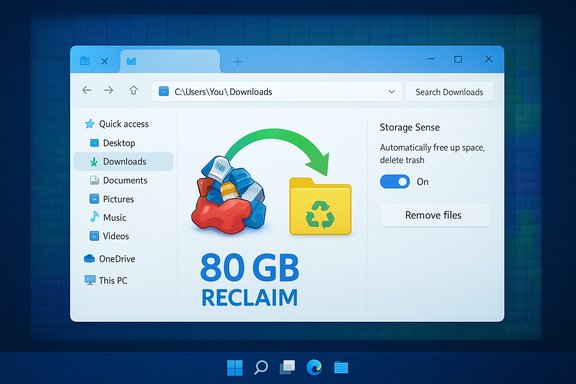
My Downloads folder quietly ate nearly an entire drive partition—almost 80 GB—before I noticed, and the cleanup I did afterward is a practical template every Windows user should follow to reclaim space and avoid the same slow‑down trap in future.
The Downloads folder is a convenience feature that doubles as a digital landfill for installers, ZIP archives, email attachments, media, and half-finished downloads. Because most browsers and many apps deposit files into Downloads by default, it fills up over months and years without any explicit prompt to tidy it. Windows will not clear that folder for you unless you enable automated cleanup (Storage Sense) or remove the files manually. This behaviour turns a small, useful folder into a major storage sink if left unchecked.
This article walks through why Downloads becomes a junk magnet, how to find and verify the biggest space hogs, a step‑by‑step cleanup and recovery plan (with safe commands and UI paths), and configuration tips to stop the problem from recurring. It verifies Windows’ cleanup features and browser defaults against current documentation, flags risky actions, and offers practical, safe options for different experience levels.
The 80 GB reclamation story is not an outlier; it’s representative of a recurring, avoidable pattern. Treat Downloads like a temporary socket: clear it regularly, or automate it carefully. Use the safe, built‑in tools first, move long‑term content out of Downloads, and set your browser to ask where to save files. Those three steps alone will prevent the folder from becoming a future storage emergency.
If disk space is still disappearing after the Downloads sweep and Storage Sense runs, expand the investigation to WinSxS, System Volume Information, pagefile/hiberfil sizing, large AppData caches, and shadow copy usage—these are the usual secondary sources and require more cautious handling or administrator commands to reclaim safely.
Source: MakeUseOf This Windows folder on my computer hoarded 80 GB of junk — you might want to check yours
 Background / Overview
The Downloads folder is a convenience feature that doubles as a digital landfill for installers, ZIP archives, email attachments, media, and half-finished downloads. Because most browsers and many apps deposit files into Downloads by default, it fills up over months and years without any explicit prompt to tidy it. Windows will not clear that folder for you unless you enable automated cleanup (Storage Sense) or remove the files manually. This behaviour turns a small, useful folder into a major storage sink if left unchecked.This article walks through why Downloads becomes a junk magnet, how to find and verify the biggest space hogs, a step‑by‑step cleanup and recovery plan (with safe commands and UI paths), and configuration tips to stop the problem from recurring. It verifies Windows’ cleanup features and browser defaults against current documentation, flags risky actions, and offers practical, safe options for different experience levels.
Why the Downloads folder becomes a junk magnet
The default landing pad for everything
Most mainstream browsers—Google Chrome and Microsoft Edge among them—save files to the user’s Downloads folder by default unless you change the setting or ask the browser to prompt every time. That means every installer, ZIP, PDF and movie you open but don’t move will live there indefinitely. Microsoft’s Edge documentation explicitly lists the user Downloads folder as the default save location, with an option to change it or ask each time. Chrome likewise defaults to the same user Downloads folder unless you change it in settings.“Temporary” by name only
Many users treat Downloads as a temporary staging area: “I’ll deal with this later.” But Windows won’t purge it automatically unless you explicitly enable Storage Sense and configure the Downloads cleanup rule. Storage Sense can remove files from Downloads that haven’t been opened for a user‑defined period, but the option is disabled by default and requires explicit configuration. Multiple Windows-focused guidance pages confirm the Storage Sense options and document that the Downloads cleanup setting is opt‑in (set to “Never” by default unless the user or an admin changes it).Secondary sources of bloat
- Apps and utilities sometimes write sizeable output files to Downloads by default (exported video, reports, archives).
- Duplicate or repeated downloads leave multiple installers (ChromeSetup (2).exe, etc. and versions.
- Extracted ZIPs, leftover .crdownload or partial files from interrupted downloads, and cached attachments all accumulate.
- If you back up your user profile (or use OneDrive’s folder backup), the Downloads folder can be mirrored to cloud storage and across devices, multiplying the storage cost.
What to check first — quick reconnaissance
1. Open Settings > System > Storage
Windows’ Storage settings provide a top‑level view of what’s eating space and include a “Temporary files” panel that can list Downloads and other temp categories. This is the safest first stop: it shows reclaimable space and lets you preview categories before deleting. Guides and Microsoft community posts recommend starting here for an accurate, supported measurement.2. Inspect Downloads in File Explorer
Open File Explorer, navigate to C:\Users\<yourname>\Downloads (or the user folder in File Explorer’s sidebar), and sort by Size. Sorting largest first reveals installers, ISOs, VM images, or forgotten video files quickly. Community guides and forum experts repeatedly recommend this as a “fast win.”3. Use a disk visualizer for hidden hogs
Tools such as WizTree, WinDirStat, and TreeSize Free show where disk space is allocated, including hidden folders that Explorer might not highlight. These visualizers speed discovery of unusually large directories like Windows.old, WinSxS, or application caches. Use the official vendor download or a trusted package manager to get these tools safely.Step‑by‑step cleanup: a safe, repeatable process
The following sequence balances safety and speed: you’ll recover space without accidentally deleting important system files.1. Snapshot and prepare (safety first)
- Create a quick image backup or at least copy irreplaceable folders (Documents, Desktop, Photos) to external media or cloud storage.
- Make sure File History / backups complete so you can restore critical data if needed.
2. Manual curation of Downloads (the surgical pass)
- Open Downloads in File Explorer.
- Sort by Date Modified and Size.
- Move anything you want to keep into Documents, a curated archive folder, or external/cloud storage. If a file is >1 GB and you don’t need it locally, move it to an external drive or mark it online‑only in OneDrive.
- Delete obvious junk: duplicate installers (ChromeSetup (2).exe), old installers you no longer need, extracted ZIP contents, and videos you don’t need.
3. Use Windows’ Temporary files UI to finish (UI method)
- Settings > System > Storage > Temporary files.
- Wait for Windows to scan and populate categories.
- Check “Downloads” and any other temporary categories you want to clean. Important: uncheck Downloads if you didn’t review its contents first.
- Click Remove files to execute the cleanup.
4. If you need more recovery: Disk Cleanup and WinSxS/DISM
- Run Disk Cleanup as administrator: search “Disk Cleanup”, run it, then click “Clean up system files.” This can free significant space from update caches and previous Windows installations.
- To analyze and shrink the component store safely, use DISM:
- dism.exe /online /cleanup-image /AnalyzeComponentStore
- dism.exe /online /cleanup-image /StartComponentCleanup
5. Advanced targets (only if you know what you’re doing)
- Windows.old: remove only if you no longer need to roll back an upgrade.
- System Restore / Shadow Copies: reduce allocation via System Protection settings or vssadmin, but be aware this removes restore points.
- Hibernation file: disabling hibernation (powercfg -h off) deletes hiberfil.sys, freeing RAM‑sized space but also disables hibernate/fast startup.
Reclaiming 80 GB — anecdote vs. expectation
A recent user report described reclaiming nearly 80 GB after a focused Downloads cleanup and temporary files purge. This illustrates the real scale of the problem on PCs where Downloads has accumulated installers, ISOs, extracted archives, and duplicated files over years. That is an anecdote, but one that matches frequent forum reports and community troubleshooting guides: cleaning Downloads is often the single fastest way to regain many gigabytes. Treat personal numbers as situational—your mileage will vary depending on habits and how long you’ve ignored Downloads.Stop it from happening again: configuration and hygiene
Turn on Storage Sense and configure it carefully
Storage Sense automates routine cleanup: temporary files, Recycle Bin age threshold, and the Downloads cleanup rule. The feature can be scheduled (daily, weekly, monthly, or only when low on disk space) and configured to delete files in Downloads that haven’t been opened for a specified number of days. The Downloads deletion option is disabled by default on most systems—set it deliberately and conservatively (14–60 days) if you want automation that doesn’t surprise you. Documentation and community guidance show Storage Sense’s options and recommend choosing “Never” or a longer threshold if you store persistent files in Downloads. How to enable (quick):- Settings > System > Storage > Storage Sense — toggle On.
- Click “Storage Sense” or “Configure Storage Sense or run it now.”
- Choose Run frequency and set the Downloads cleanup threshold under Temporary files.
Change browser behavior
- In Edge: Settings > Downloads → change Location or toggle “Ask me what to do with each download.” This prevents everything from silently landing in Downloads.
- In Chrome: Settings > Downloads → change folder or enable “Ask where to save each file before downloading.” This forces you to make a deliberate choice per file.
Use OneDrive selectively and understand Known Folder Move
OneDrive’s “Folder Backup” (Known Folder Move) can back up Desktop, Documents, and Pictures to the cloud; it may include Downloads if the backup is configured or if you manually move the folder. If OneDrive is syncing Downloads, the bloat can replicate to cloud storage and across devices. If you rely on OneDrive, use Files On‑Demand to keep large files online‑only, or exclude Downloads from automatic backups. Guides and community sources document Known Folder Move and the Files On‑Demand mechanism; configuring these cautiously prevents local disk bloat tied to cloud sync.Move Downloads to another drive (for low‑capacity system drives)
If your system drive is small (e.g., 128 GB), consider moving your Downloads folder to a secondary drive:- Right‑click Downloads → Properties → Location tab → Move.
- Choose a folder on a larger drive.
Tools and commands cheat sheet
- Settings > System > Storage > Temporary files — UI to remove Downloads and temp files.
- Storage Sense: Settings > System > Storage > Storage Sense (toggle + Configure).
- DISM (admin): dism.exe /online /cleanup-image /AnalyzeComponentStore and dism.exe /online /cleanup-image /StartComponentCleanup.
- Disable hibernation (admin): powercfg -h off
- Disk Cleanup: search “Disk Cleanup” → Clean up system files
- Visualizers: WizTree, WinDirStat, TreeSize Free (use official downloads)
- Change browser download behavior:
- Edge: Settings > Downloads.
- Chrome: Settings > Downloads (or chrome://settings/downloads).
Risks, trade‑offs, and what to avoid
- Don’t delete files inside Windows folders (Program Files, System32) unless you know what they are; that can break Windows.
- Removing Windows.old is final: it disables rollback to the prior Windows version.
- Reducing System Restore allocation or deleting restore points removes your safety net for system recovery.
- Storage Sense’s Downloads cleanup is powerful but implies a risk of removing files you intended to keep; set conservative thresholds and review the folder before enabling the Downloads purge.
- Use caution with third‑party cleaners: some are helpful, others are over‑aggressive or bundled with junk. Prefer built‑in tools and well‑vetted utilities.
A practical maintenance plan (recommended cadence)
- Weekly: glance at Settings > System > Storage for any surprise growth.
- Monthly: sort Downloads by size and delete or move items older than 30 days.
- Quarterly: run Disk Cleanup (system files) and/or run Storage Sense manually.
- Annually: run a disk visualizer (WizTree/WinDirStat) to catch large or hidden accumulations.
Final verdict: what worked, and why it matters
Cleaning Downloads is a low‑risk, high‑reward first step when reclaiming disk space. It’s often the fastest way to free multiple gigabytes because humans habitually use Downloads as a temporary holding area and rarely clean it. Turning on Storage Sense and configuring it judiciously automates routine maintenance while browser settings reduce the influx. For power users, DISM and Disk Cleanup reclaim OS update debris; for casual users, the Settings → Temporary files route plus manual Downloads curation will solve the majority of cases.The 80 GB reclamation story is not an outlier; it’s representative of a recurring, avoidable pattern. Treat Downloads like a temporary socket: clear it regularly, or automate it carefully. Use the safe, built‑in tools first, move long‑term content out of Downloads, and set your browser to ask where to save files. Those three steps alone will prevent the folder from becoming a future storage emergency.
If disk space is still disappearing after the Downloads sweep and Storage Sense runs, expand the investigation to WinSxS, System Volume Information, pagefile/hiberfil sizing, large AppData caches, and shadow copy usage—these are the usual secondary sources and require more cautious handling or administrator commands to reclaim safely.
Source: MakeUseOf This Windows folder on my computer hoarded 80 GB of junk — you might want to check yours
