

MakeUseOf has highlighted Rectify11, a free community-made Windows 11 customization project aimed at fixing the operating system’s still-jarring mix of modern WinUI surfaces and older Explorer, Control Panel, and system dialogs.
The complaint will be familiar to most Windows 11 users: Settings and the Start menu received Microsoft’s newer design language, while Properties dialogs, file pickers, recovery screens, and parts of Control Panel remain visually rooted in earlier Windows releases. Rectify11’s pitch is not a new shell or a replacement desktop, but a cleanup pass over those inconsistencies.
According to the Rectify11 project, the current v3.2 installer adds a broader dark theme, replacement icons, modified dialogs and buttons, revised context-menu options, and optional transparency effects. The project also supplies its own Control Panel work and attempts to modernize legacy surfaces that Microsoft has not fully migrated.
It installs on top of an existing Windows 11 installation rather than requiring a custom ISO or clean reinstall. That makes it more approachable than a full custom build, but it also means the tool is reaching into parts of Windows that ordinary personalization utilities leave alone.
The project’s own FAQ says v3 supports official Windows 11 images through version 24H2, and explicitly warns against using debloated Windows images. Rectify11’s site says a future v4 release will stop modifying system files, which is a notable distinction: v3’s deeper visual changes can involve them.
That does not establish that Rectify11 is malicious. The project is open source and directs users to its own site and GitHub releases. But it does mean this is not equivalent to switching wallpaper or changing an accent color. Administrators should treat it as an unsupported OS customization with a rollback plan, not as a harmless theme pack.
Microsoft’s own support guidance notes that Windows updates can be removed through Update History when an update causes problems, and Windows Recovery Environment can remove recent quality or feature updates when the desktop is inaccessible. Those are useful recovery options, but they are not a guarantee that a third-party UI modification will unwind cleanly.
Before installing it:
The complaint will be familiar to most Windows 11 users: Settings and the Start menu received Microsoft’s newer design language, while Properties dialogs, file pickers, recovery screens, and parts of Control Panel remain visually rooted in earlier Windows releases. Rectify11’s pitch is not a new shell or a replacement desktop, but a cleanup pass over those inconsistencies.
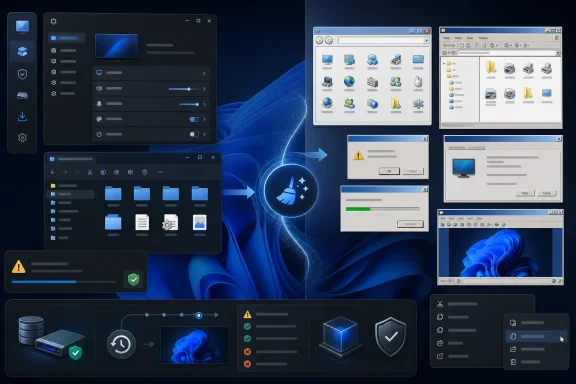 What Rectify11 changes
According to the Rectify11 project, the current v3.2 installer adds a broader dark theme, replacement icons, modified dialogs and buttons, revised context-menu options, and optional transparency effects. The project also supplies its own Control Panel work and attempts to modernize legacy surfaces that Microsoft has not fully migrated.It installs on top of an existing Windows 11 installation rather than requiring a custom ISO or clean reinstall. That makes it more approachable than a full custom build, but it also means the tool is reaching into parts of Windows that ordinary personalization utilities leave alone.
The project’s own FAQ says v3 supports official Windows 11 images through version 24H2, and explicitly warns against using debloated Windows images. Rectify11’s site says a future v4 release will stop modifying system files, which is a notable distinction: v3’s deeper visual changes can involve them.
The catch for production PCs
The MakeUseOf piece correctly puts the emphasis on risk. A cosmetic utility that patches icons, themes, or legacy resources can collide with application compatibility and future Windows servicing. Rectify11’s FAQ acknowledges that some applications may fail to launch after icon modifications; it specifically documents workarounds for ESET and reWASD users. It also says SecureUX ThemeTool, used by the package, may trigger antivirus detections.That does not establish that Rectify11 is malicious. The project is open source and directs users to its own site and GitHub releases. But it does mean this is not equivalent to switching wallpaper or changing an accent color. Administrators should treat it as an unsupported OS customization with a rollback plan, not as a harmless theme pack.
Microsoft’s own support guidance notes that Windows updates can be removed through Update History when an update causes problems, and Windows Recovery Environment can remove recent quality or feature updates when the desktop is inaccessible. Those are useful recovery options, but they are not a guarantee that a third-party UI modification will unwind cleanly.
Sensible approach
For enthusiasts who want a more cohesive desktop, Rectify11 may be worth testing on a spare machine or virtual machine. It is a poor fit for managed endpoints, business-critical PCs, or systems with strict security tooling and application-control requirements.Before installing it:
- Create a full, tested backup or system image and a restore point.
- Use an official, fully updated Windows 11 installation.
- Record installed apps and current Windows build details.
- Avoid stacking it with other shell, theme, taskbar, or Explorer patching tools.
- Plan to remove or reassess it before major Windows feature upgrades.
References
- Primary source: MakeUseOf
Published: 2026-07-15T19:30:17+00:00
Windows 11's design is broken until you use this free tool to finish what Microsoft left incomplete
I gave Windows 11 a makeover, and now I can't go back. www.makeuseof.com
- Official source: support.microsoft.com
How to uninstall a Windows Update | Microsoft Support
Learn how to uninstall a Windows update, if for example that update is causing your system to have errors or other problems.support.microsoft.com - Official source: learn.microsoft.com
Reference for Windows 11 and Windows 10 settings - Windows apps | Microsoft Learn
This page lists the settings that are supported by both Windows 10 and Windows 11.learn.microsoft.com
