

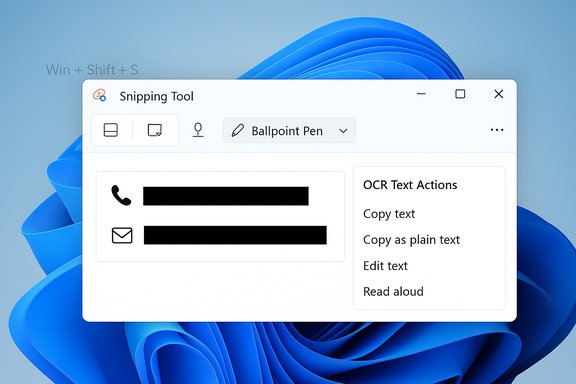
The Snipping Tool built into Windows 11 now gives you quick, native ways to hide or remove personal information from screenshots — from a one‑click “Quick redact” that targets phone numbers and email addresses to a simple ballpoint‑pen scribble for everything else — plus built‑in OCR (Text Actions) that both finds text and lets you redact it before sharing. These additions make it far easier to prepare screenshots for public posting or sensitive conversations without leaving Windows, but they also come with important caveats about what “redacted” actually means, where screenshots are saved, and how to avoid accidental exposure via cloud sync or metadata.
Windows 11’s Snipping Tool has evolved from a lightweight capture helper into a multi‑tool editor: you can take still snips with Win + Shift + S, open the capture in the Snipping Tool editor, extract text using the Text Actions/OCR features, and apply redactions either automatically for common data types or manually with the pen tools. That workflow eliminates the need to open a separate photo editor for many quick privacy edits. These built‑in features matter because screenshots often carry Personally Identifiable Information (PII): email addresses, phone numbers, account names, and sometimes account numbers or session tokens visible in UIs. For many users the fastest way to share a snippet is also the riskiest if redaction is incomplete or files later auto‑sync to a cloud account. The Snipping Tool’s new options reduce friction for safe sharing — but they are not a substitute for a measured redaction workflow when you’re handling high‑sensitivity material.
Conclusion
Windows 11’s Snipping Tool bridges convenience and privacy with features that let you find, redact, and extract text without leaving the OS. Use Quick Redact for fast removal of phone numbers and email addresses, and the Ballpoint Pen for manual coverage of anything the scanner misses. Always save a flattened copy to a secure, non‑synced location and treat blurs or layered covers as insufficient for high‑sensitivity data. When followed correctly, the Snipping Tool simplifies safe screenshot sharing; when treated carelessly, even a single saved original in the wrong folder can undo the work of a careful redaction.
Source: gadgetbridge.com How to remove sensitive information from screenshots in Windows 11
 Background
Windows 11’s Snipping Tool has evolved from a lightweight capture helper into a multi‑tool editor: you can take still snips with Win + Shift + S, open the capture in the Snipping Tool editor, extract text using the Text Actions/OCR features, and apply redactions either automatically for common data types or manually with the pen tools. That workflow eliminates the need to open a separate photo editor for many quick privacy edits. These built‑in features matter because screenshots often carry Personally Identifiable Information (PII): email addresses, phone numbers, account names, and sometimes account numbers or session tokens visible in UIs. For many users the fastest way to share a snippet is also the riskiest if redaction is incomplete or files later auto‑sync to a cloud account. The Snipping Tool’s new options reduce friction for safe sharing — but they are not a substitute for a measured redaction workflow when you’re handling high‑sensitivity material.Overview: What’s available in Snipping Tool for redaction and hiding data
- Quick Redact — a one‑click scanner that detects and black‑bars email addresses and phone numbers in a captured image. It’s fast and designed for common PII types.
- Text Actions / OCR — detects text in an image, highlights it for selection, and provides “Copy all text” / “Copy as table” options. This is useful to find text that needs redaction and to copy non‑sensitive parts without retyping.
- Ballpoint Pen and Highlighter — manual annotation tools inside Snipping Tool allow you to draw solid bars or scribbles to conceal any region of an image. This is the editable, free‑form fallback for names, addresses, and UI strings the Quick Redact won’t catch.
- Edit in Paint / Photos / external editors — if you need blur, pixelation, or more complex edits (or want to flatten layers), the Snipping Tool can hand off to Paint or Photos. Use these for cosmetic edits but follow secure redaction guidance described below.
How to remove sensitive information — step‑by‑step (quick and robust methods)
Below are practical, reproducible workflows that cover the common cases: fast one‑click redaction, manual redaction for arbitrary content, and an audit checklist so you don’t accidentally leak screenshots later.A — Fast: Use Quick Redact (best for phone numbers and email addresses)
- Press Windows + Shift + S to take a snip; the image goes to the clipboard and a Snipping Tool preview appears.
- Click the preview to open the Snipping Tool editor.
- Click the Text actions icon (often labelled “Take actions” or a small document icon). The tool will analyze detected text in the image.
- Click the little arrow next to Quick redact and make sure Phone numbers and Email addresses are checked.
- Click Quick redact. Any phone numbers and email addresses the scanner finds will be blacked out automatically.
- Save the edited image using the Save icon (Ctrl+S). Choose a destination that isn’t auto‑synced if the content is sensitive.
B — Manual redaction with Ballpoint Pen (any content you choose)
- Take a snip (Win + Shift + S) and open the preview in Snipping Tool.
- Click the Ballpoint pen icon in the toolbar. Set the color to black (or another opaque color) and choose a large stroke size so the bar fully covers the target text.
- Draw one or more bars over the items you must hide. For best results, use a single solid rectangle when possible (drag shape or hold Shift while drawing if the tool supports it), rather than thin scribbles.
- Save the image (Ctrl+S) to a new file name (preserve the original until you confirm the redaction is correct).
C — When you need to extract text before redacting (OCR → redact)
- Capture and open snip in Snipping Tool. Click Text actions to run OCR and highlight all text.
- Use Copy all text to place the text on your clipboard. Review it, remove the sensitive lines, and paste the sanitized text where needed. This avoids sharing the full screenshot at all.
- Or, use the OCR to identify the lines you must redact in the image, then use Quick Redact or manual pen to remove them visually and save the redacted image.
Where screenshots are saved and why that matters
- By default, traditional Print Screen (Win + PrtScn) saves PNG files to Pictures\Screenshots. Win + Shift + S copies to the clipboard and shows a notification preview you can open and save manually. On more recent Snipping Tool updates there is also a setting that lets you choose a default “Automatically save” folder from within the Snipping Tool settings. If you rely on automatic saving, check whether that folder is synced to OneDrive or another cloud service.
- If your Pictures folder is being backed up to OneDrive (common on many Windows setups), screenshots may be uploaded to the cloud immediately after saving. That’s convenient, but it can leak sensitive captures to cloud storage if you forget to move them. For private screenshots, save to a non‑synced folder, disable OneDrive screenshot backup, or use manual clipboard paste rather than saving.
Security, limits, and the myths — what redaction actually protects against
The short version: visual redaction in flattened bitmap images is usually good enough for everyday sharing, but it’s not an absolute guarantee. There are different failure modes to understand:- Layered documents and editable formats: If you redact by placing a black box as a separate overlay in an editable file (a PowerPoint slide, a layered PSD, or a PDF that hasn’t been flattened), someone can remove the covering layer and reveal the original text. Always export or save redacted content as a flattened image (PNG/JPG) or a flattened PDF.
- Blurring and pixelation: Simple blur or pixelation can sometimes be reversed or improved with AI super‑resolution or reconstruction techniques. Skilled attackers have reversed naive pixelation or used algorithms to guess likely characters from blurred shapes. If the content is truly sensitive, do not rely solely on blur/pixelation. Use solid black bars or remove the content upstream before capture.
- Solid black bars on flattened images: If you draw an opaque rectangle directly onto the image pixels and save, the underlying pixels are overwritten and cannot be recovered from that file. That’s the preferred redaction method for screenshots. However, ensure you’re not sharing an earlier, unredacted copy or a cloud‑synced original.
- Metadata and hidden data: Most screenshots taken by Windows and saved as PNG/JPEG do not embed text in hidden layers; they are pixel images. However, some file formats and some capture/export workflows (or some apps) can include metadata (file properties, source app names, timestamps) that reveal context. Test exported files and strip metadata if needed — especially before sharing in sensitive contexts. Snipping Tool’s OCR and redaction run locally on the device in current builds, reducing cloud exposure, but cloud sync of the saved files remains a risk if enabled.
Practical best practices and checklist before sharing a screenshot
- Always open the Snipping Tool preview after capture and inspect the full image — don’t assume Quick Redact caught everything.
- If you used Quick Redact, run it, then manually draw a solid rectangle to cover other stray lines. Save as a new filename.
- Disable automatic upload or move the saved screenshot to a non‑synced folder before sharing to avoid OneDrive/Dropbox auto‑backup leakage.
- Flatten and export: if you used any editing layers or export paths that might keep the original, export a flattened PNG/JPG and verify the file contains no layers that can be ungrouped.
- Consider copying text via OCR rather than sending an image: use “Copy all text” and paste a sanitized version when practical. This avoids image‑based leaks entirely.
- Keep originals until you’ve verified the redaction: retain the unshared original in a secure location for audit, but never accidentally upload the unredacted original to a shared folder.
Alternatives and advanced options
- Microsoft PowerToys Text Extractor — a lightweight OCR utility that predates Snipping Tool OCR and remains useful for quick extractions if you prefer a global hotkey workflow. PowerToys has its own shortcut and is a good complement for heavy OCR users.
- Third‑party editors (GIMP, Photoshop, Snagit) — if you need precise, repeatable redaction or batch processing, use a dedicated editor. When using these, be sure to flatten layers and use the export/“flatten and save” option. GIMP is free and powerful; Snagit adds templating and automation for documentation teams.
- PDF redaction tools — for official documents, use a PDF redaction tool that is designed to delete content rather than cover it. Always use “Apply redactions” or “Flatten and save” rather than overlaying boxes on an editable PDF.
- Photos app Erase/Generative Erase — for cosmetic object removal (not secure redaction), Windows 11 Photos now includes an Erase tool that uses inpainting. That’s great for removing distractions but should not be used as a redaction method for textual PII because it may leave ambiguous traces or reconstruct surrounding pixels in ways that still hint at removed content. Use solid bars instead for redaction.
Common pitfalls and pitfalls to avoid
- Relying on blur or pixelation for highly sensitive data: reversible in some cases.
- Saving redacted images into cloud‑synced folders or shared OneDrive accounts before verifying redaction.
- Forgetting to export a flattened file after redacting in a layered editor (the recipient can remove the overlay).
- Assuming OCR redaction automatically removes sensitive content from underlying files — Quick Redact modifies the image shown; ensure you save the edited image separately and do not reuse the original.
Quick reference: keyboard shortcuts and settings
- Win + Shift + S — open Snipping Tool overlay to take a snip (copies to clipboard and shows preview).
- Win + PrtScn — capture full screen and save to Pictures\Screenshots.
- Snipping Tool Settings → Automatically save original screenshots — change default save folder or disable automatic saves to avoid cloud sync.
Final analysis — strengths, risks, and how to use Snipping Tool responsibly
The addition of OCR and Quick Redact to the Snipping Tool is a big win for productivity and everyday privacy hygiene: it makes it fast and easy to locate and remove common PII from screenshots without third‑party apps, and the tool processes everything locally on most builds — lowering inadvertent cloud exposure risk. However, the feature set is intentionally pragmatic and not an enterprise redaction suite. The Quick Redact automation is limited to patterned data (emails and phone numbers) and won’t catch names, account IDs, or bespoke strings you may consider sensitive. Visual redaction is effective when done properly (opaque, flattened bars and careful save locations), but users must be aware of cloud syncs, editable layers, and the theoretical possibility of reconstruction from blurred content. Test your workflow and verify each exported file before sharing. For casual and moderate‑sensitivity use — social media, community tech support, quick collaboration — Snipping Tool gives everything you need to “remove sensitive information from screenshots in Windows 11” quickly and safely when paired with a short checklist: inspect, redact (automatic + manual), flatten, and save to a non‑synced folder. For legally binding redactions, regulated data, or highly sensitive material, use a dedicated redaction workflow that permanently removes underlying content and preserves an auditable trail.Conclusion
Windows 11’s Snipping Tool bridges convenience and privacy with features that let you find, redact, and extract text without leaving the OS. Use Quick Redact for fast removal of phone numbers and email addresses, and the Ballpoint Pen for manual coverage of anything the scanner misses. Always save a flattened copy to a secure, non‑synced location and treat blurs or layered covers as insufficient for high‑sensitivity data. When followed correctly, the Snipping Tool simplifies safe screenshot sharing; when treated carelessly, even a single saved original in the wrong folder can undo the work of a careful redaction.
Source: gadgetbridge.com How to remove sensitive information from screenshots in Windows 11
