

Microsoft’s Copilot is removable — but not with a single click that works the same across every PC; you can hide it, uninstall the Copilot app, block it with policy, or go deeper with community tools that strip AI components — each approach carries trade‑offs between simplicity, permanence, and risk.
Windows 11 has evolved from a traditional desktop into a platform where AI is increasingly embedded: a consumer Copilot app, taskbar affordances (button and Win+C), File Explorer “Ask Copilot” entries, and enterprise‑grade Microsoft 365 Copilot. That multi‑layered approach makes “remove Copilot” a multi‑stage problem: are you trying to remove a taskbar button, uninstall an app, prevent any future reinstalls, or delete deeper AI kernels that Windows may rely on for accessibility and device‑specific features?
Microsoft provides a supported management policy — TurnOffWindowsCopilot — that disables Copilot for users and removes the taskbar icon; the policy maps to the registry key SOFTWARE\Policies\Microsoft\Windows\WindowsCopilot and the DWORD TurnOffWindowsCopilot = 1. That setting is the official, documented way to turn Copilot off for managed editions (Pro, Enterprise, Education) and is available via MDM/Group Policy. However, not every Copilot integration is covered by a single policy: newer Insider experiments and Copilot+ hardware features can live in other packages and controls. At the same time, Microsoft delivered a targeted uninstall tool for admins in the Windows Insider preview: a new Group Policy named RemoveMicrosoftCopilotApp in Build 26220.7535 (KB5072046) that performs a one‑time uninstall of the consumer Copilot app when strict gating conditions are met. This policy is deliberately conservative: it will only act when the consumer Copilot app and Microsoft 365 Copilot are both present, the app was not user‑installed (provisioned or OEM‑installed), and the app has not been launched in the last 28 days. That makes it a surgical cleanup for provisioned endpoints, not a permanent fleet‑wide ban.
If the right‑click File Explorer “Ask Copilot” entry is your main annoyance, block the packaged COM extension rather than deleting system files:
Source: ZDNET How to remove Copilot AI from Windows 11 today
 Background / Overview
Windows 11 has evolved from a traditional desktop into a platform where AI is increasingly embedded: a consumer Copilot app, taskbar affordances (button and Win+C), File Explorer “Ask Copilot” entries, and enterprise‑grade Microsoft 365 Copilot. That multi‑layered approach makes “remove Copilot” a multi‑stage problem: are you trying to remove a taskbar button, uninstall an app, prevent any future reinstalls, or delete deeper AI kernels that Windows may rely on for accessibility and device‑specific features?Microsoft provides a supported management policy — TurnOffWindowsCopilot — that disables Copilot for users and removes the taskbar icon; the policy maps to the registry key SOFTWARE\Policies\Microsoft\Windows\WindowsCopilot and the DWORD TurnOffWindowsCopilot = 1. That setting is the official, documented way to turn Copilot off for managed editions (Pro, Enterprise, Education) and is available via MDM/Group Policy. However, not every Copilot integration is covered by a single policy: newer Insider experiments and Copilot+ hardware features can live in other packages and controls. At the same time, Microsoft delivered a targeted uninstall tool for admins in the Windows Insider preview: a new Group Policy named RemoveMicrosoftCopilotApp in Build 26220.7535 (KB5072046) that performs a one‑time uninstall of the consumer Copilot app when strict gating conditions are met. This policy is deliberately conservative: it will only act when the consumer Copilot app and Microsoft 365 Copilot are both present, the app was not user‑installed (provisioned or OEM‑installed), and the app has not been launched in the last 28 days. That makes it a surgical cleanup for provisioned endpoints, not a permanent fleet‑wide ban.
What “remove Copilot” actually means (levels of removal)
Before you act, pick the level of removal you want. Each level has different permanence, complexity, and risk.- Cosmetic hide — remove the taskbar button and other visible affordances. Low risk, fully reversible.
- Local uninstall — uninstall the Copilot app package from a single machine (Settings UI, Start menu, or PowerShell). Cleaner locally but may be re‑provisioned by updates/tenant policies.
- Policy disable — apply Microsoft’s supported Group Policy / registry key to prevent Copilot from launching. Recommended for Pro/Edu/Enterprise.
- Durable enterprise enforcement — combine GPO/MDM, AppLocker or WDAC application control, and tenant‑level settings to prevent reinstall and execution across a fleet. Higher complexity, greater durability.
- Full AI component removal — use community tools or scripts (for example, RemoveWindowsAI or FlyOOBE’s AI controls) to delete or harden many AI components deep in the OS. These are powerful but unsupported and can break features or future updates.
Quick, safe steps for most users (GUI-first approach)
If you want Copilot out of the way quickly and safely, start here. These actions are low risk and fully reversible.- Hide the Copilot taskbar button
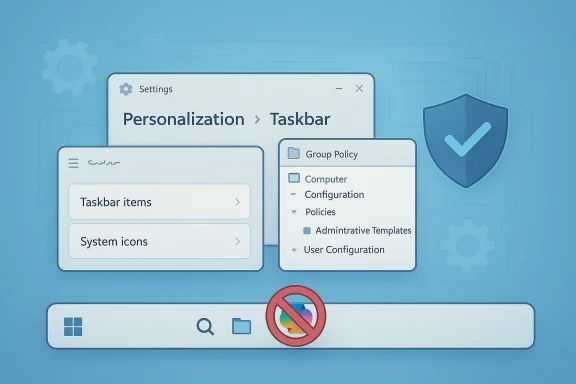
- Settings → Personalization → Taskbar → Taskbar items → toggle Copilot off. This clears the visible button immediately.
- Uninstall the Copilot app (when Windows exposes an uninstall option)
- Settings → Apps → Installed apps → find Copilot → click the three‑dot menu → Uninstall. Alternatively, right‑click Copilot in Start and choose Uninstall if shown. Reboot and verify. This removes the front‑end UI on most consumer builds.
- Stop Copilot auto‑start (if it still loads)
- Task Manager → Startup apps → find Copilot → Disable. Also right‑click Copilot in the system tray and choose Exit to clear the process for the current session.
The supported admin path: Group Policy and the registry (recommended for durability)
For IT teams and power users who need stronger enforcement, use Microsoft’s supported controls.Turn off Copilot with Group Policy (Pro/Edu/Enterprise)
- Open the Local Group Policy Editor: Win+R → gpedit.msc → Enter.
- Navigate: User Configuration → Administrative Templates → Windows Components → Windows Copilot.
- Double‑click Turn off Windows Copilot and set it to Enabled. Apply and OK. Sign out or reboot.
This maps to the registry key: SOFTWARE\Policies\Microsoft\Windows\WindowsCopilot\TurnOffWindowsCopilot = 1. Microsoft documents this policy and its registry mapping.
Registry method (Windows 11 Home or scripted rollouts)
- Per‑user: create HKEY_CURRENT_USER\Software\Policies\Microsoft\Windows\WindowsCopilot and add a DWORD TurnOffWindowsCopilot = 1.
- Machine‑wide (admin): HKEY_LOCAL_MACHINE\SOFTWARE\Policies\Microsoft\Windows\WindowsCopilot TurnOffWindowsCopilot = 1.
Restart or run gpupdate /force where supported. Always back up the registry and create a restore point first. Community guides and Microsoft documentation support this mapping.
AppLocker/WDAC for persistent enforcement
If your environment must prevent reinstall or execution, pair the policy above with AppLocker or Windows Defender Application Control (WDAC) rules to block the Copilot package family (publisher Microsoft Corporation, package family e.g., MICROSOFT.COPILOT). Those approaches are the most durable but require careful testing to avoid blocking legitimate apps.The new admin uninstall (Insider-only) — RemoveMicrosoftCopilotApp
In January 2026 Microsoft introduced a more surgical tool for managed devices inside Windows Insider Build 26220.7535 (KB5072046): the RemoveMicrosoftCopilotApp Group Policy. This policy will perform a one‑time uninstall of the consumer Copilot app for eligible users — but only when strict gating conditions are met:- Both Microsoft 365 Copilot (tenant‑managed, paid) and the consumer Microsoft Copilot app are present on the device.
- The consumer Copilot app was not installed by the user (it was provisioned or OEM‑installed).
- The consumer Copilot app has not been launched in the last 28 days.
- Use it for imaging or remediation scenarios where Copilot was pushed inadvertently.
- Don’t rely on it as the sole measure for fleet‑wide permanent bans — combine with AppLocker/tenant controls for durability.
Power‑user options: PowerShell removal and shell tweaks
Power users can remove Copilot packages using PowerShell — but this requires caution.- Inspect installed Copilot packages (confirm names vary by build):
- Get‑AppxPackage | Where‑Object { $_.Name -like "Copilot" }
- Remove for current user:
- $pkg = Get‑AppxPackage -Name "Exact.Package.Name"
- Remove‑AppxPackage -Package $pkg.PackageFullName
- Remove provisioned / all users (admin):
- Get‑AppxPackage -AllUsers -Name "Exact.Package.Name" | Remove‑AppxPackage -AllUsers
If the right‑click File Explorer “Ask Copilot” entry is your main annoyance, block the packaged COM extension rather than deleting system files:
- Create a registry blocked CLSID entry under Shell Extensions\Blocked with the GUID {CB3B0003-8088-4EDE-8769-8B354AB2FF8C} to suppress the context menu entry (per‑user under HKCU or system‑wide under HKLM). This is reversible. Community testing reports this approach works across many builds, but test first on your exact Windows build.
Community tools that go deeper — RemoveWindowsAI and FlyOOBE
When supported controls aren’t sufficient, community tools have emerged to remove or harden AI components more aggressively.- RemoveWindowsAI (GitHub, by zoicware) is a PowerShell script that claims to disable Copilot, Recall, AI policies, remove Appx packages, scrub CBS packages, and attempt to prevent reinstallation by injecting update blockers into the Component‑Based Servicing store. The project includes a GUI and revert capability — but it’s unsupported by Microsoft, can trigger AV false positives, and may break features or future updates. Test in a VM and make backups first.
- FlyOOBE (popular debloating/upgrader tool) added AI removal controls that integrate with RemoveWindowsAI to provide “deep cleanup” options. The tool’s author positions it as user choice rather than anti‑AI, but third‑party debloaters carry the same risk: they change OS internals and can cause compatibility issues with Windows feature updates. Proceed with caution; use a restore point, test on non‑production machines, and be prepared to reimage if an update breaks the system.
- They often require administrative privileges and may temporarily disable antivirus or be flagged as malware.
- They can remove accessibility or Copilot+ hardware features (e.g., on‑device NPUs) that some users rely on.
- They may not be compatible with Insider builds or with future feature updates; re‑verification after updates is essential.
Security, privacy, and operational tradeoffs
Removing or disabling Copilot touches three areas: security, privacy, and support.- Privacy: Blocking Copilot reduces accidental data exposure via AI features that analyze files and share content with cloud services. That’s a legitimate reason for high‑sensitivity environments to block Copilot affordances. However, blocking the app does not guarantee tenant‑level AI services are disabled — pair device controls with tenant and contractual protections.
- Security & manageability: Enforced controls via AppLocker/WDAC are stronger than UI toggles but raise operational risk. Misconfigured AppLocker rules can block legitimate software and cause outages. Test thoroughly in a lab and stage rollout.
- Support & updates: Aggressive removal (scripts or CBS edits) may make your device unsupported by Microsoft or interfere with feature updates. Enterprise admins should include remediation plans and reimaging playbooks in change control documentation. Microsoft’s RemoveMicrosoftCopilotApp policy is conservative in part to avoid breaking user workflows.
Step‑by‑step: a recommended escalation path (safe → durable)
Start with minimal change and escalate only as needed. The following sequence balances risk and durability.- Quick, reversible (home users)
- Settings → Personalization → Taskbar → toggle Copilot off.
- Settings → Apps → Installed apps → uninstall Copilot (if visible).
- Task Manager → Startup → disable Copilot.
- Use the per‑user Shell Extensions Blocked registry tweak to remove “Ask Copilot” if desired.
- Durable local enforcement (power users)
- Use PowerShell to remove Appx packages after confirming package names.
- Add the TurnOffWindowsCopilot DWORD under HKCU\Software\Policies\Microsoft\Windows\WindowsCopilot = 1 (or HKLM for all users). Reboot.
- Managed fleet enforcement (IT admins)
- Deploy Turn off Windows Copilot via Group Policy or MDM (User Configuration → Administrative Templates → Windows Components → Windows Copilot).
- Create AppLocker/WDAC rule(s) to block Copilot package family and publisher. Test in Audit mode first.
- For cleanup of provisioned images, evaluate the RemoveMicrosoftCopilotApp policy if you run Insider builds and the gating conditions fit your scenario; otherwise pair with tenant controls in Microsoft 365 to prevent re‑provisioning.
- Full removal (high risk)
- If you must remove deeper AI components, test RemoveWindowsAI or FlyOOBE’s AI module in a VM. Create a system image and verify rollback operations. Only run on production systems after exhaustive testing.
What you will lose (features that may be affected)
Completely removing Copilot or AI components can disable or degrade legitimate functionality:- Microsoft 365 Copilot (tenant‑managed) is separate; some policies intentionally preserve it. Ensure you understand the distinction between consumer Copilot and tenant/paid Copilot.
- Accessibility enhancements that use Copilot (for example, Narrator image descriptions) may be disabled or modified if you remove underlying AI components. Evaluate accessibility needs before deep removal.
- Copilot+ PC features and on‑device AI acceleration (NPUs, Windows Studio Effects) can be impacted by deep removal. If your hardware supports on‑device AI, removing components may reduce functionality.
Verifiable facts and where caution is required
- Fact: TurnOffWindowsCopilot is an official policy and maps to SOFTWARE\Policies\Microsoft\Windows\WindowsCopilot\TurnOffWindowsCopilot = 1. This is documented by Microsoft.
- Fact: RemoveMicrosoftCopilotApp appears in Windows Insider Build 26220.7535 (KB5072046) and performs a one‑time uninstall when strict gating conditions are met; it is available to Pro/Enterprise/Education insider builds. This is announced on the Windows Insider blog and widely reported.
- Fact: RemoveWindowsAI is a community GitHub project that automates removal of many AI components and attempts to block reinstallation; it is actively maintained but unsupported by Microsoft. Use with caution.
- Claims that removing Copilot significantly improves overall system performance should be treated as situational. Copilot’s background processes consume memory when running, and hiding/uninstalling Copilot can reduce that load, but the net performance impact depends on the device, workload, and which Copilot integrations you remove. No single authoritative performance measurement proves dramatic gains across all hardware profiles. Treat any broad performance claim as conditional and test on representative systems.
Final verdict and editorial analysis
Microsoft’s layered approach to Copilot — consumer app, OS hooks, and tenant‑managed Microsoft 365 Copilot — reflects a tension between delivering integrated AI experiences and providing admins and users deterministic control. The company has responded with supported management policies (TurnOffWindowsCopilot) and a targeted cleanup policy in Insider builds (RemoveMicrosoftCopilotApp), acknowledging governance concerns while preserving user choice where appropriate. For end users who simply want a cleaner desktop: start with the taskbar toggle and local uninstall. For power users and admins who must prevent accidental access or re‑provisioning: use Group Policy/registry and pair it with AppLocker/WDAC and tenant controls. For those willing to accept the risk and responsibility, community tools like RemoveWindowsAI or FlyOOBE can achieve a near‑total removal of AI entry points — at the cost of potential breakage, future update fragility, and unsupported states. The sensible, pragmatic path is to:- Start small and reversible, then escalate for durability only when necessary.
- Test any aggressive removal in a VM or a non‑production image image before applying on workstations or fleet images.
- Pair device‑side controls with tenant/contractual protections if you operate in regulated or privacy‑sensitive environments.
Quick reference checklist (copy‑paste actions)
- Hide UI: Settings → Personalization → Taskbar → toggle Copilot off.
- Uninstall (GUI): Settings → Apps → Installed apps → Copilot → Uninstall. Reboot.
- Group Policy: gpedit.msc → User Configuration → Administrative Templates → Windows Components → Windows Copilot → Turn off Windows Copilot = Enabled.
- Registry (Home): HKCU\Software\Policies\Microsoft\Windows\WindowsCopilot → TurnOffWindowsCopilot (DWORD) = 1. Reboot.
- PowerShell (advanced): Get‑AppxPackage | Where‑Object { $_.Name -like "Copilot" } → Remove‑AppxPackage (confirm exact package names).
- Deep cleanup (high risk): Test RemoveWindowsAI or FlyOOBE in VM, create backups, then run with backups/restore points ready.
Source: ZDNET How to remove Copilot AI from Windows 11 today
