

A new, community-built PowerShell project promises a blunt but effective way to strip much of Windows 11’s recently added AI surface — Copilot, Recall, AI features inside Paint and Notepad, plus a raft of Appx/MSIX packages — and the resulting debate is as much about system stewardship and update safety as it is about privacy and control. The repository, published under the GitHub handle zoicware and distributed with a GUI front-end and command-line options, automates registry tweaks, Appx removals, scheduled-task cleanup, and even edits to Windows’ Component‑Based Servicing (CBS) inventory to attempt durable blocking of Microsoft’s AI packages. The project’s availability has triggered enthusiastic adoption, heated warnings from systems professionals, and lively discussion among Windows power users.
Windows 11 has been repositioned by Microsoft as an “AI PC” platform, folding branded subsystems like Copilot (the conversational assistant) and Recall (a local snapshot/timeline and search feature) into the operating system and embedding AI-assisted capabilities across built‑in apps. These changes are delivered as a mix of UI elements, background services, Appx packages, and servicing store artifacts — a combination that makes a clean, one‑click opt‑out difficult for many users and admins. Microsoft documents Recall as an optional, locally processed feature with Windows Hello protections and provides administrative controls for a subset of Copilot functionality, but the breadth of new AI surfaces has encouraged community-driven countermeasures. RemoveWindowsAI (the project by zoicware) surfaced as an effort to consolidate multiple community “debloat” techniques into a single, repeatable workflow: flip registry and policy keys, uninstall Appx/MSIX packages (including provisioned manifests), remove scheduled tasks and on‑disk Recall indices, purge or neutralize hidden CBS packages, and optionally install a custom package to block automatic re-provisioning by Windows Update. It exposes both a graphical UI for interactive use and a non‑interactive CLI for scripted runs, with a backup/revert mechanism intended to reduce the chance of irreparable damage. Community testing and independent writeups have confirmed that the script can hide or remove visible Copilot and Recall UI elements on targeted Windows 11 builds — but success varies by build, OEM customizations, and the machine’s servicing state.
Supporters argue that aggressive debloaters restore agency, minimize telemetry, and protect privacy. Critics point out the operational complexity and the possibility of bricking machines or creating hard‑to‑diagnose update errors. Both positions are valid: the tool scratches a real itch, but it does so with surgical methods that were not designed for casual users.
Community forks, GUI wrappers, and mirrors are multiplying the tool’s reach — which increases adoption but also raises the chance that a compromised or careless fork could slip malicious code into an otherwise helpful project. Each fork must be audited separately.
However, the project’s most controversial features — CBS package removal and the installer of a blocker into the servicing inventory — intentionally diverge a system from Microsoft’s expected state and therefore carry material risk to future updates, upgrades, and recoverability. The official, supported alternatives (AppLocker, Group Policy in recent Insider builds, Intune/MDM controls, and supported Appx removal via PowerShell) should be the first line of action for enterprise environments and for users who must retain vendor support and update path reliability. Finally, treat reporting from secondary outlets with care: an example is conflicting guidance about runtime requirements — some coverage claimed the script requires PowerShell 7, but the project’s README explicitly instructs running under Windows PowerShell 5.1 and warns that PowerShell 7 is unsupported. Always validate operational details against the project repo and primary documentation before executing system changes. RemoveWindowsAI fills a practical gap and serves a community demand, but it also amplifies a core truth about modern operating systems: with power comes responsibility. If you choose to use it, plan, test, and document the change as you would any high‑impact operational procedure.
Source: PC Perspective Use PowerShell To Disembowel Windows 11 AI Features - PC Perspective
 Background
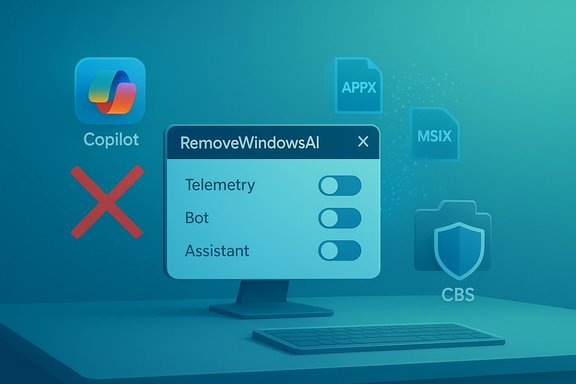
Windows 11 has been repositioned by Microsoft as an “AI PC” platform, folding branded subsystems like Copilot (the conversational assistant) and Recall (a local snapshot/timeline and search feature) into the operating system and embedding AI-assisted capabilities across built‑in apps. These changes are delivered as a mix of UI elements, background services, Appx packages, and servicing store artifacts — a combination that makes a clean, one‑click opt‑out difficult for many users and admins. Microsoft documents Recall as an optional, locally processed feature with Windows Hello protections and provides administrative controls for a subset of Copilot functionality, but the breadth of new AI surfaces has encouraged community-driven countermeasures. RemoveWindowsAI (the project by zoicware) surfaced as an effort to consolidate multiple community “debloat” techniques into a single, repeatable workflow: flip registry and policy keys, uninstall Appx/MSIX packages (including provisioned manifests), remove scheduled tasks and on‑disk Recall indices, purge or neutralize hidden CBS packages, and optionally install a custom package to block automatic re-provisioning by Windows Update. It exposes both a graphical UI for interactive use and a non‑interactive CLI for scripted runs, with a backup/revert mechanism intended to reduce the chance of irreparable damage. Community testing and independent writeups have confirmed that the script can hide or remove visible Copilot and Recall UI elements on targeted Windows 11 builds — but success varies by build, OEM customizations, and the machine’s servicing state. What RemoveWindowsAI actually does — technical anatomy
The project operates across three core layers: configuration/policy, Appx/MSIX package management, and servicing store surgery. Each layer has different impact, permanence, and risk.1) Configuration and policy tweaks (least invasive)
- The script writes and flips registry keys and Group Policy/CSP equivalents to hide UI affordances (for example, to disable the Copilot taskbar button, block Recall activation, and turn off Input Insights or AI Actions).
- These registry edits are the most reversible and mirror controls Microsoft exposes in some admin documentation. They are generally safe when backed up, but they can interact unpredictably with other components that expect those keys to be present.
2) Appx / MSIX removal (moderate risk)
- RemoveWindowsAI uses the documented Appx cmdlets (Remove‑AppxPackage and Remove‑AppxProvisionedPackage) to uninstall first‑party packaged apps and erase the provisioned manifests that ensure new accounts receive certain packages.
- Removing per‑user Appx packages is typically reversible; removing provisioned package manifests modifies system provisioning behavior and can affect OEM customizations and future user profiles. These actions can break features that share package families or expect a package to be present.
3) Component‑Based Servicing (CBS) manipulations (highest risk)
- The script attempts to purge or neutralize packages inside the CBS servicing store (the component inventory under %windir%\servicing) and can install a “blocker” package intended to make Windows Update treat those components as intentionally absent.
- CBS is Windows’ authoritative servicing inventory; manual edits or missing packages in the store are a common cause of update, upgrade, and DISM failures. Altering the servicing store deliberately creates a divergence between the machine’s actual state and Microsoft’s expected servicing inventory, increasing the likelihood of failed cumulative updates or broken feature upgrades. Repairs to a damaged servicing store are complex and sometimes require an offline DISM or even a full reinstall.
Key claims and how they verify
- Claim: The script removes Copilot, Recall, and many Appx AI packages. Verified — the GitHub repository and independent hands‑on reporting indicate the script does remove visible Copilot/Recall UI elements and unprovision many AI Appx packages on supported, stable builds. The project’s README lists the specific targets and options, and multiple community writeups corroborate functional removal on tested machines.
- Claim: Running the script will trigger antivirus warnings. Verified — the repo cautions users that third‑party antivirus tools may flag the script as malicious due to its aggressive system changes; community reports and vendor heuristics commonly treat debloaters as suspicious. That is consistent with both the project’s README and press coverage.
- Claim: The script requires PowerShell 7 (pwsh.exe) to run. Contradicted — authoritative project documentation (the RemoveWindowsAI README on GitHub) explicitly warns that PowerShell 7 is no longer supported and instructs users to run the script under Windows PowerShell 5.1, not pwsh.exe. Some secondary coverage misstated the requirement; the repository itself is the authoritative source for runtime requirements and supersedes that media claim. Treat any contrary media claim as unverified or incorrect until the repo changes.
- Claim: The script installs a blocker package into CBS to prevent re‑provisioning. Verified with caveats — the repo documents this behavior, and hands‑on testing by independent outlets confirms that a blocking technique exists and can make some removals persist across updates. However, this is the same action that raises the servicing and upgrade fragility concerns described above.
The tradeoffs: benefits vs. real risks
Benefits (why advanced users and privacy advocates like it)
- Comprehensive scope: RemoveWindowsAI consolidates dozens of manual steps into a single, automated workflow that saves time and reduces human error in repetitive tasks.
- Granular control: The tool can be run in conservative modes (registry changes only) or in full destructive mode; a backup/revert system exists and is recommended.
- Local, offline control: For users who prioritize privacy and local control over integrated cloud‑tethered features, the script delivers an immediate way to sanitize a device without relying on tenant policies.
- Community‑maintained: The project is updated as Microsoft ships new AI elements into stable Windows builds, and forks/mirrors and GUI wrappers have proliferated to broaden access.
Risks (operational, security, support)
- Update and upgrade fragility: Editing the Windows servicing store or removing CBS packages is the most hazardous step. Future updates or feature upgrades may fail, rollback, or reinstall components unpredictably — sometimes rendering a machine partially or fully unserviceable without complex repairs. Microsoft’s servicing model is not designed for arbitrary removal of those artifacts.
- Loss of shared functionality: Some AI‑labeled packages share code or manifests with non‑AI components; removing them can cause breakage in unexpected areas. Tracking the dependency graph requires careful review.
- False positives and supply‑chain concerns: Antivirus engines may flag the tool as malicious, and users who bypass AV warnings or disable protections risk real exposure. Additionally, forks and mirror copies of the project must be audited independently — a fork could introduce malware or poorly tested changes.
- Supportability and warranty implications: Running an aggressive debloat tool on OEM images may void support paths with a vendor or complicate troubleshooting for enterprise help desks. Managed fleets should avoid ad‑hoc removal and instead use sanctioned admin controls.
- Irreversible data deletion: Recall removal deletes scheduled tasks and snapshot indices; unless a backup is taken, recalled snapshot history is permanently lost. The repo’s backupMode is intended to help, but backups must be validated before destructive steps.
Safer alternatives and Microsoft’s official controls
For enterprise and cautious users, there are supported controls that mitigate many concerns without manipulating CBS:- Group Policy / MDM controls: Microsoft has introduced administratively managed options to control Copilot exposure. In recent Insider builds, a user-targeted Group Policy named RemoveMicrosoftCopilotApp lets admins perform a one‑time uninstall of the consumer Copilot app under strict gating conditions (device edition, presence of Microsoft 365 Copilot, and whether the app was launched in the past 28 days). This provides a supported, auditable path to remove the consumer Copilot app in managed environments.
- AppLocker / Application control: AppLocker rules can block the Copilot package from being installed or executed, which is a supported and reversible mechanism for preventing unwanted apps from running. Microsoft’s management documentation recommends AppLocker as a robust control for preventing installation and execution.
- Built‑in Settings and optional feature removal: For Recall specifically, Microsoft’s documentation describes opt‑in behavior, per‑user toggles, and a “Turn Windows features on or off” pathway for enabling or disabling Recall in many configurations. These user‑facing controls are the safest route when available.
- PowerShell supported removal: Microsoft documents supported PowerShell and Appx cmdlet techniques to remove packaged apps in a way that avoids servicing store surgery — for example, removing the Copilot package via Get-AppxPackage and Remove-AppxPackage — but such methods may not persist across provisioning unless combined with AppLocker or MDM policies.
How to test or evaluate RemoveWindowsAI safely (high‑level guidance)
- Create a full, verifiable backup and a system image before touching the system; snapshot the VM or use system imaging tools. Always validate recovery media and test restores.
- Do not run on production or critical machines. Use an isolated virtual machine that mirrors your target configuration (same build, OEM image, and provisioned packages). This is essential because servicing and OEM behavior vary widely.
- Start conservatively: run the script in registry-only mode or a dry-run if available; verify every visible UI and app behavior after each change. The repository exposes granular option flags so you can run only the registry flips or only the Appx removals first.
- Use backupMode to produce revert artifacts and confirm the revert process in your test VM before attempting anything on physical hardware. The revert path is not guaranteed if servicing metadata has been surgically altered or files have been wiped.
- If you manage multiple machines, prefer managed controls (AppLocker, MDM) or the new Group Policy controls in Insider builds for fleet‑scale solutions rather than ad‑hoc scripting.
What the community debate reveals
RemoveWindowsAI crystallizes a larger platform tension: who controls the operating system stack? Enthusiasts and privacy‑minded users want deterministic opt‑outs and local control. Platform vendors want to ship features that they expect to service and update centrally. Community tooling like RemoveWindowsAI is a direct expression of user demand for agency, but it compels a re‑examination of servicing models, admin tooling, and the implicit contract between vendor and user.Supporters argue that aggressive debloaters restore agency, minimize telemetry, and protect privacy. Critics point out the operational complexity and the possibility of bricking machines or creating hard‑to‑diagnose update errors. Both positions are valid: the tool scratches a real itch, but it does so with surgical methods that were not designed for casual users.
Community forks, GUI wrappers, and mirrors are multiplying the tool’s reach — which increases adoption but also raises the chance that a compromised or careless fork could slip malicious code into an otherwise helpful project. Each fork must be audited separately.
Final assessment and reader takeaway
RemoveWindowsAI is a powerful, honest tool: it does what it claims on supported Windows 11 builds and it automates years of ad‑hoc community techniques into one package. For advanced users who fully understand Windows servicing internals, who test every step in a VM, and who accept the maintenance burden, the project is a pragmatic instrument to reclaim a traditional desktop experience.However, the project’s most controversial features — CBS package removal and the installer of a blocker into the servicing inventory — intentionally diverge a system from Microsoft’s expected state and therefore carry material risk to future updates, upgrades, and recoverability. The official, supported alternatives (AppLocker, Group Policy in recent Insider builds, Intune/MDM controls, and supported Appx removal via PowerShell) should be the first line of action for enterprise environments and for users who must retain vendor support and update path reliability. Finally, treat reporting from secondary outlets with care: an example is conflicting guidance about runtime requirements — some coverage claimed the script requires PowerShell 7, but the project’s README explicitly instructs running under Windows PowerShell 5.1 and warns that PowerShell 7 is unsupported. Always validate operational details against the project repo and primary documentation before executing system changes. RemoveWindowsAI fills a practical gap and serves a community demand, but it also amplifies a core truth about modern operating systems: with power comes responsibility. If you choose to use it, plan, test, and document the change as you would any high‑impact operational procedure.
Source: PC Perspective Use PowerShell To Disembowel Windows 11 AI Features - PC Perspective
