

A single‑click PowerShell tool that strips Windows 11 of its newly integrated AI components has crystallized into a one‑stop solution for power users who want the old, quieter Windows back — but it is not a simple "fix" and carries real technical and support risks that demand attention before anyone runs the script on a primary machine.
Microsoft’s rollout of AI features into Windows 11 — including Copilot, Recall, on‑device model services (sometimes referred to as the AI Fabric Service), AI‑assisted Paint/Photos features, Voice Access, and neural enhancements in Microsoft Edge — shifted the OS from being a general‑purpose desktop to a platform with always‑growing AI integrations. For many users this is a productivity win; for others it is unwanted telemetry, background services, and UI clutter.
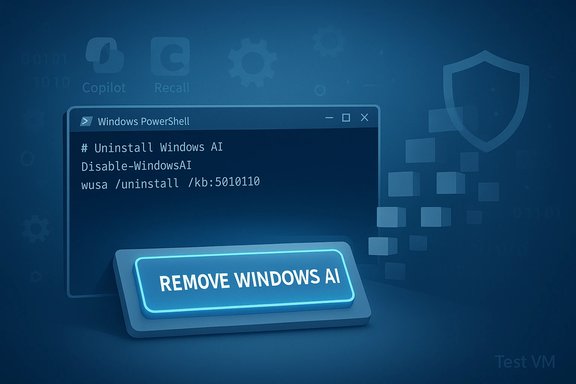
In response, a community effort published an open‑source PowerShell project named RemoveWindowsAI. The repository and an accompanying site offer a scripted way to disable or remove many AI components and their related registry keys, Appx packages, scheduled tasks, and even hidden Component‑Based Servicing (CBS) packages. The tool exposes both a GUI and command‑line options, plus a “backup” and “revert” mode intended to make the operation reversible.
A recently published media write‑up highlighted the script as an apparently effortless path to “get rid of all features imposed by Microsoft.” That characterization captures one side of the story: the script does indeed automate a wide sweep of AI components. But that same automation is exactly why the tool must be treated with caution. The rest of this article explains what the script does, how it works, what can go wrong, safer alternatives, and practical guidance for anyone considering it.
If the objective is simply to reduce Copilot appearances, turn off the Copilot taskbar item and apply the official Group Policy or registry policy. If the goal is to prevent AI features for a fleet of managed devices, use tenant and MDM controls where available. If you decide to run RemoveWindowsAI, prepare for recovery, run it in a test environment first, and use the built‑in backupMode so you retain the best chance of reverting changes without reinstalling the OS.
In short: RemoveWindowsAI is powerful and effective in many real‑world tests, but its use requires the same level of caution as any deep servicing operation — backup first, test in a VM, and accept that you may need to repair or reinstall Windows if the system state becomes inconsistent after aggressive removals.
Source: Inbox.lv A Way to Disable Useless Features in Windows Has Been Named
 Background
Microsoft’s rollout of AI features into Windows 11 — including Copilot, Recall, on‑device model services (sometimes referred to as the AI Fabric Service), AI‑assisted Paint/Photos features, Voice Access, and neural enhancements in Microsoft Edge — shifted the OS from being a general‑purpose desktop to a platform with always‑growing AI integrations. For many users this is a productivity win; for others it is unwanted telemetry, background services, and UI clutter.In response, a community effort published an open‑source PowerShell project named RemoveWindowsAI. The repository and an accompanying site offer a scripted way to disable or remove many AI components and their related registry keys, Appx packages, scheduled tasks, and even hidden Component‑Based Servicing (CBS) packages. The tool exposes both a GUI and command‑line options, plus a “backup” and “revert” mode intended to make the operation reversible.
A recently published media write‑up highlighted the script as an apparently effortless path to “get rid of all features imposed by Microsoft.” That characterization captures one side of the story: the script does indeed automate a wide sweep of AI components. But that same automation is exactly why the tool must be treated with caution. The rest of this article explains what the script does, how it works, what can go wrong, safer alternatives, and practical guidance for anyone considering it.
What RemoveWindowsAI claims to do
RemoveWindowsAI is a PowerShell‑based toolkit with a set of focused capabilities:- Disable or set policy/registry keys that make Copilot, Recall, and other AI features inactive.
- Remove Appx packages that implement AI features — including packages that are normally marked as non‑removable.
- Remove hidden or locked AI packages from the CBS (Component‑Based Servicing) store so they won't be silently reinstalled.
- Install a preventative update package to block reinstallation of specified AI packages.
- Remove scheduled tasks and local data produced by features such as Recall.
- Hide or remove the AI Components settings page to reduce user exposure to re‑enable options.
- Provide backupMode during removal and revertMode to attempt restoration later.
How the script works (technical overview)
RemoveWindowsAI is a collection of scripted operations that combine several Windows administration techniques:- Registry edits: the script changes or creates policy keys under HKEY_CURRENT_USER and HKEY_LOCAL_MACHINE to disable UI affordances and services.
- Appx package removal: it uses PowerShell Appx and package management commands to remove installed appx/msix packages and attempt to remove provisioned packages.
- CBS manipulation: by modifying the Component‑Based Servicing store, the script attempts to mark certain packages as removed so that Windows Update and servicing logic don’t reinstall them automatically.
- File system cleanup: it deletes leftover installers, manifests, and temporary files associated with AI components.
- Task/scheduler removal: it deletes scheduled tasks and background jobs that manage snapshotting or background AI services (e.g., tasks linked to Recall).
- Install a blocking package: the script can create a custom update package or change servicing metadata intended to prevent automatic re‑provisioning of components.
What it removes in practice
Depending on the options selected, RemoveWindowsAI can touch:- Copilot (taskbar integration, installer packages, policy keys)
- Recall (snapshots, scheduled tasks, optional feature flags)
- Input Insights and typing/harvesting components
- Image Creator / AI features in Paint and other built‑in apps
- Voice Access and AI voice effect components
- Copilot integration in Microsoft Edge (sidebar, extensions)
- Hidden or protected CBS packages that normally survive simple uninstall operations
- UI pages and Settings entries that expose AI configuration
Strengths: Why this appeals to advanced users
- Scope and automation: what would be many manual steps across Settings, Registry, Appx and servicing is consolidated into one automated flow.
- Granular controls: you can run only the registry changes or go all‑in, and the tool exposes options for backup and revert.
- Community maintenance: it is actively updated by contributors to cover new AI features as they appear in stable Windows builds.
- Reversion capability: running the tool with backupMode aims to preserve the ability to revert changes later — a practical safety net if it works as intended.
- Local, offline control: removes or hides cloud‑facing components and background agents without relying on corporate MDM or Microsoft tenant settings.
Risks and costs: why this is not a casual operation
- Potential to break system functionality
- Removing Appx and CBS packages can unintentionally remove shared components. Some UI functions or other apps may rely on these pieces. The result can be errors, missing features, or degraded user experience.
- Windows Update and servicing issues
- By interfering with servicing metadata, you can put a machine into an unusual or unsupported state. Future cumulative updates or feature updates may fail, attempt to re‑provision removed packages, or reinstall modules in an inconsistent way.
- AV false positives and security flags
- Tools that alter system packages and modify service registration often trigger antivirus heuristics. The script author explicitly warns that third‑party AV may flag the utility as malicious, and users are sometimes instructed to add exclusions or temporarily disable protection — a risky instruction for less technical users.
- Data loss
- Some operations delete local data (for example, Recall snapshot stores). If users rely on any of these features, deletion is irreversible unless a backup was made.
- Support and warranty implications
- Running aggressive system modification scripts may complicate support calls with Microsoft or OEM vendors. While removing features does not inherently void licensing, it can make official troubleshooting harder and may invalidate certain vendor recovery flows.
- No guaranteed permanence
- Microsoft’s servicing model can reintroduce features. Even with a blocking package, future updates or changes in Windows update logic could restore components. Expect to periodically re‑run or update the script if you want long‑term removal.
- Reversion may not be perfect
- The revertMode depends on what the script backed up and how well the system has evolved since removal. Complex servicing changes may not fully revert. A full OS reinstall may be required in the worst case.
Safer alternatives and first steps
For many users, full removal is overkill. Consider these less intrusive steps first:- Use built‑in Settings toggles
- Turn off Copilot in Settings > Personalization > Taskbar (removes icon and prevents casual launch).
- Disable Recall via Settings > Privacy & security > Recall & snapshots and delete snapshots.
- Disable voice/Studio effects via Settings > Sound or Settings > Privacy & security > Voice access.
- Apply Group Policy or registry controls (safer, supported)
- On Windows 11 Pro/Enterprise/Education, use Group Policy: User Configuration > Administrative Templates > Windows Components > Windows Copilot → Turn off Windows Copilot.
- On Home, use the registry equivalent documented by Microsoft and documented admin resources to set the TurnOffWindowsCopilot policy key.
- Use Microsoft 365 / tenant controls for business environments
- Admins can restrict Copilot extensions and integrations at the tenant level through Microsoft 365 controls where applicable.
- Selective app removal
- Uninstall individual AI apps through Settings > Apps > Installed apps (when they appear as removable). This reduces risk compared with wholesale service removal.
- Use virtualization or secondary test machine
- Test any destructive script inside a virtual machine or on a non‑essential device first.
A recommended checklist before running RemoveWindowsAI
- Create a full image backup (disk image) of the system drive using reputable backup software.
- Create a System Restore point and export important registry keys you expect to change.
- Ensure you have Windows installation media or an up‑to‑date recovery USB to repair or reinstall Windows if necessary.
- Test the script in a virtual machine that mirrors your OS build and configuration.
- Use the script’s backupMode option so revertMode is possible later.
- Document current system state: installed updates, driver versions, and Windows build number.
- Pause BitLocker or record your recovery keys if you modify system partitioning or disk contents.
- If you rely on corporate management, consult IT — running the script may conflict with policies.
How to run RemoveWindowsAI (practical steps)
- Boot the PC and sign in to an administrator account.
- Open Windows PowerShell (run as Administrator). Use Windows PowerShell 5.1; avoid PowerShell 7 for this operation.
- Test in non‑interactive mode first on a VM:
- Example command to fetch and run the script:
& ([scriptblock]::Create((irm "https://raw.githubusercontent.com/zoicware/RemoveWindowsAI/main/RemoveWindowsAi.ps1") - To run with all options and a backup:
- Add flags such as -nonInteractive -backupMode -AllOptions (this attempts to create a backup suitable for revert).
- If prompted by antivirus, do not blindly disable protection; instead, temporarily whitelist only the script file after scanning it in an isolated environment.
- Reboot and verify system stability and functionality. If problems occur, revert using the script’s revertMode, or restore from backup.
Long‑term maintenance and monitoring
- Expect to re‑check major cumulative or feature updates. Microsoft may reintroduce components in updates; tracking those changes is necessary if you want the removals to persist.
- Maintain the script at an accessible location (local copy) in case the GitHub repository is updated or removed.
- Subscribe to release notes of Windows builds and monitor the script’s repository for updates that target new AI features.
- If you manage multiple endpoints in an organization, prefer supported enterprise controls (Group Policy, MDM) to a per‑device script.
Ethical and practical considerations
- Privacy vs. security trade‑offs: removing local AI features may improve privacy in practice, but it can also remove protective features or telemetry that Microsoft relies on for security diagnostics.
- The right to control: users have a legitimate interest in controlling what runs on their machines. Community tools like RemoveWindowsAI are part of a longstanding tradition of user autonomy in the Windows ecosystem.
- Responsibility: with autonomy comes responsibility. Removing system components shifts repair burden to the end user. Organizations should document and control who may run such tools.
Final assessment: who should — and should not — run this
- Recommended for: advanced power users, IT pros, privacy‑conscious technicians, and people comfortable with full‑system backups and OS reinstallation. Also suitable for lab environments and VMs where you want a non‑AI Windows for testing or deployment.
- Not recommended for: casual users, laptops or systems under OEM warranty where the user cannot perform recovery, corporate devices managed by IT, or people who lack backup and recovery experience.
If the objective is simply to reduce Copilot appearances, turn off the Copilot taskbar item and apply the official Group Policy or registry policy. If the goal is to prevent AI features for a fleet of managed devices, use tenant and MDM controls where available. If you decide to run RemoveWindowsAI, prepare for recovery, run it in a test environment first, and use the built‑in backupMode so you retain the best chance of reverting changes without reinstalling the OS.
In short: RemoveWindowsAI is powerful and effective in many real‑world tests, but its use requires the same level of caution as any deep servicing operation — backup first, test in a VM, and accept that you may need to repair or reinstall Windows if the system state becomes inconsistent after aggressive removals.
Source: Inbox.lv A Way to Disable Useless Features in Windows Has Been Named
