

Old SD cards are small, cheap, and surprisingly versatile — when repurposed with care they make excellent bootable rescue drives, multiboot toolkits, media sticks, encrypted key carriers, and compact test platforms — but getting dependable results means understanding formats, performance limits, risk vectors, and a short verification workflow before you rely on a card in the field.
SD and microSD cards are everywhere: cameras, phones, action cams, single‑board computers and many laptops include readers. That ubiquity makes old cards attractive for low‑cost reuse. Common, high‑value repurposes include:
Repurposing old SD cards is an economical, pragmatic way to get real utility from hardware that would otherwise sit idle. With a simple verification routine, the right tools, and realistic expectations about performance and lifespan, a card can become a reliable rescue drive, a portable ISO library, or a tidy media stick. Keep the risks front‑of‑mind — counterfeit capacity, limited endurance, and firmware quirks — and use SD cards for tasks where their small size and low cost deliver the most value.
Source: bgr.com The Best Way To Use Your Old SD Cards - BGR
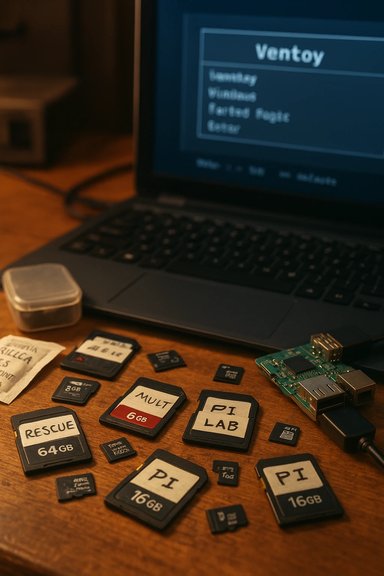 Background / Overview
SD and microSD cards are everywhere: cameras, phones, action cams, single‑board computers and many laptops include readers. That ubiquity makes old cards attractive for low‑cost reuse. Common, high‑value repurposes include:- Bootable rescue media (live Linux, WinPE, Windows installers).
- Multiboot technician toolkits using Ventoy or similar.
- Raspberry Pi images and single‑purpose appliances.
- Offline media libraries (MP3, audiobooks, video clips).
- Small encrypted vaults for recovery keys or a tiny portable credential store.
Why repurpose old SD cards? Use cases that actually make sense
Repurposing is inexpensive and often the right tool-for-the-job. The strongest, most practical uses are:- Emergency rescue OS: Boot a live Linux distribution or Windows recovery environment to reformat, repair, or image an internal drive. Live installers and recovery tools are tolerant of the I/O limits of SD media.
- Multiboot toolkit: With tools like Ventoy you can carry many ISOs on one card and boot whichever tool you need. This is efficient for techs who travel or need a compact toolkit.
- Raspberry Pi and single‑purpose hosts: SD remains the primary boot medium for Pi devices; old cards are perfect for lab projects, experimentation, or test kiosks.
- Portable media and playlists: Curated MP3s or audiobooks for cars, speakers, or as “party” sticks — cheap, replaceable, and easy to manage.
- Encrypted emergency keys: A verified small card with a BitLocker‑To‑Go or VeraCrypt container can hold recovery keys or legal documents — but treat it like a throwaway with redundancy.
Filesystems and format choices — pick the right one
Choosing the correct filesystem determines compatibility and limits:- FAT32: Broad legacy compatibility but a hard single‑file size limit of 4,294,967,295 bytes (~4 GB − 1). This remains a hard technical constraint of FAT32 implementations. For many older car stereos and inexpensive players FAT32 is still required, but it will break large ISOs and long HD video files.
- exFAT: Modern choice for cross‑platform use and large files (no practical 4 GB cap). Use exFAT for media libraries and large images.
- NTFS: Offers Windows features (permissions, compression) but many consumer devices (car stereos, cameras) won’t read NTFS without drivers. Use NTFS when the stick will remain Windows‑only.
How to make an SD card bootable — reliable toolchain and steps
A general, tested flow works across platforms:- Inspect the card and adapter; use a trusted USB card reader rather than an unknown laptop reader when possible.
- Download the official ISO or image (Ubuntu, Fedora, WinPE, Windows ISO, Clonezilla). Always verify checksums when available.
- Flash the image with a tool suited to the task:
- Ventoy for multiboot ISOs — install once, copy ISOs to the card, boot from a menu. Ventoy explicitly supports SD cards.
- balenaEtcher for simple, cross‑platform flashing of raw images (very safe; validates writes).
- Rufus on Windows when you need flexible Windows installer creation or “portable Windows”-style setups — useful but not a Microsoft‑endorsed Windows To Go replacement.
- dd (Linux) for exact, low‑level copying — powerful but dangerous if you specify the wrong target.
- Enter the host computer’s boot menu (common keys include F2, F12, Esc, Del; some vendors have special buttons). Choose the SD card as the boot device or set temporary one‑time boot. The details vary by firmware; test on the target machine.
- Test immediately: boot the machine, verify the environment loads, and ensure your intended tools (partitioners, repair utilities) can access the internal drive(s). Don’t assume a card will boot across all machines; some internal readers or firmware present cards differently.
Performance, endurance, and real‑world limits
Consumer SD cards vary hugely in performance and lifetime. Key technical indicators:- Speed classes and UHS ratings: UHS‑I/UHS‑II, V30/V60/V90 and class ratings measure sequential throughput; these help for video recording and large transfers but don’t fully predict random I/O performance needed by OS workloads.
- Application class (A1/A2): Cards marked A1 or A2 indicate better random I/O suited to running apps on smartphones; they help when you need many small reads/writes.
- Endurance: Most cheap cards don’t publish endurance metrics; they’re not built like SSDs. Frequent writes shorten life, and consumer cards can fail unpredictably. Don’t use them as your only copy for important data.
Testing and verification — essential checks before you rely on a card
Before you put any card into production, run these tests:- Capacity and integrity testing: Use h2testw on Windows or F3 on Linux to write and read the full reported capacity. These tools detect counterfeit cards that report false capacity. Counterfeit cards are common on low‑cost marketplaces and are a major source of silent failure.
- Speed tests: For OS usage, check random IOPS and sustained write performance with tools like CrystalDiskMark or fio; slow random I/O will make running a desktop painful.
- Boot tests: Boot the prepared card on at least two machines (one representative target, one spare test machine) to confirm firmware compatibility and Secure Boot behavior.
Security, malware, and hygiene
A bootable card has full access when used to start a computer. That power is useful and dangerous:- Avoid installing untrusted software on rescue cards — a compromised rescue environment can access internal drives.
- Scan newly repurposed cards with updated antivirus before copying sensitive files. For encrypted carrying of sensitive data, use BitLocker To Go (Windows‑native) or VeraCrypt containers for cross‑platform portability — but test mounting behavior on each target OS.
- Keep recovery keys separate (password manager + printed copy in a safe); losing the encryption key can render data unrecoverable.
Practical, step‑by‑step playbook (quick, repeatable)
- Physically inspect the card and adapter for damage.
- Test capacity with h2testw or F3; discard counterfeit/failing cards.
- Choose format: exFAT for large files and cross‑platform use; FAT32 only for legacy devices that need it.
- Use the right tool: Ventoy for multiboot; balenaEtcher for raw images; Rufus for Windows installers.
- Test boot on the target hardware and a second machine. Confirm the rescue tools can access internal drives.
- Label and date the card; store in a small protective case with silica gel if you’ll keep it long term.
- Refresh critical cards every 3–5 years and keep at least one redundant copy on a different medium.
Advanced tips and workarounds
- Ventoy on SD cards: Install Ventoy once, copy ISOs to the partition, and boot from the menu. This avoids repeated flashing. Ventoy explicitly lists SD cards and local disks among supported device types.
- Use an external USB‑to‑SD reader that presents as a “fixed” disk if you plan multi‑partition setups or imaging tools that expect a fixed disk; some readers present as removable and limit partitioning behavior. This is hardware dependent — confirm your reader’s behavior before complex partitioning. This point is reader and firmware specific; verify on your hardware.
- Combine a small FAT32/UEFI rescue partition and a large exFAT data partition on larger removable media; keep rescue tools small and immutable while storing images separately. On cheap cards this is fragile; use caution and test.
What not to do — clear red flags
- Don’t use a cheap, old SD card as the only copy of irreplaceable data. Flash memory fails and counterfeit cards exist. Always maintain redundancy.
- Don’t treat SD cards as permanent system drives. Running Windows daily from a repurposed SD card invites update failures and slow I/O; Microsoft deprecated Windows To Go for similar reasons. Use portable Windows setups only for short‑term or experimental tasks, and prefer an external SSD for sustained use.
- Don’t install unknown/executable content on a rescue card you use to access other systems. A malicious binary on your rescue environment can compromise any machine you boot into.
Environmental and lifecycle considerations
Repurposing delays e‑waste, but do retire and recycle failing cards responsibly. When a card shows errors or fails verification, dispose of it through an electronics recycler rather than tossing it in the trash. For long‑term storage, keep cards dry, cool, and labeled; refresh mission‑critical data every few years.Critical analysis — strengths, limitations, and risk calculus
Strengths- Cost and convenience: Old SD cards are free or cheap, widely compatible, and easy to carry. For one‑off media or a rescue ISO, they’re perfect.
- Portability: A small card in an adapter fits any laptop or Pi; multiboot approaches like Ventoy make a single card surprisingly powerful.
- Reliability and counterfeit risk: Low‑cost or third‑party cards often lie about capacity and fail sooner than branded cards. Always test with h2testw or F3 before trusting a card.
- Performance limits: SD cards lag SSDs on random IOPS and sustained writes; OS installs and heavy write workloads will be slow and fragile.
- Firmware and boot quirks: Not all machines will boot from an internal reader; some firmware ignore internal card readers or require Secure Boot/UEFI adjustments. Test on your target hardware.
Final checklist — ready to reuse an SD card safely
- Inspect the card and adapter physically.
- Run h2testw (Windows) or F3 (Linux) to verify capacity and integrity.
- Format to exFAT for large files; use FAT32 only for legacy compatibility.
- Use Ventoy/balenaEtcher/Rufus as appropriate.
- Test boot on two machines and verify tool access to internal disks.
- Encrypt sensitive data and keep recovery keys separately.
- Label, store in a protective case, and refresh mission‑critical copies every 3–5 years.
Repurposing old SD cards is an economical, pragmatic way to get real utility from hardware that would otherwise sit idle. With a simple verification routine, the right tools, and realistic expectations about performance and lifespan, a card can become a reliable rescue drive, a portable ISO library, or a tidy media stick. Keep the risks front‑of‑mind — counterfeit capacity, limited endurance, and firmware quirks — and use SD cards for tasks where their small size and low cost deliver the most value.
Source: bgr.com The Best Way To Use Your Old SD Cards - BGR
