

Old SD cards are far from worthless — when repurposed thoughtfully they can become tiny rescue drives, portable diagnostic toolkits, offline media libraries, or even experimental operating-system hosts — but getting the most from them requires understanding a few hardware, firmware, and filesystem realities so you don’t accidentally trade convenience for instability or data loss.
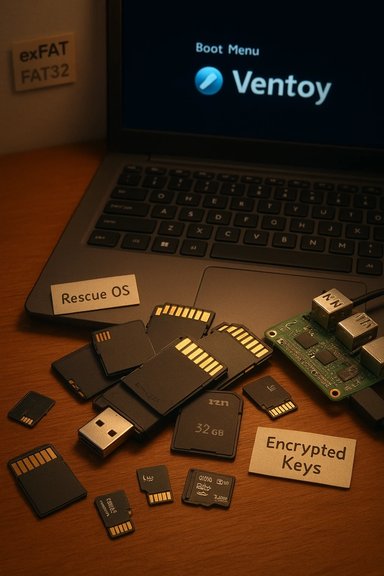
The idea is simple: instead of letting microSD and full-size SD cards gather dust, put them to work. Common practical uses include creating bootable rescue media, carrying lightweight live Linux systems, using cards for Raspberry Pi images, storing encrypted recovery keys, or turning a card into a small, portable “appliance” for a specific task. Written walkthroughs and community how‑tos show the same patterns — format sensibly, pick the right flashing tool, test the card and reader, and avoid treating old consumer-grade cards as archival media. Practical toolchains commonly mentioned are Rufus, Ventoy, balenaEtcher, and the classic dd method for Linux images; community toolkits also recommend multiboot approaches for technicians who want many ISOs on a single device.
This article pulls those workflows together, validates key technical claims, analyzes risks and trade‑offs, and gives a production-ready set of recommendations so you can repurpose old SD cards without surprising failures.
Source: bgr.com The Best Way To Use Your Old SD Cards - BGR
 Background / Overview
The idea is simple: instead of letting microSD and full-size SD cards gather dust, put them to work. Common practical uses include creating bootable rescue media, carrying lightweight live Linux systems, using cards for Raspberry Pi images, storing encrypted recovery keys, or turning a card into a small, portable “appliance” for a specific task. Written walkthroughs and community how‑tos show the same patterns — format sensibly, pick the right flashing tool, test the card and reader, and avoid treating old consumer-grade cards as archival media. Practical toolchains commonly mentioned are Rufus, Ventoy, balenaEtcher, and the classic dd method for Linux images; community toolkits also recommend multiboot approaches for technicians who want many ISOs on a single device.This article pulls those workflows together, validates key technical claims, analyzes risks and trade‑offs, and gives a production-ready set of recommendations so you can repurpose old SD cards without surprising failures.
Why repurpose SD cards? Use cases that make sense
Short-form flash storage remains useful because it’s cheap, portable, and widely supported in cameras, phones, small single‑board computers, and many laptops with built‑in readers. Common, high‑value ways to reuse old SD cards:- Bootable rescue OS — a live Linux or Windows installer you can boot to repair or reformat drives.
- Multiboot technician toolkit — a Ventoy-powered card that holds multiple ISOs (Linux live, Clonezilla, Memtest86, Windows installer).
- Portable OS for single‑use workflows — a Raspberry Pi image, an Android‑based OS for testing, or a single-purpose kiosk.
- Encrypted emergency keys or small encrypted vaults — secure containers for two‑factor recovery keys, lawyer copies of documents, or small credential sets.
- Media library for offline playback — curated MP3 or audiobook sticks that plug into speakers or car stereos. The craft‑box approach (one stick / one playlist) is a widely circulated community pattern.
How to make an SD card bootable — practical recipes
Basic flow (universal)
- Choose a suitable card and adapter (use a quality card reader; some laptops’ internal readers are unreliable).
- Download the OS image or ISO you need (Ubuntu, Fedora, WinPE, Windows ISO, Clonezilla).
- Use a flashing tool to write the image; test by selecting the card in the boot menu and booting.
Recommended tools
- Ventoy — install a small bootloader once, then copy ISO files to the card. Great for multiboot toolkits and supported on SD cards; the official Ventoy FAQ explicitly lists SD card installation as supported.
- Rufus — flexible Windows tool that can create installers and a “Windows To Go”-style portable Windows (third‑party implementations are recommended today because Microsoft deprecated the official Windows To Go feature). Use Rufus when you need Windows on a removable drive.
- balenaEtcher — user‑friendly, cross‑platform, and very safe for flashing raw images (good for Raspberry Pi, Linux live ISOs).
- dd (Linux) — the low‑level, bit‑for‑bit writer. Powerful and universal but dangerous if you mistype the target device.
Accessing the boot menu
Manufacturers use different keys to enter the one‑time boot menu or BIOS/UEFI setup. Common keys include F2, F12, Esc, and Del; some vendors use specialized buttons (e.g., Lenovo’s Novo button or holding volume buttons on certain tablets). If you miss the prompt, modern Windows lets you reboot into UEFI/firmware from Advanced Startup. The specific key varies by brand and model — check your machine’s startup screen or manufacturer docs.Filesystems and formats: pick the right one
Choosing a filesystem is both compatibility and reliability work.- FAT32 — maximum single file size is 4,294,967,295 bytes (4 GB −1). This historic limit remains a hard constraint for FAT32 volumes. Use FAT32 when you need the broadest legacy compatibility (older cameras, car stereos).
- exFAT — supports very large files and modern cross‑platform compatibility; best choice for large media files and general interchange between Windows/macOS/Linux.
- NTFS — Windows‑centric features (permissions, compression), but many consumer devices won’t read NTFS.
Performance, endurance, and real‑world limits
Old consumer SD cards differ greatly from modern, purpose‑built flash media. Key specs to check:- Speed class and UHS rating — cards with UHS‑I/UHS‑II and a higher class (U1/U3, V30/60/90) have significantly higher sequential write/read throughput and more consistent performance for OS use. Avoid very old Class 4–6 cards for anything that requires frequent random writes.
- A1 / A2 application classes — indicate better random I/O performance suitable for app use on phones; these can help when running small‑file workloads.
- Endurance — many cheap cards do not advertise endurance; that’s a red flag if you plan repeated writes. Consumer cards wear out with writes and can fail unpredictably; don’t use them for the only copy of important data.
Security, malware, and hygiene
Old cards can carry malware if they were used across untrusted machines. Follow basic hygiene:- Scan newly repurposed cards with updated antivirus before copying sensitive data.
- For sensitive content, use encrypted containers (VeraCrypt) or BitLocker To Go (Windows). Keep in mind cross‑platform compatibility limits: BitLocker is Windows‑native; VeraCrypt works across platforms but may complicate use on phones or embedded players.
- Avoid leaving executables on rescue cards unless you trust them; anything that runs from a bootable environment can access attached drives.
Testing and verification — don’t skip this
Before you rely on a repurposed card in the field, test everything:- Boot test: verify the target machine boots from the SD card via the boot menu once, and where feasible, test on a second machine to ensure compatibility.
- Data integrity: run a burn/test tool (community tools such as h2testw on Windows or F3 on Linux) to confirm that the card has the advertised capacity and no counterfeit sectors. Many inexpensive cards are counterfeit and report fake capacity.
- Speed check: use small benchmarking tools (CrystalDiskMark, fio) if you plan to run an OS from the card — low random IOPS or poor write sustain will degrade the experience.
Troubleshooting common problems
- Card not visible in Windows when inserted into adapter: try another reader, disable USB power saving in Device Manager, update chipset/USB drivers, and test in another PC. Many adapter failures are electrical or driver related.
- Boot doesn’t happen even though the card is prepared: check that the card reader presents the SD as a USB mass‑storage device (some built‑in readers are controller‑specific), confirm boot menu priority and Secure Boot status, and test with a small USB‑to‑SD adapter in a USB port.
- Windows updates or driver updates break a Windows‑on‑SD setup: this is one reason Microsoft deprecated Windows To Go — portable Windows environments don’t handle feature updates reliably. Plan to use SD‑hosted Windows sparingly.
Advanced setups and tips
- Ventoy on SD card: Install Ventoy to the SD card and copy ISOs to the partition. Ventoy supports SD cards and is a convenient way to carry many rescue images without re‑flashing. It’s a technician favorite for its convenience.
- Combine small rescue partition + data partition: On larger external disks it’s common to keep a small UEFI/FAT32 rescue partition and a large NTFS partition for images; this can be done on external SSDs or HDDs but is more fragile on removable‑class flash media because some Windows tools will reformat the whole device. For combined rescue+image workflows, use tools like Macrium Reflect which explicitly support multi‑partition rescue configurations.
- Use a USB SD‑card reader that reports as a fixed disk: some readers/external enclosures present as “fixed” rather than “removable” and work better with complex partitioning and imaging workflows.
What not to do — common pitfalls
- Don’t treat a cheap, old microSD as a permanent backup. Flash media fails. Maintain redundancy and migrate critical copies every few years.
- Don’t install untrusted software into a bootable rescue environment. A compromised rescue stick has full access to local drives when used to boot a machine.
- Don’t assume all hardware will boot from SD. Even when the reader is present, some UEFI implementations ignore internal card readers or require specific settings; always verify on the target hardware.
Environmental and lifecycle considerations
Repurposing old cards delays e‑waste, but when a card shows read/write errors or fails verification tests, dispose of it via an e‑waste recycler rather than tossing it in the trash. Reuse well‑tested cards for low‑risk roles (temporary media sticks) and move higher‑value functions (encrypted keys, system images) onto higher‑end, better‑supported media.Quick playbook: repurpose an old SD card safely (practical checklist)
- Inspect the card physically and confirm genuine capacity with h2testw (Windows) or F3 (Linux).
- Choose the use case: media player, live Linux, Ventoy multiboot, Raspberry Pi image, or encrypted key carrier.
- Pick the right filesystem: exFAT for >4 GB files, FAT32 when legacy compatibility is essential.
- Use a reliable flashing tool: Ventoy for multiple ISOs, Rufus for Windows installers/portable Windows, balenaEtcher or dd for raw images.
- Test booting on at least two machines; confirm the boot menu and BIOS/UEFI settings.
- Encrypt sensitive content or use an encrypted container; keep backup copies elsewhere.
- Label and date the card; store it in a small protective case with silica gel if long term.
Critical analysis — strengths, risks, and recommended boundaries
Strengths- Cheap and convenient: Old SD cards are widely available and cheap to redeploy for low‑risk tasks.
- Portable and cross‑device: Useful for single‑task appliances, quick media swaps, and one‑off rescue operations.
- Reliability: Consumer SD cards wear out and counterfeit cards are common. Don’t use them as single copies for irreplaceable data.
- Performance: Random I/O and sustained writes are weak compared with SSDs — running a full desktop OS from an SD card is often painfully slow and sometimes unstable. Community maintainers explicitly warn against long‑term Windows‑on‑SD setups; Microsoft deprecated Windows To Go because of update and hardware reliability issues.
- Boot compatibility: Not all firmware sees internal card readers as bootable devices; some systems require workarounds or external USB adapters.
Conclusion
Repurposing old SD cards is an economical, practical way to extend their service life while gaining real utility: rescuing systems, carrying multiboot toolkits, or keeping offline media and recovery keys handy. The keys to success are realistic expectations about performance and lifespan, careful choice of filesystems and flashing tools, basic security hygiene, and a short verification checklist before you rely on any card in production. For casual uses and emergency toolkits, SD cards deliver excellent value; for primary system storage or archival backups, choose more robust hardware. Follow the test‑and‑verify approach, prefer exFAT for large files, use Ventoy or Rufus when appropriate, and keep redundant copies of anything you can’t afford to lose.Source: bgr.com The Best Way To Use Your Old SD Cards - BGR
