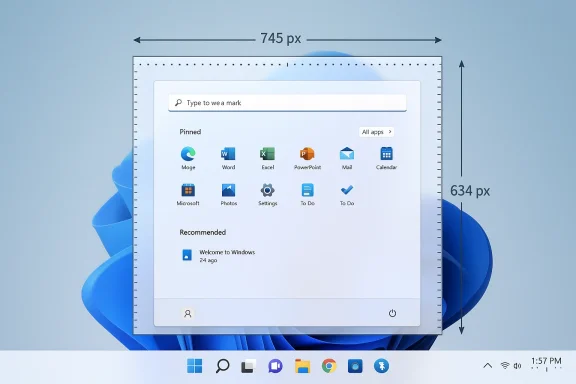
Windows 11 still doesn’t give users a built‑edged way to change the visible size of the Start menu, but community tools — most notably the Windhawk modding platform — now offer a practical workaround that lets you resize the Start menu immediately. What began as a small, repeatable community mod has matured into a straightforward option for power users who want a narrower, taller, or wider Start surface without waiting for Microsoft to add a native control.
Microsoft’s Windows 11 redesign emphasized a cleaner, more consistent Start experience: centered taskbar, simplified layout, and a responsive single‑page Start surface that adapts to content and display properties. That adaptive approach intentionally removed the explicit drag handles and manual window‑like resizing that existed in Windows 10, and it has left many users — especially those on smaller screens or with left‑aligned taskbars — frustrated by a Start menu that can feel disproportionately large. The company has acknowledged feedback about density and layout decisions, but the Start shell was not originally engineered to be manually resizable in the same way as in previous Windows generations.
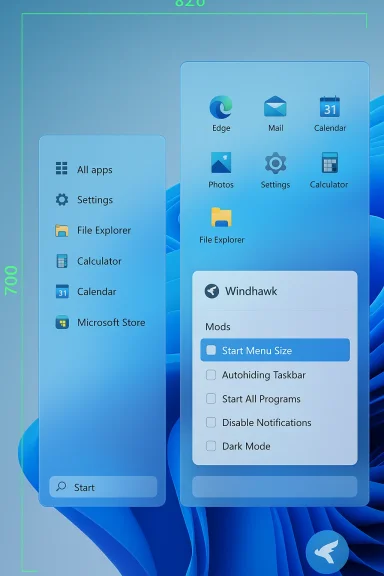
At the same time, the Windows customization community has continued to produce third‑party solutions and lightweight mods to restore behaviors users miss. Windhawk, a community mod manager for Windows 10 and 11, hosts user‑contributed tweaks that change visual behavior and UI pieces — including mods that affect the Start menu and taskbar. One such addition, commonly referred to in community posts as the “Start Menu Size” mod, exposes pixel width and height controls so you can define exactly how large the Start surface should appear.
The “Start Menu Size” mod (community name used in posts) takes a simple but effective approach: it injects a small shim into the Start shell that overrides the default frame size and allows the user to specify width and height in pixels. Users report the mod accepts numeric values (width and height) and applies those values immediately without requiring a full shell restart. Setting both values to 0 is commonly reported as the way to revert to the default behavior. Because Windhawk mods are distributed with source code visible, advanced users can audit the code before installing.
Note: While community posts and Windhawk listings describe these behaviors, exact implementation details such as the mod name, parameter syntax, or behavior across specific Windows builds can vary by author and version. When in doubt, view the mod’s source or read its description in Windhawk before installing. Treat the pixel‑input behavior as community‑documented rather than an official Microsoft feature.
In the end, the Start menu’s size is more than a cosmetic gripe — it affects workflows and usability. Community tools have stepped in to fill the gap, but users should balance convenience with caution and choose the solution that best fits their stability, security, and support requirements.
Source: Neowin How to resize the Start menu in Windows 11?
 Background / Overview
Microsoft’s Windows 11 redesign emphasized a cleaner, more consistent Start experience: centered taskbar, simplified layout, and a responsive single‑page Start surface that adapts to content and display properties. That adaptive approach intentionally removed the explicit drag handles and manual window‑like resizing that existed in Windows 10, and it has left many users — especially those on smaller screens or with left‑aligned taskbars — frustrated by a Start menu that can feel disproportionately large. The company has acknowledged feedback about density and layout decisions, but the Start shell was not originally engineered to be manually resizable in the same way as in previous Windows generations.At the same time, the Windows customization community has continued to produce third‑party solutions and lightweight mods to restore behaviors users miss. Windhawk, a community mod manager for Windows 10 and 11, hosts user‑contributed tweaks that change visual behavior and UI pieces — including mods that affect the Start menu and taskbar. One such addition, commonly referred to in community posts as the “Start Menu Size” mod, exposes pixel width and height controls so you can define exactly how large the Start surface should appear.
Why size control matters (UX and practical reasons)
Most users think of the Start menu as a quick app launcher, but its visual footprint strongly affects desktop workflows:- Screen real estate: On laptops (13"–15") and ultrabook displays, a tall Start can occlude content and interrupt window management; smaller Start sizes can reduce visual clutter.
- Taskbar placement: Users who move the taskbar to the left or right often prefer a more compact vertical Start; Windows 11’s fixed height can feel wasteful in those layouts.
- Multi‑monitor and ultra‑wide setups: Wide monitors can benefit from expanded Start menus that take advantage of horizontal space, while tablet modes and smaller screens need compact Start surfaces.
- Accessibility and density preferences: Some users need larger Start surfaces for easier touch targets; others want more density to reduce scrolling.
What Windhawk is, and how the Start menu mod works
Windhawk is a lightweight modding platform for Windows where developers publish small modules to tweak the shell and other UI subsystems. Mods are open source on the platform (you can view the code for each mod), and they’re installed and managed through Windhawk’s UI. The community hosts a variety of mods — Start menu stylers, taskbar size adjusters, and more — that aim to restore or extend Windows capabilities.The “Start Menu Size” mod (community name used in posts) takes a simple but effective approach: it injects a small shim into the Start shell that overrides the default frame size and allows the user to specify width and height in pixels. Users report the mod accepts numeric values (width and height) and applies those values immediately without requiring a full shell restart. Setting both values to 0 is commonly reported as the way to revert to the default behavior. Because Windhawk mods are distributed with source code visible, advanced users can audit the code before installing.
Note: While community posts and Windhawk listings describe these behaviors, exact implementation details such as the mod name, parameter syntax, or behavior across specific Windows builds can vary by author and version. When in doubt, view the mod’s source or read its description in Windhawk before installing. Treat the pixel‑input behavior as community‑documented rather than an official Microsoft feature.
Step‑by‑step: Resize the Start menu with Windhawk (community method)
The following sequence reflects the community‑recommended workflow and the typical Windhawk mod installation process. Read the “Risks & precautions” section below before you begin.- Install Windhawk
- Download and install the Windhawk client and run it. Windhawk is the manager that discovers, installs, and configures mods. Many community threads explain how to get started with Windhawk and which system settings to review first.
- Explore mods
- In the Windhawk app, use the Explore tab to search for a Start‑related mod. Look for names like “Start Menu Size” or similar; confirm the mod’s description includes pixel width/height controls or mentions Start resizing. The mod entry usually includes a screenshot, a description, and the source code link.
- Install the mod
- Click Install from within Windhawk. The platform installs the mod and adds it to your managed mods list. Many Windhawk mods apply changes immediately; others provide a settings page for parameter input.
- Configure size parameters
- Open Settings for the installed mod and enter your preferred width and height in pixels. Community posts indicate that the values are applied immediately and that setting both values to 0 returns Start to default sizing behavior. If the mod author provides presets (e.g., “narrow”, “wide”), those may simplify experimentation.
- Test and iterate
- Open Start and validate size. If it looks good, save the settings. If not, adjust the pixel values and save again. No full system restart is usually required.
- Revert
- To remove the change, either set the mod’s width and height back to 0 (revert to defaults) or uninstall the mod from Windhawk. For safety, many users create a system restore point before installing any mod and verify they can uninstall cleanly.
Risks, compatibility, and security considerations
Using community mods to alter shell behavior carries tradeoffs. Treat these changes as powerful but not risk‑free.- Stability: Injecting code into the Explorer/Start shell is inherently more intrusive than changing Settings. Although Windhawk’s architecture aims to be lightweight and many mods are stable, there is a chance of UI glitches or unexpected interactions with shell updates. Community reports show no widespread catastrophic failures, but experiences vary by machine.
- Windows updates and staged rollouts: Microsoft continues to modify the Start shell and sometimes deploys UI updates via staged feature gating. A future update could change internal behaviors the mod relies on, causing the mod to stop working until it’s updated. That’s a normal risk for any third‑party shell tweak.
- Anticheat / secure environments: Some games and enterprise environments use anti‑cheat or endpoint protection that monitors shell integrity. While Windhawk mods are generally small, altering shell behavior could trigger anti‑cheat or security tools. Test your configuration with mission‑critical games or enterprise apps before deploying widely.
- Privacy and trust: Windhawk publishes mod source code; however, just because source is visible doesn’t mean all users will audit it. Install mods only from authors with good reputations or from the official Windhawk gallery, and review the code if you can.
- Enterprise policy: Organizations should evaluate the security footprint of any third‑party mod. IT teams can control deployment using standard enterprise management tools and should test for compatibility with managed configurations, Digital Employee Experience tooling, and patch cycles. Community threads recommend testing external tools in pilot groups rather than enterprise‑wide pushes.
- Create a full backup or at least a System Restore point before installing mods.
- Test mods on a non‑critical machine first.
- Keep a copy of the mod installer and the procedure to uninstall it.
- Watch community threads for reports after major Windows updates.
Alternatives: Start11, StartAllBack, and built‑in tweaks
Windhawk is not the only path to Start customization. If you prefer a commercial, supported tool with a broader feature set, consider the established alternatives:- Start11 and StartAllBack: These paid products restore many classic Start and taskbar behaviors — including different placements, density options, and sometimes resizing/different appearance models. Enterprise users and support‑conscious individuals often prefer these because the vendors provide clearer support policies and updates to keep pace with Windows changes. Community discussions frequently point to these tools as stable, full‑featured alternatives.
- Settings tweaks (limited): For users who only want to reduce perceived size, you can:
- Reduce the number of pinned rows.
- Disable the Recommended feed.
- Turn on or off “Show all pins” depending on your preferences.
These are indirect workarounds that do not change the Start frame but can make the content appear more compact. Microsoft’s own guidance and communications emphasize these options as the supported personalization path. - Accessibility and display settings: Adjusting scaling (DPI) and font sizes affects layout density; turning off animations may make Start feel snappier. These are system‑level adjustments rather than specific Start resizing solutions.
Troubleshooting: Common issues and fixes
- Start looks broken after applying the mod
- Reopen Windhawk and set the mod’s width and height to 0 to revert. If that fails, uninstall the mod from Windhawk and sign out/sign in. If Explorer navigation still misbehaves, consider restarting Explorer via Task Manager or rebooting the machine.
- Mod doesn’t apply on my machine
- Make sure you’re running a supported build of Windows 11. Windhawk and mods sometimes rely on particular shell internals that vary between builds or feature‑gated deployments. Check the mod’s description for supported versions.
- Anti‑cheat or corporate security alerts
- Test the mod outside the gaming environment or request a whitelist from your security team. Consider using a commercial solution with vendor support if you need an enterprise‑safe option.
- Unexpected layout after a Windows update
- Check Windhawk’s mod page for updates or patches. Community authors frequently update mods when Microsoft changes shell internals. If a mod becomes incompatible, uninstall it until an updated version is available.
Practical recommendations and a safe playbook
If you’re considering resizing Start with a community mod, follow this conservative playbook:- Evaluate need: Try built‑in Settings tweaks (hide Recommended, reduce pinned rows) and DPI/scaling adjustments first. If you still need a different Start frame, proceed to step 2.
- Pick a solution:
- For minimal, pixel‑level control: test Windhawk’s Start sizing mod in a lab or secondary device.
- For broader UI restoration and vendor support: test Start11 or StartAllBack.
- Backup: Create a System Restore point and a file backup before installing mods or paid utilities. Document the steps needed to revert changes.
- Test: Apply the change and run through the apps, games, and enterprise tools you rely on. Verify that anti‑cheat protections and endpoint sensors remain happy.
- Monitor: After a major Windows update, revalidate in a sandbox before re‑deploying.
- Document and standardize: If you manage multiple machines, create a controlled deployment plan and testing checklist for the chosen utility or mod.
Why Microsoft hasn’t (yet) restored manual resizing — and what could change
Microsoft’s Start redesign is a deliberate shift toward adaptive layouts that aim to look correct across diverse device types. The company’s stated approach favors responsive, algorithmic layouts that adapt to DPI, screen size, and content rather than exposing low‑level controls that might produce inconsistent experiences across devices. That philosophical stance explains why there’s no drag handle or manual frame resize in the current Start surface. Microsoft continues to monitor feedback and has rolled changes via staged updates, so future choices could include a compact mode or a user‑driven size control — but those are product‑level decisions that must balance telemetry, accessibility, and consistency. Until Microsoft ships an official control, community solutions and third‑party utilities provide practical alternatives for users with specific needs.Closing analysis — strengths, tradeoffs, and what to watch
Using Windhawk’s Start menu size mod offers three clear strengths:- Immediate control: Pixel‑perfect sizing without waiting for Microsoft.
- Community transparency: Source code is visible for auditing.
- Flexibility: You can create compact or expanded Start surfaces tailored to personal setups.
- Compatibility risk: Future Windows updates or internal shell changes can break mods.
- Supportability: Community mods lack the formal support channels enterprises may require.
- Security posture: Any code that modifies the shell increases the attack surface and can clash with anti‑cheat/security tooling.
- Microsoft product communications and release notes for any Start menu changes or a compact mode.
- Windhawk and mod author updates after cumulative Windows updates.
- Vendor updates from Start11/StartAllBack that aim to provide supported alternatives for power users.
In the end, the Start menu’s size is more than a cosmetic gripe — it affects workflows and usability. Community tools have stepped in to fill the gap, but users should balance convenience with caution and choose the solution that best fits their stability, security, and support requirements.
Source: Neowin How to resize the Start menu in Windows 11?