

Windows has quietly allowed a thriving ecosystem of third‑party tools to pick up the slack where Microsoft chose simplicity over flexibility, and nowhere is that tension more visible than the taskbar — a small strip of UI that, for power users, defines the efficiency of their entire workflow.
The taskbar has been one of Windows’ most personalizable features for decades: move it to the top or sides, change its height, choose icon sizes, show labels, or dial in transparency. Those options made Windows adaptable to many different screen shapes, resolutions, and work styles. Over the last few years Microsoft rewrote large parts of the shell for Windows 11 and intentionally simplified the taskbar experience, removing long‑standing affordances in favor of a single, opinionated design.
That gap created an opportunity for a new generation of lightweight customization tools — modular mods and polished commercial utilities — that restore and expand the classic behaviors. Products and projects like Windhawk, Start11 (and StartAllBack), ExplorerPatcher, TranslucentTB, and many focused taskbar mods now supply the precise control power users miss. These tools don’t merely “make Windows pretty”; they reintroduce measurable productivity choices, from vertical positioning on ultrawide displays to text labels that remove the hover delay from the taskbar workflow.
What was removed or limited
A truly translucent or blurred taskbar creates a visual separation without fighting the wallpaper or widgets underneath. It makes the desktop feel larger, reduces visual weight, and—critically—can provide dynamic cues (transparent when desktop is visible, opaque when an app is maximized).
What Microsoft ships vs. what users want
Hovering to reveal a tooltip or relying on thumbnail previews wastes micro‑time. For users who manage many windows, visible labels or a “Never Combine” mode that leaves each window’s title accessible at a glance is a productivity multiplier. Labels also help users with cognitive load and accessibility needs, making it easier to distinguish multiple instances of the same app.
What changed in Windows 11
Icon targets affect click accuracy and overall comfort — especially on high‑DPI displays or touch devices. In earlier Windows versions users could unlock the taskbar and drag to make it taller (or set “Small icons” for a thinner bar). That flexibility allowed heavy multitaskers to display more entries and let laptop users shrink the bar to save vertical pixels.
What Windows 11 changed
But there are important limits:
Microsoft can choose to build those options back in, safely and officially, or continue to rely on a third‑party ecosystem that will always be a step behind the platform in terms of stability and support. Until then, the Windhawks, Start11s, TranslucentTBs, and ExplorerPatchers will keep the power users productive — and remind the platform vendor that, when it comes to ergonomics and accessibility, one size should never be final.
Source: XDA 4 Windows taskbar mods I wish were native OS features
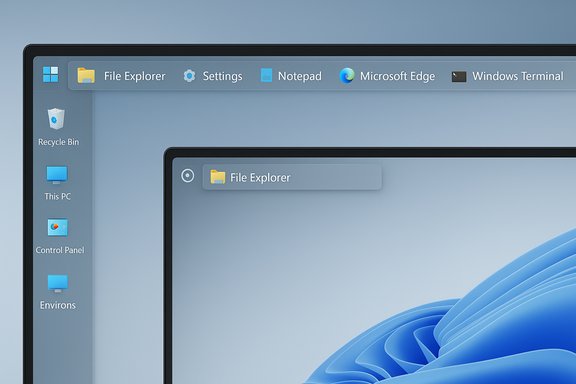 Background
The taskbar has been one of Windows’ most personalizable features for decades: move it to the top or sides, change its height, choose icon sizes, show labels, or dial in transparency. Those options made Windows adaptable to many different screen shapes, resolutions, and work styles. Over the last few years Microsoft rewrote large parts of the shell for Windows 11 and intentionally simplified the taskbar experience, removing long‑standing affordances in favor of a single, opinionated design.That gap created an opportunity for a new generation of lightweight customization tools — modular mods and polished commercial utilities — that restore and expand the classic behaviors. Products and projects like Windhawk, Start11 (and StartAllBack), ExplorerPatcher, TranslucentTB, and many focused taskbar mods now supply the precise control power users miss. These tools don’t merely “make Windows pretty”; they reintroduce measurable productivity choices, from vertical positioning on ultrawide displays to text labels that remove the hover delay from the taskbar workflow.
Why the taskbar still matters
The taskbar is small in screen real estate but disproportionate in impact. It’s the place people switch windows, read quick information (clock, notifications), and access pinned apps or system status. For users on ultrawide displays, multiple‑monitor setups, or high‑DPI laptops, a single, fixed taskbar layout is not just an aesthetic choice — it can be an ergonomic and efficiency bottleneck.- Small improvements here save seconds per task; seconds compound into productivity gains across a day.
- Accessibility needs (larger labels, bigger click targets) are best served by adjustable UI elements.
- Visual treatments (blur/translucency) can reduce perceived clutter and keep the desktop canvas legible.
Overview of the four taskbar features users want back (and why)
This feature examines the four taskbar capabilities many customization communities agree Microsoft should offer natively: moving the taskbar to the top/side, richer translucency/blur control, return of usable taskbar labels, and the ability to resize the bar and icons. Each section explains what was removed or limited, how third‑party tools restore it, the benefits, and the risks or technical trade‑offs.1) Taskbar on the top (and sides): position as productivity
Until Windows 11, users could freely dock the taskbar to the top or either side of the screen — a simple drag and drop. The ability to place the taskbar at the top is not mere nostalgia. It aligns the most‑used hotspot (window title bars, menus, tabs) with the mouse travel path for many workflows and suits ultrawide and vertical monitor setups where horizontal space is abundant but vertical pixels are precious.What was removed or limited
- Windows 11’s native taskbar locks position to the bottom and centers icons by default, removing official support for top or side docking. The company’s redesign prioritized a single modernized layout, and that change removed an ergonomics option many users relied upon. The rationale publicly offered by Microsoft has varied and includes technical constraints from the redesigned animation and shell stack; this is widely discussed in customization circles and user reporting.
- Start11 (commercial, Stardock) and StartAllBack/StartIsBack variants enable full taskbar repositioning and provide fine padding and layout controls to prevent wasted pixels. Windhawk and ExplorerPatcher offer free, community‑driven alternatives that can restore vertical/sided taskbar behaviors in a way that closely mimics the pre‑Windows‑11 experience. These tools have become go‑to solutions for users who want the taskbar where it makes ergonomic sense.
- Consolidates pointer movement with menu bars and title bars at the screen top.
- For ultrawide and portrait monitors, a vertical taskbar uses horizontal space more efficiently.
- Restores predictable muscle memory for long‑time Windows users and accessibility for those who prefer larger or differently oriented click targets.
- These tools hook into or replace parts of explorer.exe and the shell, which increases the chance of breakage after major OS updates.
- Enterprise policies and anti‑cheat / anti‑tamper systems might detect injected behavior or non‑standard shell interactions, so administrators should vet usage on managed devices.
2) Translucency and dynamic glass effects: making the taskbar disappear
Why translucency still mattersA truly translucent or blurred taskbar creates a visual separation without fighting the wallpaper or widgets underneath. It makes the desktop feel larger, reduces visual weight, and—critically—can provide dynamic cues (transparent when desktop is visible, opaque when an app is maximized).
What Microsoft ships vs. what users want
- Windows 11 introduced Mica, an ambient surface effect, but it’s intentionally subtle and not the same as the old Aero Glass blur. Many users want stronger blur, adjustable transparency levels, or contextual transitions that change when windows are maximized or the desktop is shown.
- TranslucentTB and similar utilities have become massively popular for a reason: they let users configure true transparency, blur, color overlays, and dynamic transitions tied to window state. Windhawk and StartAllBack extend these possibilities further by making other shell elements (notification center, quick actions) match the glass treatment for a unified look. The popularity of these tools indicates a genuine desire for richer visual controls.
- Cleaner, less intrusive UI that emphasizes content over chrome.
- The ability to tune visual density helps users with cluttered desktops or those who want a minimal workspace.
- Heavier visual effects can incur a small GPU/CPU cost on lower‑end machines.
- Injected UI modifications can occasionally conflict with Windows theming or accessibility modes; users with specific high‑contrast or scaling needs should test carefully.
3) Taskbar labels: text that beats hovering
Why labels are productivity toolsHovering to reveal a tooltip or relying on thumbnail previews wastes micro‑time. For users who manage many windows, visible labels or a “Never Combine” mode that leaves each window’s title accessible at a glance is a productivity multiplier. Labels also help users with cognitive load and accessibility needs, making it easier to distinguish multiple instances of the same app.
What changed in Windows 11
- Windows 11 combined and compacted icons more aggressively, and while Microsoft later reintroduced a limited form of labels/grouping, many users find the implementation less flexible than the previous “Never combine” and label size options. Third‑party authors responded quickly with more sophisticated controls.
- Windhawk mods and Start11 provide adjustable label font sizes, fixed widths, color coding, and grouping rules that make taskbar labels genuinely useful again. These tools allow the taskbar to communicate more information without forcing users to hover over icons.
- Faster window selection and clearer mental models for complex workflows.
- Better accessibility for users who rely on visible text rather than quick hovers or tiny thumbnails.
- UI density increases: labels consume horizontal space, so careful configuration is necessary for ultrawide vs. laptop setups.
- Some label implementations use custom rendering that can be temporarily disrupted by Windows updates; keep backups and be prepared to toggle mods off and on after system upgrades.
4) Resizing the bar and icons: one size does not fit all
Why taskbar height and icon size matterIcon targets affect click accuracy and overall comfort — especially on high‑DPI displays or touch devices. In earlier Windows versions users could unlock the taskbar and drag to make it taller (or set “Small icons” for a thinner bar). That flexibility allowed heavy multitaskers to display more entries and let laptop users shrink the bar to save vertical pixels.
What Windows 11 changed
- The work area of the taskbar is locked in many builds, and registry hacks to resize icons were fragile and often broke adjacent UI elements like the clock. A locked taskbar height is a major regression for those on extreme resolutions or touch devices.
- Windhawk and Start11 offer safe ways to change icon and bar sizing without destructive registry surgery. RoundedTB adds floating margins and corner radii to create a modern floating dock effect while preserving click targets. These solutions revive the “small icons” and multi‑row approaches users relied on in earlier Windows generations.
- Better ergonomics on high‑DPI displays and touch screens.
- Custom sizing allows users to prioritize either vertical screen space or easier clicking.
- As with other mods that touch explorer.exe UI elements, compatibility with new Windows releases is the primary risk. Test carefully after system feature upgrades and maintain restore points.
The current mod ecosystem: strengths and reliability
The modern customization landscape is diverse and surprisingly resilient. Two broad categories dominate:- Community‑driven, open‑source mods (Windhawk, ExplorerPatcher, Windhawk mod catalog) that emphasize modular, inspectable changes and free access.
- Commercial, polished utilities (Start11, StartAllBack) that offer user experience refinements, polished UI, and paid support.
- Modularity: Windhawk’s approach of runtime, per‑feature mods allows enabling only what you need and reduces surface area for problems.
- Choice: Users can pick between free and paid tools depending on tolerance for risk and need for convenience.
- Speed of iteration: Community projects often push compatibility fixes within days of Windows feature updates, a nimbleness heavyweight vendors sometimes lack.
- Injection vs. patching: Most modern mods work by injecting lightweight hooks into Windows processes. That’s less invasive than permanent patching but still modifies runtime behavior and can be flagged by defensive software.
- Breakage window: Major Windows updates alter internals; expect a short period where mods may need updates or should be disabled temporarily. Some tools maintain compatibility quickly, while others lag.
Security, enterprise, and update considerations
Any article that urges users to use shell mods must be candid about the operational realities.- Security posture
- Open‑source projects provide code you can audit, which improves trust, but not everyone will audit. Prefer well‑maintained projects with active issue trackers and GitHub release history.
- Be mindful of adding system exceptions in corporate environments; an AV or endpoint agent might flag injection‑style mods.
- Enterprise policy and managed devices
- System administrators should evaluate policy compatibility and potential support impacts. In many managed Windows estates, unauthorized shell modifications violate IT policy and can complicate helpdesk troubleshooting.
- Upgrade and support lifecycle
- Create a restore point or full backup before installing mods that alter Explorer behavior. If a future Windows feature update breaks a mod, restoring the system or temporarily uninstalling the mod is often the fastest recovery. Community tool pages routinely document version compatibility and rollback strategies.
What Microsoft could do (and how they might do it safely)
A pragmatic path for Microsoft would be to reintroduce these options as opt‑in settings in a safe, supported way:- Expose APIs for taskbar placement and sizing that respect underlying animation and layout engines, avoiding fragile UI surface changes.
- Add a controlled transparency slider and a choice between Mica and stronger blur effects, with fallback performance profiles for lower‑end GPUs.
- Bring back label/grouping options with proper accessibility controls and predictable behavior on high‑DPI screens.
- Allow an officially supported “power user” preferences panel that toggles legacy affordances while keeping modern security boundaries intact.
Practical recommendations for users today
If you want to restore these features now, follow a cautious approach:- Create a System Restore point and back up important data.
- Pick a solution that matches your risk tolerance:
- For a polished, paid route: consider Start11 or StartAllBack for a supported experience and simpler UI.
- For free, modular changes: Windhawk and ExplorerPatcher cover most restoration needs and give fine‑grained control.
- Enable one mod at a time, test your most‑used workflows (browsers, games with anti‑cheat), and verify system stability.
- Keep the tools and Windows up to date, and check community channels for compatibility notes before applying large Windows feature updates.
A critical take: strengths, limits, and the future
The customization ecosystem is a testament to user demand: the same features Microsoft removed because they were “rarely used” have passionate advocates and real productivity value. The strengths of the current landscape are clear: modularity, choice, rapid iteration, and the ability to restore important accessibility and ergonomics features.But there are important limits:
- Many mods are temporary technical workarounds rather than architectural solutions. They are necessarily fragile against deep platform updates and occasionally create support friction.
- The fragmentation of solutions — many different projects offering overlapping fixes — can confuse less technical users about the safest path forward.
- Some claims about Microsoft’s reasons for removal are speculative (for example, the claim that animation engine changes forced the decision). Those inside rationale elements remain partly unverified public conjecture; treat such explanations as possible but not definitive unless Microsoft documents them. Exercise caution when explaining motivations.
Conclusion
The taskbar is more than decoration; it is an essential ergonomic and productivity surface. The removal of longstanding options in Windows 11 pushed a creative community into action, producing robust tools that restore and enhance features many users depend on: top and side placement, meaningful translucency, readable labels, and adjustable heights and icon sizes. Those third‑party tools are impressive, but they are also stopgaps — fragile workarounds that reveal a simple truth: operating systems should ship with options that respect the multitude of ways people use their PCs.Microsoft can choose to build those options back in, safely and officially, or continue to rely on a third‑party ecosystem that will always be a step behind the platform in terms of stability and support. Until then, the Windhawks, Start11s, TranslucentTBs, and ExplorerPatchers will keep the power users productive — and remind the platform vendor that, when it comes to ergonomics and accessibility, one size should never be final.
Source: XDA 4 Windows taskbar mods I wish were native OS features
