

If your first instinct when you boot Windows 11 is to hunt for the familiar rhythms of Windows 10 — the left-aligned taskbar, the old Start menu, the full context menu — you’re not alone. A handful of small, well-chosen changes can restore a lot of the muscle memory and workflow comfort of Windows 10 without resorting to unsupported hacks or full OS downgrades. This feature unpacks five practical tweaks, verifies exact steps against authoritative sources, flags risks, and offers safe rollback options so you can restore a Windows 10 feel on Windows 11 reliably and securely. The tweaks and rationale mirror the checklist in the user-supplied guide while expanding technical verification and safety guidance. rview
Windows 11 introduced a new visual language, tighter Microsoft service integration, and UX changes that deviate from long-standing Windows conventions. For many users these changes cause friction in daily workflows: the centered taskbar breaks habitual eye/hand movement, the streamlined context menu hides frequently used commands, and new features such as Microsoft Copilot add persistent UI elements that some users prefer not to see.
These five lightweight adjustments address the core categories of friction:
Many users consider Microsoft Copilot unnecessary or intrusive on desktop systems. Copilot can appear in the taskbar, be invoked by keyboard shortcuts, and spawn a persistent UI surface that competes for attention. There are several supported ways to reduce or remove Copilot’s presence; the correct choice depends on your Windows edition and the level of removal you want.
Restoring a Windows 10 feel on Windows 11 is less about rejecting progress and more about reclaiming the predictable, efficient workflows you rely on. With careful application of the steps above — backed by Microsoft documentation and community-verified procedures — you can recover the look and feel you prefer while remaining safe, reversible, and maintainable. The five tweaks described here combine cosmetic, interaction, and policy-level controls into a compact personalization plan that restores familiarity without sacrificing the security and updates Windows 11 provides.
Source: FilmoGaz 5 Small Windows 11 Tweaks to Restore a Windows 10 Feel
Windows 11 introduced a new visual language, tighter Microsoft service integration, and UX changes that deviate from long-standing Windows conventions. For many users these changes cause friction in daily workflows: the centered taskbar breaks habitual eye/hand movement, the streamlined context menu hides frequently used commands, and new features such as Microsoft Copilot add persistent UI elements that some users prefer not to see.
These five lightweight adjustments address the core categories of friction:
- Visual familiarity: wallpaper and icon alignment.
- Interaction familiarity: Start menu layout and context menus.
- Feature surface control: reducing or hiding integrated AI features like Copilot.
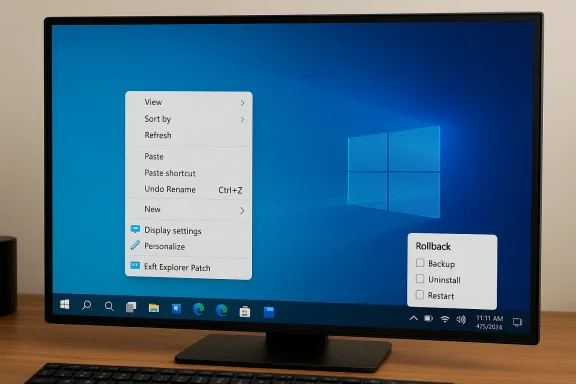 1. Disable Microsoft Copilot — what it does, verified steps, and caveats
Many users consider Microsoft Copilot unnecessary or intrusive on desktop systems. Copilot can appear in the taskbar, be invoked by keyboard shortcuts, and spawn a persistent UI surface that competes for attention. There are several supported ways to reduce or remove Copilot’s presence; the correct choice depends on your Windows edition and the level of removal you want.What “disable Copilot” means
- Hiding the Copilot button on the taskbar prevents accidental launches.
- Disabling Copilot via policy prevents the feature from appearing or being launched by users.
- In some recent Windows releases, administrators can even uninstall the Copilot app under narrow conditions — but this capability is evolving and not universally available.
Verified methods
- Taskbar settings (quick, reversible)
- Right-click the taskbar → Taskbar settings → under Taskbar items or Taskbar behaviors toggle off Copilot. This simply hides the taskbar button and is safe for all users. Microsoft’s taskbar controls expose this basic toggle.
- Group Policy Editor (Windows Pro / Enterprise / Education — stronger)
- Run gpedit.msc → User Configuration → Administrative Templates → Windows Components → Windows Copilot → double-click Turn off Windows Copilot → set to Enabled. This maps to the policy documented by Microsoft as TurnOffWindowsCopilot and will generally prevent Copilot from being usable by the targeted user accounts. Microsoft documents the policy and its ADMX mapping.
- Registry (Windows Home or for scriptable deployments)
- Create or edit the registry value used by Microsoft policies:
- Key: HKEY_CURRENT_USER\Software\Policies\Microsoft\Windows\WindowsCopilot
- Value name: TurnOffWindowsCopilot (DWORD)
- Value: 1 to disable
- Restart to apply.
- Microsoft documents the registry mapping for the policy; community guides corroborate the exact registry location and name. Always export the key before changing it.
Caveats and evolving behavior
Microsoft continues to evolve Copilot and related AI surface areas. Group policy and registry controls are documented, but future Windows builds or new Copilot packaging may alter behavior or add new components that need additional controls. A Microsoft Q&A thread and recent reporting note that new Copilot package behavior in preview builds has required administrators to take additional steps beyond the classic policy in some scenarios. If you rely on Copilot removal for security or compliance, re-verify against current Microsoft documentation and test on a non-production machine.Safe rollback checklist
- Create a System Restore point before editing Group Policy or the Registry.
- Export any edited registry keys to a .reg file for quick restoration.
- If you disable Copilot via Group Policy, note which GPO you edited and how to revert.
- If you rely on scripts, keep the original command and add a reverse command (set DWORD back to 0 or delete the key).
2. Restore the classic Windows 10 wallpaper (cosmetic, high impact)
Swapping the default desktop background is purely cosmetic but often the fastest way to reclaim a familiar visual context. The iconic Windows 10 “Hero” wallpaper is still widely available and can be applied in seconds.How to apply (verified steps)
- Acquire a high-resolution copy of the Windows 10 “Hero” wallpaper from a trustworthy archive or from your own Windows 10 backups. The image is the official Microsoft “Hero” desktop picture created during the Windows 10 era and widely distributed; multiple reputable archives and design write-ups document its provenance.
- Settings → Personalization → Background → Browse photos → Choose picture.
- Optionally set Fit to Fill or Fit to preserve composition on different displays.
Benefits and caveats
- Benefit: immediate psychological familiarity with no system risk.
- Caveat: when downloading images from third-party sites, verify image quality and avoid watermarked or low-resolution derivatives.
3. Restore the classic context menu — exact registry commands and safety
Windows 11 introduced a simplified right-click menu that hides legacy entries under Show more options. If you prefer the older, full context menu by default, a small registry change restores it.Verified command (exact, copy-paste ready but run with caution)
Run an elevated Terminal/Command Prompt and execute:- To enable the classic menu:
- reg.exe add "HKCU\Software\Classes\CLSID{86ca1aa0-34aa-4e8b-a509-50c905bae2a2}\InprocServer32" /f /ve
- Restart Explorer: taskkill /F /IM explorer.exe & start explorer
- To revert to Windows 11 default:
- reg.exe delete "HKCU\Software\Classes\CLSID{86ca1aa0-34aa-4e8b-a509-50c905bae2a2}" /f
- Restart Explorer.
Why it works (technical note)
The new context menu is implemented as a COM/Explorer component identified by CLSID {86CA1AA0-34AA-4E8B-A509-50C905BAE2A2}. Creating an empty InprocServer32 entry under the CLSID for the current user prevents the new immersive component from registering for that user, and Explorer automatically shows the legacy menu.Risks and mitigations
- Risk: Registry edits can cause unexpected behavior if mistyped. Mitigate by exporting the relevant branch and creating a restore point.
- Risk: Future Windows updates could change CLSIDs or reintroduce the new menu in a way that ignores this override. Keep your rollback command handy and re-check after major feature updates.
- Mitigation: Test the change on a non-critical account first.
4. Move the taskbar alignment back to the left — built-in setting and alternatives
The centered taskbar in Windows 11 is one of the most visible departures from Windows 10. Fortunately Microsoft provides a built-in setting to realign icons to the left.Verified steps
- Right-click the taskbar and choose Taskbar settings (or Settings → Personalization → Taskbar).
- Expand Taskbar behaviors and set Taskbar alignment to Left.
Practical considerations
- The built-in option aligns the taskbar icons to the left while keeping the taskbar docked to the bottom of the screen; moving the taskbar to the top or sides still requires workarounds.
- Some users have reported device/OS build-specific bugs (rare) where the alignment seems not to apply until certain system tray options are toggled; if you see that, sign out and sign back in or restart Explorer. These are edge cases documented in forum threads and are typically resolved by updates.
5. Use Explorer Patcher to get a Windows 10–style Start Menu (open-source alternative)
If the built-in Start layout does not satisfy you, there are mature third-party options to restore a Windows 10–style Start. One well-known open-source project is Explorer Patcher, which modifies Explorer behavior at runtime and exposes a properties UI to re-enable Windows 10 start and taskbar behaviors.What Explorer Patcher does (and how it works)
- Explorer Patcher provides toggles for Start menu style, taskbar style, classic context menus, and other Explorer behaviors without modifying core system files.
- It installs a small helper that hooks Explorer at runtime and writes configuration options that are user-visible via a Properties dialog invoked from the taskbar (right-click → Properties once installed). The project repository documents the install/uninstall flow and the available options.
Typical workflow (verified)
- Download the latest Explorer Patcher release for your architecture (x64 or ARM64) from the project’s official distribution (GitHub releases). Verify the release notes and checksums when provided.
- Run the installer (the setup modifies Explorer behavior and restarts Explorer).
- Right-click the taskbar → Properties → Start menu → set Start menu style to Windows 10.
- Optionally set taskbar style to Windows 10 and restart Explorer or the PC to apply changes.
Alternatives
- StartAllBack and Start11 are commercial alternatives with polished UI and paid support; they may be preferable for enterprise deployments or users who want a supported experience with a GUI settings experience.
Risks and best practices
- Third-party shell modifications can introduce compatibility or stability issues after major Windows feature updates. Always:
- Create a System Restore point before installing.
- Keep the uninstaller handy.
- Only download from the official project release pages and verify checksums if supplied.
- Test on a non-critical machine first.
- Explorer Patcher changes are reversible via uninstall; still, be cautious when combining multiple shell-modifying utilities.
Safety checklist before you tweak (non-negotiable)
- Create a System Restore point (Settings → System → About → System protection).
- Export any registry keys you will edit (Regedit → right‑click → Export).
- Take a full disk image if the machine is critical or if you’re performing multiple changes.
- Use a non-admin or test user for initial testing where possible.
- For third-party tools: download from the official GitHub/author page, verify checksums, and keep the uninstaller.
- Document exact commands you ran so you can reverse them quickly.
Deeper analysis: why these tweaks work — and what they don’t fix
These five tweaks resolve the three main sources of friction for Windows 10 holdouts:- Visual friction is addressed by wallpaper and left alignment, which immediately restores the classic desktop silhouette.
- Interaction friction (Start shape and context menus) is solved by runtime Explorer adjustments (Explorer Patcher) or a single CLSID registry override for context menus.
- Feature surface friction is handled by policy/registry changes for Copilot or by uninstalling components where enterprise controls permit.
- They do not revert the entire shell or kernel behavior to Windows 10. Some Windows 11 visual elements, window chrome, and system UI paradigms remain.
- They do not remove deep feature telemetry or cloud integrations by themselves; those require privacy and diagnostic setting adjustments.
- They are not a substitute for staying current on security updates.
Step-by-step quick reference (consolidated commands and confirmations)
- Disable Copilot (Registry — Windows Home)
- Create: HKEY_CURRENT_USER\Software\Policies\Microsoft\Windows\WindowsCopilot
- DWORD: TurnOffWindowsCopilot = 1
- Restart.
- Confirm: Copilot button gone and shortcuts disabled (verify behavior).
- Sources: Microsoft policy documentation and community guides document the mapping and key name.
- Restore classic context menu (one-line command)
- Enable classic menu:
- reg.exe add "HKCU\Software\Classes\CLSID{86ca1aa0-34aa-4e8b-a509-50c905bae2a2}\InprocServer32" /f /ve
- Restart Explorer (taskkill /F /IM explorer.exe & start explorer)
- Revert:
- reg.exe delete "HKCU\Software\Classes\CLSID{86ca1aa0-34aa-4e8b-a509-50c905bae2a2}" /f
- Confirm: Right-click shows full menu by default. Community guides and Tom’s Hardware provide this command and rationale.
- Move taskbar alignment to left
- Settings → Personalization → Taskbar → Taskbar behaviors → Taskbar alignment → Left.
- Confirm: Start and pinned icons move left. Microsoft support documents this path.
- Apply Windows 10 wallpaper
- Acquire high-resolution “Hero” image and set via Settings → Personalization → Background → Browse photos → Choose picture.
- Confirm: Visual match to Windows 10 default. The Hero wallpaper’s provenance and distribution are well documented.
- Install Explorer Patcher for Windows 10‑style Start
- Download official release from project repository (verify release notes).
- Run installer → Right-click taskbar → Properties → Start menu → set style to Windows 10 → Restart Explorer.
- Confirm: Start menu behavior and “All apps” layout align with Windows 10 expectations. Project README details install/uninstall and options.
Final assessment — strengths, trade-offs, and recommendations
Strengths- These tweaks are high-impact for low effort: a few clicks and a single-line registry change can restore hours of saved time and reduced friction each week.
- Most changes are reversible and documented; Microsoft policies and community guides map the exact registry keys.
- There are solid alternatives at both the free/open-source (Explorer Patcher) and commercial (Start11, StartAllBack) levels, so users and organizations can choose support levels that match risk tolerance.
- Registry edits and third-party sce maintenance overhead: after major Windows feature updates you should re-validate compatibility.
- Copilot is an evolving product; policies that worked in one build may need re-evaluation after feature updates or new Copilot packaging. If you rely on strict removal for compliance, plan periodic checks and automated audits.
- Using third-party patchers in managed enterprise environments may conflict with device management policies; consult IT before deploying widely.
- Start small: hide Copilot via Settings first. If that isn’t enough, move to policy/registry changes.
- Test context menu and Explorer Patcher changes on a non-critical machine before wider deployment.
- Keep rollback commands and system restore points handy, and document all changes for future troubleshooting.
- For enterprise deployments, prefer supported commercial options or apply Group Policy at scale with standard change management and testing.
Restoring a Windows 10 feel on Windows 11 is less about rejecting progress and more about reclaiming the predictable, efficient workflows you rely on. With careful application of the steps above — backed by Microsoft documentation and community-verified procedures — you can recover the look and feel you prefer while remaining safe, reversible, and maintainable. The five tweaks described here combine cosmetic, interaction, and policy-level controls into a compact personalization plan that restores familiarity without sacrificing the security and updates Windows 11 provides.
Source: FilmoGaz 5 Small Windows 11 Tweaks to Restore a Windows 10 Feel
