The long-lived ATI Radeon HD 2600 XT — a midrange 2007–2008 GPU that shipped in dozens of retail and OEM boards and even as an Apple‑blessed option for early Mac Pro systems — can still be made to work on modern Windows systems, but the path is now one of compromise: you can expect a stable desktop experience using Microsoft’s signed legacy driver (or a vendor/OEM package where available), while restoring fuller Catalyst features requires manual, advanced steps and acceptance of security and compatibility trade‑offs. Practical, safe workflows exist for hobbyists and legacy‑hardware enthusiasts, but they come with explicit risks (unsigned drivers, installer incompatibilities, Windows Update reversion) that make a hardware refresh the pragmatic long‑term solution for anyone who needs modern multimedia, codec offload, or gaming performance.
The Radeon HD 2600 XT (RV630 family) was introduced in 2007 as ATI’s midrange part with 120 shader processors and a 128‑bit memory bus. Typical retail cards shipped with 256 MB of GDDR2/GDDR3/GDDR4 memory and a single‑slot TDP in the ~45–50 W range, making them popular options for mainstream desktops and, in early 2008, as a factory card in the Mac Pro (A1186) configurations that Apple sold at the time. The card’s hardware limits — DirectX 10.0 era feature set, limited VRAM, and modest shader throughput — explain why modern Windows kernels and drivers no longer treat it as a first‑class citizen. AMD eventually moved the HD 2000 / 3000 / 4000 and similar families into legacy status. The company preserved archived Catalyst packages covering Windows XP through Windows 8, and later consolidated maintenance into a last set of legacy Catalyst releases (for example, the Catalyst 13.x family). Those archived packages can contain driver binaries that work on modern kernels, but they were not developed or validated for contemporary Windows 10 builds — which means manual methods are often required to use them safely. At the same time, Microsoft’s driver catalog and OEM‑provided drivers remain the recommended, lowest‑risk way to get a working display stack on Windows 10.
Conclusion
The ATI Radeon HD 2600 XT remains historically important and, with the right steps, can still provide a usable desktop in 2026 — but only with tempered expectations. Microsoft’s signed legacy driver and OEM packages are the safest paths on Windows 10; archived Catalyst installers can restore more features but require advanced manual work, careful cleanup, and explicit acceptance of security trade‑offs. For anyone relying on their PC for security‑sensitive or modern multimedia tasks, the most responsible recommendation is to plan a hardware or OS upgrade rather than banking on legacy driver surgery as a long‑term strategy. The tools and community guidance to attempt restoration exist, but they are best used on test machines or by experienced users who keep robust backups and a rollback plan.
Source: Born2Invest https://born2invest.com/?b=style-237501012/
 Background
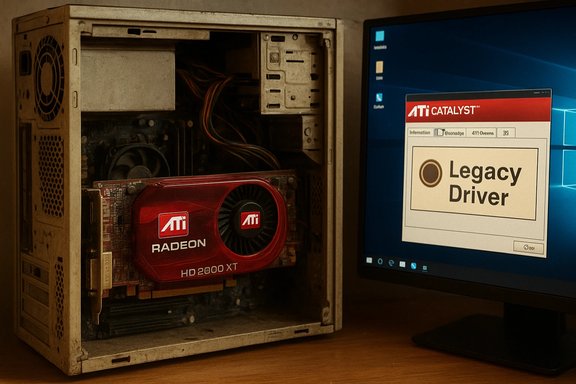
The Radeon HD 2600 XT (RV630 family) was introduced in 2007 as ATI’s midrange part with 120 shader processors and a 128‑bit memory bus. Typical retail cards shipped with 256 MB of GDDR2/GDDR3/GDDR4 memory and a single‑slot TDP in the ~45–50 W range, making them popular options for mainstream desktops and, in early 2008, as a factory card in the Mac Pro (A1186) configurations that Apple sold at the time. The card’s hardware limits — DirectX 10.0 era feature set, limited VRAM, and modest shader throughput — explain why modern Windows kernels and drivers no longer treat it as a first‑class citizen. AMD eventually moved the HD 2000 / 3000 / 4000 and similar families into legacy status. The company preserved archived Catalyst packages covering Windows XP through Windows 8, and later consolidated maintenance into a last set of legacy Catalyst releases (for example, the Catalyst 13.x family). Those archived packages can contain driver binaries that work on modern kernels, but they were not developed or validated for contemporary Windows 10 builds — which means manual methods are often required to use them safely. At the same time, Microsoft’s driver catalog and OEM‑provided drivers remain the recommended, lowest‑risk way to get a working display stack on Windows 10. Overview: what “working” looks like on Windows 10
- Safest / most compatible outcome: Microsoft’s signed legacy driver (installed through Windows Update) — a minimal but stable desktop driver providing correct resolutions, basic 2D acceleration, and acceptable video playback for legacy codecs. This is the recommended starting point for most users.
- Most feature‑complete outcome (advanced): A manually installed Catalyst legacy package whose INF explicitly lists your card’s hardware ID (VID/PID). This can restore older Catalyst Control Center functionality, legacy UVD features, and other vendor components — but only if the INF matches and you perform a careful, reversible install.
- Least recommended: Third‑party repackaged installers or “one‑click” driver updaters from unvetted archives. These often contain unsigned binaries, modified INFs, or bundled extras and are a frequent source of instability and security concerns.
The Mac Pro A1186 (Early 2008) and the HD 2600 XT
Apple shipped the Mac Pro (Early 2008, model A1186) with the ATI Radeon HD 2600 XT as one of the factory options. The Apple part numbers for Mac‑branded HD 2600 XT boards (examples: 661‑4723, 661‑4459) confirm that the card is both physically and electrically compatible with the Mac Pro PCIe slots used in those systems. If you’re running an Apple Mac Pro A1186 and need to restore or replace the original GPU, Mac‑branded HD 2600 XT cards were sold and later resold in the used/refurb market. For macOS, Apple‑supplied firmware and drivers are the primary compatibility path; for Windows on that hardware (Boot Camp or bare metal), follow the Windows‑side guidance in this article but prioritize vendor/OEM drivers when available.Driver options, ranked and explained
1. Windows Update (Microsoft‑signed legacy driver) — start here
- Why: Windows Update’s driver is signed and vetted against the OS. It’s the least invasive option and the best first step for a stable system.
- What to expect: Correct resolutions, desktop acceleration, and basic video playback. You will likely lose Catalyst‑specific widgets, legacy UVD feature parity, and some older hardware acceleration paths.
2. OEM / vendor drivers
- Why: If your PC or Mac vendor (or an Apple Mac Pro part number) has a Windows 10–targeted driver package for your exact model, that package is often tuned for power management and thermal behavior and is safer than generic archive installers.
- What to expect: Better integration for vendor‑specific features and fewer surprises with hybrid graphics systems. Prefer this over generic Catalyst archives where possible.
3. Manual install of archived Catalyst packages (advanced)
- Why: This is the route to restore older Catalyst features if and only if the driver INF lists your card’s device ID.
- Key steps (summary): extract the archived Catalyst package → inspect Display.Driver*.inf for your PCI\VEN_1002&DEV_xxxx entry → use Device Manager → Update driver → Have Disk → point to the extracted INF → install only the Display Driver → reboot. Clean the previous driver state first with Display Driver Uninstaller (DDU). Pause Windows Update while testing to prevent reversion.
4. Repackaged or third‑party installers — avoid unless you can verify
- Why: Many community mirrors and driver hubs repackage older installers (sometimes editing INFs to add device IDs). These packages may contain unsigned binaries, adware, or altered code.
- What to expect: Increased security risk and a potential need to recover from a failed install. Validate checksums and digital signatures when possible.
Step‑by‑step: a conservative, practical workflow for Windows 10 (HD 2600 XT)
Follow these steps in order. Treat Steps 4–6 as advanced and only for test machines or users who are comfortable with driver signing and recovery.- Inventory and backup
- Record the GPU Hardware ID: Device Manager → Display adapters → right‑click → Properties → Details → Hardware Ids (copy PCI\VEN_1002&DEV_xxxx).
- Create a System Restore point and, if feasible, a full disk image. Driver changes to the display stack can render a system unbootable.
- Download and stage Display Driver Uninstaller (DDU) on removable media for cleanup.
- Try Windows Update first (recommended)
- Settings → Update & Security → Windows Update → Check for updates → View optional updates → Drivers.
- If Windows Update offers a display driver, install it and validate desktop, multi‑monitor behavior, and video playback. Stop here if that meets your needs.
- Check OEM/vendor downloads
- If your PC or Mac vendor offers a specific Windows 10 driver for your model, download and try it next. OEM drivers often handle special system integrations and are safer than legacy Catalyst packages.
- Prepare for manual legacy driver testing (advanced)
- Put the machine into Safe Mode and run DDU to remove remnants of previous AMD/NVIDIA drivers.
- Download AMD’s archived Catalyst packages (examples for HD 2600 XT: Catalyst 13.1 for Windows 8 / Catalyst 13.9 for Windows 7/64‑bit) directly from AMD’s legacy page. Extract the installer (many AMD packages self‑extract into C:\AMD). Verify checksums when available.
- Inspect the INF and perform a “Have Disk” install
- Open Display.Driver*.inf in a plain text editor and search for your exact hardware ID. If it’s present, proceed with Device Manager → Update driver → Browse my computer → Let me pick from a list → Have Disk → point to the extracted INF, and install only the Display Driver component.
- If Windows complains about unsigned drivers, treat this as a temporary test only — do not leave signature enforcement disabled on production machines. Re‑enable signature enforcement and Secure Boot afterward.
- Pause Windows Update and validate
- Windows Update may auto‑replace a manual driver. Temporarily pause feature updates or hide the specific driver while you validate the manual install. Test the display output, Device Manager driver version, and any Catalyst features you need. If stable, archive the working installer and consider creating a new system image.
- Rollback plan
- If anything goes wrong, boot to Safe Mode, run DDU, and reinstall the Microsoft or OEM driver. If the machine is unbootable, restore from your disk image. Always keep the working installer and system image for recovery.
Troubleshooting common failure modes
- "Installer aborts with 'This device is not supported'": the package’s INF lacks your device ID. Do not edit INFs and install unless you are prepared to re‑sign drivers and accept kernel integrity risks.
- "Catalyst Control Center installs but Device Manager shows Microsoft Basic Display Adapter": leftover driver remnants are common — run DDU in Safe Mode and retry the manual INF method.
- "Windows Update keeps replacing the manual driver": pause or hide the driver update until you validate the install; re‑enable updates afterward.
- "Unsigned driver warnings / signature enforcement": allow these only temporarily for testing on non‑critical machines, then re‑enable enforcement immediately. Leaving signature enforcement disabled expands kernel attack surface.
Performance expectations — be realistic
Even with a correctly installed driver, the HD 2600 XT is a DirectX 10 era part with little VRAM by modern standards. Expect:- Smooth performance for everyday desktop tasks, office productivity, web browsing, and older video playback.
- Limited or absent modern codec offload (HEVC/AV1), poor performance in modern 3D/AAA games, and no driver optimizations for recent titles.
- Potential loss of advanced Catalyst utilities or UVD features unless a full legacy package can be correctly installed.
Security, provenance, and legal cautions
- Do not run unsigned or repackaged drivers on production machines that handle sensitive data or are connected to untrusted networks. Disabling driver signature enforcement weakens kernel protections.
- Treat third‑party driver hosts and “driver updater” utilities with skepticism. Validate digital signatures and file hashes where possible and prefer Microsoft, OEM, or AMD’s official legacy archives.
- Windows 10 has reached end of support (October 14, 2025). Running an unsupported OS with legacy drivers increases exposure. Consider upgrading to Windows 11 on compatible hardware or plan a hardware refresh for security‑critical systems.
When a driver chase is worth the effort — and when it isn’t
- Worthy reasons to attempt a manual legacy install:
- Restoring functionality for a cherished legacy workstation or a retro‑gaming/HW preservation project where the HD 2600 XT is part of the authentic hardware stack.
- Recovering a Mac Pro A1186 to its original configuration for archival use or compatibility with older macOS versions (use Apple drivers for macOS).
- Educational or research purposes on a non‑production machine.
- Poor reasons to persist in driver‑hunting:
- Attempting to use the HD 2600 XT for modern video production, HEVC/AV1 hardware encoding/decoding, or current AAA gaming.
- Running unsigned, repackaged drivers on machines that store sensitive data or are exposed to the internet.
Alternatives and upgrade paths
If the goal is a secure, modern experience with current multimedia and gaming needs, the economics favor these upgrades:- A modern low‑end discrete GPU (e.g., current entry‑level Radeon or GeForce cards) will deliver far superior driver support, modern codec offload, and much better power efficiency for a relatively modest outlay.
- For Mac Pro A1186 owners who want a modern OS experience, hardware limitations may require moving to a newer Mac or running Linux or legacy macOS in controlled environments for archival use.
- For low‑power desktop use where you just need a stable display, keep the HD 2600 XT with Microsoft’s driver or OEM drivers and plan a migration schedule aligned with your security posture and Windows lifecycle.
Final checklist — before you touch drivers
- Copy the GPU Hardware ID (PCI\VEN_1002&DEV_xxxx).
- Create a System Restore point and a full disk image where possible.
- Download and stage DDU and the archived AMD package (from AMD’s official legacy pages).
- Verify checksums and signatures for any non‑vendor binaries.
- Pause Windows Update while testing manual installs.
- Keep a rollback plan and be prepared to restore from your image if the display stack fails.
Conclusion
The ATI Radeon HD 2600 XT remains historically important and, with the right steps, can still provide a usable desktop in 2026 — but only with tempered expectations. Microsoft’s signed legacy driver and OEM packages are the safest paths on Windows 10; archived Catalyst installers can restore more features but require advanced manual work, careful cleanup, and explicit acceptance of security trade‑offs. For anyone relying on their PC for security‑sensitive or modern multimedia tasks, the most responsible recommendation is to plan a hardware or OS upgrade rather than banking on legacy driver surgery as a long‑term strategy. The tools and community guidance to attempt restoration exist, but they are best used on test machines or by experienced users who keep robust backups and a rollback plan.
Source: Born2Invest https://born2invest.com/?b=style-237501012/