

From the moment I unboxed the ROG Xbox Ally X, I reached for the settings I knew would shape my handheld experience: performance, display fidelity, battery life, and the small annoyances Windows 11 can bring to a device designed for pure play. Pocket‑lint’s quick checklist of “five settings I changed immediately” is a pragmatic starting point — disabling taskbar Widgets, turning off Night Light, calming or cutting RGB, crafting a performance profile, and tuning VRAM and quick‑access shortcuts are exactly the kinds of changes that transform the Ally X from a capable Windows PC into a true handheld gaming appliance. Those tweaks are useful, but they’re only the surface of what owners should consider. This feature walks through each change Pocket‑lint recommended, verifies the technical details, expands on the trade‑offs, and supplies precise, safe steps for getting the most from the Ally X while avoiding common pitfalls. The device’s hardware and Asus’ Armoury Crate tooling make many of these changes straightforward — but they also expose trade‑offs between performance, battery life, and system security that every owner should understand.
The ROG Xbox Ally X is a distinctive entry in the new wave of Windows handhelds: a controller‑first, Windows 11 machine engineered in partnership between ASUS’ ROG team and Microsoft’s Xbox group. The Ally X steps up the platform specs with a 7‑inch FHD 120 Hz panel, an AMD Ryzen AI Z2 Extreme APU, 24 GB LPDDR5X‑8000 memory, and a 1 TB M.2 2280 SSD, packaged in a chassis that measures roughly 290.8 × 121.5 × 50.7 mm and tips the scales at 715 g. It also ships with an 80 Wh battery and an ample set of I/O including USB4/DisplayPort 2.1 and a UHS‑II microSD slot. These are Asus’ published specifications and they shape the realistic expectations for what the handheld can — and cannot — do. The Ally X is Windows first, handheld second: Windows 11 provides the familiar software layer, while ASUS’ Armoury Crate SE and the Xbox full‑screen experience add the controller‑forward UX and performance toggles owners will use most. That layered design is both the Ally X’s greatest strength and its simplest source of confusion — you’re dealing with OS settings, driver features, and OEM overlays all at once. The Pocket‑lint piece pulls a useful thread by starting with simple, reversible changes that immediately improve the handheld feel; the deeper guidance below shows how to do those safely and when to push the hardware further.
Why it matters
Why it matters
Why it matters
What these settings are
CPU Boost — what it is, when to use it
Why customize
From there, take a methodical approach:
Source: Pocket-lint 7 ROG Xbox Ally X settings I changed immediately
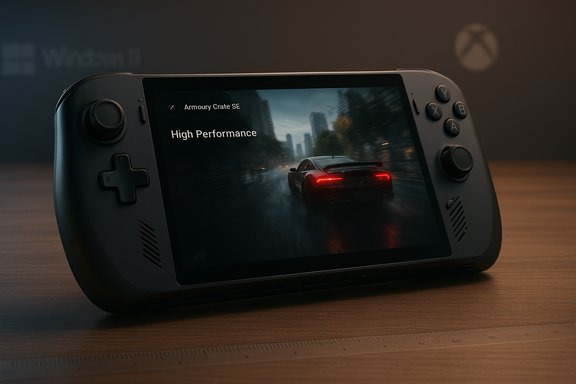 Background / Overview
The ROG Xbox Ally X is a distinctive entry in the new wave of Windows handhelds: a controller‑first, Windows 11 machine engineered in partnership between ASUS’ ROG team and Microsoft’s Xbox group. The Ally X steps up the platform specs with a 7‑inch FHD 120 Hz panel, an AMD Ryzen AI Z2 Extreme APU, 24 GB LPDDR5X‑8000 memory, and a 1 TB M.2 2280 SSD, packaged in a chassis that measures roughly 290.8 × 121.5 × 50.7 mm and tips the scales at 715 g. It also ships with an 80 Wh battery and an ample set of I/O including USB4/DisplayPort 2.1 and a UHS‑II microSD slot. These are Asus’ published specifications and they shape the realistic expectations for what the handheld can — and cannot — do. The Ally X is Windows first, handheld second: Windows 11 provides the familiar software layer, while ASUS’ Armoury Crate SE and the Xbox full‑screen experience add the controller‑forward UX and performance toggles owners will use most. That layered design is both the Ally X’s greatest strength and its simplest source of confusion — you’re dealing with OS settings, driver features, and OEM overlays all at once. The Pocket‑lint piece pulls a useful thread by starting with simple, reversible changes that immediately improve the handheld feel; the deeper guidance below shows how to do those safely and when to push the hardware further.The five Pocket‑lint changes, verified and expanded
1) Remove the Windows 11 Widgets clutter — why and how
Pocket‑lint: “Get rid of those annoying Windows 11 widgets.”Why it matters
- Widgets live in the Windows taskbar and can pull you out of full‑screen or handheld focus with swapping news, weather, and other dynamic content.
- On a handheld, every bit of UI friction matters; hiding unnecessary taskbar items tightens the experience.
- Switch to Windows 11 desktop mode (if you’re in the Xbox full‑screen shell).
- Right‑click a blank area of the taskbar and choose Taskbar settings — or open Settings > Personalization > Taskbar.
- Under Taskbar items, toggle Widgets to Off.
- Hiding the Widgets button removes the visual distraction. For enterprise or full removal, Group Policy or a registry tweak can disable Widgets globally, but those are heavier tools and should be used only if you manage many devices. How‑to guides and community documentation cover both options.
- There’s negligible performance impact from Widgets themselves; the change is purely UX. If you rely on Widgets for quick updates, hiding them may remove a convenience rather than providing a technical win.
2) Turn off Night Light so games don’t look yellow
Pocket‑lint: “Make sure your screen doesn't look weird — turn off Night Light.”Why it matters
- Night Light (Windows’ blue‑light filter) shifts color temperature toward warm tones. On a handheld gaming device you might notice a surprising yellow tint during play, especially if Night Light is scheduled or left enabled from prior desktop use.
- Settings > System > Display.
- Under “Brightness & color,” click Night light and toggle it Off (or open Night light settings and use the “Turn off now” option).
- If Night Light is stubborn, check whether HDR is enabled — HDR and Night Light are mutually exclusive in some driver/Windows versions and that conflict can make Night Light behave oddly. Community threads and Microsoft Q&A entries document these quirks.
- Turning Night Light off removes blue‑light reduction that some users prefer in low‑light conditions. If you play at night and want warmer colors without the OS overlay, consider lowering panel brightness, using a dark environment, or enabling a third‑party app carefully — but the simplest option for accurate color in games is to leave Night Light off when gaming.
3) Control the Ally X’s RGB joystick rings — dim, recolor, or disable
Pocket‑lint: “Flip that flashy RGB off (or change the color).”Why it matters
- The Ally X’s glowing rings are stylish, but RGB draws power and can distract in low‑light environments. Turning them off or lowering brightness is one of the easiest battery savings with immediate UX benefits.
- From the Xbox button menu open Armoury Crate SE (Command Center → Armoury Crate).
- Go to Lighting.
- Choose effects (Static, Breathing, Strobing), color, and brightness. Set brightness to 0% or choose Off to disable the rings entirely.
- ASUS’ ROG FAQ and Xbox Wire onboarding tips explicitly document joystick ring control via Armoury Crate SE. Community guides and hands‑on guides echo the CPU/battery savings from disabling lighting.
- Armoury Crate and Windows Dynamic Lighting sometimes conflict; if you can’t change lights in Armoury Crate, verify Dynamic Lighting is not overriding the device, or update Armoury Crate/Windows. If you rely on lighting profiles across devices (Aura Sync), changes may ripple outside the Ally X.
4) Create a maxed‑out performance profile — what to push and what to expect
Pocket‑lint: “Create a custom performance profile: Manual → top SPL, SPPT, FPPT.”What these settings are
- Armoury Crate exposes per‑profile thermal and power sliders that control how much sustained thermal headroom (TDP) the APU can use and how aggressively fans spin. In many OEM menus these are named differently (SPL, SPPT, FPPT, or manually labeled TDP sliders), but the concept is the same: raise TDP and fan aggressiveness to improve sustained frame rates.
- Open Armoury Crate SE → Settings → Performance.
- Choose Manual (or create a new custom profile).
- Move the performance/TDP/fan sliders toward the higher allowed values (or select Turbo mode if you want a tested preset).
- Save profile and select it from the performance menu before launching demanding titles.
- Benefits: higher sustained clocks, fewer thermal-induced frame dips, and smoother 1% lows in CPU‑bound and sustained GPU workloads.
- Costs: louder fans, higher chassis temperature, and significantly reduced battery life. Turbo profiles are best for plugged‑in play or short docked sessions. ASUS recommends different presets for battery sessions and heavy plugged‑in gaming.
- Sustained Turbo use accelerates thermal cycles and increases fan wear/noise. For long sessions, consider a mid‑tier Performance profile or use Turbo only when plugged in.
5) Flip CPU Boost and tune VRAM allocation — when and why
Pocket‑lint covered toggling CPU Boost and changing “Memory Assigned to GPU.” Both are critical levers on a UMA handheld like the Ally X.CPU Boost — what it is, when to use it
- CPU Boost temporarily allows higher single‑core clocks (useful for CPU‑bound workloads such as strategy sims, emulation, or titles with heavy AI/physics). Armoury Crate exposes a toggle under Performance → Eco Assist → CPU Boost, so you can enable or disable it on demand. Practical guidance: turn it on for CPU‑heavy games (emulators, some simulation titles), turn it off for GPU‑bound AAA games or when conserving battery. Community and review coverage confirm both the toggle’s existence and its real‑world impact on heat and power draw.
- The Ally family uses Unified Memory Architecture (UMA): the GPU borrows a fixed portion of system RAM as VRAM at boot. Armoury Crate exposes a “Memory Assigned to GPU” (UMA buffer) setting that typically defaults to 4 GB and can be increased (6 GB or 8 GB on Ally/Ally X) via Armoury Crate → Settings → Operating Mode → GPU Settings. A reboot is required to apply the change because the firmware reserves the buffer at boot time. ASUS documents this process and recommends increasing VRAM if you encounter texture streaming, stuttering, or “available graphic memory” errors.
- For most modern 3D AAA titles: start at 6 GB (the practical sweet spot for a 16 GB system or the conservative choice on any Ally). If you own an Ally X with 24 GB, try 8 GB for texture‑heavy single‑player titles; the extra headroom reduces texture pop‑in and streaming stutters.
- Always reboot after changing UMA/VRAM.
- Monitor system RAM usage post‑change; allocating too much to VRAM can starve the OS or game systems (AI, physics) of working memory. Use Task Manager > Performance > GPU or third‑party tools like GPU‑Z to monitor VRAM usage during heavy scenes.
- Changing UMA is powerful but not a panacea: if a game is CPU‑bound or the device is thermally throttling, increasing VRAM won’t raise frame rates. Also, toggling UMA via BIOS/UEFI (if Armoury Crate is missing the option) is riskier; use Armoury Crate SE as the supported path and keep backups or restore points before making firmware-level changes.
How to customize the Ally X Command Center / quick shortcuts
Pocket‑lint notes the handy ability to tailor the Command Center’s shortcuts — a small but useful UX change.Why customize
- Quick access to recording, real‑time monitoring, or an on‑screen keyboard saves time and reduces touchscreen navigation during play sessions.
- Press the Xbox button → Armoury Crate SE icon.
- In the Command Center, scroll to the quick options and press Y (Customize).
- Remove unwanted shortcuts by tapping the X on each, and add new ones from the bottom menu that match your workflow.
- Add LED brightness (if you change lighting frequently), CPU Boost, or a toggle for your preferred power profile to the quick menu for fast in-game adjustments.
Beyond Pocket‑lint: advanced tweaks every Ally X owner should consider
These are not immediate out‑of‑box changes, but they materially improve gaming stability and performance when used judiciously.Enable Variable Refresh Rate (VRR) and set the screen to 120 Hz for fast titles
- The Ally X’s panel supports 120 Hz and FreeSync Premium. Use Settings > System > Display > Advanced display to select the 120 Hz refresh rate for smoother motion in high‑fps titles, and enable VRR in Windows Graphics settings for tear‑free play when frame rates fluctuate. Expect a meaningful battery hit at 120 Hz; use it selectively for competitive or fast action games.
Use AMD driver features — RSR, Anti‑Lag, Chill, and HYPR‑RX
- AMD’s driver suite provides in‑driver upscalers (Radeon Super Resolution / RSR), Anti‑Lag, Chill (for battery life), and advanced combos like HYPR‑RX on Ally X. Use these features per game to get GPU headroom without major quality loss. Armoury Crate and AMD Software both support per‑game settings; start conservative and test.
Keep software updated — Windows, Armoury Crate SE, AMD drivers, and MyASUS
- Frequent updates bring optimizations and bug fixes. ASUS explicitly advises using Armoury Crate SE’s Update Center and Windows Update. However, be ready to roll back drivers if a new release introduces regressions for a game you depend on.
Be cautious disabling security features
- Some guides suggest temporarily disabling Memory Integrity (Core Isolation) or the Virtual Machine Platform to free overhead for games. Microsoft documents the trade‑off: these features provide mitigations for certain low‑level attacks and should be re‑enabled outside gaming sessions. Treat these toggles as emergency performance levers, not routine configurations.
A quick, practical checklist to apply now
- Disable the Widgets button: Settings > Personalization > Taskbar > Widgets → Off.
- Turn Night Light Off: Settings > System > Display > Night light → Off. If Night Light behaves oddly, check HDR and driver state.
- Open Armoury Crate SE → Lighting → set joystick ring brightness to 0% or choose Off.
- Create a Manual performance profile (Armoury Crate SE → Performance → Manual) and test Turbo while plugged in. Revert for battery play.
- Eco Assist → toggle CPU Boost on for CPU‑heavy games; off to save battery/heat.
- Armoury Crate → Settings → Operating Mode → GPU Settings → Memory Assigned to GPU → increase to 6 GB (or 8 GB on Ally X for heavy AAA) and reboot. Monitor RAM after the change.
Critical analysis — strengths, practical limits, and risks
Strengths- The Ally X marries powerful hardware with flexible, software‑driven controls: Armoury Crate SE exposes TDP, VRAM, lighting, and per‑game presets so users can adapt behavior to titles and contexts.
- Windows 11 and the Xbox full‑screen shell give the Ally X a broad library: installed PC games, Game Pass titles, and cloud streaming are all first‑class on the platform.
- The hardware spec (24 GB memory, Ryzen AI Z2 Extreme, 80 Wh battery) provides room to experiment with higher VRAM allocations and fancy driver features (e.g., HYPR‑RX), making the Ally X a capable handheld for single‑player AAA when tuned correctly.
- Thermal ceilings still constrain handheld APUs: no amount of OS tuning will match a full desktop GPU. Long Turbo sessions will produce higher thermals and battery drain — a measured approach (plugged‑in Turbo, battery Performance) yields the best user experience.
- UMA means VRAM allocation is a trade‑off between texture budgets and system RAM for AI/physics: increasing VRAM helps texture‑heavy games but can starve system RAM in memory‑intensive titles. Test per game and adjust accordingly.
- Disabling Memory Integrity or the Virtual Machine Platform improves performance in some scenarios but reduces OS protection. Microsoft recommends re‑enabling these when not gaming. Device owners should understand the exposure and keep security toggles as temporary measures only.
- Armoury Crate and Windows Dynamic Lighting sometimes conflict, producing inconsistent lighting control; updating software and toggling Windows Dynamic Lighting off can resolve these issues. If you’re uncomfortable with OEM software issues, dimming or disabling RGB entirely is a low‑risk choice.
- If VRAM changes don’t show up: ensure Armoury Crate SE and firmware are up to date. Some users report the UI missing the UMA option until software/firmware updates are applied; the BIOS may expose the setting but use that only if you’re experienced and have backups.
- If Night Light won’t toggle: check HDR state, driver versions, and explore the Quick Settings night light toggle or the “Turn off now” option in Night Light settings. Microsoft community threads document intermittent issues across builds, so updates may be necessary.
- If Armoury Crate lighting misbehaves: turn Windows Dynamic Lighting off, reboot, and then control lighting exclusively from Armoury Crate. Community reports and ASUS guidance advise this approach.
Final verdict — quick, actionable guidance for Ally X owners
Pocket‑lint’s initial five changes are exactly where most Ally X owners should start: hide Widgets, turn Night Light off for accurate colors, tame or disable RGB, create a manual performance profile for heavy play, and learn to use Armoury Crate’s quick menu for on‑the‑fly toggles. Those moves improve the feel of the handheld immediately and are all reversible.From there, take a methodical approach:
- Use Armoury Crate SE to manage Memory Assigned to GPU: increase to 6 GB for general modern gaming, and to 8 GB on the Ally X only when a title explicitly benefits from it. Reboot and monitor system RAM usage after any change.
- Use CPU Boost selectively for CPU‑bound titles and disable it for battery sessions or GPU‑bound games.
- Keep Windows, Armoury Crate SE, MyASUS, and AMD drivers current — then test each driver update with your most‑played game to avoid unpleasant regressions.
- Treat any security‑related toggles as temporary: disable Memory Integrity only if you have a pressing compatibility/performance reason and re‑enable it when finished.
Source: Pocket-lint 7 ROG Xbox Ally X settings I changed immediately
