

Microsoft’s latest Windows 11 update once again left a small but vocal number of users stranded with failed shutdowns, login errors, and machines that freeze during restarts—an incident Techlicious framed as a fresh reminder that Windows updates can and do sometimes break PCs. review
Windows updates perform two vital but opposing jobs: they patch security holes and deliver new features while also touching deep parts of the operating system where small changes can ripple into device‑bricking problems for some configurations. The Techlicious piece lays out a practical, user‑facing playbook — from waiting a few days before installing non‑essential updates to creating restore points and using safe recovery flows if an update goes wrong.
That advice aligns signs its update mechanisms: monthly cumulative packages that target many layers (features, drivers, kernel, and secure‑boot/TPM workflows) must work across a hugely diverse hardware and software ecosystem. Microsoft’s minimum storage requirement for Windows 11, for example, is 64 GB of device storage; that baseline explains why users frequently see extra guidance to leave additional free space for updates and system operations. This article pulls together the practical steps Techlicious recommends, verifies each technical instruction against primary documentation and respected Windows‑focused outlets, and evaluates the strengths and limits of the guidance for both home users and IT administrators. It also flags several caveats and recovery options — including advanced commands that should be used only as a last resort.
Windows ships to millions of different PC models with a vast variety of drivers, OKM firmware versions, third‑party security software, and user modifications. When Microsoft bundles fixes and hardening changes into cumulative updates, those bundles can unintentionally interact with obscure drivers, encryption settings (BitLocker/TPM), or recovery environment components.
Where Techlicious is conservative (and rightly so):
For advanced recovery, tools like DISM’s RevertPendingActions can rescue machines that are stuck inside update loops, but they are not an everyday tool and should be used with caution. Microsoft’s official support pages document uninstall paths, Windows RE use, and Safe Mode entry; those pages are the definitive reference when you need to act. Bottom line: prepare, pause when prudent, back up, and know the recovery steps. That combination preserves security while giving you a practical hedge against the small — but painful — chance that a single update will disrupt your work.
Source: Techlicious Windows 11 Updates Keep Breaking PCs. Here’s How to Stay Safe
Windows updates perform two vital but opposing jobs: they patch security holes and deliver new features while also touching deep parts of the operating system where small changes can ripple into device‑bricking problems for some configurations. The Techlicious piece lays out a practical, user‑facing playbook — from waiting a few days before installing non‑essential updates to creating restore points and using safe recovery flows if an update goes wrong.
That advice aligns signs its update mechanisms: monthly cumulative packages that target many layers (features, drivers, kernel, and secure‑boot/TPM workflows) must work across a hugely diverse hardware and software ecosystem. Microsoft’s minimum storage requirement for Windows 11, for example, is 64 GB of device storage; that baseline explains why users frequently see extra guidance to leave additional free space for updates and system operations. This article pulls together the practical steps Techlicious recommends, verifies each technical instruction against primary documentation and respected Windows‑focused outlets, and evaluates the strengths and limits of the guidance for both home users and IT administrators. It also flags several caveats and recovery options — including advanced commands that should be used only as a last resort.
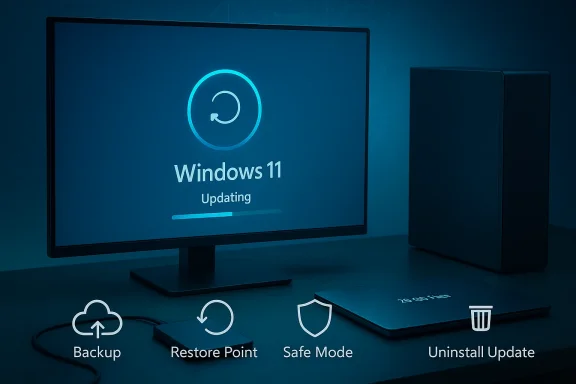 Why updates sometimes break machines
Windows ships to millions of different PC models with a vast variety of drivers, OKM firmware versions, third‑party security software, and user modifications. When Microsoft bundles fixes and hardening changes into cumulative updates, those bundles can unintentionally interact with obscure drivers, encryption settings (BitLocker/TPM), or recovery environment components.- Security hardenings are good for everyone but they raise the risk of false positive security triggers in pre‑boot checks (BitLocker), which can force recovery prompts or block booting entirely.
- Cumulative packaging reduces churn but increases change density: many fixes, delivered together, create more combinatorial risk than smaller, more targeted patches.
- OEM customizations (storage drivers, vendor power‑management utilities, virtualization/VDI stacks) remain the most common sources of update regressions in real‑world reports.
Before you install an update: a concise safety checklist
The most effective defensive posture is preparing before Microsoft’s patch hits your device. The following checklist consolidates Techlicious’s guidance, verified against Microsoft documentation and reputable technical guides.1. Wait (but not forever)
- For non‑essential feature and UX updates, wait 3–4 days after public rollout to see if early adopters report significant regressions. This buys you time while keeping you reasonably up to date.
- For security updates, the calculus is different: if a zero‑day or high‑severity patch is released, waiting may increase risk. A sensible compromise is to wait 24–48 hours to let early reports surface, provided you practice good security hygiene (updated antivirus, cautious email behavior, firewall enabled). The pause feature in Windows lets you delay updates temporarily. Microsoft documents how to pause updates via Settings > Windows Update; many outlets note practical limits on pauses in some areas (for example, Microsoft Store app updates and related policies can limit how long automatic updates can be suspended).
2. Back up your files (non‑negotiable)
- Use cloud sync (OneDrive, Dropbox, Google Drive) or a dedicated backup service (IDrive, Acronis, etc. to keep copies off the local disk.
- For a full system safety net, create system images or use file‑level backups to an external drive. Backups eliminate the worst consequence of a failed update: permanent data loss.
3. Leave free disk space
- Windows 11 requires a 64 GB device storage minimum; in practice, leave a buffer of free storage so updates can unpack and temporary servicing files can be created. A sensible rule of thumb (Techlicious) is to keep at least 20 GB free — that’s not an official Microsoft number but a conservative guideline to prevent failures that happen when drives run near capacity. Confirm your system meets the Windows minimum before upgrading.
4. Close apps and disable auto‑start items
- Close all running apps before an update to reduce the chance of file‑in‑use conflicts.
- Temporarily disable startup apps (Settings > Apps > Startup) if you want extra safety — this includes, carefully, some antivirus clients which can sometimes interfere with servicing. Re‑enable them after a successful update.
5. Create a System Restore point
- Turn on System Protection and create a manual restore point (Search “Create a restore point” → Configure → Turn on system protection → Create). System Restore rolls back system files, drivers, and registry entries, not your personal files; it’s a quick way to undo many update‑side effects. Microsoft and OEM support pages document these exact steps.
6. Consider a phased rollout for fleets
- IT administrators should use pilot rings (Windows Update for Business, MDM policies) to test updates on a small set of machines before a broad rollout. This is the enterprise‑grade equivalent of “wait a few days” and is essential for organizations.
When an update breaks your PC: step‑by‑step recovery
If your PC starts misbehaving after an update — from sluggishness to full boot failure — follow these prioritized steps (from least invasive to most).1. Try a couple of normal restarts
A surprising number of transient problems resolve with one or two additional reboots because pending operations finalize on a subsequent cycle.2. Boot into Safe Mode (if needed)
If the system is unstable or you can’t log in, booting into Safe Mode reduces running components to essentials so you can troubleshoot.- If Windows can still start: Settings > System > Recovery > Advanced startup > Restart now. After the reboot choose Troubleshoot → Advanced options → Startup Settings → Restart, then press 5 (or F5) for Enable Safe Mode with Networking. Microsoft documents this workflow and the Startup Settings menu.
- If Windows won’t start at all, force the Automatic Repair/WinRE by interrupting startup twice (power on, then press and hold the power button to force shutdown while Windows is loading). On the third boot the system should present the recovery screen. Microsoft support confirms that forcing two interruptions will trigger Windows RE on the next boot.
3. Uninstall the troublesome update
If the update is the clear culprit, uninstall it:- Settings > Windows Update > Update history > Uninstall updates — choose the most recent quality or feature update. Microsoft documents this path and also explains how to uninstall from Windows RE if you can’t boot.
- After uninstalling, pause updates to prevent immediate reinstallation before you’ve confirmed the machine is stable. Use Settings > Windows Update > Pause updates. Microsoft’s guidance explains how to pause temporarily.
4. Use System Restore
If uninstalling the update isn’t possible or doesn’t help, use the restore point you created:- Search “Create a restore point” → System Restore → select the restore point made before the update, and run the restore. OEM support documentation corroborates this flow and recommends reserving space for restore points.
5. Advanced recovery: Windows RE and DISM cleanups
If the PC is stuck during shutdown/startup sequences or WinRE is partially broken, advanced recovery commands can help — but these are powerful, and mistakes can worsen the situation.- In Windows Recovery Environment (Command Prompt), there are offline servicing tools such as DISM’s /Cleanup‑Image /RevertPendingActions. Use this only in recovery scenarios: it reverts pending servicing actions and can unblock systems that otherwise require reinstallation. The command is intended for offline images and recovery use and must be used carefully; Microsoft’s troubleshooting docs and community guidance emphasize the risks.
- If you’re uncomfortable with DISM/WinRE operations, take the machine to a repair shop or an IT admin. Professionals have boot media, drive‑level tools, and experience handling offline servicing and partition letter mappings that are easy to get wrong.
Practical scripts and short checklists for power users and admins
- Short checklist to prepare before update:
- Pause non‑critical updates for 48–72 hours (Settings > Windows Update > Pause updates).
- Confirm at least 20 GB free (rule‑of‑thumb) and 64 GB device storage minimum.
- Create a System Restore point (Search: Create a restore poit.
- Ensure cloud backups are current (OneDrive, IDrive, etc..
- Reboot once after disabling startup apps and before installing updates.
- Quick recovery triage when updates fail:
- Can you log in? → Try uninstall update from Settings > Update history.
- Can’t boot? → Force WinRE by interrupting startup twice → Troubleshoot → Advanced options → Uninstall updates or Command Prompt.
- Stuck during shutdown/restart loops? → WinRE Command Prompt → consider DISM /Cleanup‑Image /RevertPendingActions (advanced). Use with caution and follow exact guidance.
Strengths of Techlicious’s approach — and where it’s conservative
Techlicious prioritizes practicality: create backups, pause non‑essential updates, and use System Restore and Safe Mode. These steps are low‑risk, easy for most users to implement, and they align with Microsoft’s official recommendations. The article’s focus on cloud backup and restore points is especially valuable because backups are the most reliable insurance against a catastrophic update failure.Where Techlicious is conservative (and rightly so):
- Recommending that non‑essential updates be delayed for a few days is a pragmatic mitigation that reduces risk for home users without exposing them to much additional danger.
- The step to disable startup items before upgrading is cautious; it may be unnecessary for most users but reduces potential conflict surface during servicing.
- The “20 GB free” rule is a useful heuristic rather than an official requirement; it errs on the safe side for users who frequently run their drives near capacity. Microsoft’s official minimum storage is 64 GB, and actual needs depend on installed apps and update size.
Risks, tradeoffs, and important caveats
- Pausing security updates is not risk‑free. Waiting for a day or two can be reasonable for many home users, but if a severe exploit is actively exploited in the wild (a true zero‑day), delay increases risk. Consider the threat model: always apply critical fixes faster in hostile or high‑value environments.
- System Restore does not back up personal files. If you rely solely on restore points, you may still lose recent documents or settings. Always use a file backup in addition to System Restore.
- DISM /RevertPendingActions and other offline servicing commands can fix otherwise catastrophic failures, but they can also delete critical servicing backups or be misapplied against the wrong partition. These commands belong in advanced troubleshooting scenarios and are best performed with guidance or by a pro.
- Aggressive disabling of update services olock updates permanently can leave systems unpatched and vulnerable, and may produce non‑compliant devices in managed environments. Use built‑in pause and scheduling tools instead of unsupported “permanent” hacks. Microsoft and enterprise guidance discourage permanent disabling.
Advice for IT administrators and power users
- Implement a multi‑ring rollout: test updates on a small pilot group, extend to a standard ring, then to broad deployment only after verification. Tools: Windows Update for Business, WSUS, or MDM policies provide granular control over update timing and deadlines.
- Maintain known‑good images and a repeatable recovery plan: for machines used in production, keep recent images and documented reinstall procedures ready. If an update can require reinstallation (some historic cases did), a good image saves hours.
- Use monitoring and telemetry: collect update health signals, driver failure rates, and BitLocker recovery counts during pilot ring pushes; these metrics allow faster rollbacks.
- Coordinate vendor driver updates: GPU and storage drivers are common culprits when updates touch kernel or hardware interfaces. Test driver compatibility specifically in pilot groups.
Conclusion — how to stay safe without going paranoid
Windows updates will occasionally cause trouble because they must reach dozens of hardware/firmware permutations. The Techlicious guidance is sound: don’t be first in line for non‑critical feature updates; keep current backups; create restore points; and know how to boot into Safe Mode and uninstall a bad update. Those simple, repeatable steps dramatically reduce the chance that you’ll be left offline or forced into a full reinstall after a bad patch.For advanced recovery, tools like DISM’s RevertPendingActions can rescue machines that are stuck inside update loops, but they are not an everyday tool and should be used with caution. Microsoft’s official support pages document uninstall paths, Windows RE use, and Safe Mode entry; those pages are the definitive reference when you need to act. Bottom line: prepare, pause when prudent, back up, and know the recovery steps. That combination preserves security while giving you a practical hedge against the small — but painful — chance that a single update will disrupt your work.
Source: Techlicious Windows 11 Updates Keep Breaking PCs. Here’s How to Stay Safe
