

If you’re trying to find, download and install a driver for an AMD Radeon HD 6310 on Windows 7 or Windows 10, treat this as a legacy‑hardware repair job: the safest path is to prefer official channels (AMD, your PC OEM, or Microsoft Update), prepare a recovery plan, and be conservative about third‑party “driver outlets.” Practical, tested steps and common failure modes are included below so you can update or restore the Radeon HD 6310 display driver with a clear rollback plan and minimal risk.
The AMD Radeon HD 6310 is a legacy Radeon family part commonly encountered in older laptops and entry‑level desktops. These parts were supported in the era of AMD’s Catalyst drivers and are now treated as legacy hardware in AMD’s archives. For modern Windows 10 systems, Microsoft Update frequently supplies a Microsoft‑signed legacy driver that delivers a stable desktop experience; AMD’s archived Catalyst packages or (where listed) older Adrenalin builds are useful when you need extra legacy features but must be handled cautiously. Community guidance and archived vendor notes consistently place official vendor pages and Windows Update at the top of the trust hierarchy.
Source: Born2Invest https://born2invest.com/?b=style-236893912/
 Background
The AMD Radeon HD 6310 is a legacy Radeon family part commonly encountered in older laptops and entry‑level desktops. These parts were supported in the era of AMD’s Catalyst drivers and are now treated as legacy hardware in AMD’s archives. For modern Windows 10 systems, Microsoft Update frequently supplies a Microsoft‑signed legacy driver that delivers a stable desktop experience; AMD’s archived Catalyst packages or (where listed) older Adrenalin builds are useful when you need extra legacy features but must be handled cautiously. Community guidance and archived vendor notes consistently place official vendor pages and Windows Update at the top of the trust hierarchy.Overview: Where legitimate AMD Radeon HD 6310 drivers come from
When you search for “AMD Radeon HD 6310 driver download Windows 7” or “update AMD graphics driver Windows 10,” use this trust order:- AMD’s official Drivers & Support pages — primary, authoritative source for both Adrenalin and archived Catalyst/Catalyst‑era installers. Use product selectors or archived product pages for legacy APUs and GPUs.
- Your laptop or PC OEM (Dell, HP, Lenovo, Acer, etc. — best for vendor‑branded systems; OEM installers often include power‑management, hybrid graphics, and hotkey integrations that generic AMD packages omit.
- Microsoft Update / Microsoft Update Catalog — often the safest fallback for Windows 10 when Catalyst/Adrenalin compatibility is uncertain, because the driver is Microsoft‑signed for OS stability and security.
- Reputable technical archives and community trackers — good for release‑note context or locating an archived Catalyst/Adrenalin package, but treat downloads from third‑party archives as last resorts and verify signatures/hashes.
Preparing before you download: inventory and recovery
Before attempting any driver change, complete these defensive steps. They are short and almost always save hours of work if something goes wrong.- Record your GPU hardware ID: open Device Manager → Display adapters → right‑click your device → Properties → Details → Hardware Ids. Save the PCI\VEN_1002&DEV_xxxx string to a text file. This string is crucial if you must match or manually point to an INF.
- Create a System Restore point and, ideally, a full disk image. Driver changes to the display stack can sometimes leave systems unbootable without a snapshot.
- Keep the current working installer archived so you can roll back without Windows Update fighting you.
Safe, step‑by‑step workflow to download and install the driver
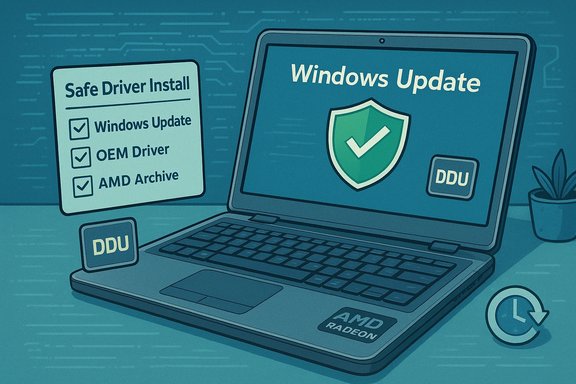
Follow this conservative sequence. It minimizes the chance of ending up with a black screen, repeated driver rollbacks, or unsigned kernel modules.- Try Windows Update first (lowest risk)
- Windows Settings → Update & Security → Windows Update → Check for updates → View optional updates → Driver updates. If Windows Update offers a Microsoft‑signed Radeon driver, test it for basic desktop, multi‑monitor and video playback. Microsoft’s driver catalog often contains a stable legacy driver for older Radeon families.
- Check your OEM support page
- For branded laptops or prebuilt desktops, prefer the OEM driver. OEM packages frequently carry vendor‑specific power and hybrid‑graphics support that AMD’s generic installers lack.
- If you must use AMD’s package, pick the correct archived package
- Use AMD’s product selector and pick the package (Catalyst for Windows 7 era or Adrenalin where listed) that explicitly lists your GPU and OS. Archived Catalyst packages (Catalyst 13.x/15.7.1, etc. are legitimate for legacy cards but may require manual steps on Windows 10.
- Clean the driver state before switching stacks
- If you are migrating between Catalyst ↔ Adrenalin or suspect remnants from previous installs, use AMD Cleanup Utility (official for certain transitions) or Display Driver Uninstaller (DDU) from Safe Mode to remove residual artifacts. Community experience shows DDU strongly reduces partial install failures.
- Install and verify
- Run the AMD/OEM installer. Prefer a custom install and uncheck extras (capture utilities, optional runtimes) if you only need the display driver. Reboot when prompted, then confirm Device Manager → Display adapters shows the driver and that the driver version and date match the release notes.
- If the packaged installer refuses or reports “device not supported”
- Extract the driver package, locate the Display.Driver*.inf and inspect whether it lists your Hardware ID. If it does, use Device Manager → Update driver → Browse my computer → Let me pick from a list → Have Disk… → point to that INF and install only the Display Driver. Do not install unsigned runtimes or installer components unless you understand the risks.
- Pause Windows Update during testing
- Windows Update can automatically reapply Microsoft’s signed driver and overwrite your manual install. Pause or hide driver updates while you validate a manual install; re‑enable updates once you confirm stability.
Windows 7 specifics: Catalyst and legacy packages
- If you are running Windows 7 and need the HD 6310 driver, AMD’s archived Catalyst packages are the official legacy channel. Use the package listed for your product page and OS. Catalyst packages were released broadly in the 13.x–15.x era and are the canonical installers for older Radeon/HPU parts on Windows 7.
- Catalyst installers are older technology and may not integrate cleanly with modern Windows 10 kernels. If you plan to install a Catalyst package on Windows 10, treat it as an advanced manual procedure: extract the INF, confirm the VID/PID, and be prepared to re‑sign drivers if you edited anything. Don’t skip safe steps such as DDU and a system image.
Windows 10 specifics: prefer Microsoft Update or OEM driver
- For Windows 10, especially systems in production or used daily, accept Microsoft Update’s signed driver first. This option is the lowest‑risk and provides a usable desktop and video playback. AMD’s archived Catalyst installers often require manual adjustments and can lack driver signing for modern Windows, increasing risk.
- If AMD lists an Adrenalin build that explicitly supports your APU/GPU on Windows 10, use it. Adrenalin is AMD’s modern driver family and provides the broadest feature set and WHQL signing where applicable. But for truly legacy devices the Adrenalin family may not add new features beyond what Windows Update supplies.
Troubleshooting common failure modes and fixes
These are the recurring issues users encounter and how to address them.- Symptom: Device shows as “Microsoft Basic Display Adapter” or generic adapter after installing the package.
Fix: Boot to Safe Mode, run DDU, then reattempt a manual INF install only if the INF contained your exact Hardware ID. If the INF did not include your VID/PID, accept the Windows Update driver for system stability. - Symptom: Installer aborts with “This device is not supported.”
Fix: Extract the package and inspect the INF for your device ID. If absent, do not edit the INF unless you can re‑sign and extensively test the driver on a sacrificial machine. - Symptom: Installer repeatedly asks to disable driver signature enforcement.
Fix: Use signature bypass temporarily for testing on a non‑critical machine only. Enabling unsigned drivers permanently undermines kernel security. If the package requires disabling enforcement for a permanent fix, that package is not suitable for production systems. - Symptom: Windows Update keeps replacing a manually installed driver.
Fix: Pause Windows Update while you validate the manual install; use the Microsoft “Show or hide updates” (wushowhide) utility to block the driver update if necessary. Re‑enable updates once you confirm stability.
Advanced manual INF install (for experienced users)
Only attempt this if you’re comfortable with driver signing, Safe Mode, and creating system images.- Extract the AMD installer (it often self‑extracts to C:\AMD).
- Inspect Display.Driver*.inf in a text editor and search for the exact Hardware ID string you recorded earlier. If present, proceed; if not, do not continue unless you have the tools and experience to re‑sign an edited INF.
- Install via Device Manager → Update driver → Browse my computer → Let me pick from a list → Have Disk… → point to the extracted INF and install only the Display Driver. Reboot and test.
- If you must edit an INF (not recommended), be prepared to re‑sign the driver package and test in a controlled environment. Driver signing is a real security boundary on modern Windows kernels.
Security and provenance checks: what to verify before you click install
- Ensure any driver binary is from AMD or an OEM page and is WHQL‑signed where possible.
- Verify SHA‑256 checksums where provided by the vendor; if the archive does not present checksums, consider the download untrusted.
- Avoid third‑party marketplace packages that do not attach signatures and do not provide hash checks. Community archives repeatedly record cases where repackaged installers included unsigned kernel files or modified INFs.
When to consider hardware refresh instead of driver hacking
Realistically, the HD 6310 is legacy hardware and will not gain modern codec acceleration, AV1/HEVC hardware decoding, or meaningful driver optimizations for new titles. If your needs include modern video codecs, multi‑monitor high‑resolution workflows, or stable modern gaming, a modest modern GPU or a newer laptop is often a lower‑risk, more cost‑effective solution than prolonged driver tinkering. Community consensus and archived technical references emphasize that a hardware refresh often yields better security and compatibility for modest cost.Practical, copy‑and‑paste checklist to follow now
- Record Hardware ID (Device Manager → Details → Hardware Ids).
- Create System Restore point and a full disk image.
- Run Windows Update and check Optional → Driver updates. Test the Microsoft‑signed driver if offered.
- If no suitable driver via Windows Update, check OEM support page.
- If you need an AMD package: download the archived Catalyst/Adrenalin installer from AMD and verify it lists your device/OS in the release notes.
- If switching stacks or testing multiple builds: DDU in Safe Mode → install → reboot → validate.
Critical analysis: strengths and risks of the available approaches
Strengths- Official channels (AMD, OEM, Microsoft) are authoritative, signed and the least risky. Using these preserves kernel signing guarantees and minimizes malware or stability exposure.
- Windows Update’s Microsoft‑signed legacy drivers are ideal for basic desktop and video playback scenarios on Windows 10 when Catalyst/Adrenalin features aren’t required.
- Legacy Catalyst packages were written for older kernels; installing them on Windows 10 can require manual intervention and risk unsigned components or incompatibility. If an installer requests permanent signature enforcement changes or INF edits, the risk to kernel integrity increases.
- Third‑party repackagers and “cheap driver outlets” may modify drivers, bundle extras, or omit signatures. These can introduce unsigned kernel modules or even malware. Community records have multiple warnings; avoid such sites unless you can verify hashes and provenance.
Flagging unverifiable or suspicious claims
If you encounter short posts or “outlet” pages promising a special “AMD Radeon HD 6310 graphics driver Windows 7 Outlet Online” or similar promotional copy, treat them as unverified marketing or SEO content until corroborated by AMD/OEM pages or the Microsoft Update Catalog. Community threads show that many short how‑to or seller pages omit crucial defensive steps and may lead users to repackaged or unsigned installers. Verify any such claims against AMD’s official download pages and the OEM support page before downloading.Conclusion
For a stable, secure Radeon HD 6310 driver install on Windows 7 or Windows 10, the safest sequence is: inventory and backup, try Windows Update, check OEM drivers, and only then use AMD archived packages — and only after cleaning the driver state with DDU or AMD’s Cleanup Utility when switching stacks. Manual INF installs are a valid advanced path when the INF explicitly lists your Hardware ID, but they require a reliable rollback plan and attention to driver signing. Avoid third‑party driver outlets and one‑click updaters unless you can verify checksums and digital signatures, and consider hardware replacement where modern codec or gaming performance is required. The conservative, documented workflow above minimizes risk and leaves you with a tested recovery plan if anything goes wrong.Source: Born2Invest https://born2invest.com/?b=style-236893912/
