

NVIDIA’s driver archives are a lifesaver for enthusiasts, refurbishers, and legacy gamers — but hunting down a specific build like GeForce Game Ready Driver 375.70 for Windows 10 64‑bit demands caution, verification, and a clear rollback plan before you click “Install.”
The GeForce driver family numbered in the 370–390 range reflects a period when NVIDIA published frequent Game Ready updates tied to new game launches and feature rollouts. These releases often came in desktop and notebook variants, bundled with components such as GeForce Experience, HD Audio, PhysX, and CUDA support. For many older systems — especially refurbished laptops or machines running legacy applications — archives of those builds remain relevant today.
However, the practical risk of using an archived driver is not theoretical: kernel‑mode drivers are privileged components, and installing a package from an unverified mirror can introduce modified binaries, adware, or worse. Aggregator pages and SEO-driven “download outlet” posts (the type you find on blog rehosts) frequently republish installer EXEs without vendor metadata; these are not authoritative sources. Always prefer NVIDIA’s official driver archive or your OEM’s support pages.
If your goal is to obtain a copy of GeForce Game Ready Driver 375.70 for Windows 10 64‑bit specifically, I recommend stopping at step two above: locate the build in NVIDIA’s official driver archive or check your OEM’s archived support pages, verify signatures and checksums, and follow the safe workflow described. Treat born2invest‑style aggregator pages as pointers that a driver exists, not as trustworthy download sources, and always validate before you install.
Conservative, verifiable sourcing and a tested rollback plan turn a risky operation into a manageable one — and that’s exactly what you need when dealing with kernel‑level graphics drivers.
Source: Born2Invest https://born2invest.com/?b=style-230738312/
 Background
The GeForce driver family numbered in the 370–390 range reflects a period when NVIDIA published frequent Game Ready updates tied to new game launches and feature rollouts. These releases often came in desktop and notebook variants, bundled with components such as GeForce Experience, HD Audio, PhysX, and CUDA support. For many older systems — especially refurbished laptops or machines running legacy applications — archives of those builds remain relevant today.However, the practical risk of using an archived driver is not theoretical: kernel‑mode drivers are privileged components, and installing a package from an unverified mirror can introduce modified binaries, adware, or worse. Aggregator pages and SEO-driven “download outlet” posts (the type you find on blog rehosts) frequently republish installer EXEs without vendor metadata; these are not authoritative sources. Always prefer NVIDIA’s official driver archive or your OEM’s support pages.
What “GeForce Game Ready Driver 375.70” likely is — and what’s uncertain
The family, not the single patch
When people reference “375.70” they’re pointing at a build inside NVIDIA’s Release 375 branch — a snapshot in time that targeted Windows 10 as well as older Windows versions. The Release 375 family contained many mid‑2016 to late‑2016 builds with game optimizations, audio/HDR updates, and initial Pascal-series (GTX 1000) support in some builds. That historical context explains why users chasing compatibility or a known stable baseline still ask for specific 375‑series versions.Why I can’t definitively confirm the internals of 375.70 from your link
The Born2Invest page you referenced appears to be a third‑party aggregator that republishes legacy driver names and download prompts. Our verification checks flagged that style of page as an unverifiable mirror; such pages often lack cryptographic checksums, accurate vendor metadata, or the original digital signature information that proves authenticity. Treat any unique claims on those pages as untrusted until validated against NVIDIA or the OEM.Why someone would seek an archived release like 375.70
- Legacy game compatibility: Some older games or middleware behave reliably only with the driver that was current when they were developed.
- OEM notebook compatibility: Refurbished laptops frequently ship with OEM drivers; if those vendor pages have aged out, enthusiasts sometimes fall back to a nearby NVIDIA release that historically supported the same hardware.
- Reproducible testing: Researchers and software testers recreate environments to reproduce bugs tied to specific driver versions.
- Specific CUDA/tooling dependencies: Older CUDA toolkits and SDKs sometimes require a matching driver branch for API compatibility.
The real risks of installing archived drivers (what can go wrong)
- Kernel‑level vulnerabilities: Older drivers may lack fixes for CVEs discovered after their release; running them on internet‑connected systems increases exposure to privilege‑escalation and remote‑code exploits.
- Repackaged installers: Third‑party mirrors sometimes bundle additional software or tamper with installers; digital signatures can be stripped or forged in repackaged EXEs.
- OEM mismatches on notebooks: Generic NVIDIA notebook packages may overwrite OEM INF entries and power‑management tweaks, changing battery life, fan curves, or Optimus behavior. Laptop owners should generally prefer OEM drivers where available.
- DCH vs Standard driver conflicts: Switching packaging types without a clean uninstall can trigger “not compatible” errors and system instability. Use DDU and a clean install if you must change driver package styles.
How to verify whether 375.70 is the right pick for you
Start by asking three questions:- Does your GPU model explicitly list the driver build as supported in an authoritative vendor release note or the official NVIDIA archive? If no, pause.
- Is your machine a retail desktop or an OEM laptop? For laptops, check the manufacturer’s support page first.
- Can you tolerate the security and compatibility tradeoffs of installing a legacy kernel component? If the machine is connected to critical data or production networks, prefer newer, maintained drivers.
Safe workflow to obtain and install an archived NVIDIA driver
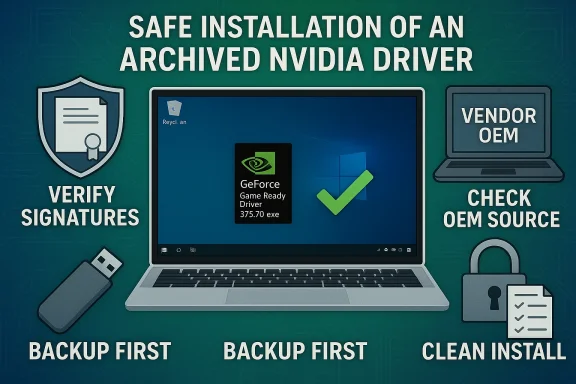
Follow these steps to minimize risk when working with legacy installers. Each step is intentionally conservative.- Backup and rollback plan
- Create a full disk image or at minimum a Windows System Restore point. Modern OS updates can make rollback difficult without an image.
- Find the authoritative installer
- Check NVIDIA’s official driver archive first. If you have a laptop, check the OEM’s support page. Avoid SEO aggregator or “top sellers” pages as primary download sources.
- Verify the file before running
- Right‑click the EXE → Properties → Digital Signatures should show “NVIDIA Corporation.” If the signature is missing, do not run it. If NVIDIA publishes a checksum, compute SHA‑256 and match it.
- Prepare for a clean uninstall (if switching branches)
- Download the latest Display Driver Uninstaller (DDU) and read its documentation. Reboot to Safe Mode and run DDU if the current driver is older or if you are switching DCH vs Standard packaging. Community guidance stresses that DDU is a powerful but third‑party tool and should be used with care.
- Installation steps
- Disable network temporarily to prevent Windows Update from auto‑installing a different driver mid‑process.
- Run the official NVIDIA installer as Administrator → choose Custom (Advanced) → check Perform a clean installation if you want default settings restored → uncheck GeForce Experience if you prefer driver‑only. Reboot when done.
- Post‑install validation
- Open NVIDIA Control Panel → System Information to confirm the installed driver version. Run representative workloads (games, CUDA tasks, or display tests) and monitor Event Viewer for driver errors. If the system behaves unexpectedly, roll back using Device Manager or restore your system image.
Practical checklist before you hit Install
- Confirm the vendor listing (NVIDIA archive or OEM) shows the exact build or at least the release family that supports your GPU.
- Confirm the EXE has an intact NVIDIA digital signature.
- Save a copy of the working driver installer for quick rollback.
- Prepare DDU and a recovery image/system restore point.
- If you’re on a laptop, double‑check for OEM‑specific INF entries and vendor recommendations. Prefer OEM drivers unless you understand the tradeoffs.
Alternatives to installing the legacy 375.70 build
- Update to the latest compatible GeForce driver branch: Modern drivers include security patches and backward compatibility that often eliminates the need for legacy installs.
- Use virtualization or containerization for legacy workloads: If a legacy driver is only needed for a particular application, run the application in a VM with GPU passthrough where possible. This isolates risk from the host OS.
- Replace the GPU: If the machine’s purpose is long‑term, consider upgrading to a supported GPU whose drivers receive current updates.
Deep dive: Notebook caveats and power/thermal differences
Notebooks are not laptops in the driver sense — they are platform ecosystems. OEMs modify INF files, tune power limits, and sometimes supply firmware hooks that affect GPU behavior. Installing a generic NVIDIA notebook package can:- Alter battery runtime and fan profiles.
- Break Optimus switching or display sleep/resume behavior.
- Cause unsupported device IDs to be rejected by the installer.
Security considerations: legacy drivers and CVEs
Drivers shipped in the 2016/2017 timeframe predate later security hardening and disclosed CVEs. Running such a driver on a machine used for browsing, email, or untrusted documents increases exposure. Practical mitigations include:- Limiting network access while running the legacy environment.
- Enforcing up‑to‑date antivirus and exploit mitigation policies.
- Using a segregated machine for legacy workflows when possible.
Troubleshooting common problems tied to legacy driver installs
- Black screens or boot failures after install: Boot to Safe Mode, run DDU, and reinstall a newer driver or restore the previous driver from the image.
- Partial device recognition / NEW dev ID not present in INF: That often signals an OEM INF mismatch; prefer OEM driver packages for notebooks.
- Unexpected performance regressions with overlays or anti‑cheat: Some older drivers have known regressions with modern overlay/anti‑cheat stacks — if your setup includes overlays, test thoroughly and be ready to revert.
Critical takeaways and editorial verdict
- Archived driver versions like GeForce Game Ready Driver 375.70 exist for legitimate reasons: compatibility, reproducible testing, and refurbished hardware support. But the value of installing a legacy driver must be balanced against the security and stability tradeoffs.
- Third‑party rehost pages (the “Top Sellers/Outlet” style posts) are not authoritative sources for kernel‑mode drivers. Always validate the EXE’s digital signature and cross‑check file metadata with NVIDIA or the OEM before running an installer found on an aggregator.
- If you must proceed with an archived build: create a full backup, verify signatures and checksums, prefer OEM packages for laptops, use DDU for clean transitions between package types, and keep a rollback plan ready.
Quick reference — condensed checklist (printable)
- Backup: full image or System Restore point.
- Source: NVIDIA official archive or OEM support page only.
- Validation: confirm NVIDIA digital signature and published checksum if available.
- Clean uninstall: use DDU in Safe Mode when switching DCH/Standard or when advised.
- Install: Custom → Perform a clean installation → uncheck GeForce Experience if undesired.
- Validate: NVIDIA Control Panel → System Information → run representative workloads.
If your goal is to obtain a copy of GeForce Game Ready Driver 375.70 for Windows 10 64‑bit specifically, I recommend stopping at step two above: locate the build in NVIDIA’s official driver archive or check your OEM’s archived support pages, verify signatures and checksums, and follow the safe workflow described. Treat born2invest‑style aggregator pages as pointers that a driver exists, not as trustworthy download sources, and always validate before you install.
Conservative, verifiable sourcing and a tested rollback plan turn a risky operation into a manageable one — and that’s exactly what you need when dealing with kernel‑level graphics drivers.
Source: Born2Invest https://born2invest.com/?b=style-230738312/
