

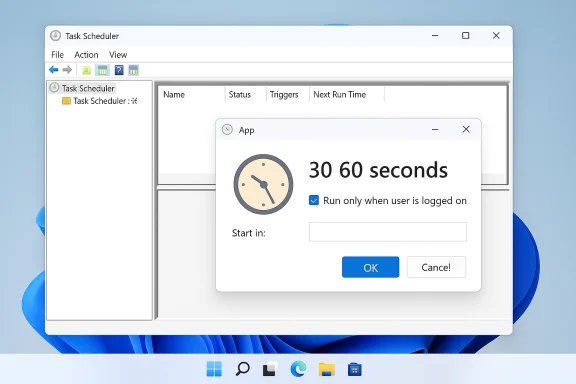
The Task Scheduler can and often will launch a program on Windows 11, but the program’s graphical window may never appear for an interactive user—what you see in Task Manager is the process running, yet you can’t interact with it. This is a common pain point for power users who want a scheduled app to be visible at logon (for quick disconnect/reconnect, troubleshooting, or simply to use its UI), and the root causes are almost always about how Windows runs scheduled tasks: the user session, session isolation, elevation and credential handling, and the task’s configuration.
Background / Overview
Windows Task Scheduler is intentionally flexible: it can run a task in the interactive user session, in a background (non-interactive) session, under the SYSTEM account, or under stored credentials so it runs even when no one is logged on. That flexibility is great for services and maintenance jobs, but it creates a predictable trade-off: tasks that run outside the interactive session or under stored credentials generally cannot present a visible window to the desktop.The community best practice is straightforward: if the program needs a user-visible window, configure the task to run in the interactive session (for the logged-on user). If the program must run elevated or without a user present, accept that it will usually not be interactive and plan for a separate interactive launcher when the user logs on. These recommendations are common in troubleshooting guides and forum advice for Windows 11 and earlier; experts repeatedly recommend Task Scheduler for elevated tasks but caution that interactive UI requires the task to run only when the user is logged on.
Why the UI doesn’t show: the technical causes
Session 0 isolation and interactive sessions
Windows isolates services and non-interactive tasks into different sessions (session 0 and other session IDs). Services and tasks that run in non-interactive contexts are intentionally separated from the user desktop for security and stability. If your scheduled task runs in a non-interactive session or under a different session context than the desktop user, the application process may be present but its windows will not be visible to the logged-on user. This is not a bug — it’s by design.“Run whether user is logged on or not” vs “Run only when user is logged on”
This single checkbox is where most people trip. When a task is configured as Run whether user is logged on or not, Windows may run the process in a non-interactive session (and it will persist even if the user logs off). That mode is useful for background tasks, but it prevents UI from appearing. In contrast, Run only when user is logged on runs the task in the user’s interactive session and permits on-screen windows. Forum guides repeatedly stress using “Run only when user is logged on” for UI-bearing applications.“Run with highest privileges” and UAC behavior
“Run with highest privileges” elevates the process (no UAC prompt when the task is triggered by Task Scheduler’s stored credentials and when the right options are set). But elevation must be combined with the interactive option to display UI. If you choose “Run with highest privileges” AND configure the task to “Run whether user is logged on or not” (which stores credentials), Windows can elevate the process but place it into a non-interactive session — again, no visible UI. The safe pattern for showing UI while elevated is: set “Run only when user is logged on” and check “Run with highest privileges” (the task will run elevated in the user’s session).Working directory, arguments and “Start in” path
Many applications expect a particular current working directory, or they open windows only when launched from the folder where their resources live. Task Scheduler’s Action can specify the executable and the “Start in (optional)” folder—omitting that path can cause the process to run but fail to initialize UI correctly (or to immediately exit). Troubleshooting threads frequently show that adding the proper working directory fixes apparent “headless” launches.Race conditions and desktop readiness
If a task runs immediately at logon, the Windows shell (explorer.exe), user & accessibility services, or network mounts may not be ready. Apps that need shell features or network resources may start but never present a window or remain hidden behind an unready shell. A short delay (30–60 seconds) can make a big difference; many experienced users create a delayed trigger or a wrapper script that sleeps briefly before starting the app.Quick checklist: what to change right now
- In Task Scheduler, open the task’s General tab and set Run only when user is logged on if the task must show UI.
- If the app needs admin rights, check Run with highest privileges while keeping “Run only when user is logged on”.
- On the Actions tab, set the Program/script to the full path of the EXE and add the app’s folder in Start in (optional).
- In Triggers, choose At log on and add a Delay task for of 30–60 seconds to avoid race conditions.
- Enable Task History and check the task’s run results and any error codes in Task Scheduler’s History or in Event Viewer.
Step-by-step: make your scheduled app show its UI
1. Edit the task: run only when user is logged on
- Open Task Scheduler → find your task → Right-click → Properties.
- General tab: select Run only when user is logged on.
- If your app needs admin rights, check Run with highest privileges (but keep it under the logged-on toggle).
2. Set a small startup delay
- Triggers → Edit the trigger → check Delay task for: and set 30–60 seconds.
3. Ensure correct “Start in” folder and command-line
- Actions → Edit → Program/script: full path to exe (e.g., C:\Program Files\MyApp\myapp.exe).
- Start in (optional): the folder containing the EXE (e.g., C:\Program Files\MyApp).
4. Test interactively and watch Session ID
- After configuring, right-click the task → Run, then open Task Manager → Details and add the “Session ID” column.
- Confirm the Session ID matches your interactive session (usually 1 for the first interactive user on a console session).
5. If the app must run elevated when no one is logged on
- Accept that UI won’t be visible. Configure the task as Run whether user is logged on or not and store credentials if you need the process to run with your user’s context while no one is logged on.
- If you need both: an elevated background service for the heavy work and a small interactive launcher for the UI shown at logon.
Advanced diagnostics and tools
- Use Task Scheduler’s History and Event Viewer: the History tab often shows the task’s start and result codes; Event Viewer may contain application errors that explain UI failures.
- Process Explorer: shows the process tree, parent process, session ID, environment variables, and current working directory—useful to confirm whether the app started in the right session.
- schtasks /query /v: command-line view of scheduled tasks and runtime details.
- Autoruns from Sysinternals: audit alternative autostart methods if Task Scheduler continues to misbehave.
- Create a small wrapper script (PowerShell or batch) to log stdout/stderr to a file; sometimes the app is starting and immediately failing with a hidden error. Redirecting outputs helps capture runtime failures.
- If a GUI app appears but is hidden or behind other windows, an AutoHotkey or PowerShell script can search for its window by process name and call SetForegroundWindow—useful as a temporary workaround, but not ideal for long-term reliability.
Practical alternatives and fallback patterns
- Startup folder + delay script: For purely interactive needs, put a shortcut or a script in the user’s Startup folder (shell:startup) that waits 20–60 seconds and then runs the app. This guarantees the process runs in the interactive session and will show UI, but won’t run if no user logs on and will trigger UAC for elevation unless configured differently.
- Two-task pattern: Use one scheduled task to handle background elevated work (run whether user is logged on or not) and a second logon task (Run only when user is logged on) to start the UI and interact with the background process via IPC or sockets.
- Service + agent UI: Convert the worker into a service that performs the privileged tasks, and keep a small unprivileged UI agent or tray application that connects to the service. This is the most robust architecture for apps that must expose UI while having privileged background functionality.
Security and reliability caveats
- Storing credentials: choosing “Run whether user is logged on or not” requires storing credentials in Task Scheduler. That has security implications; avoid it on shared or untrusted machines.
- Running as SYSTEM: SYSTEM tasks bypass user security contexts and can’t show UI to the user. Don’t use SYSTEM if you need interactive windows.
- UAC & elevation: lowering or disabling UAC to force UI at logon is a bad idea. Instead, use Task Scheduler’s “Run with highest privileges” combined with “Run only when user is logged on” for safe elevation with interactive display.
- Malware risk: tasks that auto-run at logon and run elevated are attractive targets for abuse. Audit and minimize privileges. Use signed binaries and keep detailed logs.
- IoT / LTSC / managed devices: variants like Windows 11 IoT LTSC or domain-managed PCs may behave differently; group policies, MDM profiles, and custom shell replacements can change auto-start behavior. Test on the actual target image. Community posts highlight that environment and build differences can affect startup behavior.
When these fixes don’t work: deeper troubleshooting
- Confirm the program behaves when launched manually from the same account (double-click the EXE). If it fails manually, it’s an application problem rather than Task Scheduler.
- Add logging: create a wrapper that writes timestamps and error output to a log file to capture crashes that occur right after process start.
- Use SFC/DISM if suspecting OS corruption: run DISM /Online /Cleanup-Image /RestoreHealth and sfc /scannow. These are standard first-line repairs when Windows components or the shell appear unstable. Community troubleshooting threads often recommend these when UI or built-in components are flaky.
- Check for antivirus or endpoint protection interference: some security suites block interactive launches from scheduled tasks or treat them as suspicious.
- If the process is present but impossible to interact with, verify the Session ID and the parent process; a mismatch almost always indicates the wrong session context. Tools like Process Explorer or PowerShell’s Get-Process with SessionId are helpful.
Real-world examples and community experience
Long-standing community threads show the same patterns: users see the process in Task Manager but no window, and they typically solve it by switching the task to “Run only when user is logged on,” adding a small delay, and setting the “Start in” folder correctly. When applications require elevation, Task Scheduler is still the preferred solution, but it must be used with the interactive option for visible UI. The repeated community advice underscores that these are not random failures but expected outcomes of how Windows separates background contexts and interactive desktops.Recommended checklist for Windows 11 users (copyable)
- Open Task Scheduler → task Properties → General:
- Select: Run only when user is logged on
- Check if needed: Run with highest privileges
- Configure for: Windows 10/11
- Actions → Edit:
- Program/script: full path to EXE
- Add arguments: if required
- Start in (optional): application folder
- Triggers → Edit:
- Begin the task: At log on
- Delay task for: 30–60 seconds
- Settings:
- Uncheck “Stop the task if it runs longer than…” if your app runs long
- Check “If the task fails, restart every” if needed
- Test:
- Right-click → Run, then check Task Manager and Session ID
- If no UI, run the EXE manually to confirm app behavior
- If still headless:
- Add logging wrapper (redirect stdout/stderr)
- Inspect Event Viewer / Task History
- Use Process Explorer to check session
Conclusion
What you observed—Task Scheduler launching the application but the UI never appearing—is a textbook symptom of Windows’ session and privilege model. The fix is normally configuration: run the task only when the user is logged on, set the proper working directory, optionally delay the start, and if elevation is required, combine it with the interactive option rather than running without a user session. For applications that truly need to run elevated at all times, accept a split architecture (service/background process + interactive agent) rather than trying to force a background process to present UI. These steps are time-tested in the field and documented repeatedly by Windows power users; follow them and you should see the application’s UI reliably at logon while keeping the system secure and auditable.Source: TechPowerUp Task in Task Scheduler works but the application UI doesn't...
